とれキャン△ MT5

- Whole period
- 2 years
- 1 year
- 6 months
- 3 months
- 1 month
Forward testing (Profit)
Monthly Statistics
- Jan
- Feb
- Mar
- Apr
- May
- Jun
- Jul
- Aug
- Sep
- Oct
- Nov
- Dec
Calendar for Months
About EA's Strategy
Translating...
Average Reversion EA Using AUD,CAD,NZD
Torecan△ MT5
Torecan△ focuses on the strongly mean-reverting three currencies (AUD,CAD,NZD) and performs a contrarian trading strategy. It uses a grid as the trading method, but includes a hedging security feature to reduce risk and is designed to be less prone to stopouts. It also offers various filters for selective entries (thus entry frequency is not high). In addition, the input parameters are comprehensive, allowing you to customize the EA’s behavior to your liking. Torecan△ will fully support your journey!
- High-win-rate strategy using mean reversion and grid
- Hedging security feature
- Careful entries through various filtering
- Easy setup to trade multiple symbols by configuring just one chart
- Wide operation with extensive input parameters
- Operation status shown on an information panel
- MT4 version is here :Torecan△ MT4
- Economic Calendar CSV Builder is here :Economic Calendar CSV Builder
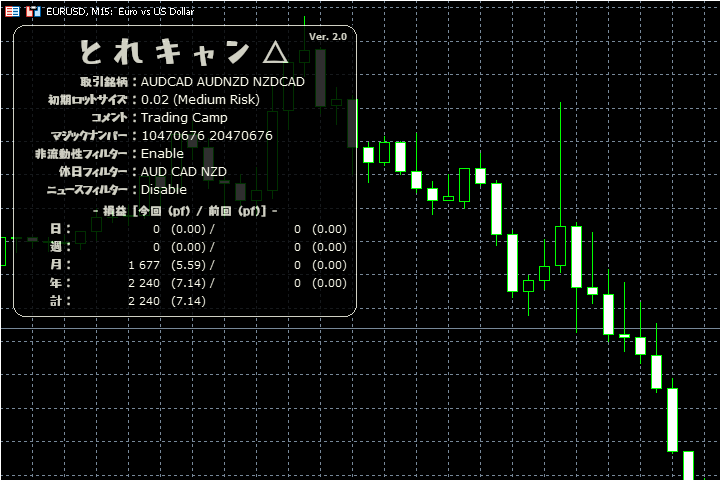
Trade Strategy Overview
When the price becomes overbought or oversold, the EA targets mean reversion and enters on a contrarian basis. Profit per position is about 10 pips (adjusted automatically for average spread). If price does not revert quickly, additional entries are made with the grid strategy, and take-profit is reapplied. Lot size and profit for grid entries can be adjusted in the input parameters. Default stop loss is 150 pips (3-grid setting) and automatically adjusts according to the grid configuration. Entries are filtered by internal logic and various filters to ensure stable profits.
- Spread Filter
- Filters entries when the spread is above a specified value. It can temporarily disable stop loss and take profit to prevent unintended closeouts due to spread widening.
- Illiquidity Filter
- Filters entries during low-liquidity periods (e.g., New York close). Like the spread filter, it also disables stop loss.
- News Filter
- Filters entries during high-impact economic events to avoid sudden price swings and reduce risk.
Notes
Installation Method
Please refer to the installation method here(Installation Method). This product can trade AUDCAD,AUDNZD,NZDCAD on a single chart. For normal operation, it is recommended to set it on an M15 chart with many ticks like EURUSD. If operating a single pair, leave the 'Trading pairs' parameter blank and set it on the corresponding pair’s M15 chart. Also, since the product uses the OS time for automatic time detection, ensure there is no discrepancy with the OS time.
Live Operation
In operation, you can use it simply by changing the input parameter 'Lot sizing method' to 'Low risk', 'Medium risk', or 'High risk'. However, High risk increases the chance of stopouts, so use with caution. Other parameters generally do not require changes. Since many parameters affect risk, please consult the manual and understand them before use. It is recommended to have a balance of at least $1000 during operation. Start with a demo account to verify operation before live trading.
About the Economic Calendar
To enable the holiday filter and news filter during backtesting, an economic calendar is required. Therefore, a CSV file for the economic calendar is prepared. Before use, save the included 'Torecan-ec.csv' in the following location without changing the file name.
- ... \Terminal\Common\Files\
This folder can be accessed from MetaTrader by selecting File -> Open Data Folder, then go one level up. The economic calendar is created in UTC, so you must set your broker’s time difference and DST area in the parameters. We also provide a tool to create the economic calendar CSV (Economic Calendar CSV Builder) for your convenience.
About the Broker
This product trades three pairs: AUDCAD, AUDNZD, NZDCAD. These are minor currencies, so some brokers may not offer them, making usage impossible on those brokers. Even when offered, wide spreads may make usage impractical (profits significantly drop if average spread exceeds 3 pips). We cannot specify a particular broker; please consult brokers about availability and spreads before using.
Disclaimer
We do not take any responsibility for any matters arising from using this product (Torecan△ MT5). Also, past results do not guarantee future performance.
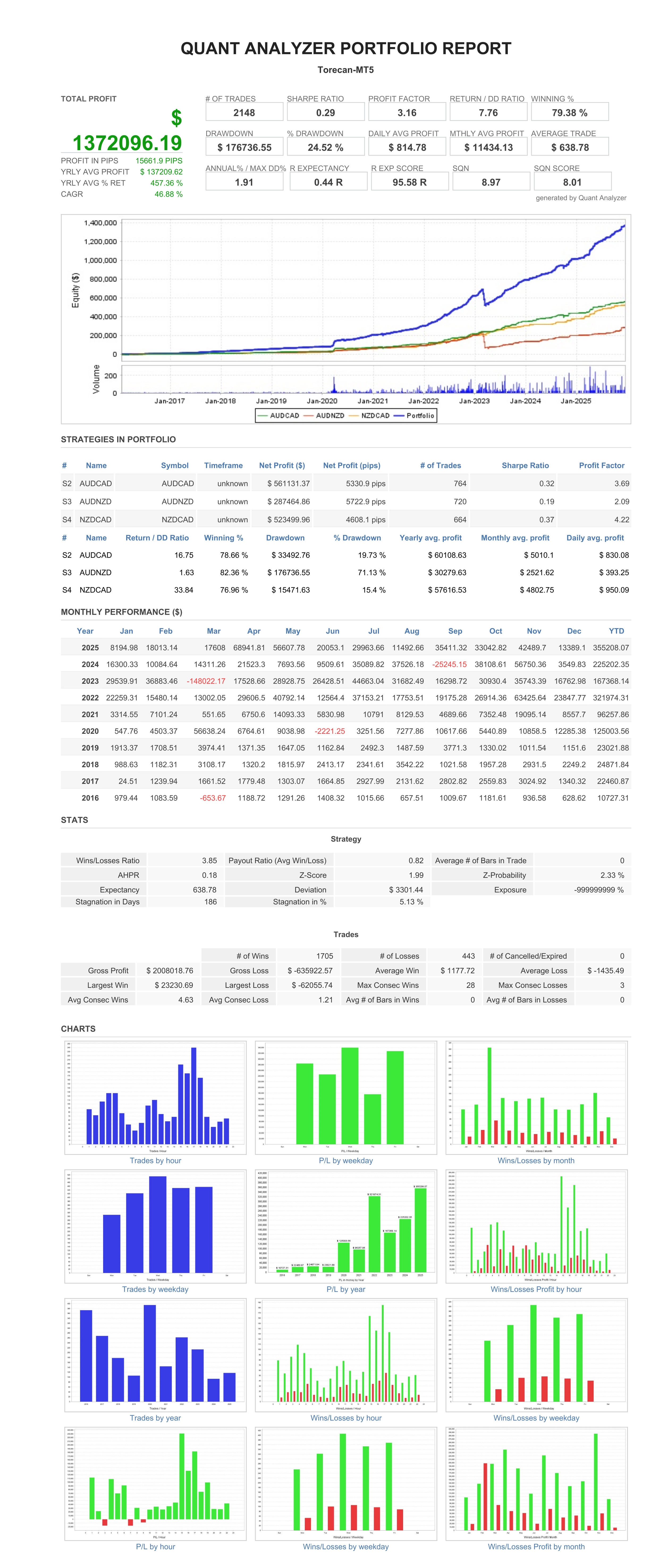
Backtesting Report
Backtest report for 10 years with high-risk settings.
The coupon expires today.
Price: $247.75 (taxed)
¥39,000(taxed)
●Payment



Sales from : 03/20/2024 21:09
Price: $247.75 (taxed)
¥39,000(taxed)
●Payment
Just like discretionary trading, there are those that decide trading and settlement timings by combining indicators, those that repeatedly buy or sell at certain price (pips) intervals, and trading methods that utilize market anomalies or temporal features. The variety is as rich as the methods in discretionary trading.
To categorize simply,
・Scalping (Type where trades are completed within a few minutes to a few hours),
・Day Trading (Type where trades are completed within several hours to about a day),
・Swing Trading (Type where trades are conducted over a relatively long period of about 1 day to 1 week)
・Grid/Martingale Trading (Holding multiple positions at equal or unequal intervals and settling all once a profit is made. Those that gradually increase the lot number are called Martingale.)
・Anomaly EA (Mid-price trading, early morning scalping)
However, a substantial advantage of automated trading is its ability to limit and predict risks beforehand.
[Risk]
Inherent to forex trading are the trading risks that undeniably exist in automated trading as well.
・Lot Size Risk
Increasing the lot size forcibly due to a high winning rate can, in rare instances, depending on the EA, lead to substantial Pips loss when a loss occurs. It is crucial to verify the SL Pips and the number of positions held before operating with an appropriate lot.
・Rapid Market Fluctuation Risk
There are instances where market prices fluctuate rapidly due to index announcements or unforeseen news. System trading does not account for such unpredictable market movements, rendering it incapable of making decisions on whether to settle in advance or abstain from trading. As a countermeasure, utilizing tools that halt the EA based on indicator announcements or the VIX (fear index) is also possible.
[Benefits]
・Operates 24 hours a day
If there is an opportunity, system trading will execute trades on your behalf consistently. It proves to be an extremely convenient tool for those unable to allocate time to trading.
・Trades dispassionately without being swayed by emotions
There is an absence of self-serving rule modifications, a common human tendency, such as increasing the lot size after consecutive losses in discretionary trading or, conversely, hastily securing profits with minimal gains.
・Accessible for beginners
To engage in Forex trading, there is no prerequisite to study; anyone using system trading will achieve the same results.
[Disadvantages]
・Cannot increase trading frequency at will
Since system trading operates based on pre-programmed conditions, depending on the type of EA, it might only execute trades a few times a month.
・Suitability may vary with market conditions
Depending on the trading type of the EA, there are periods more suited to trend trading and periods more suited to contrarian trading, making consistent results across all periods unlikely. While the previous year might have yielded good results, this year's performance might not be as promising, necessitating some level of discretion in determining whether it is an opportune time to operate.
・MT4 (MetaTrader 4. An account needs to be opened with a Forex company that offers MT4.)
・EA (A program for automated trading)
・The operating deposit required to run the EA
・A PC that can run 24 hours or a VPS (Virtual Private Server), where a virtual PC is hosted on a cloud server to run MT4.
Additionally, there are both demo and real accounts available. You can experience trading with virtual money by applying for a demo account. After opening a real account, you select the connection server assigned by the Forex broker, enter the password, and log in to the account.
When you deposit money into your account using the method specified by the forex broker, the funds will be reflected in your MT4 account, and you can trade.
Firstly, download the purchased EA file from your My Page on GogoJungle. You will download a zip (compressed) file, so right-click to extract it and retrieve the file named ‘◯◯◯ (EA name)_A19GAw09 (any 8 alphanumeric characters).ex4’ from inside.
Next, launch MT4 and navigate to ‘File’ → ‘Open Data Folder’ → ‘MQL4’ → ‘Experts’ folder, and place the ex4 file inside. Once done, close MT4 and restart it. Then, go to the upper menu ‘Tools’ → ‘Options’, and under ‘Expert Advisors’, ensure ‘Allow automated trading’ and ‘Allow DLL imports’ are checked, then press OK to close.
The necessary currency pair and time frame for the correct operation of the EA are specified on the EA sales page. Refer to this information and open the chart of the correct currency pair time frame (e.g., USDJPY5M for a USD/Yen 5-minute chart).
Within the menu navigator, under ‘Expert Advisors’, you will find the EA file name you placed earlier. Click to select it, then drag & drop it directly onto the chart to load the EA. Alternatively, you can double-click the EA name to load it onto the selected chart.
If ‘Authentication Success’ appears in the upper left of the chart, the authentication has been successful. To operate the EA, you need to keep your PC running 24 hours. Therefore, either disable the automatic sleep function or host MT4 on a VPS and operate the EA.
If you want to use it with an account other than the authenticated one, you need to reset the registered account.
To reset the account, close the MT4 where the Web authentication is registered, then go to My Page on GogoJungle > Use > Digital Contents > the relevant EA > press the ‘Reset’ button for the registration number, and the registered account will be released.
When the account is in a reset state, using the EA with another MT4 account will register a new account.
Also, you can reset the account an unlimited number of times.
→ Items to Check When EA is Not Operating
1 lot = 100,000 currency units
0.1 lot = 10,000 currency units
0.01 lot = 1,000 currency units
For USD/JPY, 1 lot would mean holding 100,000 dollars.
The margin required to hold lots is determined by the leverage set by the Forex broker.
If the leverage is 25 times, the margin required to hold 10,000 currency units of USD/JPY would be:
10000*109 (※ at a rate of 109 yen per dollar) ÷ 25 = 43,600 yen.
・Risk-Return Ratio: Total Profit and Loss during the period ÷ Maximum Drawdown
・Maximum Drawdown: The largest unrealized loss during the operation period
・Maximum Position Number: This is the maximum number of positions that the EA can theoretically hold at the same time
・TP (Take Profit): The set profit-taking Pips (or specified amount, etc.) in the EA's settings
・SL (Stop Loss): The set maximum loss pips (or specified amount, etc.) in the EA's settings
・Trailing Stop: Instead of settling at a specified Pips, once a certain profit is made, the settlement SL is raised at a certain interval (towards the profit), maximizing the profit. It is a method of settlement.
・Risk-Reward Ratio (Payoff Ratio): Average Profit ÷ Average Loss
・Hedging: Holding both buy and sell positions simultaneously (Some FX companies also have types where hedging is not allowed)
・MT4 Beginner's Guide
・Understanding System Trading Performance (Forward and Backtesting)
・Choosing Your First EA! Calculating Recommended Margin for EAs
・Comparing MT4 Accounts Based on Spread, Swap, and Execution Speed
・What is Web Authentication?
・Checklist for When Your EA Isn't Working