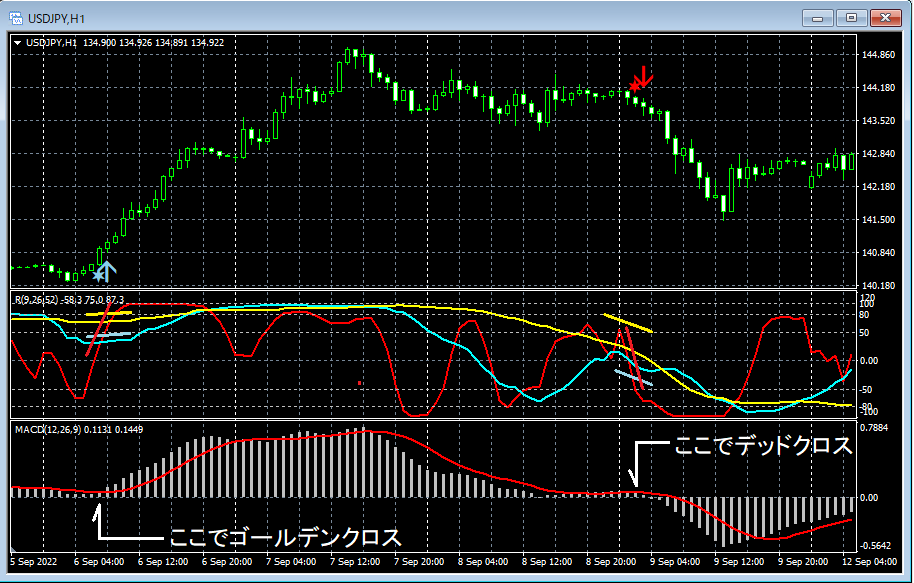

mBDSR Settings Item (Regarding the non-filter 【mBDSR_VAP】)
◆ settings for mBDSR items (for the filterless 【mBDSR_VAP】)
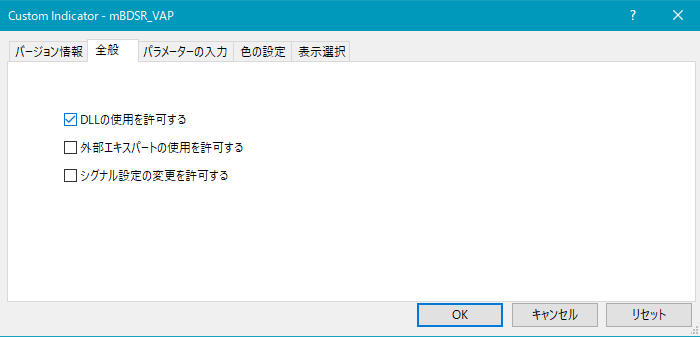
As shown below, you need to check “Allow DLL usage.”
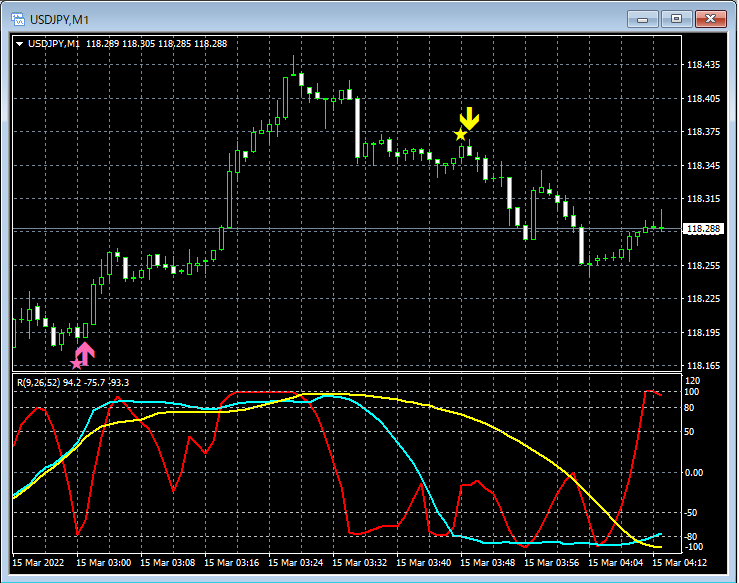
Settings related to the display position of stars and arrows
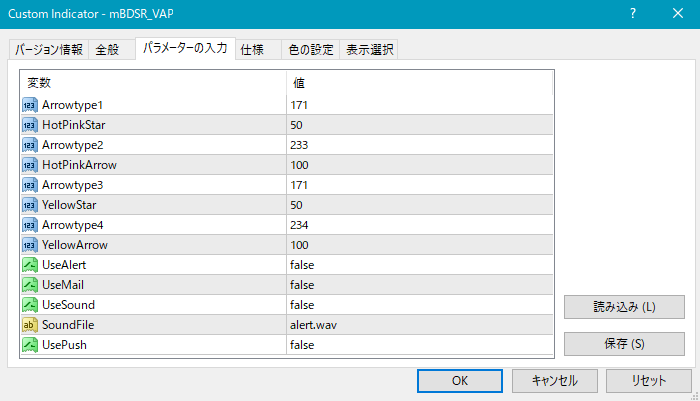
If the display position of the star and arrow is too close to the candlesticks and hard to see, or conversely if it is too far and some positions go off-screen, you can adjust the height at which these marks are displayed by changing the values of the settings below. The larger the value, the farther the display position will be from the candlestick.
Star (pink) → HotPinkStar
Arrow (pink) → HotPinkArrow
Star (yellow) → YellowStar
Arrow (yellow) → YellowArrow
Also, by changing the values below, you can change the shapes of the star and arrow.
Star (default pink) → Arrowtype1
Arrow (default pink) → Arrowtype2
Star (default yellow) → Arrowtype3
Arrow (default yellow) → Arrowtype4
In addition, the symbols that can replace stars or arrows and their corresponding numbers are as shown in the table below.
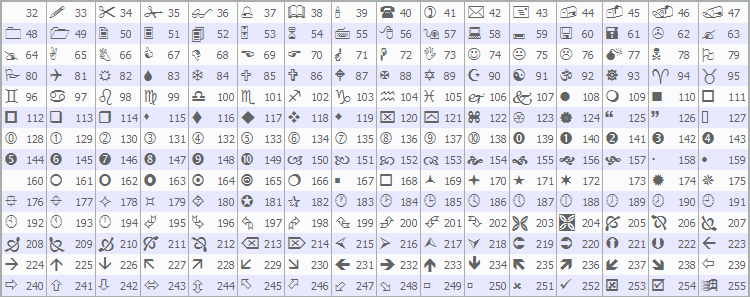
For changing stars or arrows, please refer to the article below on 投資ナビ+ (Investment Navi+).
https://www.gogojungle.co.jp/finance/navi/359/19177
Settings related to the alert feature
UseAlert:
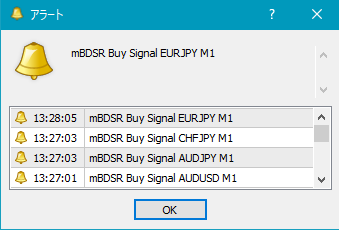
If you want to notify sign formation with an alert dialog like the one below, select true; if you don’t want to use it, select false.
UseMail:
If you want to notify sign formation by email, select true; if you don’t want to use it, select false.
UseSound:
If you want to notify sign formation by an alert sound, select true; if you don’t want to use it, select false.
SoundFile:
Enter the file name of the sound to use for alerts.
UsePush:
If you want to notify sign formation by push notification, select true; if you don’t want to use it, select false.
An example of MT4-side settings when using email to notify sign formation
Tools → Options → E-mail
Illustration
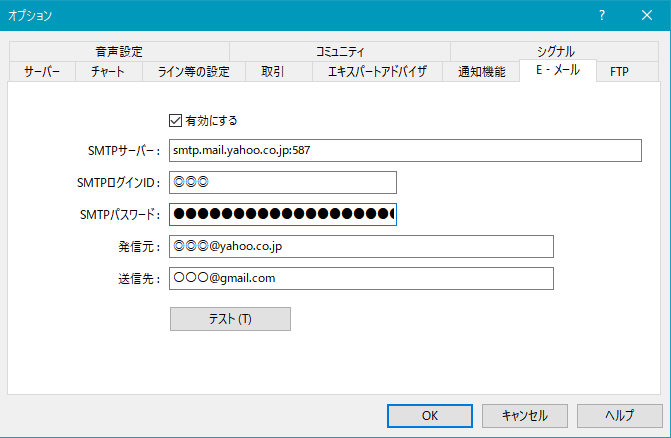
Note: It seems you need to restart MT4 after configuring.
× ![]()