Range Order Plus
Sales performance 13 Book
Review ★ 0.0
(0)
- Whole period
- 2 years
- 1 year
- 6 months
- 3 months
- 1 month
Profit
:
15,090JPYProfit Factor
:
-Rate of return risk
?
:
1.73Average Profit
:
1,886JPYAverage Loss
:
0JPYBalance
?
:
1,015,090JPYRate of return (all periods) ?
:
41.54%Win Rate
:
100.00%
(8/8)
Maximum Position
?
:
3Maximum Drawdown
?
:
19.20%
(8,736JPY)
Maximum Profit
:
3,016JPYMaximum Loss
:
0JPYRecommended Margin
?
:
36,323JPYUnrealized P/L
:
0JPYDeposit
?
:
1,000,000JPYCurrency
:
JPY- Account
Operable Brokers
Usable with MT4-adopting brokers.
Forward testing (Profit)
Product Statistics
Product Comments
Monthly Statistics
2026
2025
2024
2023
2022
- Jan
- Feb
- Mar
- Apr
- May
- Jun
- Jul
- Aug
- Sep
- Oct
- Nov
- Dec
Calendar for Months
About EA's Strategy
Translating...
Currency Pairs
[USD/JPY]
[GBP/JPY]
[EUR/JPY]
[AUD/JPY]
[CHF/JPY]
[CAD/JPY]
[NZD/JPY]
[EUR/USD]
[GBP/USD]
[NZD/USD]
[AUD/USD]
[USD/CHF]
[ZAR/JPY]
[SGD/JPY]
Maximum Number Position
1000
Maximum Lot
0
Chart Time Frame
D1
Maximum Stop Loss
0
Take Profit
0
Straddle Trading
No
Range Order Plus" is an extended version of "Range Order".
If you would like to check the basic functions of "Range Order Plus", please refer to the following page, as the non-extended version of "Range Order" is now available on fx-on.
*The second half of this page is also available.
"Range Order Sales Page
The basic trade of "Range Order Plus" is a method of repeatedly "buying down" and "selling up" by specifying a range of trading prices. Because the position intervals are unequal and the number of lots is indefinite, the profits are larger than those of the trading method of "buying down" and "selling up" at equal intervals, and the The drawdowns are smaller.
In addition, "Range Order Plus" has several additional features, such as "Trend Lot Weighting," which significantly reduces unrealized losses, which is a drawback of "buy-loss" and "sell-up" trading.
Let us introduce the functions of "Range Order Plus" in turn.
1,Trend lot weight function
This function increases or decreases the number of lots ordered based on market overheating and trend direction. It also stops new orders if the trade is going against the current trend.
We tested the effectiveness of the Trend Lot Weight function in a back test from April 2005 to November 2016. The currency traded is USD/JPY and the trade result is a buy trade.
The test is a risk-free trade, where the number of lots is such that the leverage of the account is about 2x even if all orders are executed.
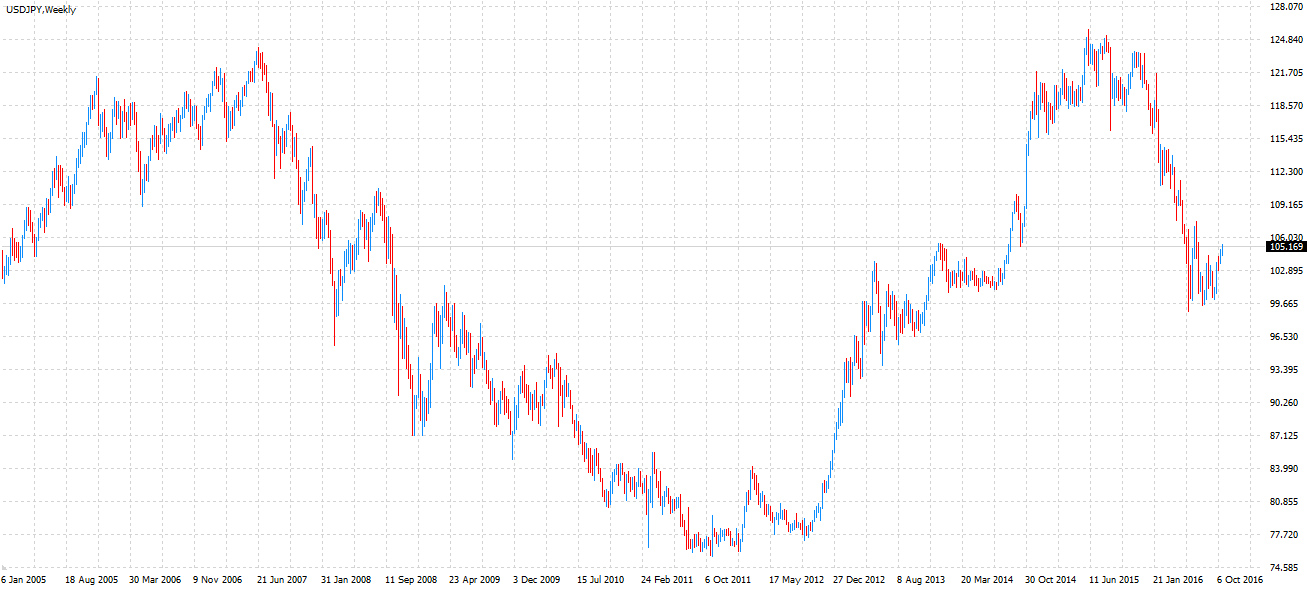
First, we check the chart of USD/JPY from January 2005 to October 2016.
During this period, as you know, the USD/JPY exchange rate swung from 76 yen to 124 yen due to the Lehman shock on September 15, 2008 when Lehman Brothers went bankrupt, the strong yen during the Democratic Party of Japan administration, and the bazooka (monetary easing) by Bank of Japan Governor Kuroda.
 Trade results without "range orders
Before the results of the "Range Order Plus" trades, you will see the results without "Range Order".
It is a common method to buy and sell in equal price ranges, execute trades with the same profit margin, and fix the number of order lots. This is a method called "range order".
The number of lots is set so that it does not break down in the middle of the trade, so it survives to the end of such a long term trade. However, there is a period of time during which the account balance is reduced to nearly 480,000, and there is a period of time when the account balance is halved at the start of 1,000,000.
The drop in the last part of the trade is due to the fact that we stopped trading in November 2016.
Trade results without "range orders
Before the results of the "Range Order Plus" trades, you will see the results without "Range Order".
It is a common method to buy and sell in equal price ranges, execute trades with the same profit margin, and fix the number of order lots. This is a method called "range order".
The number of lots is set so that it does not break down in the middle of the trade, so it survives to the end of such a long term trade. However, there is a period of time during which the account balance is reduced to nearly 480,000, and there is a period of time when the account balance is halved at the start of 1,000,000.
The drop in the last part of the trade is due to the fact that we stopped trading in November 2016.
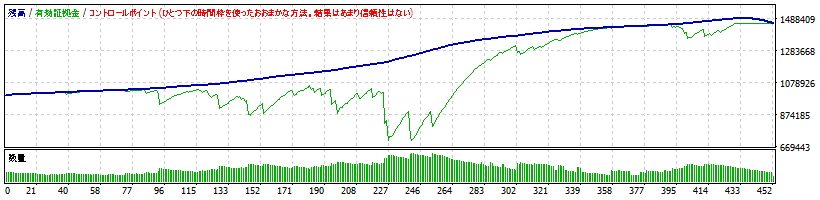
 Trade results without "trend lot weights"
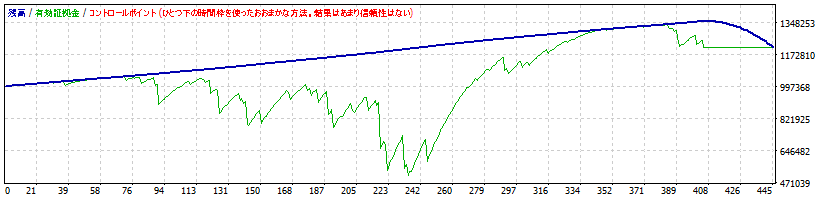
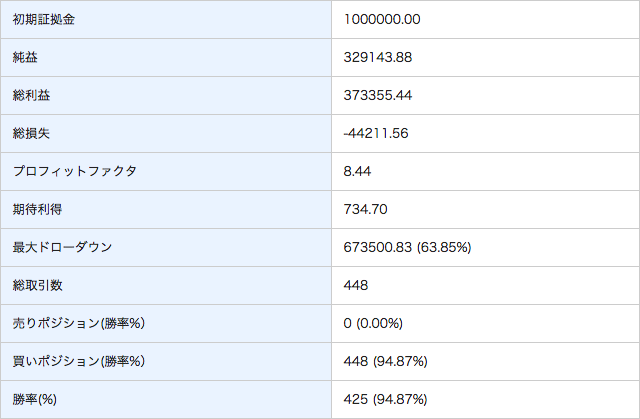
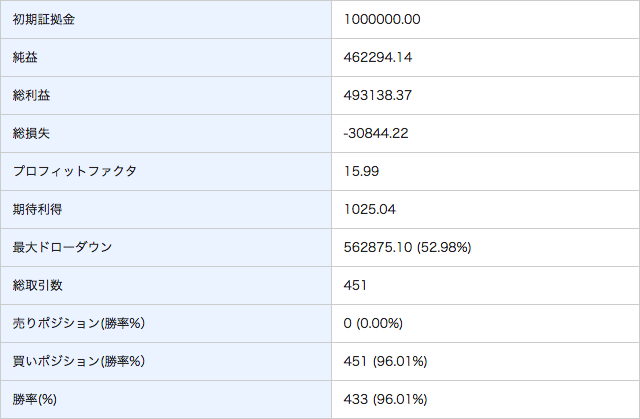
The following are the results of the "Range Order" without "Trend Lot Weighting".
The method is to calculate the number of lots by specifying the leverage, buy and sell at unequal intervals, and then at the lower end of the range, increase the profit margin and order a larger number of lots.
Compared to the case without "Range Order," the net profit is much higher and the drawdown is considerably reduced to 690,000 when the account balance is at its lowest. We can also see that the number of lots is increased at the lower end of the range.
Trade results without "trend lot weights"
The following are the results of the "Range Order" without "Trend Lot Weighting".
The method is to calculate the number of lots by specifying the leverage, buy and sell at unequal intervals, and then at the lower end of the range, increase the profit margin and order a larger number of lots.
Compared to the case without "Range Order," the net profit is much higher and the drawdown is considerably reduced to 690,000 when the account balance is at its lowest. We can also see that the number of lots is increased at the lower end of the range.
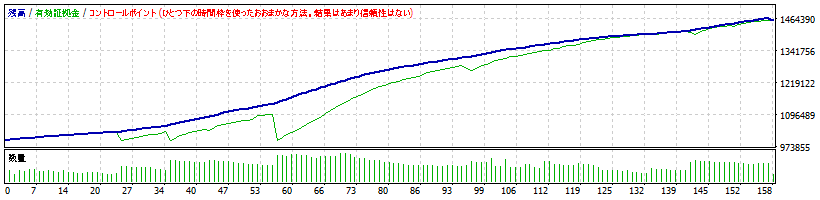
 Trade results of "Range Order Plus
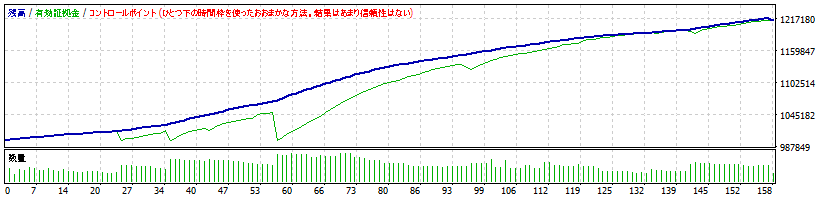
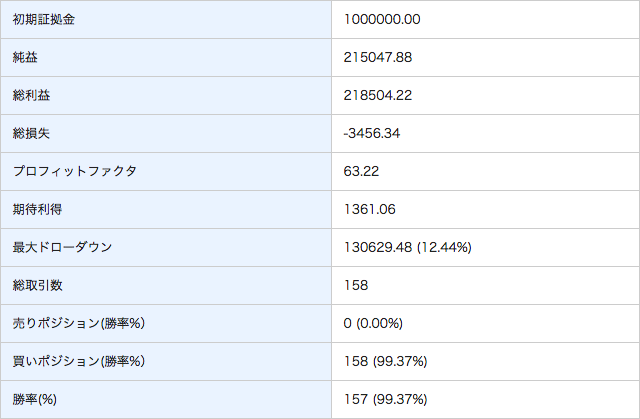
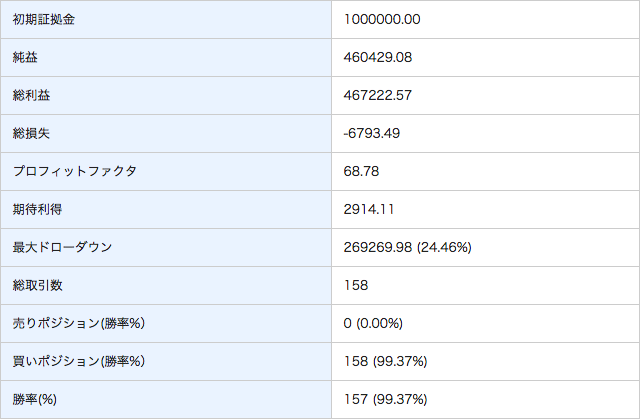
Finally, here are the results of the "Range Order Plus" using the "Trend Lot Weight".
In the case of buy trades, the total number of trades is less than half of the total number of trades during a downtrend, since the trades are not made as much as possible during a downtrend. However, even when the account balance was at its lowest, it was about 1,000,000, which means that the drawdown was greatly reduced.
Over such a long trading period, the price amplitude is large, ranging from 76 yen to 124 yen, and even though no stop loss is set, the principal is maintained.
Trade results of "Range Order Plus
Finally, here are the results of the "Range Order Plus" using the "Trend Lot Weight".
In the case of buy trades, the total number of trades is less than half of the total number of trades during a downtrend, since the trades are not made as much as possible during a downtrend. However, even when the account balance was at its lowest, it was about 1,000,000, which means that the drawdown was greatly reduced.
Over such a long trading period, the price amplitude is large, ranging from 76 yen to 124 yen, and even though no stop loss is set, the principal is maintained.
 I'll give you the number of lots ordered for "Range Order Plus."
If the drawdown has gone down, then increase the order lot size until the net profit is the same as if the "Trend Lot Weighting" was not used, and compare the results with the "Range Order" results.
Even though the same profit is made, the drawdown is greatly reduced compared to the case where "Trend Lot Weight" is not used, at 1,000,000 when the account balance is at its lowest. This confirms that this feature is effective. However, we have not yet been able to fully verify whether it is effective in all market conditions and currencies.
Also, the total number of trades has been less than half, as can be seen from the chart of USD/JPY from January 2005 to October 2016, which shows a downward trend from mid-2006 to about mid-2012. This may be unavoidable, but it is possible that we are not trading at some returns or major bottoms, and we plan to improve this situation through upgrades.
The "Trend Lot Weight" can be disabled in the settings, so if you do not want to use it, please turn it off.
I'll give you the number of lots ordered for "Range Order Plus."
If the drawdown has gone down, then increase the order lot size until the net profit is the same as if the "Trend Lot Weighting" was not used, and compare the results with the "Range Order" results.
Even though the same profit is made, the drawdown is greatly reduced compared to the case where "Trend Lot Weight" is not used, at 1,000,000 when the account balance is at its lowest. This confirms that this feature is effective. However, we have not yet been able to fully verify whether it is effective in all market conditions and currencies.
Also, the total number of trades has been less than half, as can be seen from the chart of USD/JPY from January 2005 to October 2016, which shows a downward trend from mid-2006 to about mid-2012. This may be unavoidable, but it is possible that we are not trading at some returns or major bottoms, and we plan to improve this situation through upgrades.
The "Trend Lot Weight" can be disabled in the settings, so if you do not want to use it, please turn it off.
 2,Price stop loss function
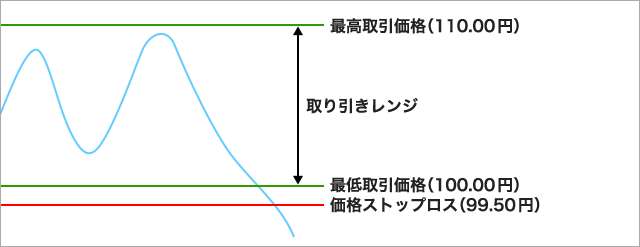
The "Price Stop Loss" function sets the same stop loss price for all orders and is intended to be used in the following situations
Suppose you were trading in the USD/JPY range of 100-110 yen, and you were buying. However, when the price falls below 100 yen, you close and close all positions at the "Price Stop Loss" price.
2,Price stop loss function
The "Price Stop Loss" function sets the same stop loss price for all orders and is intended to be used in the following situations
Suppose you were trading in the USD/JPY range of 100-110 yen, and you were buying. However, when the price falls below 100 yen, you close and close all positions at the "Price Stop Loss" price.
 3,Demand Limit Validity Period
The "Limit Expiration Time" function allows you to specify the expiration time of a limit order (stop order) in hours. If the order is not executed within the specified time, the order will be canceled.
4,Limit and Stop Limit Orders
In addition to limit orders, "Range Order Plus" now supports stop orders.
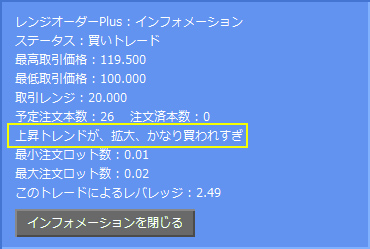
5,Trend Display Function
As shown in the yellow frame of the image, the current trend is displayed on the chart information.
3,Demand Limit Validity Period
The "Limit Expiration Time" function allows you to specify the expiration time of a limit order (stop order) in hours. If the order is not executed within the specified time, the order will be canceled.
4,Limit and Stop Limit Orders
In addition to limit orders, "Range Order Plus" now supports stop orders.
5,Trend Display Function
As shown in the yellow frame of the image, the current trend is displayed on the chart information.
 It also has the following features of a regular "range order"
Non-equal order position intervals
The position intervals for "buy down" and "sell up" orders are not evenly spaced. (You can also set the intervals to be equally spaced).
The position interval at the top of the range and the position interval at the bottom of the range can be specified separately, and the position interval in the middle of the range is calculated automatically.
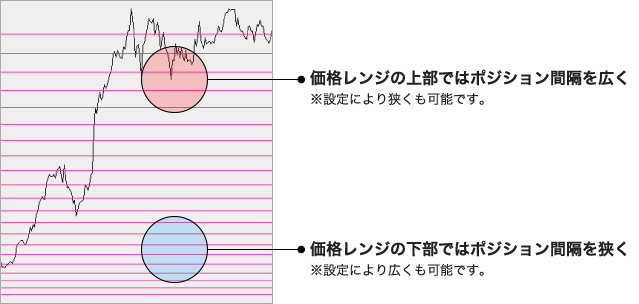
As shown in the figure, positions can be concentrated near the top and bottom of the range (the bottom of the price range for buy trades and the top of the price range for sell trades). This reduces the number of positions in unimportant price ranges.
It also has the following features of a regular "range order"
Non-equal order position intervals
The position intervals for "buy down" and "sell up" orders are not evenly spaced. (You can also set the intervals to be equally spaced).
The position interval at the top of the range and the position interval at the bottom of the range can be specified separately, and the position interval in the middle of the range is calculated automatically.
As shown in the figure, positions can be concentrated near the top and bottom of the range (the bottom of the price range for buy trades and the top of the price range for sell trades). This reduces the number of positions in unimportant price ranges.
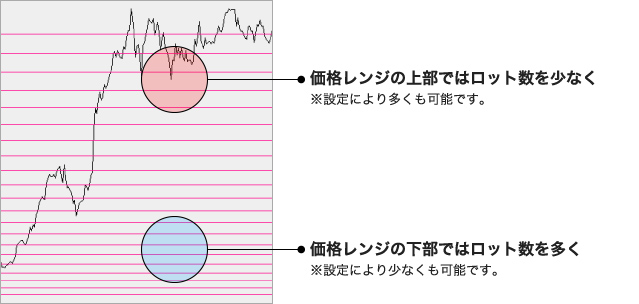
 The number of order lots varies depending on the position of the range.
You can change the number of lots ordered at the top and bottom of the range. (You can also set the number of lots to be the same for all ranges.)
In the case of a "buy trade," you can set the number of lots at the lower end of the range to be a multiple of the upper end, and vice versa, in the case of a "sell trade," you can set the number of lots at the upper end of the range to be a multiple of the lower end.
You can increase the number of lots at important price points for "buy trades" and "sell trades".
The number of order lots varies depending on the position of the range.
You can change the number of lots ordered at the top and bottom of the range. (You can also set the number of lots to be the same for all ranges.)
In the case of a "buy trade," you can set the number of lots at the lower end of the range to be a multiple of the upper end, and vice versa, in the case of a "sell trade," you can set the number of lots at the upper end of the range to be a multiple of the lower end.
You can increase the number of lots at important price points for "buy trades" and "sell trades".
 Orders are placed one at a time and no orders are placed at the window.
In addition, we do not place limit orders for all positions in the range at first, but place limit orders one at a time as they approach the order range.
This behavior allows the number of lots to be ordered according to the situation at that time, and furthermore, in situations where the price fluctuates in a window, no new positions are taken in that area.
Even if you change the settings in the middle of an order, you do not need to close the previous position.
Automatic lot size calculation by specifying leverage
By setting the leverage, the number of lots is automatically calculated based on the account balance. This feature allows you to predict the leverage you will have if all positions are executed. If the account balance increases, the number of lots will be automatically increased, and the number of lots will always be automatically calculated according to the account status.
Orders are placed one at a time and no orders are placed at the window.
In addition, we do not place limit orders for all positions in the range at first, but place limit orders one at a time as they approach the order range.
This behavior allows the number of lots to be ordered according to the situation at that time, and furthermore, in situations where the price fluctuates in a window, no new positions are taken in that area.
Even if you change the settings in the middle of an order, you do not need to close the previous position.
Automatic lot size calculation by specifying leverage
By setting the leverage, the number of lots is automatically calculated based on the account balance. This feature allows you to predict the leverage you will have if all positions are executed. If the account balance increases, the number of lots will be automatically increased, and the number of lots will always be automatically calculated according to the account status.
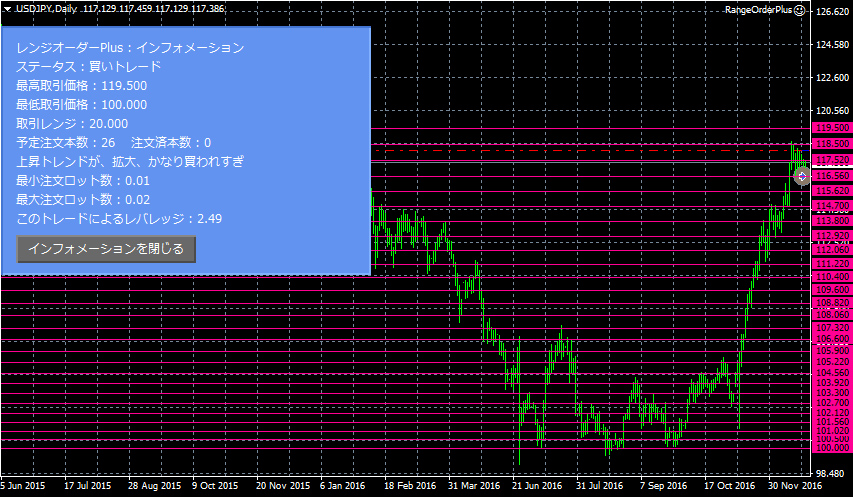 Information" is displayed in the upper left corner of the chart, allowing you to easily grasp the status of the EA.
The background is blue while trading is in progress. The background is red when trading is suspended due to an error, etc.
Input Assist Function
If there is an obvious incompleteness in an entry on the settings screen, it will be displayed on the information screen.
Example: If the maximum transaction price is smaller than the minimum transaction price, the "Minimum Transaction Price" should be smaller than the "Maximum Transaction Price". will be displayed.
Email Sending Function
An e-mail is sent when a new position is opened, when a position is executed, or when a trade is aborted due to an error. You can also stop the e-mail by setting it up.
Explanation of each parameter
Information" is displayed in the upper left corner of the chart, allowing you to easily grasp the status of the EA.
The background is blue while trading is in progress. The background is red when trading is suspended due to an error, etc.
Input Assist Function
If there is an obvious incompleteness in an entry on the settings screen, it will be displayed on the information screen.
Example: If the maximum transaction price is smaller than the minimum transaction price, the "Minimum Transaction Price" should be smaller than the "Maximum Transaction Price". will be displayed.
Email Sending Function
An e-mail is sent when a new position is opened, when a position is executed, or when a trade is aborted due to an error. You can also stop the e-mail by setting it up.
Explanation of each parameter
Trade results without "range orders
Before the results of the "Range Order Plus" trades, you will see the results without "Range Order".
It is a common method to buy and sell in equal price ranges, execute trades with the same profit margin, and fix the number of order lots. This is a method called "range order".
The number of lots is set so that it does not break down in the middle of the trade, so it survives to the end of such a long term trade. However, there is a period of time during which the account balance is reduced to nearly 480,000, and there is a period of time when the account balance is halved at the start of 1,000,000.
The drop in the last part of the trade is due to the fact that we stopped trading in November 2016.
Trade results without "trend lot weights"
The following are the results of the "Range Order" without "Trend Lot Weighting".
The method is to calculate the number of lots by specifying the leverage, buy and sell at unequal intervals, and then at the lower end of the range, increase the profit margin and order a larger number of lots.
Compared to the case without "Range Order," the net profit is much higher and the drawdown is considerably reduced to 690,000 when the account balance is at its lowest. We can also see that the number of lots is increased at the lower end of the range.
Trade results of "Range Order Plus
Finally, here are the results of the "Range Order Plus" using the "Trend Lot Weight".
In the case of buy trades, the total number of trades is less than half of the total number of trades during a downtrend, since the trades are not made as much as possible during a downtrend. However, even when the account balance was at its lowest, it was about 1,000,000, which means that the drawdown was greatly reduced.
Over such a long trading period, the price amplitude is large, ranging from 76 yen to 124 yen, and even though no stop loss is set, the principal is maintained.
I'll give you the number of lots ordered for "Range Order Plus."
If the drawdown has gone down, then increase the order lot size until the net profit is the same as if the "Trend Lot Weighting" was not used, and compare the results with the "Range Order" results.
Even though the same profit is made, the drawdown is greatly reduced compared to the case where "Trend Lot Weight" is not used, at 1,000,000 when the account balance is at its lowest. This confirms that this feature is effective. However, we have not yet been able to fully verify whether it is effective in all market conditions and currencies.
Also, the total number of trades has been less than half, as can be seen from the chart of USD/JPY from January 2005 to October 2016, which shows a downward trend from mid-2006 to about mid-2012. This may be unavoidable, but it is possible that we are not trading at some returns or major bottoms, and we plan to improve this situation through upgrades.
The "Trend Lot Weight" can be disabled in the settings, so if you do not want to use it, please turn it off.
2,Price stop loss function
The "Price Stop Loss" function sets the same stop loss price for all orders and is intended to be used in the following situations
Suppose you were trading in the USD/JPY range of 100-110 yen, and you were buying. However, when the price falls below 100 yen, you close and close all positions at the "Price Stop Loss" price.
3,Demand Limit Validity Period
The "Limit Expiration Time" function allows you to specify the expiration time of a limit order (stop order) in hours. If the order is not executed within the specified time, the order will be canceled.
4,Limit and Stop Limit Orders
In addition to limit orders, "Range Order Plus" now supports stop orders.
5,Trend Display Function
As shown in the yellow frame of the image, the current trend is displayed on the chart information.
It also has the following features of a regular "range order"
Non-equal order position intervals
The position intervals for "buy down" and "sell up" orders are not evenly spaced. (You can also set the intervals to be equally spaced).
The position interval at the top of the range and the position interval at the bottom of the range can be specified separately, and the position interval in the middle of the range is calculated automatically.
As shown in the figure, positions can be concentrated near the top and bottom of the range (the bottom of the price range for buy trades and the top of the price range for sell trades). This reduces the number of positions in unimportant price ranges.
The number of order lots varies depending on the position of the range.
You can change the number of lots ordered at the top and bottom of the range. (You can also set the number of lots to be the same for all ranges.)
In the case of a "buy trade," you can set the number of lots at the lower end of the range to be a multiple of the upper end, and vice versa, in the case of a "sell trade," you can set the number of lots at the upper end of the range to be a multiple of the lower end.
You can increase the number of lots at important price points for "buy trades" and "sell trades".
Orders are placed one at a time and no orders are placed at the window.
In addition, we do not place limit orders for all positions in the range at first, but place limit orders one at a time as they approach the order range.
This behavior allows the number of lots to be ordered according to the situation at that time, and furthermore, in situations where the price fluctuates in a window, no new positions are taken in that area.
Even if you change the settings in the middle of an order, you do not need to close the previous position.
Automatic lot size calculation by specifying leverage
By setting the leverage, the number of lots is automatically calculated based on the account balance. This feature allows you to predict the leverage you will have if all positions are executed. If the account balance increases, the number of lots will be automatically increased, and the number of lots will always be automatically calculated according to the account status.
Explanation of "Trading Leverage
Example: With 1,000,000 yen in margin, at 100 yen per dollar.
If you set the "minimum trade price" at 100 yen, the "maximum trade price" at 110 yen, and the price interval at 1 yen for a buy trade, your planned positions will be 10 lots of 100 yen, 101 yen, 102 yen, 103 yen, 104 yen, 105 yen, 106 yen, 107 yen, 108 yen, and 109 yen.
If "Trading Leverage" is set to "1", the positions will be ordered at 0.01 lots each, and if they are all executed, the total leverage of the account will be 1 for a total of 0.1 lots.
If "Trading Leverage" is set to "10", the positions will be ordered in 0.1 lot each, and if all the positions are executed, the total leverage of the account will be 10 for a total of 1 lot.
Information Display
Information" is displayed in the upper left corner of the chart, allowing you to easily grasp the status of the EA.
The background is blue while trading is in progress. The background is red when trading is suspended due to an error, etc.
Input Assist Function
If there is an obvious incompleteness in an entry on the settings screen, it will be displayed on the information screen.
Example: If the maximum transaction price is smaller than the minimum transaction price, the "Minimum Transaction Price" should be smaller than the "Maximum Transaction Price". will be displayed.
Email Sending Function
An e-mail is sent when a new position is opened, when a position is executed, or when a trade is aborted due to an error. You can also stop the e-mail by setting it up.
Explanation of each parameter
Trade Selection
Buy trade
Sell Trade
Trade leverage
Trade Leverage: Specify the leverage that will be used if all positions are executed. Default value is "2.0".
Trade Cancellation Leverage
Set the trade abort leverage. When the specified leverage is reached, no new orders will be placed. Default value is "2.0".
Lot Weight
Specify the number of lots at the lower (buy trades) or upper (sell trades) end of the trading range. The default value is 2.0.
Trend Lot Weight Selection
Use
Do not use
Trend Lot Weight Setting
Specify the number of lots when the trend is following a trend times the number of lots when the trend is not following a trend. Default value is "3.0".
MACD Highest Value
Set this parameter when manually entering the highest MACD value, for example, when testing. Default value is "0.0".
MACD Minimum
Set when manually entering the minimum MACD value, for example, when testing. Default value is "0.0".
Highest Trend Level
Set this parameter when manually entering the highest trend level, for example, when testing. Default value is "0.0".
Minimum Trend Level
Set this when manually entering the minimum trend level value for testing, etc. The default value is "0.0. Default value is "0.0".
Maximum Trend Volume
Set this when manually entering the highest trend volume value for testing, etc. The default value is "0.0". Default value is "0.0".
Minimum Tren Volume
Set this when manually entering the minimum Tren Volume value for testing, etc. The default value is "0.0". Default value is "0.0".
Highest Trading Price
Set the highest price of the trading range. Default value is "110.0".
Lowest Price
Sets the lowest price of the trading range. Default value is "90.0".
(Specify Pips between price ranges) Upper Price Range Interval
Sets the price interval at the top of the trading range in pips. Default value is "100.0".
(Pips interval) Profit stop gap at the bottom of the trading range
Sets the price interval at the bottom of the trading range in pips. Default value is "50.0".
(Pips between profit limits) Upper profit limit of the trading range
Sets the interval in pips between the upper part of the trading range. Default value is "150.0".
(Pips profit margin) Trading range lower profit margin
Sets the interval in pips at the bottom of the trading range. Default value is "200.0".
(Safety measure) Manual Standard Spread
Sets the spread for the currency in which the trade is to be made.
(Safety measure) Abort Spread Multiplier
Sets the number of times the standard spread at which a trade is to be aborted.
Normal Stop Loss
Sets the stop loss. Default value is "0.0".
Price Stop Loss
Set the "Price Stop Loss" in terms of price. Default value is "0.0".
Limit Expiration Time
Set the "Limit Expiration Time" in hours. Default value is "48".
(Option) Magic Number
Set the basic magic number used in this EA. Default value is "1929839280".
(Optional) Order Color
Sets the color of the order arrow displayed on the chart. Default value is "clrRoyalBlue".
(Optional) Display Price Interval Lines
Sets whether or not price interval lines are displayed on the chart. Default value is "Show".
(Optional) Color of price interval lines
Sets the color of the price interval lines on the chart. Default value is "clrDeepPink"
(Optional) Font Size
Sets the font size displayed on the chart. Default value is "9 point"
(Notification) Send Email
Sets whether or not to send emails for new orders, executions, and errors. Default value is "New Order, Execution, Error".
Sales from
:
06/06/2017 08:52
Purchased
:
13
times
Price: $43.29 (taxed)
¥6,800(taxed)
Provider/Distributor:
Sales site:
GogoJungle
●Payment



Forward Test
Back Test
Sales from : 06/06/2017 08:52
Purchased
:
13
times
Price: $43.29 (taxed)
¥6,800(taxed)
Provider/Distributor:
Sales site:
GogoJungle
●Payment
About Forex Automated Trading
What is Forex Automated Trading (MT4 EA)?
Forex Automated Trading refers to trading that is automated through programming, incorporating predetermined trading and settlement rules. There are various methods to conduct automated trading, but at GogoJungle, we deal with Experts Advisors (hereinafter referred to as EA) that operate on a trading platform called MT4.
Trading Types of Forex Automated Trading
There are various types of EAs (Expert Advisors) for different trading types that can be used on MT4.
Just like discretionary trading, there are those that decide trading and settlement timings by combining indicators, those that repeatedly buy or sell at certain price (pips) intervals, and trading methods that utilize market anomalies or temporal features. The variety is as rich as the methods in discretionary trading.
To categorize simply,
・Scalping (Type where trades are completed within a few minutes to a few hours),
・Day Trading (Type where trades are completed within several hours to about a day),
・Swing Trading (Type where trades are conducted over a relatively long period of about 1 day to 1 week)
・Grid/Martingale Trading (Holding multiple positions at equal or unequal intervals and settling all once a profit is made. Those that gradually increase the lot number are called Martingale.)
・Anomaly EA (Mid-price trading, early morning scalping)
Just like discretionary trading, there are those that decide trading and settlement timings by combining indicators, those that repeatedly buy or sell at certain price (pips) intervals, and trading methods that utilize market anomalies or temporal features. The variety is as rich as the methods in discretionary trading.
To categorize simply,
・Scalping (Type where trades are completed within a few minutes to a few hours),
・Day Trading (Type where trades are completed within several hours to about a day),
・Swing Trading (Type where trades are conducted over a relatively long period of about 1 day to 1 week)
・Grid/Martingale Trading (Holding multiple positions at equal or unequal intervals and settling all once a profit is made. Those that gradually increase the lot number are called Martingale.)
・Anomaly EA (Mid-price trading, early morning scalping)
Risks, Advantages, and Disadvantages of Forex Automated Trading
When engaging in Forex, there are risks in automated trading just as there are in discretionary trading.
However, a substantial advantage of automated trading is its ability to limit and predict risks beforehand.
[Risk]
Inherent to forex trading are the trading risks that undeniably exist in automated trading as well.
・Lot Size Risk
Increasing the lot size forcibly due to a high winning rate can, in rare instances, depending on the EA, lead to substantial Pips loss when a loss occurs. It is crucial to verify the SL Pips and the number of positions held before operating with an appropriate lot.
・Rapid Market Fluctuation Risk
There are instances where market prices fluctuate rapidly due to index announcements or unforeseen news. System trading does not account for such unpredictable market movements, rendering it incapable of making decisions on whether to settle in advance or abstain from trading. As a countermeasure, utilizing tools that halt the EA based on indicator announcements or the VIX (fear index) is also possible.
[Benefits]
・Operates 24 hours a day
If there is an opportunity, system trading will execute trades on your behalf consistently. It proves to be an extremely convenient tool for those unable to allocate time to trading.
・Trades dispassionately without being swayed by emotions
There is an absence of self-serving rule modifications, a common human tendency, such as increasing the lot size after consecutive losses in discretionary trading or, conversely, hastily securing profits with minimal gains.
・Accessible for beginners
To engage in Forex trading, there is no prerequisite to study; anyone using system trading will achieve the same results.
[Disadvantages]
・Cannot increase trading frequency at will
Since system trading operates based on pre-programmed conditions, depending on the type of EA, it might only execute trades a few times a month.
・Suitability may vary with market conditions
Depending on the trading type of the EA, there are periods more suited to trend trading and periods more suited to contrarian trading, making consistent results across all periods unlikely. While the previous year might have yielded good results, this year's performance might not be as promising, necessitating some level of discretion in determining whether it is an opportune time to operate.
However, a substantial advantage of automated trading is its ability to limit and predict risks beforehand.
[Risk]
Inherent to forex trading are the trading risks that undeniably exist in automated trading as well.
・Lot Size Risk
Increasing the lot size forcibly due to a high winning rate can, in rare instances, depending on the EA, lead to substantial Pips loss when a loss occurs. It is crucial to verify the SL Pips and the number of positions held before operating with an appropriate lot.
・Rapid Market Fluctuation Risk
There are instances where market prices fluctuate rapidly due to index announcements or unforeseen news. System trading does not account for such unpredictable market movements, rendering it incapable of making decisions on whether to settle in advance or abstain from trading. As a countermeasure, utilizing tools that halt the EA based on indicator announcements or the VIX (fear index) is also possible.
[Benefits]
・Operates 24 hours a day
If there is an opportunity, system trading will execute trades on your behalf consistently. It proves to be an extremely convenient tool for those unable to allocate time to trading.
・Trades dispassionately without being swayed by emotions
There is an absence of self-serving rule modifications, a common human tendency, such as increasing the lot size after consecutive losses in discretionary trading or, conversely, hastily securing profits with minimal gains.
・Accessible for beginners
To engage in Forex trading, there is no prerequisite to study; anyone using system trading will achieve the same results.
[Disadvantages]
・Cannot increase trading frequency at will
Since system trading operates based on pre-programmed conditions, depending on the type of EA, it might only execute trades a few times a month.
・Suitability may vary with market conditions
Depending on the trading type of the EA, there are periods more suited to trend trading and periods more suited to contrarian trading, making consistent results across all periods unlikely. While the previous year might have yielded good results, this year's performance might not be as promising, necessitating some level of discretion in determining whether it is an opportune time to operate.
Equipment and Environment Needed for Automated Trading Operation
The requirements for operating automated trading (EA) on MT4 are as follows:
・MT4 (MetaTrader 4. An account needs to be opened with a Forex company that offers MT4.)
・EA (A program for automated trading)
・The operating deposit required to run the EA
・A PC that can run 24 hours or a VPS (Virtual Private Server), where a virtual PC is hosted on a cloud server to run MT4.
・MT4 (MetaTrader 4. An account needs to be opened with a Forex company that offers MT4.)
・EA (A program for automated trading)
・The operating deposit required to run the EA
・A PC that can run 24 hours or a VPS (Virtual Private Server), where a virtual PC is hosted on a cloud server to run MT4.
Installation of MT4 and Account Login
If you open an account with a forex broker that supports MT4, you can use MT4 as provided by that forex broker. MT4 is a stand-alone type of software that needs to be installed on your computer, so you download the program file from the website of the FX company where you opened the account and install it on your computer.
Additionally, there are both demo and real accounts available. You can experience trading with virtual money by applying for a demo account. After opening a real account, you select the connection server assigned by the Forex broker, enter the password, and log in to the account.
When you deposit money into your account using the method specified by the forex broker, the funds will be reflected in your MT4 account, and you can trade.
Additionally, there are both demo and real accounts available. You can experience trading with virtual money by applying for a demo account. After opening a real account, you select the connection server assigned by the Forex broker, enter the password, and log in to the account.
When you deposit money into your account using the method specified by the forex broker, the funds will be reflected in your MT4 account, and you can trade.
How to Install EA on MT4
To set up an EA when you purchase it through GogoJungle, follow the steps below:
Firstly, download the purchased EA file from your My Page on GogoJungle. You will download a zip (compressed) file, so right-click to extract it and retrieve the file named ‘◯◯◯ (EA name)_A19GAw09 (any 8 alphanumeric characters).ex4’ from inside.
Next, launch MT4 and navigate to ‘File’ → ‘Open Data Folder’ → ‘MQL4’ → ‘Experts’ folder, and place the ex4 file inside. Once done, close MT4 and restart it. Then, go to the upper menu ‘Tools’ → ‘Options’, and under ‘Expert Advisors’, ensure ‘Allow automated trading’ and ‘Allow DLL imports’ are checked, then press OK to close.
The necessary currency pair and time frame for the correct operation of the EA are specified on the EA sales page. Refer to this information and open the chart of the correct currency pair time frame (e.g., USDJPY5M for a USD/Yen 5-minute chart).
Within the menu navigator, under ‘Expert Advisors’, you will find the EA file name you placed earlier. Click to select it, then drag & drop it directly onto the chart to load the EA. Alternatively, you can double-click the EA name to load it onto the selected chart.
If ‘Authentication Success’ appears in the upper left of the chart, the authentication has been successful. To operate the EA, you need to keep your PC running 24 hours. Therefore, either disable the automatic sleep function or host MT4 on a VPS and operate the EA.
Firstly, download the purchased EA file from your My Page on GogoJungle. You will download a zip (compressed) file, so right-click to extract it and retrieve the file named ‘◯◯◯ (EA name)_A19GAw09 (any 8 alphanumeric characters).ex4’ from inside.
Next, launch MT4 and navigate to ‘File’ → ‘Open Data Folder’ → ‘MQL4’ → ‘Experts’ folder, and place the ex4 file inside. Once done, close MT4 and restart it. Then, go to the upper menu ‘Tools’ → ‘Options’, and under ‘Expert Advisors’, ensure ‘Allow automated trading’ and ‘Allow DLL imports’ are checked, then press OK to close.
The necessary currency pair and time frame for the correct operation of the EA are specified on the EA sales page. Refer to this information and open the chart of the correct currency pair time frame (e.g., USDJPY5M for a USD/Yen 5-minute chart).
Within the menu navigator, under ‘Expert Advisors’, you will find the EA file name you placed earlier. Click to select it, then drag & drop it directly onto the chart to load the EA. Alternatively, you can double-click the EA name to load it onto the selected chart.
If ‘Authentication Success’ appears in the upper left of the chart, the authentication has been successful. To operate the EA, you need to keep your PC running 24 hours. Therefore, either disable the automatic sleep function or host MT4 on a VPS and operate the EA.
In Case You Want to Change the Account in Use
EAs from GogoJungle can be used with one real account and one demo account per EA.
If you want to use it with an account other than the authenticated one, you need to reset the registered account.
To reset the account, close the MT4 where the Web authentication is registered, then go to My Page on GogoJungle > Use > Digital Contents > the relevant EA > press the ‘Reset’ button for the registration number, and the registered account will be released.
When the account is in a reset state, using the EA with another MT4 account will register a new account.
Also, you can reset the account an unlimited number of times.
If you want to use it with an account other than the authenticated one, you need to reset the registered account.
To reset the account, close the MT4 where the Web authentication is registered, then go to My Page on GogoJungle > Use > Digital Contents > the relevant EA > press the ‘Reset’ button for the registration number, and the registered account will be released.
When the account is in a reset state, using the EA with another MT4 account will register a new account.
Also, you can reset the account an unlimited number of times.
Solutions for Errors During Web Authentication or Non-Functional Account Trading
If you encounter an error with Web authentication, or if the EA is trading on GogoJungle's forward performance page but not on your own account, there could be various reasons. For more details, please refer to the following link:
→ Items to Check When EA is Not Operating
→ Items to Check When EA is Not Operating
About the Size of Trading Lots
In Forex trading, the size of a lot is usually:
1 lot = 100,000 currency units
0.1 lot = 10,000 currency units
0.01 lot = 1,000 currency units
For USD/JPY, 1 lot would mean holding 100,000 dollars.
The margin required to hold lots is determined by the leverage set by the Forex broker.
If the leverage is 25 times, the margin required to hold 10,000 currency units of USD/JPY would be:
10000*109 (※ at a rate of 109 yen per dollar) ÷ 25 = 43,600 yen.
1 lot = 100,000 currency units
0.1 lot = 10,000 currency units
0.01 lot = 1,000 currency units
For USD/JPY, 1 lot would mean holding 100,000 dollars.
The margin required to hold lots is determined by the leverage set by the Forex broker.
If the leverage is 25 times, the margin required to hold 10,000 currency units of USD/JPY would be:
10000*109 (※ at a rate of 109 yen per dollar) ÷ 25 = 43,600 yen.
Glossary of Automated Trading
・Profit Factor: Total Profit ÷ Total Loss
・Risk-Return Ratio: Total Profit and Loss during the period ÷ Maximum Drawdown
・Maximum Drawdown: The largest unrealized loss during the operation period
・Maximum Position Number: This is the maximum number of positions that the EA can theoretically hold at the same time
・TP (Take Profit): The set profit-taking Pips (or specified amount, etc.) in the EA's settings
・SL (Stop Loss): The set maximum loss pips (or specified amount, etc.) in the EA's settings
・Trailing Stop: Instead of settling at a specified Pips, once a certain profit is made, the settlement SL is raised at a certain interval (towards the profit), maximizing the profit. It is a method of settlement.
・Risk-Reward Ratio (Payoff Ratio): Average Profit ÷ Average Loss
・Hedging: Holding both buy and sell positions simultaneously (Some FX companies also have types where hedging is not allowed)
・Risk-Return Ratio: Total Profit and Loss during the period ÷ Maximum Drawdown
・Maximum Drawdown: The largest unrealized loss during the operation period
・Maximum Position Number: This is the maximum number of positions that the EA can theoretically hold at the same time
・TP (Take Profit): The set profit-taking Pips (or specified amount, etc.) in the EA's settings
・SL (Stop Loss): The set maximum loss pips (or specified amount, etc.) in the EA's settings
・Trailing Stop: Instead of settling at a specified Pips, once a certain profit is made, the settlement SL is raised at a certain interval (towards the profit), maximizing the profit. It is a method of settlement.
・Risk-Reward Ratio (Payoff Ratio): Average Profit ÷ Average Loss
・Hedging: Holding both buy and sell positions simultaneously (Some FX companies also have types where hedging is not allowed)
Useful related pages
・How to Install MT4 EA (Expert Advisor) and Indicators
・MT4 Beginner's Guide
・Understanding System Trading Performance (Forward and Backtesting)
・Choosing Your First EA! Calculating Recommended Margin for EAs
・Comparing MT4 Accounts Based on Spread, Swap, and Execution Speed
・What is Web Authentication?
・Checklist for When Your EA Isn't Working
・MT4 Beginner's Guide
・Understanding System Trading Performance (Forward and Backtesting)
・Choosing Your First EA! Calculating Recommended Margin for EAs
・Comparing MT4 Accounts Based on Spread, Swap, and Execution Speed
・What is Web Authentication?
・Checklist for When Your EA Isn't Working