
Let's learn how to verify the EA you created
Introduction
We are GogoJungle Co., Ltd., the company operating GogoJungle / Skijan.
This article is aimed at those who understand the basic operations of EA Builder, and will introduce how to verify that the EAs you have created are trading correctly and how to adjust the conditions if they are not functioning properly.
If you are new to EA Builder, please check out the past articles from the links below.
・Basic operations and usage of EA Builder
・In-depth explanation of trading conditions
・Learn about options
・Create a simple EA using the Golden Cross
・Try MACD
・Try averaging down and pyramiding
・Create an EA using a custom indicator
・Create a semi-discretionary EA and an exit EA
・Create an EA using the Ichimoku chart
Table of Contents
・Backtest the created EA
・If trades do not go as expected
・Check inequalities
・Check applied price
・Check positions
・Check conflicts between stop loss and take profit
・Check error logs
・Check ASCII vs full-width characters
・Validate by breaking down into simple logic
・Other Q&A
・Conclusion
Backtest the Created EA
We will start by showing how to backtest the EA created with EA Builder.
Programs created with EA Builder are exported in mq4 and mq5 formats.
Double-click the downloaded program, or from MetaTrader’s menu go to “Tools” → “MetaEditor”(shortcut: F4) to open it, which displays the MetaEditor screen below.
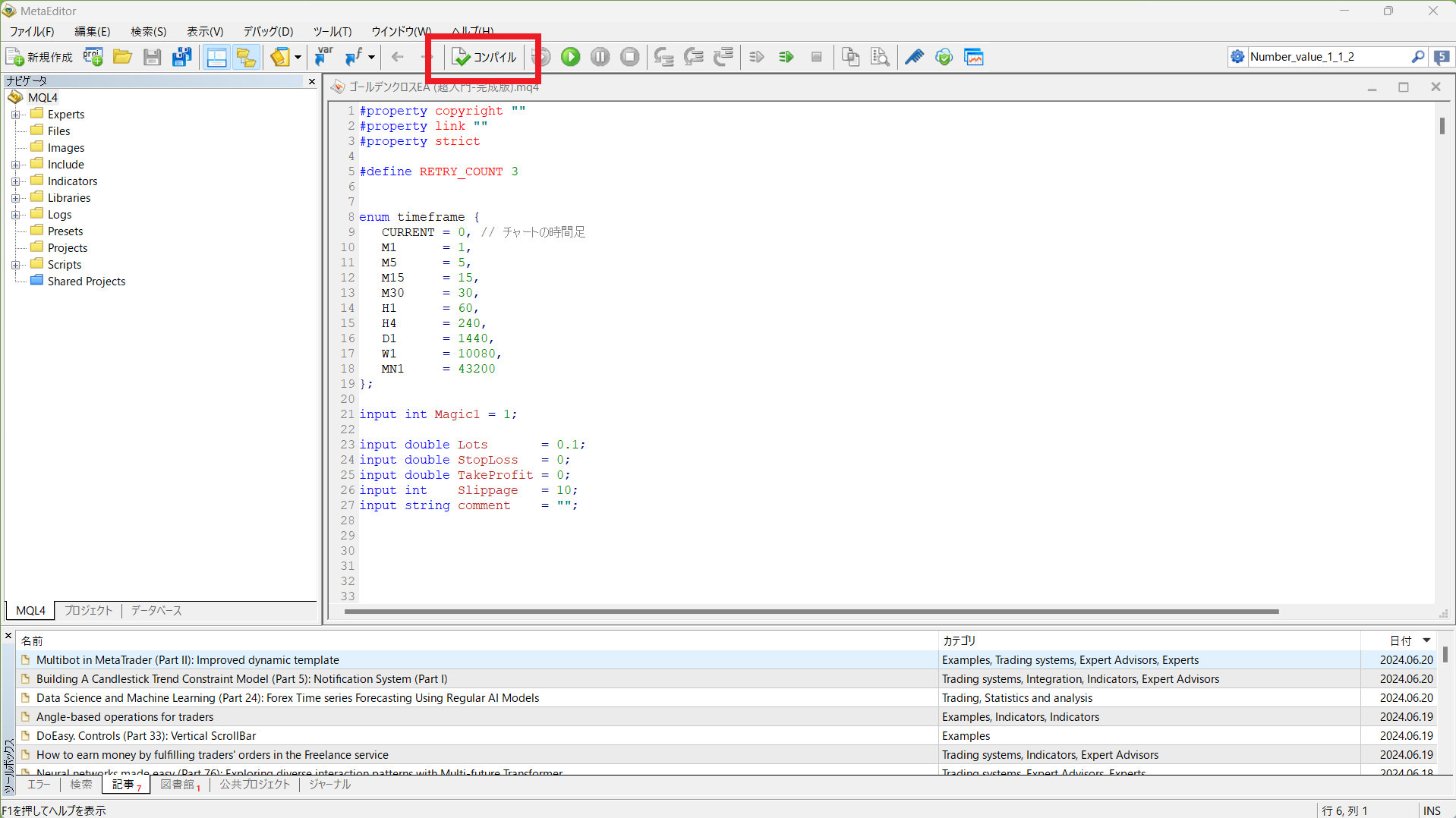
By pressing the red-framed “Compile” button, you can convert the mq4 and mq5 data into ex4 and ex5 respectively, and automatically store them in MetaTrader’s “Experts” folder.
Next, open the Strategy Tester in MetaTrader(shortcut: Ctrl+R).
If you display it from the menu, click “View” → “Strategy Tester” as shown below to display the Strategy Tester window (the image below is MT4).
Sometimes the window may be minimized, so adjust the window frame accordingly.

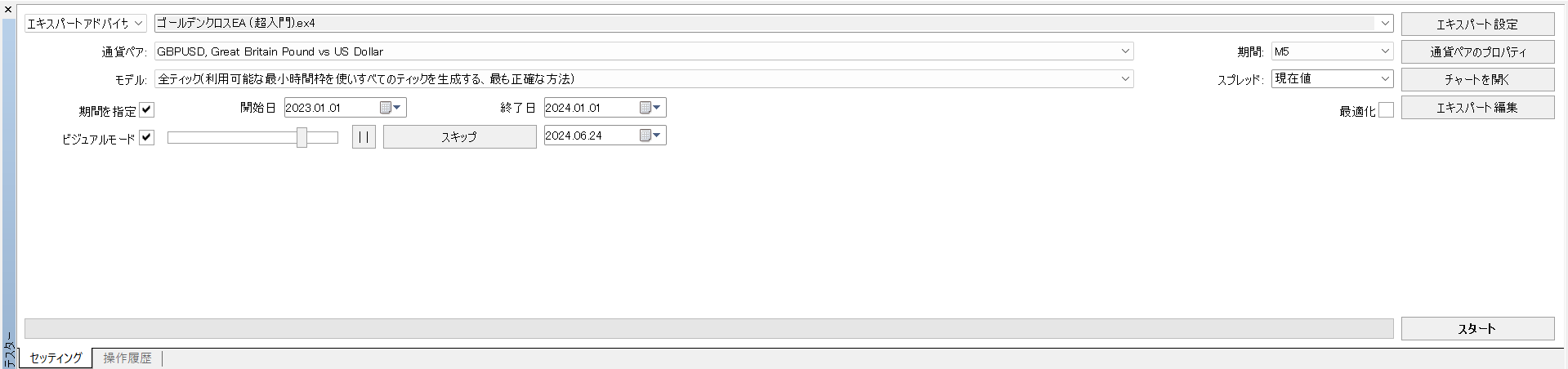
For detailed operation of the Strategy Tester, please see the article “MT4 EA Backtesting Method.”
Note that if you are not performing performance validation but only checking whether the EA’s logic works correctly, a short backtest period is fine.
If a short period of data is acceptable, display the chart for the target currency pair and restart MetaTrader to refresh the data.
Click the Start button, and when the test finishes, you can check the test results as shown below (if Visual Mode is not checked, only the equity curve is displayed).
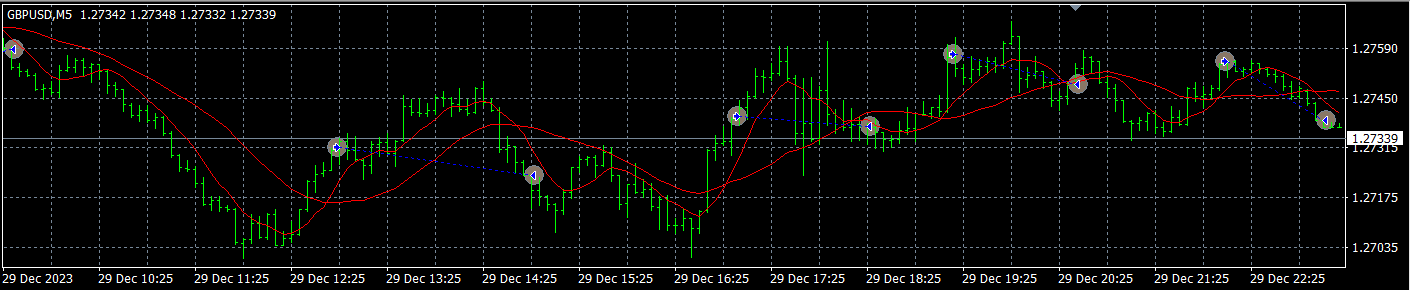
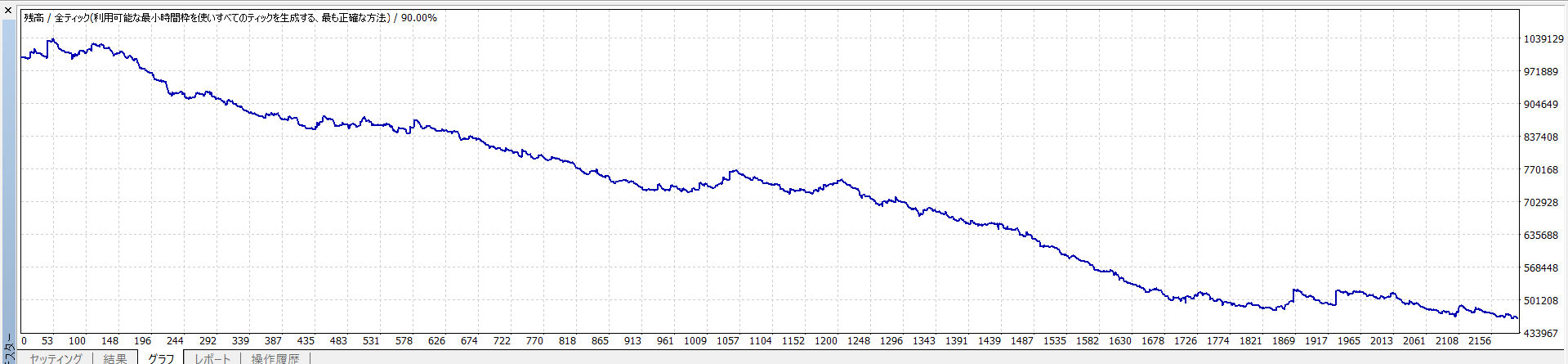
By reviewing the trading results and the equity curve, you can verify whether your created EA is operating as expected.
If no trades were made at all, or entries/closings occurred in unexpected ways, revise the settings using the methods below.
If Trades Do Not Go as Expected
When testing an EA created with EA Builder, the EA may not execute trades as you expect.
There are cases where the number of entries is obviously too high, or it doesn’t enter at all, or it enters at unintended times.
These issues often arise from mistakes in manually set conditions or misunderstandings of features.
To resolve these problems, try the following methods.
Check Inequality Signs
First, check whether the items you want to set in the trading conditions are appropriate for the conditions you want to specify.
One commonly mistaken item is the inequality signs in the conditions.
If the inequality signs inside the red lines in the figure are reversed, the entry conditions may never be satisfied and trades will not occur.

Inequality signs are explained below.
“=”: equality sign
Indicates that two values are equal.
For example, (a = b) means a and b are equal.
“≠”: not equal sign
Indicates that two values are not equal.
For example, (a ≠ b) means a and b are not equal.
“>”: greater-than sign
Indicates the left value is greater than the right value.
For example, (a > b) means a is greater than b.
“<”: less-than sign
Indicates the left value is less than the right value.
For example, (a < b) means a is less than b.
“≧”: greater-than or equal sign
Indicates the left value is greater than or equal to the right value.
For example, (a ≧ b) means a is greater than or equal to b.
“≦”: less-than or equal sign
Indicates the left value is less than or equal to the right value.
For example, (a ≦ b) means a is less than or equal to b.
Check Applied Price
The applied price can also be set incorrectly, so please check.
For example, the following condition uses the close price from 0 bars ago and the current price (the latest tick of the not-yet-closed candle) as the condition item.
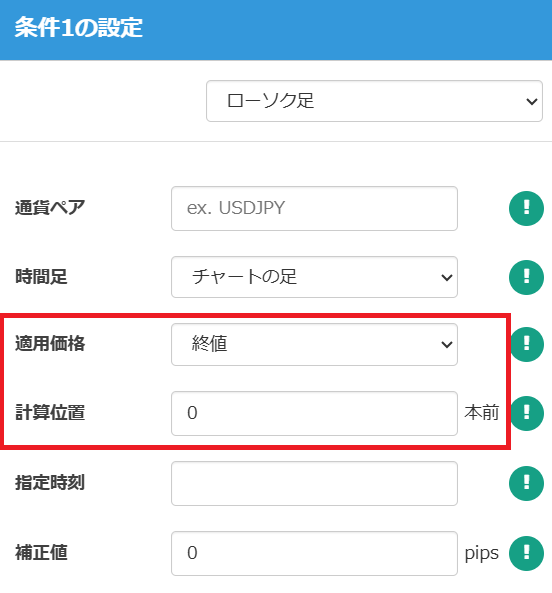
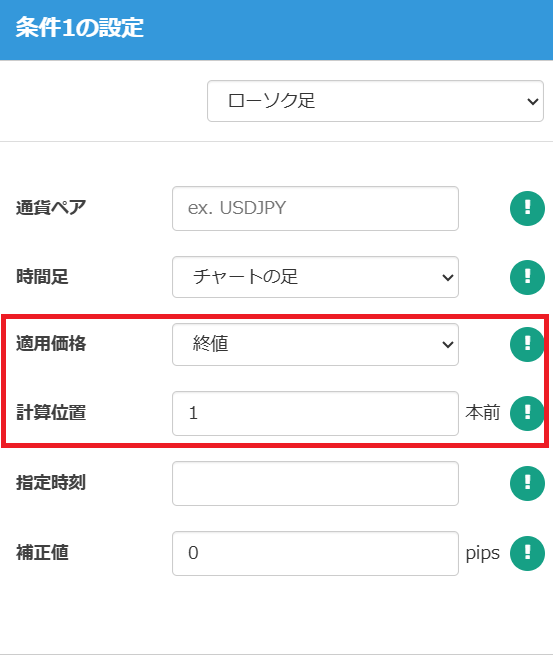
Using the current price (not-yet-closed candle) as a condition can cause the entry condition to be satisfied multiple times, and depending on the exit conditions, multiple trades may occur.
Also, sometimes the candle is not yet closed when the condition is evaluated, so if you only look at the final backtest result you may misinterpret that the condition did not occur; therefore, when using the current price as a condition, verify it tick-by-tick in Visual Mode.
If you want to suppress frequent trades when using the not-yet-closed candle as a condition, you can use options such as “Entries per candle” to limit to one entry per candle.
Check Positions
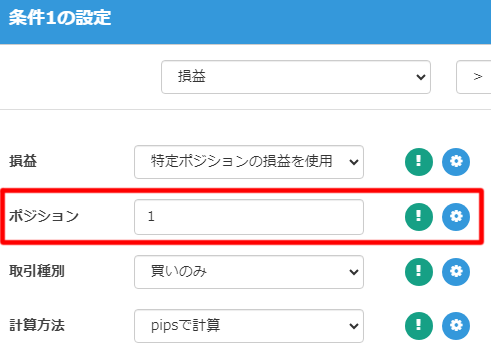
Depending on the trading conditions, there may be an item to specify the position.
If this position is not set correctly, the condition will not be satisfied, so check it.
※ The “Position” here is not the magic number; it refers to how EA Builder handles positions, such as Position 1 or Position 2, so please be aware.
Check Conflicts Between Stop Loss and Take Profit
Inside EA Builder there are several features that can conflict if used at the same time.
If positions are closed in unintended situations, or conversely not closed as expected, first check the “Stop Loss” and “Take Profit” orders.
Because averaging down and pyramiding inherently hold multiple positions, options like “Trailing Stop” or “Breakeven Stop” cannot be combined, so be careful.
Also, the basic items’ “Stop Loss” and “Take Profit” apply only to the first entry, so be aware.
In addition, there are cases such as conflicts between the “Reverse/Turn” option and the basic “Stop Loss” and “Take Profit.” If you are unsure, check the notes for each option.
Check Error Logs
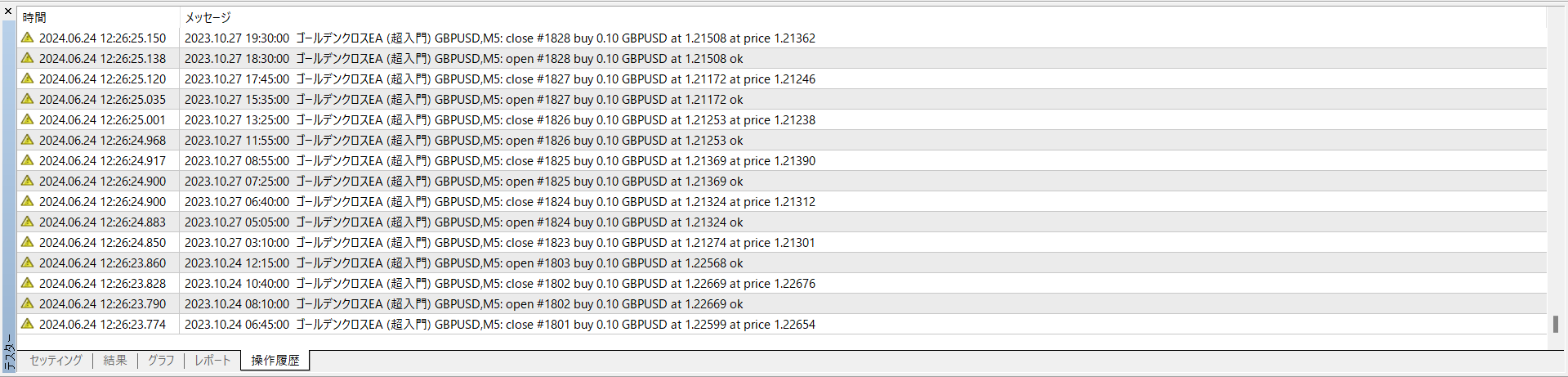
If you are not trading or the Strategy Tester stops immediately, there may be an error in the program’s behavior.
You can check the test error logs by viewing Strategy Tester → History/Logs.
In some cases, you can investigate and resolve the error content on LABO or other sites.
Check Half-width/Full-width
Also, EA Builder does not recognize full-width digits.If you use full-width digits in the condition settings, you may see errors such as Array out of range, as shown below.
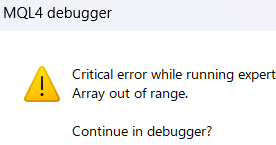
Since half-width and full-width characters are hard to distinguish, when you identify the location, convert to half-width digits or reset and recreate the program to fix it.
Validate by Breaking Down into Simple Logic
If you still cannot determine the cause after trying the above methods, try breaking down the logic (conditions) into simpler pieces and validating them step by step.By reducing AND/OR conditions to the minimum and testing, then further reducing if it doesn’t work, and finally adding conditions back if it works, you can generally resolve most issues.
Making condition settings as simple as possible and validating them one by one will help you identify where the problem lies.
Other Q&A
LABO also has the following articles available.
If the problem is not resolved, check these articles as well.
・Setting the EA’s magic numbers・How to check when an EA does not trade on a real account
・Please tell me where to place the Include file (Tkool.mqh).
Conclusion
That covers how to verify your created EA and how to fix issues.
If an existing EA that used to work no longer works, backtest data is faulty, you are experiencing connectivity issues, or you have an invalid account, please contact the company that handles MetaTrader.
An EA created with EA Builder may not operate as intended for various reasons, such as combinations of conditions or mistakes in condition specifications.
Please perform operation checks using backtests and a demo account before running on a real account.
We appreciate your continued use of EA Builder.
Questions? Contact LABO!
 | GogoJungle LABO An Q&A service focused on programming for инвестишь, such as automated trading and indicators. In the EA Builder category, we accept questions and consultations related to EA Builder. |
Purchase Here!
 | ‘EA Builder’ compatible with MT4/MT5 No-code development of EAs for anyone, with fully automatic and semi-automatic trading to make your trading easier! |