
Let's create an EA using custom indicators
Introduction
We are Gogojan, Inc., the company behind GogoJungle / Skijan.
This time, for those who have understood the basic operations of EA Tsukuru, we will introduce how to create EAs using a custom indicator.
If you are new to EA Tsukuru, please check the past articles from the links below.
・Basic operations and usage of EA Tsukuru
・Comprehensive explanation of trading conditions
・Learn about options
・Create a simple EA using the Golden Cross
・Try MACD
・Try averaging down and pyramiding
Table of Contents
- What is a Custom Indicator?
- About EAs Using Custom Indicators
- Learn the Calculation Items of Indicators
- Embedding a Custom Indicator into an EA
- About Parameter Settings
- End
What is a Custom Indicator?
A custom indicator is an indicator developed by volunteers or users. There are various contents available, from free to paid.
The standard indicators included in MT4/MT5 are about 30 types, but by installing these custom indicators, you can trade using a broader range of technical indicators.
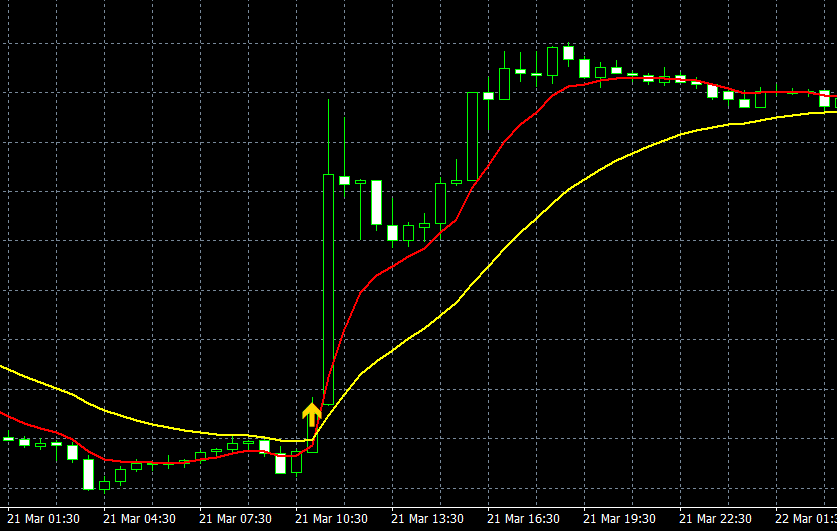
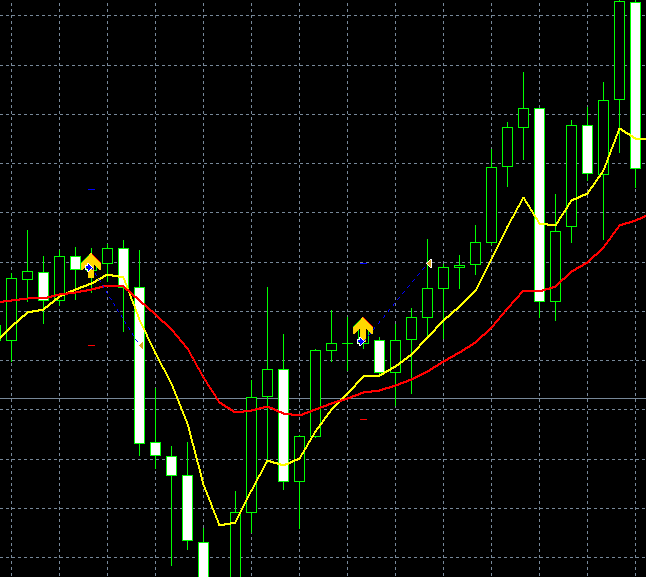
The image below shows a custom indicator that displays two moving averages and signals with arrows when a golden cross occurs. This is a very simple example, but there are many tools like this that display signals which guide trading.
Custom indicators in MT4/MT5 are written in the MQL programming language, and even those who cannot program can develop their own using tools.
Our company sells “Indicator Tsukuru,” which allows you to create custom indicators with various conditions without programming knowledge, so please consider that as well.
 | Indicator Tsukuru Learn the MQL language, enabling discretionary traders to develop indicators as well |
About EAs Using Custom Indicators
EA Tsukuru allows you to create EAs using custom indicators.
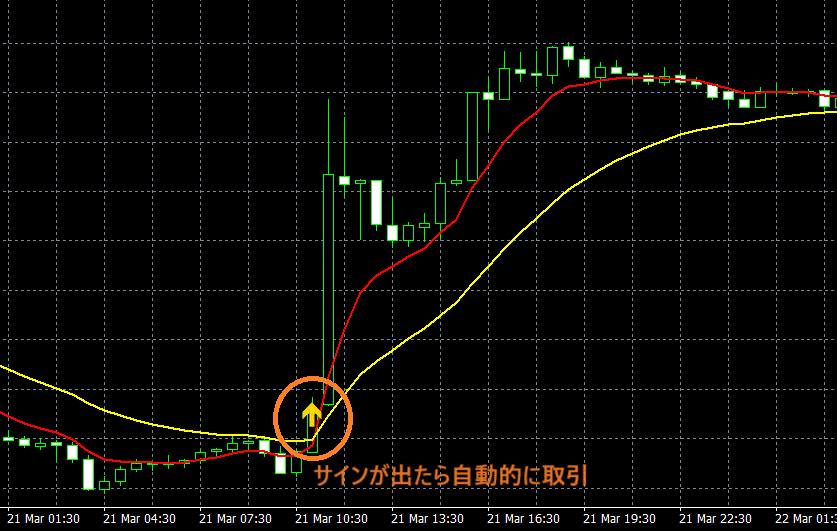
Using a custom indicator, you can create an EA by setting conditions to automatically trade based on when signals appear and changes in the calculation items it uses, thereby embedding the custom indicator into the EA's logic. You can embed the custom indicator into the EA's logic.
※Custom indicators vary in specification by developer, so using them within EA Tsukuru requires several steps.
Know the Calculation Items of Indicators
First, to embed a custom indicator in an EA, you need to understand the calculation items it uses and the values it relies on.
For example, imagine you want to enter when there is an upward arrow signal, or you want to exit when the current price falls below lines A and B.
When processing in EA Tsukuru, signals and indicator changes must be treated as numeric values that the system can respond to.
Let's check the calculation items for the indicator that signals the Golden Cross mentioned earlier.
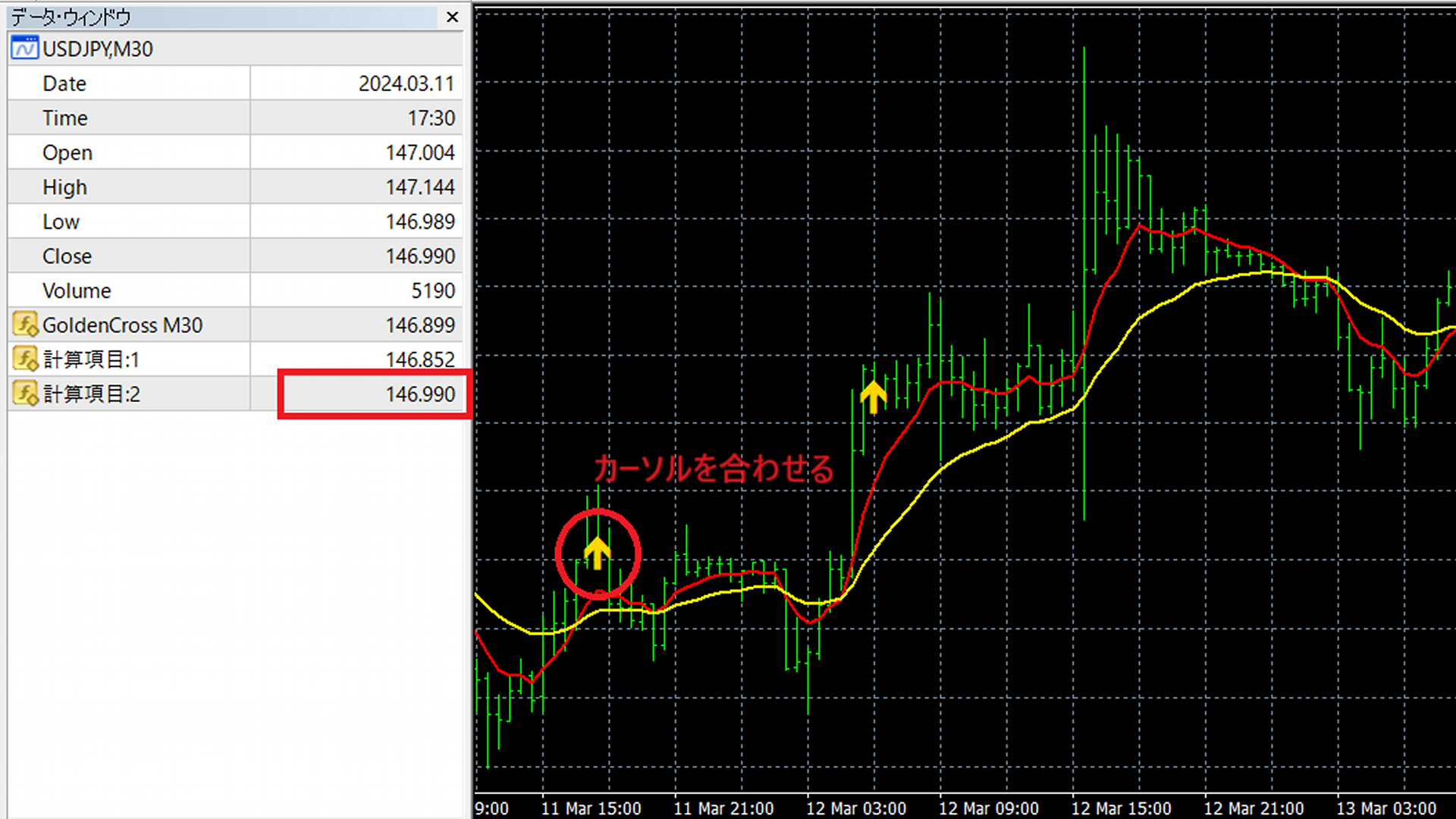
With the MT4 indicator loaded, when you display the data window on the chart, information appears as shown below.
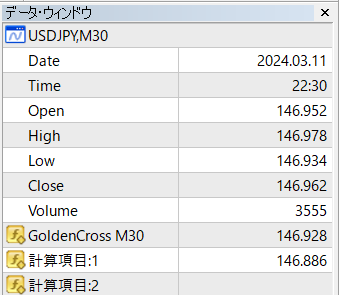
At this time, items used by the indicator (GoldenCross M30) show as “GoldenCross M30 (Calculation Item 0)”, “Calculation Item 1”, and “Calculation Item 2.”
Also, when you hover over a candle where a signal appears, the previously blank “Calculation Item 2” shows a value. When viewed together with the chart, you can see that “Calculation Item 0” corresponds to the short-term moving average and “Calculation Item 1” corresponds to the long-term moving average.
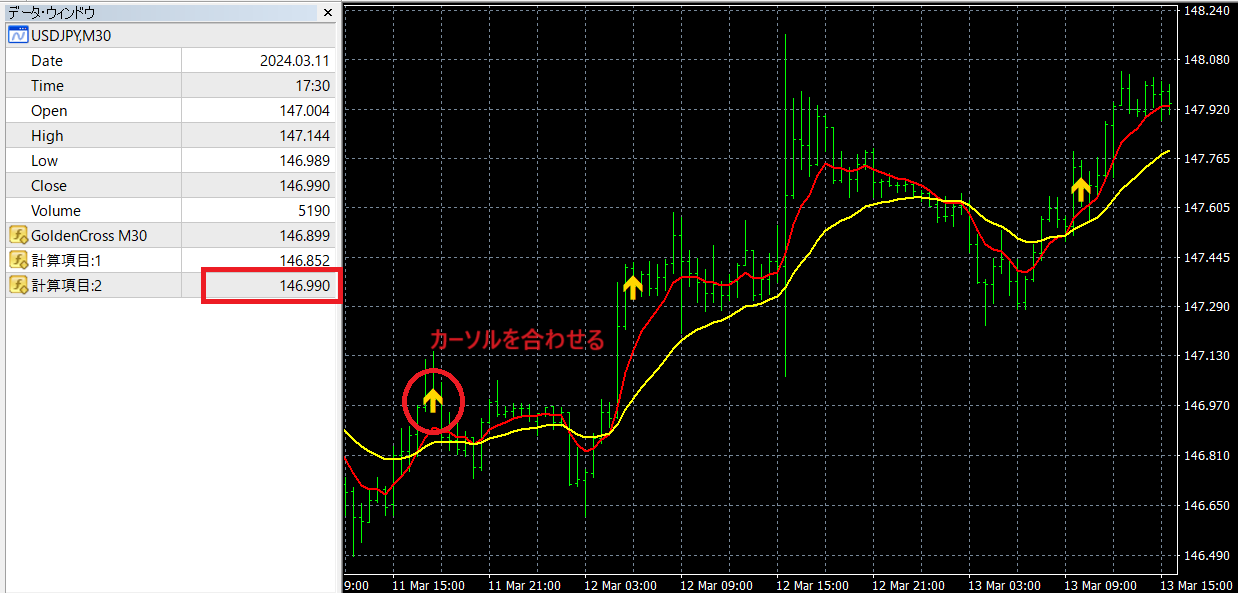
This confirms that when an arrow is displayed, the candle’s value is output to Calculation Item 2.
Embedding a Custom Indicator into an EA
Now, using the information we just gathered, let’s embed a custom indicator into an EA. When incorporating calculation items into conditions, there are a few cautions.
For the golden-cross indicator used as an example, the arrow appeared when Calculation Item 2 had a value.
We will use this to set the conditions.
Linking with the Custom Indicator
First, in the condition settings, select “Custom Indicator” on the left-hand side and check the linking with the custom indicator.
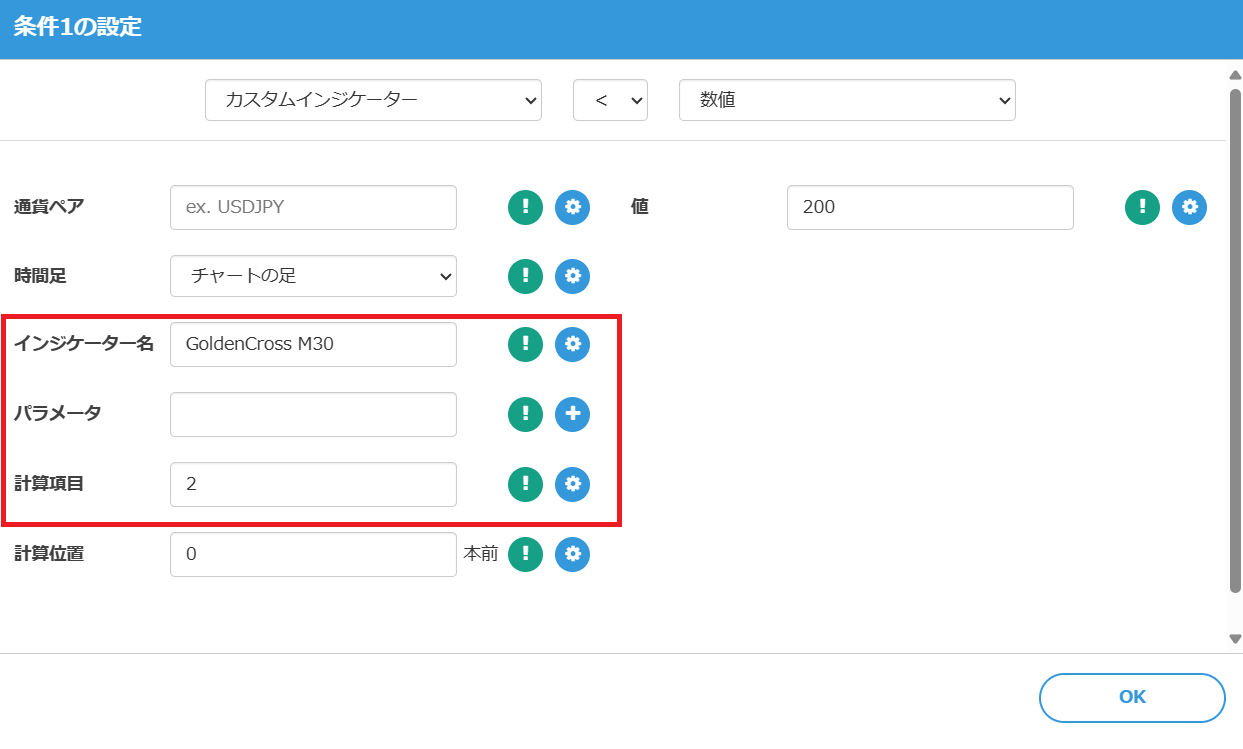
In this case, it is set to “Indicator Name: GoldenCross M30” and “Calculation Item: 2.”
Setting the Condition Expression
Next, focus on the condition expression and the numbers used in it.
The condition we want to set is “Calculation Item 2 is not empty,” so
“Custom Indicator (Calculation Item: 2) > 0”
might be appropriate, but due to MT4 and custom indicator specifications, we set it as follows.
“Custom Indicator (Calculation Item: 2) < 200”
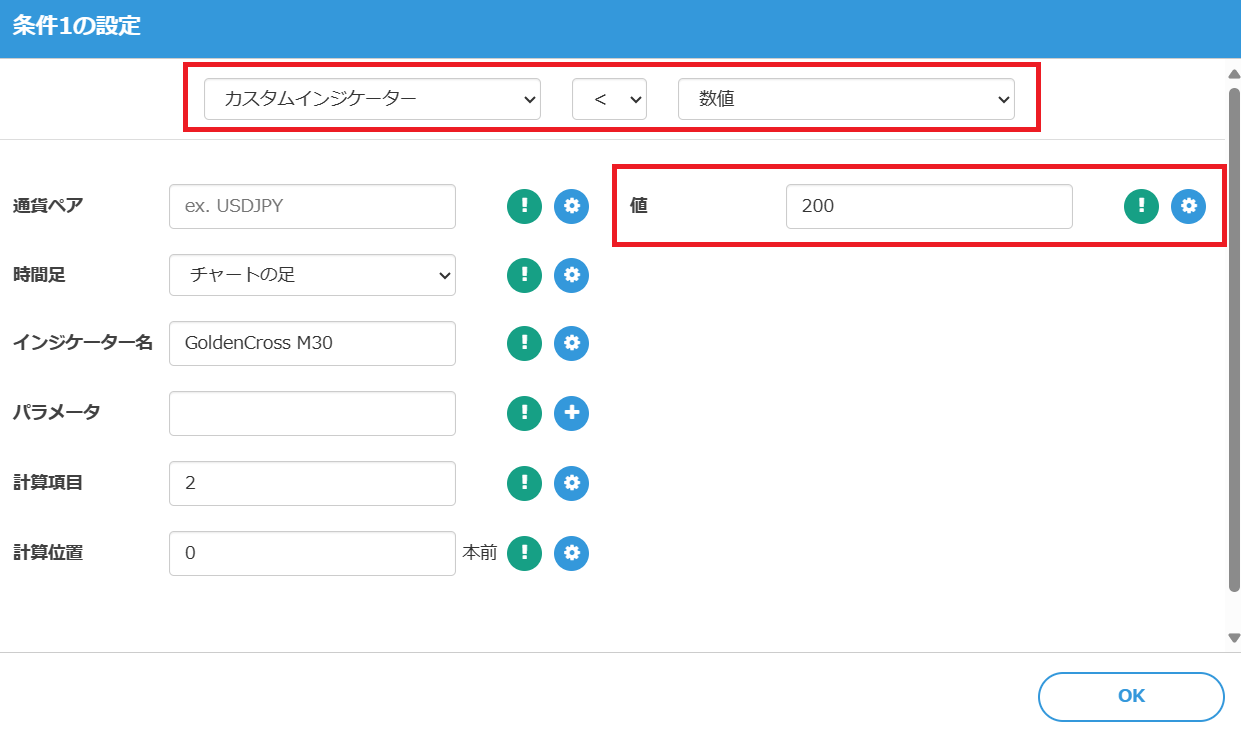
There is a reason for setting the condition like this.
In the Data Window, when Calculation Item 2 is blank, it may look like no value is present, but in reality it may output 2147483647, the maximum value for an int, even when no arrow is displayed.
2023.07.22 20:55:13.735 2023.05.27 06:00:00 GoldenCross M30 USDJPY_,H1: 2147483647.0
This is because it is returned as the maximum int value to indicate a blank value in the program.
Due to MT4 and custom indicator specifications, setting the condition as “Custom Indicator (Calculation Item: 2) > 0” may not work properly in some cases, so we set it as above.
※Depending on the indicator, the maximum value 2147483647 may be replaced by 0, so adjust the condition accordingly.
Parameter Settings
Next, about parameter settings for the custom indicator. This is not required for this program, but some custom indicators require parameter settings.
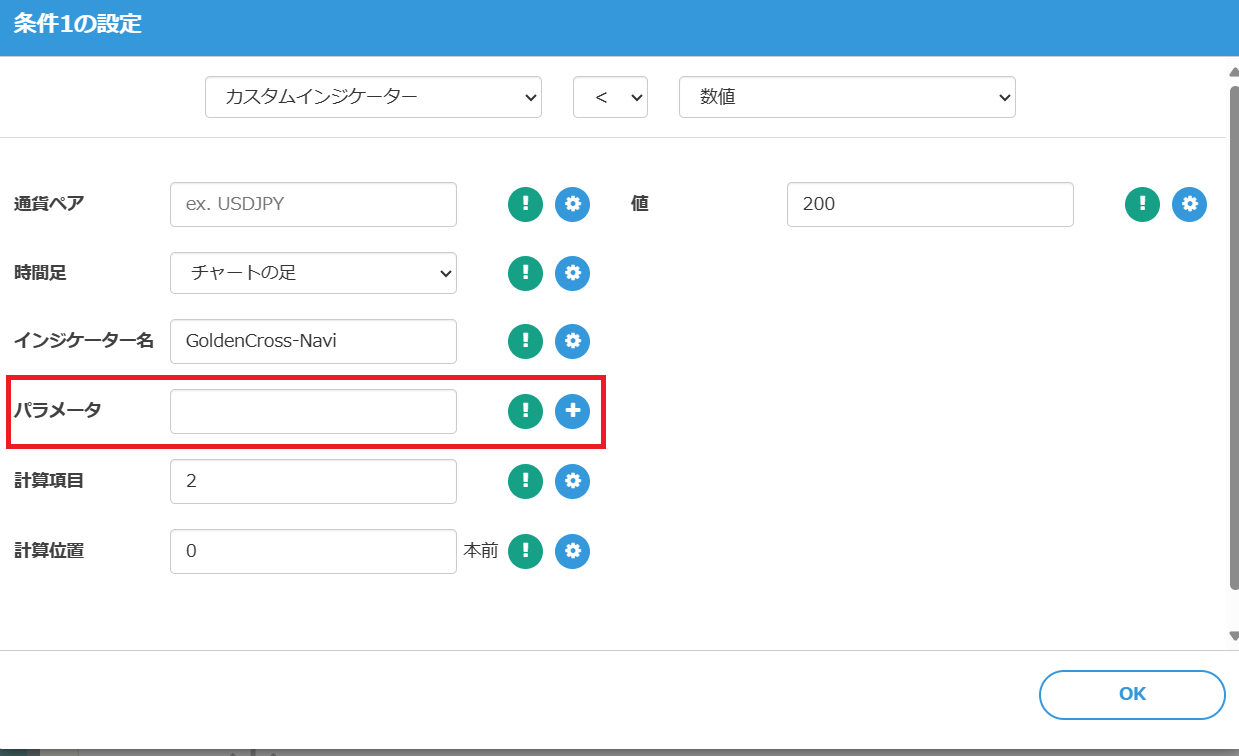
In EA Tsukuru's condition settings, you can read the custom indicator parameters without issue by clicking the (+) button and entering values such as “true,” “14,” or “abc.”
Operation Check
Backtesting the program with the above conditions showed that buy orders were placed according to the signals (for convenience, stop loss and take profit are set simply).
Conclusion
That concludes the method for creating EAs using custom indicators.
EAs created with EA Tsukuru may not operate exactly as intended due to various reasons such as the combination of conditions or errors in condition specification.
Please perform backtesting and testing on a demo account to verify operation before starting on a real account.
We appreciate your continued use of “EA Tsukuru.”
Questions? Head to LABO!
 | GogoJungle LABO A Q&A service focused on programming for investments, such as automated trading and indicators. In the EA Tsukuru category, we accept questions and consultations related to EA Tsukuru. |
Purchase Here!
 | “EA Tsukuru” MT4/MT5 Compatible No‑code development of EAs by anyone, fully automatic or semi-automatic trading to make your trading a little easier! |