
Let's learn about options
Introduction
We are GogoJungle Co., Ltd., the company behind GogoJungle / Skijan.
This time, for those who have grasped the basic operations of EA Builder, we will introduce how to use the option features and some of the standard options.
If you are new to EA Builder or have not yet created an EA, please refer to the past articles via the links below.
・EA Builder Basic Operations and How to Use
・Thorough Explanation of Trading Conditions
Table of Contents
・What are options?
・How to use option features
・Introduction to standard options
・Conclusion
What are options?
An "Option" is one of the features provided by EA Builder, which allows you to attach various settings to the EA.
From handy features such as trade notifications to those that change the nature of trading, a variety of options are available.
Multiple options can be applied simultaneously, and even logic that would normally be somewhat complex can be easily configured using options.
How to use option features
Now, let's look at how to set up options.
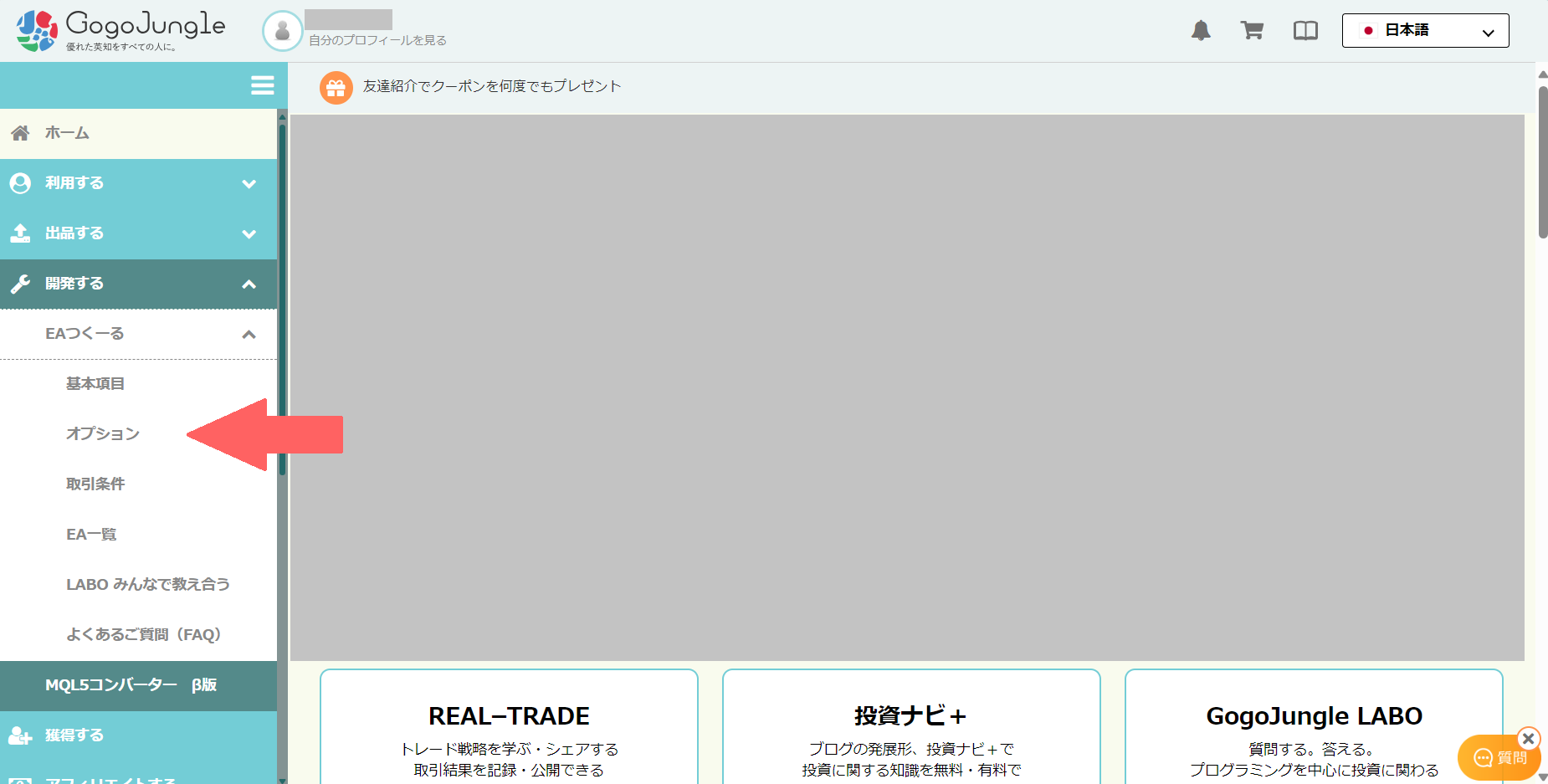
Develop->EA Builder->Options
Below is the screen for setting up options.
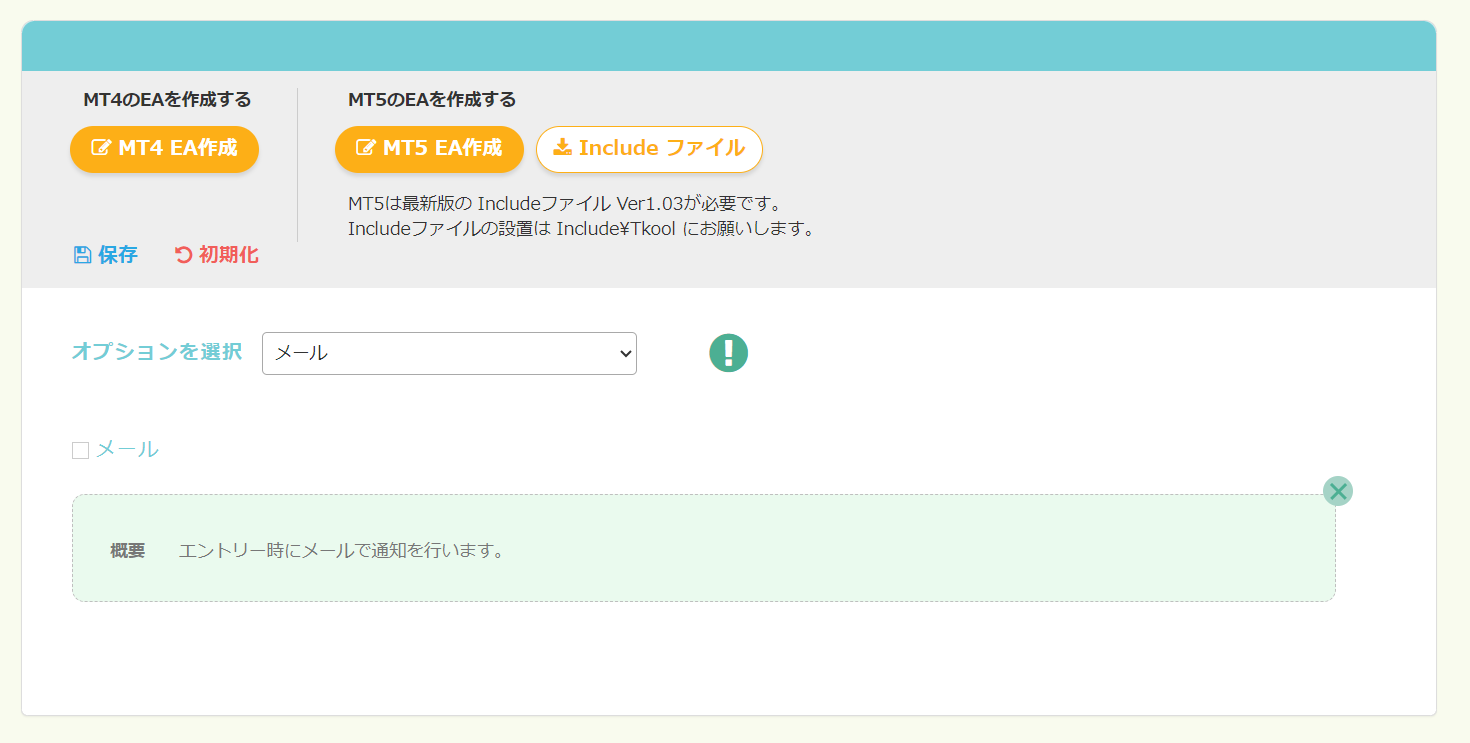
Setting up options
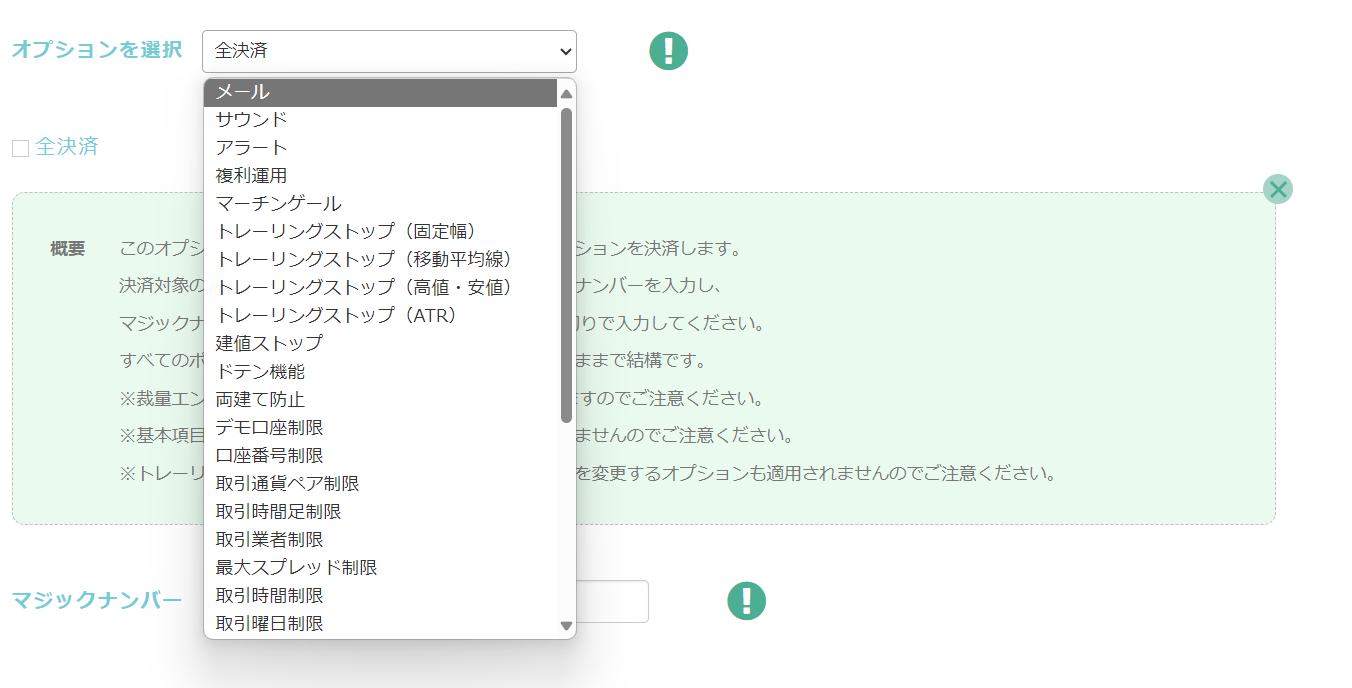
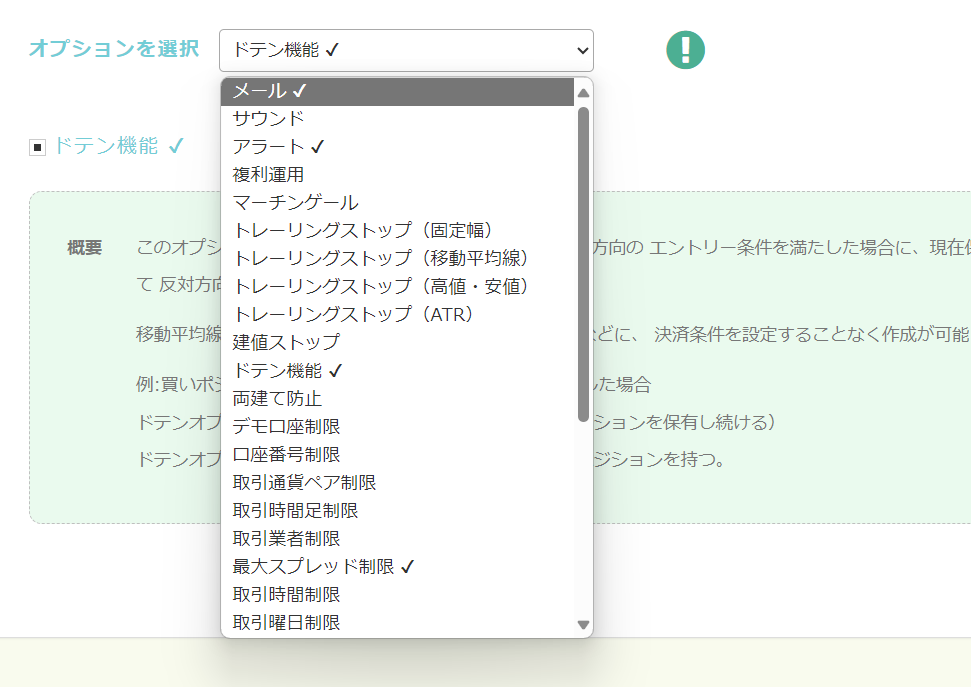
'Select Option' dropdown lets you choose the option you want to apply.
After selecting from the dropdown, check the checkboxes that appear at the bottom, and, if necessary, enter any desired values to complete the option settings.
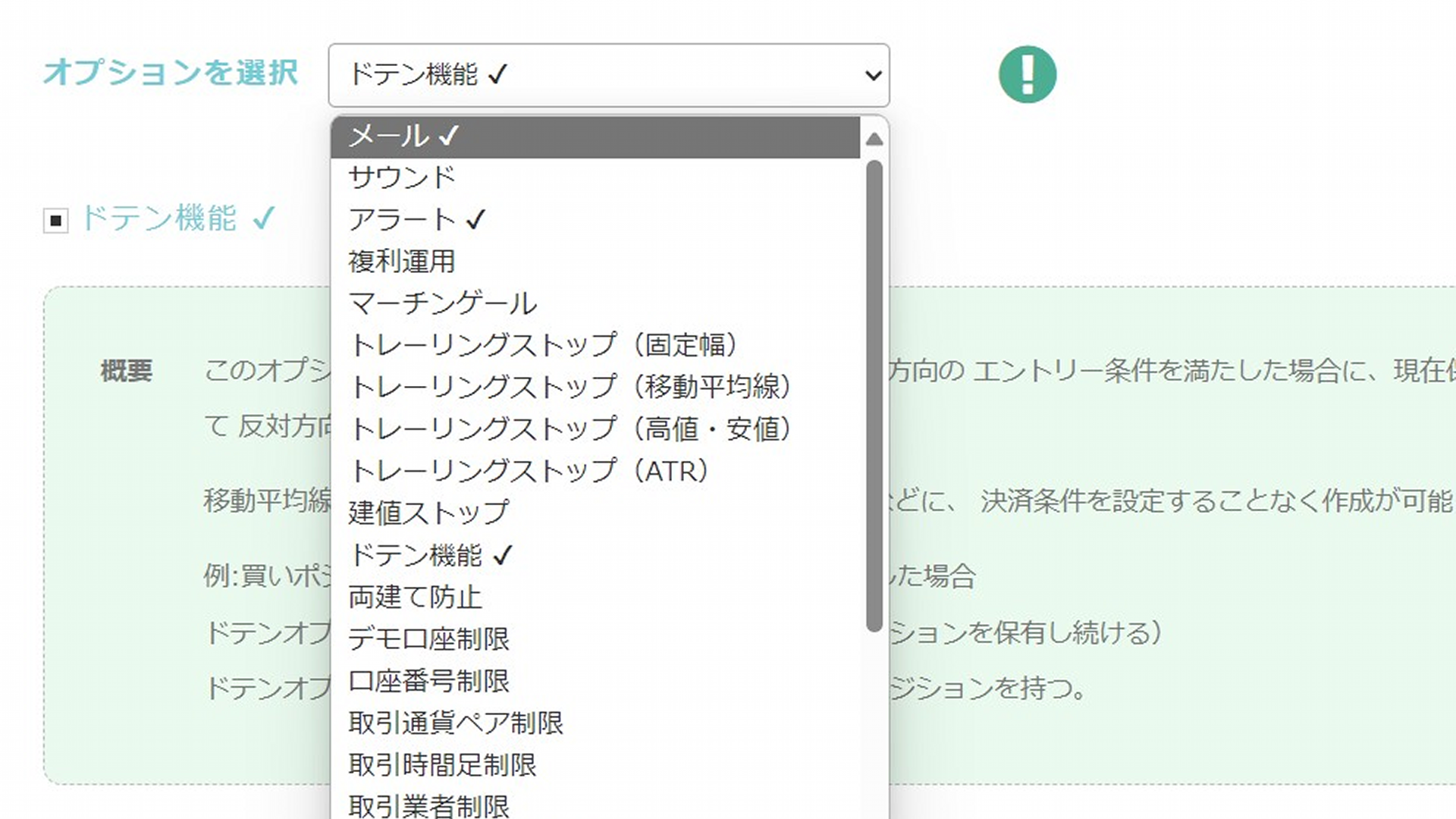
You can enable multiple options at once, and you can verify what's enabled by the checked indicators.
Introduction to standard options
Now that you know how to use options, let's actually look at some options.
Options range from those that do not affect the trades themselves to those that change the nature of the logic; here are some commonly used ones.
Compounding

It adjusts the trade size so that the loss at stop loss equals the value set by the risk.
Example: If the account balance is 1,000,000 and risk is set to 3%, the entry will be with a position size such that the loss at stop loss is 30,000.
※To use this feature, the basic setting "Stop Loss" must be set to a value greater than zero.
The risk setting above is controlled by the parameter "MoneyManagementRisk," which can be adjusted during operation.
Trailing Stop
Trailing stop is an order method that automatically adjusts the stop order in real time according to price movements.
EA Builder provides four types of trailing stops as options, allowing you to set the trailing stop based on "Fixed Width," "Moving Average," "High/Low," and "ATR."
※If changing to a value too close to the current price (less than the stop level), an error occurs. Please check the stop level settings for MT4/MT5 (see below).
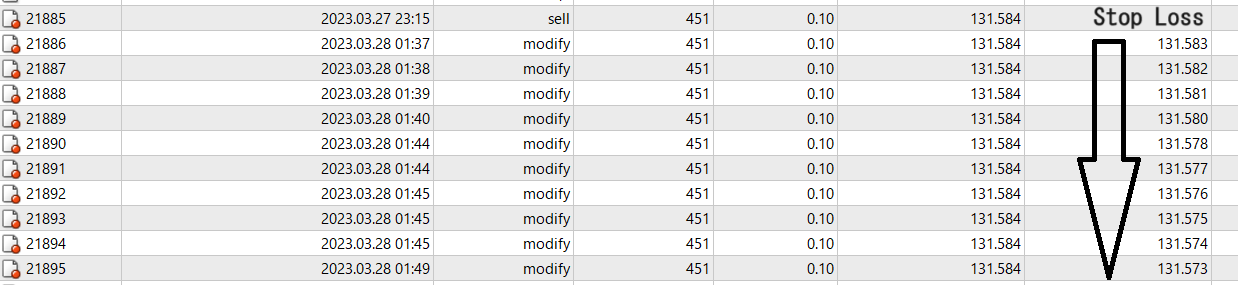
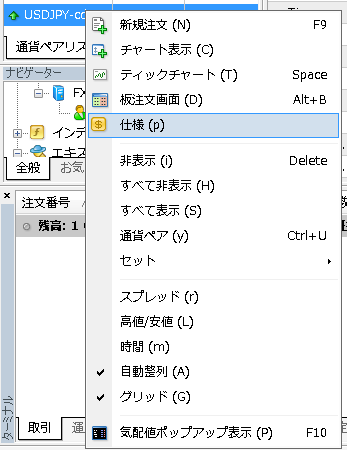
Stop level is displayed in points as shown below.
In the example below, it is 50 points, which is 5 pips.
※In the above case, changing by less than 5 pips from the current price will cause an error "OrderModify error 130" and cannot be changed, so please be careful.Cannot be changed, so please be aware.
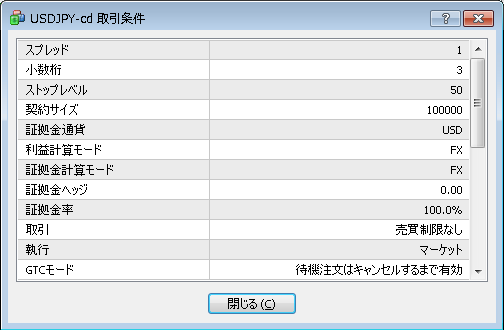
Trailing Stop (Fixed Width)

When profits reach at least the number of pips set in the parameter (interval), the stop loss is moved to a price that is disadvantaged by that many pips.
Also, as profits update further, the stop loss is moved again to a price disadvantaged by the parameter's pips.
※If the price after the change is more favorable (larger profit at exit) than the stop loss price already set, the stop loss change will not be performed.
Trailing Stop (Moving Average)

For a long position, it becomes effective only when the current price is above the moving average. As the moving average rises, the stop loss price also rises, so it closes when the price breaks below the moving average.
For a short position, it becomes effective only when the current price is below the moving average. As the moving average declines, the stop loss price also declines, so it closes when the price breaks above the moving average.
※If the stop loss price is already set at a price more favorable than the updated price, the stop loss change will not be performed.
Trailing Stop (High/Low)
For a long position, the stop loss is the most recent low price. As the recent low rises, the stop loss price rises, so it closes when the price falls below the recent low.
For a short position, the stop loss is the most recent high price. As the recent high falls, the stop loss price falls, so it closes when the price rises above the recent high.
※If the stop loss price is already set at a price more favorable than the updated price, the stop loss change will not be performed.
Trailing Stop (ATR)
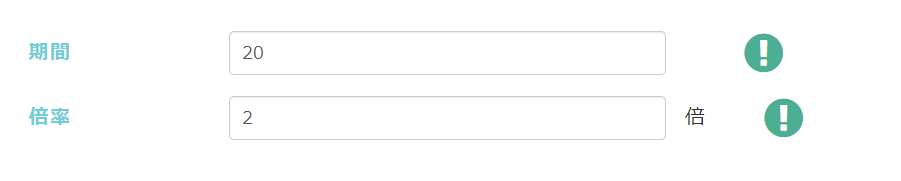
By setting the multiplier parameter, you can set the stop loss at X times the average width.
For a short position, the stop loss is placed at the price ATR distance above the current price.
※If the stop loss price is already set at a price more favorable than the updated price, the stop loss change will not be performed.
Doten (Reverse) Function
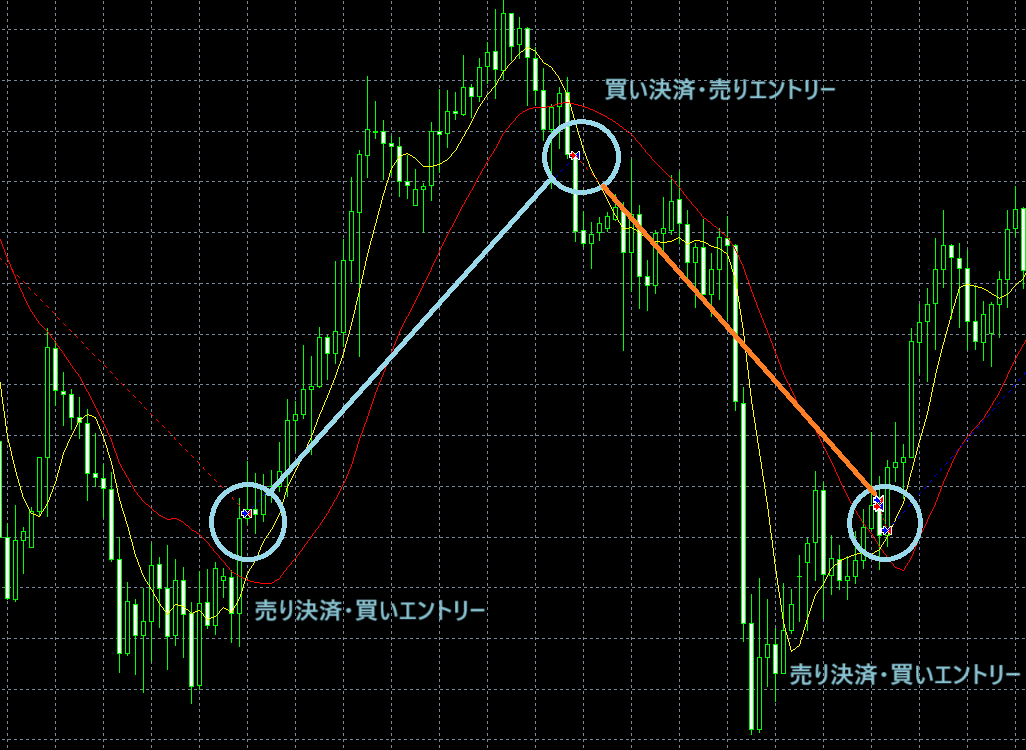
Using this option, when entry conditions in the opposite direction are met, the currently held position is closed and an entry in the opposite direction is made.
This makes it possible to implement reverse trading on moving average crosses without setting a separate exit condition.
※The Doten function will trigger when opposite trading conditions are met (e.g., you hold a long position and the short-entry condition is satisfied). If the exit is performed by the basic items "Stop Loss" or "Take Profit," Doten will not trigger. If you want to repeatedly trade using only the Doten feature, set the basic items "Stop Loss" and "Take Profit" to 0 (unset).
Behavior of an EA that uses the Doten feature without exit conditions
Trading Time Restriction
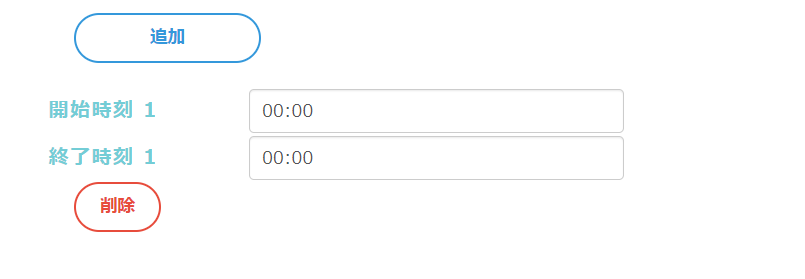
You can set the time periods by clicking the Add button. Even if the time is outside the specified range, the exit conditions are valid regardless of the trading time option.
Example: configure to allow entries only during the Tokyo Stock Exchange's regular hours
Start 09:00 End 11:30
Start 12:30 End 15:00
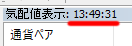
※The above times are expressed in Japan Standard Time for convenience, but in reality you need to set them based on MT4 server time. In many cases, server time is 6 hours behind Japan Time (e.g., if Japan Time is 09:00, MT4 server time is 03:00, so set the trading time option to 03:00).
Example: Settings around 0 o'clock
If you want to set from 23:00 to 01:00, configure as follows.Start 23:00 End 23:59
Start 00:00 End 01:00
Entries per Candle
Using this option, you can limit the number of entries within a single candlestick to one.
If you do not use this feature, depending on the trading conditions you may re-enter after a close, so we recommend using this feature.
Maximum Number of Positions

If the number of positions after an entry exceeds the maximum, that entry signal is ignored.
Conclusion
That is all for the explanation of EA options.
EA Builder offers a variety of options as described above. The ones introduced this time are only a subset, so please try various options in practice.
EA Builder-created EAs may not operate as intended due to various reasons such as combinations of conditions or mis-specifications of conditions.
Please verify operation via backtesting and a demo account before starting live trading.
We appreciate your continued use of EA Builder.
Questions? Contact LABO!
 | GogoJungle LABO A Q&A service focused on investment programming, such as automated trading and indicators. In the EA Builder category, we accept questions and consultations about EA Builder. |
Purchase from here!
 | 'EA Builder' MT4/MT5 compatible No-code EA development that anyone can do easily, with fully automated or semi-automated trading to make your trades a little easier! |