
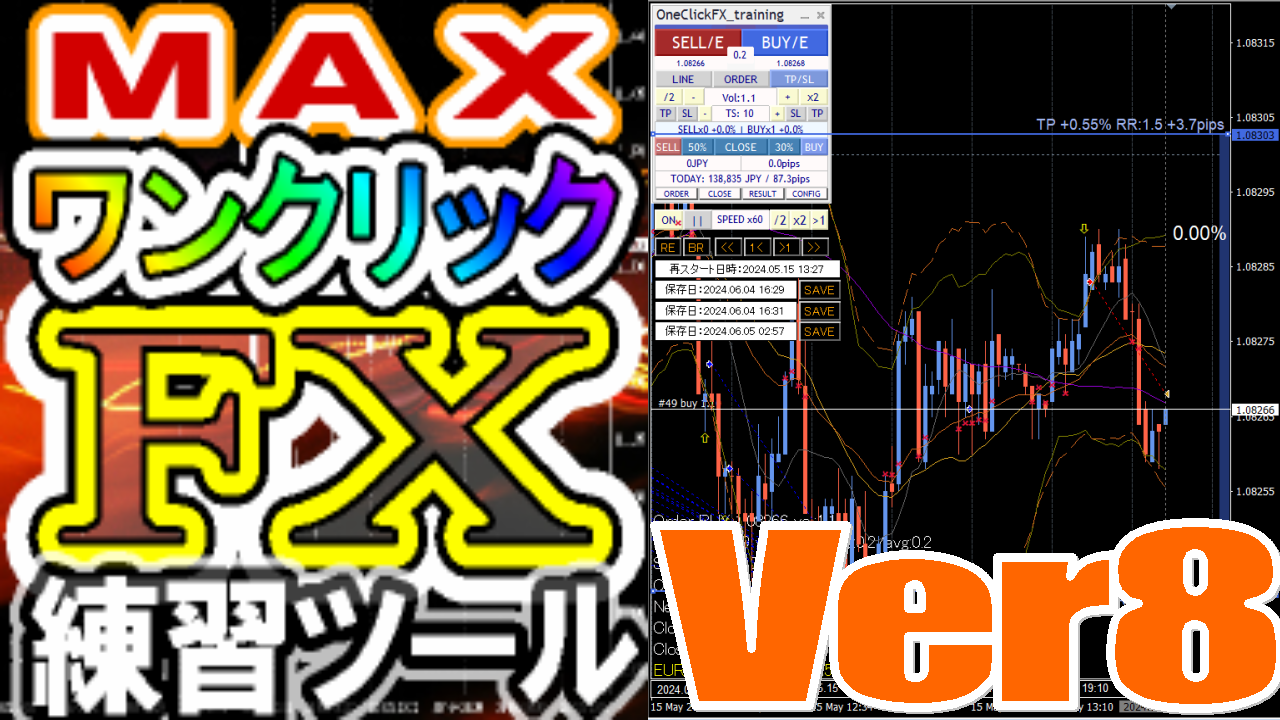
One-Click FX Training Support Page
Remove the MAX from the product name, turning it into One-Click FX Training.
This page is a support page for purchasers.
This is publicly available to everyone including those considering a purchase. Please review the product features and usage details. If you have any questions, feel free to contact us.
If you are considering purchasing, you can buy from here.
https://www.gogojungle.co.jp/tools/indicators/22485
The latest is version8.41.260915.
Version upgrades are free ⇒Download Center
※By downloading or launching this product, you agree to theTerms of Use.
For purchasersyou can access a community with many perks.
https://www.gogojungle.co.jp/mypage/community/227
Added smart tooltips for order buttons, etc.
Auto-upload of OneClickSA
One-Click FX TrainingCoexistence removal with Sync
Added conversion rate for price conversion error
Launch-time leverage display
Added unit for 1 PIP
MT5 AI Assistant support
Color specification for loss-cut line
Changed minimum RR to 0.01
▼December 06, 2025 v8.33
Added ST button (overwrites default template chart),
Initial limit orders use TP/SL lines as base for order price
Entry time filter
Trailing stop TP/SL fully separated
Trailing stop: Protect/Break-even
Recovered object parameter on resume
Trailing Stop (AVG, SHRINK) parameter changes
Break-even line thickness synchronized with TP/SL line
Parameterization for large 4K displays
▼June 12, 2025 v8.26
Chandelier Exit added,
Fee display
▼April 15, 2025 v8.22
Fast skip
Line specification changes
▼January 07, 2025 v8.20
AI Judgment
Independent synchronization of charts
Included keyboard operations
Distribution of object synchronization tools
▼November 14, 2024 v8.18
Reset + added TS,
Add daily/weekly/monthly, 10/100, PROFIT, PIPS/vol, PIPS/trade to history
Change of message font
Change saved date to chart's date and time
▼September 09, 2024 v8.16
Error page display, enhanced concealment of synchronized charts, added startup when minimized, synchronization bar adjustments, BE line swaps, delete take-profit orders on settlement, added start button on launch, downloader fixes, One-Click SA warning handling, other bug fixes, parameter and color adjustments, etc.
▼June 06, 2024 v8.01
Added line thickness parameter,
Added automatic split orders
Corrected message about margin and currency pair mismatches
Added Support Assist
Added color bar for entry timing
Spread added to SL calculation
Added Time Leap functionality,
Restart from last point feature
Added historical verification viewer
Added Strategic Close
Added Flexible Trailing Stop
Separated TP/TS and SL/TS processing, button separation
Double-clicking messages clears
Keyboard settlement addition
Package including special indicators
▼November 12, 2023 v7.60
Add Next Bar button
▼October 20, 2023 v7.51
Add color to close message,
Clicking dates in history shows results
Other bug fixes ▼January 29, 2023 v7.50
One-click automatic arrows trading【AutoArwTrade】Support
Added selling/buying settlement to signal linking
Display profits and losses and sizes in history
Speed up signal linking
Add credits to profit/loss calculations
Add initial only to server orders
Change RR minimum to 0.1
Display TP/SL line at order time as well
Parameter addition for initial position of control box
Auto-generation of active synchronized charts
▼April 22, 2023 v7.30
ASP comments update
▼April 12, 2023 v7.281
Activate synchronized charts
Save button for standardized charts
Fix choppy position bar
Display, comments, etc. corrections
▼March 11, 2023 v7.11
Add WebRequest for license authentication,
ASP restrictions,
Auto-nanpin button
Font size scaling
Add speed list
Support multiple signals,
Slack notifications 2022-09-16 v7.010 bug fixes, etc.
▼September 04, 2022 v7
Add limit entry orders
Automatic risk calculation
Margin profit % (risk %) added
Display daily profit %, and trade history
Display position information
Add risk-reward
Change display of position triangles
Auto-save of daily summary images
Right-edge synchronization for synchronized charts
Add revised risk% calculation
▼April 16, 2022
On full close, reset TP/SL/TS flags
Fixed NONE triangle bug and others
▼October 15, 2021 v6
Instant display of positions at entry
Control TP/SL invalid values
Reject entry on negative
LINE, Discard notifications
Change triangle color to mid between BUY/SELL
Add default parameters
Error, fill orders messages display area
Reduce load during speed control
Support for some fee-bearing accounts
▼June 02, 2021
Add forced loss-cut line
Measures to avoid opening the settings screen when repeatedly pressed
TP/SL line drag & drop supported
Add sub-panel
Add individual settlements, partial settlements
Support for change of active standardized charts
Add compact mode
Add parameters for signal linking (index)
Add close for signal linking (object)
Free version of signal linking indicators included
Toggle ON/OFF for signal linking
Add license authentication
▼August 8, 2020 added
Signal tool integration
Auto-save trade images
Change control box to desired color
Break-even line
TP, SL lines
Change labeling to PIPS
Param cleanup
PipsGrid bundle to draw lines in PIPS units
Position display on synchronized charts
SL standard and trailing
Auto-nanpin on SL
Line as percentage of funds
▼May 25 added
Painlessly visualize profits and losses with ASK line
Add auto ON/OFF for trailing on
▼May 1 added
Disable TP/SL at order time by 0
To maximize profits, trail on take-profit orders
Add PIPS display for profits and losses
Show losses in red when negative
Add currency name to ALL, RESULT in profits/losses
▼March 27
Show current spread (including real version)
Display pending and stop orders as triangles for positions
Add limit and stop orders for control-box indicators (including real version)
Add MA, BB, SAR to trailing stop
Add time display with time difference and daylight savings
Add synchronization scaling for other charts
Add dedicated templates
※This page also contains images from before the upgrade
Product contents
One-Click FX Trainingis a high-function FX trading simulator that lets you practice and test discretionary trading even on weekends when the market is closed. You can practice 24/7, 365 days a year whenever you notice something.
In addition to basic features like speed control, automatic take-profit and stop-loss settings, take-profit and stop-ordering, there are replay, signal tool integration, partial close, risk auto-calculation, history saving, automatic trade image saving, daily totals, time-leap, restart, rich display features, AI-based trading evaluation and analysis, etc.—it is a fully featured practice and testing tool.
From daily practice to tool testing and technical analysis, it can be used for various purposes.
- Product contents
- Operations & Parameter settings
- Details of features
- Automatic calculation by risk %
- TP/SL lines
- Smart Tooltips
- Limit orders
- Strategic Close
- Flexible Trailing Stop
- Speed control
- Fast skip
- Historical Verification Viewer - TheWorld
- Restart - TimeLeap
- Automatic image saving
- Daily totals results
- Entry assist
- AI Judgment (AI Export)
- Economic indicators
- Support & Assistant
- Sub-chart synchronization settings
- Integration with signal tools
- Indiors included with the package
- Troubles & Tips
- If you’re stuck
Initial setup
Please refer to the setup page to allow DLLs, configure authentication,install One-Click FX Training.
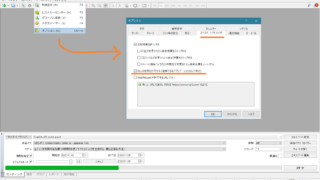
After setup is complete, please restart MT4.
Preparing historical data
One-Click FX Trainingis,you can start and run it using the historical data currently loaded in MT4.However, if you want higher accuracy for training or testing, or longer testing periods,you may need to prepare historical data as needed.
 | 【2026 Edition】Set up MT4 historical data (historical data) This page explains the method to prepare historical data for training/testing tools such as One-Click FX Training, One-Click FX Arrows, One-Click FX Validation with AI, One-Click 225 Training, One-Click BO Training, and other testing tools... |
Launching One-Click FX Training
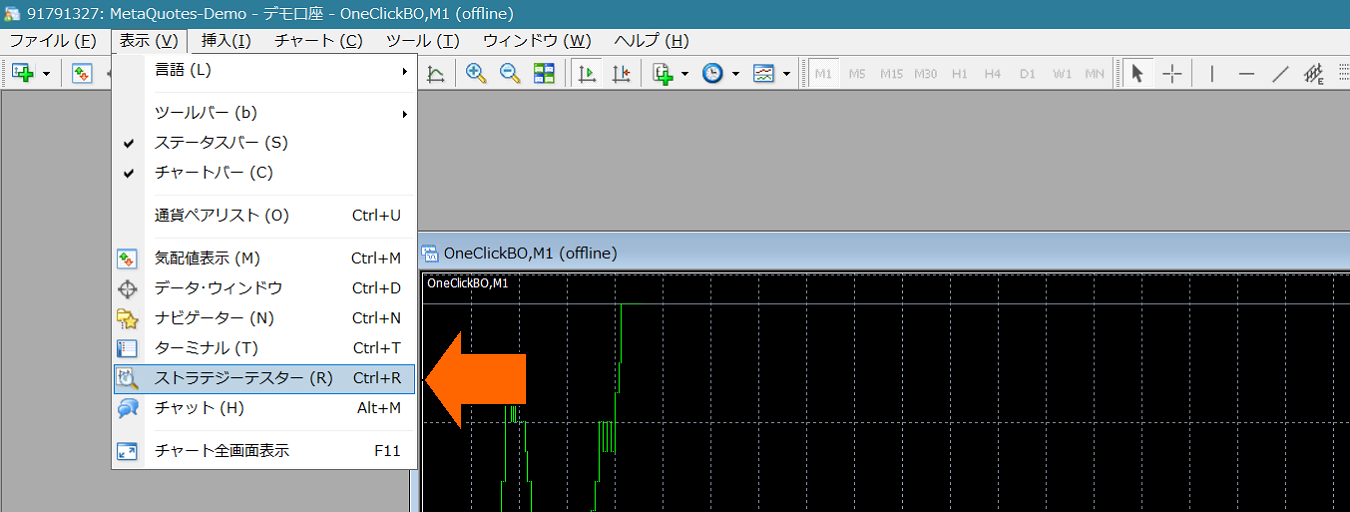
4) Open the Strategy Tester window.
5) In the Strategy Tester, select Expert “OneClickFX_training”, any currency pair,Model as “Control Point” (for practice like scalp all ticks).Check Visual Mode, uncheck Optimize. Set speed slider to 31 or 32.

If Visual Mode or similar is not displayed, here =>If Visual Mode, speed slider, period are not shown in MT4 tester.
6) 【Important】From Expert Settings,open the Parameter input screen and enter “GoGoJAI Member ID” and press OK. (Other parameter details will be described later). Authenticating with another address may be considered improper use.
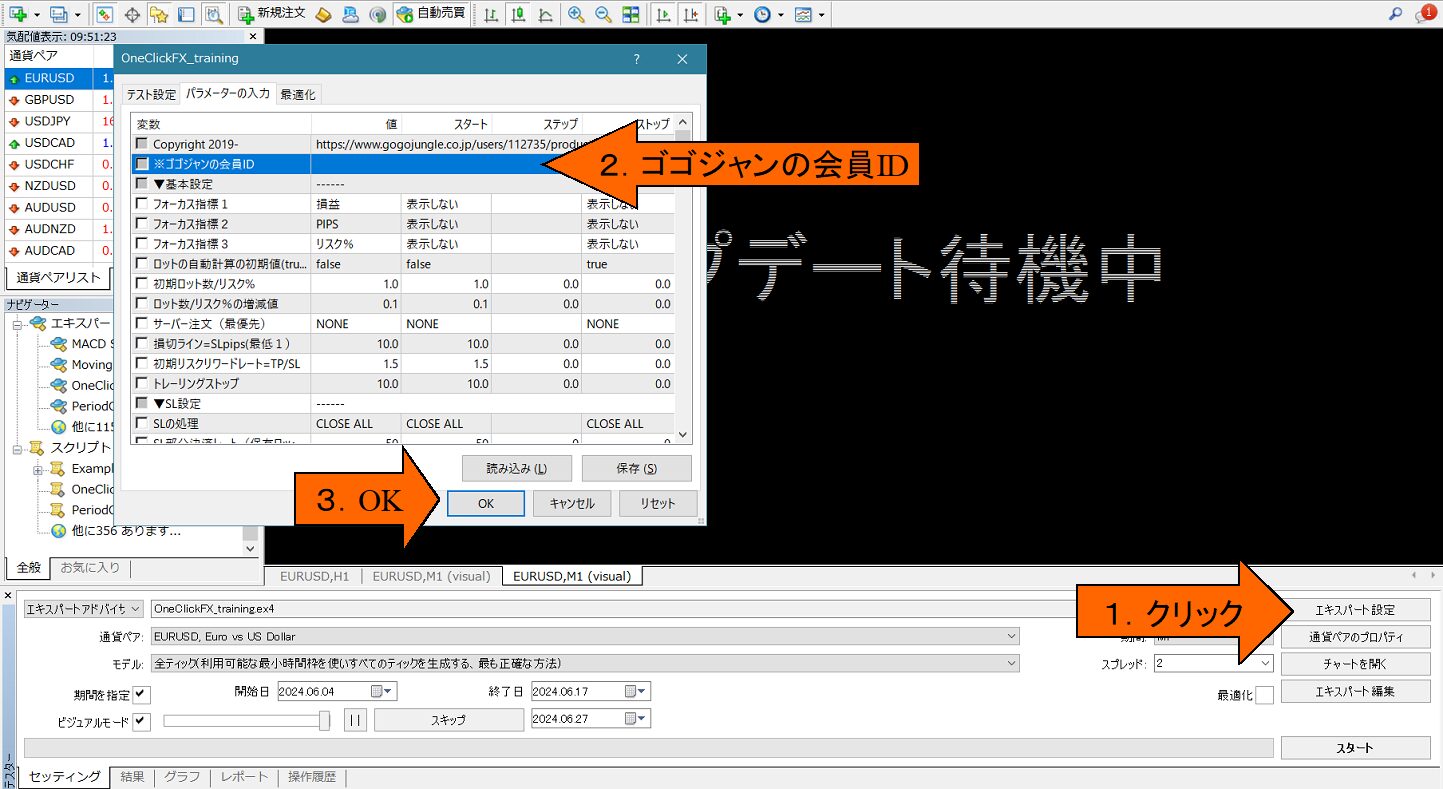
7) Press Start in the tester window bottom right (image shows Stop button).
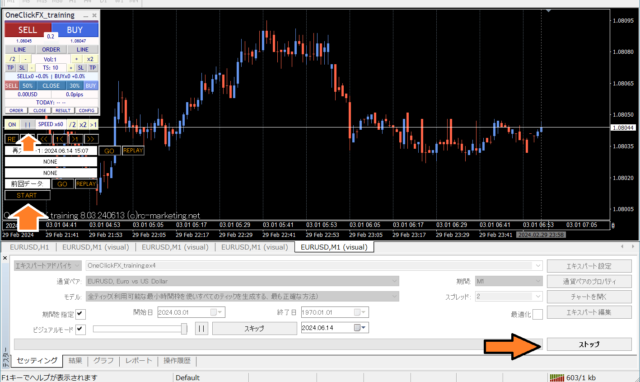
After “Update awaiting” is displayed, the chart screen will appear. If license errors appear, review your email address. Press Stop to halt. From the control panel of One-Click FX Training on the chart left top, press the pause button in the arrow area, and start again.
This will run with default values. Press Buy/Sell and Take-Profit to verify operation.
If it stops immediately after starting, please check the errors in the operation history tab.
If you want quick trade practice first, then
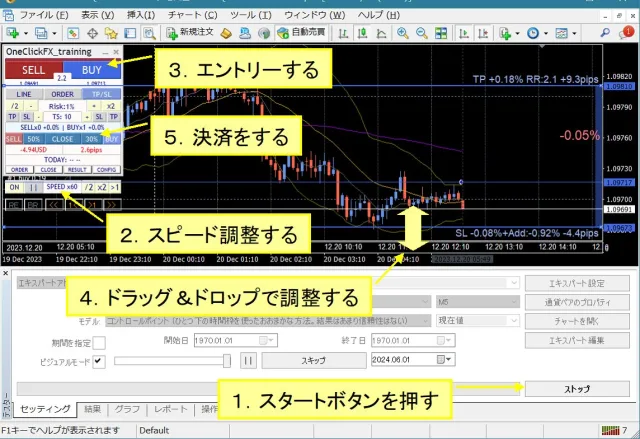
change the standard chart while testers are running
Three standard charts are included.
・OneClickFX_training: Standard chart automatically applied at start. Includes original chart colors, Bollinger Bands, moving averages, PipsGrid, economic indicators, and JST time display.
・OneClickFX_training_core: Simple content with original chart colors and Bollinger Bands only.

Set margins to Japanese Yen
From the Expert button, open test settings and in the initial margin dropdown on the right, directly enter “JPY.” Leave as is would reduce funds, so add two zeros.
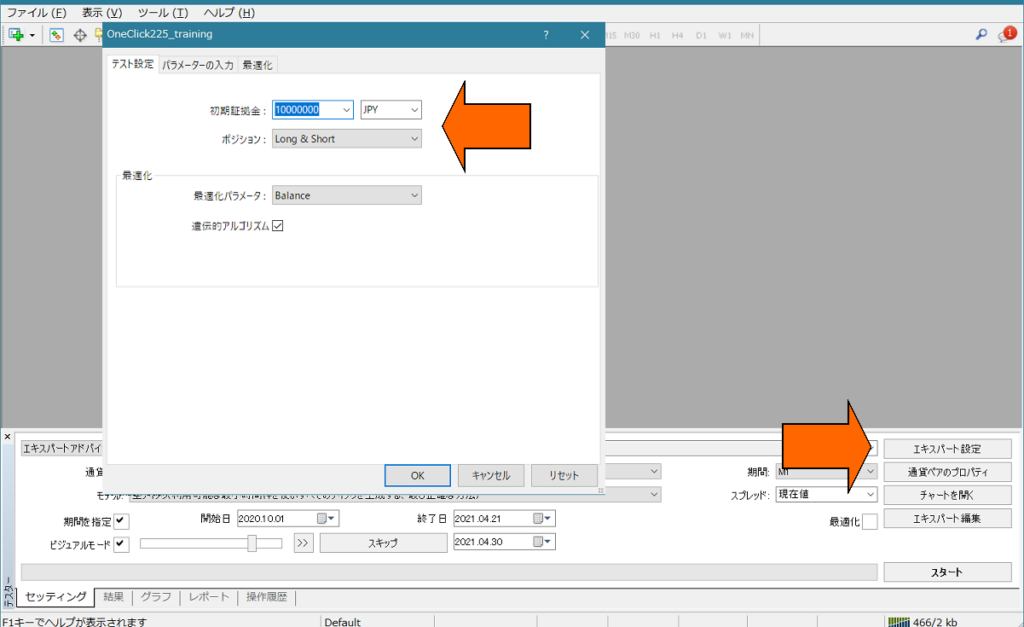
Depending on brokers, if the currency pair is not JPY, orders may stop immediately after placement. In that case, use margins matched to the pair.
For details =>MT4 Strategy Tester: Set margin currency to Japanese Yen
Operations & Parameter Settings
How to use One-Click FX Training
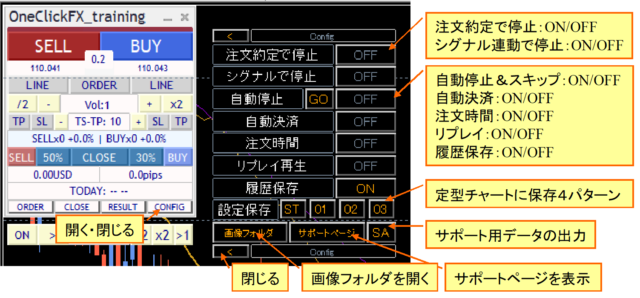
Main panel (normal mode)
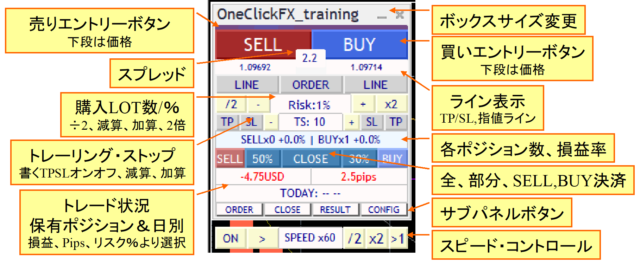
Focus mode

Sub-panel for orders
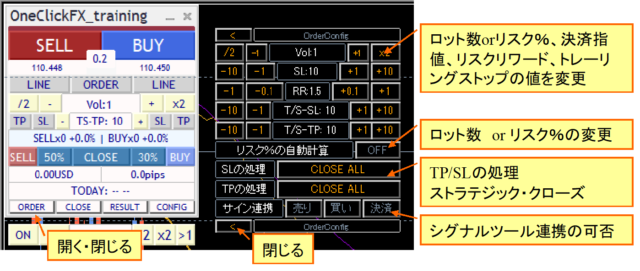
Sub-panel for closes
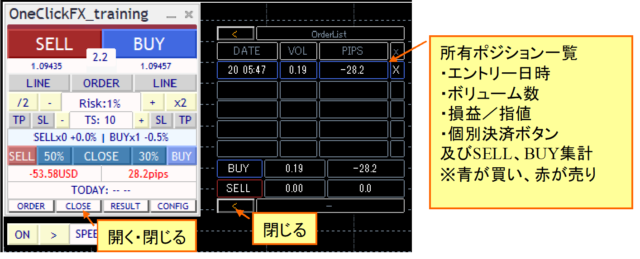
Sub-panel for history
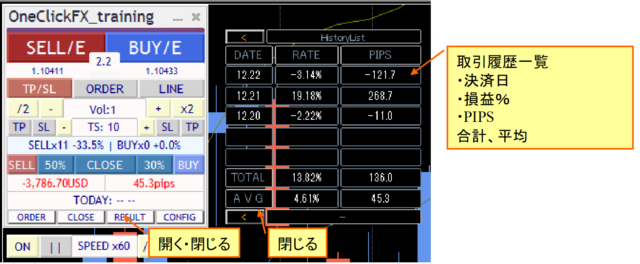
Other sub-panels
Speed control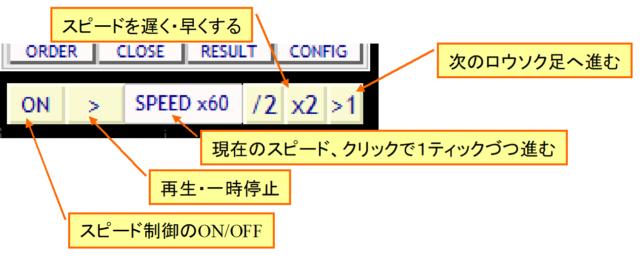
Move forward/backward while paused and save restart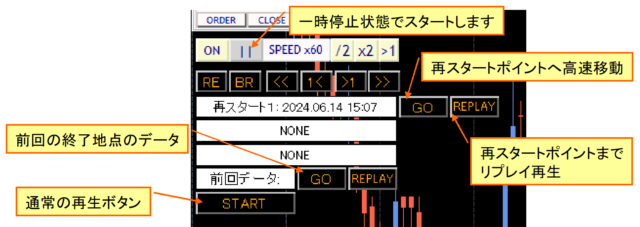
Displayed information at startup, normal startup, restart, replay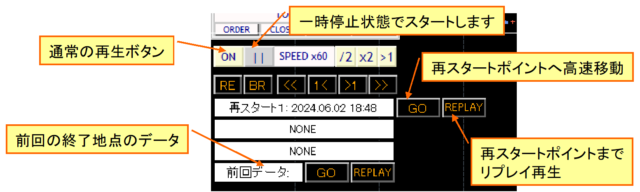
One-Click FX Training parameter settings
| Choose three indicators for Profit/Loss, PIPS, and risk% respectively. Indicator 1: Left of Control Box, Indicator 2: Right of Control Box, Focus mode, Indicator 3: Center of chart right edge (hidden when NONE) |
|
| Choose whether to place TP/SL on the server for both or SL (stop only). The initial TP/SL and initial SL are set only at the first order; changing TP/SL lines afterward does not alter the order contents.If server orders are ON, TP/SL linesStrategic Closewill be disabled. | |
| Trailing Stopis automatic upliftable profit-taking by the tool control. Specified in pips. | |
| Specifies how Strategic Close handles when the take-profit order is hit. | |
| Trailing StopChoose the type. | |
| Specify the handling when TP is reached.Strategic Close. | |
| Trailing Stoptype selection | |
| Entry Assistconfigures Entry Assist. Initial value is disabled. | |
| Entering a specified key executes all settlements. Initial value is disabled. You can settle using any combination of SHIFT+CTRL+ALT. Depending on keyboard layout, please test supported keys beforehand.Fast-forward playback speed is reduced. | |
| Forced settlement time Initial forced settlement time |
|
| Order time Start time, End time Initial order time value |
|
| GMT difference for connected server Daylight saving time |
|
| Trade image saving Image size: width x height |
|
| Initial values for buy/sell/close signals Initial values for sell signal Initial value for close signal |
|
| Buy signal object name Sell signal object name |
Enter the object names displayed by the signal tool. If a substring matches, it is considered a target signal. Default: ArwUP, ArwDN areOne-Click Auto Arrows Tradingand includedSignal Arrows Toolas default arrow values.Multiple strings can be specified separated by commas. All conditions must be AND. |
| All-close signal objects Buy close signal objects Sell close signal objects |
Enter the object names displayed by the signal tool. Partial matches count as target signals. Defaults: ArwCL, ArwCUP, ArwCDN areOne-Click Auto Arrows Tradingand includedSignal Arrows Toolso that the names match the arrows. |
| Buy signal index Sell signal index |
|
| Notification Settings [Common] | |
| Buy color Sell color Trailing stop color |
Set the colors for buttons, TP, SL, and trail lines. Position lines and limit lines will use the same color as a default. If you want the same colors as older versions like V6, set Buy color to Green. |
※Parameters use only values. Start, stop, and steps are not used.
Details of features
Automatic calculation by risk %
Order quantity is automatically calculated from the amount of margin and the loss percentage (risk%).
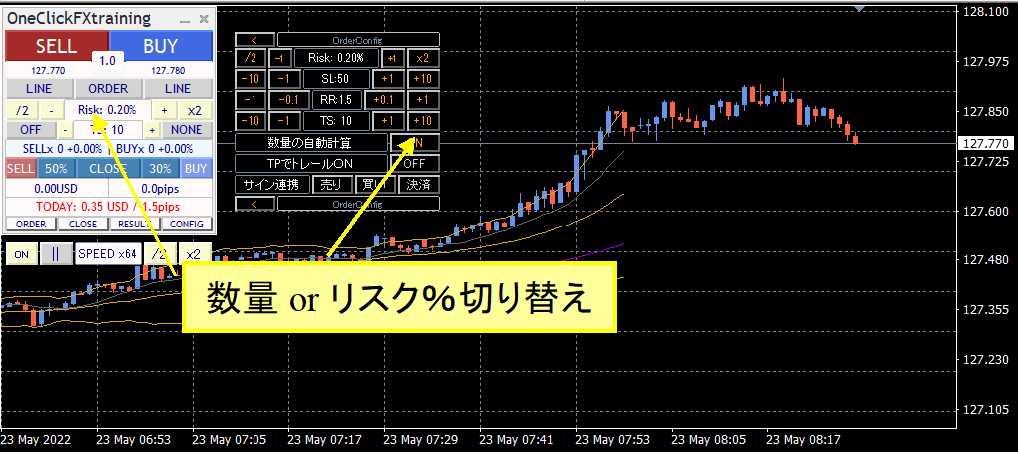
You can toggle the quantity field in the control box or in the subpanel “Automatic quantity calculation.”
If TP/SL lines are not displayed and you place a market order, the order quantity is calculated from the initial SL value and the specified risk%. If the TP/SL line is displayed, quantity is calculated from the order price and SL line price. Note that turning TP/SL lines on/off reverts to initial values and auto-calculated order quantities may not match SL lines.
TP/SL lines
Display TP/SL lines with the LINE buttons on the control box.
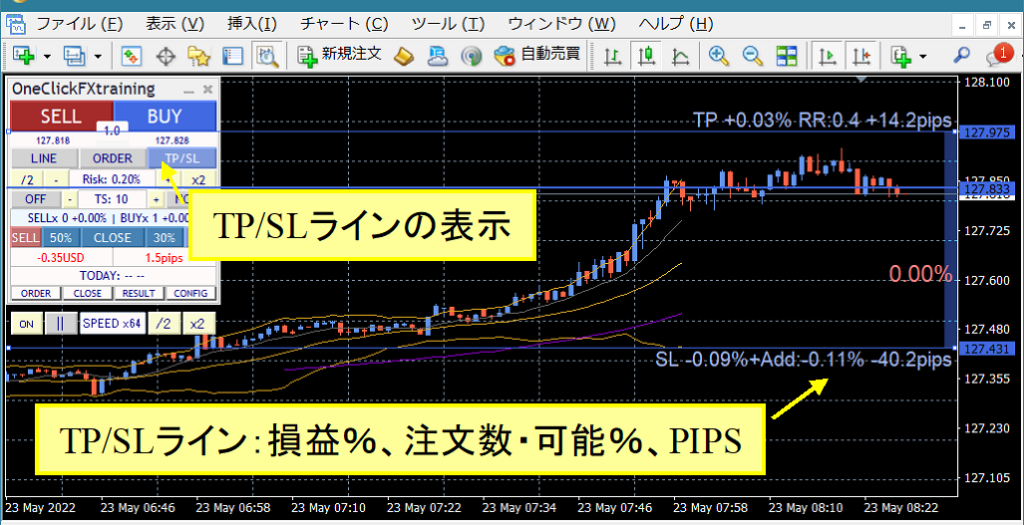
If you hold a position, upon settlement you will see the profit/loss percentage, the additional order percentage available from the order count or risk%, and the PIPS from Break-even. If you do not hold a position, you will see the allowable percentage from the current price and the PIPS.
When you turn the LINE button on, lines are drawn using the initial SL and risk-reward values. Turning the LINE button off and on returns to the initial values.
If the TP/SL line is off, settlement does not occur.
Smart Tooltips
Hover the BUY/SELL buttons or limit-order button to view order information and post-trade data via tooltips. TP/SL lines display profit and loss information.
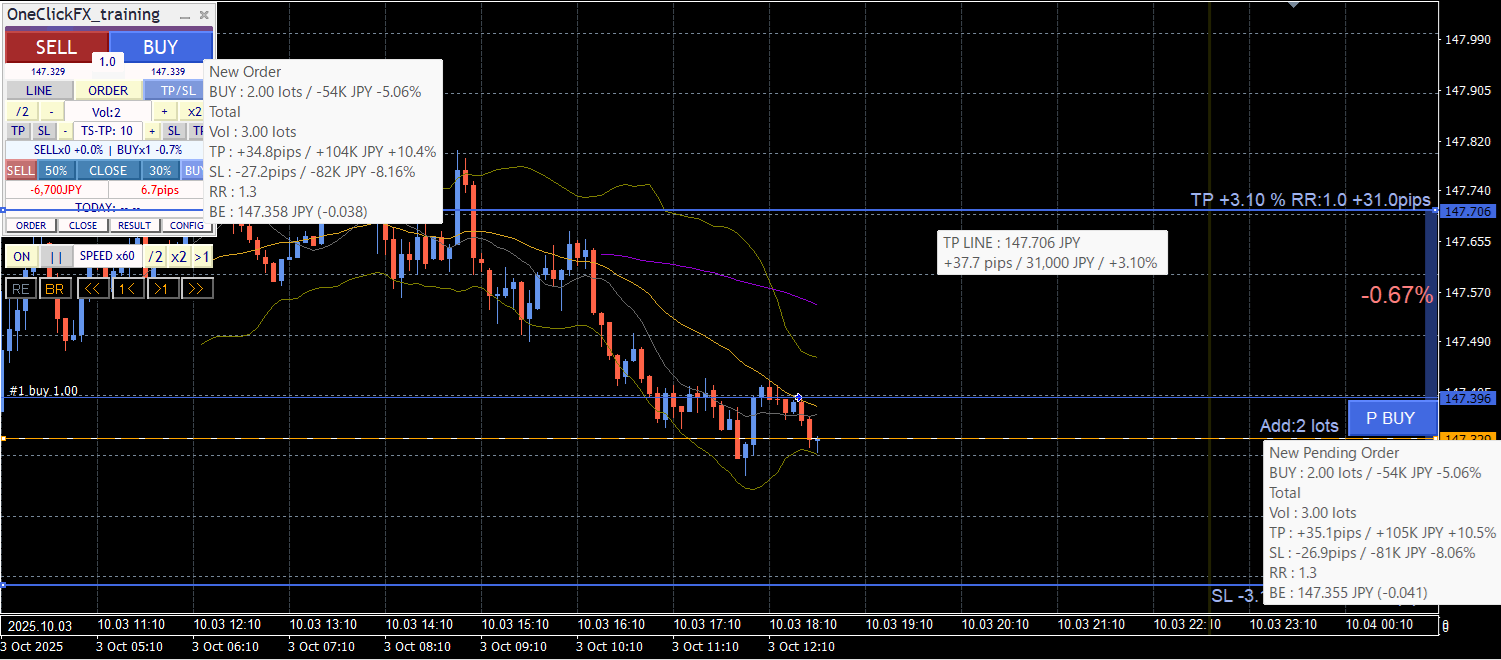
Content shown varies by position, price distance to target, expected profit, risk %, RR (risk-reward), BREAK-EVEN, order direction and lot size, etc. If expected profit is large, it’s shown asK / M / Bin a label.
Limit order
The LIMIT order line is displayed by the control box ORDER button.
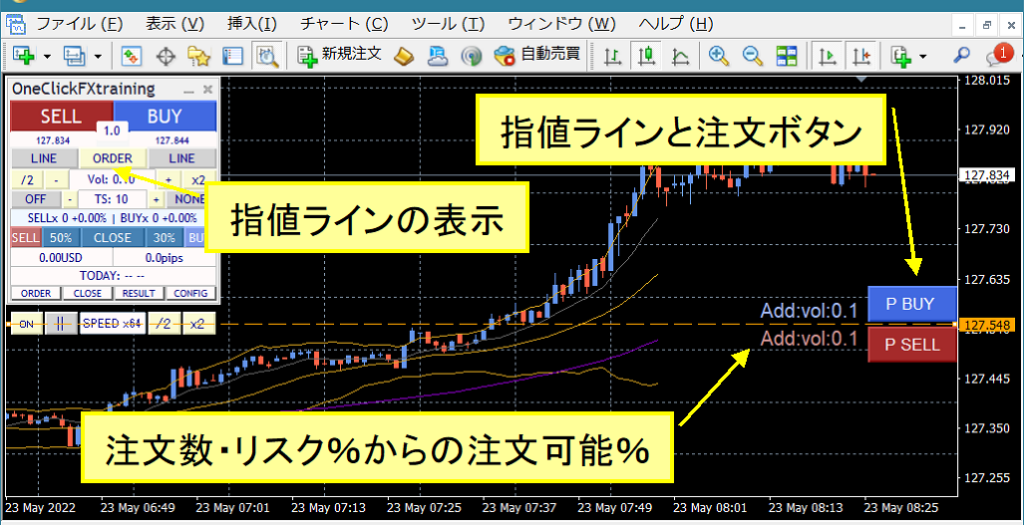
The order button appears when TP/SL lines are shown. If Buy TP/SL lines are not shown, the P BUY button will not appear. The number of orders or the allowable % from risk are shown next to the button. If n/a, you cannot add orders.
Strategic Close
When TP/SL lines are reached, one or more actions can be executed:
- CLOSE ALL: All settlements
Close all held positions. - CLOSE %: Partial close by percentage
Partially close a specified percentage of held positions. - TrailingStop: Trailing Stop
Enable trailing stop. - LineReset: Line reset
Reset TP/SL lines. - Additional Order: Additional order
Place an additional order based on the current parameters.
These actions can be combined. Available combinations are selectable from the control panel dropdowns.
Examples of combinations:
- CLOSE % + LineReset
Partial close by a specified percentage, then reset TP/SL lines. - CLOSE % + TrailingStop
Partial close by a specified percentage, then enable trailing stop. - Additional Order + LineReset
After resetting TP/SL lines, place an additional order based on current parameters.
If you use risk% for automatic order quantities, additional orders may not occur.
Also, like averaging down, additional orders may continue to add positions depending on the settings. Be sure to set a maximum number of positions.
If you reset TP/SL lines,the current price will be used as a baseline and TP/SL lines will be reset according to the configured parameters.
For example, if the SL line is set to10 pips, and a move to the SL line triggers Strategic Close, a new SL line will be set at 10 pips from the current price. Similarly, the TP line is reset according to risk-reward, and if SL is reset, TP will only move up to Break-even line and will not go negative.
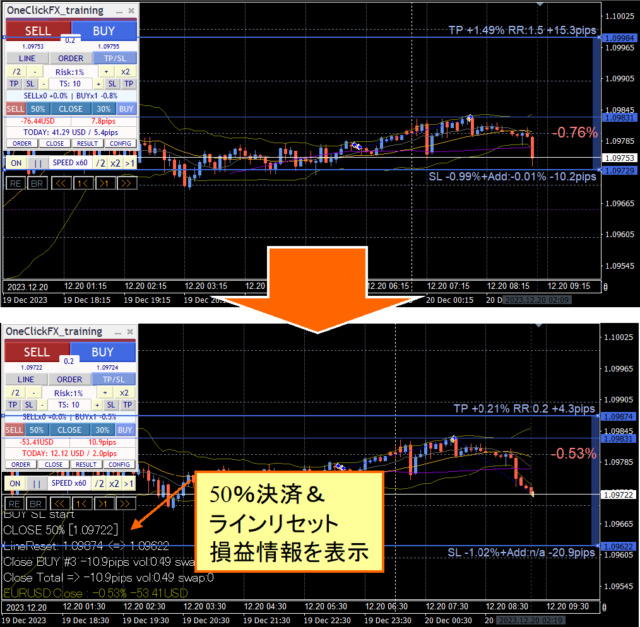
Similarly, TP line is reset based on risk-reward of SL; if SL reset occurs, TP moves only up to Break-even line and cannot go negative.※If you choose line reset without partial close, the SL line will continue to fall, so please be cautious.
Flexible Trailing Stop - FlexiTrail Stop -
TS blocks on the control panel can turn each trailing stop on/off. There are sections to set SELL TP, SELL SL, TP-TS value, and then BUY SL, BUY TP, allowing four trailing stops to be controlled separately.
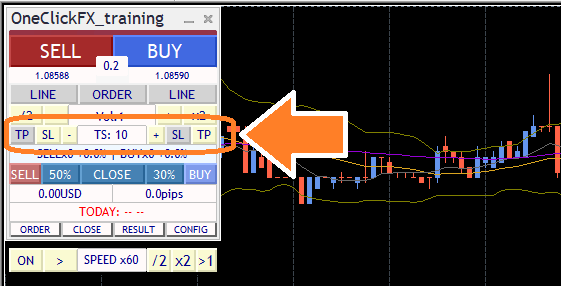
If pressing a button does not respond or it returns to previous state, you are likely in a trailing stop state under Strategic Close.When TP or SL is reached, it turns ON, so until then it remains OFF.
Trailing stop lines are shown in purple when you hold a position. If OFF, dashed lines; if ON, solid lines. The maximum value detection now occurs at the moment it turns ON, not previously. Toggling ON/OFF recalculates from the current point onward.
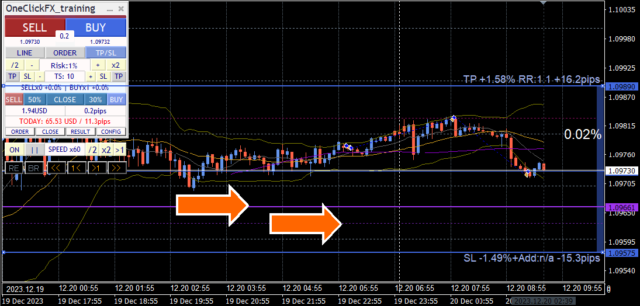
- NoneDo not use trailing stops.
- Fixed: FIXFrom the moment it turns ON, close when it falls below the specified value from the high. Similar to standard trailing stop behavior.
- Shrink: SHRINKBasic behavior is same as FIX, but on every price update or tick, compare highs; if no new high, adjust TS value progressively toward the price. If a new high occurs, return to TP or SL values. If price suddenly falls after a new high, trailing may lag, but there is time to catch a reversal.
- Average: AVGBased on the value at activation and TP/SL values, add current value on each price update or tick, computing an average of TS values. The smaller the TS value, the more closely it tracks price; the larger, the slower it trails. AVG has no reset and generally follows price movement more responsively than FIX or SHRINK, leading to earlier settlement unless new highs continue. It tracks quickly during large moves and stabilizes profits.
- Moving Average (MA)Close out when the price touches the moving average line of a specified period. Settlement occurs when the trend changes. The T/S value is the period of the moving average (e.g., MA20).
- Bollinger Bands (BB)Close out when touching the upper/lower band of Bollinger Bands for the specified period. For buys, touch the lower band; for sells, the upper band. Like MA, the T/S value is the period (MA20, etc.). Deviation 2 is fixed and not adjustable.
- Stop & Reversal (SAR)Close when touching the specified step Parabolic SAR. SAR by Welles Wilder signals trend reversals. T/S value is in 0.001 units. Default 10 means 0.01. When 1, it is 0.001. Please use with the standard Parabolic SAR indicator values.
- Chandelier ExitChandelier Exit uses ATR (Average True Range) to widen stops when markets move strongly and tighten them in quiet markets, to follow the trend while avoiding excessive profits or losses. T/S value is 0.1x with ATR period fixed at 14.
- Protect BE (Protect BE)When price exceeds the Break-even line and TS + ATR reaches, raise the stop line from Break-even line to near profit area. It will trail with added orders if Break-even line moves. Primarily intended to eliminate losses after profits are secured, by lifting the SL line.
This video compares typical fixed trailing stops with shrink trailing stops. Both follow new highs, but shrink trailing stops move the settlement line toward the current price when new highs do not occur.
Speed Control
The speed control at the bottom of the control box can be increased or decreased using the value entered in the “Speed control speed list” parameter.
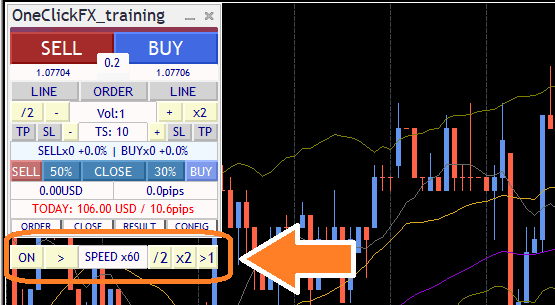
The speed specified in SPEED ranges from 1x (1 second = 1 second) to 60x (1 second = 1 minute), 3600x (1 second = 1 hour), 14400x (1 second = 1 day), up to a maximum of 604800x (7 days). However, it will never exceed the Strategy Tester’s maximum speed. If you turn speed control OFF, it uses the speed set in the tester (maximum playback).
Performance depends on PC capability and the number of indicators or signal integrations; if performance lags, reduce other processing. For best speed, set MT4’s speed gauge to the far right (fastest) before using Speed Control.
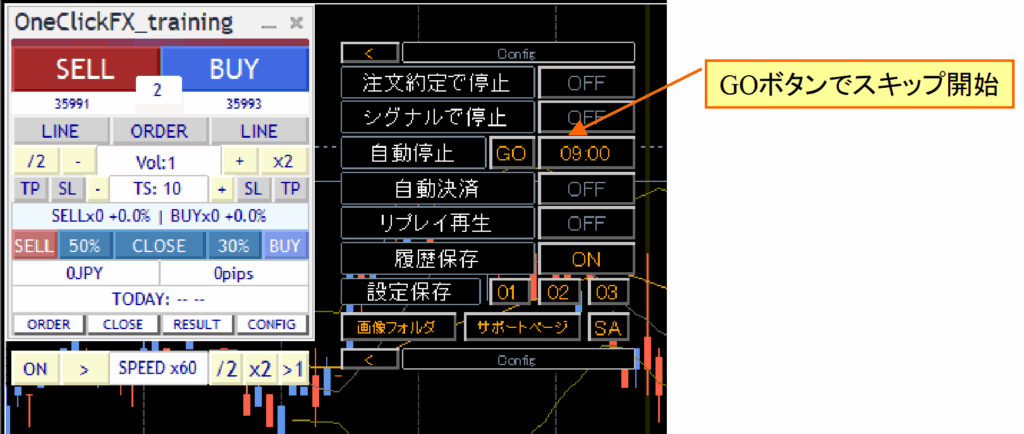
Fast Skip
A feature to fast-forward the chart with a single click. It moves forward quickly until the automatic stop time or up to one year ahead. This can improve efficiency when practicing or testing at the same time daily.

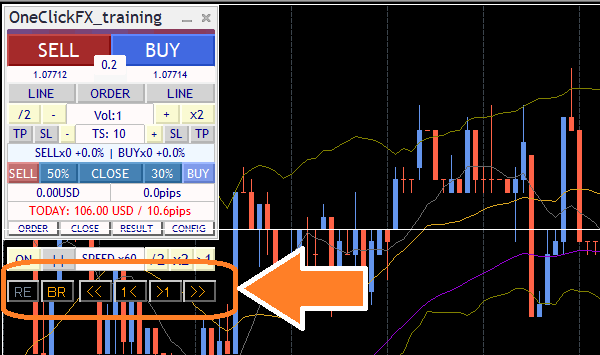
Historical Verification Viewer - TheWorld-
When you pause the chart with Speed Control, an additional set of control buttons appears under Speed Control. These are the control buttons for the historical verification viewer.
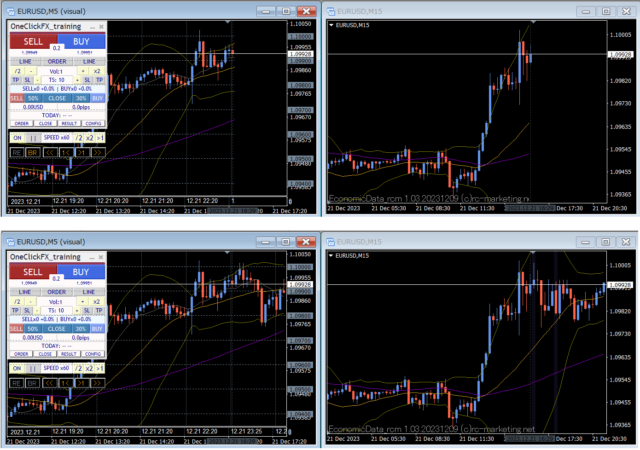
Restart - TimeLeap-
A revamped replay feature turned restart into a restart function, making it easier to use.
Pause the chart, and press the leftmost “RE” button in the Historical Verification Viewer to show a panel. There are three save locations to store the current state.
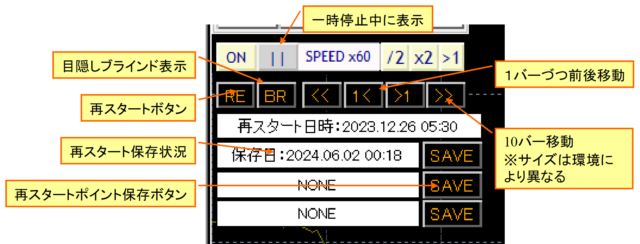
After stopping, pressing Start shows the restart point selection screen.
Press the GO button for the saved number to jump forward at high speed. The “REPLAY” button runs the same orders in normal play.
Last data: replays the data from the last session end. You can pause at any point, scroll the chart to a past moment, and save that moment as a restart point.
This video shows saving the restart point just before settlement from the stop position. Restart from that point, redo that portion, then finish, and resume from the previous data.
If you press the “Replay” button, it replays with saved order information. While replaying, the replay subpanel is ON and the Speed Control play/pause button shows an “R”.
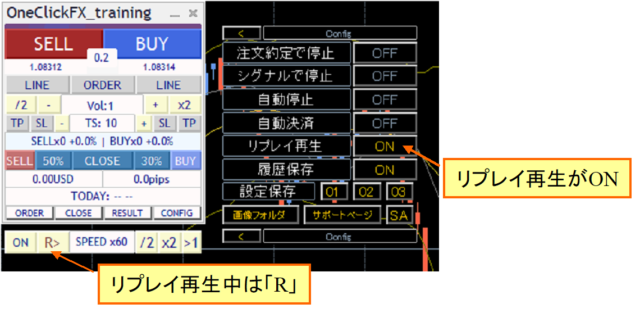
It is okay to turn off replay playback during replay. It is also fine to turn it ON in the middle. You may manually settle trades entered during replay as well. You can participate in replay together.
Restart and Replay are, in principle, intended to trade with exactly the same settings and the same period; they cannot be used for different times or different currency pairs.
Also, if tick data is regenerated, data consistency may be broken, making replay less reliable. This replay is not guaranteed to be perfectly accurate. It is labeled as RE-DO rather than replay.
If you are not in the same environment, this does not mean it will not work; e.g., changing the spread does not alter the orders, but profits and losses will differ. It can be used for environment testing in a broader sense.
Auto Image Saving
If you set trade image saving to true, chart images are automatically saved at order placement and settlement. Also, when the date changes, the previous day’s trades are saved as a single image. The saved images appear as follows.
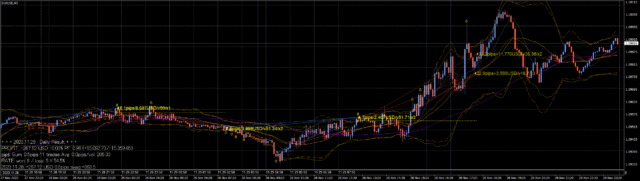
When the tester ends (press Stop), the save folder will open.
The save location is tester/files/OshiraseSnap in the data folder.
Please copy the tester folder included in the product file as well.
Saved image files are overwritten each time the tester starts, so copy to another location if you want to keep them.
Daily totals results
Open the subpanel to see past trades with yellow lines and the results in PIPS.
Also, click the date or TOTAL in the RESULT subpanel to view the totals.
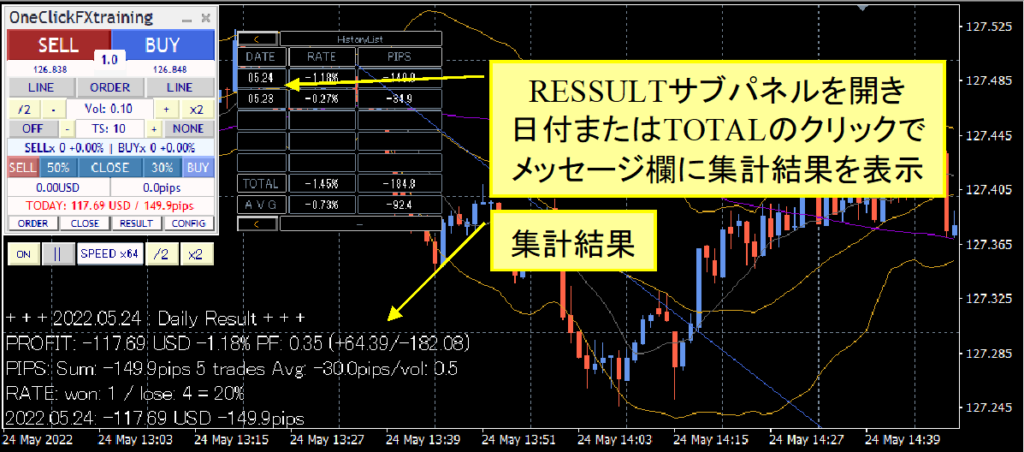
Even during the latest totals, you can view the previous status.
Click the headers to change the aggregation unit to Daily, Weekly, Monthly or 10 items, 100 items. RATE changes to PROFIT, PIPS to PIPS/vol, PIPS/trade, etc., for each item.
Entry Assist
The basis for Entry Assist is to detect fluctuations from ASK, BID, and the value price to predict price movement a few seconds ahead.
Using this judgment, after pressing the entry button the system automatically pauses orders at the optimal timing.
Generally, the tool aims to buy when the price is about to rise and the bar has consolidation or a breakout ready to occur.
Weak: when price movement has paused (downside halted)
Medium: trend has reversed and rising
Strong: price is clearly rising
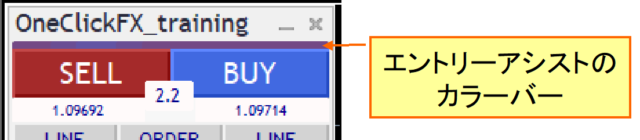
If the color bar approaches BUY color, it indicates a buy decision; if it approaches SELL color, it indicates a sell decision.
In testers, spreads are fixed, so color changes may not differ left/right; brokers may show different decision colors.
With the parameter setting where Entry Assist strength is weak/medium/strong, pressing the entry button may cause the button to become faint, waiting for timing. Press again to force entry; press the lower cancel button to abort.
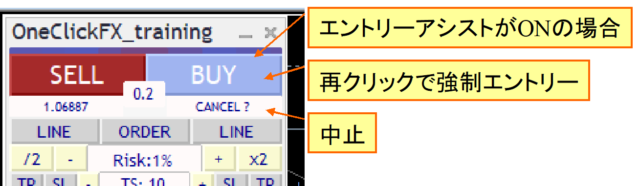
This function predicts price movement a few seconds ahead, but in a strong downward move it may not encourage buys; adjust according to the market. Some testers or fixed-spread brokers may not realize maximum effectiveness.
AI Judgment (AI Export)
You can output trading data for AI. By feeding the exported data to AI, you can ask AI to evaluate and analyze trades.
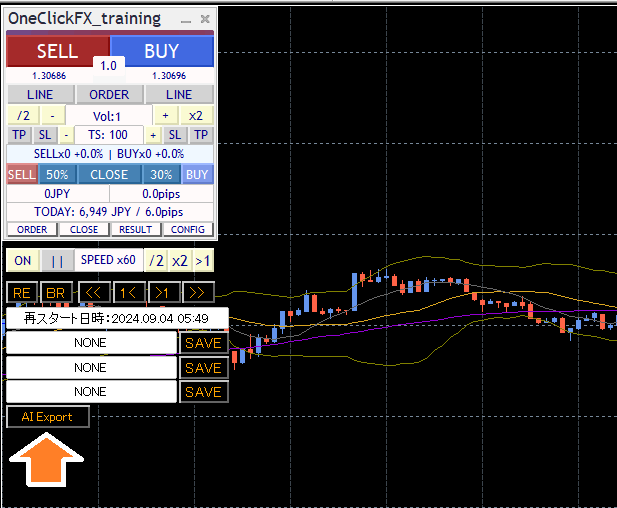
Pause the chart and press the RE button or the AI Export button at the bottom-right of the function panel to export data to a folder for AI analysis.
From version 8.37B.260808 onward, AI Export outputs three files:
- config.md: environment file
- history.csv: trading data
- bars.csv: chart data
These three files can be uploaded to AI like ChatGPT, Gemini, Claude, Grok, etc., and analyzed using shared prompts.
Also, if you plan to use MT5’s built-in AI Assistant, you can call data by the three-digit folder name. See the page below for details.
 | ? MT5 AI Assistant & Generative AI for analyzing trading data — choose a number to enable AI analysis, compatible with ChatGPT, Gemini, Claude, Grok AI Judgment enhances trade analysis to be easier and more flexible. By using MT5 AI Assistant (built-in), you can perform free trade analysis. This feature is part of One-Click FX Validation with AI... |
If you succeed in loading data to AI, try asking various questions.
Examples:
“Evaluate and analyze the trade,”“Is the entry correct with the moving average cross?”,“Plot on chart and add 75 moving average,”“Tell me the cause of a large loss and how to avoid it,”“Where would have been the best place for a stop, explain logically,”“If you were to score it, what would the score be?”
AI responses may range from appropriate to completely off or unintended. The content may not be truly accurate. Treat it as one opinion among others.
To elicit better answers, ask more specific questions. For example, “Teach me how to win in FX” will yield generic responses. Be specific about what you want to do. Just as you loaded trading data to AI, share your own information with AI as well.
Fortunately, AI won’t get angry no matter how many questions you ask. If you don’t understand, keep asking. Sometimes it may be impossible, but it will usually provide some answer.Asking for overly difficult requests is fine.If you provide correct information, it will respond accordingly. If you get only generic answers, supply more concrete details and specify your requests clearly.
※ When using AI for analysis for free, loading only history.csv reduces data and enables longer conversations.
Notes MT5 AI Assistant or an external Generative AIAI Judgment is a tool for analyzing trading results and is not investment advice. The data provided and the analysis results are for reference. They do not guarantee any future performance or trading results. The final trading decision is your responsibility.
Economic Indicators
Included tool adds the Economic Indicators (displayed unobtrusively) to the main chart and synchronized charts. Hover over the colored lines to show the economic indicators announced at that time. By default, indicators related to the currency pairs displayed are shown.
Support Assistant
A convenient feature to collect information with a single button when you need support.
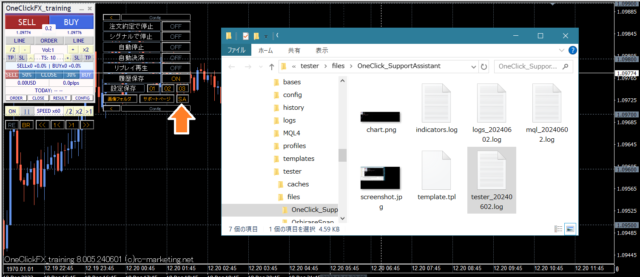
Press the SA button or double-click OneClickSA in the Script folder to collect information. A folder will open; please email the output files. If you contact us via the form at the bottom of the page, please attach the files in the auto-reply email after you submit the form.
If you set the parameter “Support Assistance (OneClickSA) automatic upload” to true and press SA, information can be automatically uploaded to the support server.
Sub-chart synchronization settings
There are two types of synchronization sub-charts.
1) Use normal online charts for lightweight simple synchronization
2) Active synchronization using active offline charts to mimic online display
Simple synchronization uses standard online charts; if historical data is prepared, you can specify the standard chart to start synchronization. Time-frames and currency pairs can be changed similar to online charts.
However, for shift-indicator tools, the chart start can be obscured and some indicators in sub-windows may not function due to bugs. There are workarounds, but with certain limitations.
Active synchronization creates a dedicated offline chart and updates it frequently while displaying like an online chart, but due to offline nature, some indicators are not supported and frequent updates may slow performance.
Both approaches have pros and cons; choose the chart that suits you.
Simple synchronization
1) Open a chart for any currency pair
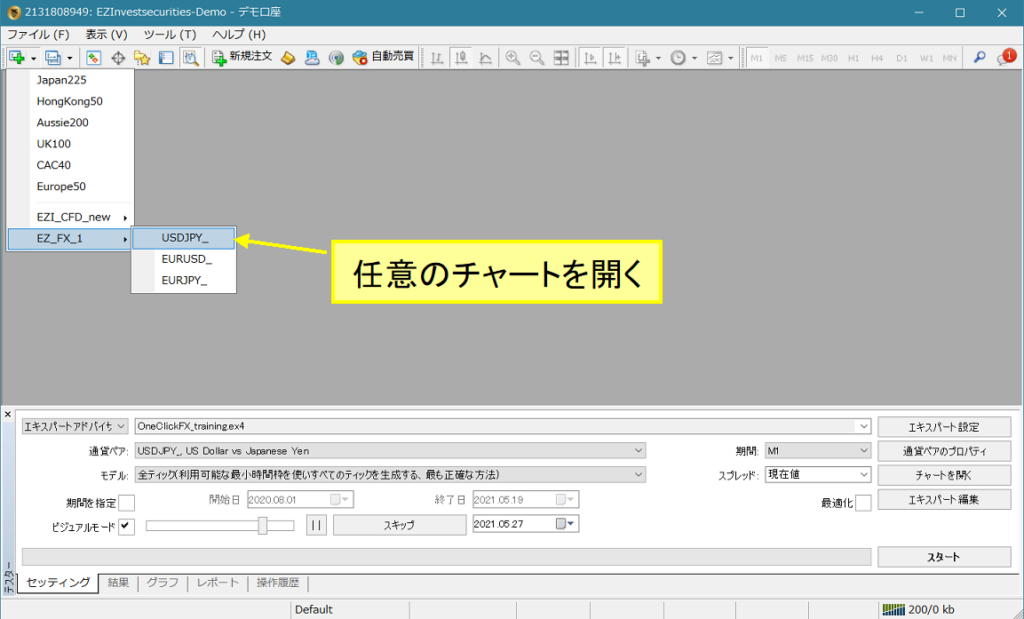
2) Right-click → Standard Chart → OneClickFX_training_sync
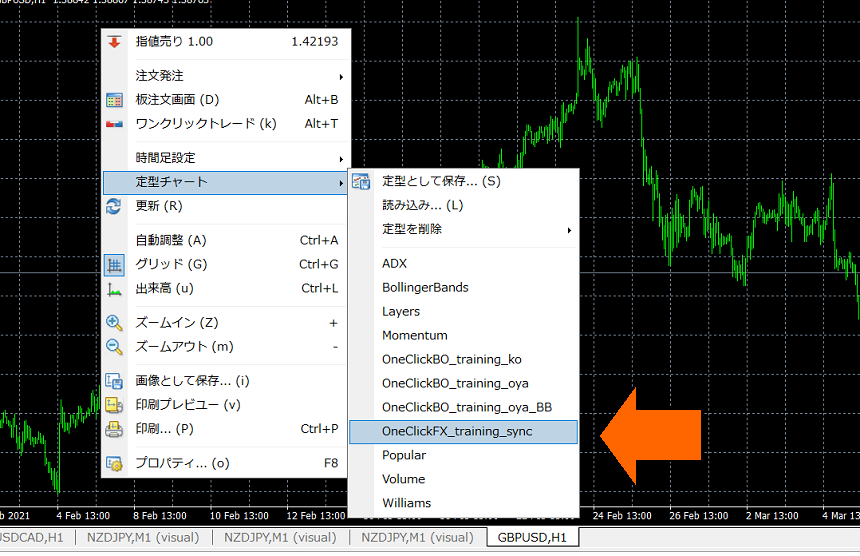
3) If necessary, modify the parameters and press OK
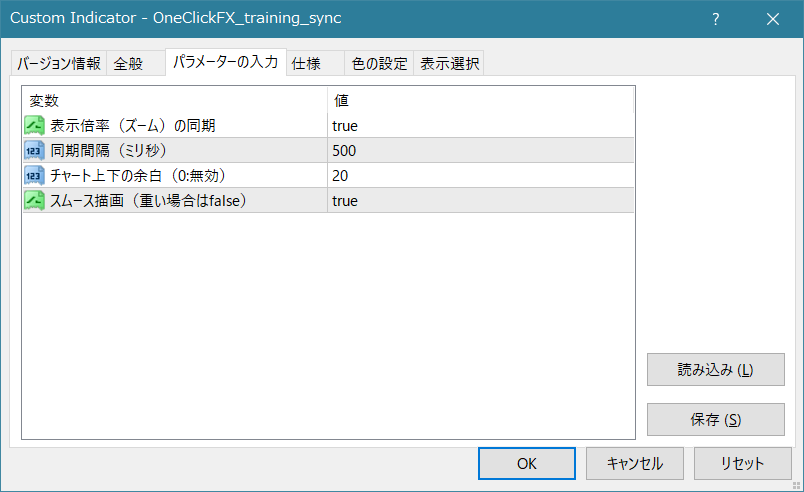
• Synchronization of display scale (zoom): align the main chart with the display scale.
• Time interval (milliseconds): set the timing to synchronize with the main chart.
• Chart top/bottom margins: automatically adjust the chart height (fixed). It can be disabled with 0.
• Smooth rendering: display TP/SL lines, etc. immediately. If performance is heavy, set to false
4) The chart is synchronized
Note: If the speed is too fast, synchronization will be delayed

Synchronization of display scale (zoom): when you scale the main chart, the sub-chart also scales. If not needed, set to false.
If you enable right-edge chart shift, there will be white space on the left of the chart. You can also resize just like normal right-edge shift.
If you know how to add indicators, please freely edit the template. The indicator required for synchronization is “OneClickFX_training_sync.ex4.”
Active synchronization
1) Open the chart for the currency pair to be synchronized
2) Display the time frame to be synchronized
3) Right-click → Template Chart → select “OneClickFX_training_sync.” It will display “Active offline sync ready.”
If you want to perform active synchronization on other timeframes, change the time frame and confirm “Active offline sync ready” on each one.
Note: This step is only for the first time; it is not required on subsequent occasions.
4) From the File menu → Offline Chart, open the offline chart whose initial character is “_” (underscore). (The image uses “_USDJPY” from 1 minute to daily.)
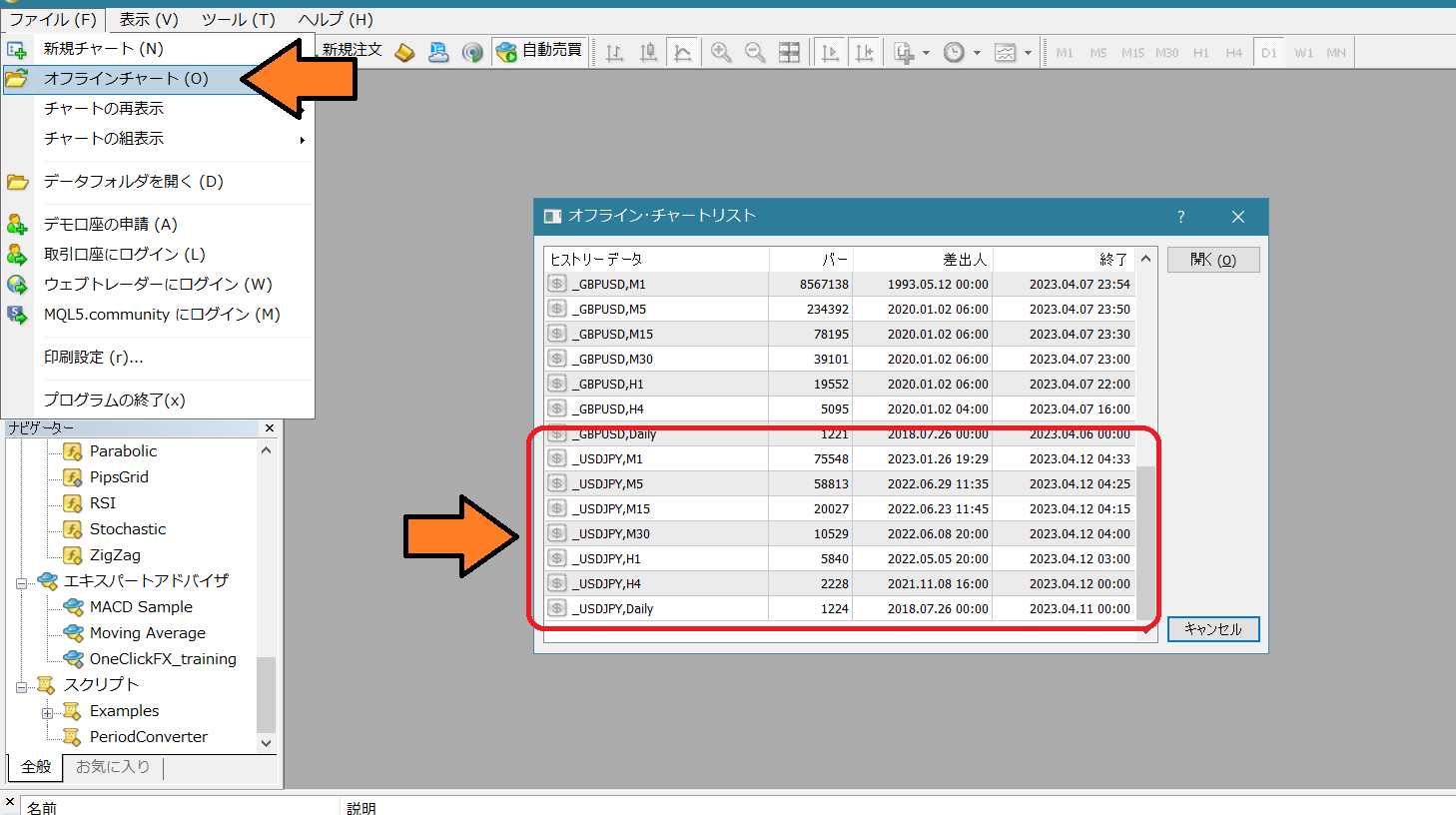
5) Right-click → Template Chart → select OneClickFX_training_sync.
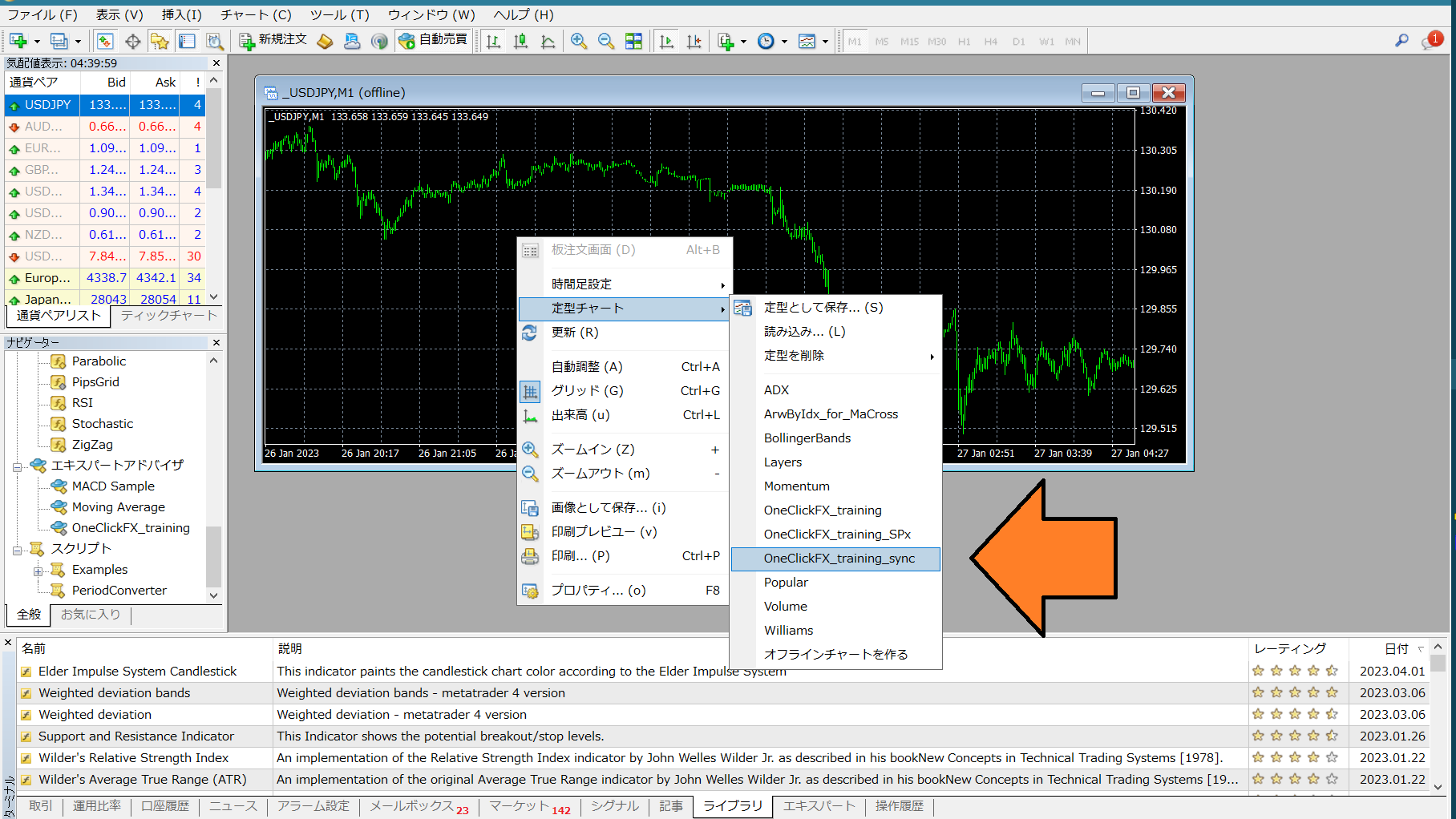
As with simple synchronization, adjust parameters as needed and press OK. The charts will synchronize.
Integration with Signal Tools
OneClick Auto Arrow Trading [AutoArwTrade]for easy integration and accompanyingSignal Arrow Tool (free version) allows you to enter trades in sync with arrows generated by other signal tools, and to enter on chart changes like golden crosses.
Integration with OneClick Auto Arrow Trading [AutoArwTrade]
- Please insert the supported signal tool into the chart.
- Turn on the buy/sell signal linkage buttons.
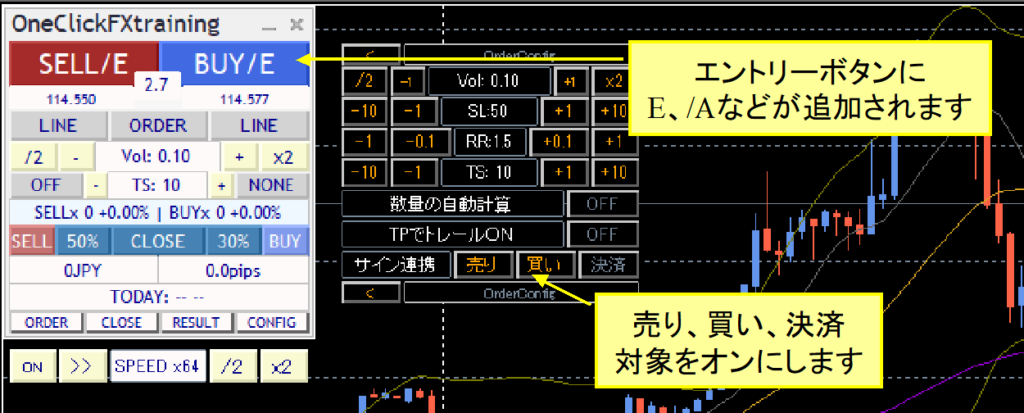
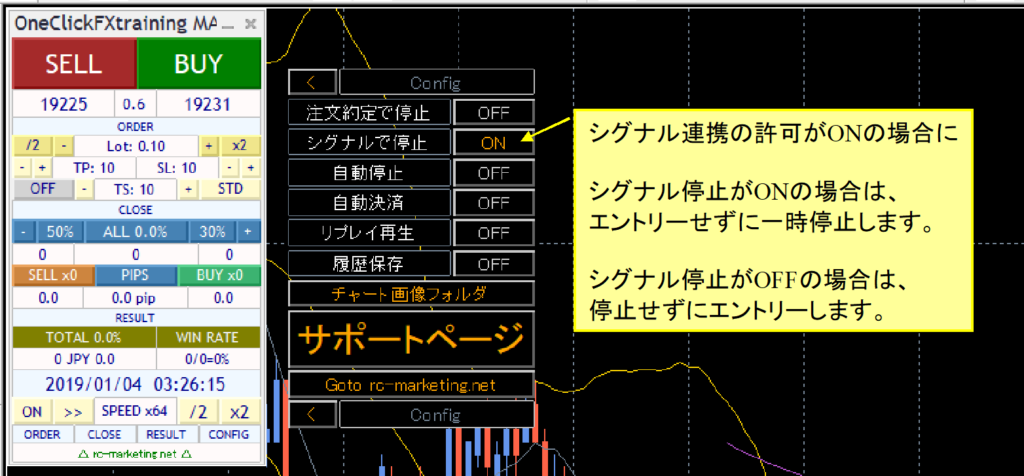
There are two modes of signal linkage. When a parameter signal pauses, or when CONFIG signal pauses are ON, you will pause via speed control without entering. If OFF, you will enter without pausing. When Pause is ON, trading stops when a signal occurs, enabling discretionary trading based on the signal.
If you turn the leftmost button of Speed Control OFF, the speed becomes the fastest (maximum bar). If no arrow appears, try fast-forwarding to where an arrow would appear.
Integration with Signal Arrow Tool
Linking with signal tools can be configured in the parameters of the previously mentioned OneClickFX. Also included isSignal Arrow Tool (free version) to enable integration.
Signal Tool Arrow Tool (ArwByIdx_rcm) allows entry in sync with arrows from other signal tools and entry on chart changes such as golden crosses.
A sample preset is included for you to try
Additionally, the following sample template charts are included for you to try as well.
ArwByIdx_for_MaCross.tpl ... Moving average cross
After starting the tester, right-click → Template Chart and select the above template chart.
In the sub-panel for orders, allow signal linkage (sell, buy, close) so that the buttons gain /E (or /A).
Signal linkage with complex conditions
The following sample template charts are bundled with the product.
OneClickFX_training_SPx ... complex conditions with multiple signals
This template chart implements three signals: moving average cross, MACD cross, and Bollinger Band breakout.
OneClickFX TrainingModify the parameter settings for signal linkage as follows.
Sell signal object names: MACDxDotArwUP, MAxDotArwUP, BandsArwUP,
Buy signal object names: MACDxDotArwDN, MAxDotArwDN, BandsArwDN,
Click the “Load” button at the bottom-right of the parameter settings screen to apply the preset “OneClickFX_training_SPx.set,” which will set the above configuration.
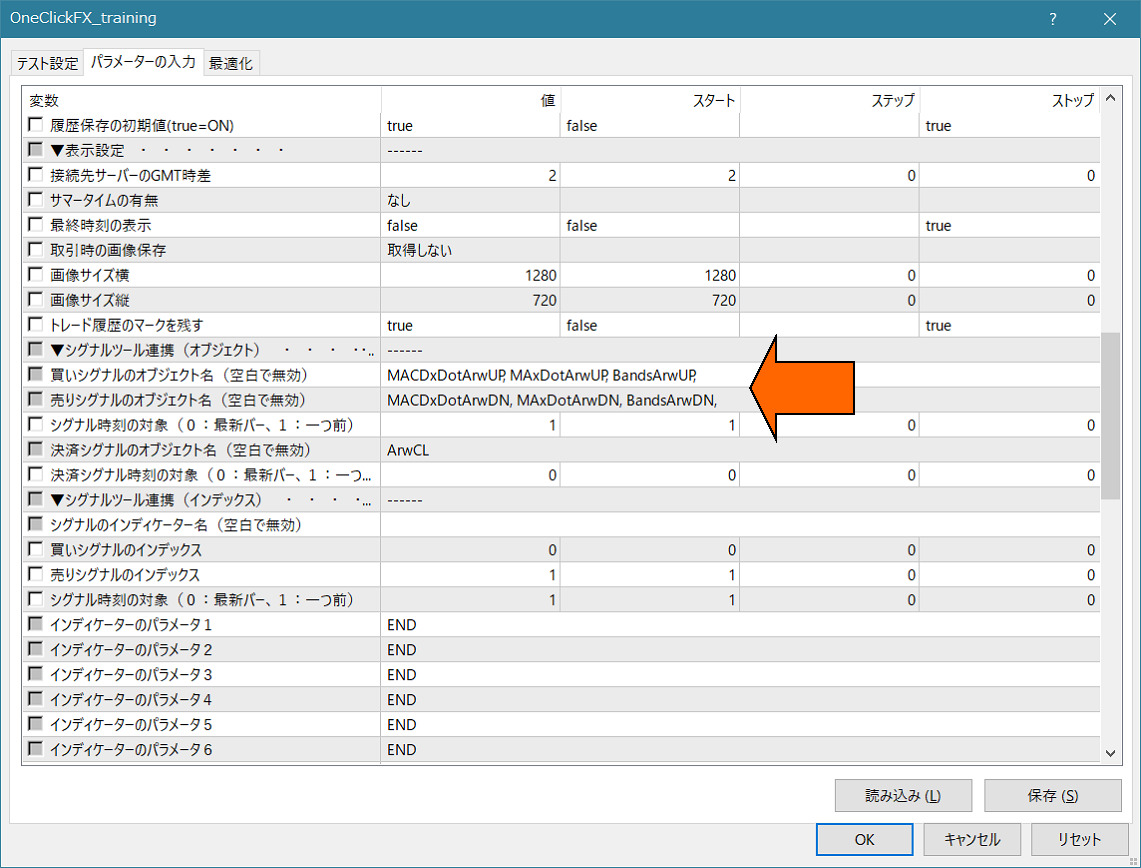
After applying the settings, operate as with simple linkage.
Dots or arrows will appear at each limit, and when all three conditions match, signal linkage will activate.
“ArwByIdx” Change the parameters and register in the template chart so you can freely modify the template chart even while the tester is running.
Try using it in various combinations.
If you don’t understand how to set it up, please feel free to consult us. Your own signal tools can be integrated with almost no issues.
If you provide the signal tool name and parameter information, we should be able to explain the configuration.
Indicators included or distributed with the package
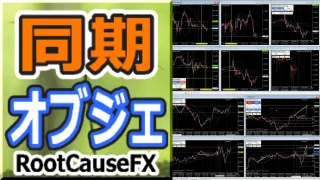 | Sync Objects: Synchronize chart objects such as trendlines with other charts Thank you for using this product. The latest version is 1.11.20260824. This tool is free ⇒ Download version upgrade information▽ August 24, 2026. MT5 version released. MT4 version 1.10 ... |
Troubleshooting / TIPS
・License authentication errors
Possible causes include the purchaser’s email address not being correct, the email address not being entered properly, Windows not being up to date, or tools other than Windows' built-in security tools blocking access. If unclear, please contact support.
Notes
Trading is diverse, and we cannot guarantee compatibility with all signal tools. In particular, products with password protection or signal tools with countermeasures may not be compatible. Additional paid arrangements may exist for custom integration. Please feel free to consult. This product is a practice tool, and its results may not reflect real results. Also, be aware that brokers’ charts and the prices shown by this tool may not match. For security, online authentication uses encrypted SSL communication, so please understand.
When in trouble
If the tool is not functioning properly, behaving strangely, or stopping suddenly, please first check this area.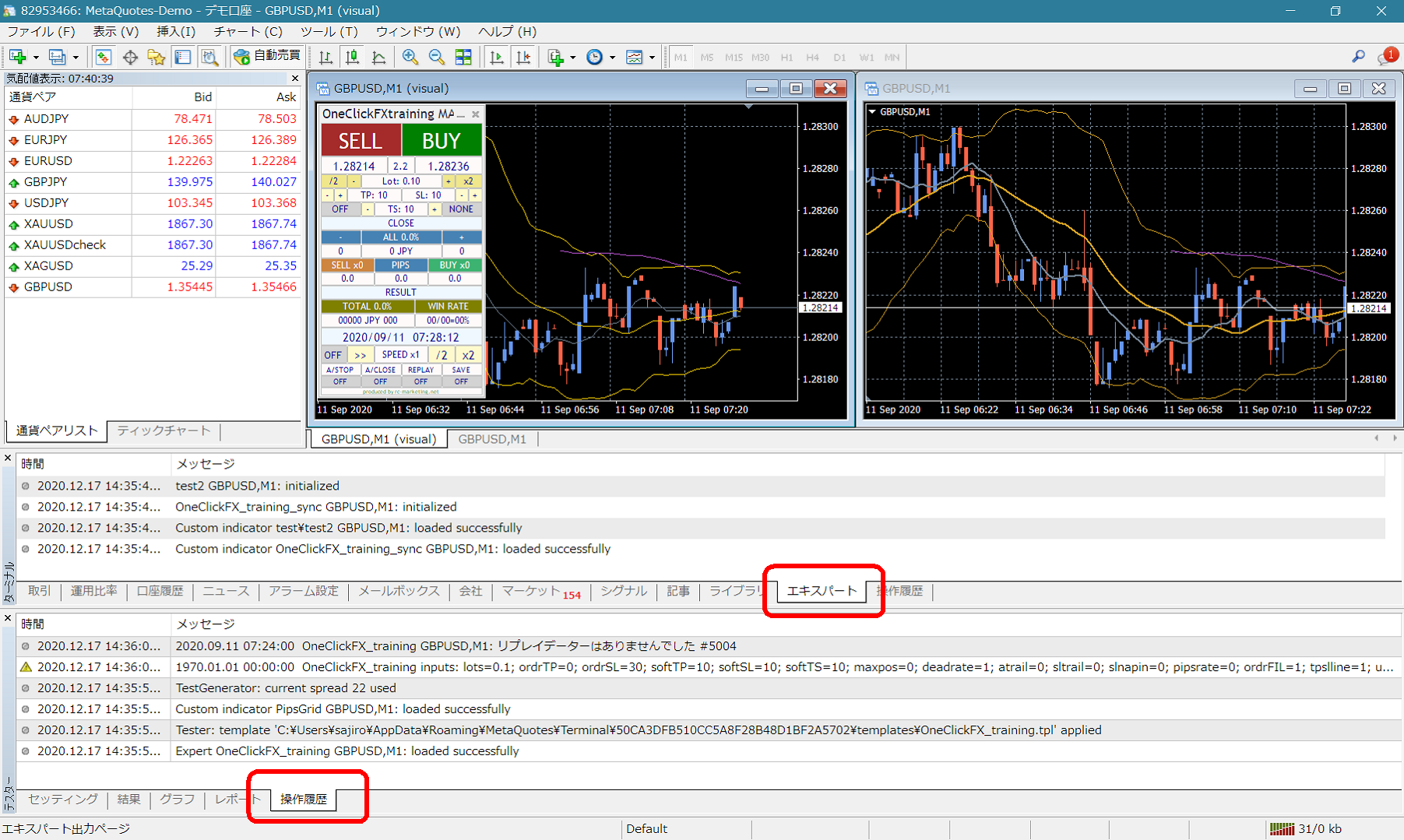 If there are errors or messages in the terminal Expert or Tester history, please inform us so we can respond more smoothly. Thank you for your cooperation.
Support / Assistant
For some products, there is a convenient feature on the support screen that collects information with the push of a single button during trouble. Press the “SA” button to collect information and open a folder. Also, double-click the Script “OneClickSA” to open the folder in the same way.
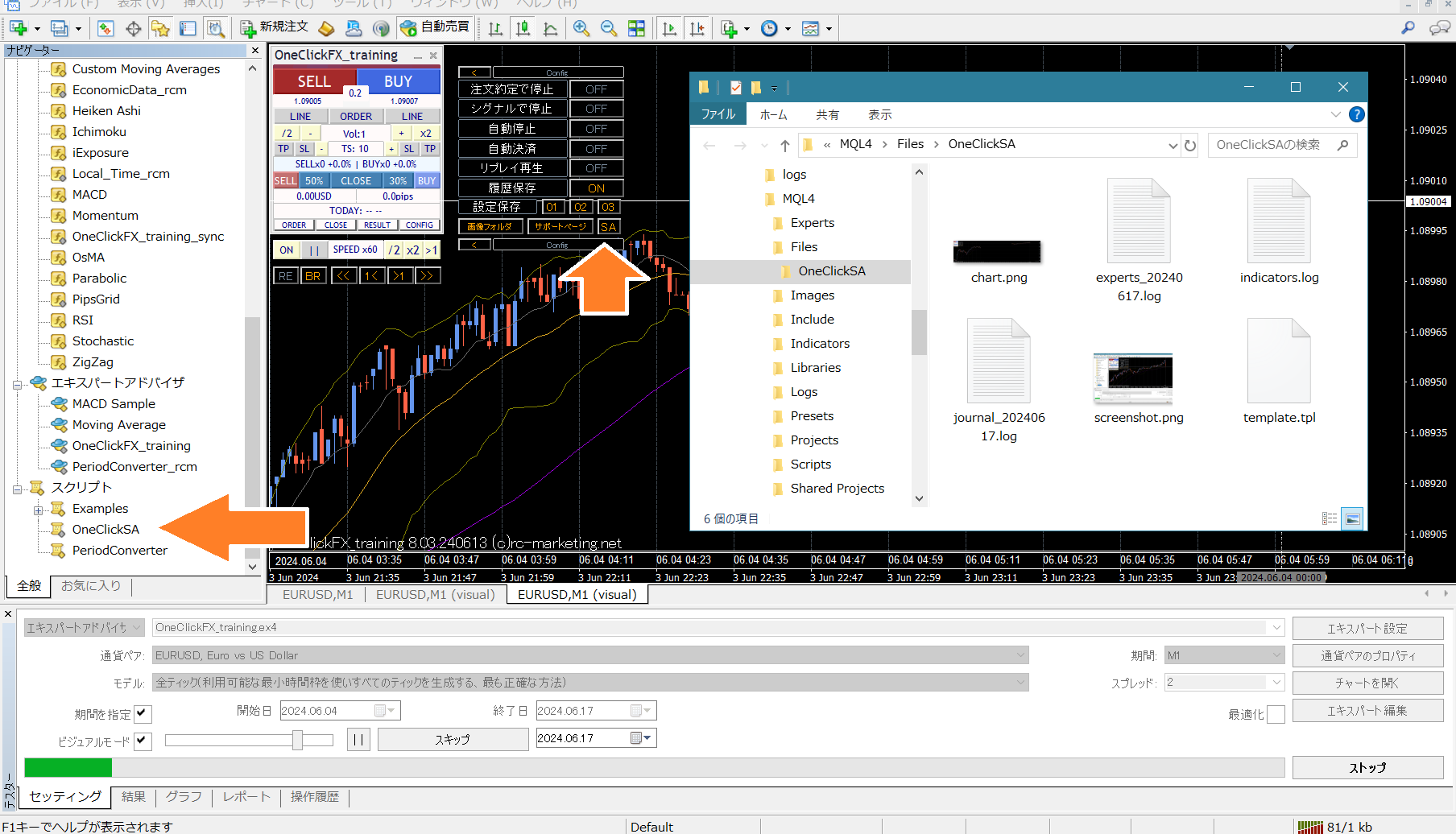 If you contact us via the inquiry form, you will receive a confirmation email. Please attach the output files when sending.