
About the upgrade version addition for 【R1R2S2】
◆ Introduction
Indicator 【BODSOR・mBDSR】 that shines in combination with RCI
and method / case studies (PDF) ★GogoJungle AWARD2020 winner★
https://www.gogojungle.co.jp/tools/indicators/11836

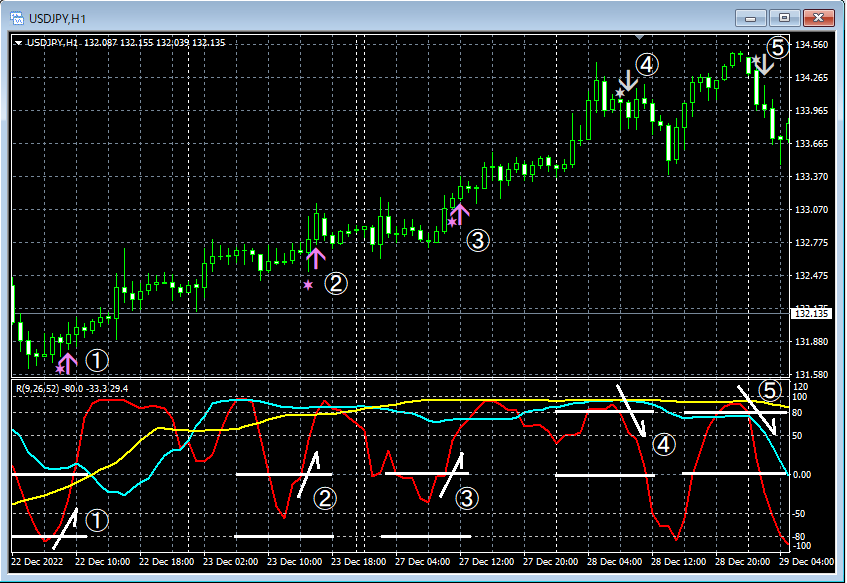
This time, we have added an upgraded version of theMT4 indicator【R1R2S2】as an upgrade.
In R1R2S2, the ‘Two-Stage Judgment’ of RCI
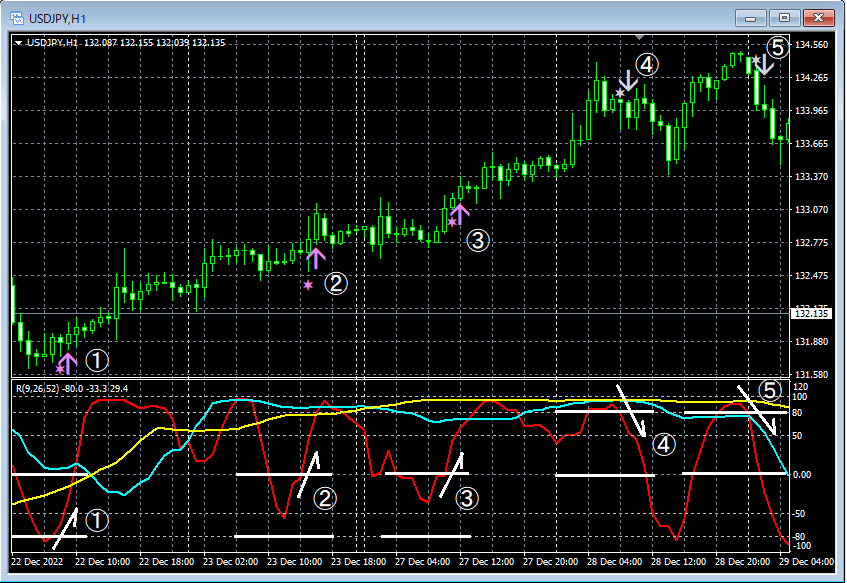
The details of theRCI ‘Two-Stage Judgment’are described in the following Investment Navi article.
RCI three lines release: indicator “R1R2S2” that aims for trend reversal, dip buying, and pullback selling with the two-stage judgment!!
https://www.gogojungle.co.jp/finance/navi/articles/61588
This article explains the settings of the indicators among the multiple indicators included in the above 【BODSOR・mBDSR】 as follows.
(1)R1R2S2_PreAlert2_WDT_XXXXXXXXX.ex4
The above indicators are upgraded versions based on the user’s request of the indicators below. Currently, these indicators are provided as a beta version.
(2)R1R2S2_XXXXXXXXX.ex4
The changes and fixes are as follows.
[1] In the conventional (2) indicatorAlerts could be issued only when the arrow sign lit up, but in the (1) indicatoralerts can also be issued when the star sign first lights up.
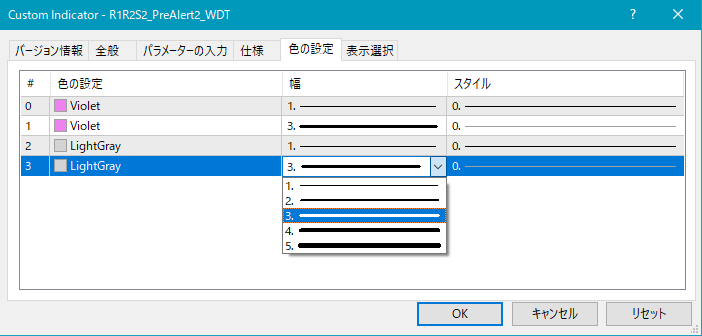
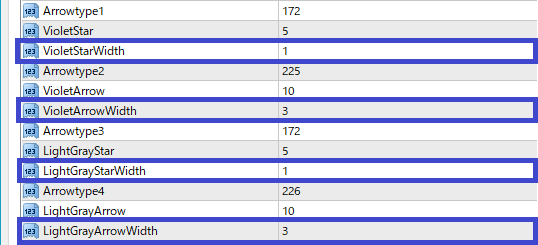
[2] In the conventional (2) indicator, the size of star and arrow could be changed as shown below,“Color settings”by adjusting the width in the item, but then the size could be changed only within the range 1–5.4K monitor compatibilityTo address this, in the (1) indicator, the sizes of star and arrow were added to be set in the“Input Parameters”section. As a result, stars and arrows can be displayed even larger than before.
(2) Before upgrade) “Color settings”
(1) After upgrade) “Input Parameters”
◆ Indicator Settings
Here, the settings for the (1) indicator mentioned above are explained.
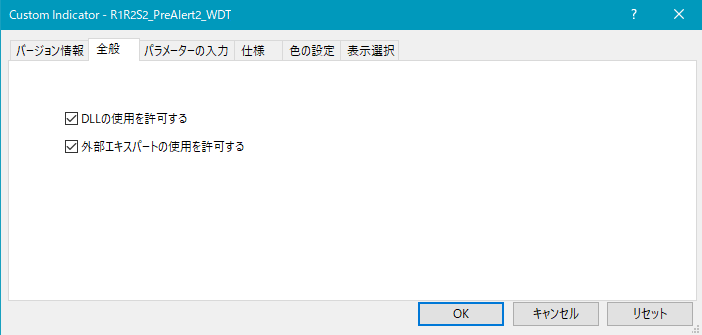
As shown below, you need to check “Allow DLL imports.”
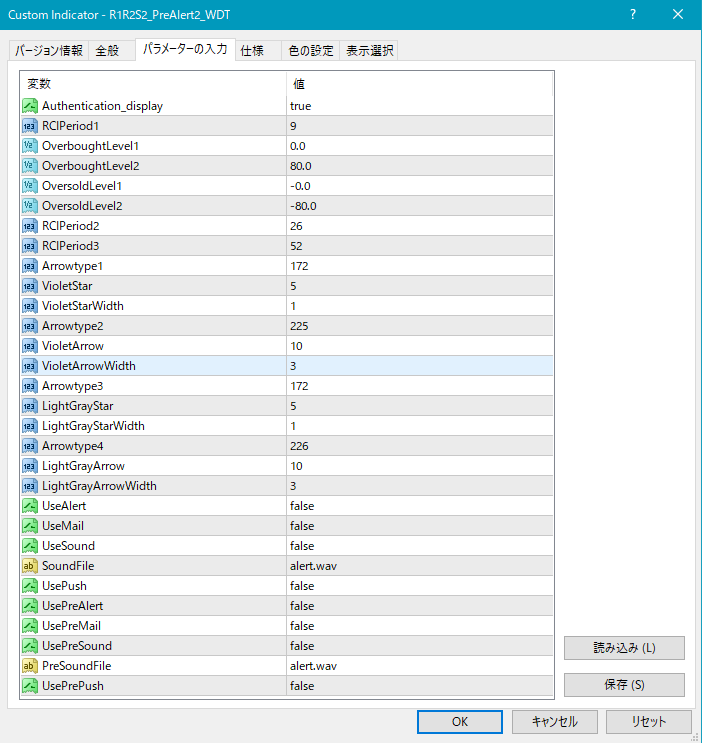
Settings for the display of GooGojan’s web authentication results
Authentication_display:
If you want to display GoGoJungle’s web authentication results in the upper left of the chart, choose true; if not, choose false.
Settings for the occurrence conditions of stars and arrows
RCIPeriod1: Short-term RCI period
OverboughtLevel1: The first overbought line of RCI
OverboughtLevel2: The second overbought line of RCI
OversoldLevel1: The first oversold line of RCI
OversoldLevel2: The second oversold line of RCI
RCIPeriod2: Mid-term RCI period
RCIPeriod3: Long-term RCI period
Settings for the display position of stars and arrows
If the display position of stars or arrows is too close to the candlesticks or too far away to clearly see, you can adjust the height of these marks using the following settings. The larger the value, the farther from the candlesticks the display becomes.
Star (Violet) → VioletStar
Arrow (Violet) → VioletArrow
Star (Light Gray) → LightGrayStar
Arrow (Light Gray) → LightGrayArrow
Also, by changing the values in the items below, you can change the shapes of stars and arrows.
(Default violet) Star → Arrowtype1
(Default violet) Arrow → Arrowtype2
(Default light gray) Star → Arrowtype3
(Default light gray) Arrow → Arrowtype4
In addition, the symbols that can be used instead of stars or arrows and their corresponding numbers are shown in the table below.
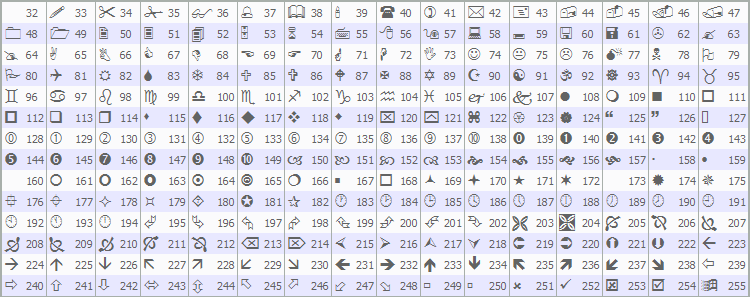
For changing stars and arrows, please refer to the following Investment Navi+ article.
https://www.gogojungle.co.jp/finance/navi/359/19177
Settings for alert function
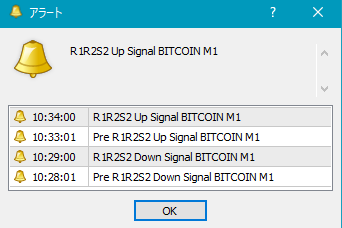
[1] About alerts when arrow signs light up
UseAlert:
If you want to use the alert dialog that notifies the sign occurrence, choose true; if you do not want to use it, choose false.
UseMail:
If you want to notify sign occurrence by email, choose true; if not, choose false.
UseSound:
If you want to notify sign occurrence by alert sound, choose true; if not, choose false.
SoundFile:
Enter the filename of the sound to use for alerts.
UsePush:
If you want to notify sign occurrence by push notifications, choose true; if not, choose false.
[2] About alerts for the first-time lighting of star signs
UsePreAlert:
If you want to notify sign occurrence via an alert dialog, choose true; if not, choose false.
UsePreMail:
If you want to notify sign occurrence by email, choose true; if not, choose false.
UsePreSound:
If you want to notify sign occurrence by alert sound, choose true; if not, choose false.
PreSoundFile:
Enter the filename of the sound to use for pre-alerts.
UsePrePush:
If you want to notify sign occurrence by push notifications, choose true; if not, choose false.
An example of MT4 settings when using email notification for sign occurrences
Tool → Options → E-mails
Illustration
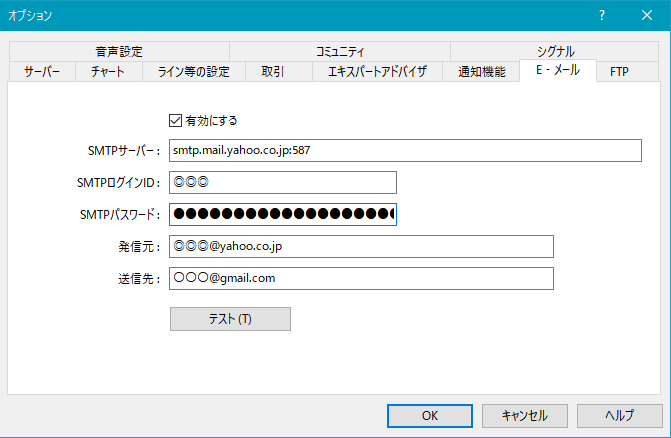
※It seems you need to restart MT4 after settings.
That is all.