How to register for the Messaging API to send LINE notifications
Due to the termination of LINE Notify service, we have started using the Messaging API. However, this Messaging API was originally designed for business-oriented, complex features, so using it for simple notification purposes is very cumbersome, and setup is also time-consuming. Please understand in advance that the ease of use has been significantly compromised compared with the previous LINE Notify.
Below are the registration steps for LINE Developer and LINE Official Account required to use LINE notification features.
1. Log in to LINE Developer
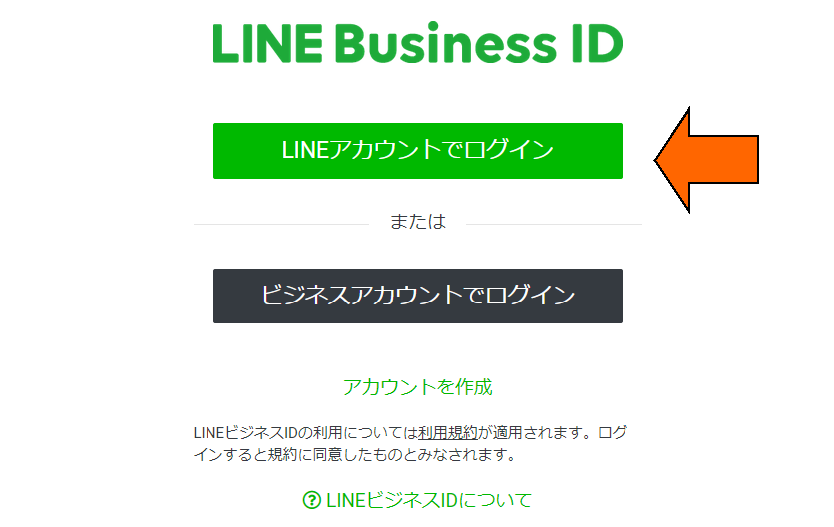
Access the LINE Developers official site and click “Log in”Log in with LINE accountPlease.
https://developers.line.biz/ja/
2. Log in with a LINE account
Enter your personal LINE account information (email address/password) to log in. Then proceed to create a business account, enter the required details, and register.
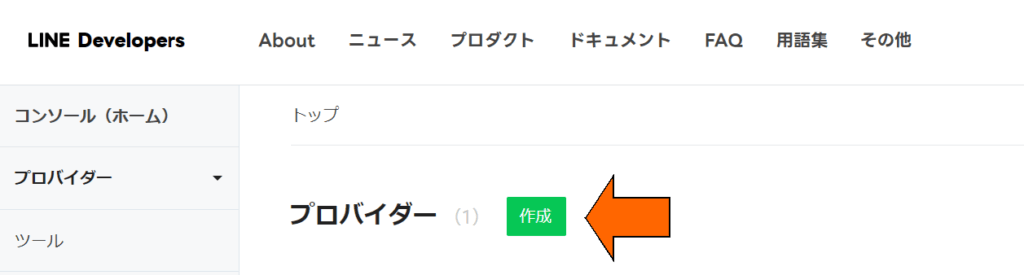
3. Create a provider
From LINE Developers, select “Create provider” to create a new provider (service unit). Set a provider name (e.g., One-Click FX Notification).
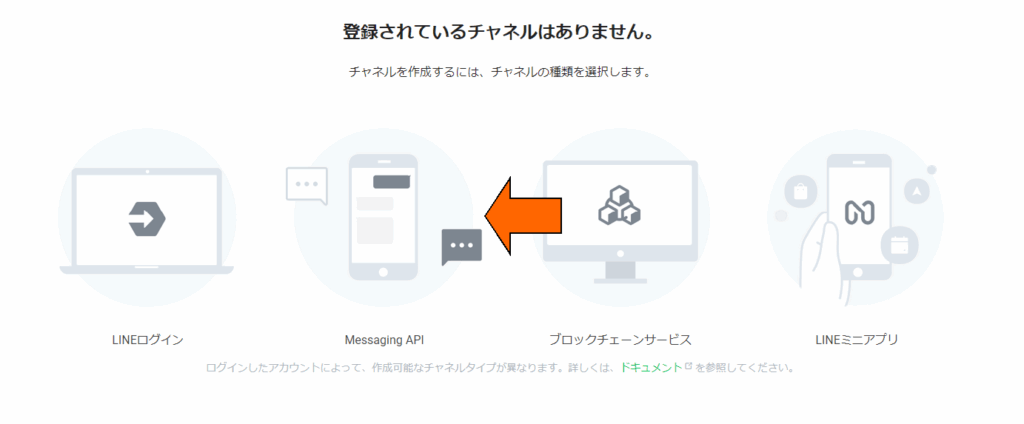
4. Create a Messaging API channel
From the provider management screen, choose “Create channel” → select “Messaging API,” and enter the required information (app name, description, email, etc.), agree to the terms, and create.
5. Create a LINE Official Account
Click “Create LINE Official Account.”
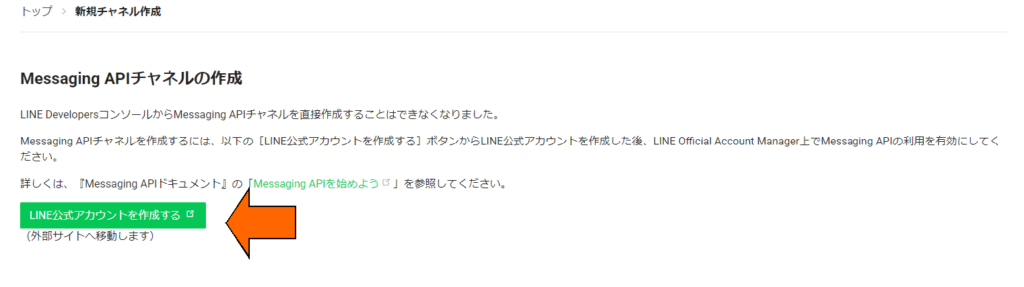
6. Configure LINE Official Account
You may freely set its purpose, etc.
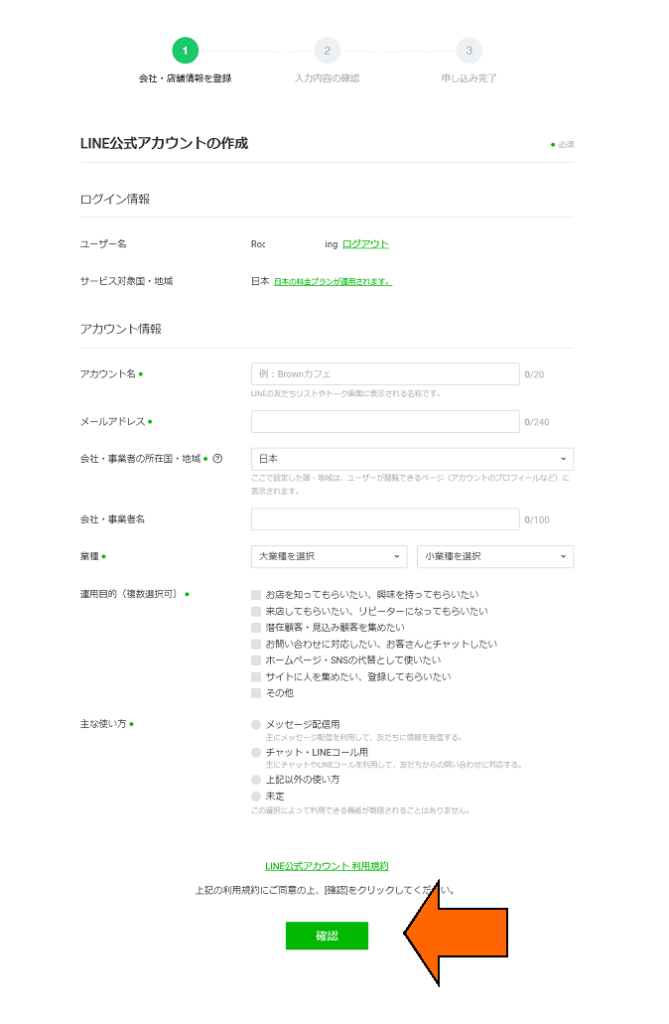
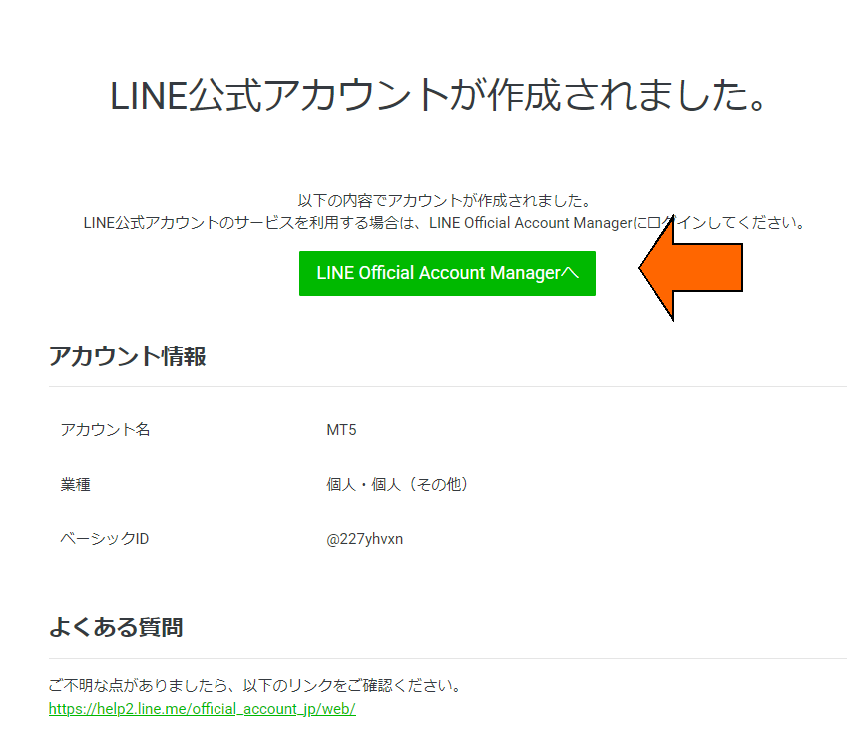
7. Configure from LINE Official Account Manager
After registration is complete, go to LINE Official Account Manager.
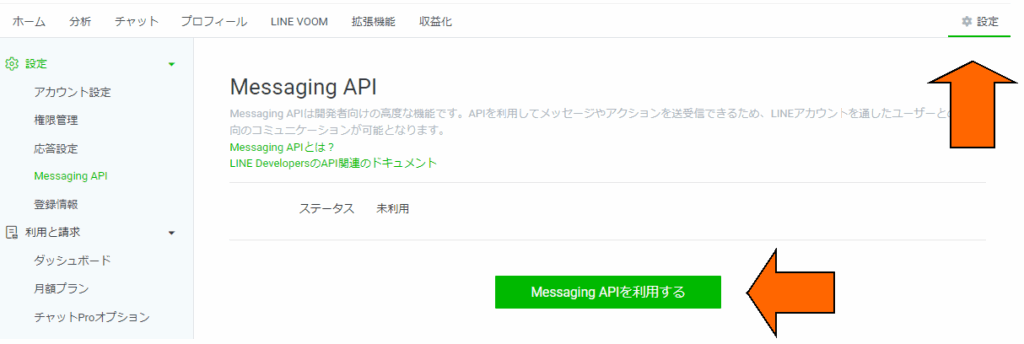
8. Enable use of Messaging API
In the LINE Official Account Manager settings screen, proceed to “Use Messaging API.”(Note: this setting is shown on the right side. It is not in the left-hand menu, so please be aware.)
9. Link to provider
Return to the LINE Developers management screen and verify that the provider you created is correctly linked to the official account and the Messaging API channel.
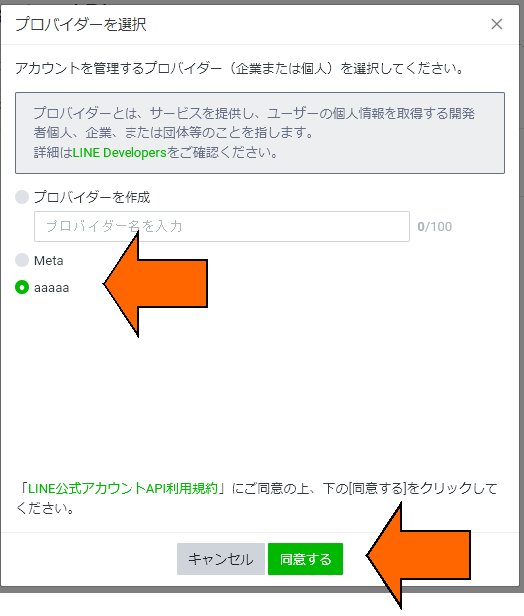
10. Privacy policy setting
According to LINE Platform terms,privacy policy settingexists, but you can proceed by pressing the OK button with it left blank.
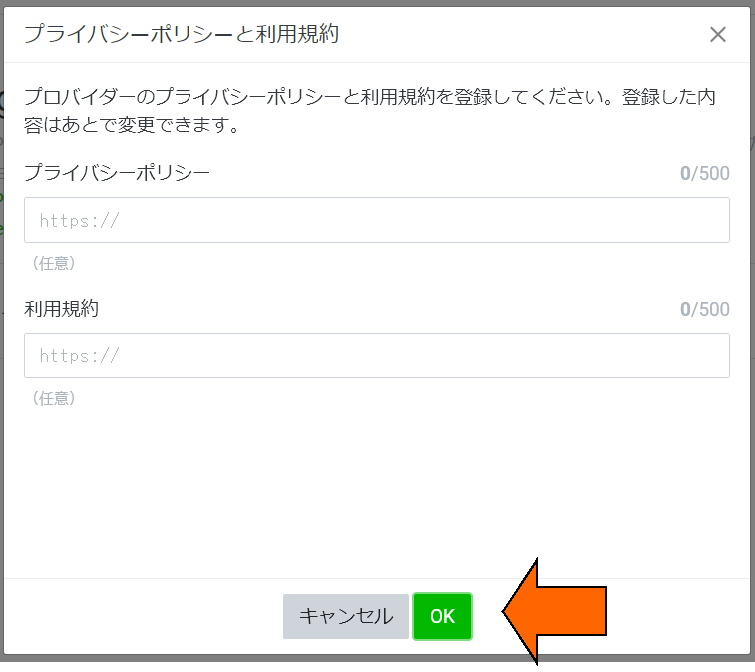
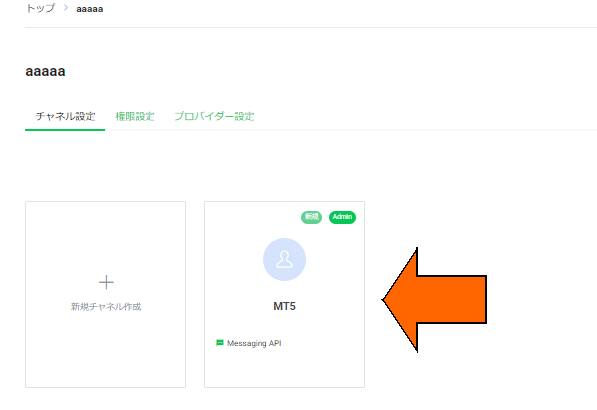
11. Obtain Messaging API information
In the LINE Developers management screen, select the linked provider and open the created channel.
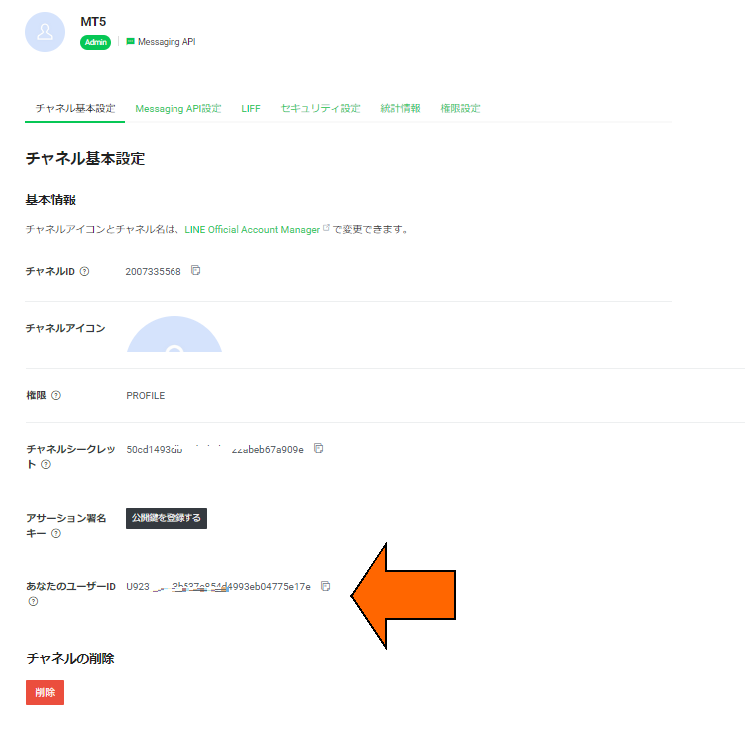
12. Obtain your user ID
At the bottom of the channel basic settings page, your “Your user ID” is displayed, so please note it.
13. Issue the channel access token
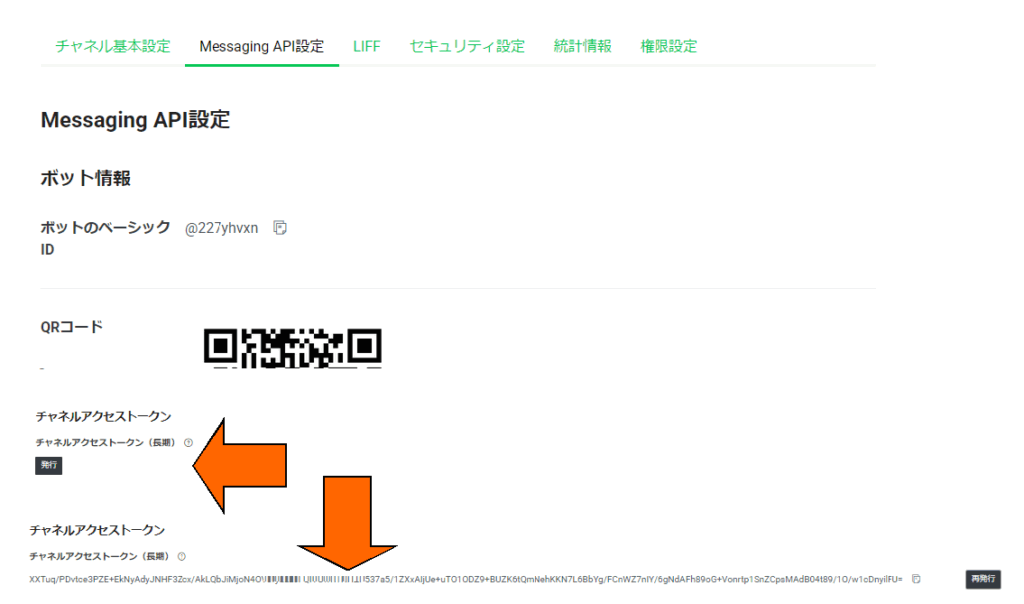
In the “Messaging API settings” section, press the “Issue” button in the “Channel Access Token” field to obtain the token.
14. Register as a friend via QR code
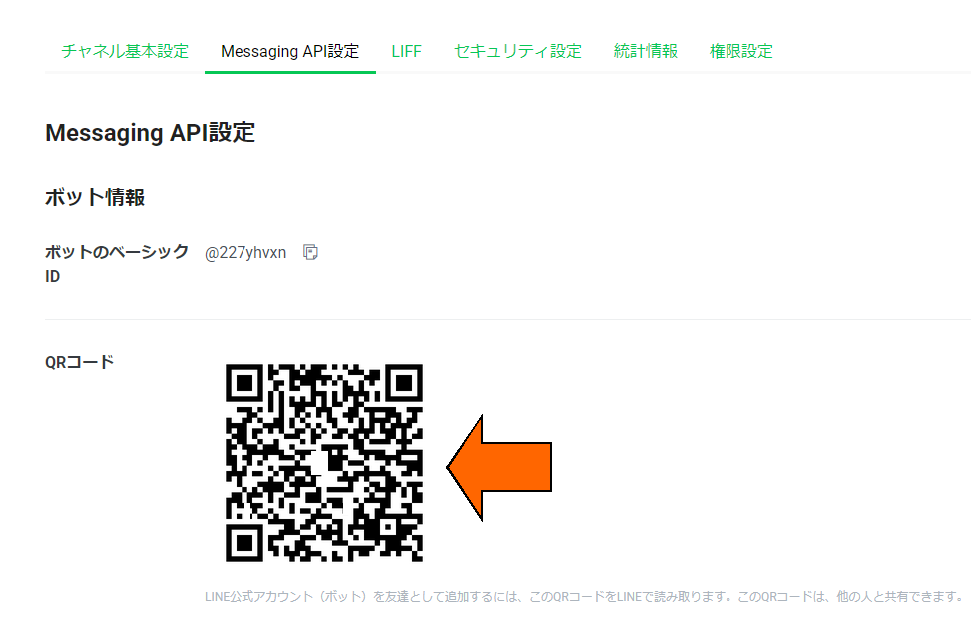
Scan the QR code shown in the “Messaging API settings” with your smartphone and register as a friend with your own LINE account.
15. Use in the One-Click FX Series
Enter your obtained “Your user ID” and “Channel Access Token” into the notification settings parameters ofOne-Click FX Seriesto enable LINE notifications.
If you have any questions, please also use the Help in each settings screen.
https://www.lycbiz.com/jp/manual/OfficialAccountManager/account-settings/
【Note】As described on the page above, Messaging API is free to use up to 200 messages per month, but for usage beyond that, you need to subscribe to a paid plan.
As you use it on weekdays, it would be about 10 messages per day, so if you are only using for notifications, it may not hit the limit, but because information on message counting (e.g., character count for text, counting for images) is insufficient, please try it and consider a paid plan if you reach the limit.