
Introduction to Object Rendering Palette & Shortcuts (2018/11/16)

【MT4】 Introduction to the Object Drawing Shortcuts Tool
Free yourself from the hassle of selecting objects from the toolbar every time you draw objects
|
For those of you using MT4, have you ever found it tedious to move your cursor to the toolbar to select an object such as a line or Fibonacci each time you draw, then return to the original chart screen to draw the object? I find it tedious. Especially when your monitor is 4K and you can display more charts at once, it’s still easier to draw on a nearby chart, but when you want to draw a line on a chart farther away, moving the mouse around each time is very troublesome. And because I hadn’t pre-activated the chart I wanted to draw on, even after selecting the object icon and returning to the chart, I would be disappointed and irritated if that object wasn’t in a drawable mode! The image on the right shows wanting to draw a trend line on a chart at the bottom of MT4, moving the mouse to the top toolbar, selecting the line icon, and then moving the mouse back to the chart to draw the line. As the screen gets larger, this sequence of actions becomes stressful. Therefore, to release myself from this stress, I created a tool that shortcuts the action of pressing the object icon, enabling a mode where you can draw objects directly. Since it’s easy to forget the shortcuts, I also added a feature to display a palette with the object icons on the chart. When you hover the cursor over the icons on the palette, a tooltop with the assigned shortcut key will appear, so you don’t need to open the indicator properties to check shortcuts.  |
 |
Features
Display the object palette and select your preferred object icon, or press the shortcut key assigned to each object to switch to the mode that draws that object.
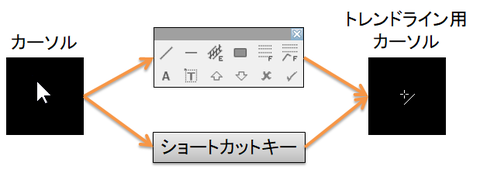
The image above shows a case where the arrow cursor is active, you open the palette and press the Trend Line button, or press the shortcut key assigned to the trend line to switch to the trend line drawing mode icon.
In this way, by assigning favorite drawing buttons to the palette or to shortcut keys, you eliminate the trouble of pressing the drawing buttons on the toolbar and can draw lines or shapes more easily and quickly.
The palette can be hidden by pressing the ESC key.
The image above shows a case where the arrow cursor is active, you open the palette and press the Trend Line button, or press the shortcut key assigned to the trend line to switch to the trend line drawing mode icon.
In this way, by assigning favorite drawing buttons to the palette or to shortcut keys, you eliminate the trouble of pressing the drawing buttons on the toolbar and can draw lines or shapes more easily and quickly.
The palette can be hidden by pressing the ESC key.
Properties
※ ⚿: Not selectable in the trial version.

- How to open the drawing palette: The object palette will be displayed by choosing one of the following actions.
- Do not open
- Left click
- Left double-click
- Ctrl+Left Click⚿
- Shift+Left Click⚿
- Palette size: Sets the size of the object palette.
- 32 x 1⚿
- 16 x 2
- 12 x 3⚿
- 6 x 6⚿
- 3 x 12
- 2 x 16⚿
- 1 x 32⚿
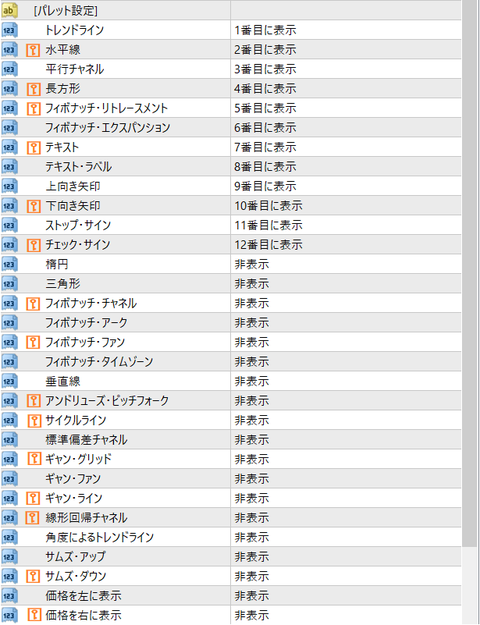
- Palette settings: Display on the palette
- Decide the position of each object to display on the palette. You can also choose to hide it.
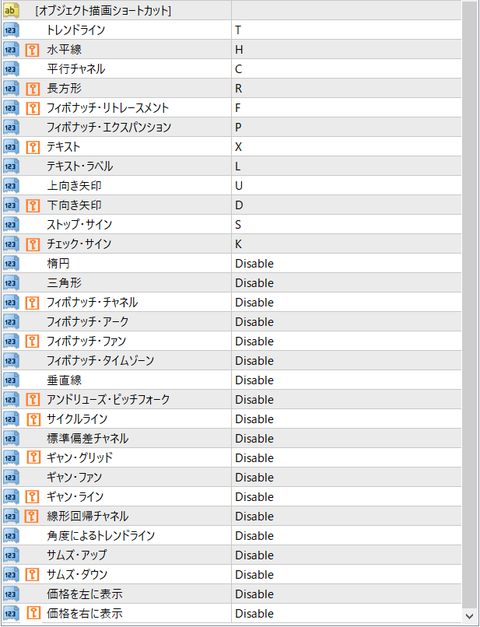
- Object drawing shortcuts
- Configure key settings to switch to the mode that directly draws each object.
Notes on Indicator Installation
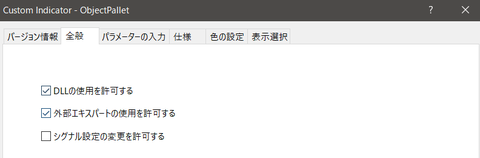
This indicator uses the Windows API (user32.dll).
Therefore, during indicator installation, please check "Allow DLL usage" on the General tab.
About the Trial Version
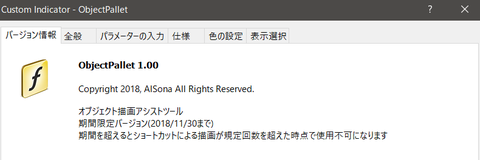
The trial period is listed on the version information tab of the indicator.
After this date, drawing with the palette or shortcuts will be limited, and after a certain number of uses, it will be unavailable.
★ Download from here
| Object Drawing Palette & Shortcuts (Trial) | |||
 | Free | This is a trial version with function limitations. Please try it here first to check usability! | download |
| Object Drawing Palette & Shortcuts | |||
| ¥500 | Release version. No functional restrictions at all. We hope it will help your discretionary trading! | download |
| Line Assist Tool | |||
 | ¥1,000 | A line support tool that includes the Object Drawing Palette & Shortcuts feature. Provides easy line style changes, copying to other charts, and automatic trend line updates with new highs/lows. | download |
× ![]()