
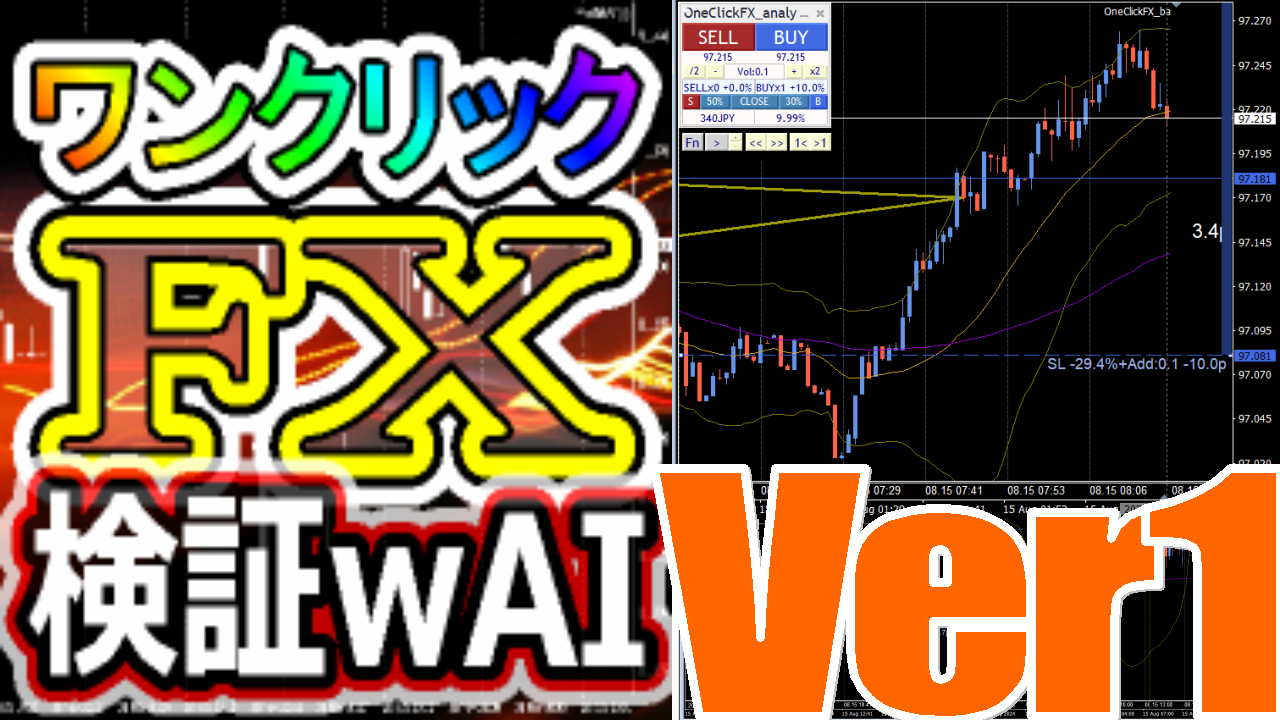
One-Click FX Verification with AI Support Page
This page is a support page for purchasers.
※ This page is publicly available to all including those considering a purchase. Please review the product’s features and how to use them. If you have any questions, please feel free to contact us.
The latest version is 1.44.20260825.
Upgrade for purchasers is free ⇒Download
※ By downloading or launching this product, you agree to theTerms of Use.
 | ? One-Click FX Series Purchaser’s Exclusive Page Thank you for using our service. This page is an exclusive page for purchasers of the One-Click FX Series. We distribute purchaser-exclusive tools, additional content, sample settings, and beta tools. We will continue to add convenient tools and verification content in due course... |
MT5 AI Assistant support
▼ November 2, 2024 v1.38
Mouse synchronization,
Object synchronization,
Additional top and bottom margins, ▼ September 17, 2024 v1.37
Release
※ This page also includes images from before the upgrade
Product contents
One-Click FX Verificationis a powerful tool that reflects trade history onto past charts, allowing verification of trade results from multiple angles. It can synchronize different timeframes for the same currency pair or charts of different currency pairs, and it displays the timing of economic announcements. This enables retrospective verification of what happened at specific moments from various perspectives.
It includes a simple pseudo-trading function and supports moving candles unit-by-unit via keyboard, so you can scroll one candle at a time. Naturally, in synchronized charts this candle-based synchronization is automatic. It offers sufficient features as a verification tool, including partial closes, risk percentage display, history saving, and saving trade images.
The “withAI” feature enables output of trading data in a format that AI can read. This allows you to evaluate trades, perform detailed analyses, or receive advice from AI.
You can use it for reviewing your trades, testing indicators, technical analysis, and various other purposes.
Initial Setup
Refer to the setup page to allow DLL, configure authentication,One-Click FX Series installation.
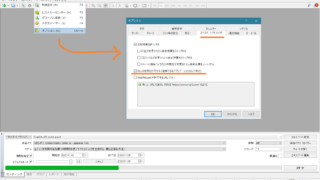
After setup is complete, restart MT4.
Launching One-Click FX Verification
4) Open any chart.
5) Right-click → from Standard charts, select “OneClickFX Verification with AI.”

6) On first run, a license invalid message will appear and the button will not respond.

7) Right-click → Expert Advisor → Settings.

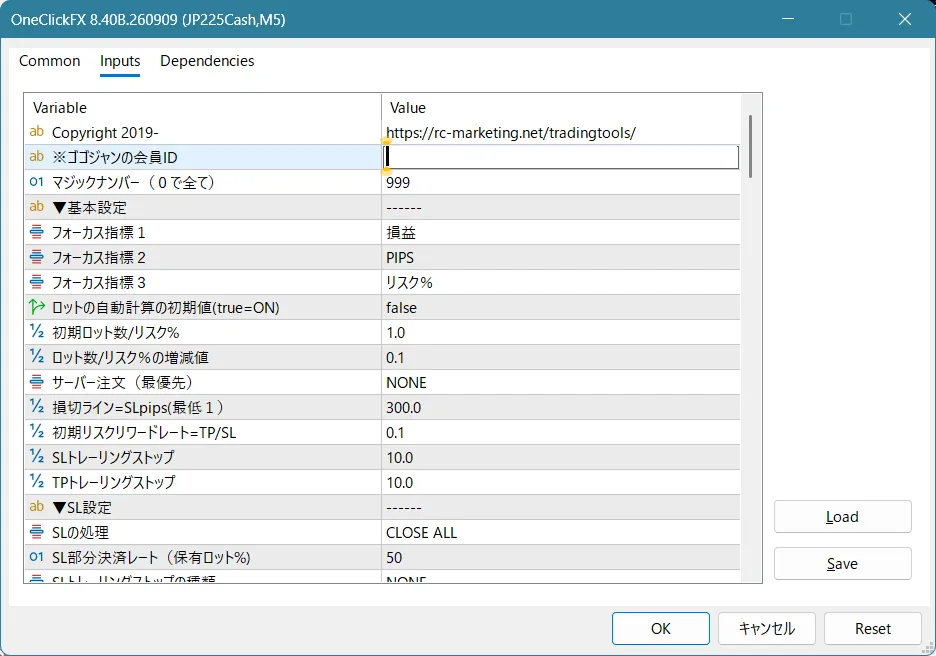
8) [Important]Enter the GoGoJoon member ID in the Parameters and click OK. This will perform online authentication via encrypted communication. If an error occurs, please ensure there are no typos and inform us via the form at the bottom of the page.
With just this, it will operate with default settings. Scroll the chart to confirm the tool is active.
To get started quickly
Open the Fn key to reveal the function panel and click LOAD HIS to load the trading history. The trading history saved in your MT4 will be displayed on the chart.

Open multiple charts,One-Click FX Verificationapply the standard chart template and ensure it stays synchronized when you scroll the charts.
Standard charts
Two standard charts are included.
・OneClickFX Verification with AI: Standard template chart. Includes original chart colors, Bollinger Bands, moving averages, economic indicators, and Japan time display.
・OneClickFX Verification with AI_core: Simple content with original chart colors and Bollinger Bands only.
・OneClickFX_training_sync: Template chart for synchronized display only. Use if you only need synchronized display.
In addition, if you want to use standard templates or your own templates, insert the Expert Advisor OneClickFX_backtesting into the chart.
You can also add different indicators you are using.
Operation & Parameter Settings
How to use One-Click FX Verification
Main panel: Compact mode (order mode by resizing the box)

Main panel: Order mode

Chart movement

Function panel, management of trading history and AI data output
Parameter Settings
| Item | Description |
|---|---|
| GoGoJoon Member ID | Enter GoGoJoon member ID for license authentication. Only purchasers can use this. |
| Initial lot size, increment | Set the initial lot size and increments. |
| Pips value (0: auto) | Specify the value of 1 pip. 0 will auto-calculate. |
| PIPS→ points conversion factor (0: auto) | Specify the factor to convert pips to points. Auto zero is fine for FX. For CFDs, broker-specific factors should be entered. Note: deprecated parameter |
| Include SL multiplier | Specify the initial PIPS from the break-even line to the stop line. This display is indicative and will not execute a trade. Considers the point multiplier. |
| Include TP multiplier | Specify the initial PIPS from the break-even line to the take-profit line. This display is indicative and will not execute a trade. Considers the point multiplier. |
| Partial close rates 1, 2 (holding lots%) | Specify the percentages for partial closes. |
| AI output bars | Specify the maximum number of data bars for AI output. Note: number of candles. |
| AI output bar margin | Specify the number of surrounding bars to include in AI output data. |
| Keyboard assignments —―― ※ Key numbers correspond to ASCII codes |
|
| Move back 1 bar | Assign a key. Default is “A”. |
| Move forward 1 bar | Assign a key. Default is “D”. |
| Move forward 10 bars | Assign a key. Default is “W”. Rough amount of movement. |
| Move back 10 bars | Assign a key. Default is “S”. Rough amount of movement. |
| Go to previous settlement | Assign a key. Default is “Q”. |
| Go to next settlement | Assign a key. Default is “E”. |
| Play / Pause | Assign a key. Default is “R”. |
| ◆ Mouse synchronization line— | |
| Show line | Display the mouse coordinates on the synchronized chart. |
| Line color, style | Specify color and style (solid, dotted, etc.) for the mouse-synced line. |
| ◆ Object synchronization— | |
| Sync only same symbol | true: synchronize only the same currency pair. false: all objects for the same pair are synchronized; for other pairs, only vertical lines are synchronized. |
| Also synchronize non-selectable elements Also synchronize background objects Also synchronize hidden objects |
If true, these synchronize across charts; if false, those objects are not synchronized. |
| Include delete synchronization | true: delete synchronized chart objects as well. |
| ◆ Others— | |
| Mouse movement to focus | true: switch focus between windows by moving the mouse. false: focus changes after a click. |
| Chart top/bottom margins | Specify top and bottom margins for synchronized charts. |
| —————————– | |
| Buy color Sell color |
Specify button colors, and the colors and thickness of the TP and SL lines. Position and order lines use the same color by default. |
| Control box width/height | Adjust as needed depending on screen size; reduce values if it does not fit. |
| Initial X/Y position | Specify the position of the control box. |
| Control box font size multiplier | Fine-tune the control box font size. Depending on display size and Windows font scaling, MT4 can render text too large or too small, so adjust with this value. 1 is 100%. |
| Chart font size | Specify the font size displayed on the chart. |
| Image size (width x height) | Save chart images with SHIFT+S. Save location: data folder/MQL4/Files/OshiraseSnap/. |
| Message text size and display duration | Specify the size and display time for messages shown at the bottom-left of the chart. |
Details of features
TP/SL lines
When you hold a position, TP/SL lines are displayed.This line is for guidance only and will not execute a trade.
 If you hold a position, the P&L percentage at exit, number of orders, and PIPS from the break-even line to the stop line are displayed. If you do not hold a position, they are not shown.
Chart scrolling
You can scroll the chart with the chart-scroll buttons beneath the control box. The “<<” and “>>” move to the settlement points; the “1<” and “>1” move one candle forward or backward.

You can also move charts with keyboard input. The keys “x” and “c” move one candle at a time. “z” and “v” or arrow keys move about ten candles (depends on scroll settings). MT4 standard page-switch keys also scroll.
Simple simulated trading
Automatic playback can perform simple trades. Turn ON the play button under the control box.

The chart plays at a constant speed. During playback you can enter with BUY/SELL buttons and close with each CLOSE button.

Next to the Play/Pause button are speed up and slow down buttons. The fastest setting 10 moves about 5 candles per second; the slowest setting 1 moves one candle every two seconds.
If another chart becomes active during playback, playback stops. Playback proceeds at the time frame you started with; its progression may differ when played on another time frame’s chart.
For example, if playback starts on a 1-minute chart, at default it advances about one candle per second, i.e., 1 minute per second. If you play on a 1-hour chart, one candle per second equals 1 hour.
Since this is a simple simulation, if you want a realistic trading simulator, please useOne-Click FX Training.
Saving and Recall of History Data
One-Click FX Verificationallows saving and recalling history data freely.
Press the LOAD HIS button at the top-right of the function panel to recall actual trading profits. This data is the past trading history saved in MT4.
If you change the trading history, there are three save points; you can save them with the SAVE button. When you open the chart next time, press LOAD to recall the saved history data.
If you want to clear the currently displayed trading history, press the history clear button at the bottom left. With ALL you can clear all history data, and the button to the right can delete data before or after the current time.
AI data output (AI Export)
One-Click FX Verificationallows exporting trading data for AI. By feeding the exported data to AI, you can obtain trade evaluations or insights from AI.
Press the “AI Export” button at the bottom-right of the function panel to open the folder and export AI-ready data.
From 1.43B.20260808 onward, AI Export outputs three files.
- config.md: environment file
- history.cav: trading data
- bars.csv: chart data
If you are using MT5 AI Assistant, you can call the data by the three-digit folder name.
You can also upload these three files to ChatGPT, Gemini, Claude, Grok, etc., and analyze them using shared prompts from AI.
 | ? New way to analyze trading data with MT5 AI Assistant & Generative AI — just choose a number to enable AI analysis; supports ChatGPT, Gemini, Claude, Grok AI judgments for trading analysis have evolved to be easier and more flexible! By using the MT5 AI Assistant built into MT5, you can perform free trading analysis. This feature is available in One-Click FX Verification with AI 【... |
If you have succeeded in getting AI to read the data, try asking various questions.
For example:
“Evaluate and analyze the trade contents, then”
“I entered on a moving average cross; check if it was correct”
“Plot on the chart and add a 75-period moving average”
“Explain the cause of a big loss and how to avoid it”
“Where would have been the correct stop placement, explain logically”
AI responses vary from appropriate to completely off and unexpected. You should also consider whether the content is truly correct. Treat it as one opinion among many.
To elicit better answers, ask specific questions.
Asking “Tell me how to win in FX” will yield vague, generic answers. You should specify what you want to do more clearly.
As mentioned above, information such as a moving average cross for entry should be provided to the AI.
Fortunately, AI never gets angry no matter how many times you ask. If you don’t understand something, ask again. Sometimes it may be impossible, but it will likely provide some answer. It’s okay to push the limits. If you provide accurate information, AI will tailor its responses. If the answers are generic, provide more specific information and make your requests concrete.
Economic Indicators
The enclosed item “Display economic indicators subtly [EconomicData_rcm]” displays economic indicators on the main chart and synchronized charts. When you hover the colored line, the economic indicators announced at that time appear. By default, indicators related to the currency pair displayed are shown.

※ If the economic indicator times are off, in simple synchronization it is generally automatically adjusted, but in the main chart and active synchronization, you may need to manually set the server time difference. The default time difference is typically aligned with summer GMT+3, winter GMT+2.
Sub-chart synchronization settings
One-Click FX Verificationnot only supports normal synchronization but also supports synchronized charts forOne-Click FX Training (simple synchronization, active synchronization).
For synchronization methods, please refer to the support page ofOne-Click FX Training.
One-Click FX Training Support Page
Included indicators
Troubles & Tips
・TP/SL line does not settle
The tool’s TP/SL lines are for guidance only and do not execute trades. If you want to run a near-real trade with a trade simulator, please useOne-Click FX Training.
・Chart moves jerkily
This tool is primarily for verification and cannot move as smoothly as a real trading simulator.
・Front of the chart appears
This tool recreates a pseudo past chart by masking the chart head. Some indicators show future data, which can reveal masked areas. Please use Active Synchronization.
・License authentication error occurs
Possible causes include using a different email address from the purchase, email input errors, Windows not being up to date, or other security tools blocking the process. If unclear, please contact support.
Notes
The tool’s results may not always meet expectations. For security, online authentication is performed via encrypted SSL communication, so please understand this.
If you’re in trouble
If the program is not functioning correctly, behaving oddly, or stopping unexpectedly, please first check here.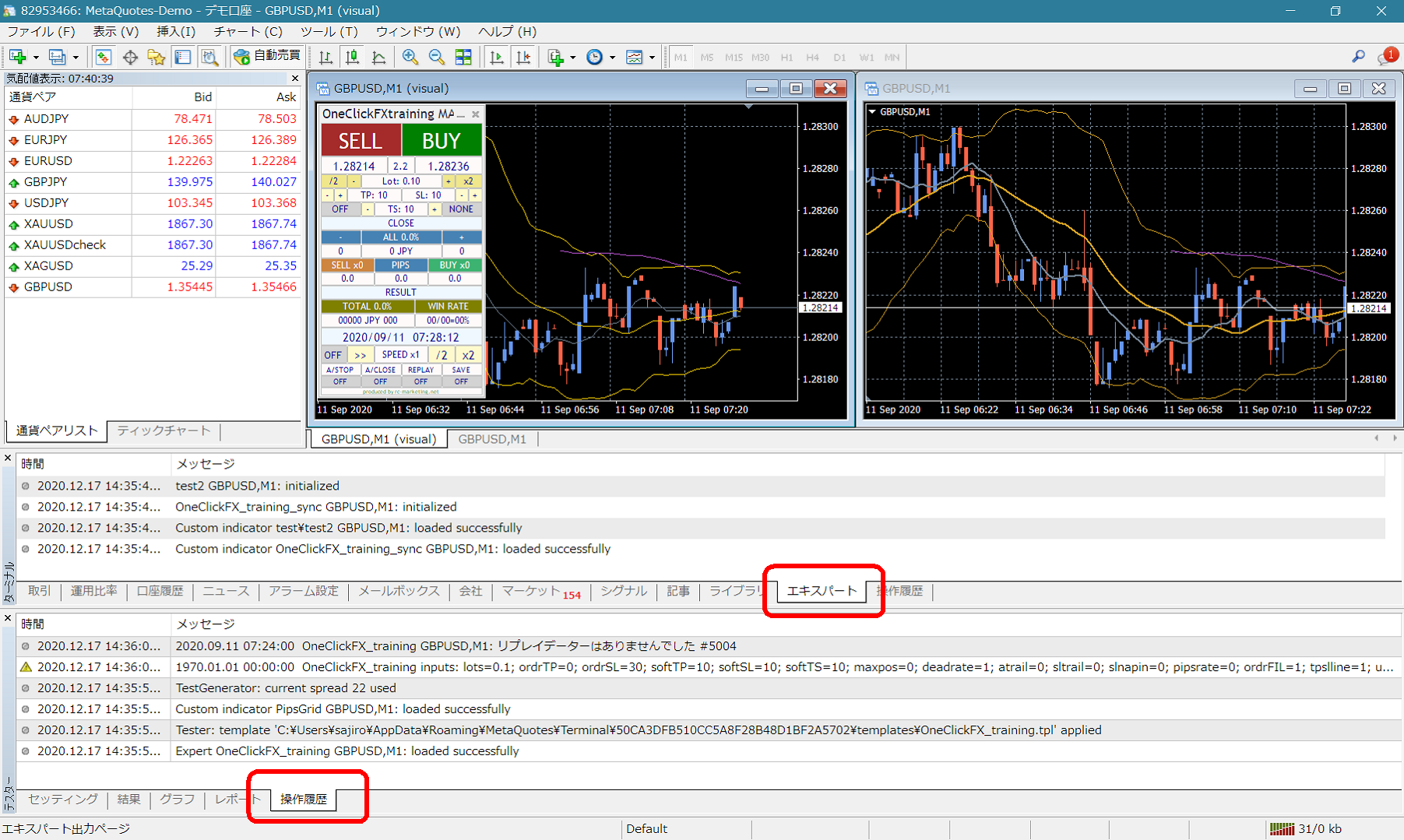 If there are error messages in the Terminal Expert or Tester’s operation history, please inform us so we can respond more smoothly. We appreciate your cooperation.
Support & Assistant
For some products, a convenient feature is included that automatically collects information with a single button during trouble. Press the “SA” button to collect information and open a folder. You can also open the folder by double-clicking the Script “OneClickSA.”
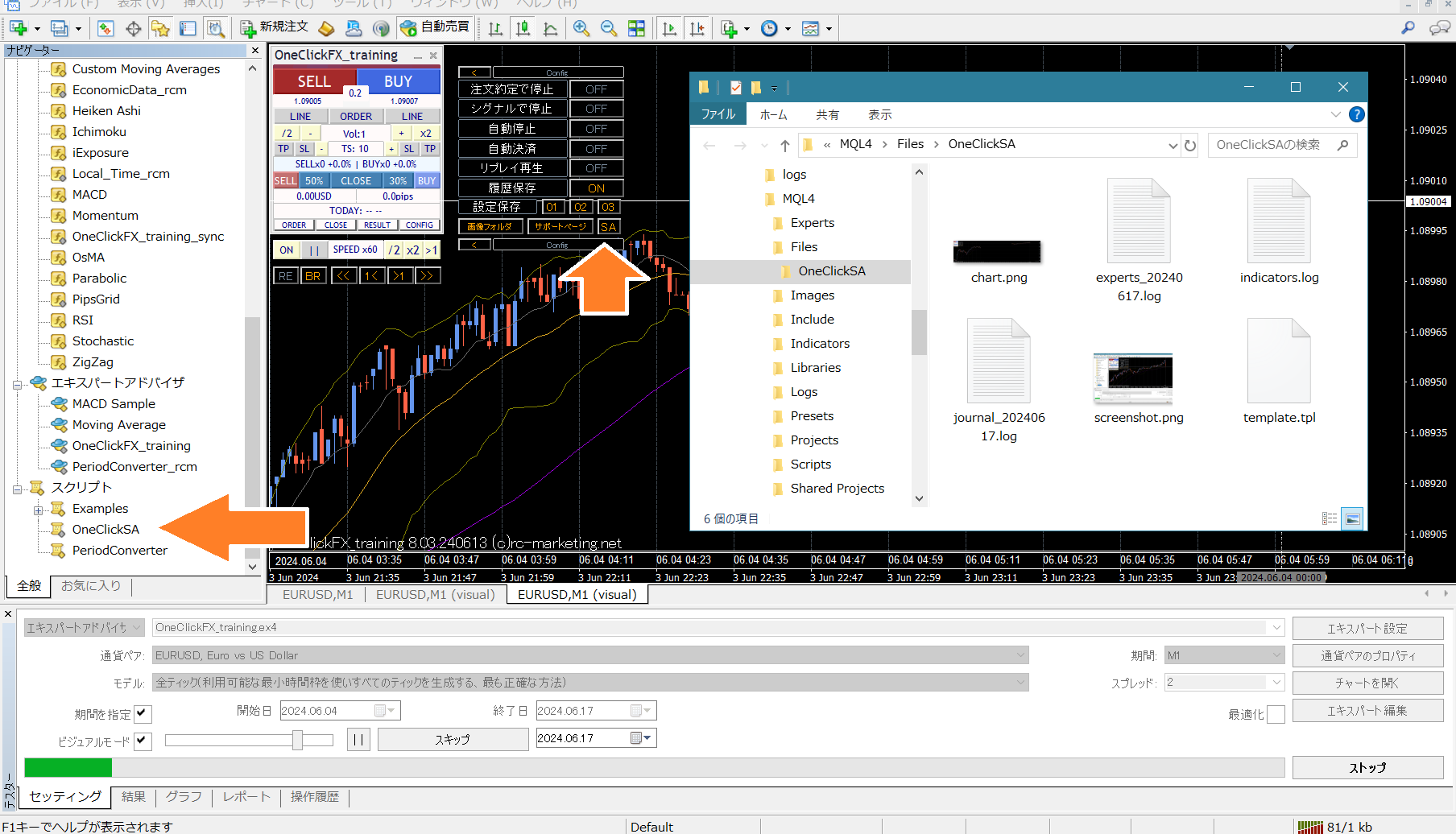 Please attach the generated files when sending.