
[2025 Edition] How to Prepare MT4 Historical Data Without Failing
This article introduces how to import MT4 historical data and generate chart data for standard timeframes. By following the steps, issues such as data not reflecting properly are expected to be eliminated.
In this procedure, PeriodConverter_rcm is used. This tool isOne-Click FX Training,One-Click 225 Training, etc., included with the package.
■Basic workflow
- Configure MT4 settings for historical data.
- In Offline Charts, open a standard chart for conversion.
- If necessary, import or download and restart MT4.
- Specify the start date for PeriodConverter_rcm and run it.
- Restart MT4 and verify the chart data.
Detailed steps
■Set the amount of past data to load
Set the number of chart bars to the maximum.
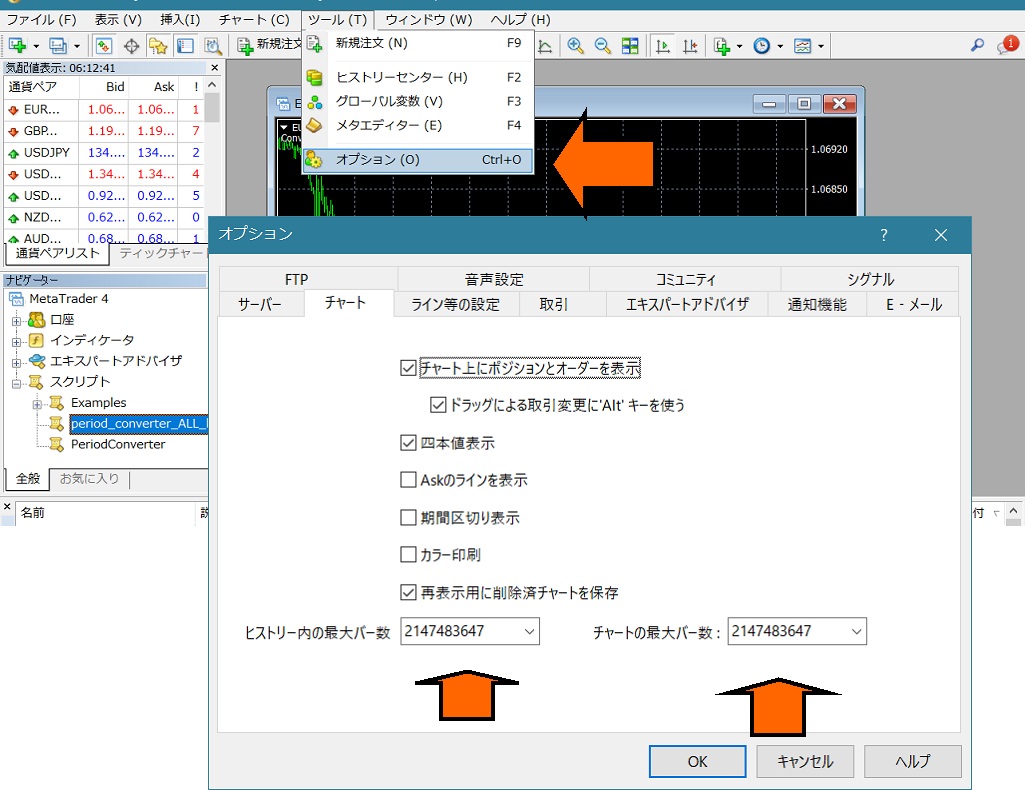
Increasing the maximum bar count ensures that imported data reflects correctly. If you do not perform this setting, past data will not increase even after import. Enter 99999999999 and press OK to set the above maximum.
Prepare past data
■If download is possible
Some brokers allow downloading a considerable amount of past data. For demo accounts with MetaQuotes, it may be possible to download data from more than ten years ago.
- Open the Tools -> Historical Data from the menu.
- For the desired currency pair, the 1-minute chartDouble-click [Important].
- Click the Download button.
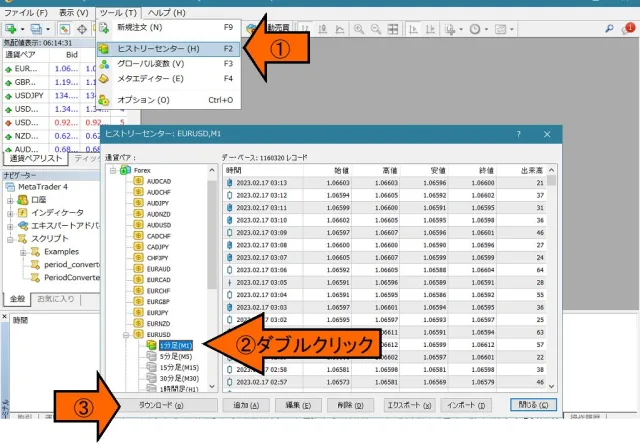
The download usually takes about a minute, but in some cases it may take about 10 minutes. After the download completes, scroll to the bottom to verify how far back the past data goes.
■If importing
If past data does not increase with download, you need to import other data.
⇒Historical data for MT4 (Past data)
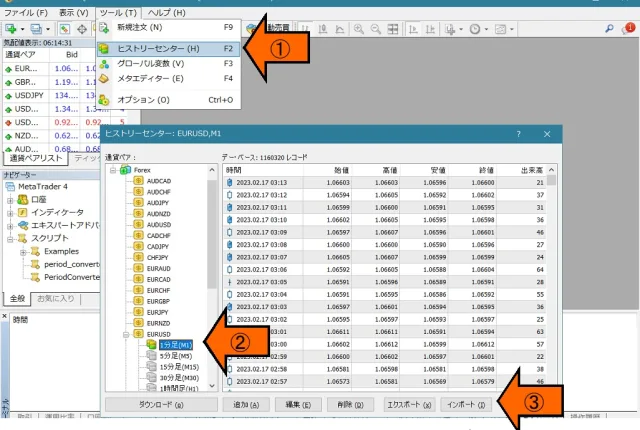
- Open Tools -> Historical Data from the menu.
- For the desired currency pair, the 1-minute chartDouble-click [Important].
- Click the Import button.
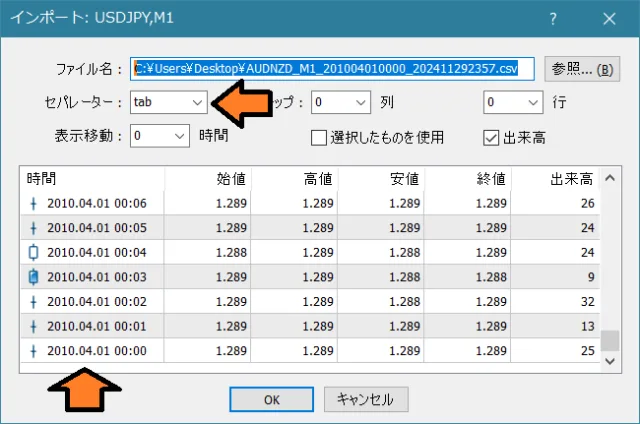
- Expand the downloaded ZIP file and specify the CSV file.
- Choose tab as the separator.
- The past data to be read will be displayed, so check the dates.
- Click OK.
■If the desired past data is not available
In MT5, past data is often downloadable. By downloading data in MT5 and exporting it, you can load it into MT4 using the steps above.
Also,One-Click FX Seriescustomers who have purchased this product can be guided to import past data, so please feel free to contact us.
Convert past data
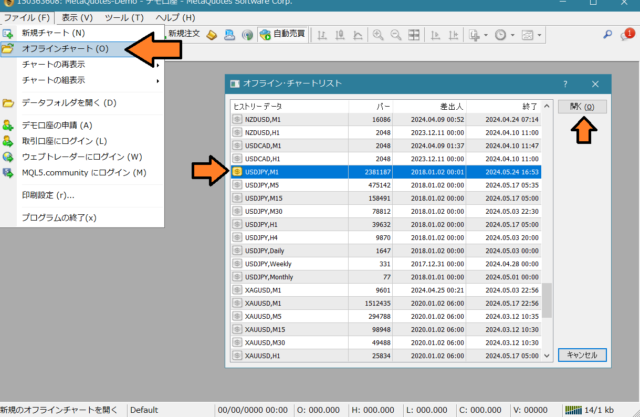
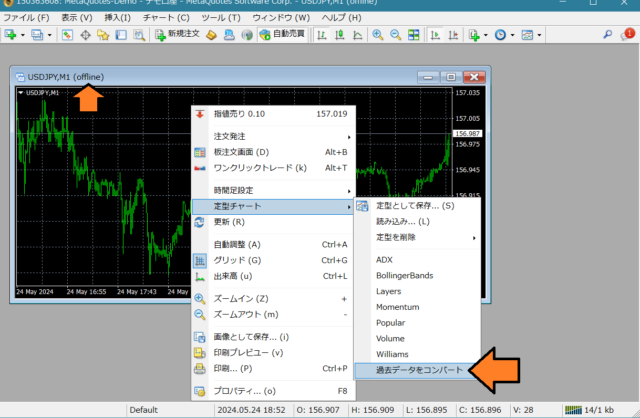
1.Close all charts and restart MT4, then open Offline Charts from the File menu. From the list, select the 1-minute chart and click Open. The image shows the 1-minute offline chart for USDJPY.
2.
3.
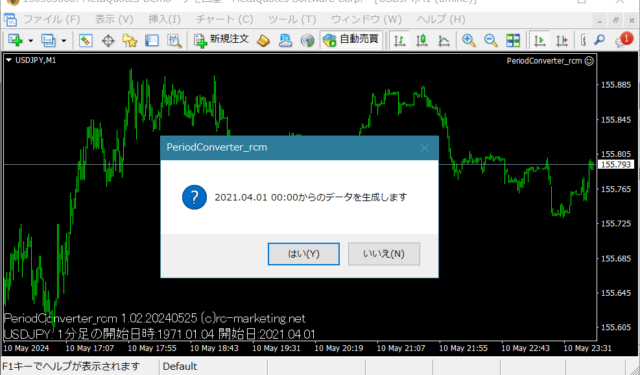
4.
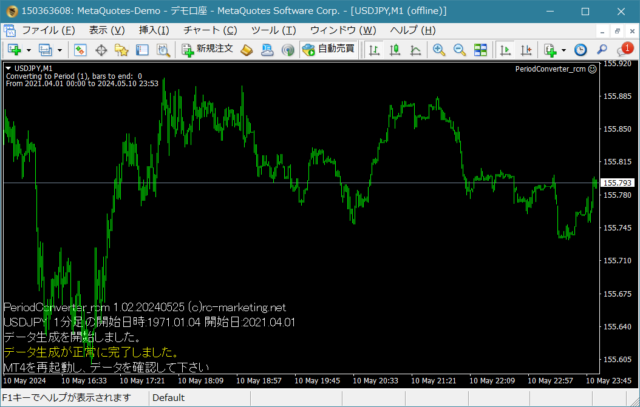
5.
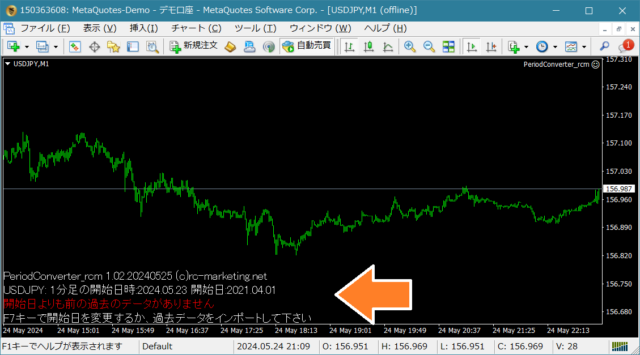
If you restart now, you will see the prompt “Would you like to generate data?” again, so press No or close the chart if the past data was generated correctly.
Historically, various methods have been devised to reliably reflect past data, but this method simplifies the procedure, involves restarts, and provides prompts to address uncertainties, reducing effort substantially.
Practice and verify freely with a completely risk-free trade simulator!
Details page for One-Click FX Training MAX