
Astat 225❺ Appendix ① MT4 Usage Manual
In FX (foreign exchange), we explain the steps to create a trading logic using the standard MT4 chart.
First, you need to download MT4 from the FX broker that handles the Nikkei 225. Looking ahead, we recommend a domestic securities company that is safe and reliable, rather than overseas brokers that frequently receive warnings from the Financial Services Agency and do not correct their practices. There are not many domestic brokers that offer Nikkei 225 on MT4. Here, among the six major companies, we use the Rakuten Securities FX Account, which is the only one that supports both Nikkei 225 and MT4, as an example.
Six major domestic companies
Securities companies: Rakuten, SBI, GMO Click, AU Kabucom, Matsui, and Monex
Preparation
First, install MT4 on your PC so you can use it, create four-price data, and import it.
MT4 installation
Download MT4 from this pageand install it. The installation steps are clearly described on the page. There are LIVE and DEMO accounts for the broker, but if you do not plan to trade for real, a DEMO account is fine.
After installation, an icon will be placed on your desktop.
Preparing four-price data
If you do not have the data, download it from the site. After downloading, convert the trading times to actual times. You need three pieces of information to convert the data. If you convert times manually, use these as references.
・Convert the trading days from the night session of the previous business day through the daytime session of the current day into actual dates
・Convert the two formats “YYYY/Y/D” and “h:m” into “YYYY.MM.DD hh:mm”
・Arrange columns 1–5 as: Time, Open, High, Low, Close
If you use an automatic tool,see hereIf you download manually and convert times with Excel,see herefor detailed explanations.
Importing four-price data
Next, load the four-price data into MT4.
History Center display
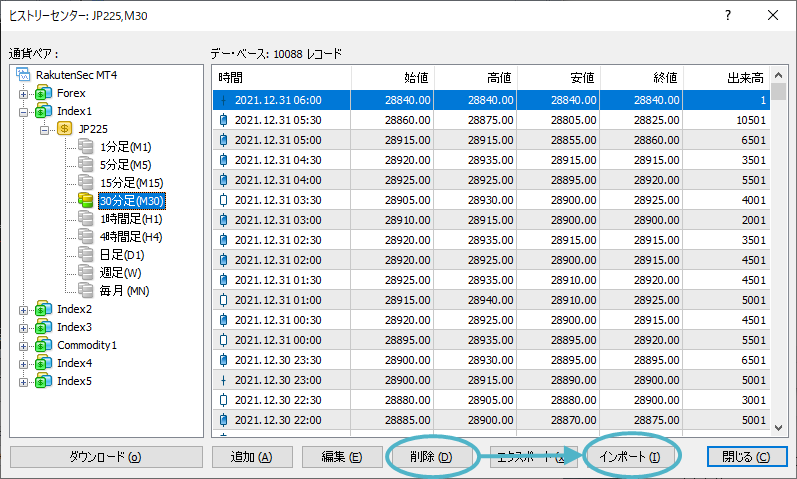
Start MT4 and open the History Center with the F2 key or from Tools. Go to “Index1” → “JP225” and double-click the desired timeframe. If data are mixed, troubles may occur, so if data are displayed, select all and delete them before clicking Import.
Import operation
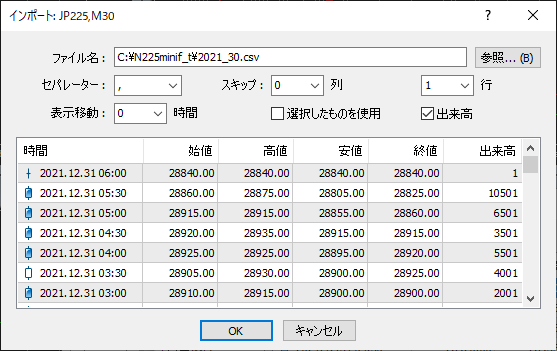
For the filename, use the path and name where you saved it, set the delimiter to “,” skip to column “0” row “1”, and click “OK.”
MT4 chart setup
After importing the data, configure the charts next.
Nikkei 225 chart display
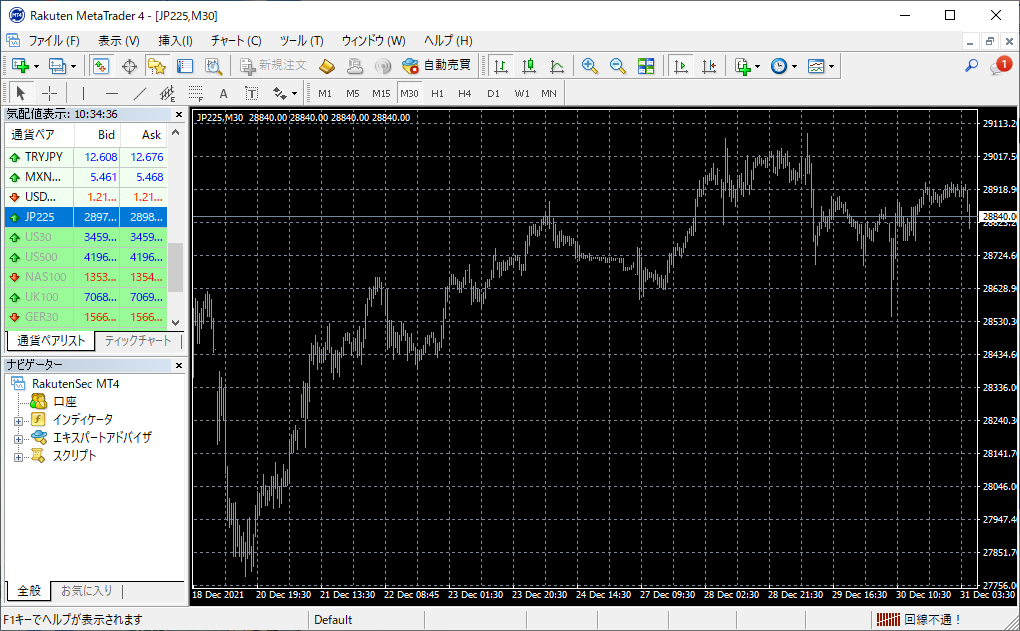
Display the imported data on the chart. In the top-left quote window, scroll down the list of currency pairs until you find “jp225,” then drag and drop it onto the chart screen, and click the time frame button you imported to display the Nikkei 225 chart.
Basic chart settings
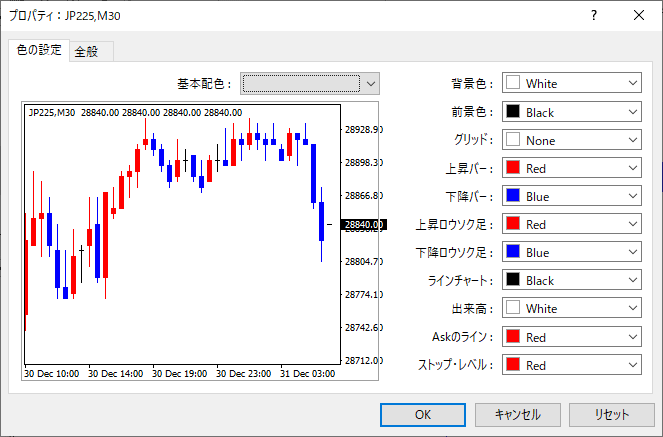
The default chart display is not commonly used, so change it to a typical chart setting. Press “F8” to display Properties and set the colors as follows.
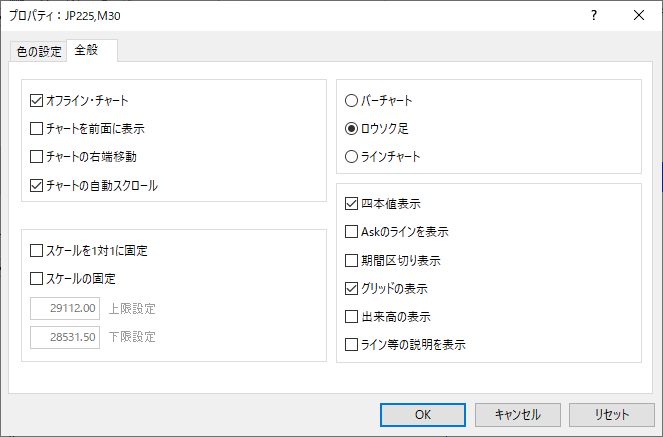
Next, switch to the General tab and change to “Offline Chart” and “Candlesticks.”
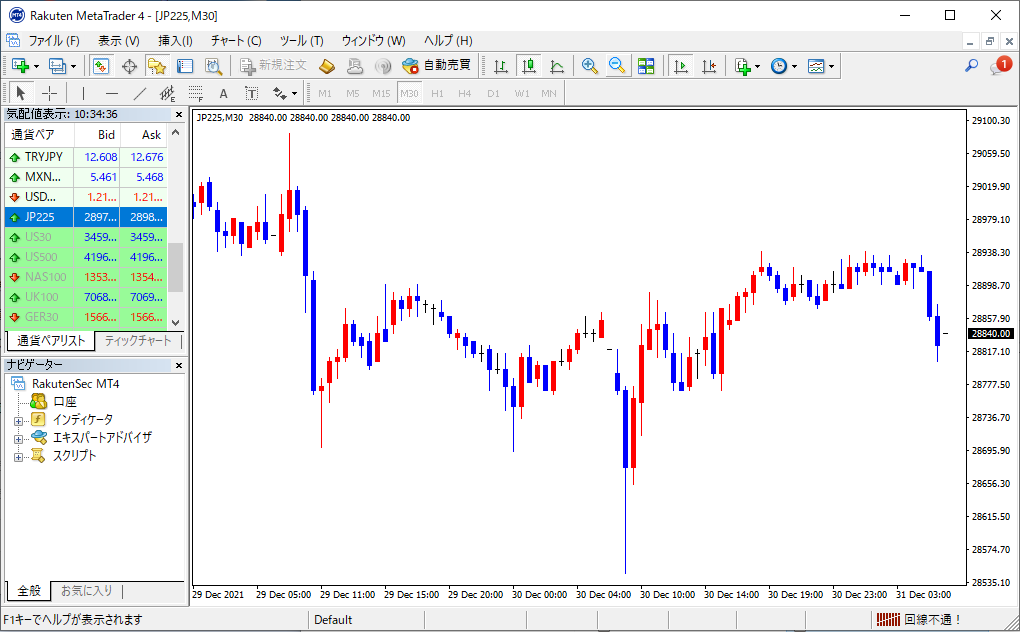
This completes the basic settings.
Displaying technical indicators
Finally, display the technical indicators. MT4 already includes major indicators, so setup is easy.
Trend indicators
Here, we display a 25-period moving average and Bollinger Bands. In the Navigator window at the bottom left, go to “Indicators” → “Trend,” and double-click the English label for Moving Average. Change only the period to “25.”
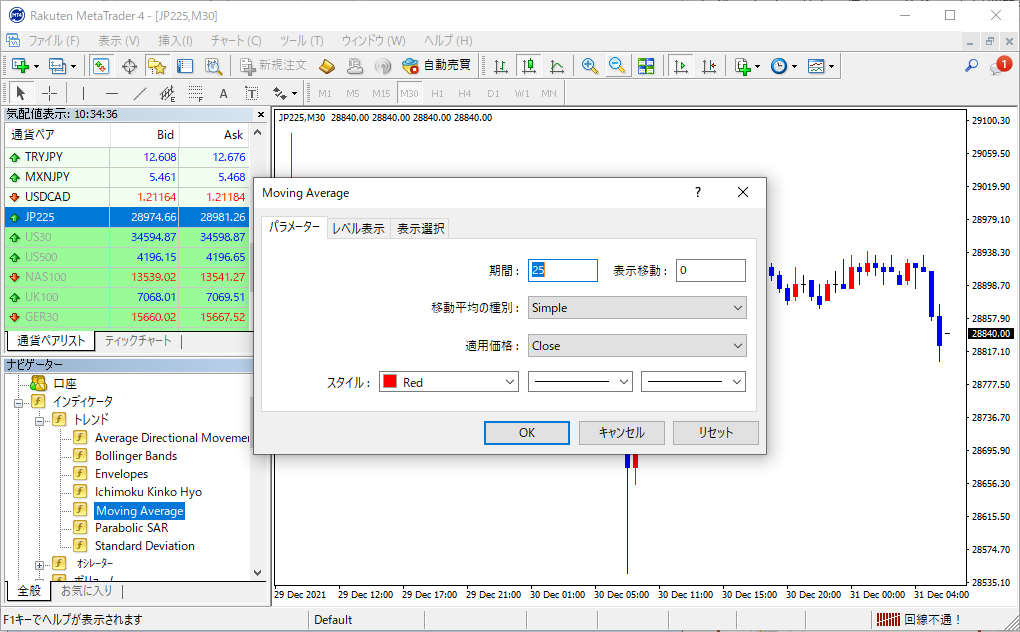
Similarly, double-click the English label for Bollinger Bands, “Bollinger Bands.” Leave the settings at default and click OK.
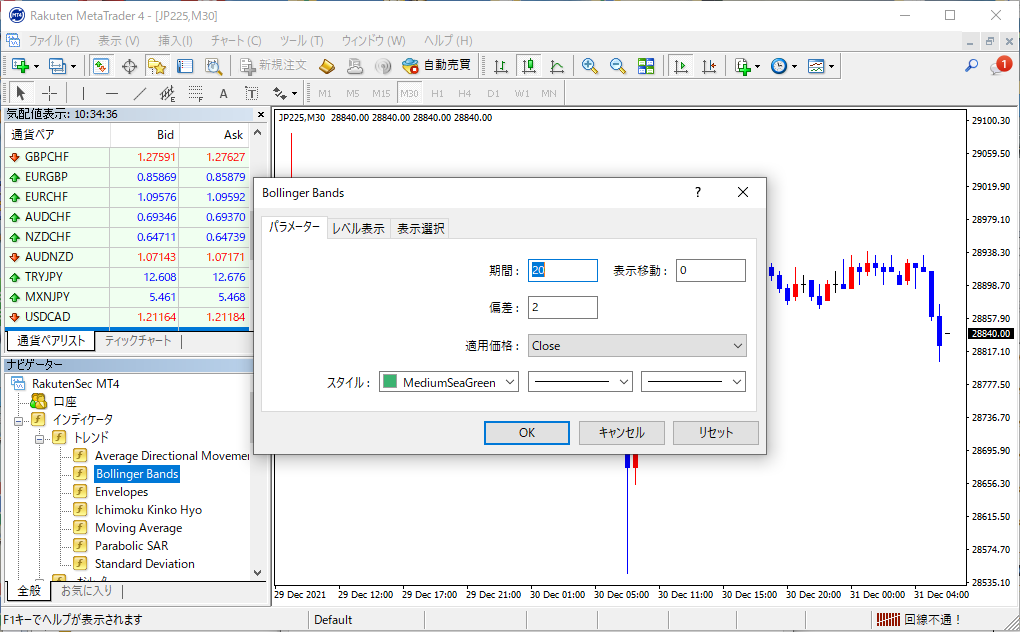
Now the trend indicators are displayed. In the figure, red is the moving average and light green is the Bollinger Bands. Feel free to adjust colors and thickness for readability.
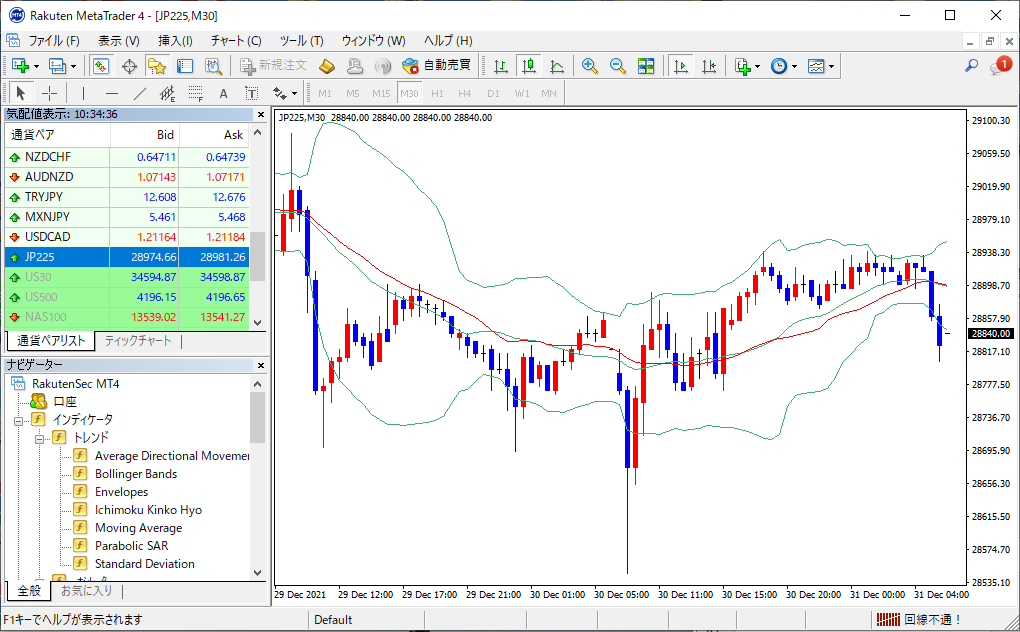
Oscillator indicators
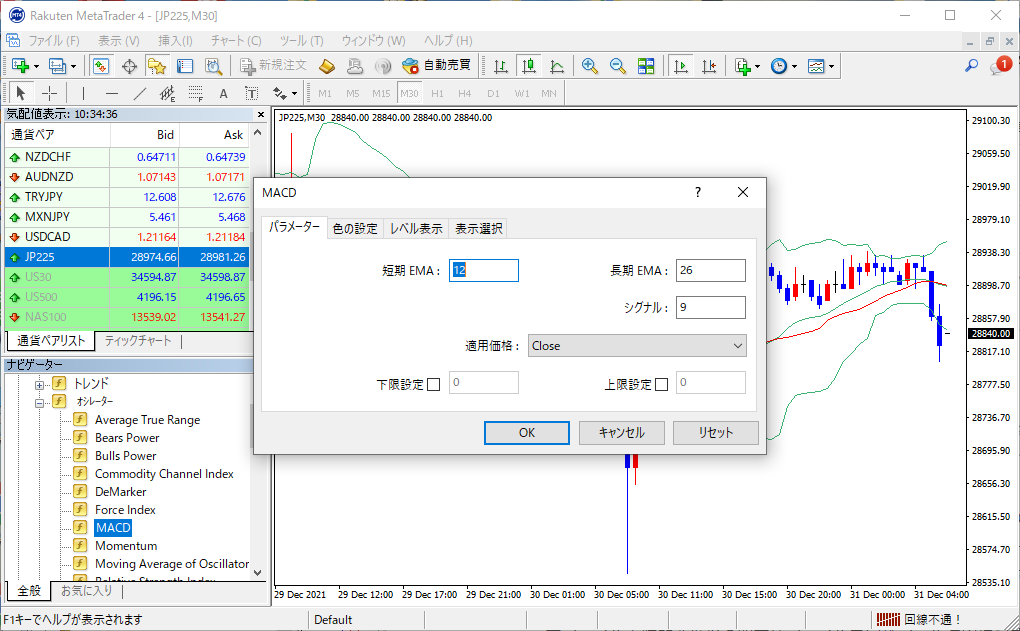
The oscillator indicators are set the same way as the trend indicators. Here we display MACD and RSI. In the Navigator window, go to “Indicators” → “Oscillators” and double-click “MACD.” Leave the parameters as is.
Similarly, double-click the full name “Relative Strength Index” for RSI. Enter your desired period and settings there.
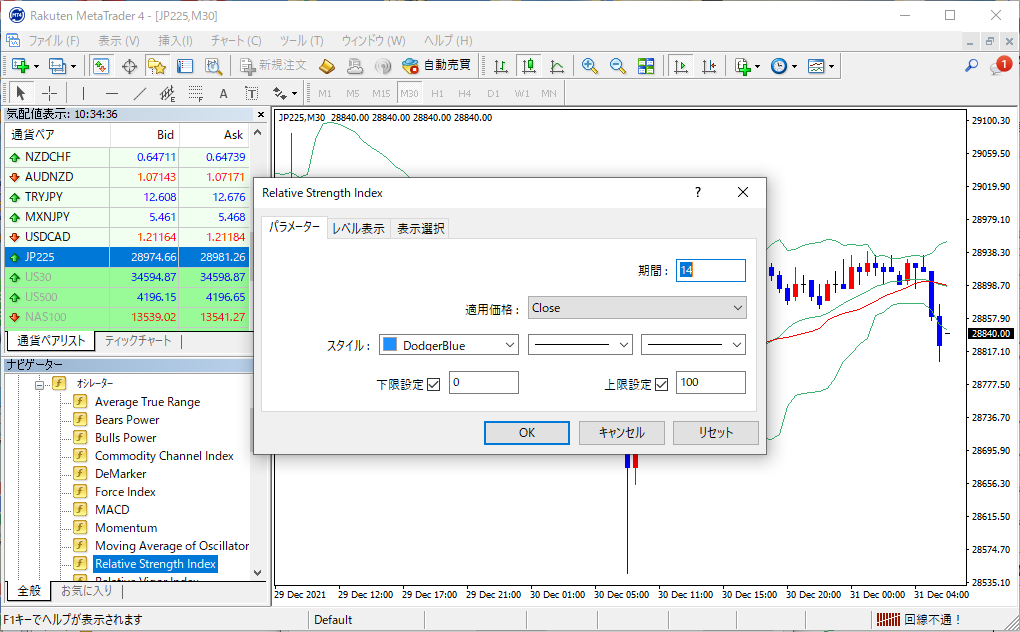
This places the oscillator indicators toward the bottom of the chart.
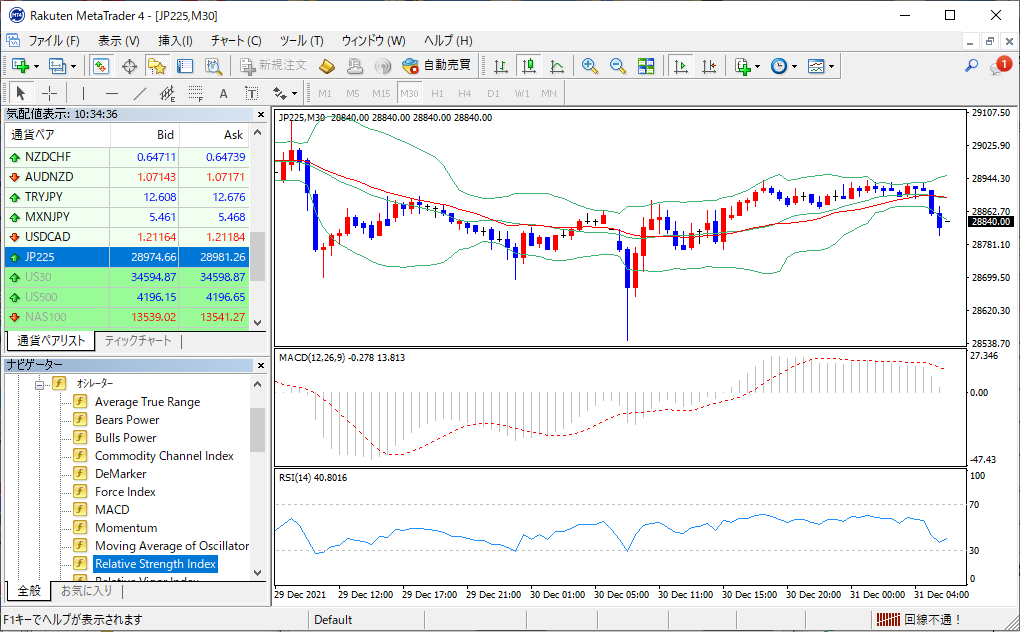
With that, the indicators will be displayed. If needed, set other indicators in the same way.
【Navigation Menu】
General Overview
Three-stage Strategy Validation
How to Use Tools
Examples of Basic Logic
Appendix ① MT4 Usage Manual
Appendix ② Four-price DL and Time Conversion Method