

How to operate TradeStation: Backtesting
After opening a TradeStation account,
and successfully installing it,
you will belearning by using TradeStationyourself, right?
In the future, I plan to handle both automated trading and discretionary trading,
so both operationsare basic to masteras a foundation.
This is the plan.
Even ifyou only do automated tradingand need to manually close positions
in some cases,there might be a need to settle positions manually,soyou should learn
the basic操作methods.
For the case ofonly discretionary trading, the
part related to automated trading is not relevant...
People may think so, butwhen primarily using technical indicators
to trade,you will implement part or all of your logic into indicators,
and then backtest to evaluate the usefulness of the logic.
So you don't need to memorize everything at once,
butyou should aim to learn it broadly within a certain range.
Now,
this timewe will introduce backtesting methods for strategies..
<Strategy Backtesting Method>
TradeStation ships withseveral built-in strategies.There are about 100 in total, but
divided into buy and sell categories,soconsider around 50 types as the number of strategies.
It seems better to think of it that way.
(If what you want is not present or you want to modify it,
you can purchase, use distributed ones, or make your own,
but that’s another story.)
This time, we will cover the built-in
・Buy entry using Bollinger Bands
・Sell entry using Bollinger Bands
as examples of how to operate.
First, after installing TradeStation,the screen right after launchingis the Quick Start screen.
I think the “Quick Start”screen will be displayed.
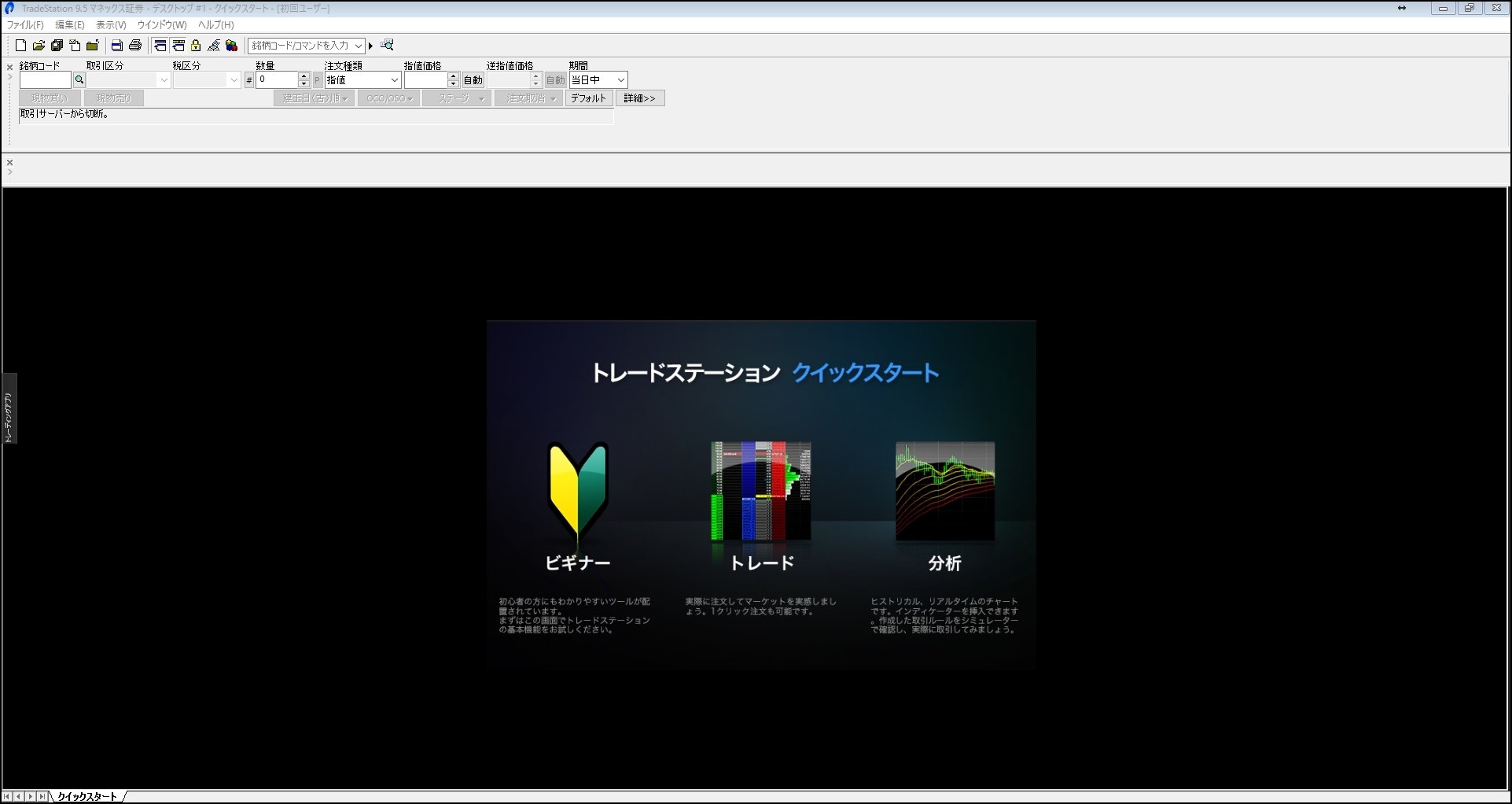
Any option would be fine, but here we select “Analysis.”
There are several charts displayed; click one of them.
Select the largest chart.
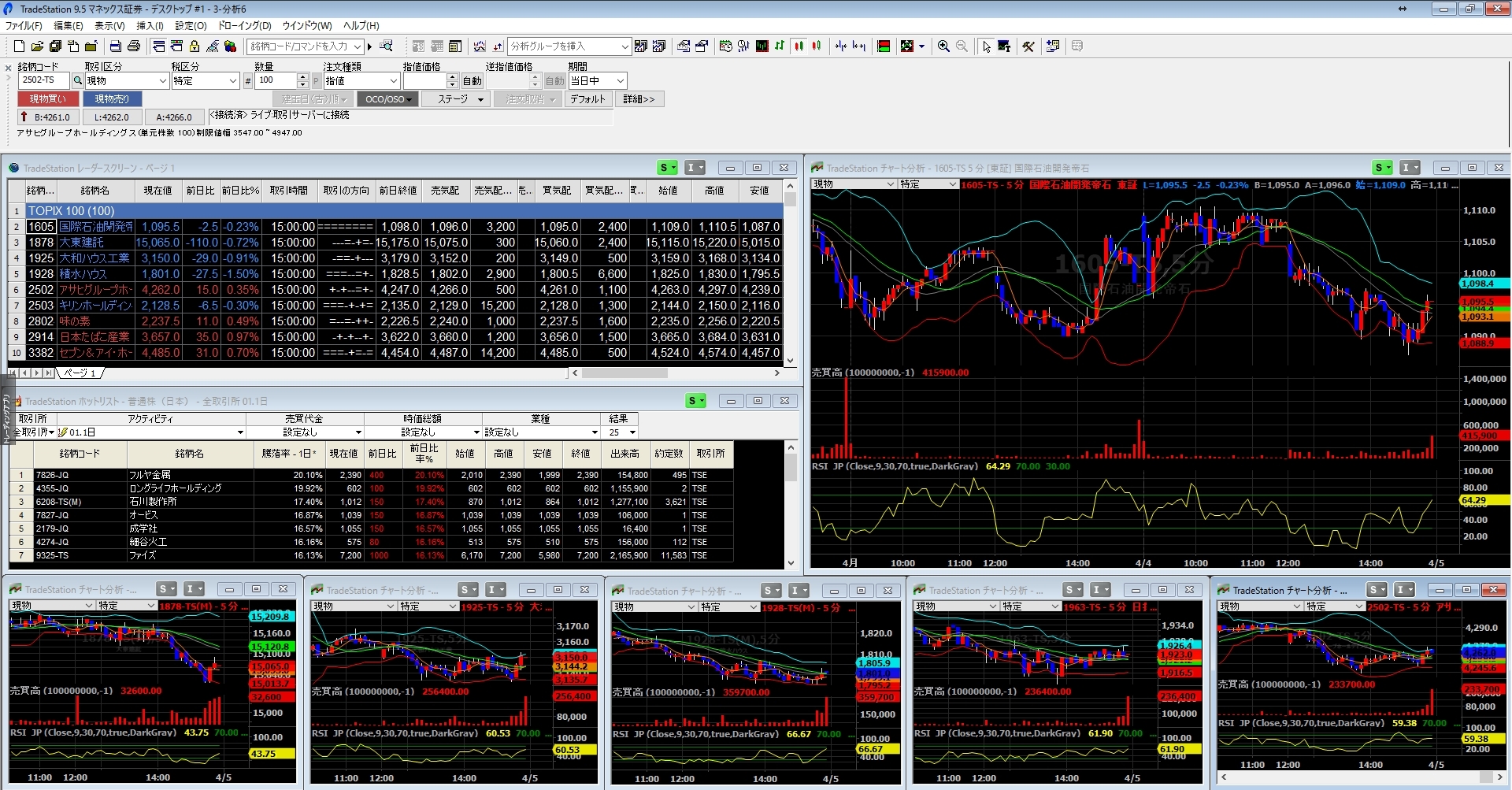
Double-click the top of the charttoenlarge it .
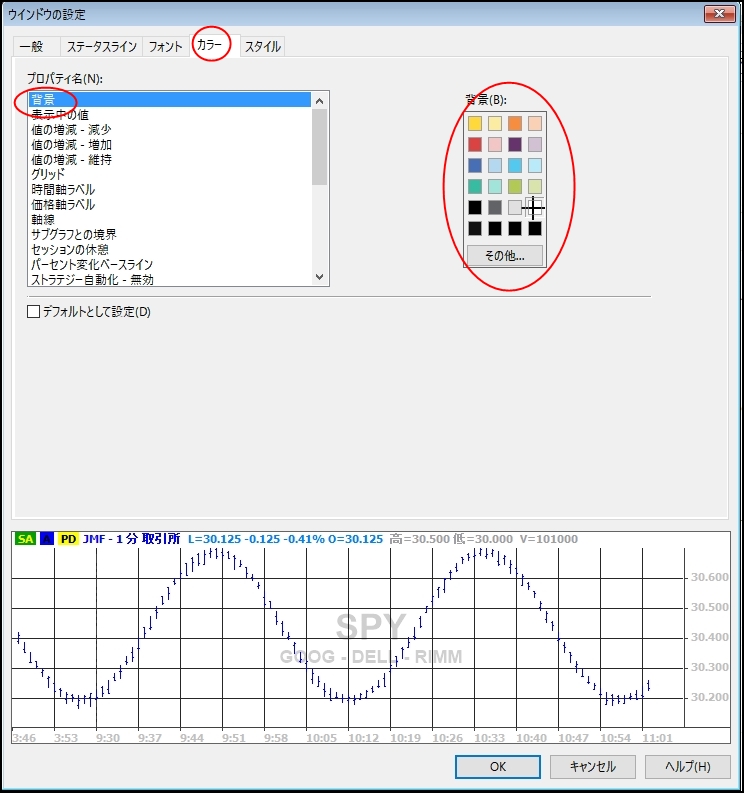
Personally,I prefer white background, so I set it that way.
In a place where candles are not displayed,thenleftdoubleclick.
Here,set the “Background”to your preferred setting.
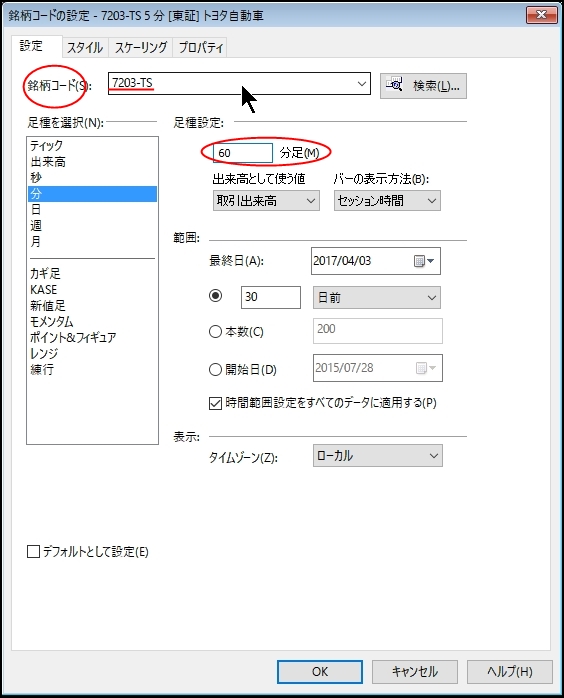
For symbol selection,on the “Chart screen”in thearea without candles,
“Right-click”andset the symbol codein
The setting is“Symbol Code”to“7203-TS”.
By the way, you can also set the chart's time frame here.
Here, we set to60-minute bars.
Next,in the top of the screenfrom the menu listclick “Insert.”
thenleft clickand from the displayed menu
“Strategy”select it.
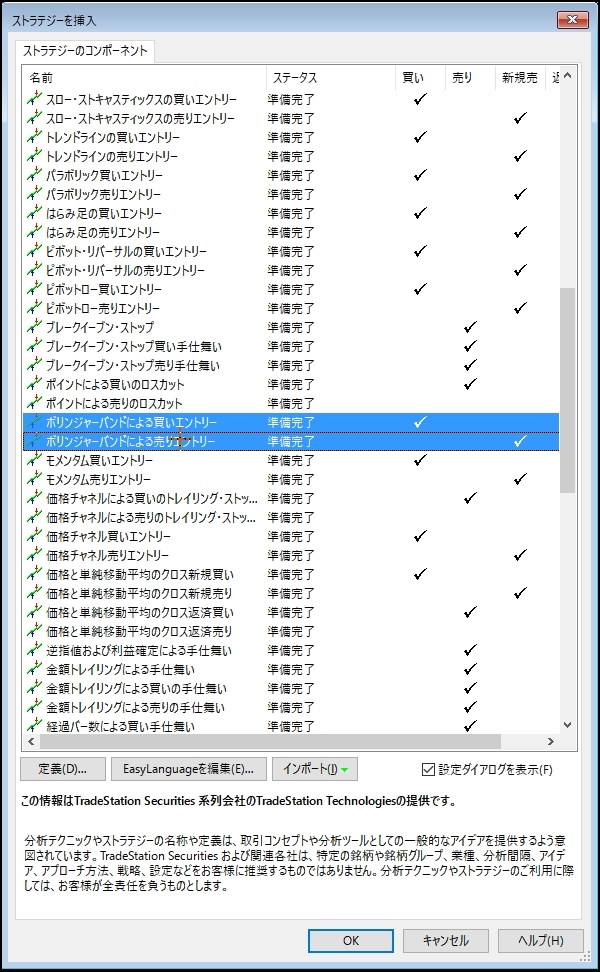
The selection can be done as on a normal PC by usingor
“Ctrl”keys for multiple selections.
Next,set the strategy parameters.
,there is
Click it.
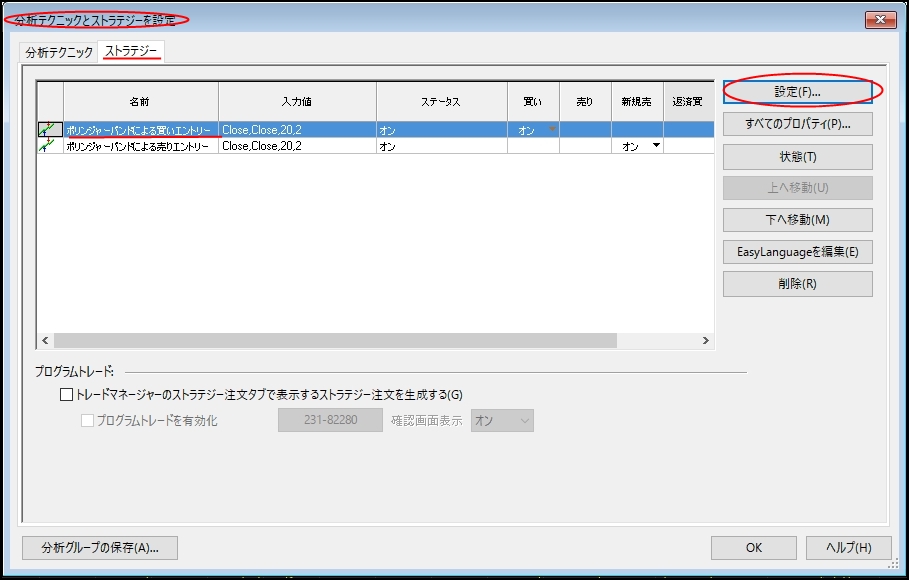
Here you can configure the strategy’s variables.
Also, if you are going to perform optimization, you will configure settings here.
will be covered another time.
“Inputs,”“Margin”and
Next, on the right side of the settings screen“All Properties”
Right-clickdo so.
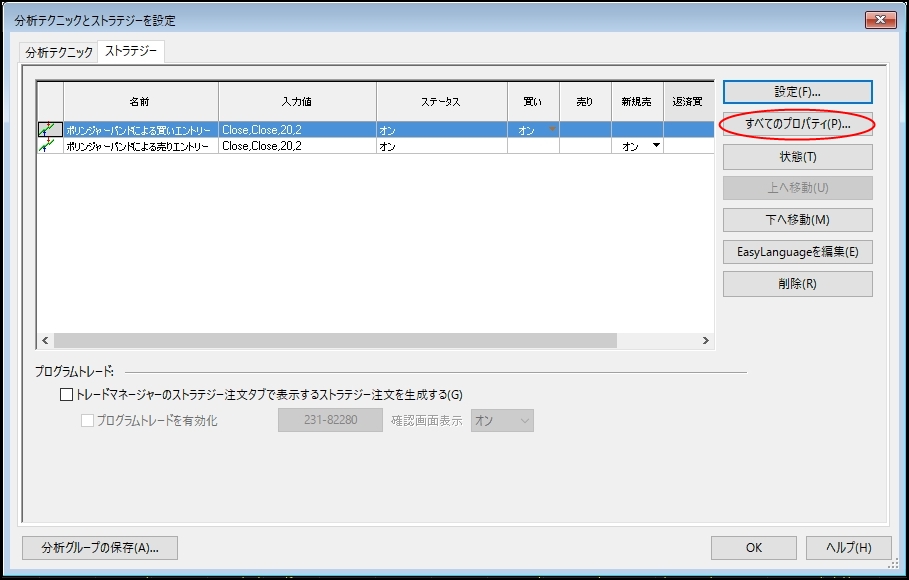
Here, we perform settings common to all strategies.
(if not specified by the strategy),
Program Trading.
Here too, for now,.
screen,.
.
Then,
.
Now,.
, let's proceed.
First,.
on.
has
tab for the settingsswitch.
set the Bollinger Bands variables.
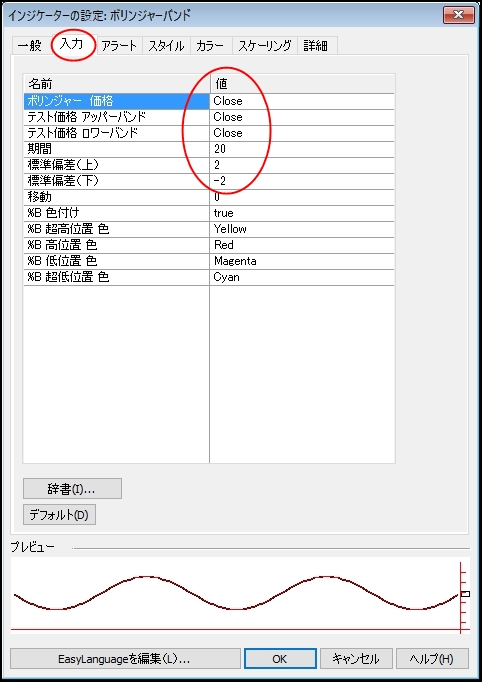
set the color of the displayed lines.
,,can be configured individually.
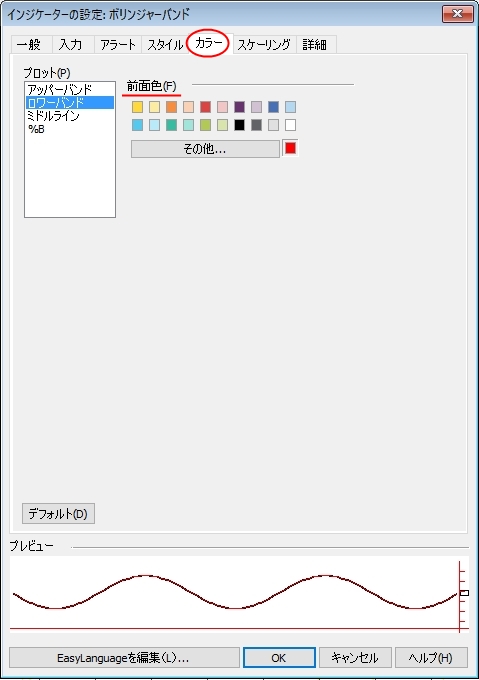
Next,.
,
and from the menu
and right-click.
Now,.
and.
Then,will be displayed.
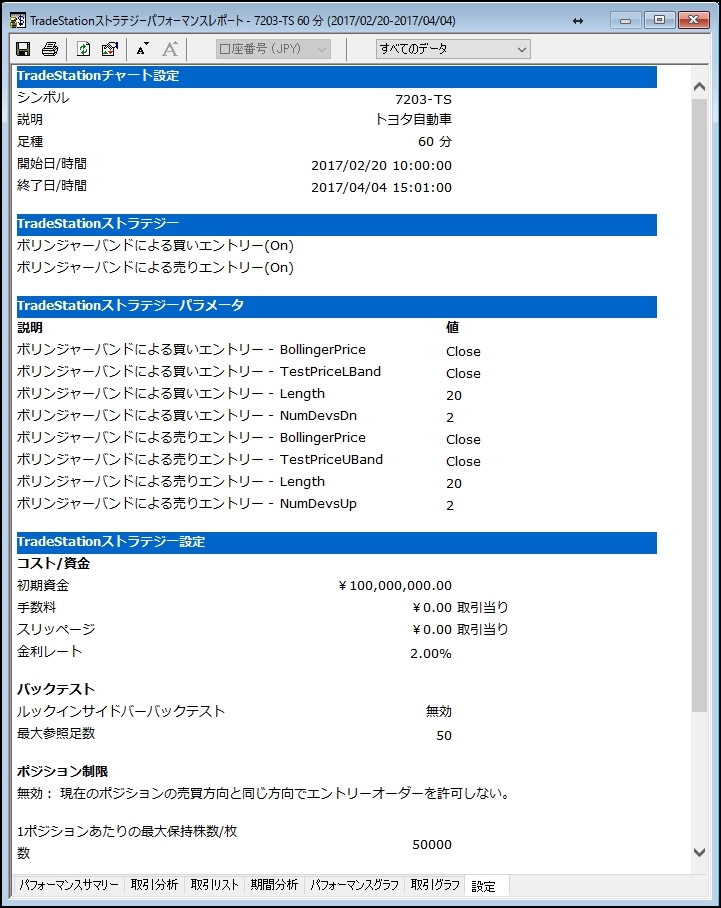
However,a help screen will pop up,which can be helpful to review.
In the “FX Automatic Trading for Stable Income” blog, we will also describe the progress of stock trading using TradeStation.
Thank you for reading until the end.
We hope you’ll read the next installments as well.
× ![]()