

TradeStation installation
This is the sixth installment of the series on stock system trading using TradeStation.
In this installment, we will introduce the installation of TradeStation.
This time, we will introduce the installation of TradeStation
Personally, during the stage before starting to use TradeStation,
・Whether TradeStation for Japanese stocks and for US stocks exist separately (you need to install them separately due to different versions)
(You need to install them separately: the versions differ)
・Troubles that occurred when installation didn’t go smoothly
.
TradeStation exists separately for Japanese stocks and for US stocks,
because on the Japanese TradeStation site, US stock trading symbols aren’t listed
I asked the support and found out.
(As of April 1, 2017, the Japanese stock version is 9.5, US stock is 9.4)
By the way, if you alternate login between US and Japanese stock versions,
an extra step is required at login.
(It's mostly just entering login details, but)
even if you logged in to the US version previously, when you try to log in to the Japanese version now,
the previous US login info remains as the credentials.
You need to re-enter both the ID and password.
Well, it’s not a big hassle, though.
Now, I will introduce the main topic: how to install TradeStation
<Installing TradeStation>
The installation itself is simply running the file downloaded in the fifth installment,
“Download TradeStation,”
and executing the downloaded file.
Of course, you need to click a few times.
(Basically, do not change the default settings and just click “Next.”
Making changes can lead to installation problems,
and then the process continues with updates and the initial screen appears.
That is the flow.
In my case, the installation didn’t go smoothly.
Troubleshooting took time, but
the conclusion, to put it first, is that the security software was the cause.
During the installation, I stopped real-time scanning.
First, the NG (not good) points are as follows:
Although the installation seemed to progress smoothly,
this kind of screen appeared.
I will illustrate this progression with images.
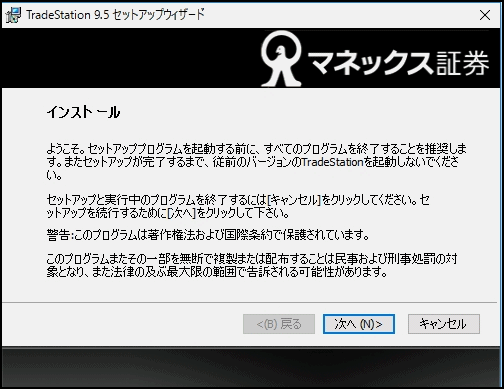
First, the installer is launched.
(Run the downloaded file)
This too.
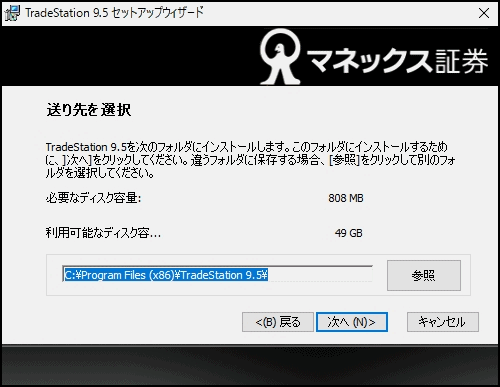
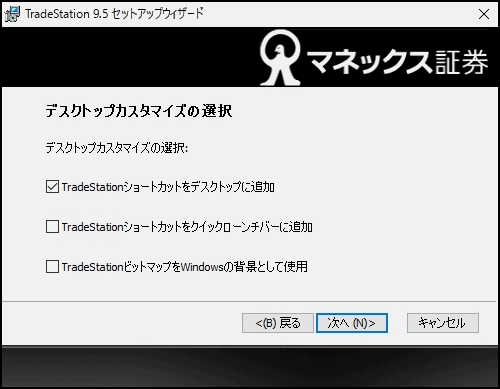
Here as well, click “Next” as is.
(It’s better not to check options outside the defaults.)
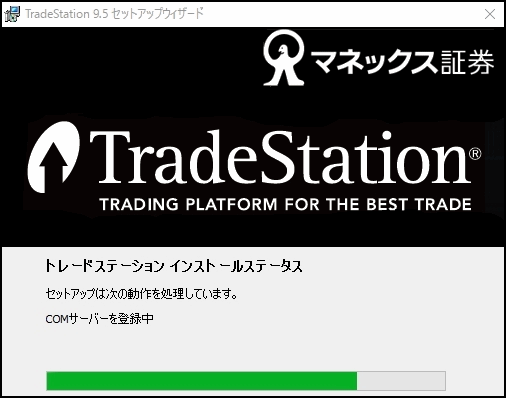
And in this state, it stops.
And a message like this is displayed.
Well, you have no choice but to give up and click OK.
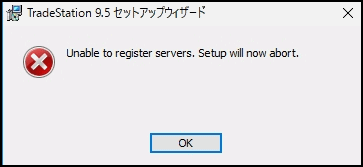
Thus, as an installation status,
as in the above image (two up), it shows “Registering COM server”
and remains like that.
Then a screen indicating it’s NG appears.
I tried several times, but it didn’t work well, so I gathered information from the WEB and sent an email to support.
According to information seen on blogs, the effect was not there, so I had postponed this,
and tried stopping the security software temporarily.
When I did that, the installation completed successfully.
In my environment, I use McAfee.
(Another PC uses AVAST, and the same phenomenon occurred.)
So, assuming the security software was the cause,
I will share one example of what I did.
Open McAfee settings.
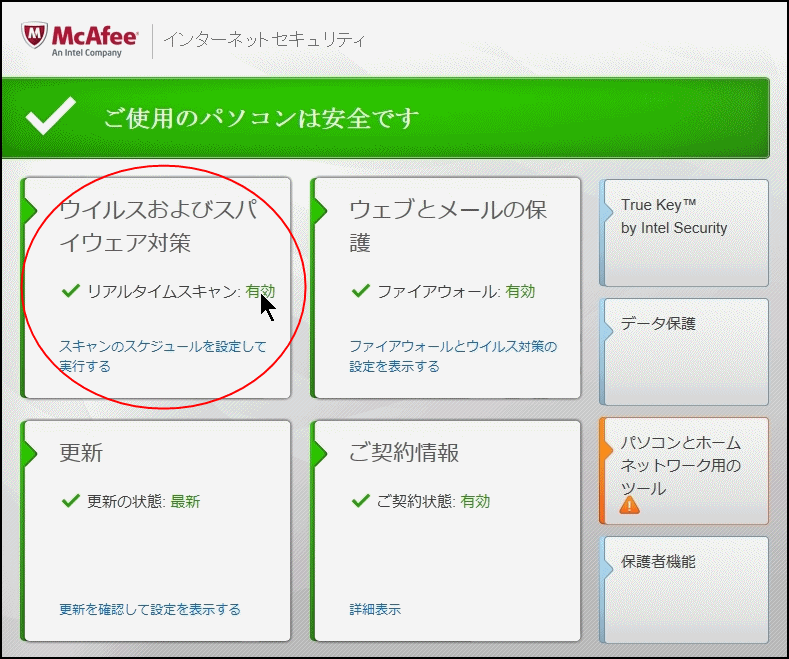
Then click Real-Time.
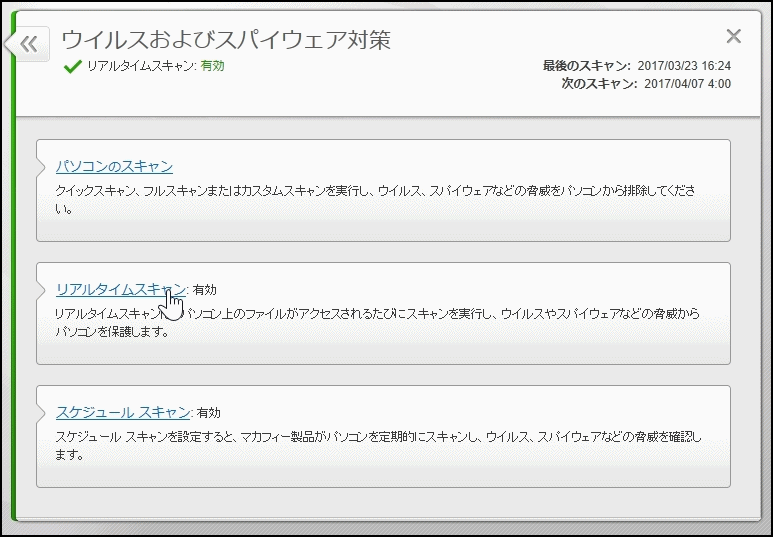
And set Real-Time Scanning to “Disable”.
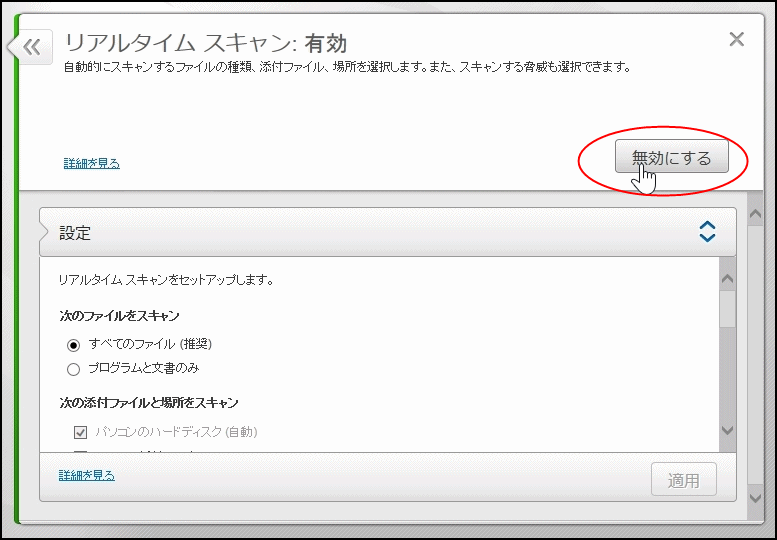
Of course, after the installation is complete, enable Real-Time Scanning immediately and don’t forget to do so.
In the example below, after 15 minutes it automatically becomes enabled.
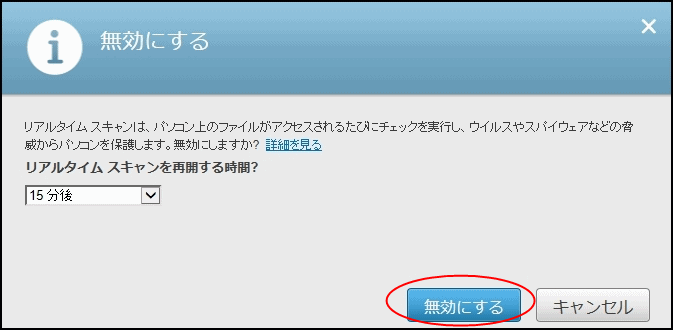
With this state, if you run the installation again,
the installation completes successfully.
This is just my case; according to WEB information, there are other possible causes as well.
Possible causes and countermeasures include the following:
・Do not change checkboxes and other defaults
・Even if it fails once, retrying may work
・Install Microsoft Visual C++ 2010 Redistributable Package
(perhaps after installation)
・Instead of directly running the installer, download the file again and right-click to run as administrator.
The installers are Japanese stock version: JPRQ, US stock version: Setup TradeStation 9.4 with .NET
Additionally, there are cases where cleaning the registry with a CCleaner or similar helps.
It seems there are several potential causes, so
some time may be required, but
if you cannot install, there should still be a way to complete the installation.
And once TradeStation runs smoothly, if another trouble occurs (laughs),
even if you can run TradeStation, you may fail to connect to the trading server.
(Sometimes you can connect for a very short time, though.)
This time, the cause was the Internet connection.
However, this is a rare case, so you can skip it if needed.
Now, here is what was done when the connection to the trading server was repeatedly dropped after starting TradeStation.I was discouraged, but I had a goal to start testing strategies in real time, so I persevered.
As for my example, the cause was the Internet connection environment,
WiMAX → another PC (Internet connection sharing) → the PC used for TradeStation
which was an irregular connection method.
It seems that this was the issue.
Well, it’s just sharing the Internet, but
There were no other problems with TradeStation on a different setup.
Then, I connected the PC used for TradeStation directly to the WiMAX,
and the issue of the trading server disconnecting after login disappeared.
I think this is rare for others, but I’ve shared it for reference.
This time I introduced the installation of TradeStation.
If things go smoothly, there’s nothing to talk about, but when there are troubles
they take time and are unpleasant, right?
Anyway, for me, by sharing this as a series, I hope it helps someone at least a bit.
From now on, in future installments we will cover:
・Basic usage of TradeStation
・Backtesting strategies
・Analysis of backtest results
・Actual operations
In the case of FX, there exists a demo account
, and a simulated environment for automated trading or discretionary trading
is provided with a fictitious account, but unfortunately
TradeStation seems not to have such a thing for stocks.
I wonder if there is no demo for stocks...
From what I’ve researched, there doesn’t seem to be a stock demo account like FX.
In any case, to run automatic stock trading with TradeStation,
you need to carefully plan how to verify before real trading.
As for FX, you can operate and confirm with a demo account, but
how to extract problems or issues you can understand in that phase is something I’ll consider.
After extracting and executing the confirmation, I will move to real trading.
I will also introduce the progress of stock trading using TradeStation on the blog
“FX Automated Trading for Stable Income.”
Thank you for reading until the end.
I would be glad if you continue to read in future installments as well.
× ![]()