
[MT4]Optimum Lots (Optimal Lot Calculator & One-Click Trading Tool) enables weekend trading practice!
★ You can use this as a tester even on days off during weekends! ★
Can run MT4 tester
Product page is here
Features
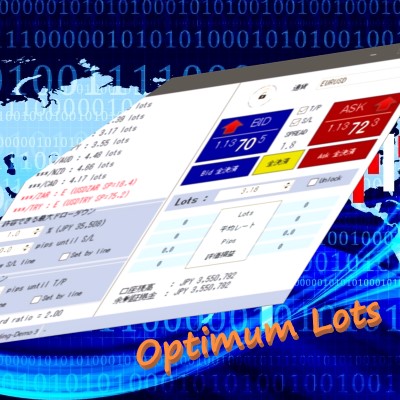
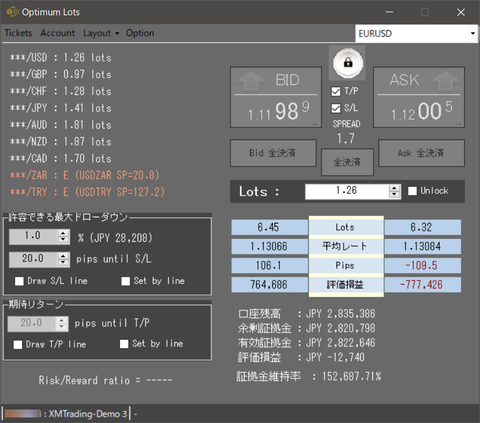
For each currency pair, it automatically calculates in real time the optimal lot size up to the maximum drawdown you can tolerate and displays it.
For example, if you limit losses to within 1% of your available funds and your planned stop loss is 20 pips, it calculates what the optimal lot size should be.
For example, if you limit losses to within 1% of your available funds and your planned stop loss is 20 pips, it calculates what the optimal lot size should be.
Convenient auxiliary features that support lot calculation
★ Display the stop position
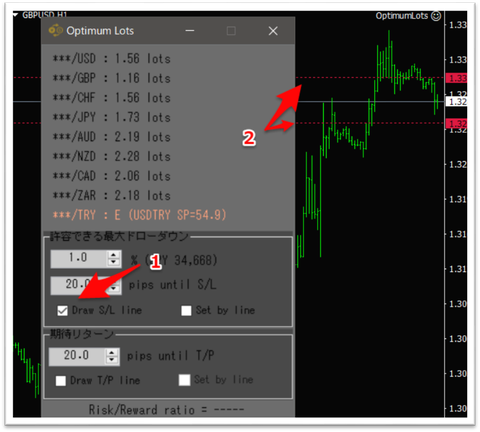
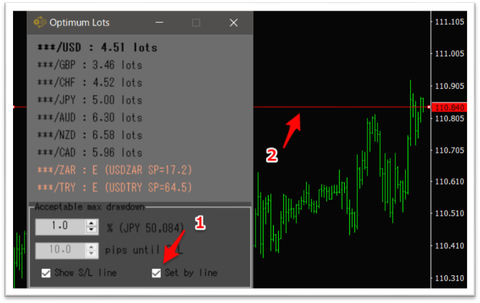
In the “Draw S/L line” checkbox inside the “Maximum tolerable drawdown” panel (shown in the arrow 1 below), horizontal lines (arrow 2) will be displayed at a distance in pips from the current value on all MT4 charts.
As you adjust the pips, the horizontal lines move in real time, making it easier to measure the distance to the stop position.
★ Move the horizontal line to adjust the stop position
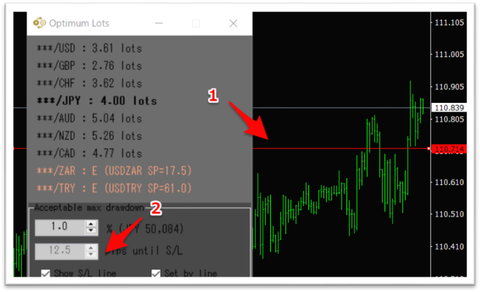
If you check “Set by line” in arrow 1 below, horizontal lines that can move up and down will be displayed on all MT4 charts at the current price.
By moving this line, you can set a stop position that is not influenced by the current price.
The following figure shows an example of going long on USD/JPY and moving the line to the last swing low below the current price (arrow 1) as the stop.
Since the current price is 110.839 and the line is moved to 110.714, it is 12.5 pips apart, so that value is automatically reflected in the drawdown limit (pips) of arrow 2, and the optimal lot size is calculated for each settlement currency under that condition.
★ Display the take profit position
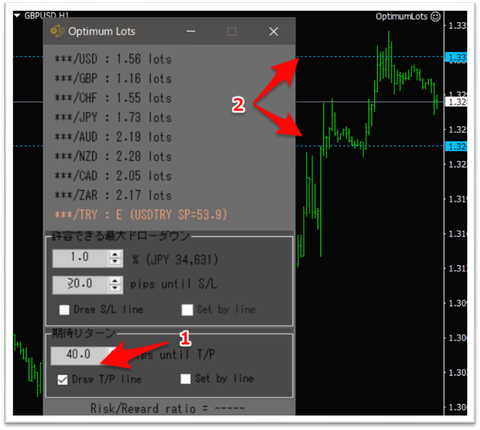
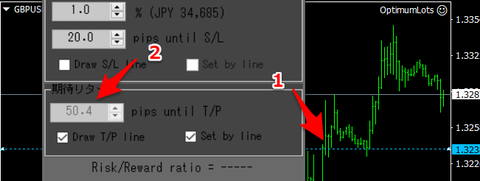
In the “Expected Return” panel (arrow 1 below), checking “Draw S/L line” will display horizontal lines (arrow 2) at a distance in pips from the current price on all MT4 charts.
As you adjust the pips, the horizontal lines move in real time, making it easier to measure the distance to the take profit position.
★ Move the horizontal line to adjust take profit position
If you check “Set by line” in arrow 1 below, horizontal lines that can move up and down will be displayed on all MT4 charts at the current price.
By moving this line, you can set a take profit position that is not influenced by the current price.
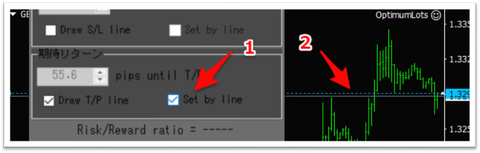
The following figure shows an example of planning a short on EUR/GBP and moving the line to the swing high below the current price (arrow 1) as the take profit.
Since the current price is 1.32893 and the line is moved to 1.32389, it is 50.4 pips apart, so that value is automatically reflected in arrow 2’s expected return (pips).
This value is not used for optimal lot calculation, but is used for risk-reward calculation.
One-click trading
Provides one-click trading functionality using the configured stop loss and take profit lines.
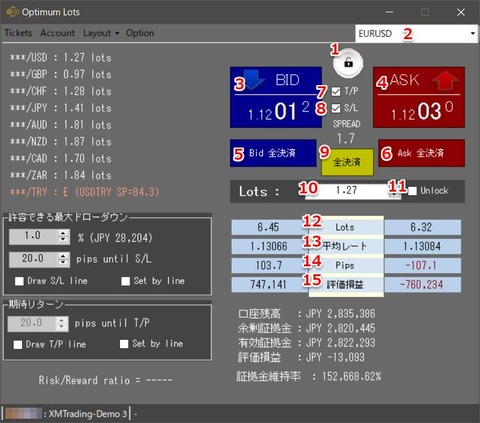
★ Screen explanation
- Lock/Unlock button
- Currency selection list box
- Bid button
- Ask button
- Close all sell positions button
- Close all buy positions button
- Place take profit order at the same time
- Place stop loss order at the same time
- Close all positions for all
- Lot size to place
- Unlock optimal lot size
- Total lot size of the currently selected currency pair position
- Average rate of the currently selected currency pair position
- Pips of the currently selected currency pair position
- Realized/unrealized P/L of the currently selected currency pair position
Toggle the lock/unlock state of one-click trading
On first unlock, a disclaimer is shown, and after agreeing, you can use one-click trading.
A copy of the currency list shown in MT4 quotes. Select the currency you want to trade from here
Place a market sell order
Place a market buy order
Close all sell positions for the currently selected currency
Close all buy positions for the currently selected currency
Also place a take profit order when placing a market order
Also place a stop loss order when placing a market order
Close all positions for the currently selected currency in one go
The calculated optimal lot size is automatically entered
Forcibly stop automatic input of the optimal lot size, allowing free lot size input
Ticket list
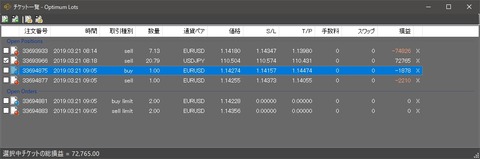
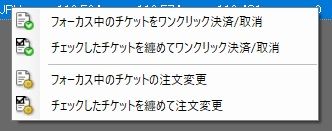
If you select this menu and the position has already been ordered, a settlement order is issued immediately.
For limit/stop orders reserved, those orders are canceled immediately.
Also, you can close the order immediately by clicking the “X” on the far right. (This operation is as easy as the MT4 native interface)
If multiple tickets are selected and you perform one-click settlement/cancel in bulk, settlements or cancellations are applied to all selected tickets.
★ Order modificationFor limit/stop orders reserved, those orders are canceled immediately.
Also, you can close the order immediately by clicking the “X” on the far right. (This operation is as easy as the MT4 native interface)
If multiple tickets are selected and you perform one-click settlement/cancel in bulk, settlements or cancellations are applied to all selected tickets.
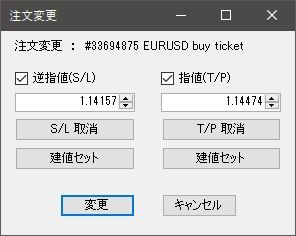
Selecting the order modification menu displays the above screen, where you can set a trailing stop (S/L) and take profit (T/P).
・Trailing stop checkbox
When checked, you can specify a trailing stop, and pressing the modify button with the new value sets the trailing stop accordingly.
If you do not check it and press modify, the trailing stop is not changed.
Also, pressing the set price button copies the order’s entry price into the numeric box.
・Take profit checkbox
When checked, you can specify take profit, and pressing the modify button with the new value sets take profit accordingly.
If you do not check it and press modify, the take profit is not changed.
Also, pressing the set price button copies the order’s entry price into the numeric box.
If multiple tickets are selected and you modify orders, the same trailing stop and take profit will be applied to all selected tickets.
If an order cannot be placed because of a price that is too close to the current price, the modification order will be invalid.
・Trailing stop checkbox
When checked, you can specify a trailing stop, and pressing the modify button with the new value sets the trailing stop accordingly.
If you do not check it and press modify, the trailing stop is not changed.
Also, pressing the set price button copies the order’s entry price into the numeric box.
・Take profit checkbox
When checked, you can specify take profit, and pressing the modify button with the new value sets take profit accordingly.
If you do not check it and press modify, the take profit is not changed.
Also, pressing the set price button copies the order’s entry price into the numeric box.
If multiple tickets are selected and you modify orders, the same trailing stop and take profit will be applied to all selected tickets.
If an order cannot be placed because of a price that is too close to the current price, the modification order will be invalid.
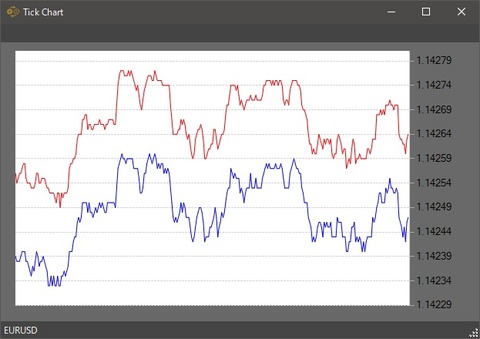
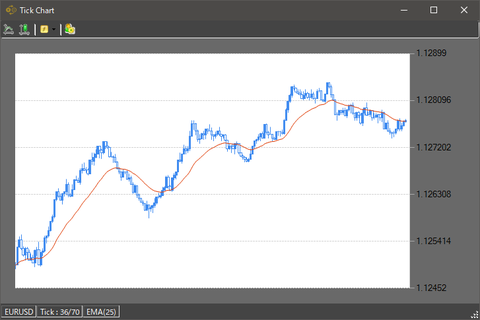
Tick chart
Press the Tick Chart button on the toolbar to display a tick chart for the currently selected currency.
※ This line is visible to the public
If you delete this notice, everything becomes public to everyone, so please be careful.
Also, images can be pasted from external sources via drag and drop.
※ The area below this line is public to purchasers
(Please rewrite this portion for purchaser visibility)
× ![]()