
EA development specialists explain clearly and carefully! A course to start automated trading from zero | Episode 8: Let's optimize the EA! [FX Noble]

FX Nobleman's Profile

Moving from discretionary trading to automated trading, since 2017 he has been an EA developer listed on GogoJungle. He boasts over 1,000 sales in total, including his flagship work “Scalping Dragon.” He also shares various information about automated trading on his blog and Twitter.
Official Blog:FX Nobleman's EA Development Blog
Twitter:https://twitter.com/yenpetit
※This article is a reprint/editorial version of an article from FX攻略.com, August 2019 issue. The market information written in this text may differ from the current market, so please be careful.
What is Optimization in the first place?
In the sixth installment, we introduced how to perform backtesting using Alpari historical data; this time, let's take it a step further and try optimizing an EA.
EA optimization is the process of exhaustively testing the EA parameters to find the best combination. Even with simple methods like moving average crossovers, the performance can vary greatly depending on the periods of the two moving averages used and the width of take profit and stop loss. Optimization testing using MT4 lets you search all at once.
Setting the Parameters to Optimize
Now, let's quickly try optimization using MT4. Like backtests, optimization uses historical data, so you need to prepare it in advance. This time, we will optimize the stop loss value of “Scalping Dragon V2.”
First, in MT4 select “View” and then “Strategy Tester.” Choose the EA to optimize in the tester (this time we use “Scal pingDragonV2”), then press “Expert properties” and open the “Inputs” tab.
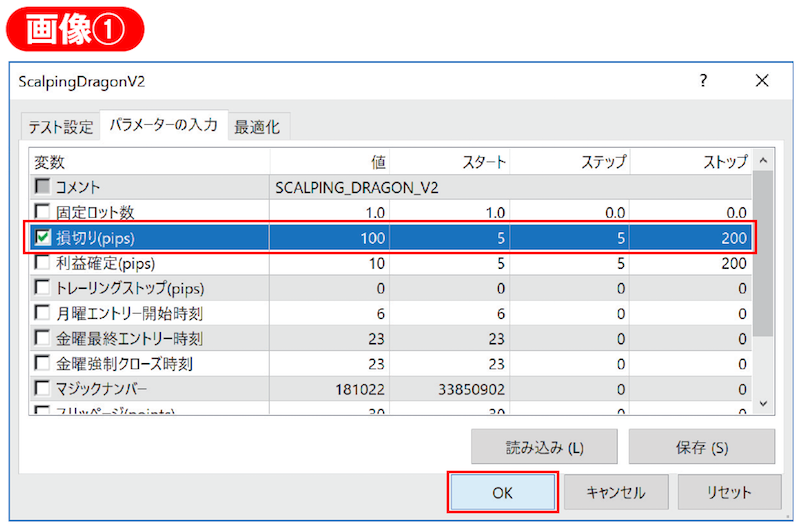
Next, check the items you want to optimize. This time we will optimize the stop loss value, so check the left of “Stop Loss (pips).” “Start” means the minimum value to start optimization, “Step” means the interval for optimization values, and “Stop” means the maximum value to optimize. This time enter Start “5,” Step “5,” Stop “200,” and press “OK” (Image ①).
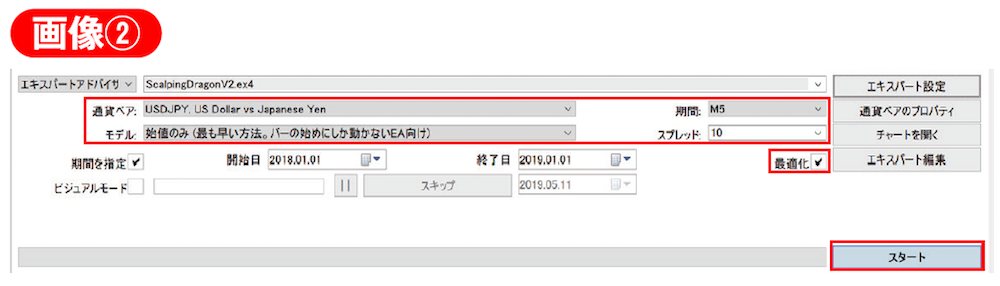
As with backtesting, set the currency pair, model, time period, and spread according to the EA you are using. If you are performing optimization, don’t forget to check the bottom-right “Optimization” box (if not checked, it will be a regular backtest). When settings are complete, press “Start” (Image ②). It will take from tens of seconds to a few minutes for results to appear.