
We have added the "amount-based" method for specifying acceptable loss, which was requested by many users of the optimal lot calculation tool!
A feature-rich toolset including one-click trading from lot-size calculation and position listing
The latest tools are available from this link!
The tool introduced in this article is available here!
Version 3.14 New Features
Added amount-based option for specifying allowable loss!!
Features
This tool provides real-time automatic calculation and display of the optimal lot size that can be tolerated for drawdown (loss) in a single trade.For each currency pair, it automatically computes and displays in real time the optimal lot size that would reach your personally tolerable drawdown.
For example, if you want to limit losses to within 1% of surplus funds and your trade plan sets a 20-pip stop, it calculates the optimal lot size.

| ① | Balance | Account balance (net equity) |
| Margin | Available funds (assets excluding the amount tied up by holding a position) | |
| ② | Acceptable max drawdown | The amount you are willing to lose based on your money management ・Amount-base: switch allowable loss from a percentage to a monetary amount ・% or currency name: portion or amount of loss that can be tolerated from surplus funds ・pips: allowable drawdown (pips) at entry |
| ③ | Optimal lot | Real-time display of the calculated lot size per settlement currency using the allowable loss and pips to the stop specified in ② If the calculation result results in an error, the contents listed in the following error list will be displayed |
What can be done with externalization of the application
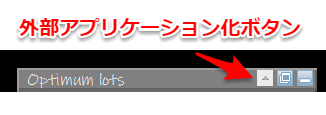
When you press the ▲ button among the three buttons in the top-right of the GUI, the automatic calculation tool becomes an external application.
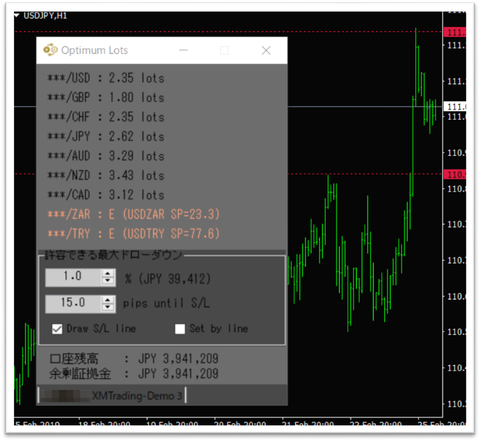
This external application is configured to always stay on top, so the UI will not slide under the screen even when MT4 is active.
Also, only in this state, you can display the stop position line by the set pips and adjust the stop position by moving the line.
When you close the external application, it automatically returns to the GUI on the chart.
★ Show the stop position
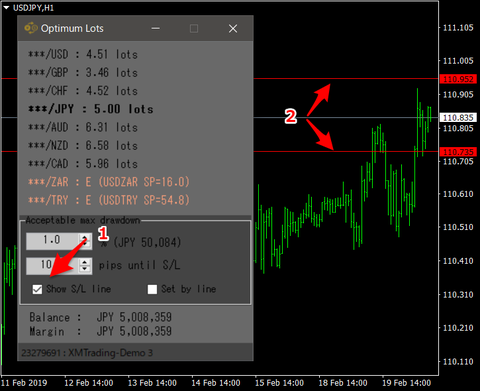
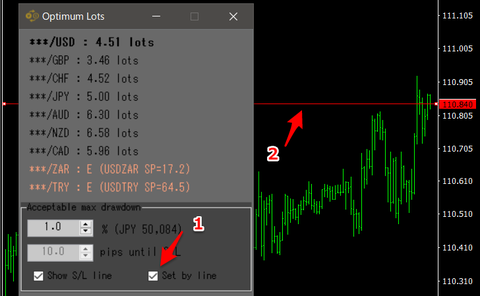
If you check “Show S/L line” at the arrow 1 in the figure below, horizontal lines (arrow 2) will be displayed at a distance from all current values on the MT4 chart by the configured pips above and below.
Adjusting the pips will move the horizontal lines in real time, making it easier to measure the distance to the stop position.
★ Move the horizontal line to adjust the stop position
If you check “Set by line” at arrow 1 in the figure below, horizontal lines that can move up and down will be displayed on all current values on the MT4 chart.
In this state, input of pips to the external application's stop is not possible, and moving the line determines the stop position independent of the current price.
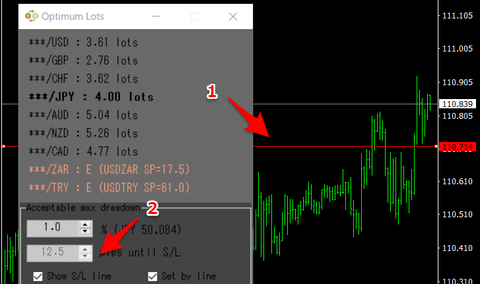
The below figure shows an example of planning to go long on USD/JPY and moving the line to below the current price to the last swing low (arrow 1).
Because it is 12.5 pips away from the current price from 110.839 to 110.714, that value is automatically reflected in the allowable drawdown (pips) for arrow 2, and the optimal lot size for each settlement currency is calculated in that state.
Main Properties

- 【Settlement currency】 The currency name on the right side of XXX/YYY
- If true, lot sizes for pairs that have the target settlement currency are included in calculation
- Currently supported currencies are as shown in the image above
- 【LINE】
- Set the color, style, and width of the stop line
- 【UI Property】
- Color theme
- Choose one of three UI color themes.
- Dark / Blue / Light
Dark Blue Light 


- Hide the monetary amount
- If true, hide Free margin and allowable loss amount.
- This is a feature intended to improve trading psychology by not showing real amounts
- Hide price date scale and Bid line
- Useful when represented as a dedicated separate window
- Color theme
× ![]()