
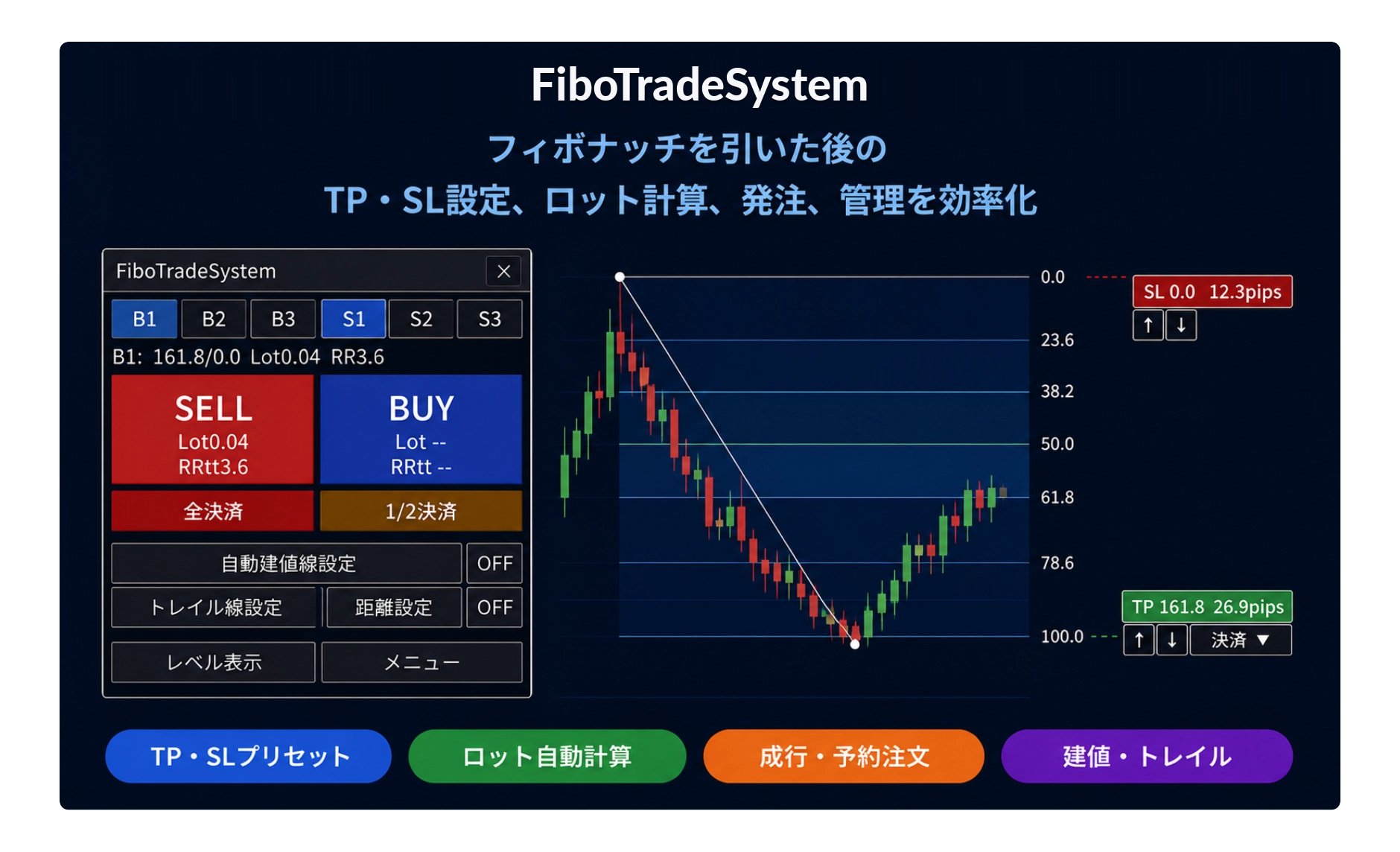
[Tool Tutorial] Episode 2: TP/SL Preset Registration Feature
I confirmed the rebound, at that moment
Last time, the story was that when you draw Fibonacci, the level and price are displayed automatically. Next is the scene where you confirm the rebound and decide whether to enter.
However, even if you can judge and analyze, there is still the task of deciding TP/SL prices and levels and adjusting them. I think many people get confused here.
You consider each point one by one and adjust the lot size accordingly, so it quietly takes time. I also often got stuck here. Some people may feel the same.
All features are here⇒FibonacciTradeSystem
Presets can register multiple TP/SL combinations.
FTS has a feature called "presets." You can pre-register TP/SL combinations.
There are 3 BUY types (B1, B2, B3) and 3 SELL types (S1, S2, S3).
When you press a button, the TP/SL badges are placed exactly at the positions of the registered combinations.
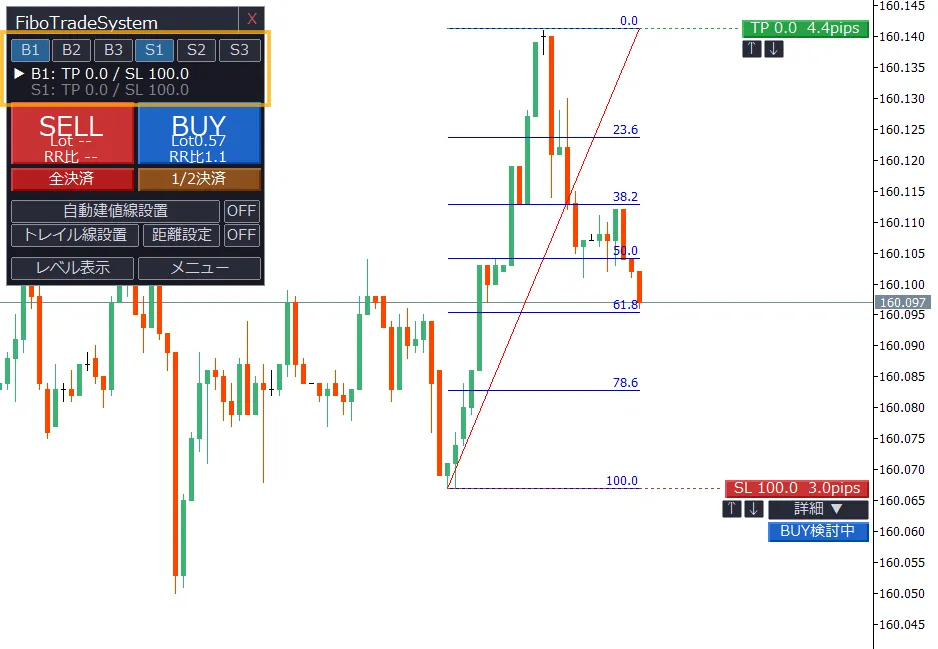
For example, on this screen, both B1 and S1 are set to "TP side 0.0, SL side 100.0." This uses the widest pattern from the edge to the other edge of Fibonacci. You can freely register combinations in the parameter settings. So please adjust to fit your own model.
However, just pressing a preset does not place an order yet. It is only a "plan" that you place.
Displayed badges can be moved by dragging.Therefore, drag to finely adjust TP/SL positions according to market conditions.
When you press the "BUY・SELL" buttons on the panel, an order is placed instantly.
The price at which the order is really placed is the position where the badge is placed at that moment.
Even if you press the buy/sell button, you may not be able to enter
Depending on the combination of presets and the direction of Fibonacci. In some combinations, neither BUY nor SELL will be valid.
For example, if the TP ends up in a less favorable position than the SL, the order cannot be fulfilled in the first place.
As one would expect. However, when you actually try to compose it, there may be surprisingly many moments of hesitation.
You can tell which is valid now with the badges showing "BUY under consideration" or "SELL under consideration"
This judgment can be confirmed without hesitation. Because it is displayed directly on the badges on the chart.
If BUY is valid, it shows "BUY under consideration." If SELL is valid, it shows "SELL under consideration." That’s how it is displayed.
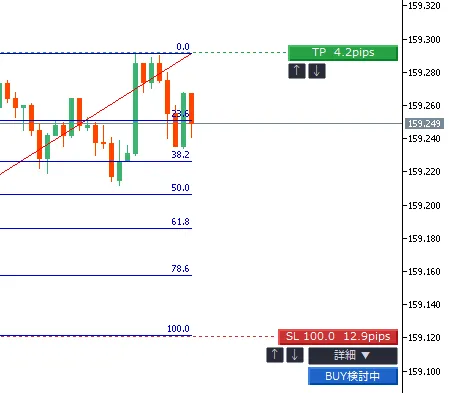
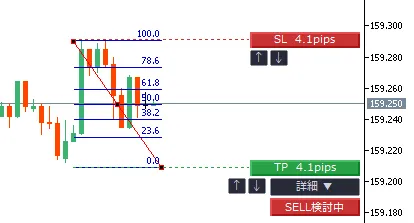
If both BUY and SELL are valid, a ↔ mark appears on the badge.Click to switch which one you want to consider.
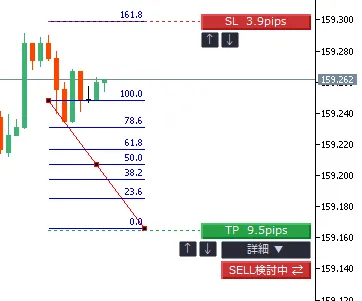
Conversely, if neither is valid, it shows "not under consideration." In this case, review the presets. Or you may need to change how you draw the Fibonacci.
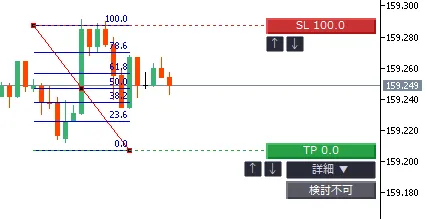
Right after redrawing the Fibonacci. Or immediately after switching presets. This judgment runs automatically. So you can check your current consideration state just by looking at the badge.
The reason I made this tool
Before using this tool, I found manually re-entering trades to align with my trading plan cumbersome. It was tedious to adjust each time, which sometimes caused me to neglect analysis or miss timing.
With this tool, you can preset the combinations of TP/SL, and then just use "one-click TP/SL change & drag for fine-tuning ⇒ one-click order," which truly made things easier.
Deciding the combinations is ultimately your own judgment. But unlike before, where you had to re-enter every time the market moved, that task was unrelated to market analysis or judgment.
If you use the same model, it is overwhelmingly more efficient to just call up the preset. People who feel the same as I did may find it convenient.
Actual screens and other feature details are listed on the product page.
→Fibonacci Trade System (Product Page)
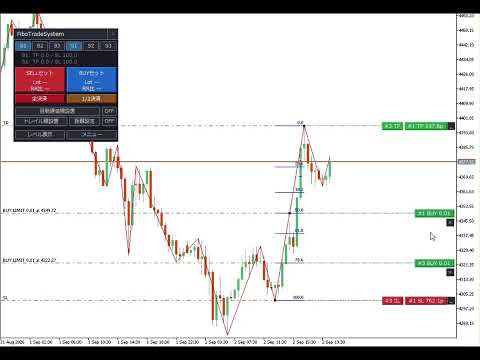
↑ This is a usage video.
FTS All Features List
From entry to settlement, a summary of the features FTS supports.
Fibonacci analysis & entry
Automatic detection and level construction
When you draw Fibonacci, it automatically detects and displays the levels
3 BUY presets
Just switch the TP/SL patterns
TP/SL drag fine-tuning
Drag badges to fine-tune prices
Market orders & pending orders
Automatically checks TP/SL conflicts before placing orders
Identify only FTS orders
Does not affect manual orders or other EA positions
Position management while holding
Mini panel management
Check direction, lot, and P/L on the panel
Automatic order price movement
When reaching a horizontal line, move SL to entry price automatically
Trailing stop
Automatically tracks SL as price rises
Lock SL in unfavorable direction
SL cannot move in a direction that increases loss
Partial/All close
Close part or all of the position with one click
Pre-order calculations
Automatic lot calculation
Automatically calculate a lot size that fits the allowable loss
RR ratio automatic calculation
Displays risk-reward ratio together with lot size
Time & event display on chart
Economic indicator display & notifications
Displays important indicators on the chart and notifies before announcements
Session display
Displays start times of Tokyo, London, and NY markets
JST display
Always display Japan time on the chart
Usability
Hide P/L
Hide unrealized Pips to judge without showing them
Pips size adjustment
Manually adjust pips size according to instrument
Normal mode
Place orders with one click without drawing Fibonacci
Screen size support
Panels automatically adjust to monitor resolution
Next time
In Part 3, I will write about fine-tuning TP/SL by moving the lines.
The preset plan is not necessarily the best. It is a scene to adjust according to the actual rebound shape. I will write about how to adjust from there next time.