
[MT4] Optimum Lots (Optimal Lot Calculation & One-Click Trading Tool) now includes Split Lot Entry feature!
★New Features★
Supported for split lot entries!

The number of splits can be chosen from 1 to 7, and you specify how many splits you want.
Next, enter the positions where you want to place the split limit orders. The limit positions are expressed as a percentage of the distance from entry to stop.
Finally, enter the percentage of the order lot you want at each limit position.
We also provide presets for evenly spaced and Fibonacci-based patterns, so you can use them as templates for split lots.
When you enable this function and place a market order, it will be shown as in the image below: a market order and limit orders in the stop direction will be placed.
Next, enter the positions where you want to place the split limit orders. The limit positions are expressed as a percentage of the distance from entry to stop.
Finally, enter the percentage of the order lot you want at each limit position.
We also provide presets for evenly spaced and Fibonacci-based patterns, so you can use them as templates for split lots.
When you enable this function and place a market order, it will be shown as in the image below: a market order and limit orders in the stop direction will be placed.
Function
For each currency pair, it automatically computes and displays in real time the optimal lot size that will keep your drawdown within your acceptable limit.
For example, if you want to keep losses within 1% of excess funds and your planned loss cut is 20 pips, it calculates the optimal lot size.
For example, if you want to keep losses within 1% of excess funds and your planned loss cut is 20 pips, it calculates the optimal lot size.
This tool, as shown in the image below, computes and displays in real time the optimal lot size for each currency pair, corresponding to the settlement currency pair labeled as “***/AAA” where “AAA” is the settlement currency.
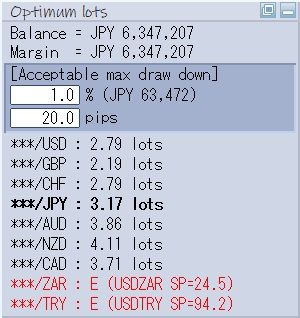
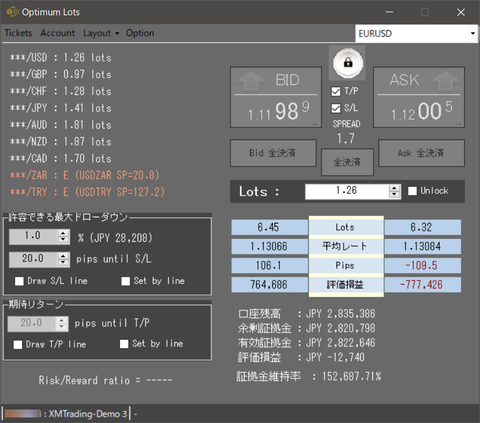
The top is the MT4 UI, the bottom is the external app UI.
| Balance | Account balance (net equity) |
| Margin | Free margin (assets other than the funds tied up by holding positions) |
| Acceptable max draw down | The amount of loss you can tolerate in your funds management |
| % | Percentage of excess funds you can tolerate as loss |
| pips | Tolerable drawdown (pips) at entry |
| Error display | Content |
 | Displayed when the spread is larger than the tolerable drawdown in pips. It depends on the sample currency pair spread, so there may be no issue for the pair you actually trade. If you raise the priority of the desired currency pair in the market depth display, it will be selected preferentially as a sample currency. |
 | The market depth display window has no currency pairs including the settlement currency. Please add currency pairs to the market depth display. |
 | The configured acceptable loss % and pips indicate insufficient margin |
External Application
Press the ▲ button among the three buttons on the top-right of the GUI to turn the automatic calculation tool into an external application.

This external application is set to stay on top at all times, so the UI will not hide behind MT4 even when MT4 is active.
Also, when this state is active, you can display the stop position line according to the set pips and adjust the stop position by moving the line.
Closing the external application automatically returns you to the chart GUI.
Also, when this state is active, you can display the stop position line according to the set pips and adjust the stop position by moving the line.
Closing the external application automatically returns you to the chart GUI.
★Display stop positions
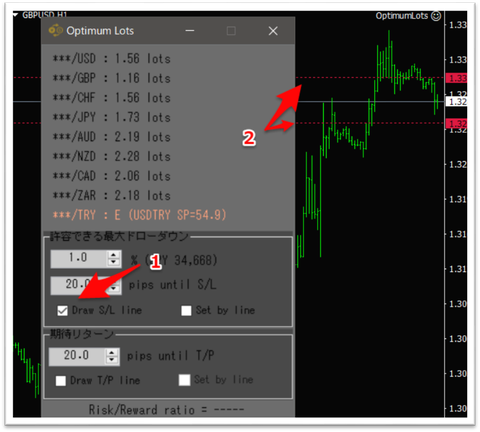
In the panel “Allowable maximum drawdown” (arrow 1) and within “Draw S/L line” (within the panel), checking the box will display horizontal lines (arrow 2) at the set pips above and below the current values on all MT4 charts.
As you adjust the pips, the horizontal lines move in real time, making it easy to measure the distance to the stop position.
★Move the horizontal line to adjust the stop position
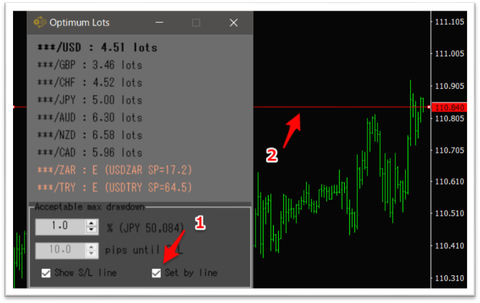
If you check “Set by line” (arrow 1), horizontal lines that can move up and down across all MT4 charts will appear.
In this state, inputs of pips for the external application stop are not possible, and by moving the lines you can set a stop position independent of the current price.
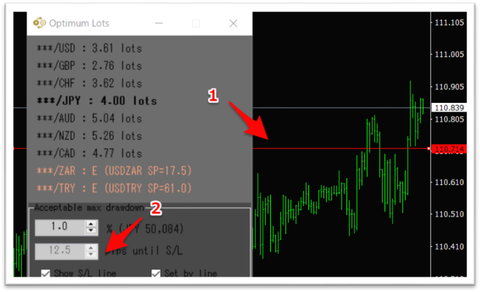
The below example shows moving the line to the last swing low below the current price when planning to go long on USD/JPY, from 110.839 to 110.714 (12.5 pips) away; that value is automatically reflected in the allowable drawdown (pips) in arrow 2, and the optimal lot size for each settlement currency is calculated in that state.
★Display take profit position
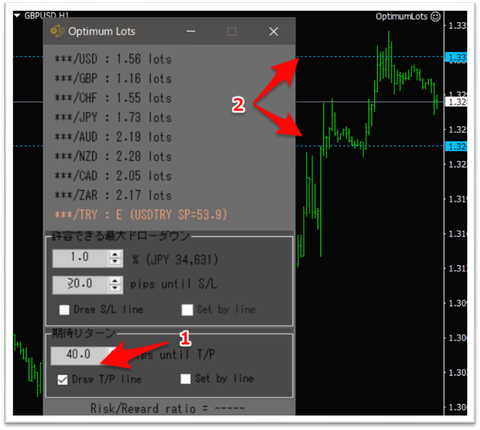
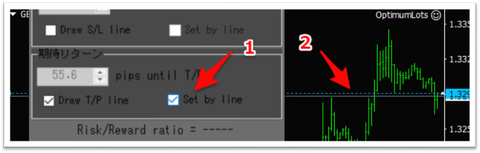
In the panel “Expected Return” (arrow 1) and within “Draw S/L line” (checkbox), checking the box displays horizontal lines (arrow 2) at the set pips above and below the current values on all MT4 charts.
Adjusting the pips moves the lines in real time, making it easy to measure the distance to the take-profit position.
★Move the horizontal line to adjust take profit
If you check “Set by line,” horizontal lines that move up and down across all MT4 charts appear.
In this state, inputs of take-profit pips on the external app side are not possible, and by moving the lines you can set take-profit independent of the current price.
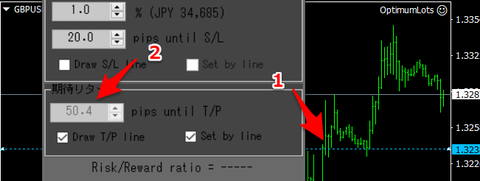
The image below shows an example where you intend to go short on GBP/USD and move the line to the last swing high above the current price (arrow 1). From 1.32893 to 1.32389 is 50.4 pips away, so that value is automatically reflected in the expected return (pips) in arrow 2.
This value is not used for optimal lot calculation, but is used for risk-reward calculation.
★Display risk-reward
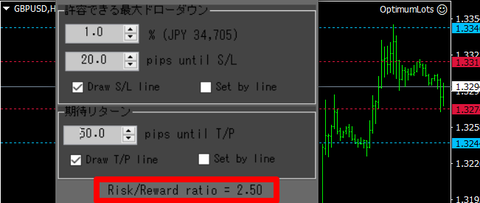
When both the allowable maximum drawdown and the expected return panel have the “Draw ** line” checked, the pips to take profit and stop loss are determined, enabling computation and display of the risk-reward ratio.
- In cases where TP and SL follow the current price, lines are drawn above and below the current price and the risk-reward ratio is calculated.
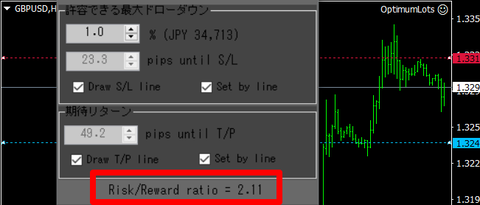
- In cases where TP/SL are fixed, the distance from the current price is computed in real time to calculate the risk-reward ratio. Therefore, in this case the risk-reward ratio will dynamically move up and down.
One-Click Trading
Press the “Market” button in the order panel on the screen to switch to the speed trading screen.
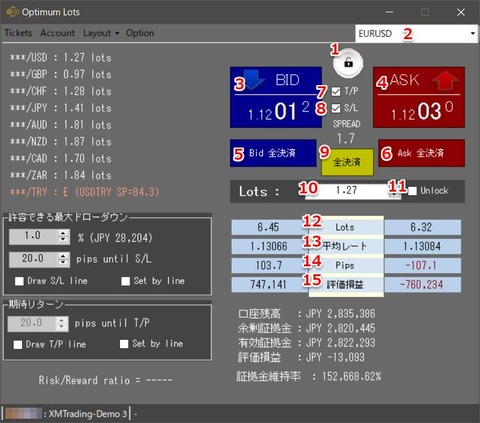
★Screen description
- Lock/Unlock button
- Currency selection list box
- Bid button
- Ask button
- Close all sell positions
- Close all buy positions
- Place take-profit order simultaneously
- Place stop-loss order simultaneously
- Close all positions for all
- Lot size to place
- Unlock optimal lot size
- Total lots for currently selected currency pair positions
- Average rate of currently selected currency pair positions
- Pips of currently selected currency pair positions
- Unrealized P/L of currently selected currency pair positions
Toggle the lock/unlock state for one-click trading
On first unlock, a disclaimer is shown; after agreeing, one-click trading becomes available.
The currency list from MT4 quote window is copied here. Select the currency you want to trade from here
Place a market sell order
Place a market buy order
Close all sell positions for the currently selected currency
Close all buy positions for the currently selected currency
Place a take-profit order at the same time as the market order
Place a stop-loss order at the same time as the market order
Close all positions for the currently selected currency
The computed optimal lot size is automatically entered
Force stop auto-entry of optimal lot size, allowing free input of lot size
IFO Orders

- Trade type
Decide the trade direction - New execution conditions
Choose limit orders (reversal at a specified rate) or stop orders (trend-following at a specified rate) and enter the desired rate - Settlement/exit conditions
Check the boxes to enable each execution method. After checking, enter the respective rates. - Validity period
Enter the order validity period. Please enter here in local time. The actual order will be adjusted to MT4 server time. - MT4 line drawing
If you check Draw Line, new entry lines, limit lines, and stop lines will be drawn on MT4 charts.
If you check Set by line, you can move horizontal lines on MT4 charts to set rates for orders. - Submit
Place orders based on the conditions specified from 1 to 5.
Also, this button shows the order type image determined by the trade type and new execution conditions.
Ticket List
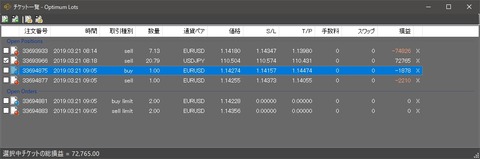
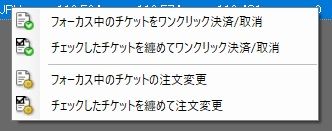
Right-click on this screen to display a context menu. (Buttons for similar functions are also placed on the toolbar.)
Clicking a ticket on this screen focuses it (the blue line in the figure indicates this state).
With this state, right-click offers “One-click settlement/cancellation of the focused ticket” and “Change order for the focused ticket.”
Also, checking the checkboxes for each ticket enables “Group one-click settle/cancel” and “Group order modification for checked tickets.”
★One-click settlement/cancellationClicking a ticket on this screen focuses it (the blue line in the figure indicates this state).
With this state, right-click offers “One-click settlement/cancellation of the focused ticket” and “Change order for the focused ticket.”
Also, checking the checkboxes for each ticket enables “Group one-click settle/cancel” and “Group order modification for checked tickets.”
If you select this menu, any already-ordered positions will immediately initiate position settlement orders.
For limit/stop orders, those reservations will be canceled immediately.
Also, clicking the X on the far right can close the order immediately. (This behavior is on par with MT4 itself.)
If multiple tickets are selected and you perform a group one-click settlement/cancellation, all selected tickets will be settled or canceled in one go.
★Split settlementFor limit/stop orders, those reservations will be canceled immediately.
Also, clicking the X on the far right can close the order immediately. (This behavior is on par with MT4 itself.)
If multiple tickets are selected and you perform a group one-click settlement/cancellation, all selected tickets will be settled or canceled in one go.

Enter the number of lots you want to settle in splits and press “Split Settlement” to settle that specified number of lots.
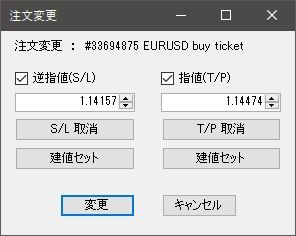
Selecting the order modification menu displays the above screen, where you can set the stop loss (S/L) and take profit (T/P).
・Stop-loss checkbox
Checking enables stop-loss specification; after changing the values, press the modify button to apply the stop-loss.
If you modify without checking, the stop-loss is not changed.
Also, pressing the Build Price button copies the ticket’s build price into the numeric box.
・Take-profit checkbox
Checking enables take-profit specification; after changing the values, press the modify button to apply take-profit.
If you modify without checking, take-profit is not changed.
Also pressing Build Price copies the ticket’s build price into the numeric box.
If multiple tickets are selected and you modify orders, the same stop loss and take profit will be attempted for all selected tickets.
If the order is rejected due to current price proximity to the limit, the modification order will be invalid.
・Stop-loss checkbox
Checking enables stop-loss specification; after changing the values, press the modify button to apply the stop-loss.
If you modify without checking, the stop-loss is not changed.
Also, pressing the Build Price button copies the ticket’s build price into the numeric box.
・Take-profit checkbox
Checking enables take-profit specification; after changing the values, press the modify button to apply take-profit.
If you modify without checking, take-profit is not changed.
Also pressing Build Price copies the ticket’s build price into the numeric box.
If multiple tickets are selected and you modify orders, the same stop loss and take profit will be attempted for all selected tickets.
If the order is rejected due to current price proximity to the limit, the modification order will be invalid.
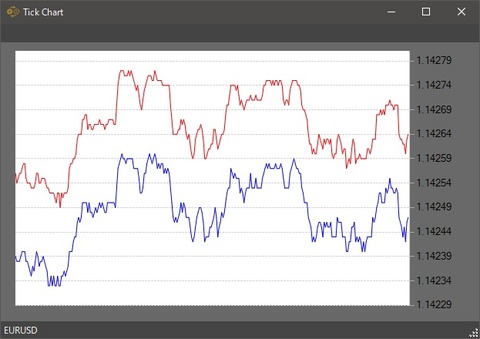
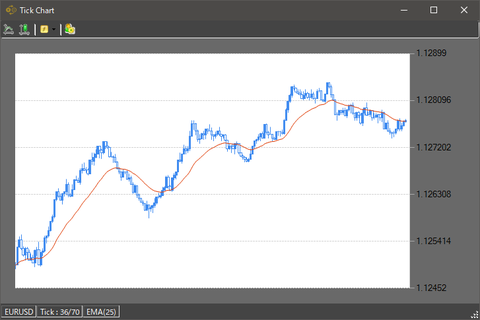
Tick Chart
Click the Tick Chart button on the toolbar to display the tick chart for the currently selected currency.
MT4 Tester Support
Supports operation in MT4 Tester, so you can practice discretionary trading on holidays and similar occasions!
× ![]()