
An EA development specialist explains clearly and carefully! A course on automated trading from zero to hero — Episode 6: The Backtest Method You Can’t Ask About Too Late [FX Noble]

FX Noble's Profile

From discretionary trading to automated trading, since 2017 he has been listed on GogoJungle as an EA developer. Notable works include “Scalping Dragon,” boasting over 1,000 sales in total. He also shares various information about automated trading on his blog and Twitter.
Official Blog:FX Noble's EA Development Blog
Twitter:https://twitter.com/yenpetit
※This article is a reprint/edit from FX攻略.com June 2019 issue. The market information written in the main text may differ from the current market, so please be aware.
Try Running a Backtest Yourself
After purchasing an EA, one thing you should definitely do before running it on a real account is backtesting. Backtesting verifies an EA’s performance on historical charts. Many commercial EAs publish backtest information online, but since backtests can vary by developer, with different periods and spreads, it’s safer to verify it yourself beforehand.
To run a backtest for an EA, you need historical data for each currency pair. There are various types of historical data, but here we’ll introduce a method using Alpari’s demo account.
How to Register an Alpari Demo Account
At Alpari’sOfficial Siteregister as a member. While referring to the input examples, fill in the fields from top to bottom and press the “Continue Registration” button (Image 1). Don’t forget to check the checkbox.
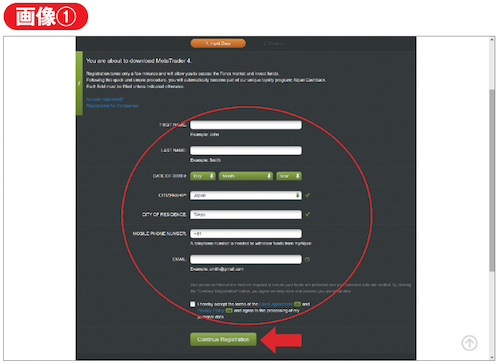
▲Fill in all fields based on the example, check the box, and press the button below.
On the next page, select SMS or Email and press “Send code” to receive a code. Enter the 4-digit number in the form, check the box, and press “Complete Registration” to finish (Image 2). After logging into the member page, you can download MT4 from the left-side button (Image 3).
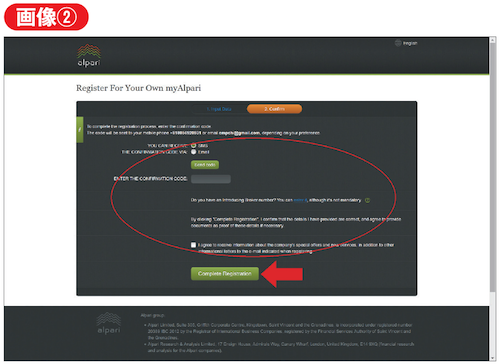
▲Enter the 4-digit code you received, check the box, and press the button below.
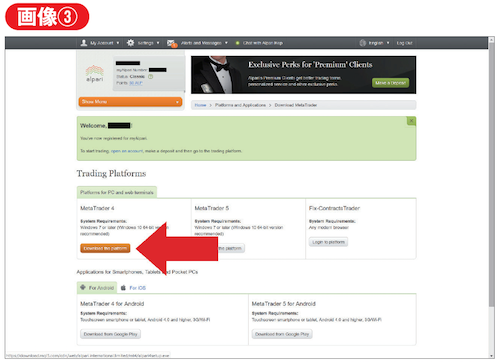
▲Download MT4 from the left side of the member page. Be careful not to confuse it with MT5.
How to Import Historical Data
After installing Alpari’s MT4, open the History Center from the “Tools” menu at the top. From the list of currency pairs, select the pair you will use for backtesting (this time USDJPY) and click “Download” (Image 4). When the green gauge reaches the far right, the download is complete (it may take a few minutes).
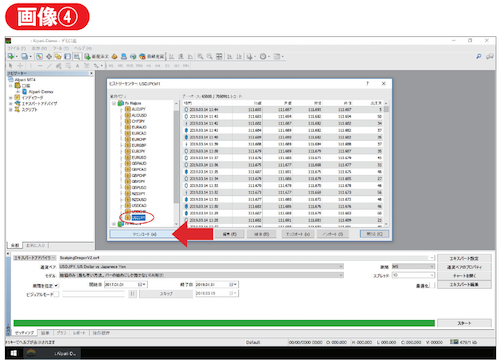
▲Open History Center, select USDJPY, and click “Download.”