

[2026 Edition] Set up MT4 Historical Data (Historical Data)
This page explains the “how to prepare historical data” for training and verification tools such as One-Click FX Training, One-Click FX Orbs, One-Click FX Verification with AI, One-Click 225 Training, One-Click BO Training, and others.One-Click FX Training,One-Click FX Arrows,One-Click FX Verification with AI,One-Click 225 Training,One-Click BO Training,以及 other training and verification tools that use the “method for preparing historical data.”
If you are already familiar with handling historical data in MT4, please proceed with preparing data using your preferred method after reviewing this page. For detailed steps for each method, proceed from each item.
- Using One-Click FX Historical Data
- Importing MT5 Historical Data into MT4
- Using the Download from the History Center
Using One-Click FX Historical Data
One-Click FX Historical Dataallows you to easily set up MT4 historical data.
Copy the downloaded ZIP file’s One-Click FX historical data into the MT4 data folder.
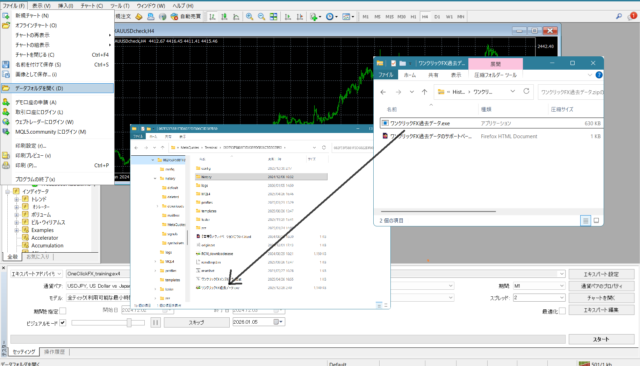
Run One-Click FX Historical Data, enter the source symbol name, destination server, and destination symbol name, and press Start.
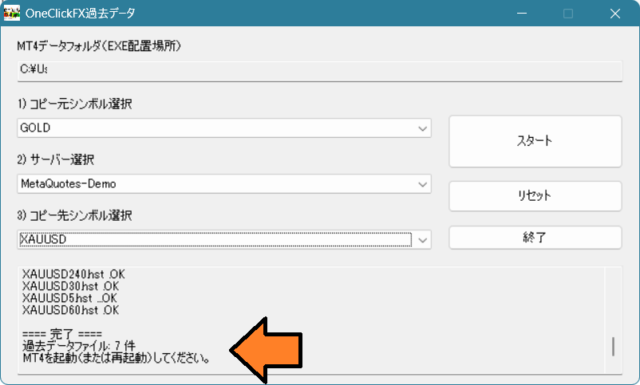
For a detailed description of this procedure, see here
>>One-Click FX Historical Data Support PageImport MT5 Historical Data into MT4
We will show how to import MT5 candlestick historical data into MT4. With One-Click FX Historical Data, you can test with currencies pairs not supported, and go deeper into past data for validation.
From MT5, call the desired symbol (currency pair) historical data and export the bars.
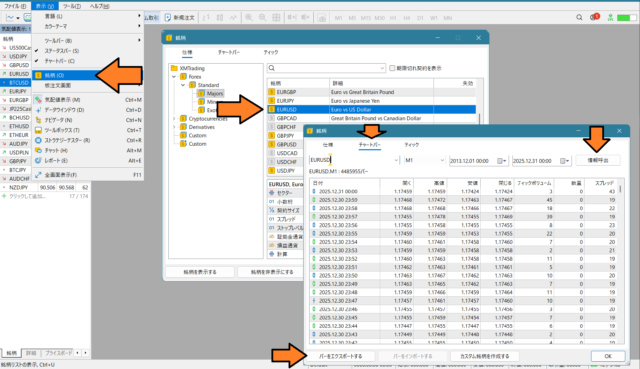
In MT4, open the History Center, double-click the target currency pair or press the Import button, and import the CSV exported from MT5.
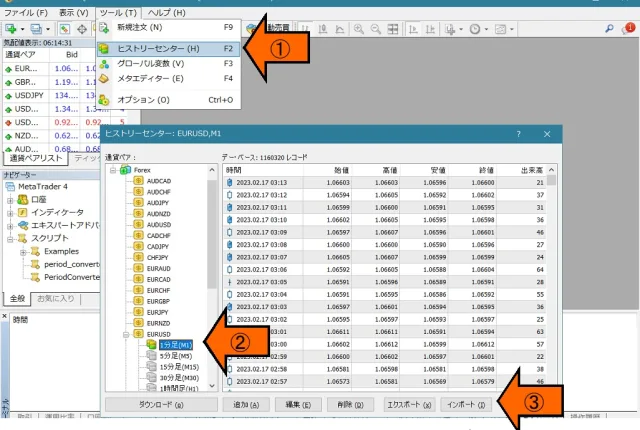
The CSV exported from MT5 uses a tab as the separator.
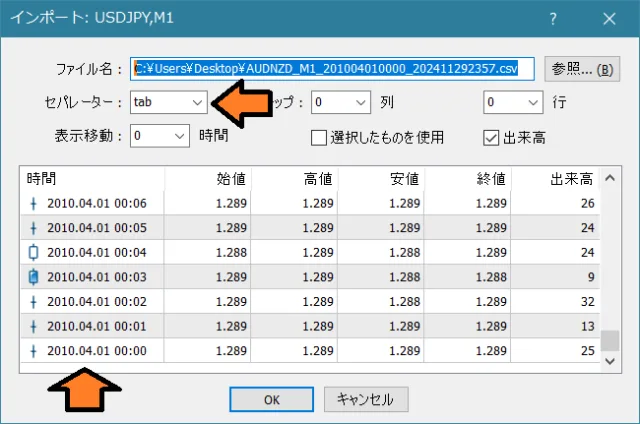
For a detailed description of this procedure, see here
>>How to Import MT5 Historical Data into MT4Using the History Center Download
This method obtains historical data using the built-in “History Center” download feature in MT4. It is limited to supported brokers, but the operation is the simplest, as you only need to press the download button.
Note, however, that after late September 2025, there may be issues with updates to historical data, so please be careful.
- From the menu, select Tools → History Center.
- For the desired currency pair, double-click the 1-minute data.[Important].
- Press the Download button.
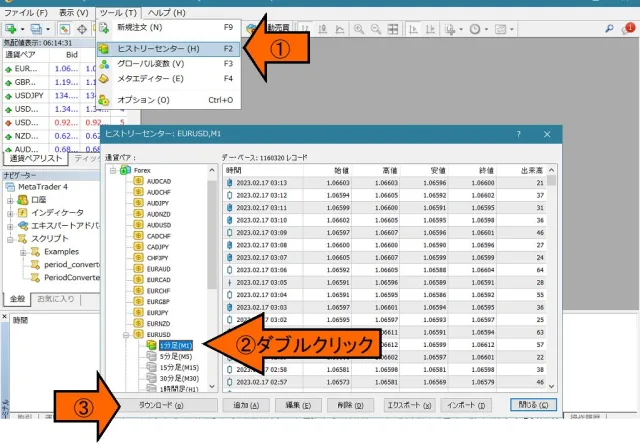
Download typically starts within about a minute, but may take up to around 10 minutes in some cases. When the download is complete, scroll to the bottom to confirm how far back the historical data extends. Restart MT4 and verify that the historical data is present.
Free yourself to practice and verify with the completely risk-free trade simulator!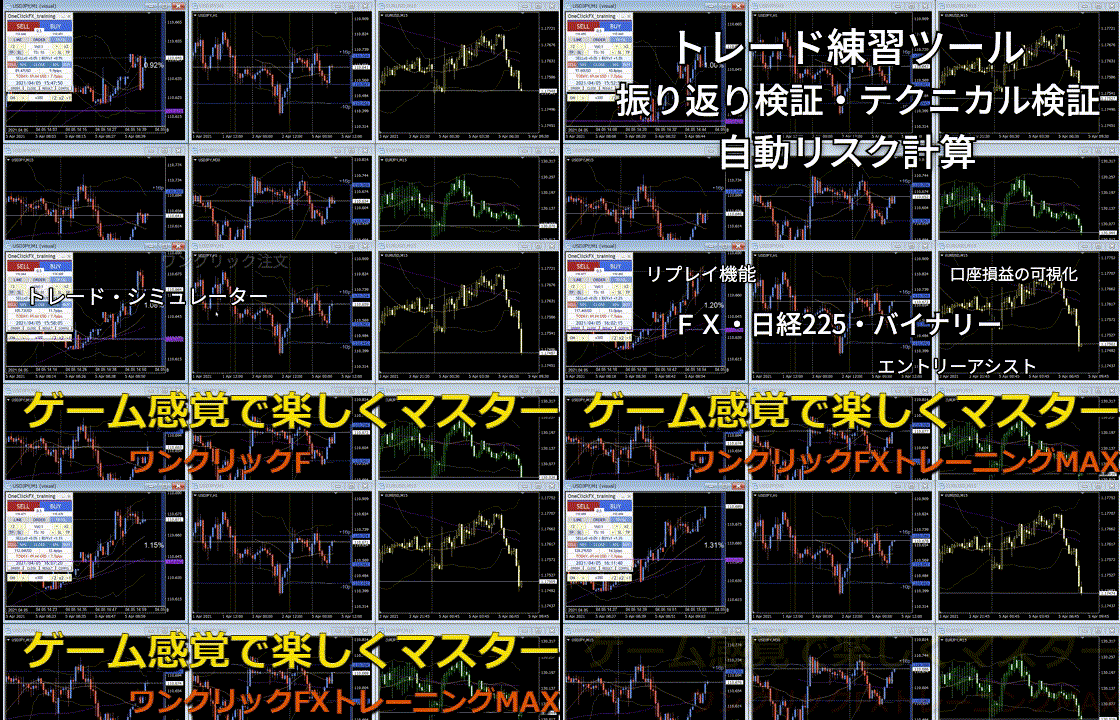
One-Click FX Training MAX details page