
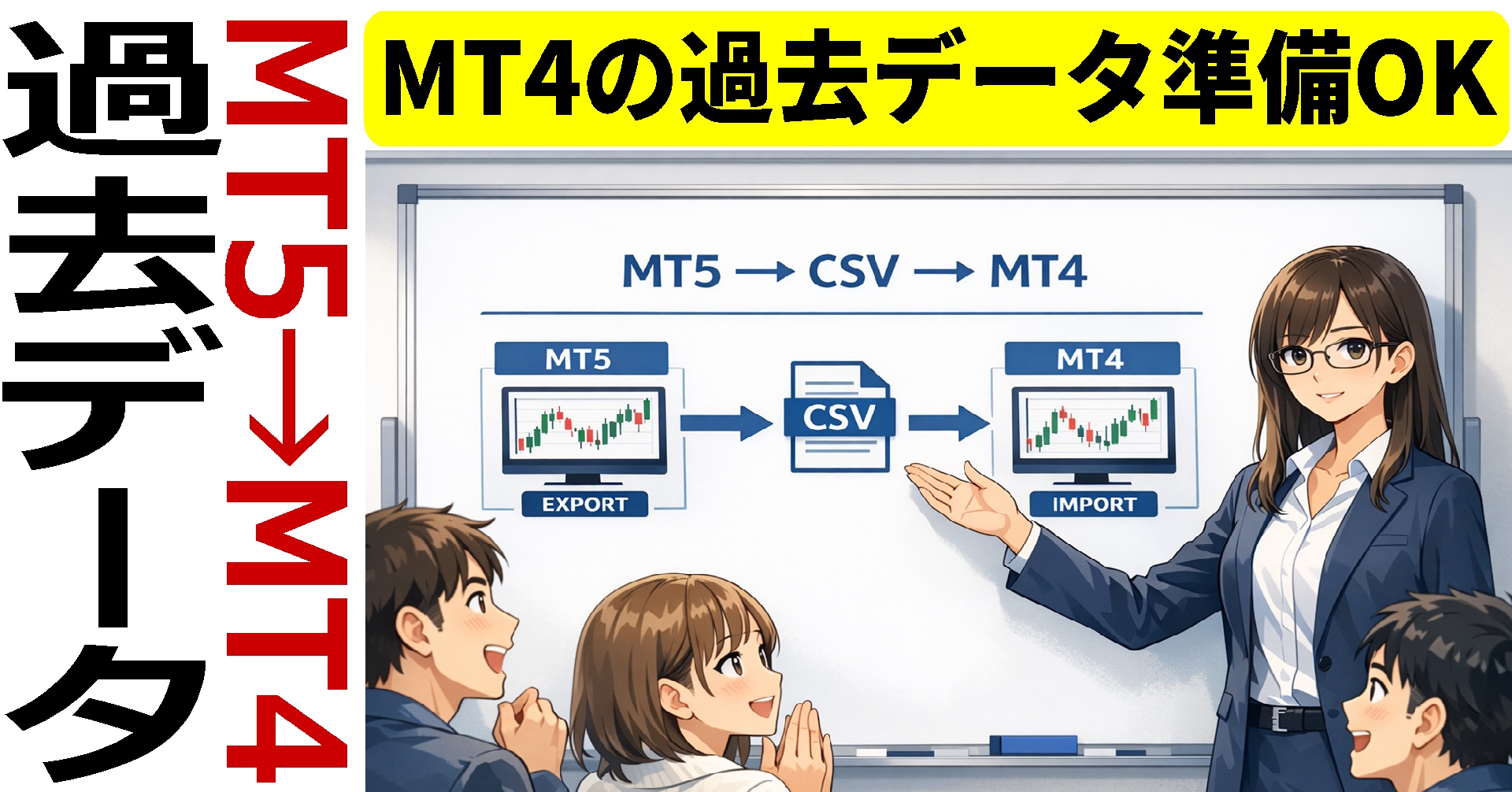
How to Import MT5 Historical Data into MT4
We will introduce how to import historical MT5 candlestick data into MT4. With One-Click FX Historical Data, you can validate for currency pairs that are not supported and explore deeper past data.
Workflow
- Obtain historical data for the desired currency pair in MT5
- Export to CSV file
- Import into MT4
- Generate candlesticks with PeriodConverter_rcm
MT5 export
Launch MT5 and ensure the desired currency pair is available. This step reads MT5 historical data and exports it to an external file.
■MT5 settings
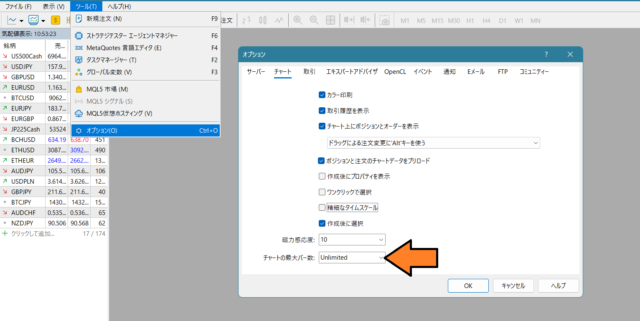
Set the maximum number of bars. It is more reliable to set it to Unlimited. If needed, you can revert it after completion.
- From the menu, click Tools, then Options.
- When the options window opens, at the bottom there is a maximum bars for charts; change the value to “Unlimited.”
■Select currency pair and export
- From the View menu, click Symbols and locate the target currency pair.
- Next, go to the Chart tab and set Period: 1 minute, Start date – End datePeriod: 1 minute, Start date – End date
- Click Catalog “Retrieve data” to begin downloading.Catalog
- When the download completes correctly, press the Export bars button.Export bars
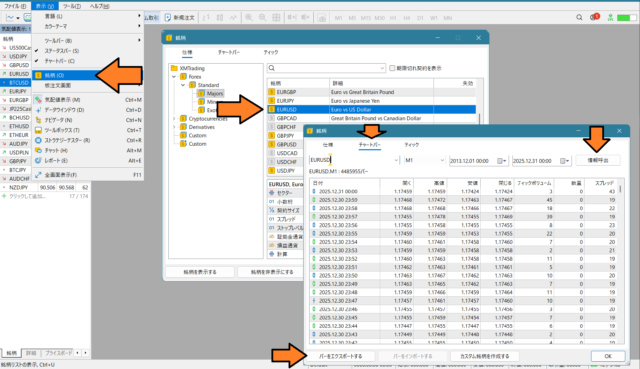
Save the exported CSV file to a desktop or other location.
MT4 import
Import the CSV file exported from MT5 into MT4 and convert to another time frame.
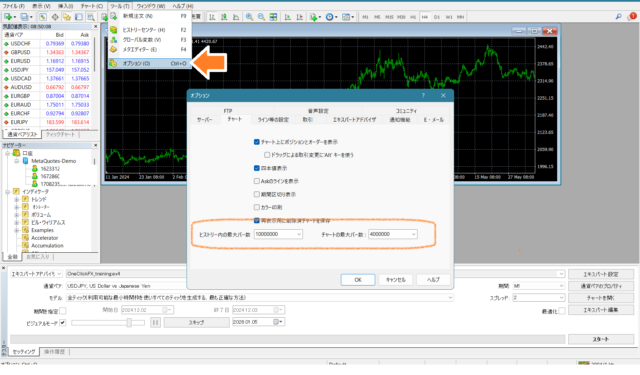
■Set maximum bars
By applying the following settings, about 10 years of historical data will be reflected.
Recommended values:
- Maximum bars in History: 4000000 (six zeros) or 10000000
- Maximum bars on charts: 4000000 (six zeros)
■Import
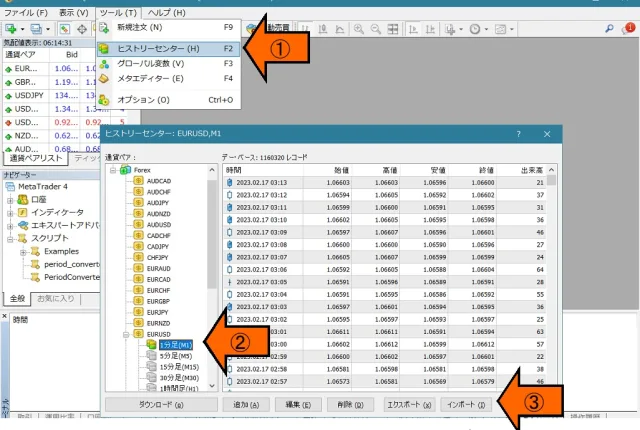
- From the menu, Tools -> Open Historical Data.
- For the desired currency pair, 1-minute bar double-click [Important]double-click [Important]
- Click the Import button.
- Specify the CSV file exported from MT5.
- Select Separator: “tab”.
- CSV file information will be displayed.
- Click OK.
After selecting the file, it may take about a minute to read, and it may look frozen if there is a lot of data; please wait a bit longer.
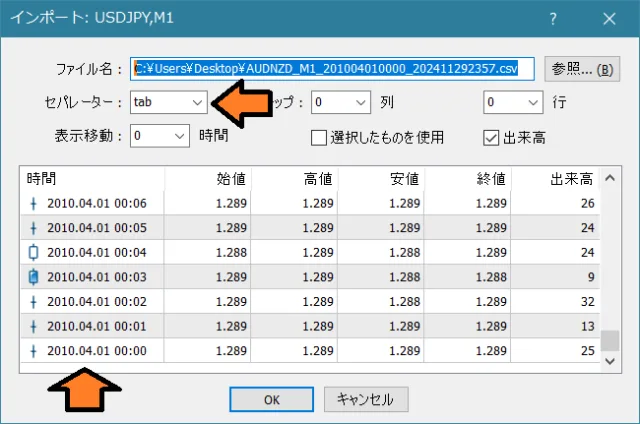
Check the dates and confirm with OK.
Convert past data
Download PeriodConverter_rcm.※One-Click FX Seriesis included, so downloading is not necessary.
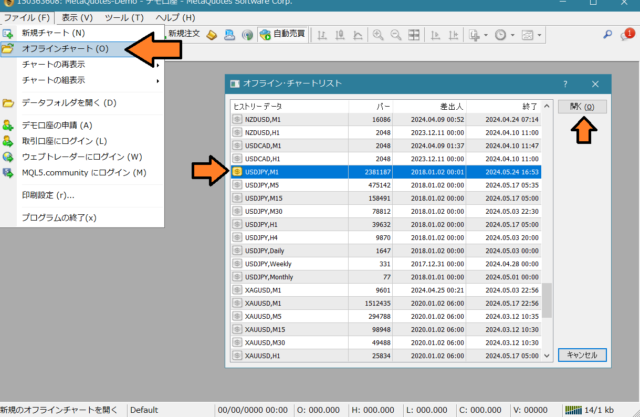
1.Close all charts, restart MT4then open File -> Offline Charts from the menu. From the list, select the 1-minute chart and click Open. The image shows the 1-minute offline chart for USDJPY. (In the latest version, the normal 1-minute chart also works, but offline charts are more reliable.)
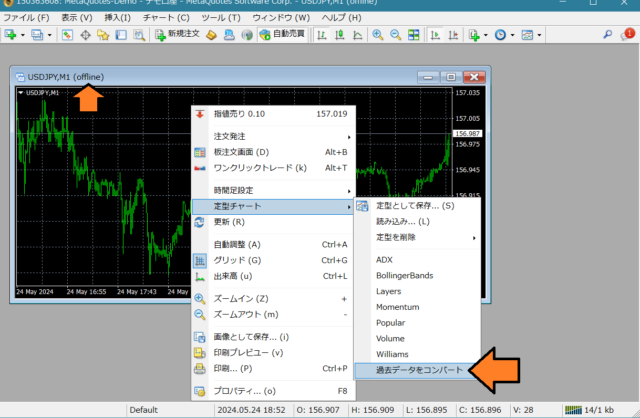
2. On the opened offline chart, right-click => Template Chart, then click “Convert past data.”
3. PeriodConverter_rcm displays the start date for converting the 1-minute data. If you want to begin, please answer Yes.
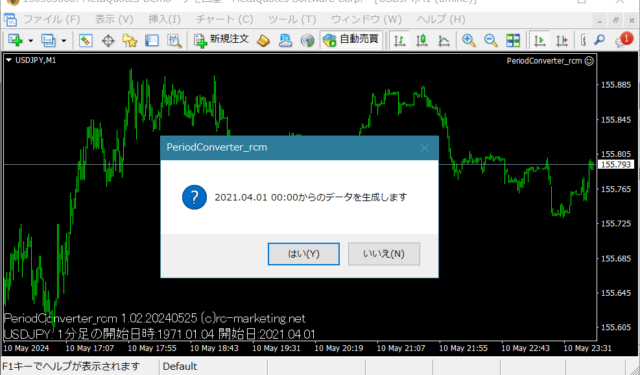
4. When you press Yes, the 1-minute data will be converted to 5-minute, 15-minute, 30-minute, 1-hour, 4-hour, daily, weekly, and monthly bars.
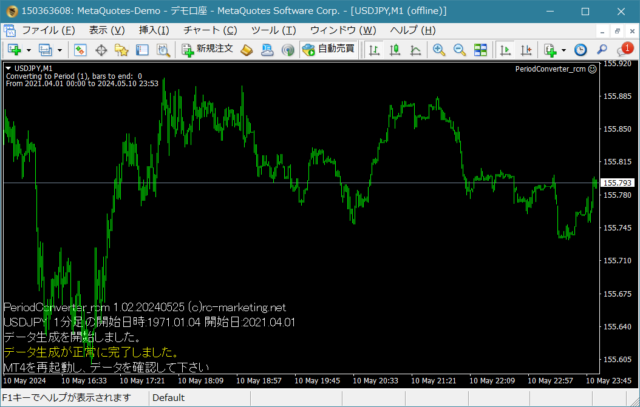
5. When the conversion finishes, the above message appears. Restart MT4 and check the chart historical data.
If you restart now, you will see a prompt asking “Generate data?” or similar; press No, or close the chart if past data has been generated correctly.
If past charts cannot be generated correctly, restart MT4 and repeat the same process. Since MT4 saves data on exit, data may be overwritten at shutdown. Therefore, the procedure requires restarting MT4 to ensure data is reliably saved.
We have developed various methods in the past to reliably reflect past data, but this method is simpler, and if uncertainty remains, it shows a message to reduce effort significantly.
Practice and verify freely with a completely risk-free trading simulator!
Details page of One-Click FX Training MAX