
Past validation of methods that are the shortest in 1 minute and easy to perform / Fund management that can be done by mouse operation / Backtesting tool 【Position Simulator】
GogoJungle Limited!!
A fund management and backtesting tool that is unlike anything before—super easy and high-performance!
“Position Simulator”
Place positions freely with mouse operation only.
Once you set entry/profit target/stop loss lines, everything else is automatic
Show margin, risk tolerance, lot size, and balance at the target line on the balance sheet!
If you set multiple positions,
you can instantly see trends of margin over time for all positions, win rate, drawdown,
and detailed backtest results with one click!
Moreover!
If you have a signing indicator
you can backtest any method in as little as one minute!
Do you have these problems in FX?
“I don’t really understand fund management methods...”
“Calculating risk and lot size is tedious every time”
“I’m using a fund-management tool, but I still have to input everything by hand…”
“I want to manage funds with as little effort as possible”
“I have no knowledge, but I want to easily backtest methods using past data!”
“I want statistics by month, day of week, and time for backtests”
“I want to backtest multiple methods (including different currency pairs) at once”
“I’ve found a high-win-rate method, but I want backtests aligned with my living hours”
“I want backtests that adjust spreads and swaps finely according to entry timing”
All solved by Position Simulator!!
Reference images

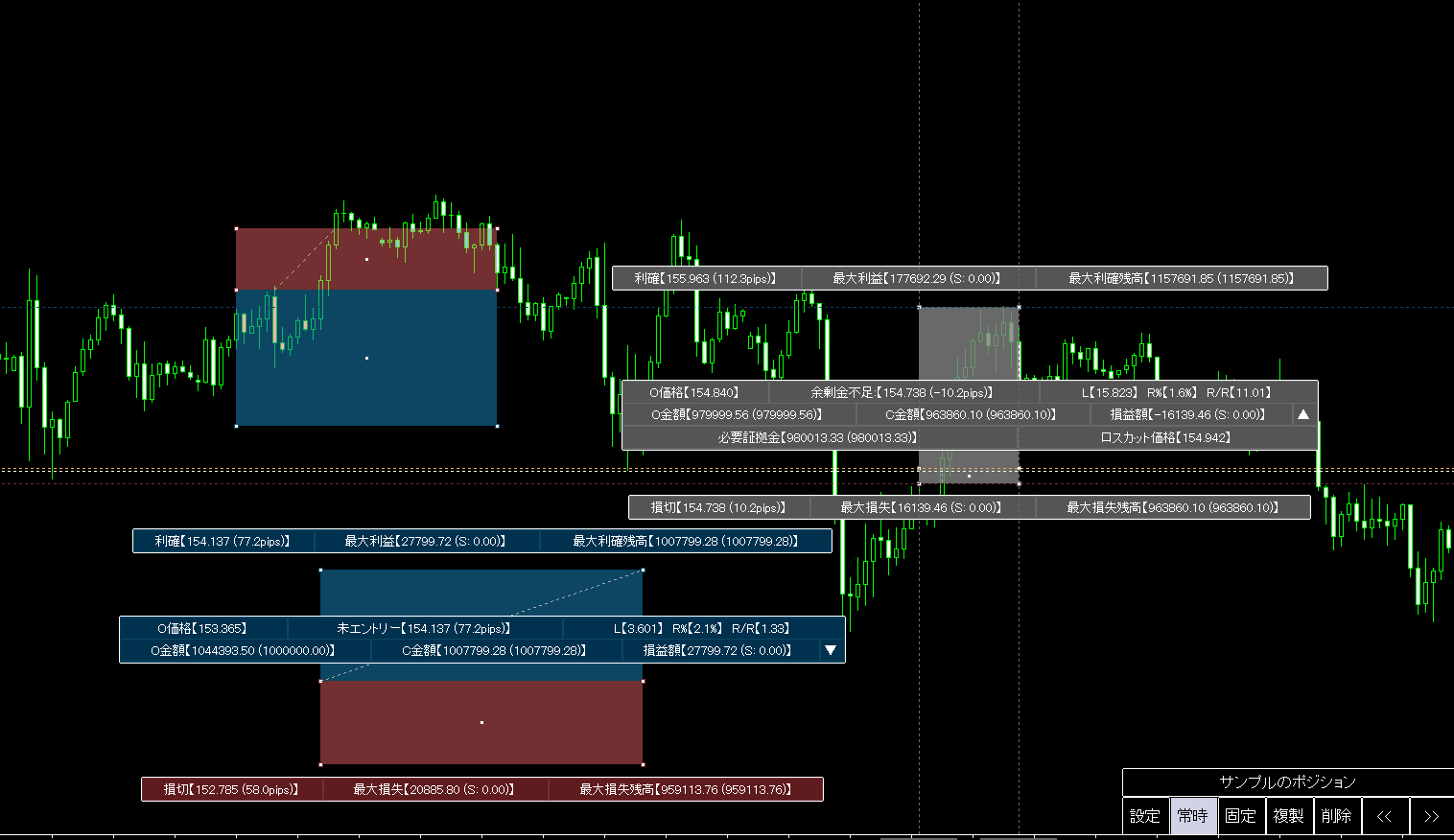
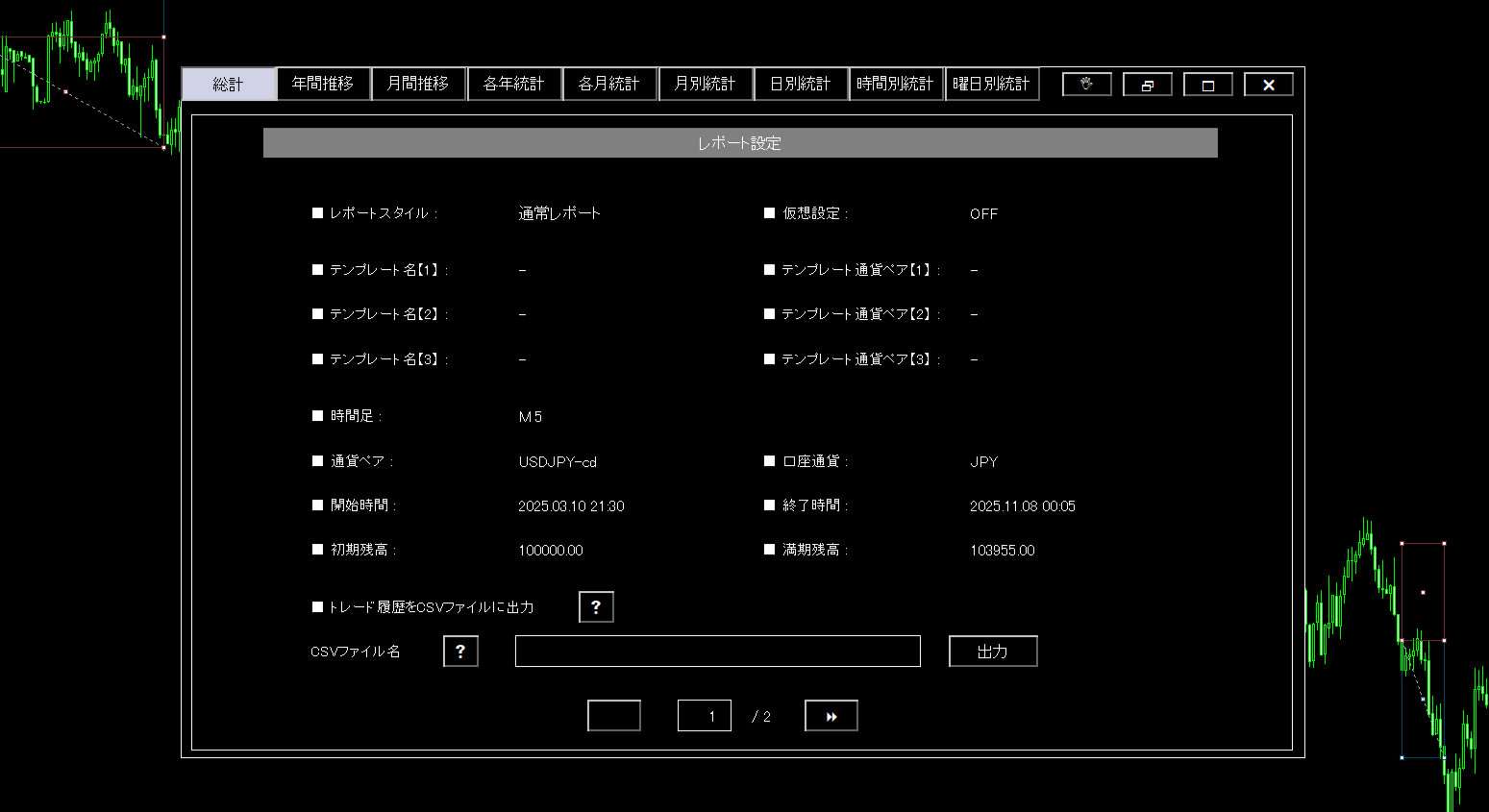
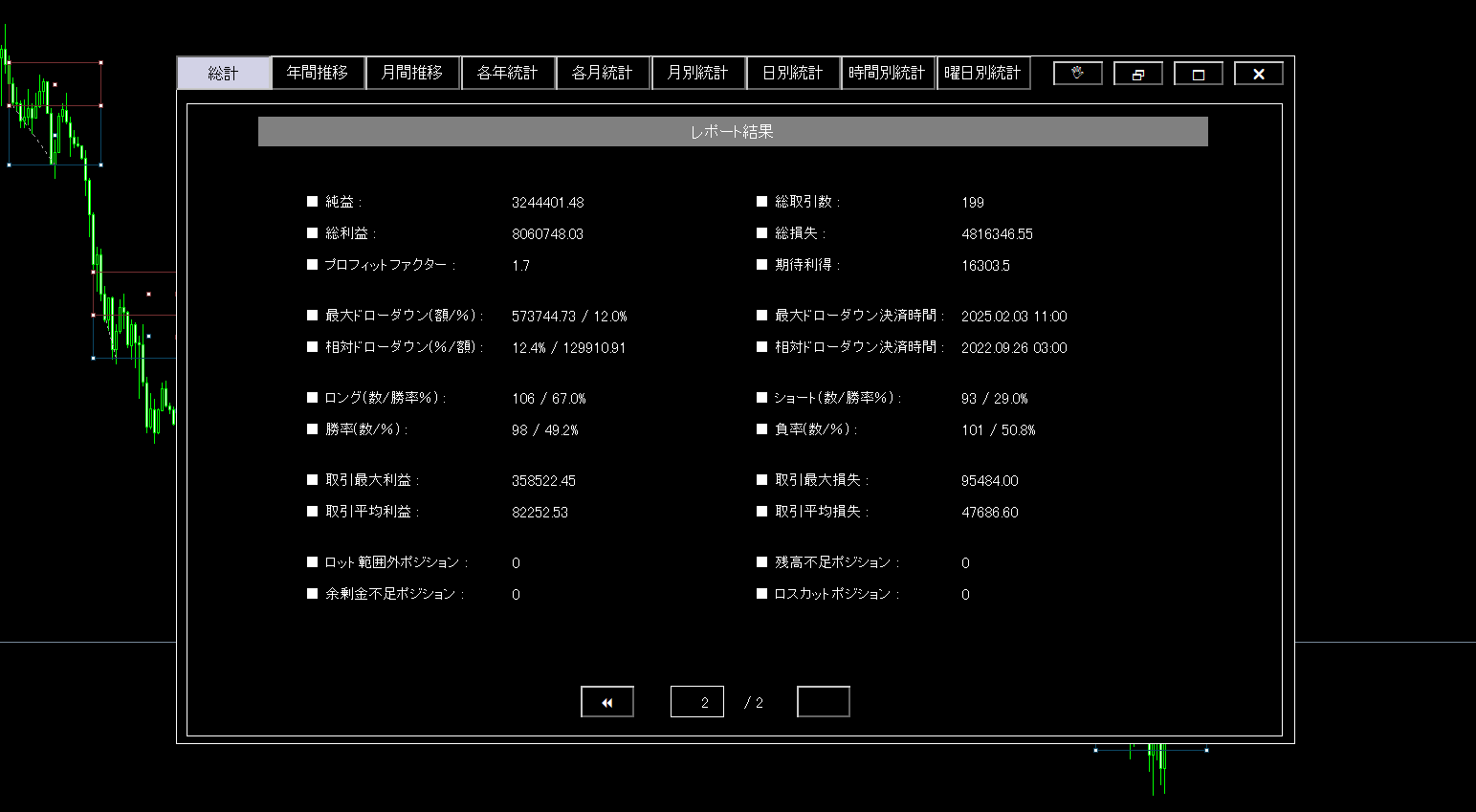
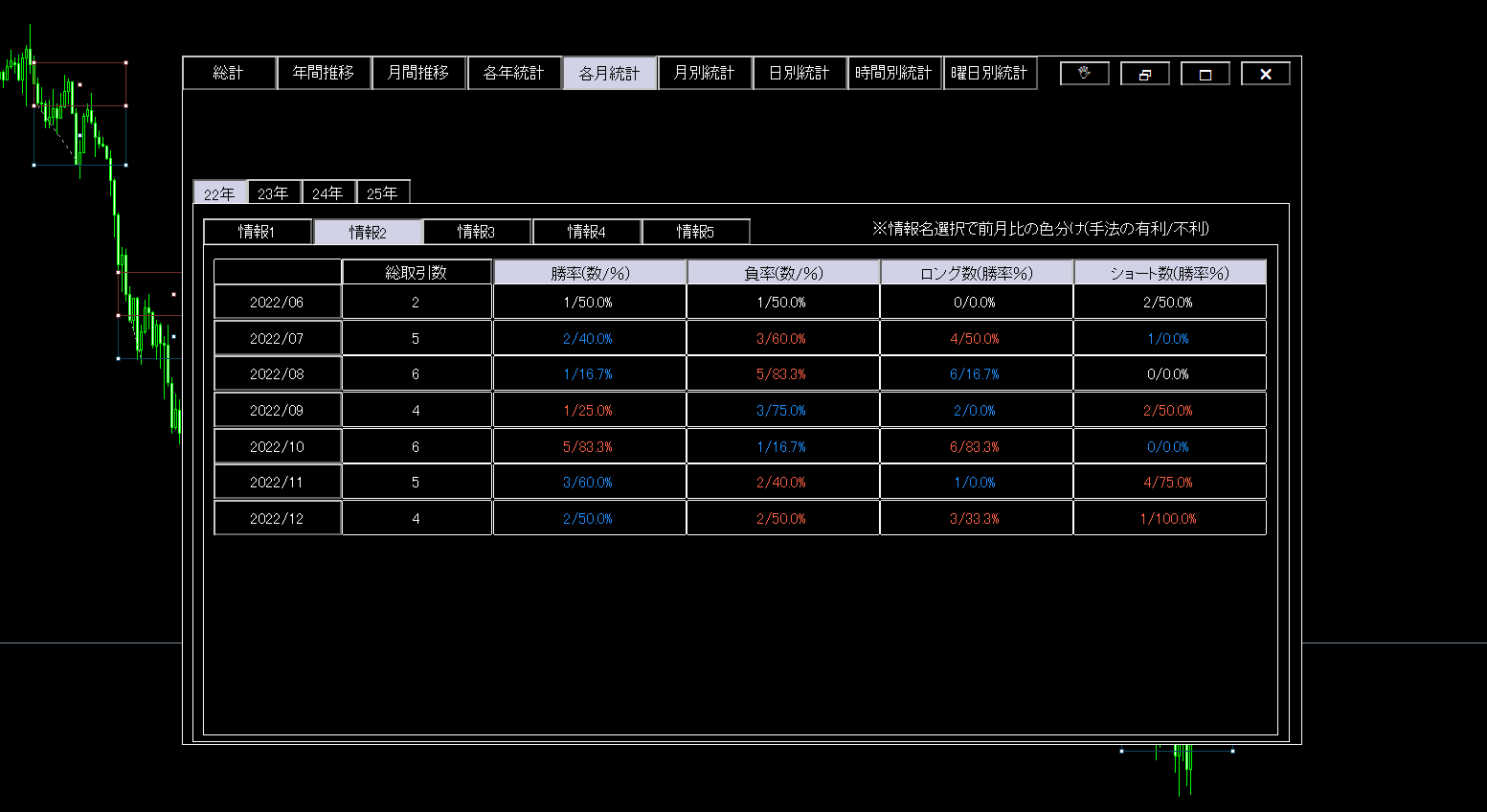
Easily manage funds with just mouse operation!
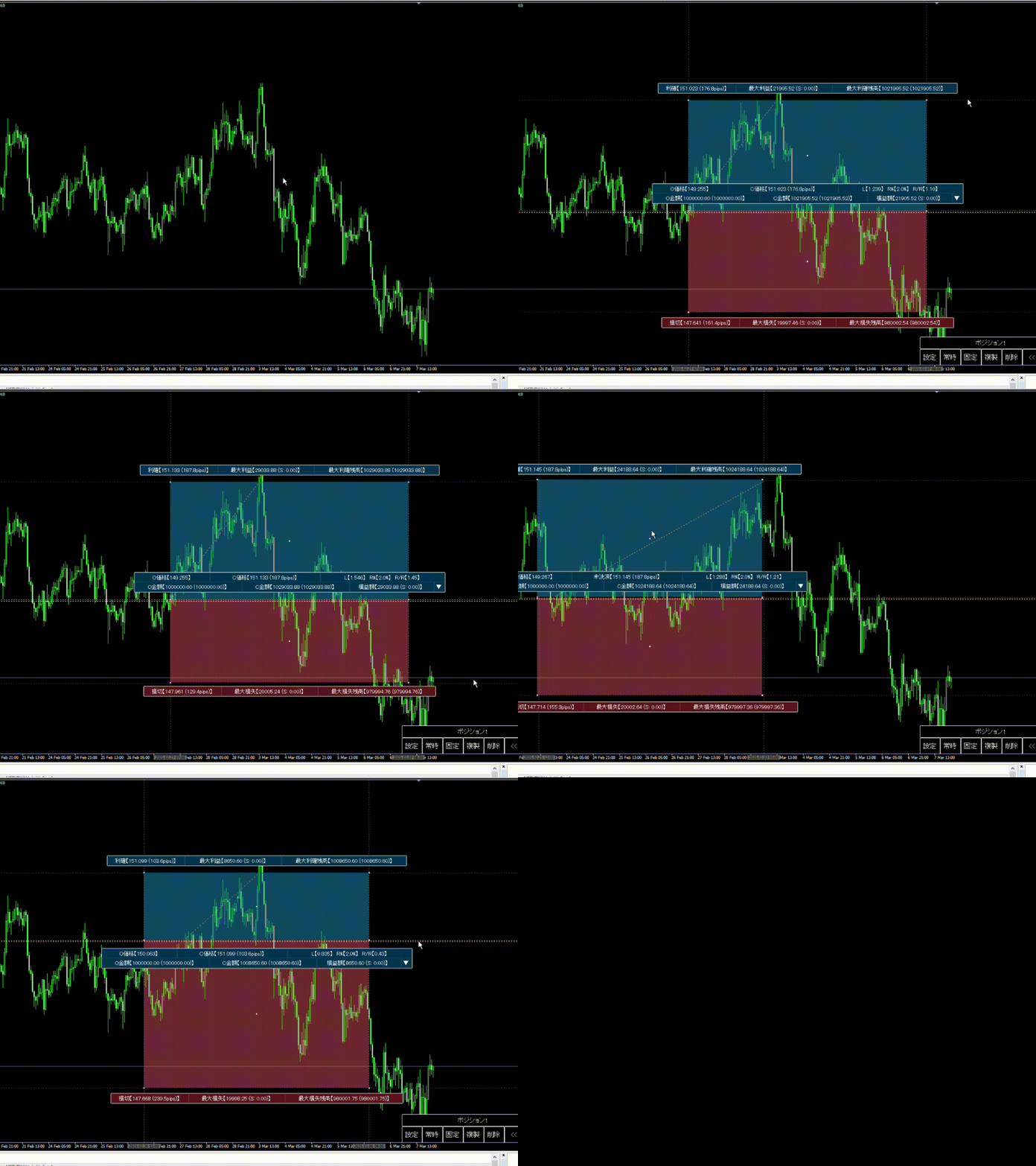
When you press any key, positions are placed simply by clicking the chart afterward.
Then drag to set your preferred entry/stop loss/profit target lines.
Of course, you can also drag to move the time axes left and right easily.
After setting the desired time axis and price axis, you just have to
automatically display lot size, risk rate, price range, and P/L!
Additionally, since required margin is calculated and displayed,
you can check whether entries are possible or not due to excess funds or risk of margin calls!
And,
account currency can be set to any currency!
Using your preferred account currency makes information easier to understand at a glance.
With just this operation, the system calculates the lot size from the predetermined risk tolerance, or computes earnings automatically with a specified lot size.
There’s no need to enter entries or target prices, so you can easily check the funds for that position.
(Of course, you can also customize detailed numbers for each position.)
Show past margin trend in backtest mode
Each position has a “backtest mode.”
A position with this mode ON inherits the previous position’s information (profit, margin) to calculate itself.
Past validation only applies to positions with backtest mode ON.
↓ Inherit the previous backtest mode ON balance and calculate ↓
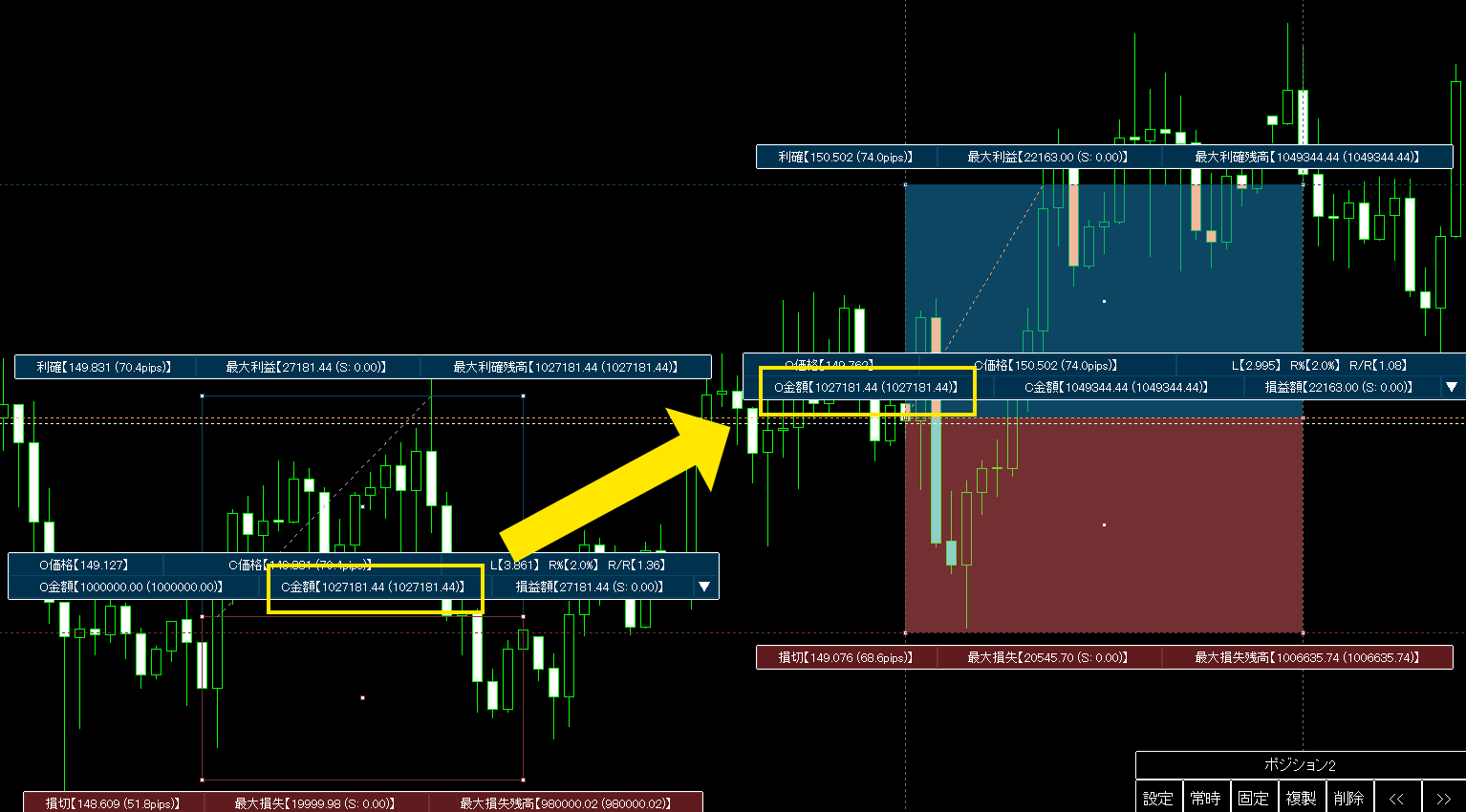
If you turn OFF backtest mode, it will not inherit from any other ON positions, so you can use it like a normal fund-management tool to prep entries or perform light testing and check earnings.
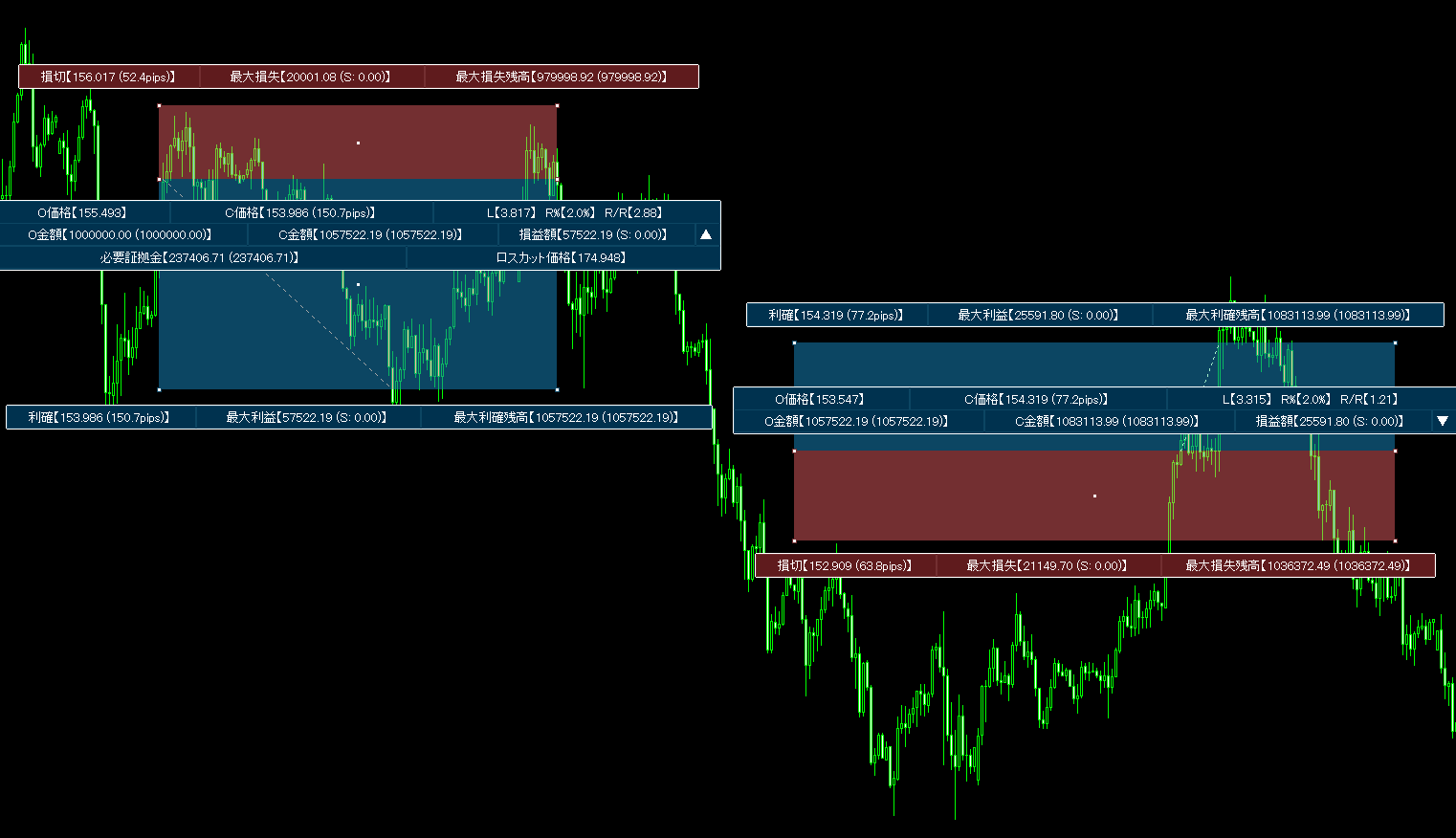
Also, when multiple positions exist, backtest mode shows effective funds including floating P/L.
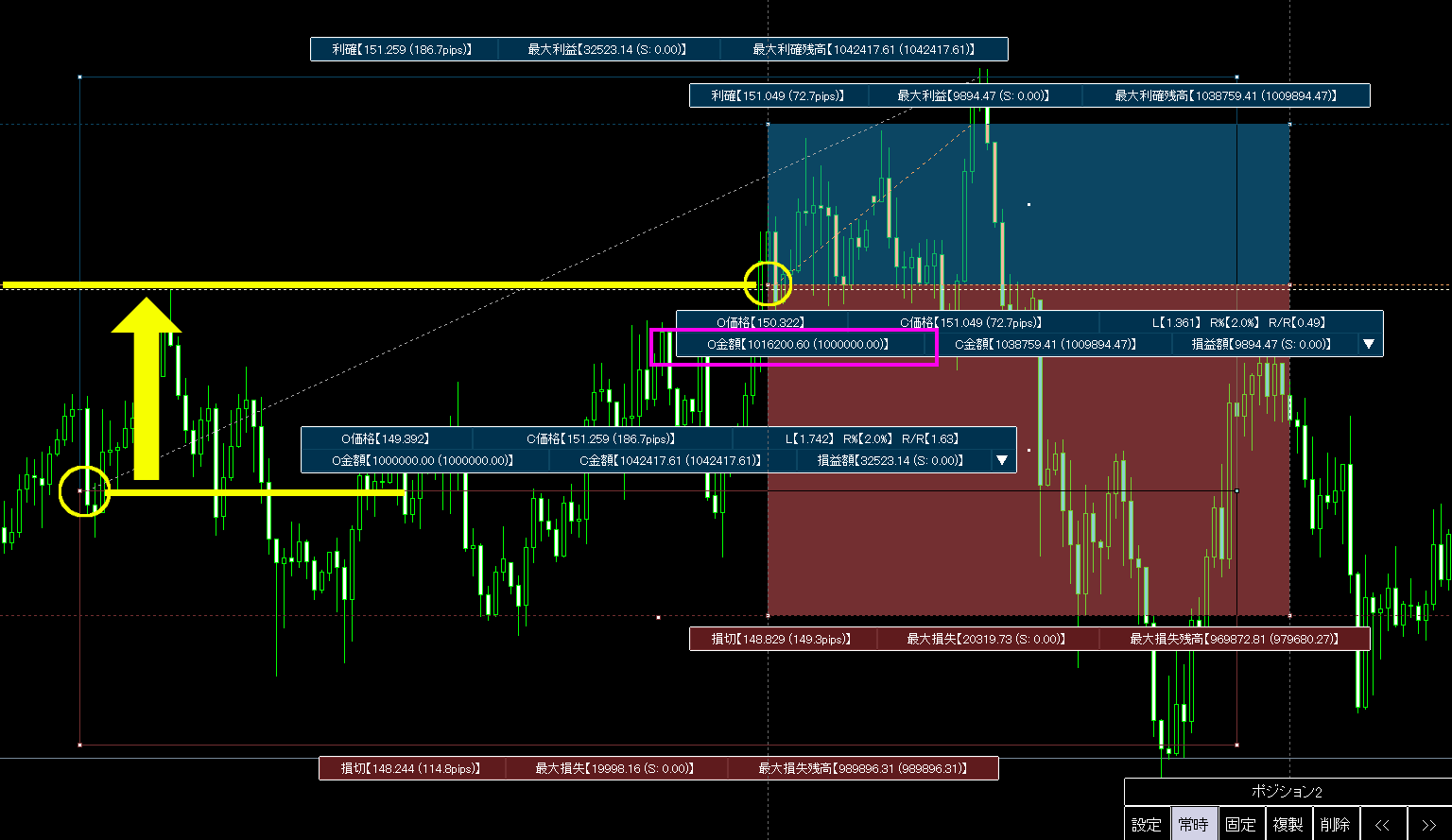
The image shows two long positions (one with fill OFF).
The left yellow circle is the first entry, the right yellow circle is the second entry.
The usable margin at the time of the second entry (pink frame) includes the unrealized profit of the first position (yellow arrow difference). The balance shown is the settled margin, excluding unrealized P/L.
At close, if there were other open positions, unrealized P/L are calculated similarly.
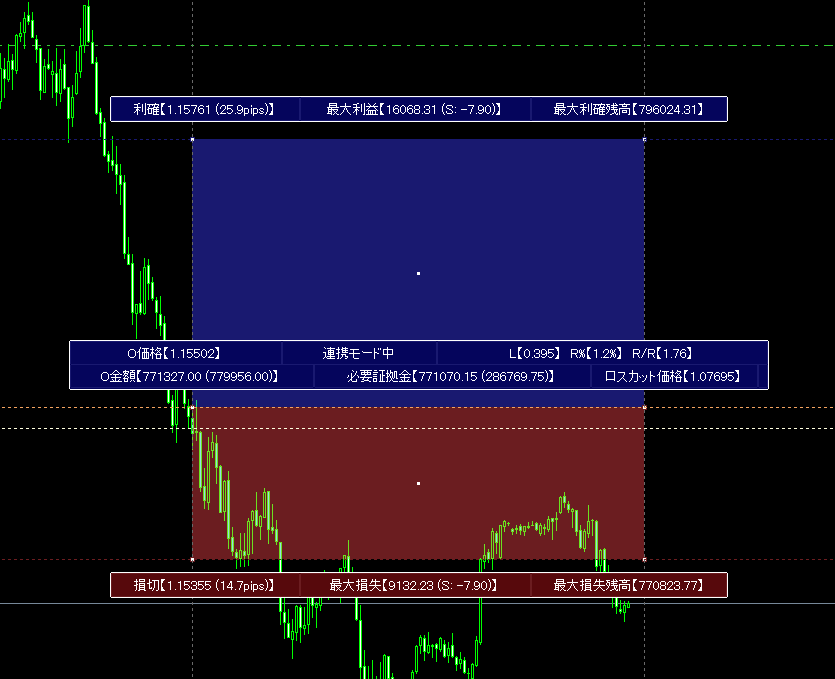
Detailed position information at a glance!
Position Simulator automatically calculates and displays various position details simply by dragging.
The information below is usually hidden and shown when you click the relevant position. (You can configure to always display it.)
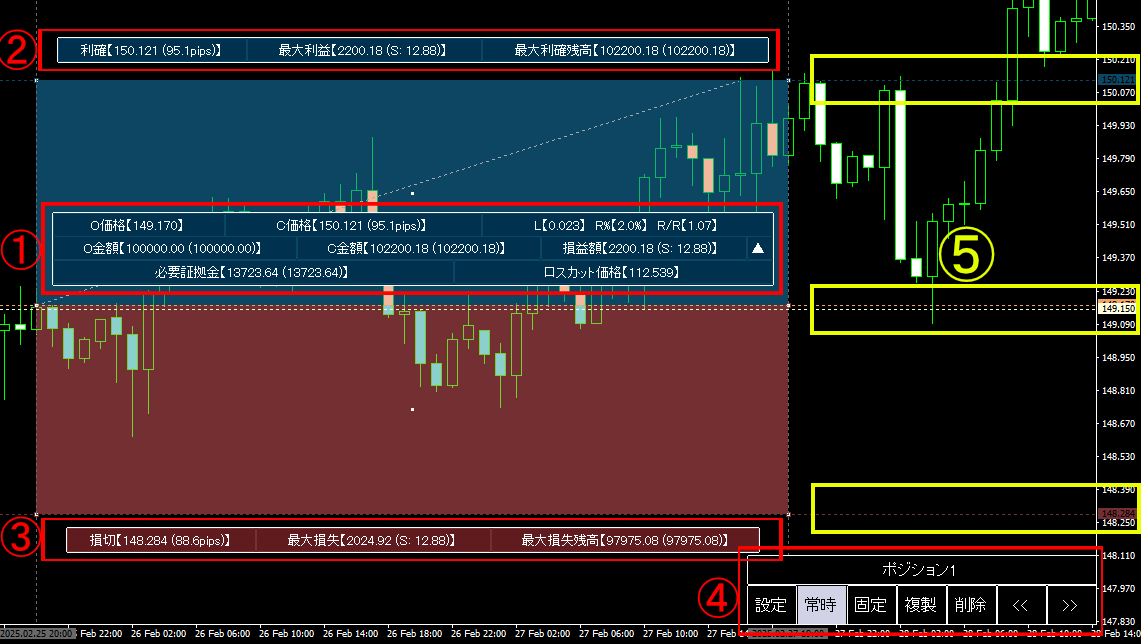
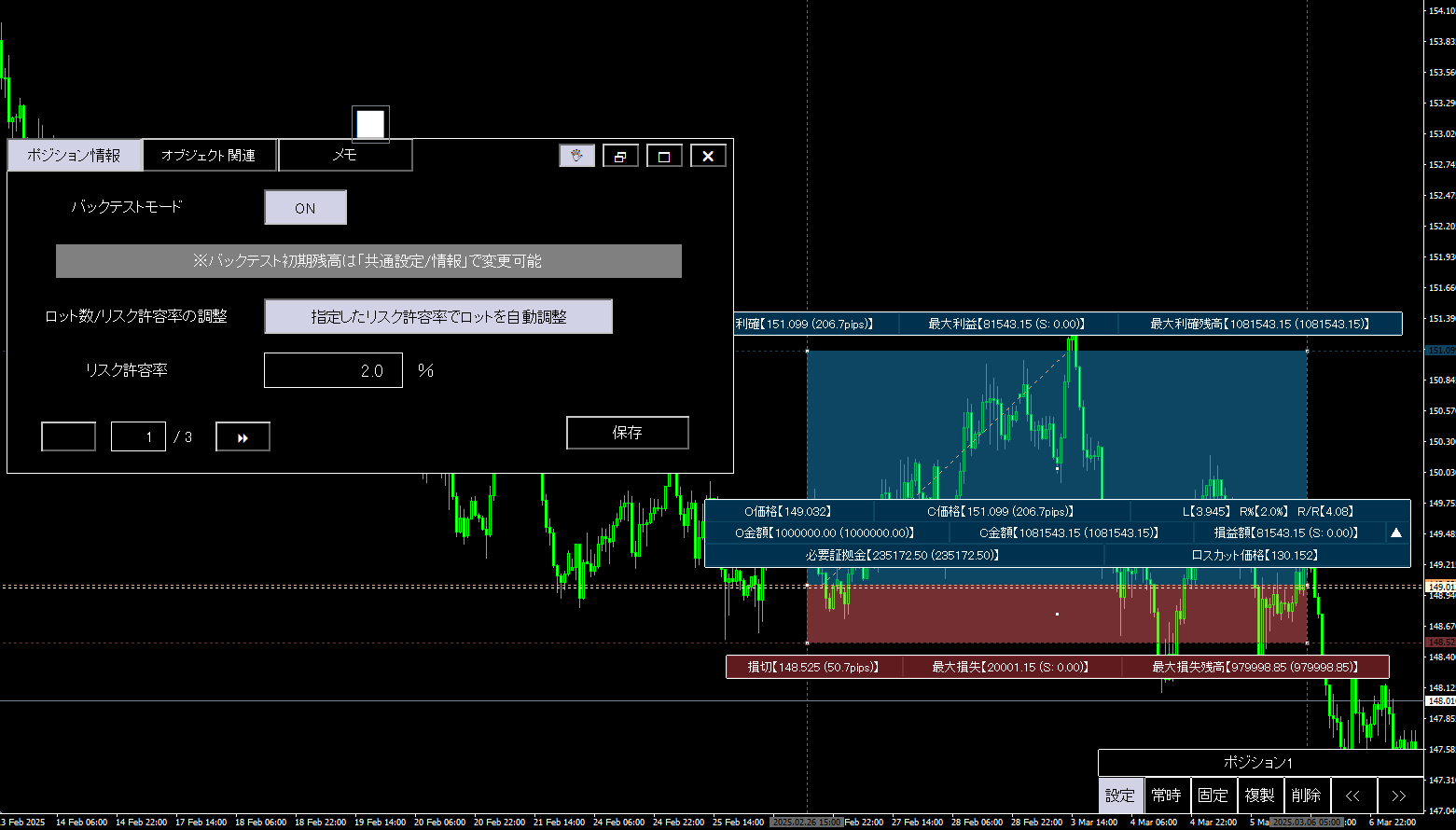
Information in image ①
・“O price”… Entry price (open price)
・“C price”… Close price (the pip gain inside parentheses)
If you cannot close within the zone, the zone ends with a force close at the bar, which is a market order,
If insufficient margin is available for the entry, it is shown as “Insufficient Excess Funds,”
If a stop-out rate exists within the loss range, it is shown as “Stop-out,”
If calculated lot is outside the allowable range, it is shown as “Lot out of range,”
If the item ③ “Maximum Loss Balance” becomes negative, it shows “Balance insufficient”
“C price” changes accordingly. (Non-ongoing positions turn all colors gray, which can be changed)
・“L”… Lot size
・“R%”… Risk tolerance
・“R/R”… Risk-reward
・“O amount”… Open equity (balance in parentheses)
・“C amount”… Close equity (balance in parentheses)
・“P/L amount”… Position profit or loss (sum of swap/fees in parentheses)
The following are shown by clicking the ▼/▲ toggle button.
・“Required margin”… Margin required to hold this position
・“Stop-out price”… The rate at which this position would be stopped out
Information in image ②
・“Take Profit”… Take-profit target rate (pips inside parentheses)
・“Maximum profit”… Profit at take-profit target (swap/fees inside parentheses)
・“Maximum profit balance”… Effective equity at take-profit target (balance inside parentheses)
Information in image ③
・“Stop loss”… Stop-loss rate (loss width pips in parentheses)
・“Maximum loss”… Loss at stop-out (swap/fees inside parentheses)
・“Maximum loss balance”… Effective equity at stop-out (balance in parentheses)
Information in image ④
・“Position 1 (※)”… Memo for each position. Can be changed arbitrarily (※1 is default)
・“Settings”… Show detailed settings for the position
・“Invert”… Buy positions become sell, sell positions become buy.
・“Always”… ON to always display images ①–③
・“Fixed”… ON to fix the time/price for this position
・“Clone”… Copy and duplicate the position information
・“Delete”… Delete this position (with confirmation)
・“<< / >>”… If there are other positions, move to the next position
Information in image ⑤
If you click (activate) a position, five lines appear: zone start/end, take-profit, stop-loss, and entry price lines.
You can drag the zone to move or modify, but you can also move each time/price along these lines.
Because in a zone the time and price can move simultaneously, please use the lines for fine tuning.
If you set a spread, reaching this Ask line will determine a buy order, so spreads are safe to use.
Past backtests are available with a click!

Position Simulator can backtest all displayed positions as one single method. As long as any position is placed,
a one-click, immediate backtest result is shownfor you.
“I want to backtest a history but I don’t know MQL4….”
Do you keep having to request EA creation for each backtest?
Would you like to adjust logic of the EA every time and waste money?
Position Simulator lets you do backtesting with just clicks and drags, no advanced knowledge required, so you don’t need to request EA creation anymore.
It also protects your valuable funds.
Moreover, the backtest feature supports
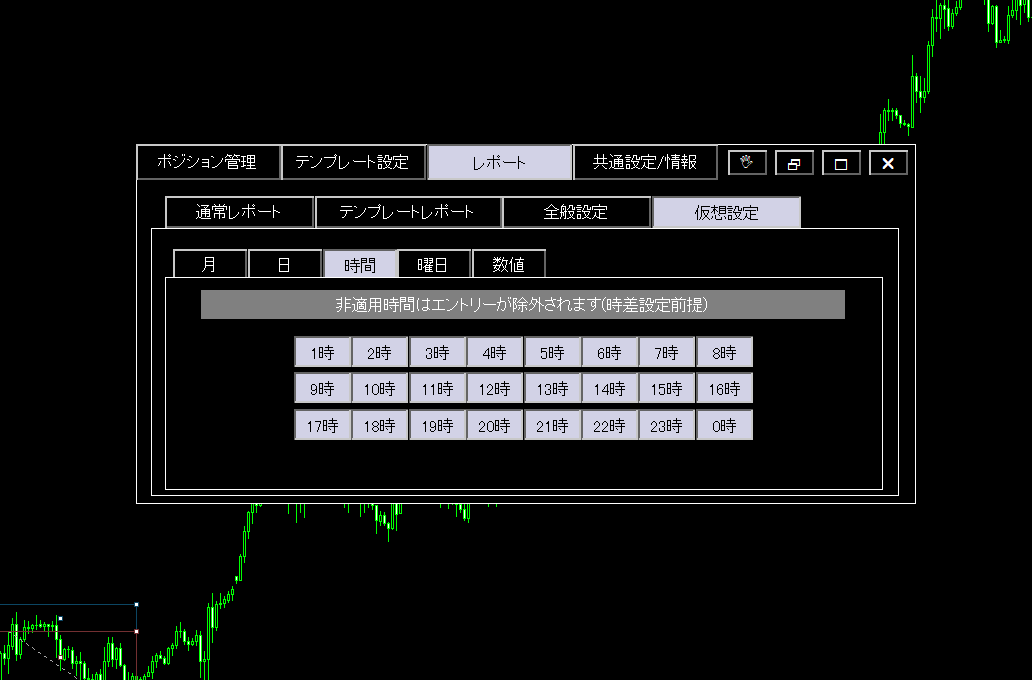
excluding entries by month, day, hour, and day of week,
and shows detailed statistics for each specified period!
You may have acquired a great method but faced losses in actual operation...
Have you ever had that experience?
The reason is that your entry times may have low win rates, so overall profitability declines.
With Position Simulator you can backtest filtered by day of week and hour to fit your lifestyle, enabling past-testing of methods aligned with your schedule.
↓ Displaying statistics by time during backtest ↓
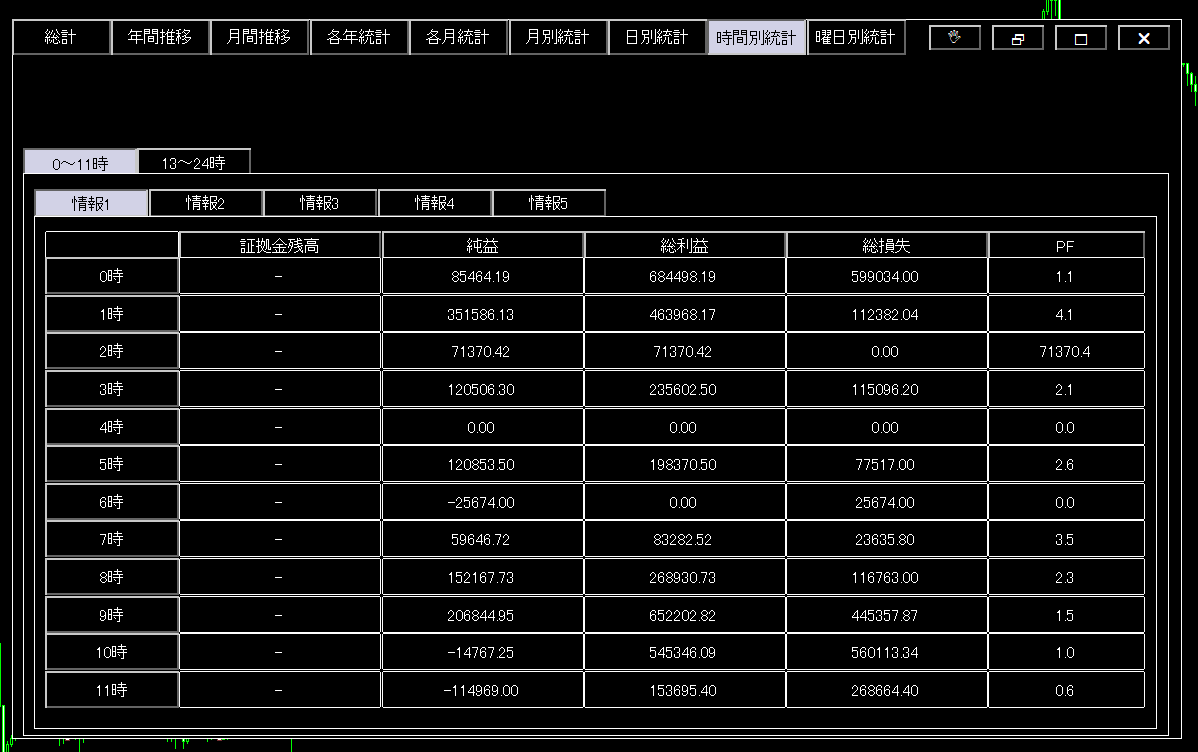
↓ Exclude test entries by turning off specific dates, times, or days ↓
Backtest mode shows past margin trends
Currently, the results shown include the following information.
“Net profit”・“Total trades”・“Total profit”・“Total loss”・“Profit factor”・“Expected value”
“Maximum drawdown”・“Relative drawdown” (and the time of settlement)
“Long (count/win rate)”・“Short (count/win rate)”・“Win rate (count/win rate)”・“Loss rate (count/win rate)”
“Maximum profit per trade”・“Maximum loss per trade”・“Average profit per trade”・“Average loss per trade”
“Out-of-range lot positions”・“Balance-insufficient positions”・“Excess funds insufficient positions”・“Stop-out positions”
Currently, this is the information provided, but
the specification is extensible if you request additional data.
If you have desired details, please feel free to tell us.
(Some information may not be possible to provide depending on circumstances.)
CSV file export is also possible
The backtest results obtained from the template can be exported as a CSV file.
This can be used in Excel or for more advanced analyses.
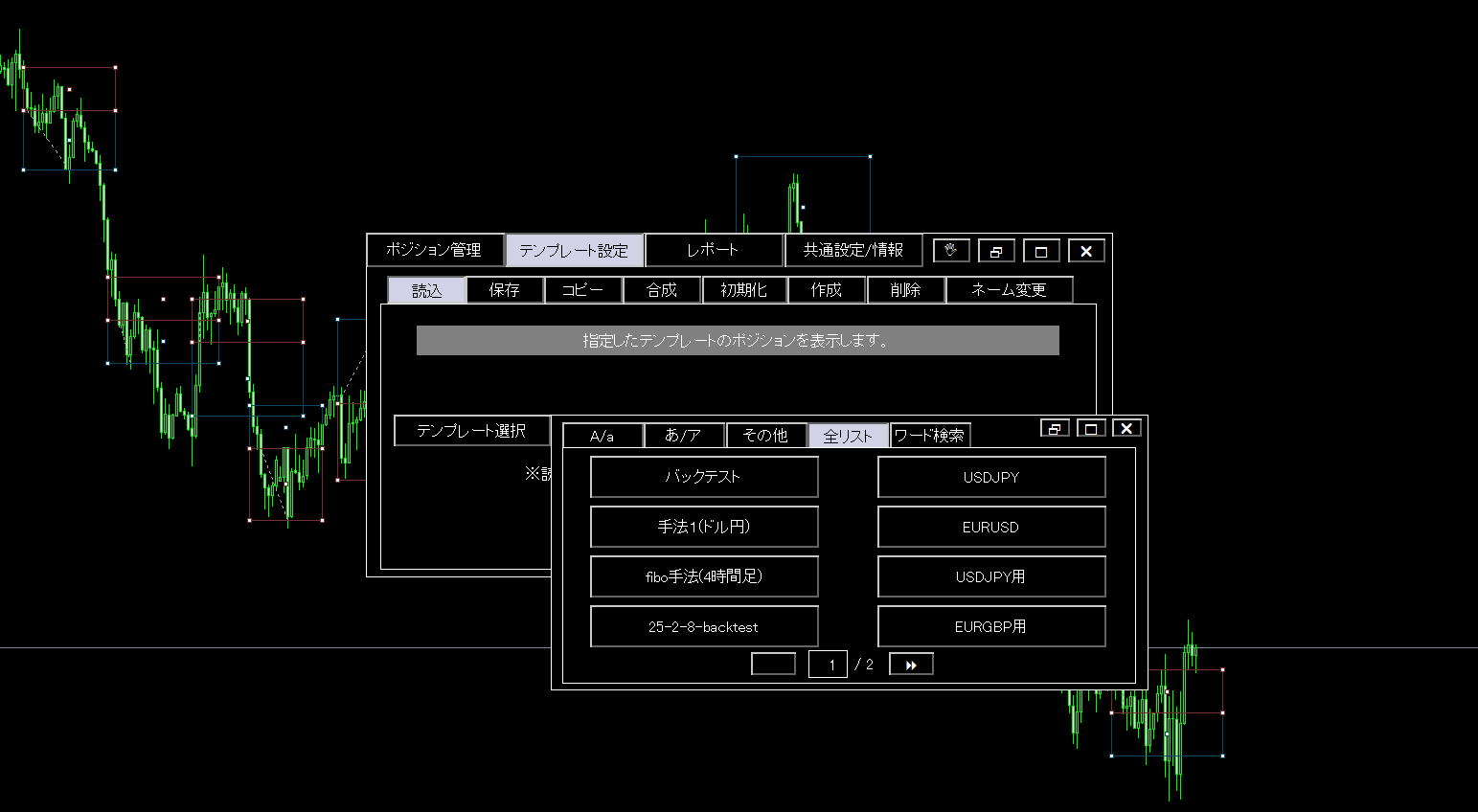
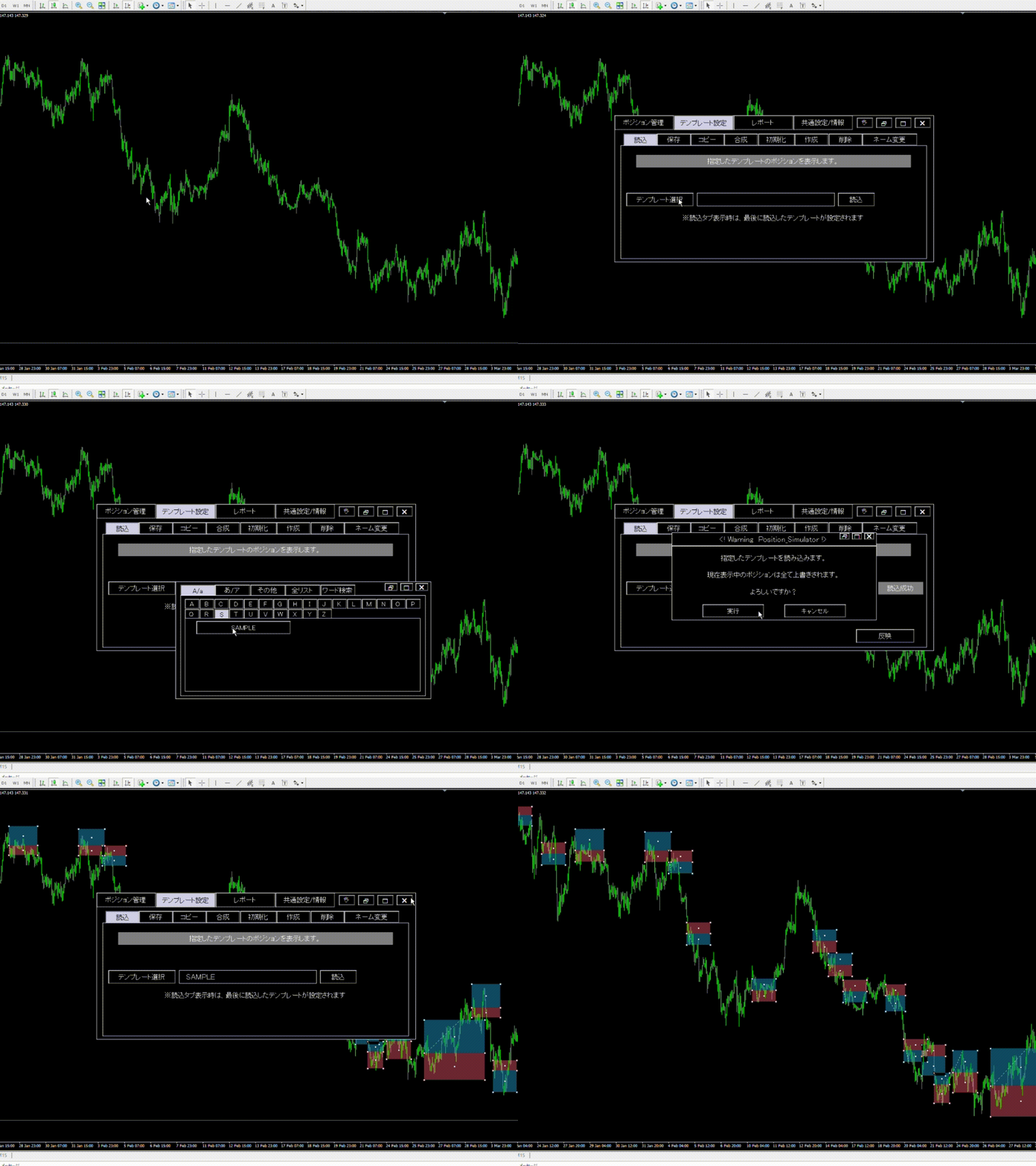
Positions you set can be saved as templates!
Positions you place can be saved as templates as well.
There’s no need to start over when you launch MT4 or switch timeframes. Additionally,
The number of savable templates is effectively infinite!
If you want to test many methods or save by currency pair and timeframe, you can organize and save them in any way you like.
Templates can be renamed freely to help you distinguish them.
They are organized by alphabet, hiragana, etc., so loading, deleting, resetting, or copying templates is quick and easy.
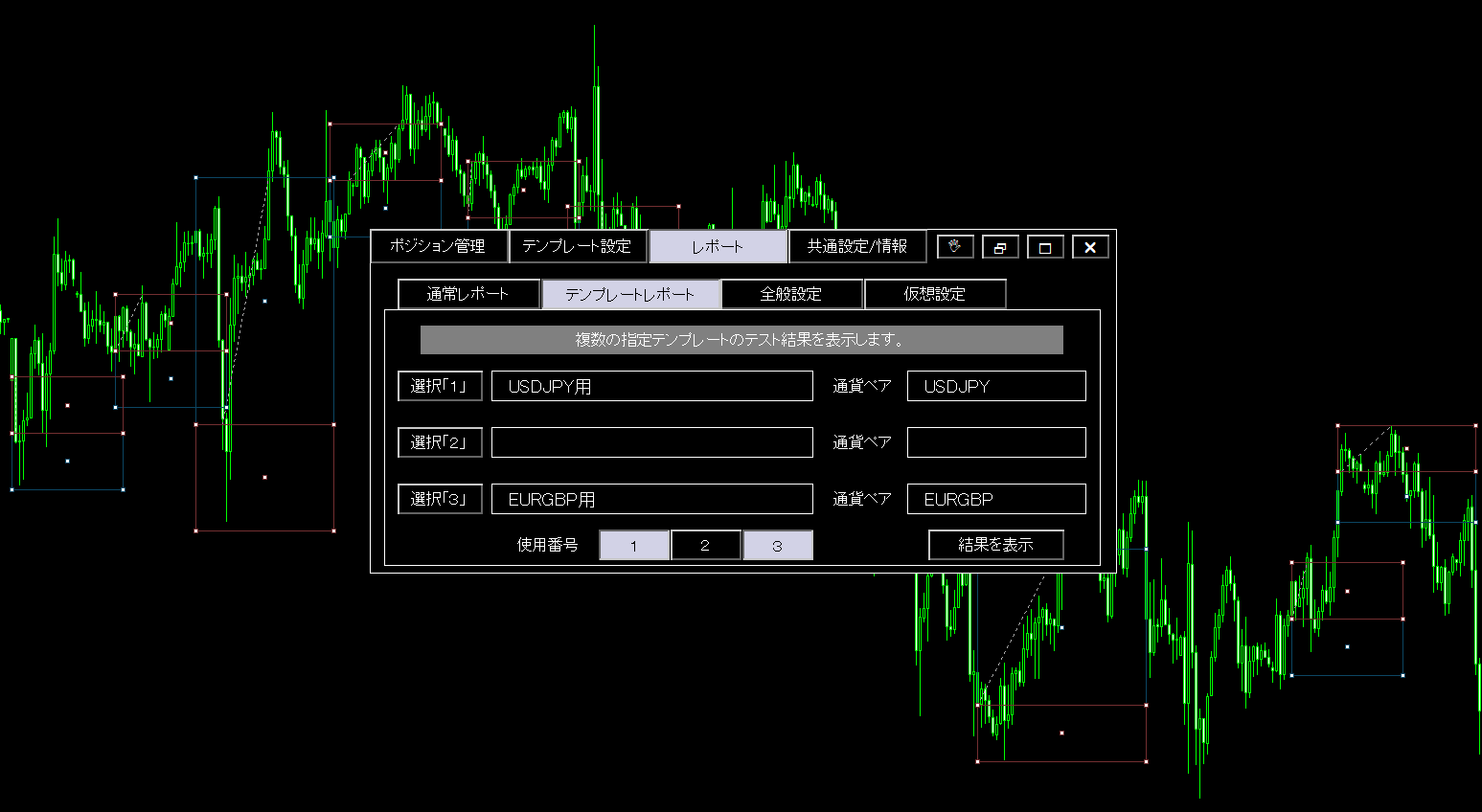
Backtesting multiple methods simultaneously with templates
Position Simulator can use the templates described above to...
Backtest up to three methods simultaneously (portfolio)!
And,
the methods you run together are not restricted by time frame or currency pair; as long as you have templates prepared, any combination is possible for past testing.
For example…
“A method saved with USDJPY template”
“A method saved with EURUSD template”
“A method saved with AUDCHF template”
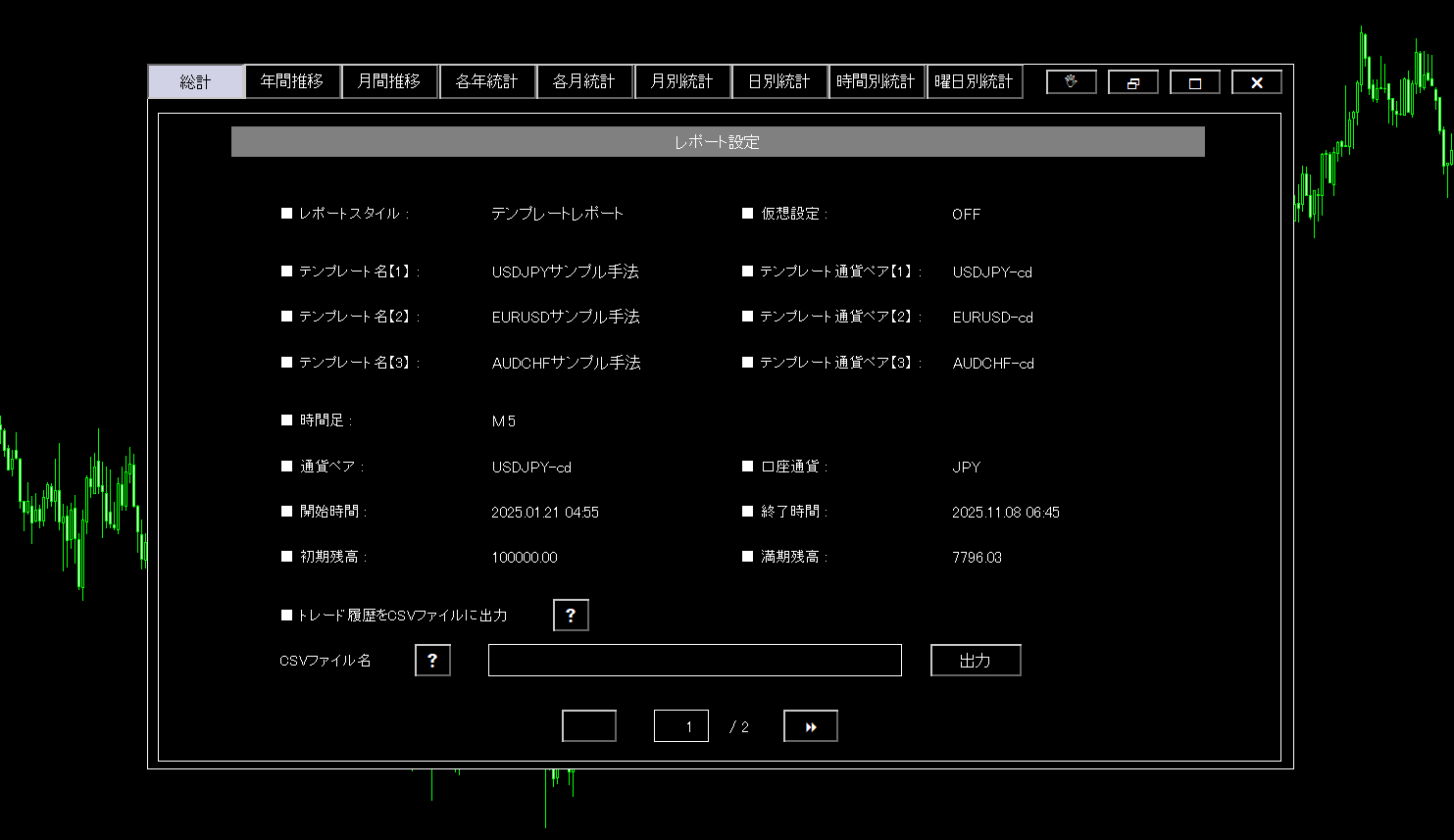
If you want results for these three methods running simultaneously, select the three prepared templates and assign each to the currency pair to display the simultaneous backtest results instantly.
↓ The image shows portfolio results from three templates as sample methods.
With multiple templates, results are displayed like this (test result details are the same as usual)
Backtesting multiple currency pairs often aggregates results from each method; however, this can miss important details when strategies are tested concurrently.
In reality, you may have multiple open positions, causing unexpected outcomes such as
“insufficient excess funds prevented entry”
“some positions were forced to stop-out”
“other methods’ unrealized P/L wasn’t considered and the method underperformed”
These kinds of issues can occur.
Position Simulator, by running concurrent operations, computes unrealized P/L and required margin across all positions regardless of currency pair, providing a more realistic and accurate result.
During concurrent operation, the backtest works the same as normal templates, so you can filter by time and day, export to CSV, and view statistics for each period.
Backtesting EA for templates (methods) is included!
Backtest results for created templates are theoretical since slippage and unfilled orders aren’t considered. Therefore,
an EA for backtesting created templates is also included in the package!
Backtesting as an EA allows you to verify results considering slippage and unfilled orders.
Additionally, some analysis tools require an EA; this backtest EA supports such tools.
If you don’t have MQL4 knowledge, you might need to request an EA creation for backtesting.
However, Position Simulator enables backtesting with no MQL4 knowledge, so you can verify practicality before requesting EA creation to protect your funds from waste.
Backtest EA is easy to test by just entering a template name!
You don’t need to embed the strategy logic into the EA, so testing speed is dramatically improved.

Backtest EA can also export entry history to CSV.
Comfortable operation and position management
Position Simulator is designed to manage and operate placed positions comfortably.
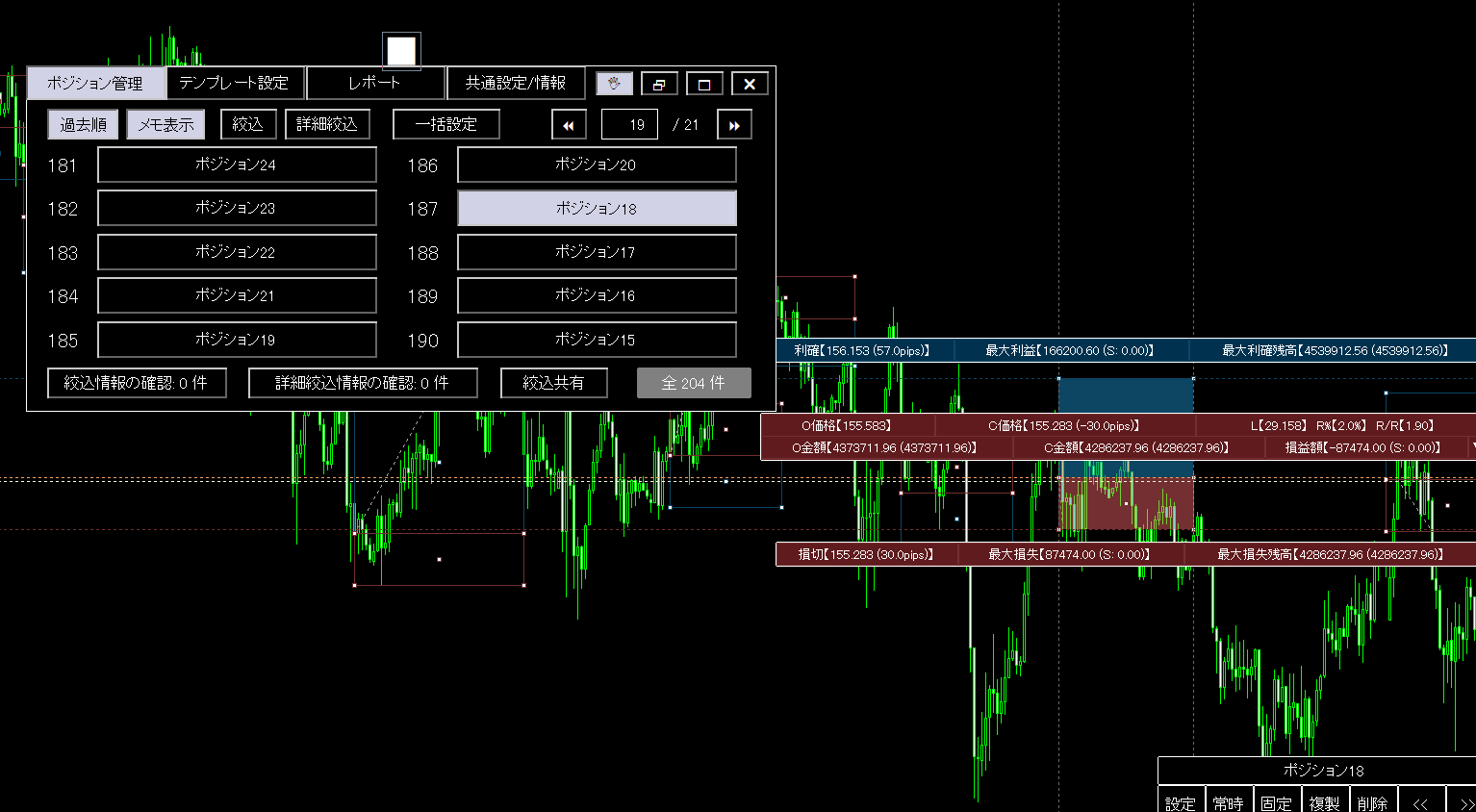
1. Bulk management of placed positions
Positions created on the chart are listed, and from the management screen you can
“Filter the positions to display”
“Bulk change/delete positions”
“Move a position along the time chart”
to manage positions conveniently!
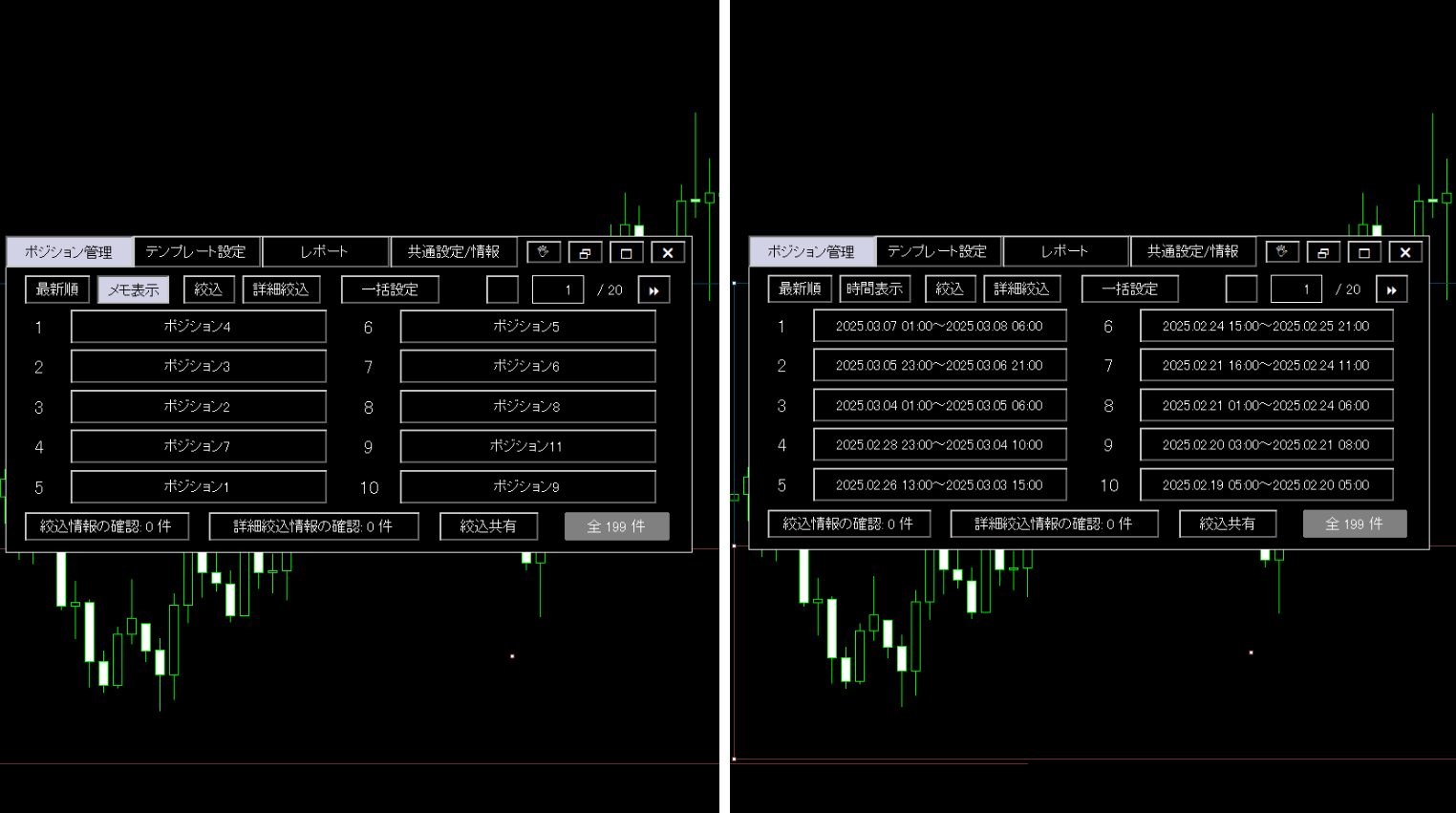
・Sort by preferred display method or order
The position list can display either zone time or memo.
You can switch the sort order from current time to past time as well.
・Easily manage positions with advanced filtering
Filtering can include basic position information, entry status, and even
balance, lot size, spread, and other numeric ranges, time ranges for positions, and position memos.

・Bulk modify multiple positions with specified settings
Even bulk changes/deletions from the position list are easy to perform since you can filter to target only specific positions.
For example…
If you want to change the color of zones for only short positions with unrealized gains,
filter the list by “short positions,” then press the “All ON” button to apply changes to all short positions.
Then enter the desired parameters and complete the action!
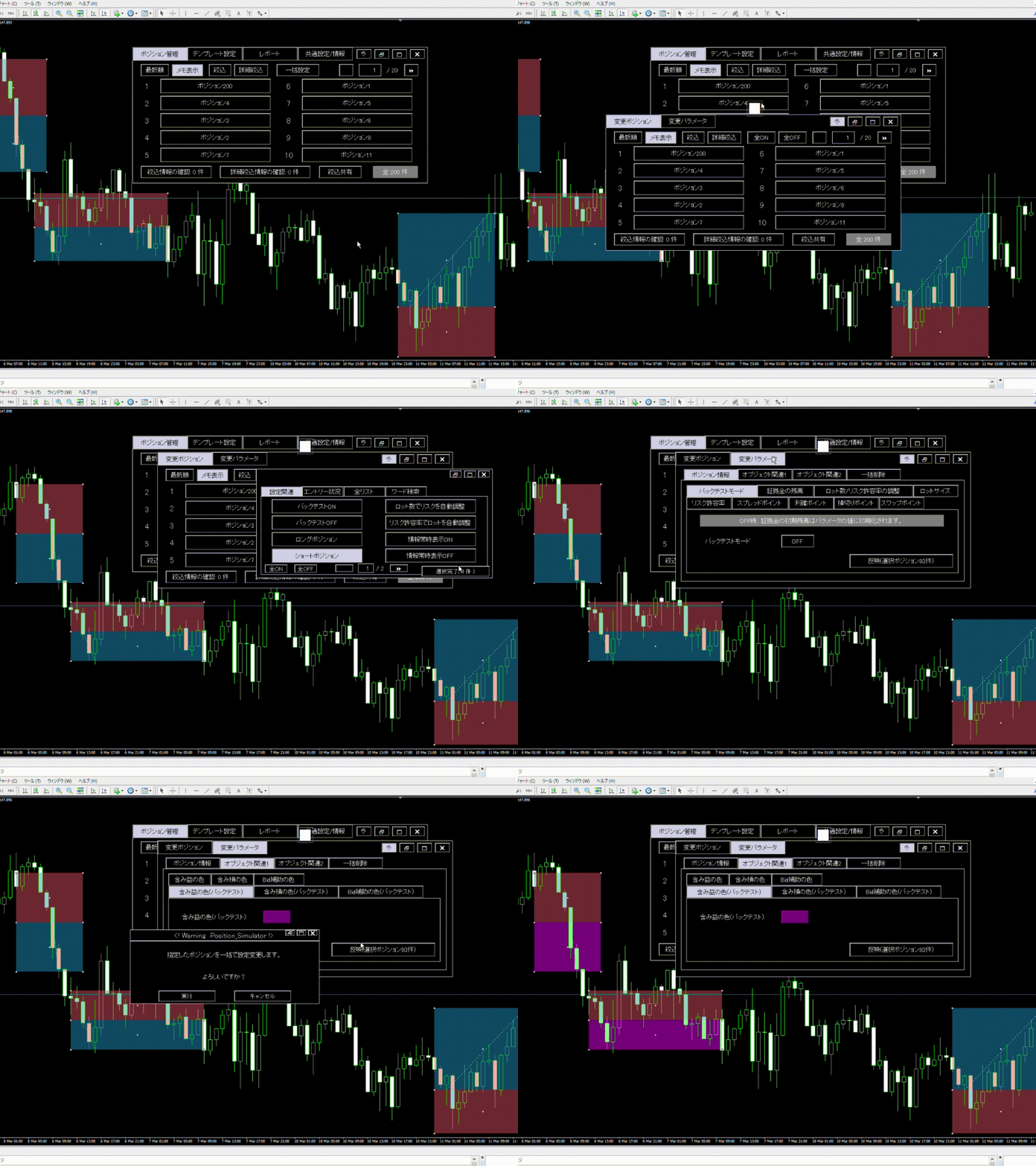
Other possible uses include:
“Change swap points by a desired period”
→ Filter by time range, set all filtered positions to ON, and apply changes at once.
Then bulk-change the swap points.
“Backtest shows poor results for shorts, so review shorts only”
→ Save a template in advance, filter by long positions, and perform bulk deletion.
Then redo backtests, checking the time/day statistics for shorts and overall results.
After verification, load the saved template to restore long positions immediately.
“I want to control position risk tolerance to within 2%”
→ Filter positions with risk tolerance 2.1%–100% and show those with ≥2% tolerance.
Then bulk-set to enable “auto-adjust lot by specified risk tolerance,”
and again bulk-set to change risk tolerance to 2%.
(※ Positions apply either “auto-adjust lot” or “auto-adjust by risk tolerance,” not both.)
If you ever want to revert a changed parameter, simply reload the saved template to restore it.
2. Move any position’s chart time with one click!
When you place a position, you might worry about where it is. But
the management screen positions move instantly to the corresponding chart time when clicked, so you can quickly confirm the position!
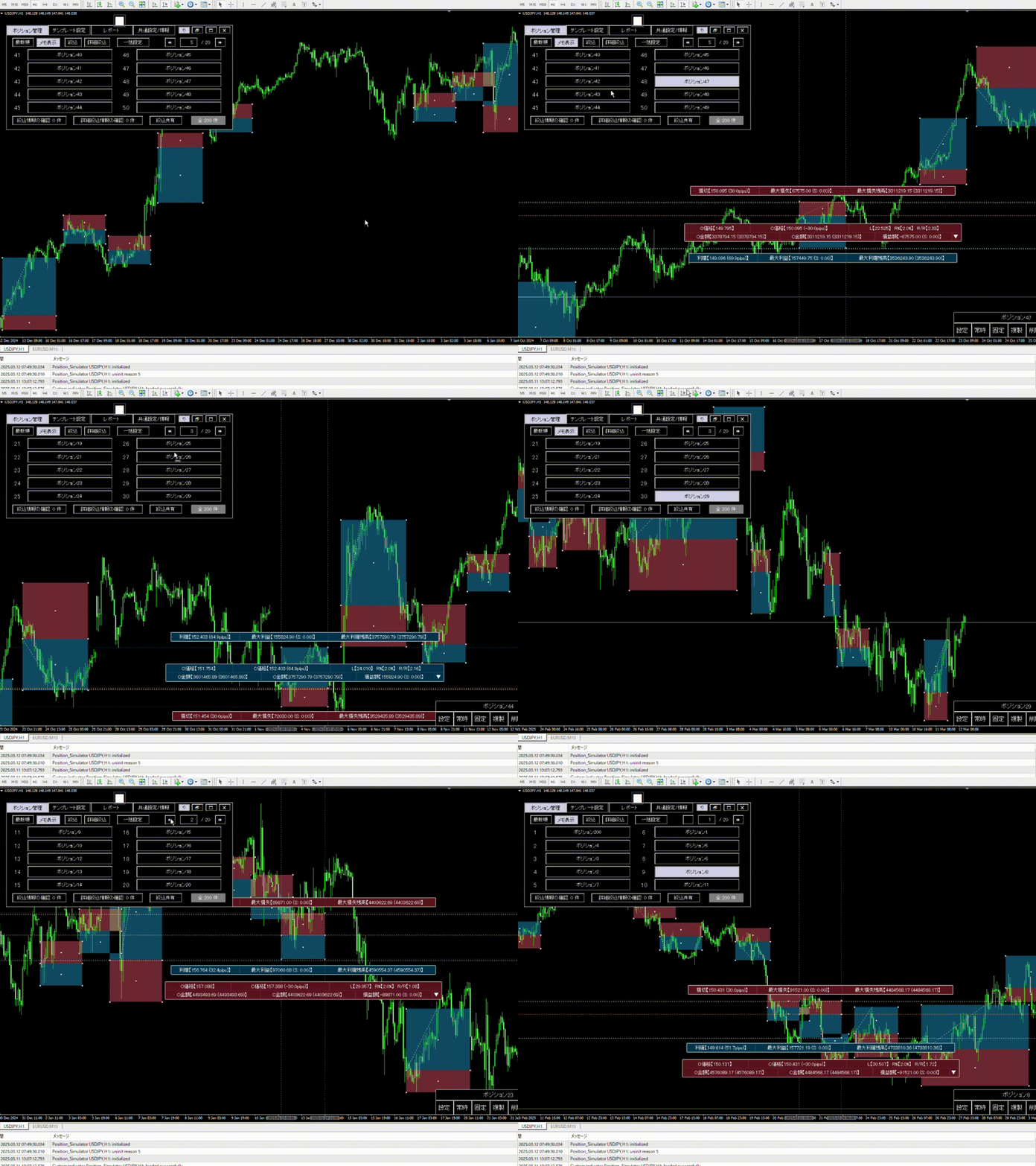
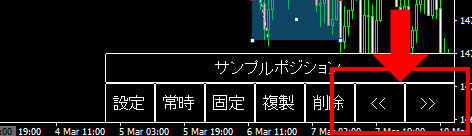
Additionally, when a position becomes active (clicked), a simple menu appears with a button to move to adjacent positions. Please use it.
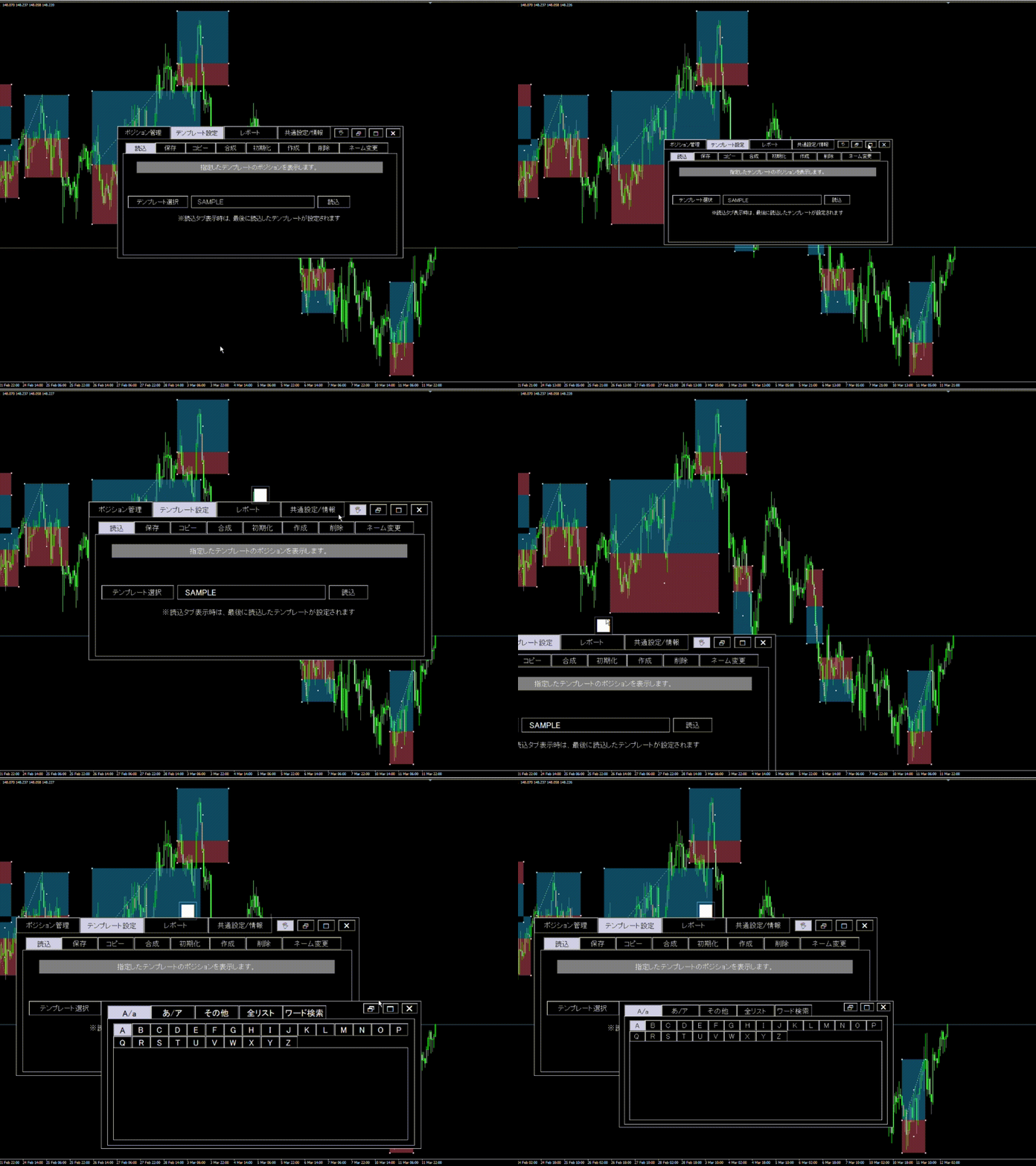
3. The settings panel can be resized and moved!
Position Simulator manages positions, templates, and past testing through panels positioned as objects.
Hence, many panel operations are required, so the panels can be resized and moved within the chart to maximize ease of use.
4. Overlapping positions are easier to view!
In MT4, filled objects of the same color lose color visibility, making it hard to distinguish overlapping positions.
↓ If two long positions overlap, one becomes completely invisible ↓
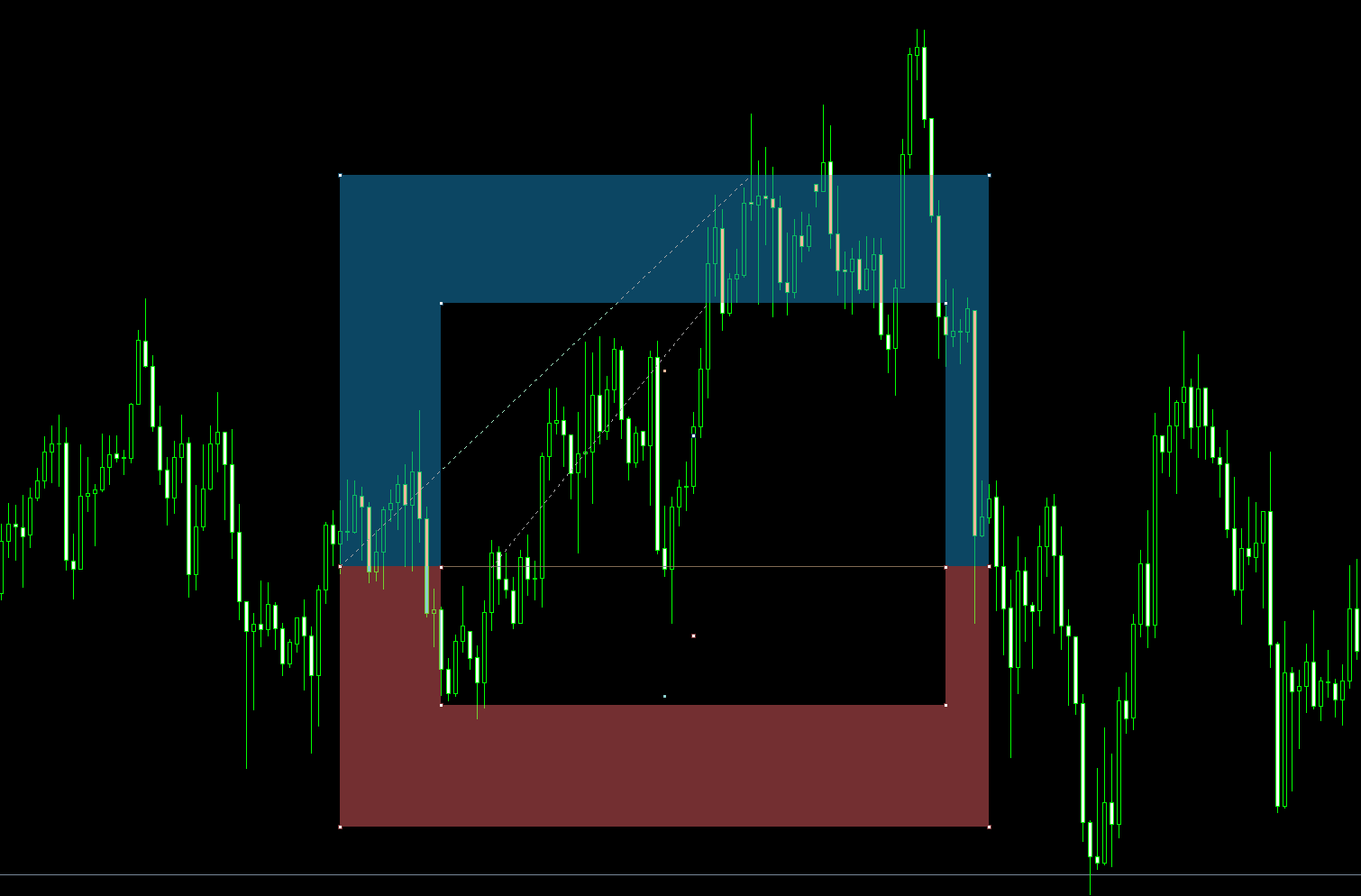
Therefore, non-active positions render without fill, and only when active (clicked) or hovered does the fill appear, making it clear which position you are viewing.
↓ Three long positions overlap, but only the hovered position is filled ↓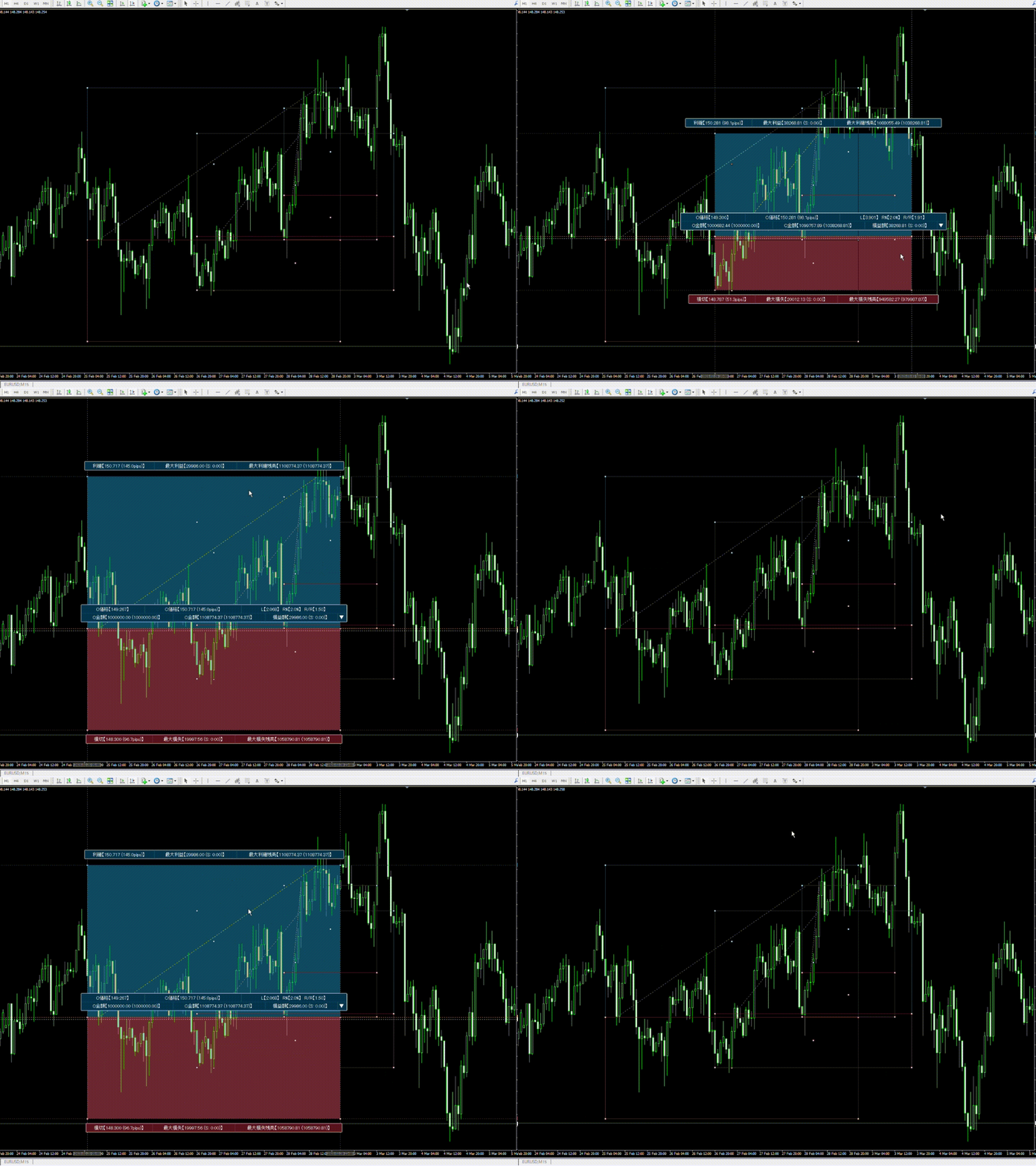
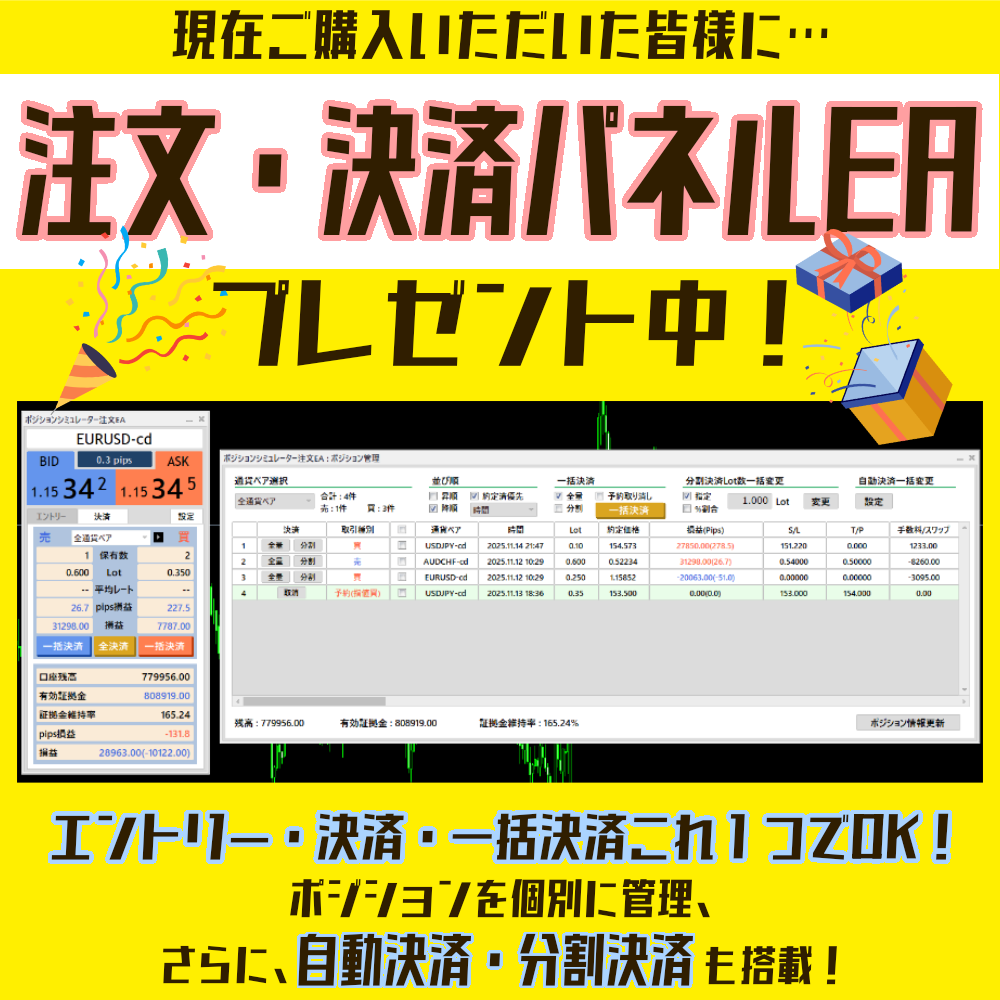
Original high-performance order EA also included!
For all customers who buy Position Simulator now,
an order EA is also included as a gift!
Three types of orders are available: market, limit, and stop orders.
The maximum lot for entry is automatically calculated, and stop levels that prevent entry by the broker can also be set.
If entry is not possible, the order button is dimmed, and the entry price turns red, so usage remains clear and comfortable.
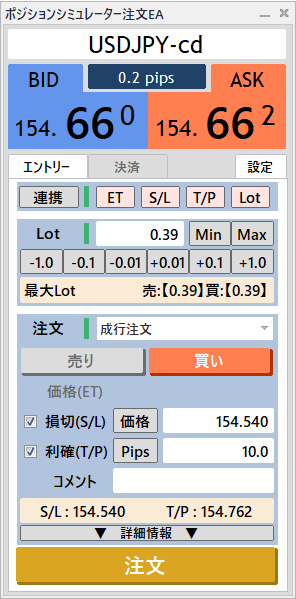
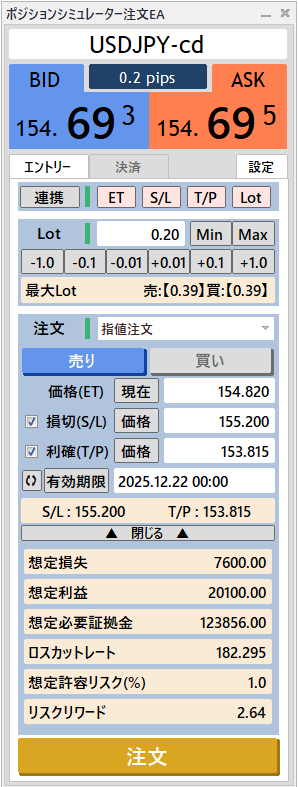
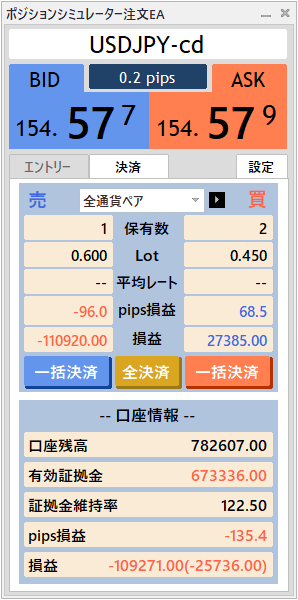
1) Not only entry but also close (bulk close) is fully supported.
This order EA can perform bulk closures by currency pair or close all positions.
You can also check position holdings per currency pair or in total.
MT4 cannot perform bulk closures, which is time-consuming; with this EA, convenient closures are possible.
↓ The “All Currency Pairs” tab shows other currency pairs with positions, and bulk closures can be performed per currency pair as well.
2) Independently review positions and perform split and automatic closures.
Beyond entry and bulk closure, you can set split closures and automatic closures for each position!
This EA includes a position management feature that allows you to check and configure all positions individually. It also provides displays and sorting by currency pairs.
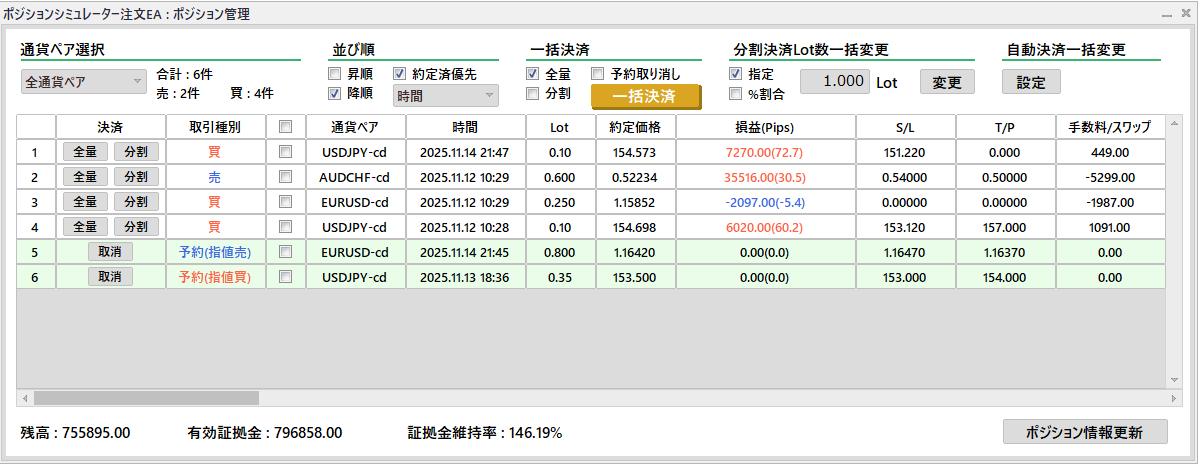
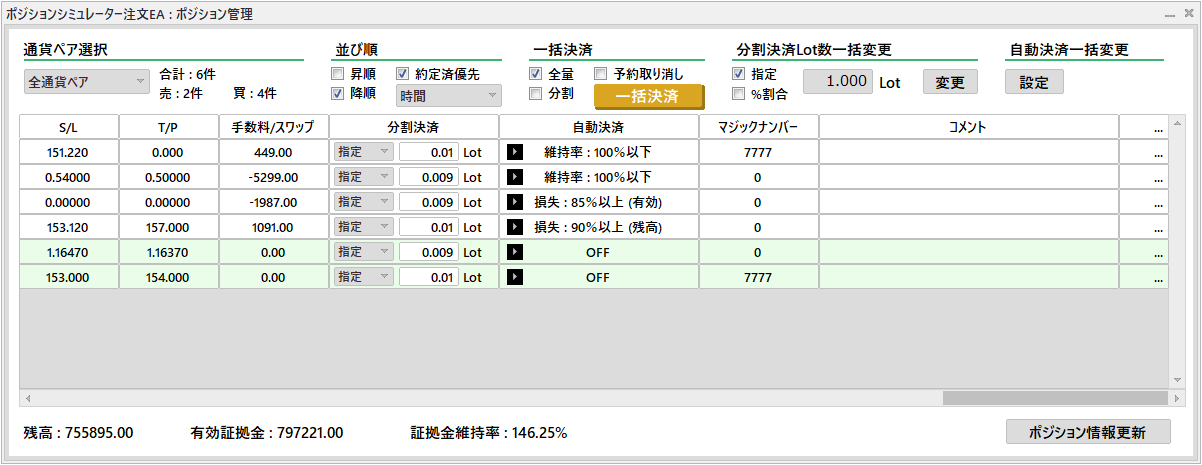
↓ For each position, configure automatic closures. You can change any selected position in bulk.
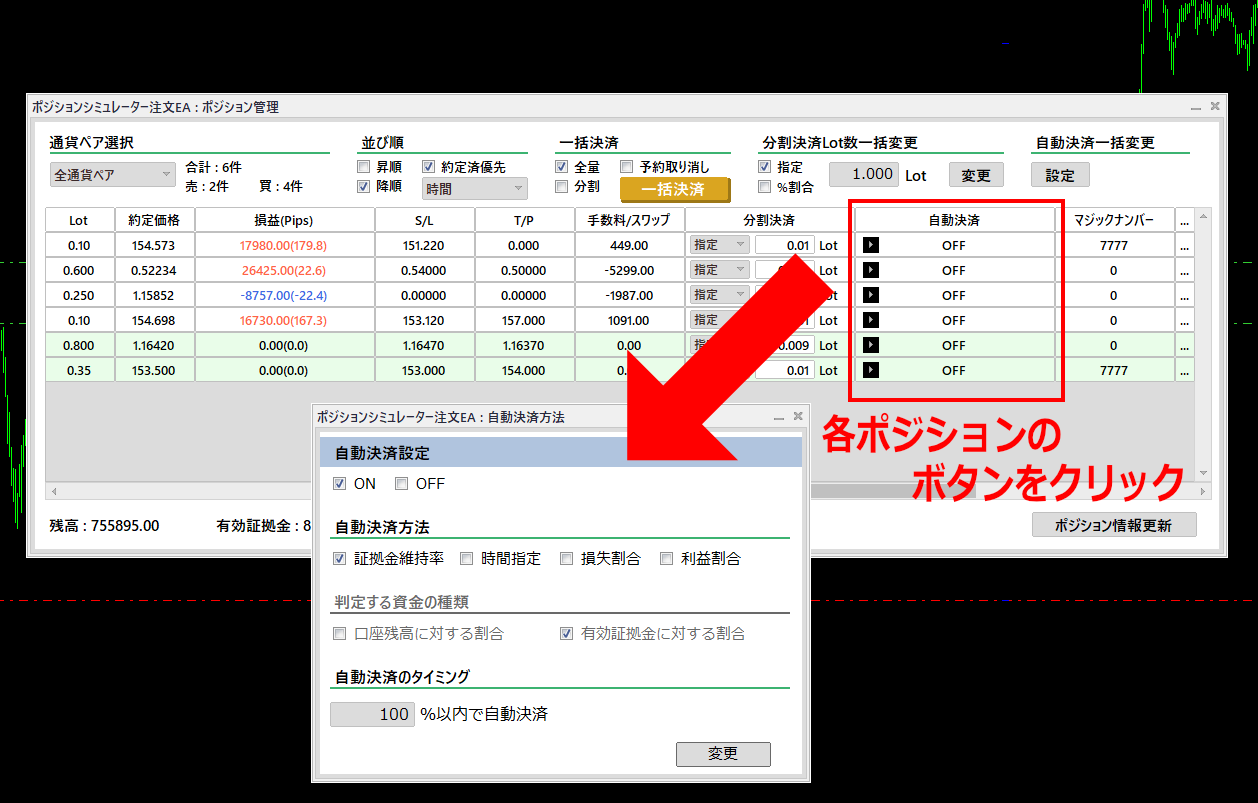
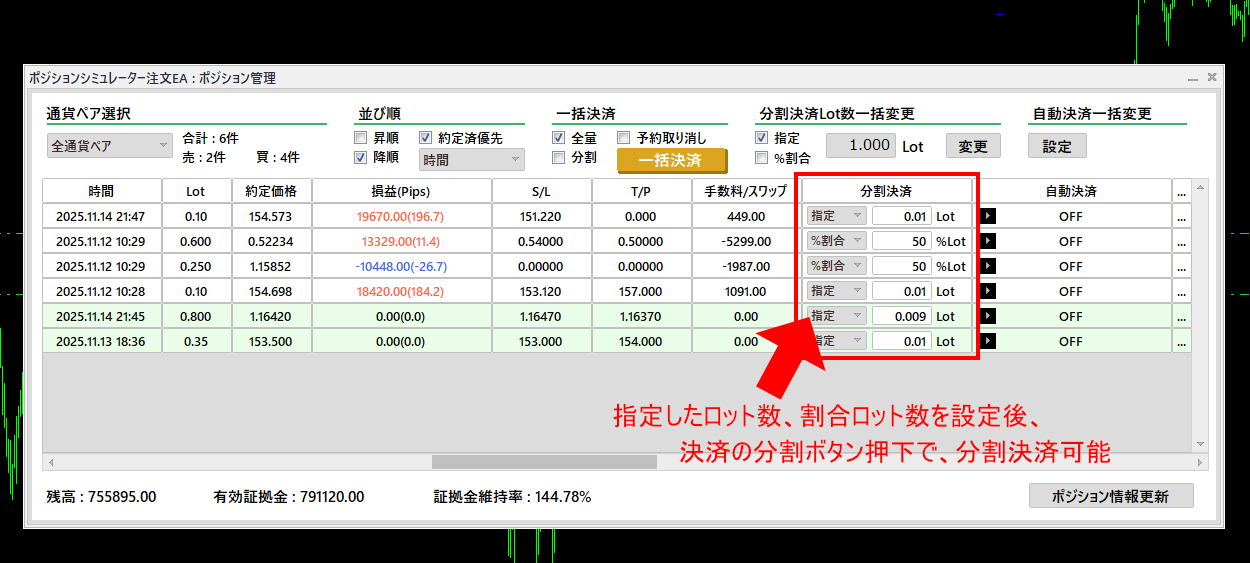
↓ Configure split closures for each position. Once you set the red frame, a single press of the split-closure button completes the split closure.
As with automatic closures, both setting and closure can be executed in bulk.
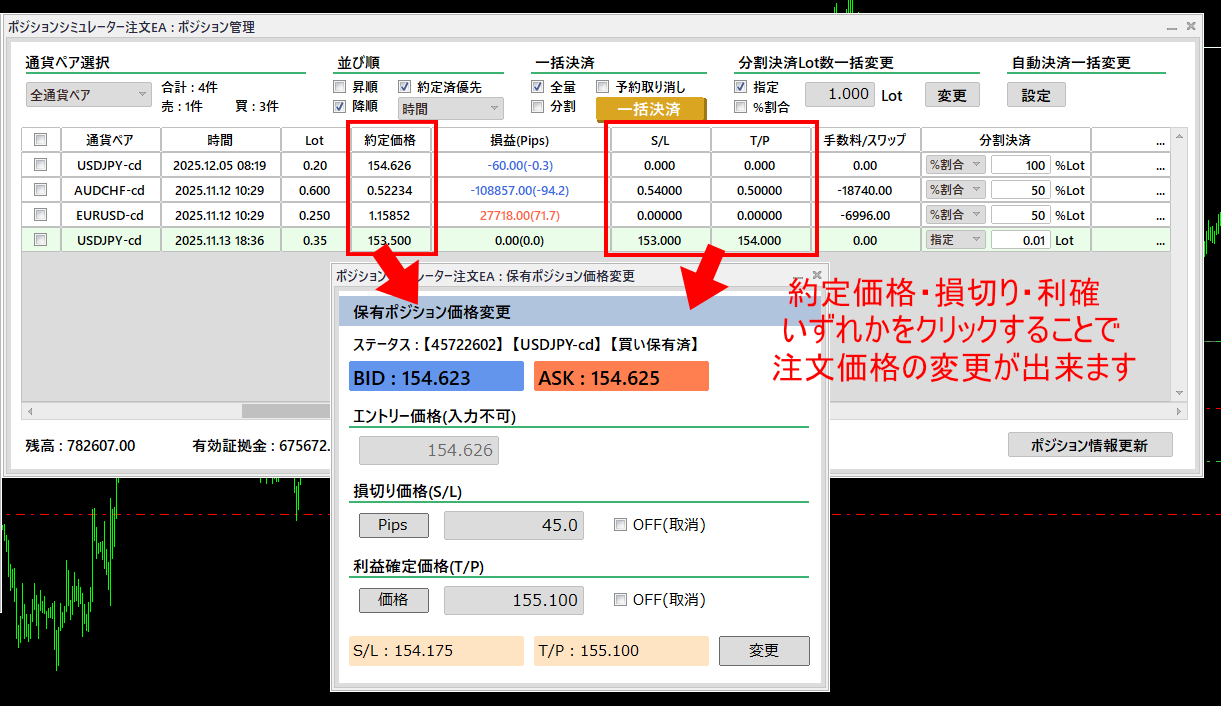
↓ Click the entry or target price for each position to change the price.
3) Effortless entry with automatic lot and price input
Using Position Simulator together, the EA’s lot and entry price are automatically reflected instantly!
Create a dedicated position (linked mode) with Position Simulator, and when you press the linkage button on the order EA, the position’s lot size, entry price, stop loss, and take-profit prices are instantly reflected.
This allows comfortable entry orders without any manual input.
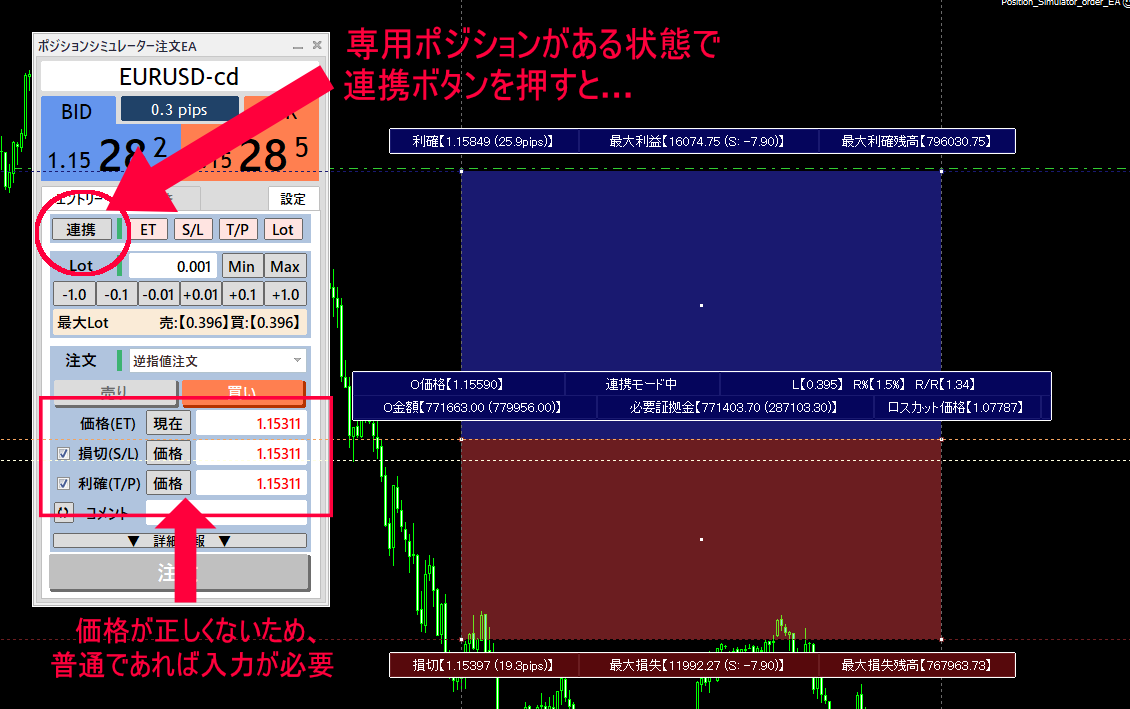
↓↓↓↓↓
After creating a linked-mode position in Position Simulator,
press the linkage button on the order EA, and…
↓↓↓↓↓
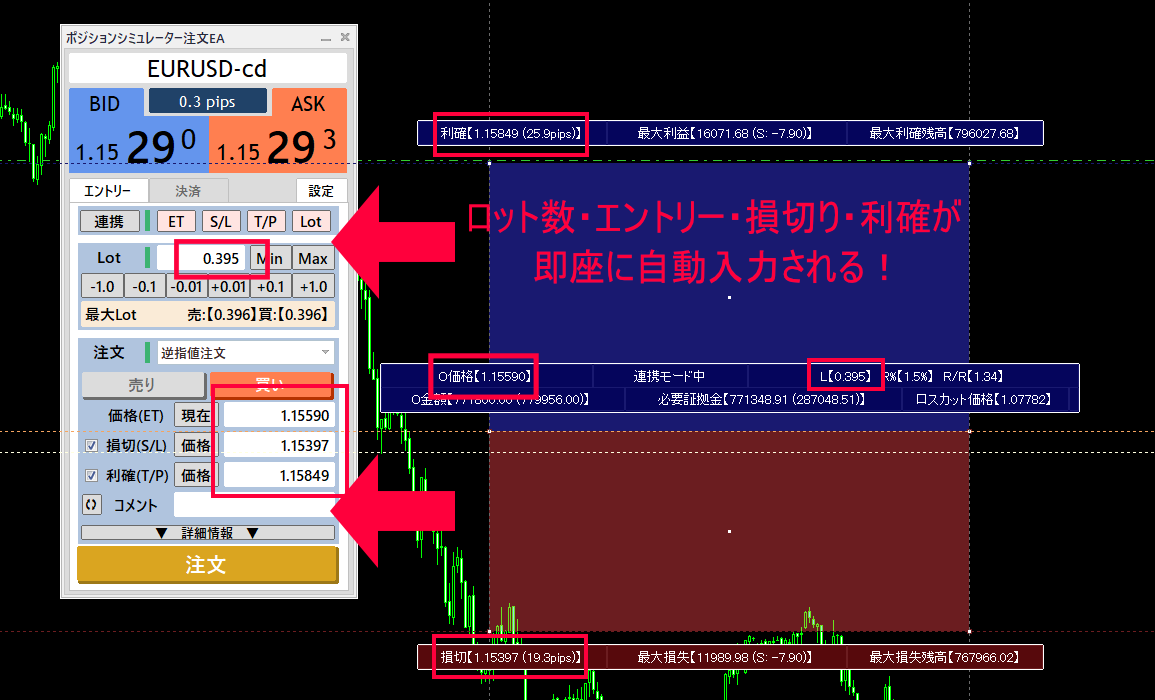
What is a linked-mode position…
In addition to On/Off in backtest mode, you can also create a special position.
This linked-mode position calculates the profit and required margin for the currently held positions, so by using this position you can comfortably perform pre-entry preparations (lot size calculation and projected P/L).
↓ Linked-mode positions are created in a different color by default from the two-backtest modes
In the past, when using MT4 or indicators, if issues occurred such as the following, normal operation might be compromised.Returns of the product are not available, so please be careful when purchasing.
・When using MT4 tools that require mouse操作 or touch panel operation, they may not function properly.
・When using MT4 tools that handle file operations, writing or outputting may fail.
・When using large indicators, they might not run properly (not due to MT4 heaviness, but the indicator’s own size).
Additionally, due to broker specifications, indicators may not function properly. We apologize for the inconvenience and appreciate your understanding.
| Supported currency pairs | All currency pairs |
| Supported timeframes | All timeframes |
| Recommended trading times | All times (0–24 hours) |
| Supported platform | MetaTrader 4 (recommended environment Build.1220 or later) |
| Recommended OS | Windows |
| Content | “Position_Simulator.ex4” “Position_Simulator_order_EA.ex4” “Position_Simulator_backtest_EA.ex4” “Instructions for each tool (PDF)” |
| Returnability | Due to the nature of the product, returns are not available. |
This product includes a web authentication system. Therefore,
if using on multiple accounts simultaneously, you must purchase separately for each account.
Thank you for your understanding.
Are you familiar with the “2% rule”?
The 2% rule means limiting the loss of a single trade to within 2% of your capital to minimize risk.
Although it seems to focus on limiting losses, adjusting position sizes according to current funds is crucial for long-term profits as well as losses.
Strictly following such money-management rules helps prevent emotional trading, reduce risk, and steadily win.
However, isn’t it tedious to recalculate position sizes for each entry from fluctuating margin?
When you’re repeatedly losing and judgment becomes difficult, can you reliably compute position sizes calmly?
Even if you understand it, implementing it consistently is harder than you think.
Position Simulator handles money management with just a mouse, protecting your funds from unnecessary losses in trading.
And as explained earlier, you don’t need to think about the 2% rule at all.
If you continue to invest, you cannot escape money management.
We sincerely hope Position Simulator provides a comfortable environment for your trading life.