

How to use EA-powered automatic SL/TP/trailing stop features and either take-profit or stop-loss orders
Good morning everyone.
The weekend has arrived already.
Time flies like an arrow!
These days I feel that time really goes by fast.
What kind of trading life are you all living?
Titled “[Hybrid FX Trading Style Ajinitchi Video Explanation VOL.4],” we recorded, edited, and uploaded a video explanation.
If you have time, please take a look!
I will write an article detailing this video.
In my 15 years of trading, I’ve often thought, “I wish there were this kind of function.”
“It would be convenient if there were this kind of feature in such situations.”
I’ve had various thoughts about different scenarios for trading helper tools.
I’ve purchased more than 100 commercial EAs, and sometimes used them for free through IB accounts, but I never found an EA or indicator that fully satisfied me.
What I usually think in trading is…
Whether it would be possible to auto-set stop loss, take profit, and trailing stop just by entering on a market order?
In other words, an EA that automatically activates these functions with a single click.
After using more than 100 EAs, I’ve come to the conclusion that EAs cannot beat discretionary trading.
On the contrary, a combination of discretionary trading and an EA for settlements can be the strongest.
Of course, this is based on my personal biased opinion, so others may feel differently.
Because a market order can be entered at the moment you look at the chart, it’s the strongest option when you value speed.
In normal MT4, the four tasks including a market order entry total four steps.
- First, a market order entry.
- Set stop loss from the Terminal tab.
- Set take profit.
- Set trailing stop.
With these four steps, you can safely leave the chart.
Even if you stay attached to the chart, even professionals may need to use the restroom, baths, or meals.
Moreover, for part-time traders who work long hours, there are limits to staying glued to the chart.
Therefore, to manage positions without keeping your eyes on the chart, multiple processes are necessary like these.
However, by simply clicking the button shown below, all four tasks can be reduced to just one — simply enter a market order!
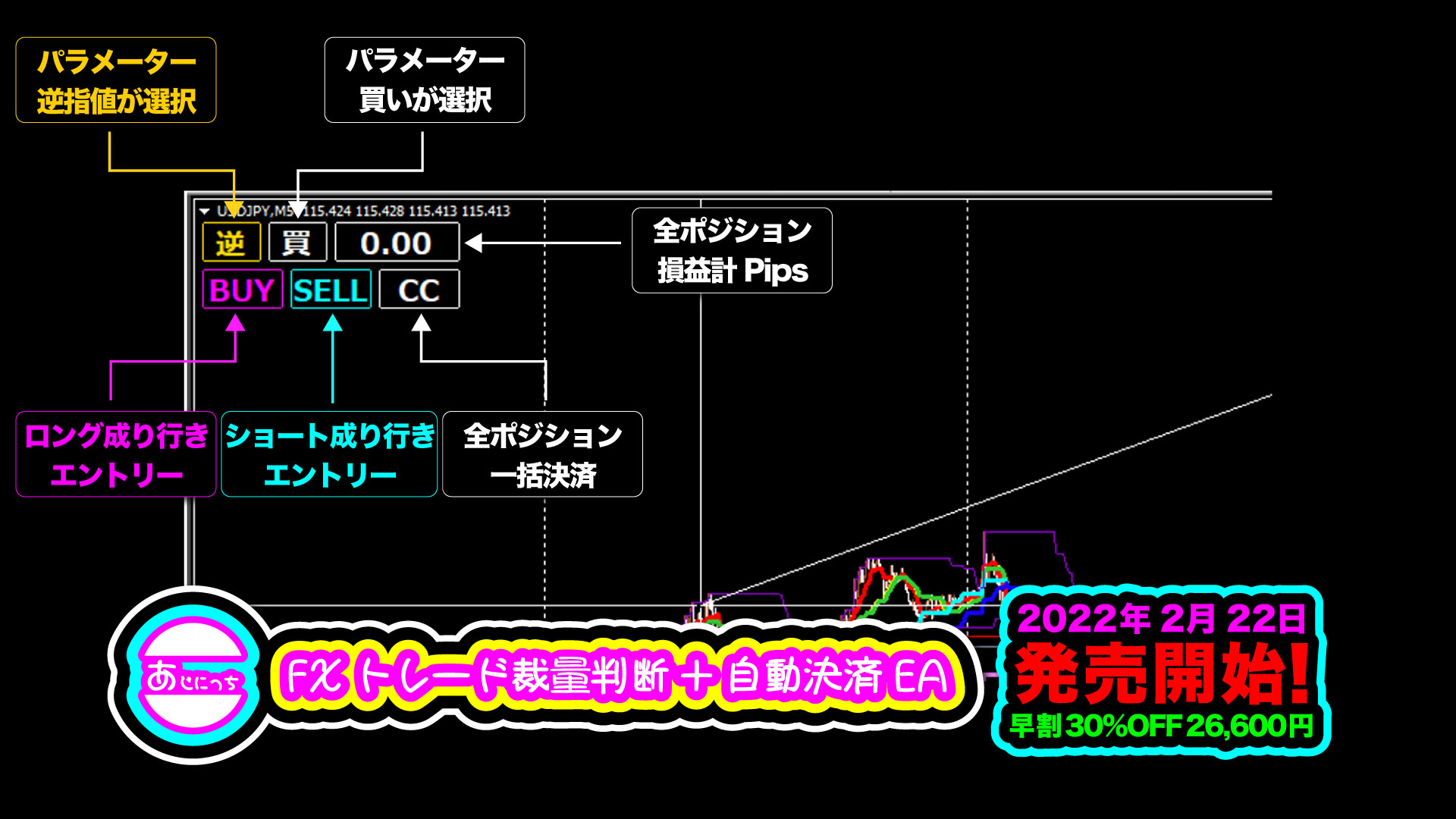
I will explain from the top-left corner.
‘Parameter Inversion Orders’
Meaning: You cannot toggle on the main chart with a button, but you can choose between “limit order” and “stop order” via a parameter.
In this case, you are selecting the “stop order.”
‘Parameter Buy’
Meaning: You cannot toggle on the main chart with a button, but you can choose between “buy” and “sell” via a parameter.
In this case, you are selecting “buy.”
‘Total Position P&L in Pips’
Meaning: The total of all positions (one or multiple) is displayed in pips. This is a handy feature for traders who prefer not to look at monetary profit and loss for a calmer trading mindset.
You can freely choose the color for positives and negatives via parameters.
‘Long Market Entry’
This is a button that can be operated on the main chart.
When you click here, a long position is entered at market price, and simultaneously stop loss, take profit, and trailing stop functions are activated together.
‘Short Market Entry’
This is a button that can be operated on the main chart.
When you click here, a short position is entered at market price, and simultaneously stop loss, take profit, and trailing stop functions are activated together.
‘Close All Positions’
This is a button that can be operated on the main chart.
As the name suggests, all pairs, all held positions, take-profit and stop loss lines, and all orders are reset. The account becomes no-positions.
And the video also explains the parameters.
The parameters will be explained graphically focusing only on their功能 (functionality).
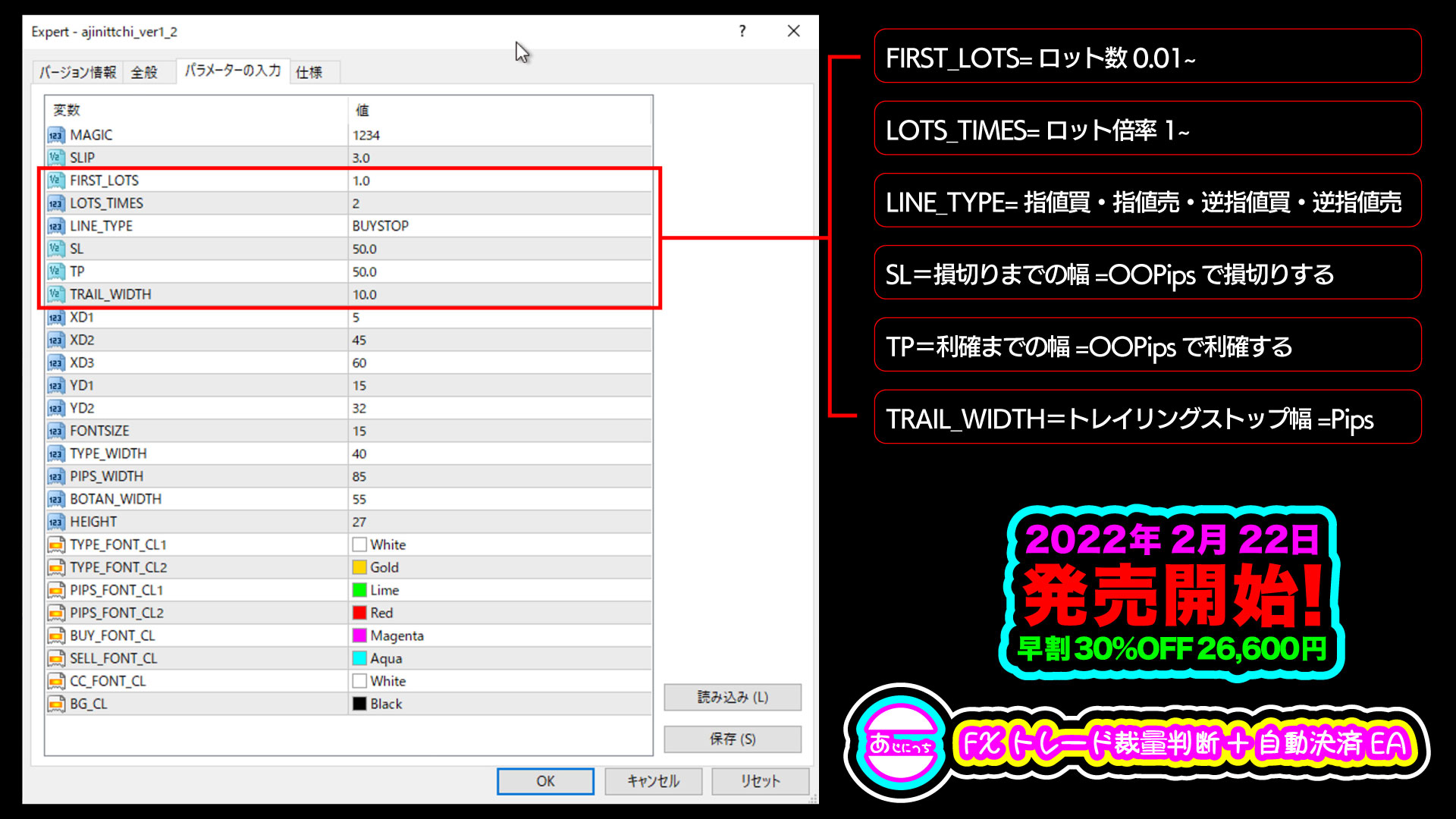
Now, let me explain from the top-right of the diagram.
FIRST_LOTS
The lot size preset on the parameters.
The lot size executed when you click the BUY or SELL button on the main chart to enter at market price will be this value.
LOTS_TIMES
The multiplier for the preset lot size in the parameters.
You can select the lot multiplier for market-entry on the main chart.
If you enter 1, and the initial lot size is set to 0.01, repeatedly entering at market will keep it at 1x, i.e., 0.01 + 0.01 ~
If you enter 2, with an initial lot of 0.01, each click will add 0.01 + 0.02 + 0.04 ~, doubling the lot size each time.
LINE_TYPE
There are four options available in the parameter.
- BUYLIMIT = Buy limit
- SELLLIMIT = Sell limit
- BUYSTOP = Buy stop
- SELLSTOP = Sell stop
SL
By presetting the number of pips to stop loss, the stop loss will be automatically set even for market-entry and line-based trades.
Even just drawing a line with a limit or stop, this value will apply, and moving the line with the mouse will keep the distance from the stop constant.
TP
By presetting the number of pips to take profit, the take-profit value will be automatically set for both market-entry and line trades.
Similarly, drawing lines with limits or stops will apply this value, and moving the lines with the mouse keeps the distance constant.
TRAIL_WIDTH
You can specify the trailing stop distance.
For example, if a long entry moves in your favor and profits reach 10 pips, the trailing stop moves to the break-even point minus the spread.
If profits reach 20 pips, the stop moves down to 10 pips below the high, ensuring about 10 pips of profit even if the market reverses abruptly.
By always placing the stop a certain number of pips below (or above) the new high, the EA will fully automatically trail the value when you enter at market or draw lines for entry on the main chart.
This trailing stop feature is very convenient to avoid missing small profits.
However, the manual setting on MT4 after entry is tedious, so making it fully automatic with an EA significantly improved efficiency.
The diagram below shows that by clicking the built-in MT4 function “Create Horizontal Line,” the preset parameters for limit buy, limit sell, stop buy, and stop sell are executed automatically.
Once an entry is executed, the stop loss, take profit, and trailing stop are managed completely automatically by the EA.
Well, that’s all for today.
Thank you very much for reading to the end.
Ajinitchi YouTube channel
Blog
↓ For the latest information on “Ajinitchi” from here!