

EA Manual: Produced after 2025 / For TNK
Introduction
We will explain the common parts of the EA we provide, including how to use it and parameters.
Versions produced from 2025 onward apply.
Depending on the EA’s specifications and source, there may be parameters that are not available, not used, or hidden. Also, wording may differ slightly depending on the version.
This article will be the latest update compared to the PDF manual provided at purchase (if available).
The explanations and images used below are for MT5; MT4 versions are the same. Any differences will be noted.
EA Setup Method
If you drag and drop the EA onto a chart of any FX currency pair, the chart will automatically switch to the EA’s currency pair and time frame.
(Automatic Chart Setup Feature)
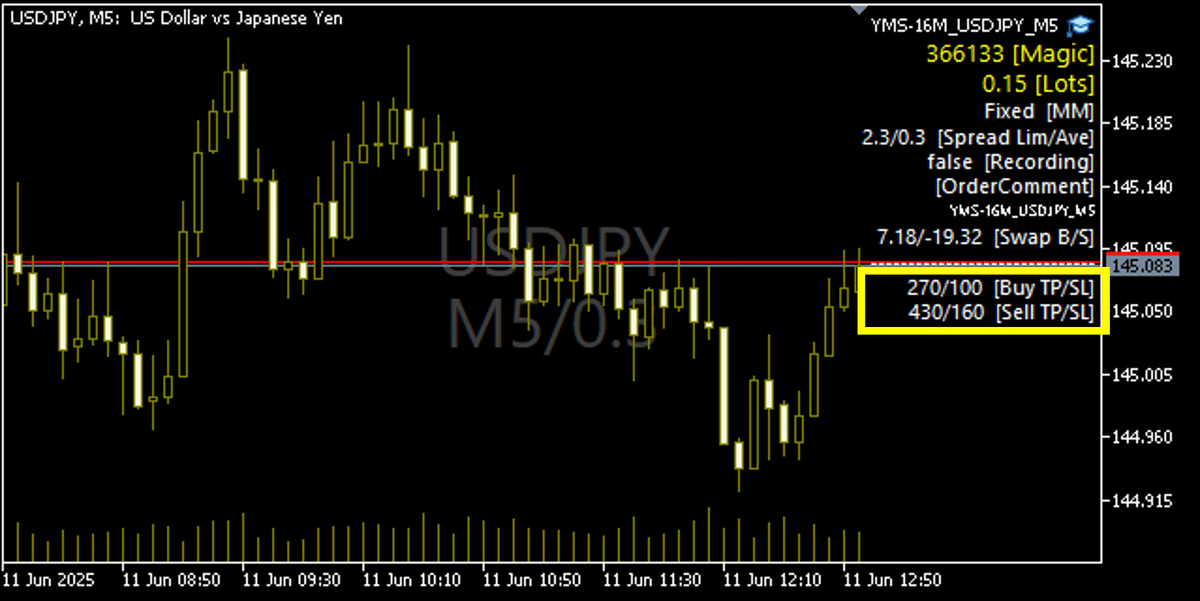
When that happens, the candlestick colors change, and in the center you’ll see the symbol, time frame, and spread, with parameter settings displayed on the right side.
Other than that, it’s the same as the usual EA setup method.
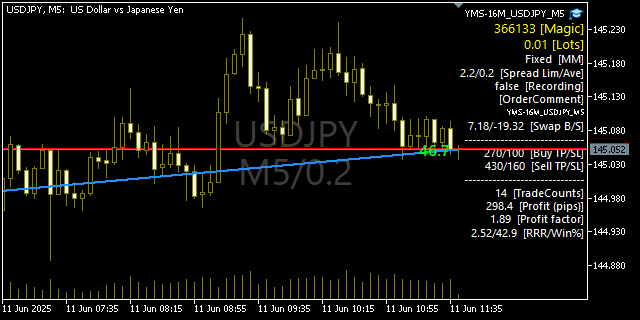
Various parameter settings and other values are displayed at the top right.
The Lot size “Lots” shows the risk percentage inside parentheses only when compounding is enabled.
In addition, details of the parameters will be described later.
Simple Specifications Description
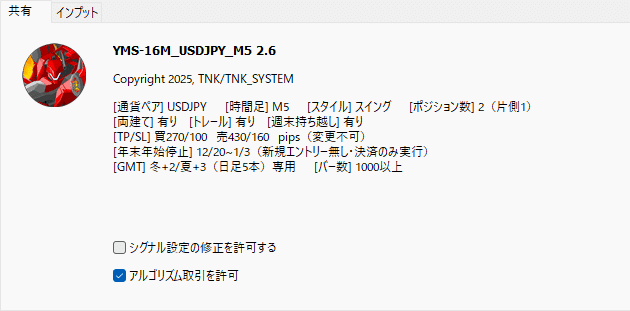
You can check simple specifications here.
Note: In MT4, see the “Version Information” tab
This area can be prone to human error during production, so please use it for simple verification only and do not rely on it completely.
Please set the number of bars higher than stated.
Parameter Examples
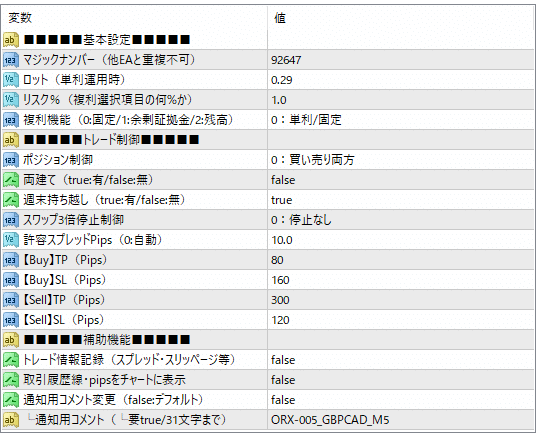
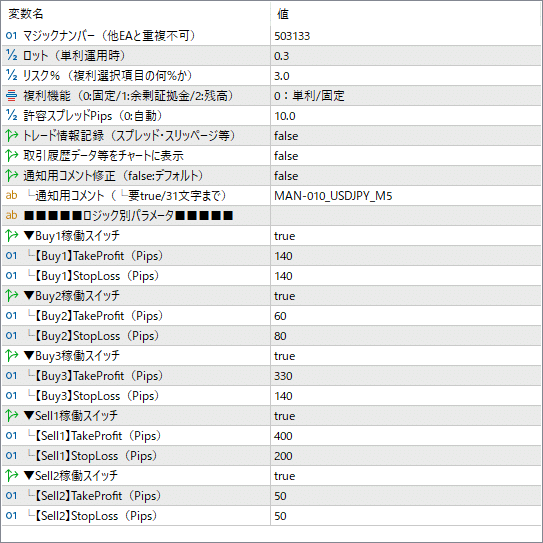
Parameters & Chart Comment
Note: Items shown within 【 】 appear in the chart comments.
1. Basic Settings
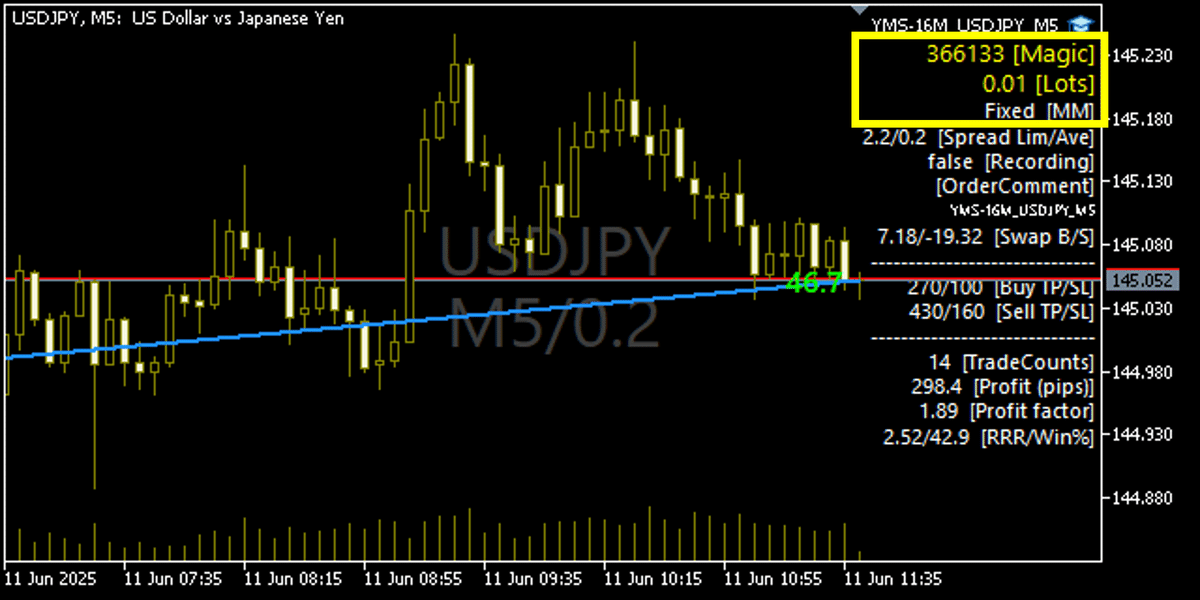

- Magic Number【Magic】
EA identification number. Set a different value for each logic. If it duplicates with another EA, erroneous behavior may occur. - Lots【Lots】
Lot size for simple interest operation. The default is not a recommended value. - Risk%【—%】
Risk setting for compounding operation.
This is the maximum loss percentage for drawdown selected in the compounding feature settings.
・Formula: | Free margin (or balance) × Risk% ÷ (SL value × Yen conversion) = Compounding Lot
・Example: Settings “Free Margin”: 1,000,000; SL 230; Risk 10%; Result ≒ 0.43 Lots
・Calculation Example: 1,000,000 [Free Margin] × 0.1 [Risk 10%] ÷ (230 [SL value] × 1000 [yen conversion]) ≒ 0.43 [Lot] - Compounding Function【MM】
Money management feature. You can choose from three options.
・0: Simple/Fixed
If you are operating with a fixed lot, select this “Simple” option.
・1–2: Compounding
From the options “1: Free Margin” / “2: Balance”, select the item to set the maximum loss percentage and calculate the lot accordingly.
Note: In backtests for each compounding, values are read as rough estimates, so the lot calculation may differ from actual operation.
- Magic Number【Magic】
2. Filters & Trade Control
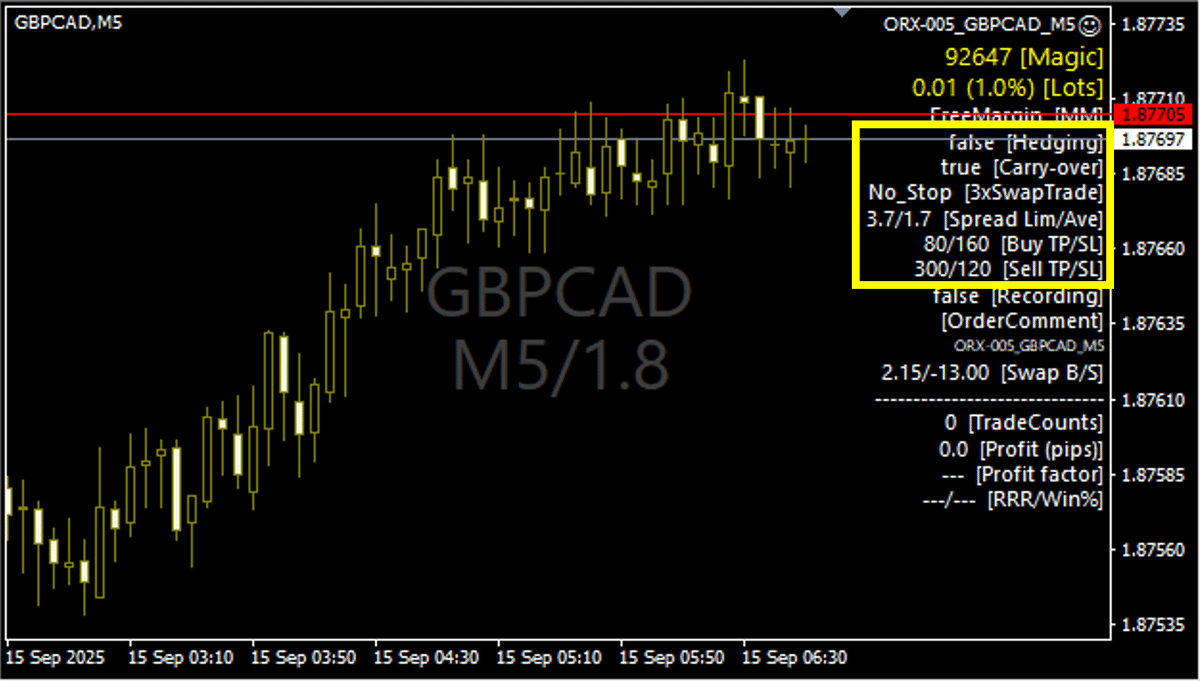
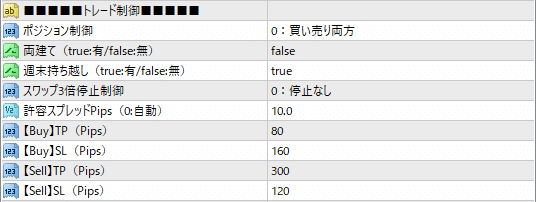
- Position Control【Buy TP/SL : Sell TP/SL】
Control for buy, sell, or both, parameterized from the standard MT4 controls. It becomes switchable even for MT5 where it is not standard.
If no trades are made, the TP/SL fields are grayed out. - Hedging
Default hedging specifications vary by EA.
If a broker prohibits hedging, you can switch to accommodate it. - Carry-over (Weekend Holding)
Default behavior varies by EA.
“true” = carry over enabled, “false” = carry over disabled. - One-day Carry-over
“true” means carry over enabled, “false” means carry over disabled. - Triple Swap Stop Control【3xSwapTrade】
Automatically detects three-times-a-week swap days internally and avoids entries around the right before each day. Timing of avoidance depends on the EA. - Acceptable Spread Pips【Spread Lim/Ave】
Spread allowed for trading.
Displayed on the left side (Lim). If set to “0”, it automatically links to the internal average (Ave) of the measured spread and sets accordingly (details later). - TP/SL Pips【Buy TP/SL Sell TP/SL】
If you can change TP and SL values, they will be shown in the parameter fields and can be modified. Input is generally in Pips (1 pip = 10 points).
- Position Control【Buy TP/SL : Sell TP/SL】
3. Auxiliary Features
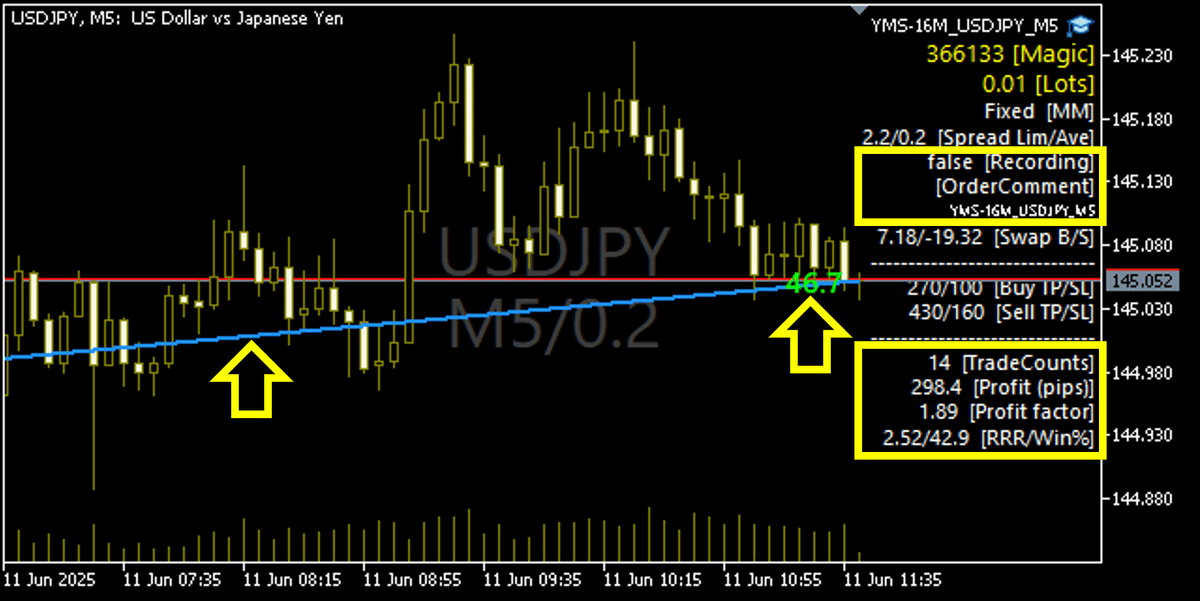

- Trade Information Recording【Recording】
Calculates and outputs to csv each entry, close, TP/SL, and order failure, including spreads, slippage, latency, etc. (details later) - Display of Trade History Line & Pips on Chart【Added beneath Comments】
Shows the trade history line and gained pips from entry to close on the chart using MT4’s trade history. It can also run during backtests.
Note: In backtests, pips display may be unavailable for some EAs.
If you leave this on (“true”) while operating, MT4 may slow down. It is recommended to keep it off (“false”) except when viewing. - Notification Comment Modification【OrderComment】
If this is “false”, internal default strings are used. If set to “true”, the strings configured in the following 4 parameters are used.
Note: While running, the comment can sometimes disappear.
If that happens, it may affect trading, so this staged configuration was implemented. - Notification Comment【OrderComment】
If you set 3 to “true”, this comment is reflected and shown in the chart comments.
If it exceeds 31 characters, it will be automatically truncated from the end.Note: Some brokers may have a maximum character limit other than 31.
- Trade Information Recording【Recording】
4. Buy/Sell & Logic-Specific Parameters

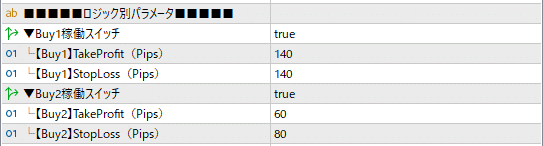
- Operation Switch
Active: true / Inactive: false - TakeProfit
You can change the maximum TP. Depending on the EA, it may vary according to the situation.
Maximum SL. Depending on the EA, it may vary according to the situation.
This value is used in compounding calculations. If multiple SLs exist per logic, the maximum value of the active logic is used for calculation.
- Operation Switch
Chart Display
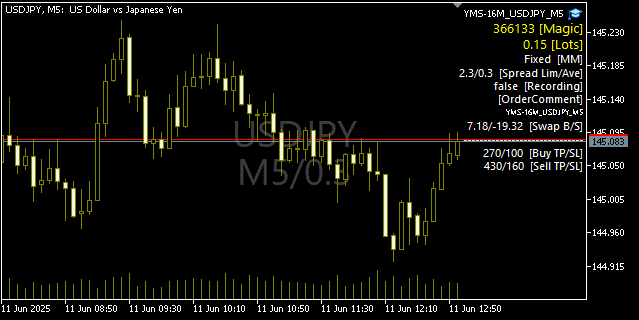
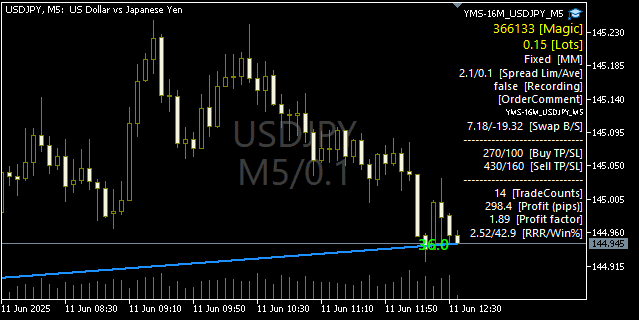
The chart display may switch among the following three patterns depending on the situation.
If you set the trade history line parameters to “true”, more display items will appear.
If for some reason it becomes inactive, the display will darken except for the magic number and lot.
Normal Operation
Normal Operation + Trade History Lines & Pips on Chart set to “true”
Inactive
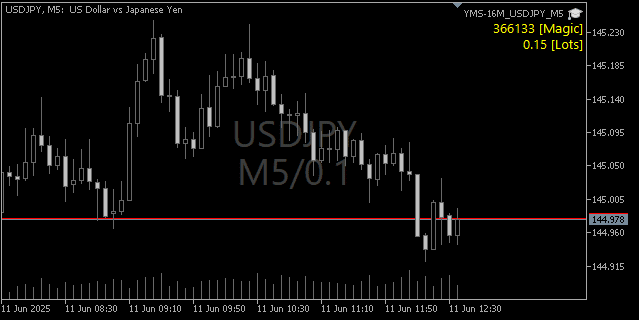
In addition, if the EA set is detached due to platform updates, the comments may remain and the EA name on the top right may appear blank.
Be careful not to mistake this for normal operation when interpreting the chart as active.
Chart Comments Supplement
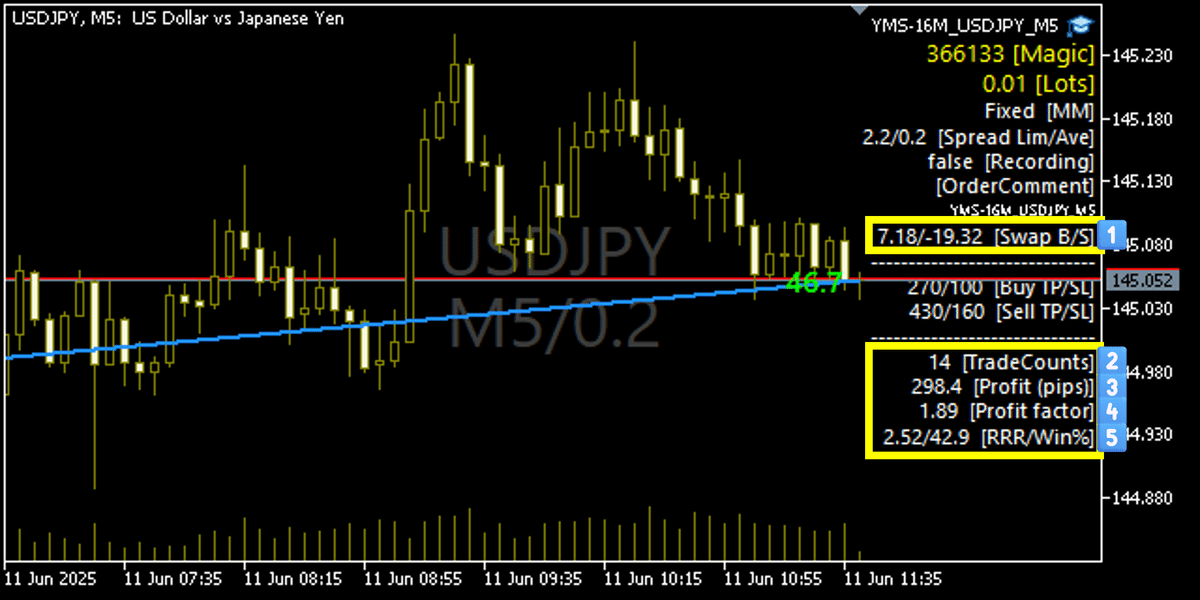
In addition to parameter items, the following items are displayed.
Items 2–5 are displayed when trade history lines are set to “true.” These are limited by the trade history stored in MT4/MT5.
- Swap【Swap B/S】
- Trade Counts
- Profit in Pips
- Profit Factor
- Risk-Reward Ratio / Win Rate
Built-in Auxiliary Features
We incorporate various auxiliary features to prevent human error.
- Auto Chart Setup
Dragging and dropping the EA onto a currency chart automatically switches the chart and, once set, the colors change.
For some brokers or accounts with symbol names like “GOLDmicro”, it may not work perfectly; in that case, please set manually. - Chart Comments
Layout of parameter info on the chart’s right side for easy viewing, with important items like “Magic Number” and “Lot” highlighted in color and larger text to prevent mistakes. - Chart Changes When Status Error Occurs
If trading is not possible, the chart screen darkens except for “Magic Number” and “Lot.” - Central Chart Information
Top row shows the symbol, bottom left shows the time frame, and the right shows the current spread in pips. - Duplicate Magic Number Alert
Only for MT4/MT5 on the same PC, if a duplicate seems to exist, an alert screen will appear.
Note: If you shut down the PC without properly closing MT4/MT5, the end-of-session event may not be processed, causing a duplicate alert.
There may be other unexpected alerts. If duplication is not an issue, you can ignore them and continue. - GMT0 Operation Prohibition Control
Controls to stop operation for GMT0 brokers (Exness, Ava Trade).
Other GMT0 brokers are not controlled.
In principle, our EA operates only on GMT+2/+3 (daily 5 candles). - Automatic Daylight Saving Time Control
Automatically detects summer time by broker. When setting, the Expert tab will display:
“No summertime”
“American summertime”
“European (UK) summertime”
and content accordingly.
This control is determined using brokers we know; for other brokers, judgments may differ.
If you see a different display for your broker, please let us know. - Notification Comment Disappearance Alert
If the notification comment disappears, an alert will appear on MT4 and a notification will be sent to the mobile app. The chart comment’s notification portion will turn red. - Trade Line, Pips Display & Simple Totals
Visually displays the trade history on the chart.
From entry to exit, it shows the trade line and earned pips, with a simple total shown in the right-side chart comments. - Auto Spread
Details described later - Trade Information Recording (CSV Output)
Details described later
- Auto Chart Setup
Auto Spread Feature
If you set the parameter to “0”, the average spread is automatically calculated, and the internal spread filter value is set by adding a few pips to that average.
This eliminates the need to manually check the measured spread each time you set it.
The following are the specifications. Depending on the EA, the value added to the average may vary.
- If you set the parameter to “0”, it uses the internally measured average as the baseline.
- Manual setting, by entering a value other than 0, fixes that value.
- To prepare for early-morning sharp movements, the maximum value is internally capped at 8.0 pips.
- For early-morning logic handling, spreads may be set higher than 8.0 as needed.
- Right after installation, the average may not be stable, or early-morning not measured, leading to inappropriate values.
- Reloading MT5 or monthly data resets the accumulated data.
- Auto Spread does not function in backtests.
- If the chart stops updating, it will not refresh.
Trade Information Recording (CSV Output) Feature
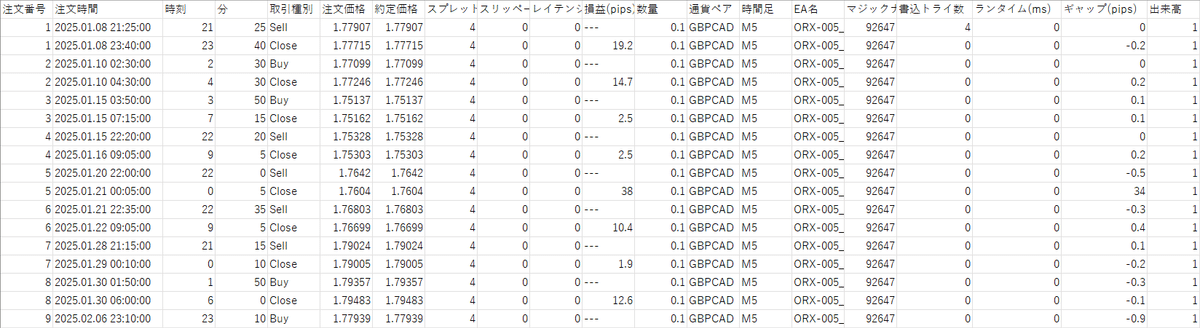
Please switch on/off from the parameters.
【Storage Location】
“MQL4/MQL5” → “Files”
【Filename】
MT4: BrokerName_AccountNumber_TradeLog.csv
MT5: EAName_AccountNumber_TradeLog.csv
Note: In MT4, different EAs can be recorded in the same MT4 file. In MT5, a separate file is created per EA by design.
【Fields】
Order Number / Order Time / Hour / Minute / Trade Type / Order Price / Execution Price / Spread / Slippage / Latency / Profit (pips) / Quantity / Currency Pair / Timeframe / EA Name / Magic Number / Write Trials / Run Time (ms) / Gap (pips) / Volume
Note: In the trade type, buy / sell / Close / TP / SL are measured separately.
Note: The “Write Trials” and beyond are for troubleshooting on our side. If issues arise, this value may be consulted.
Note: TP/SL may be double-counted in some cases.
Standard Built-in Logic & Technology
- No New Entries at Server Time 0:00
During times of spread widening and instability around 0:00, entries are not made, but settlements proceed. - Settlement Spread Filter
To prevent settlements from being difficult when spreads are wide in the morning, a spread filter is applied for settlements. However, if the SL is reached, it cannot be controlled and becomes ineffective. - Gap Filter
Entries are prohibited when the difference between the previous bar's close and the current price exceeds a set threshold. Most are internally adjusted to 10 pips.
As our EA often judges by the previous bar’s closing price, a price difference at the execution price can be disadvantageous.
This helps suppress price gaps and prevents execution problems. If a larger gap occurs when this is installed, it may indicate irregularities.
Note: This is not implemented in older versions. - Year-end/New Year Control
Around December 20th to early January 3rd (varies by EA), new entries are halted and only settlements occur.
If you want to settle positions quickly during this period, do it manually. - Margin Shortage & Trade Permission Check
Prevents orders when margin is insufficient or trading is not permitted on MT4/5. This avoids wasted communications to the server due to order errors. - All-around Monitoring
An environment-recognition system with broad applicability, to trade selectively in unfavorable conditions. This helps reduce losses in scenarios like the 2025 Trump era compared to our previous versions.
Availability depends on the EA. This environment recognition mainly references daily charts. - AMPAC (Anti Miss Positioning Auto Control)
A MT4 proprietary development to improve fill rate.
In MT4, orders can be skipped due to delayed rate updates or processing congestion. This compensates with repeated orders and lightweight processing to improve fill rate. - Magnet Coding
A proprietary MT4 coding technique to ensure correct operation in real trading.
MT4 can behave differently from coding due to platform characteristics. Even if backtests work correctly, filters may not perform identically in real trading.
This is addressed by our coding approach. Even with this, occasional discrepancies may remain, but the gap between backtest and real trading has narrowed since pre-2024 versions.
- No New Entries at Server Time 0:00
Other Notes
- GMT
Because the EA relies heavily on daily candles, it can operate only with brokers that use GMT+2/+3 for daily 5 candles during winter/summer time.
Other GMT setups will yield six daily candles and differ in calculations for daily and 4-hour charts, making operation invalid. - Weekend Setup
If the weekend chart isn’t moving and chart comments don’t appear after MT5 EA setup, press OK again in the parameter screen to display them.
- GMT
Caveats & Disclaimers
- Each function may be unavailable or described differently depending on version or specifications.
- Auxiliary features and chart comments are supplementary and may not function perfectly.
- We strive for reliability, but issues may still be found. Please let us know if you encounter any problems.
Acknowledgments
The technologies involved in the parameter set and human-error prevention are not the work of a single person; they rely on the technical cooperation and advice of many colleagues.
We would like to express our sincere gratitude to everyone who offered advice and cooperation.