
One-Click FX Series Basic Setup
One-Click FX SeriesBasic setup instructions.
Prerequisites
One-Click FX SeriesPreparations before installing.
■Installing MT4/MT5
It does not matter where you obtain MT4/MT5 from, please install the MT4/MT5 you prefer. It is designed to operate generally, so it should work on MT4/MT5 from any broker.
We have reports of it working in VPN environments, Windows Server, Windows as a guest OS, etc.
Moreover, if you plan to use “One-Click FX Training MAX” intensively, to avoid affecting online trading, we recommend using a demo account separate from your real trading account.
Also, please consider using separate demo and live accounts as appropriate, or separating MT4/MT5 itself according to your use case.
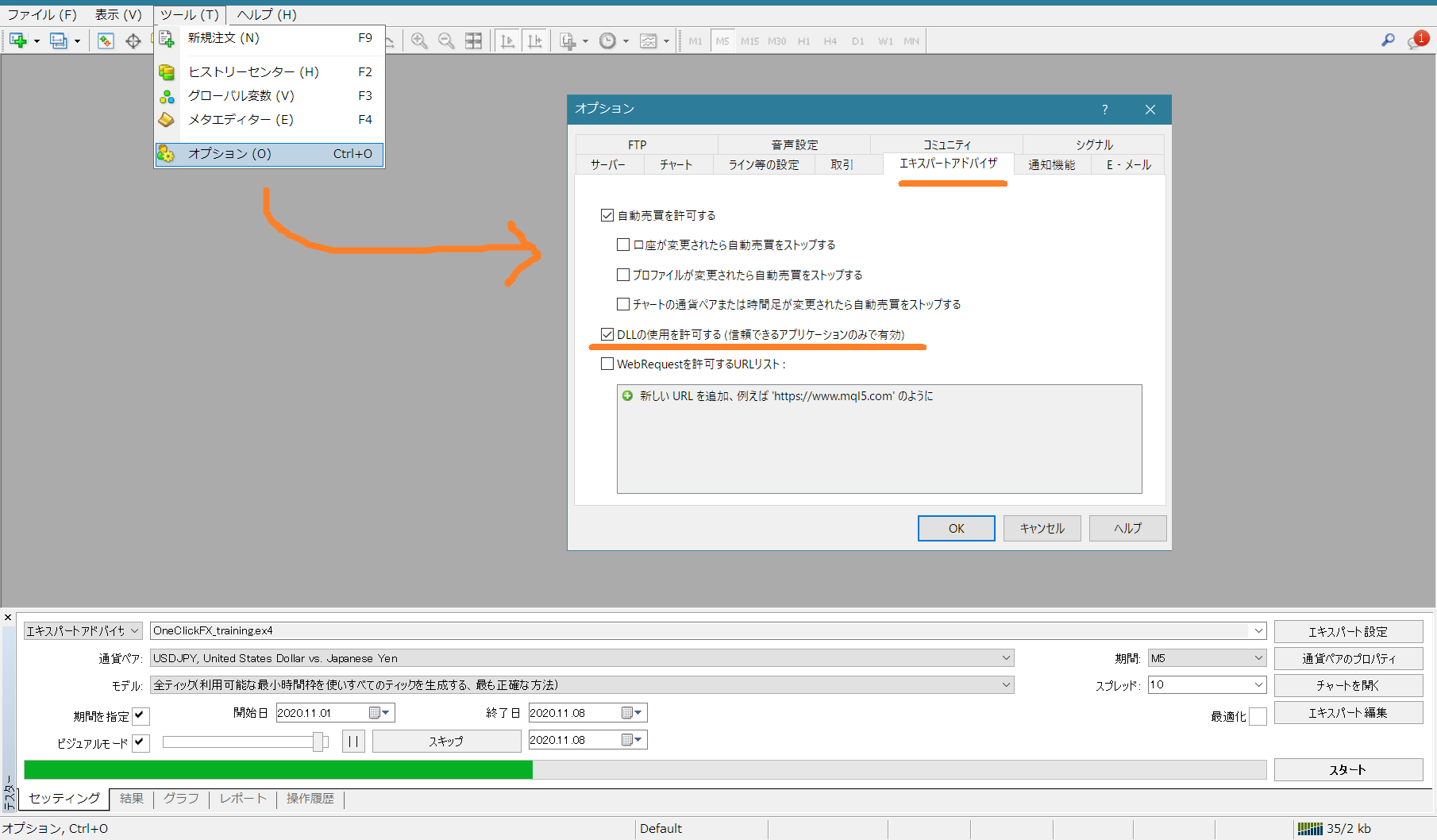
■Allowing DLLs
Please check the permission to use DLLs (details arehere).
■Preparation for authentication
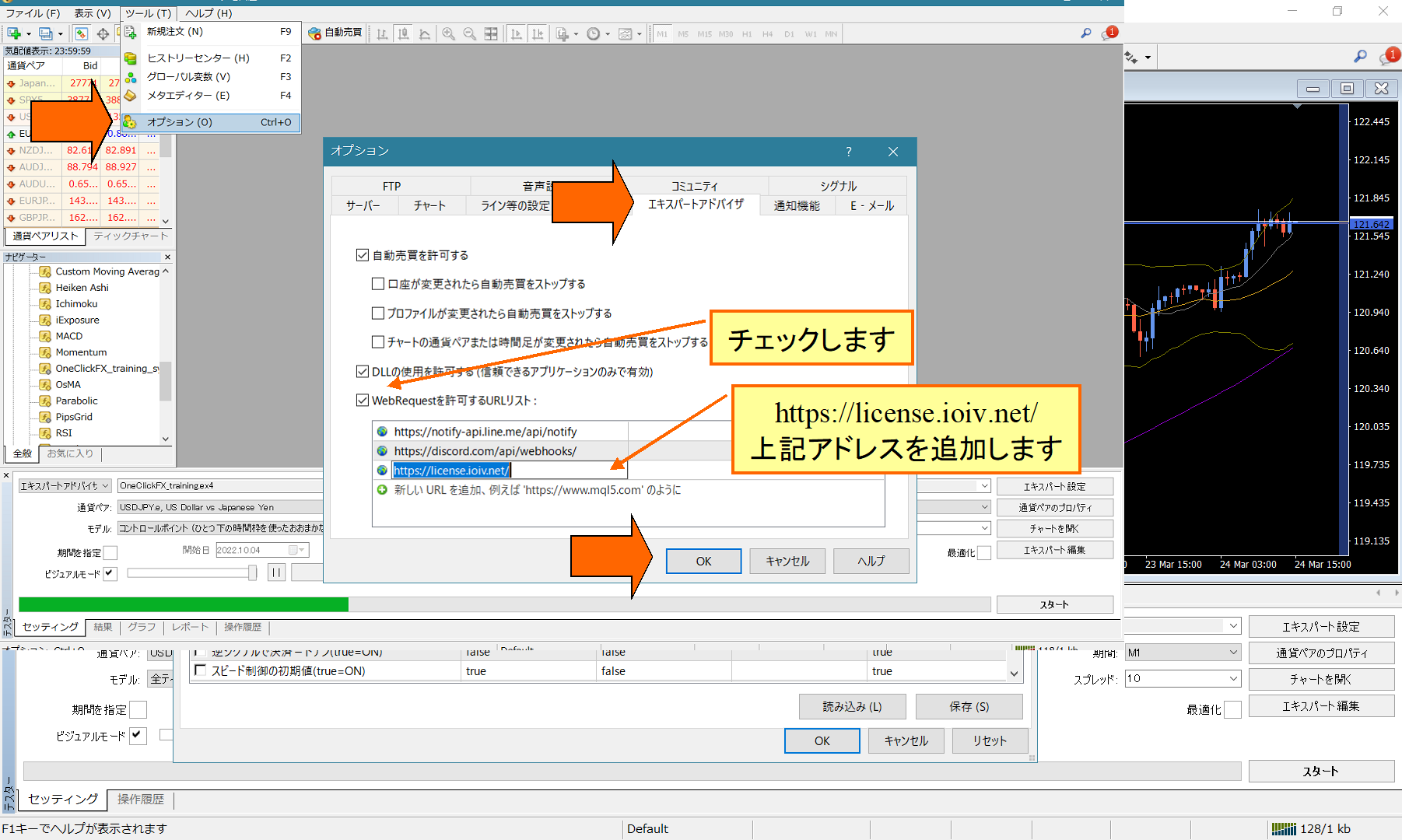
If authentication issues occur due to security tools, add WebRequest.
From the menu, choose Tools => Options, and open the Expert Advisors dialog.
Check the URL list to allow WebRequest, add the new URL “https://license.ioiv.net/”, and click OK.
Installation
One-Click FX Seriesinstallation can be done in two ways.
■When using the One-Click FX Installer
Installation completes with just drag-and-drop, regardless of MT4/MT5 folder structure. The One-Click FX Installer is not included in the product.
Easy Setup: One-Click FX Installer Usage GuideDrag and drop the ZIP file of the One-Click FX Installer stored in the Data folder.
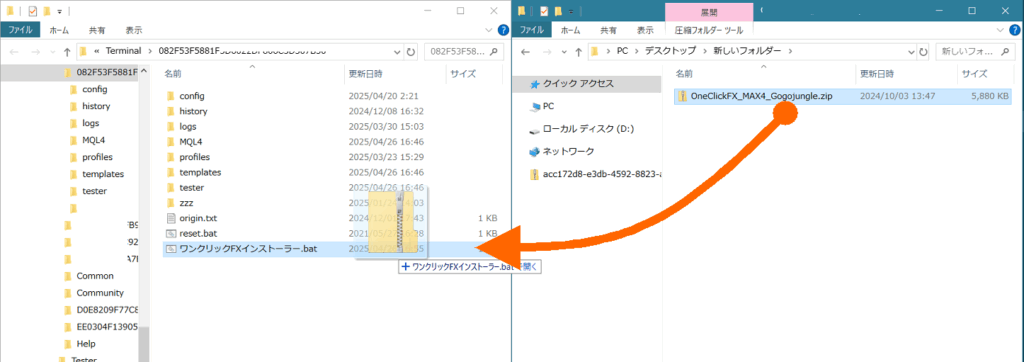
This installersimply unpacks files in placeand does not modify the program or perform external communications, soyou can use it with confidence.
■When manually copying product files
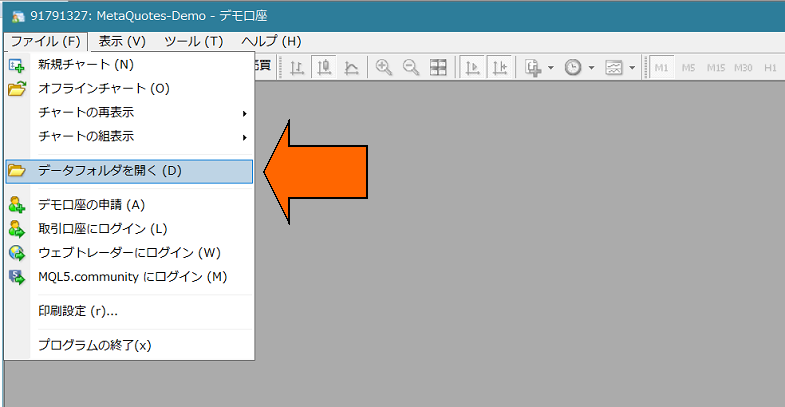
1) In MT4, choose “Open Data Folder.”
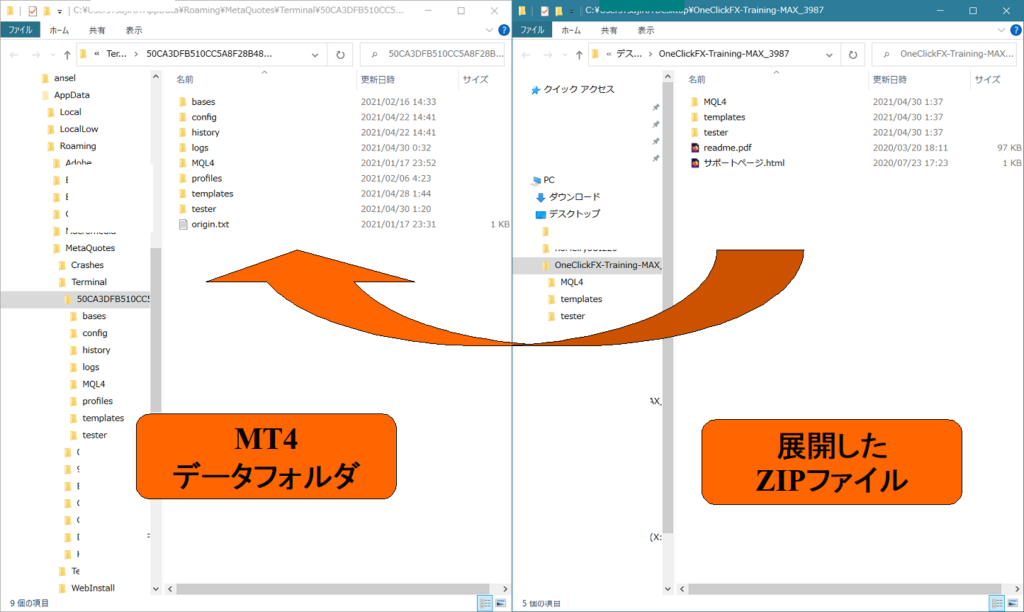
2) Overwrite and copy all folders included in this product’s ZIP (MQL4/MQL5, templates, tester, etc.) into the Data Folder.
3) Restart MT4.