

Editing standard charts in MT4, change bar and background colors
Typical template chart changes andOne-Click FX Training,One-Click 225 Training,One-Click BO Training etc. can also be changed in the Strategy Tester charts.
1. Open any chart, right-click on the opened chart -> from Template Chart, open the specified template chart file.
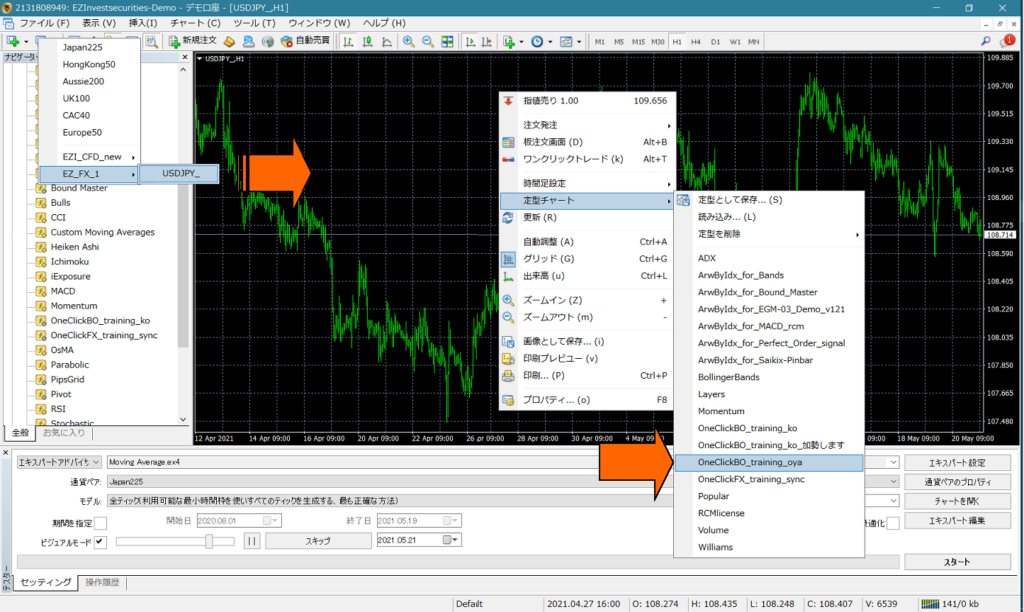
★ Template chart file name to use as the editing source (example)
One-Click FX Training:「OneClickFX_training.tpl」
One-Click 225 Training:「OneClick225_training.tpl」
One-Click BO Training:「OneClickBO_training.tpl」
One-Click 〇〇 Training series synchronization chart: 「OneClickFX_training_sync.tpl」 or 「OneClick225_training_sync.tpl」
※ If you have other template charts you use, you can also open them as the editing source.
2. Add indicators to the opened chart, or right-click -> Properties to change the chart background and bar colors.
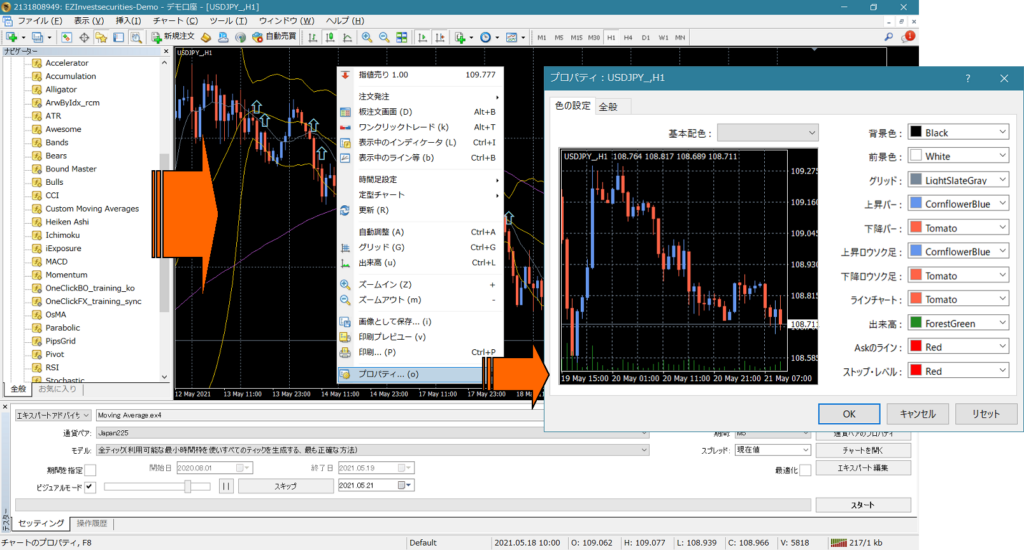
※ If you are using synchronized charts, the synchronized indicator “OneClickFX_training_sync.ex4” is required.
3. Right-click -> Template Chart -> Save as Template, and save with the same filename as the opened file (or a fixed filename).
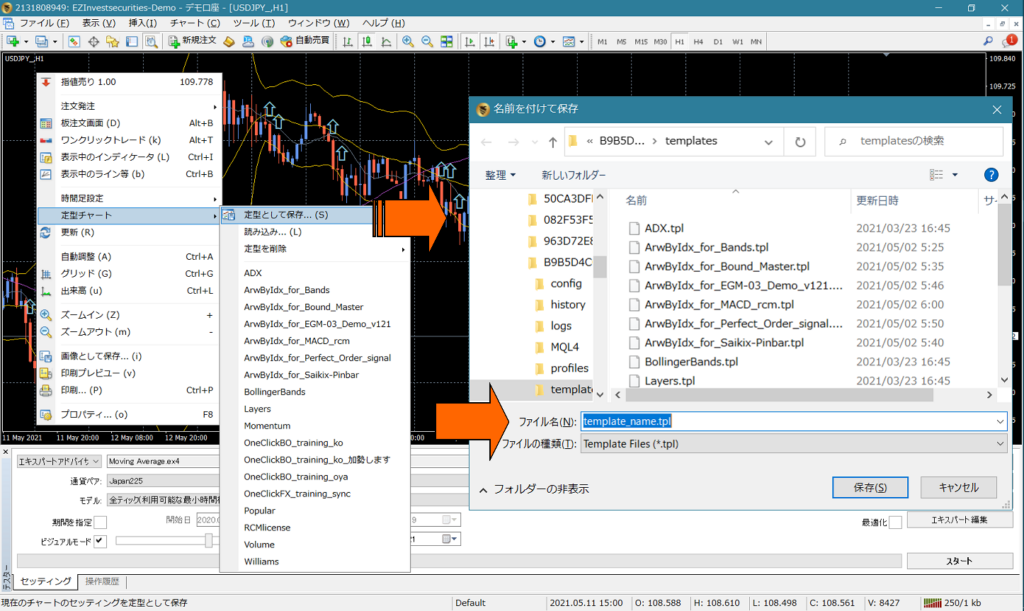
★ The fixed names of training-type template charts that run in the tester
One-Click FX Training:「OneClickFX_training.tpl」
One-Click 225 Training:「OneClick225_training.tpl」
One-Click BO Training:「OneClickBO_training.tpl」
4. For training-type charts to run in the tester, pressing the Start button will display the modified template chart. For charts displayed in the Standard chart, select the filename saved from the template chart you saved by right-clicking -> Template Chart.
※One-Click FX / 225 Training versions 6 or later, orOne-Click BO Training can change the template chart even after the tester starts, so there is no need to save with the same name as the opened file.