

ワンクリックFXトレーニングMAX機能詳細ページ
Version Upgrade Information※ This page also includes images from before the upgrade
▼ 2025-12-06 v8.33
Added ST button (overwrites default preset chart),
Initial limit orders use TP/SL lines as reference
Entry time filter
Trailing stop fully separates TP/SL into two
Trailing stop: Protect / Break-even
Restore object parameters on resume
Trailing stop (AVG, SHRINK) parameter changes
Line width of Break-even linked to TP/SL lines
Parameterization for 4K large screens
▼ 2025-06-12 v8.26
Chandelier Exit added,
Display of fees
▼ 2025-04-15 v8.22
Fast skip
LINE specification change対応
▼ 2025-01-07 v8.20
AI Judgement
Individual scroll of synchronized charts
Keyboard operation included
Distribution of Object Synchronization Tool
▼ 2024-11-14 v8.18
Reset + TS added,
Font change for messages
Change save date to chart date/time
▼ 2024-09-09 v8.16
Error page display, enhanced masking of synchronized charts, added minimized start, adjust synchronization bar, BE line swap, delete pending orders at settlement, added start button on startup, downloader fix, one-click SA warning handling, other bug fixes, parameter and color adjustments, etc., bug fixes in included items
▼ 2024-06-06 v8.0x:
Add line thickness parameter,
Add auto-split orders,
Fix margin vs currency pair mismatch messages,
Add Support Assist,
Add entry timing color bar,
Add spread to SL calculation,
Add time-reap feature,
Add resume-from-last feature,
Add past verification viewer,
Add strategic close,
Add flexible trailing stop,
Handle TP TS and SL TS separately with buttons,
Double-click to clear messages added,
Keyboard settlement added,
Package special bonuses like inducements
▼ 2023-11-12 v7.60
Next bar forward button added,
▼ 2023-10-20 v7.51
Add color to close messages,
Click history date to display results
Other bug fixes
▼ 2023-09-29 v7.50One-click Auto Arrow Trading [AutoArwTrade]対応
Added sell/buy settlement linkage to signals
Display profit/loss by win/lose in history
Speed up signal linkage
Add credits to P/L calculation
Initially only first order added to server orders
Minimum RR set to 0.1
Display TP/SL lines at order time as well
Add parameter for initial position of control box
Auto-generation of active synchronized charts
▼ 2023-04-12 v7.2x
Synchronized charts activate
Save button to preset charts
Eliminate choppiness of position bar
Display, comments, etc. corrected
▼ 2023-03-11 v7.11
WebRequest added to license authentication
ASP compliance
Auto Numpy button
Font size scaling
Speed list added
Support for multiple signals
Slack notifications
Bug fixes through Sep 16, 2022 v7.010
▼ 2022-09-04 V7
Add limit-entry orders
Auto calculation of risk%
Profit/loss % by margin (risk%)
Daily profit %, trade history display
Position info display
Risk-reward added
Position triangle display changed
Auto-saving of daily summary images
Right-edge shift for synchronized charts
Auto-saving of all trade images
Add corrected calculation for risk%
▽ 2022-04-16 update
- Added reset flags for TP/SL/TS on full settlement
- Fixed NONE triangle etc. bugs
▽ 2021-10-15 update
- Immediate position display on entry
- Invalid values for TP/SL control tool
- Reject entry on negatives
- LINE, Discard notifications added
- Triangle color changed to intermediate between BUY/SELL
- Added initial parameter values
- Added error/settlement message display area
- Reduced load during speed control
- Some commission-bearing accounts supported
▽ 2021-06-02 addition
- Strengthened signal tool linkage
- Instant change of preset charts (templates)
- Change TP/SL by dragging with mouse
- Added forced stop-out line
- Individual position settlements
- Partial settlements (50%, 30%, etc.)
- Right edge of synchronized charts padded
- 3D-like controls on buttons
- Better usability via sub-panels
- Compact mode for control box
- Several sample preset charts
▽ 2020-08-08 addition
- Signal tool linkage
- Auto-saving of trading images
- Change control box to preferred color
- Break-even line
- TP, SL lines
- Change labeling to PIPS
- Parameter organization
- PIPS-grid bundle for PIPS units
- Position display on synchronized charts
- SL standard and trailing
- SL auto-nanpin
- Lines as percent of funding
▽ May 25 addition
- Quick ASK line profit/loss visualization
- Auto-ON/OFF of auto trailing
▽ May 1 addition
- Disable TP/SL at order time with 0
- Enable trailing at limit order for profit maximization
- PIPS display for P/L added
- Red for negative values
- Add currency name to P/L ALL/RESULT
▽ March 27 addition
- Display current spread (including real version)
- Show limit prices and reverse limits as triangles
- Add limit/stop indicators for control box (real version included)
- If order is placed without TP/SL lines, apply initial values
- Easy practice
- Line Trade, Limit Orders
- Flexible Trailing Stop
- Strategic Close
- Total trades & win rate display
- Chart Sync
- Speed control and auto-stop
- Past verification viewer
- Restart, Time Leap
- Replay
- Automatic saving of trading images
- Signal tool linkage
- Entry assist
- AI Judgment
- Display of economic indicators
- Standard equipment report feature
- Other features
- Tools and configuration files included
- Free download from support blog
- From the author
Easy practice
One-click FX Traininguses MT4 tester chart to practice trading. Entry with one click, exit with one click, simple.
After downloading the product, copy it to data folder and press Start Strategy Tester! If you’ve used MT4,in about 3 minutes you can start practicing.
This is the overall screen layout.
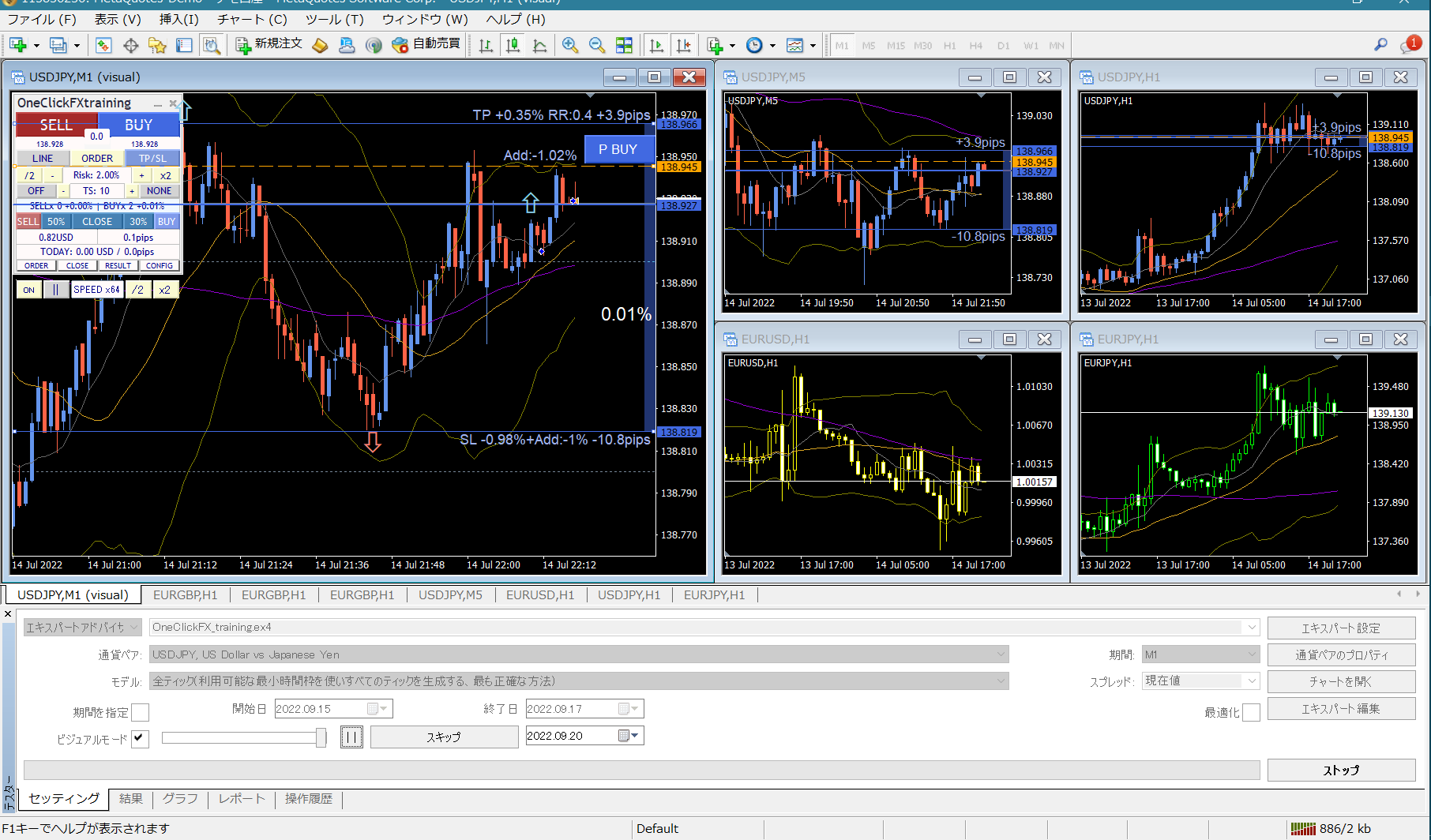 Top-left has the control box forOne-Click FX Training.
Enlarged images and explanations of each part.
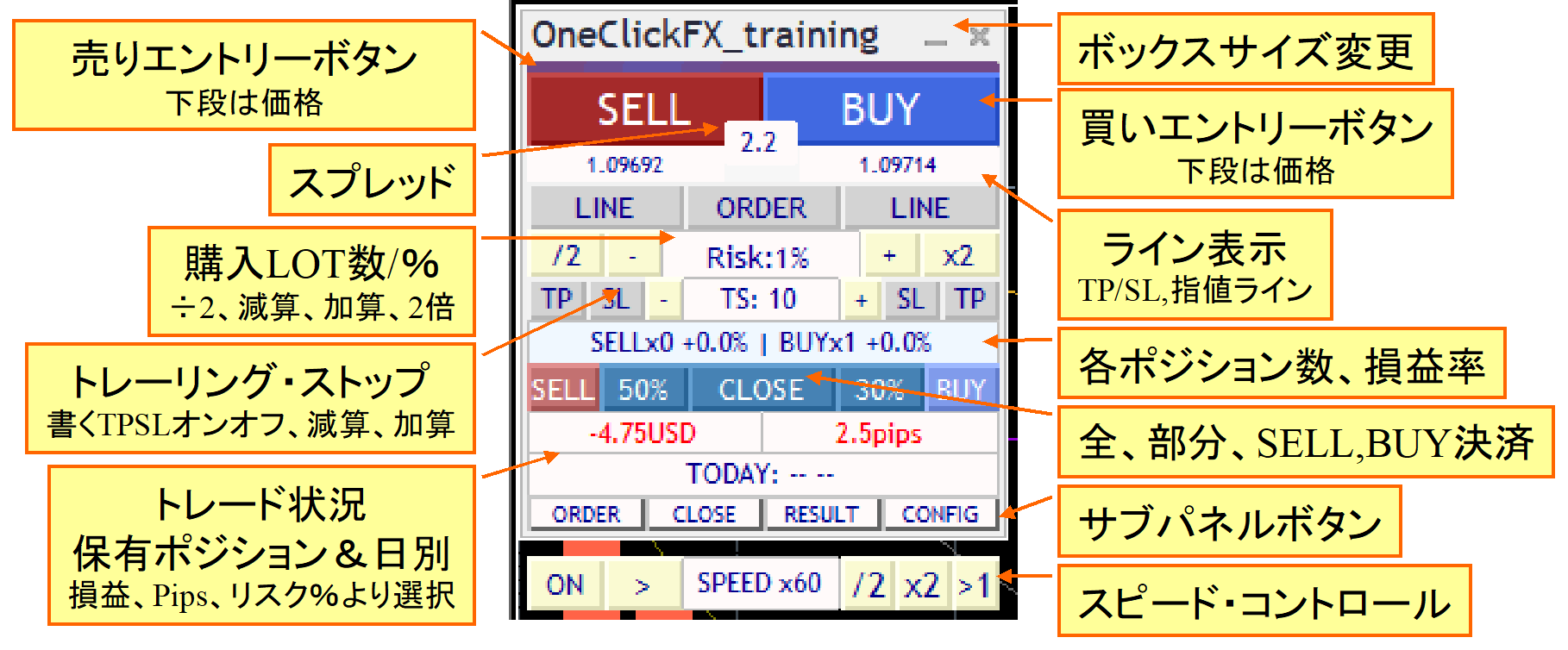
To enter, you use SELL/BUY above. Unlike simple MT4 entry, you can set take-profit and stop-loss orders, so pressing a button automatically adds them.
Normally you cannot modify orders in the Strategy Tester, but this product allows free modification of tool-controlled take-profit, stop-loss, and trailing stops.
The lots can be adjusted with plus/minus buttons or by doubling or halving for martingale-style changes. Lot size can be auto-calculated from risk percentage.
PIPS display added, independent of lot size, to view changes in PIPS for objective profit/loss.
Partial take-profit buttons for 50% and 30% in addition to full close. The split can be configured via parameters. Note: partial settlements close only part of the available order units.
Simple control box focus mode that does not obscure the chart.

▼ If you just want easy practice, this is enough
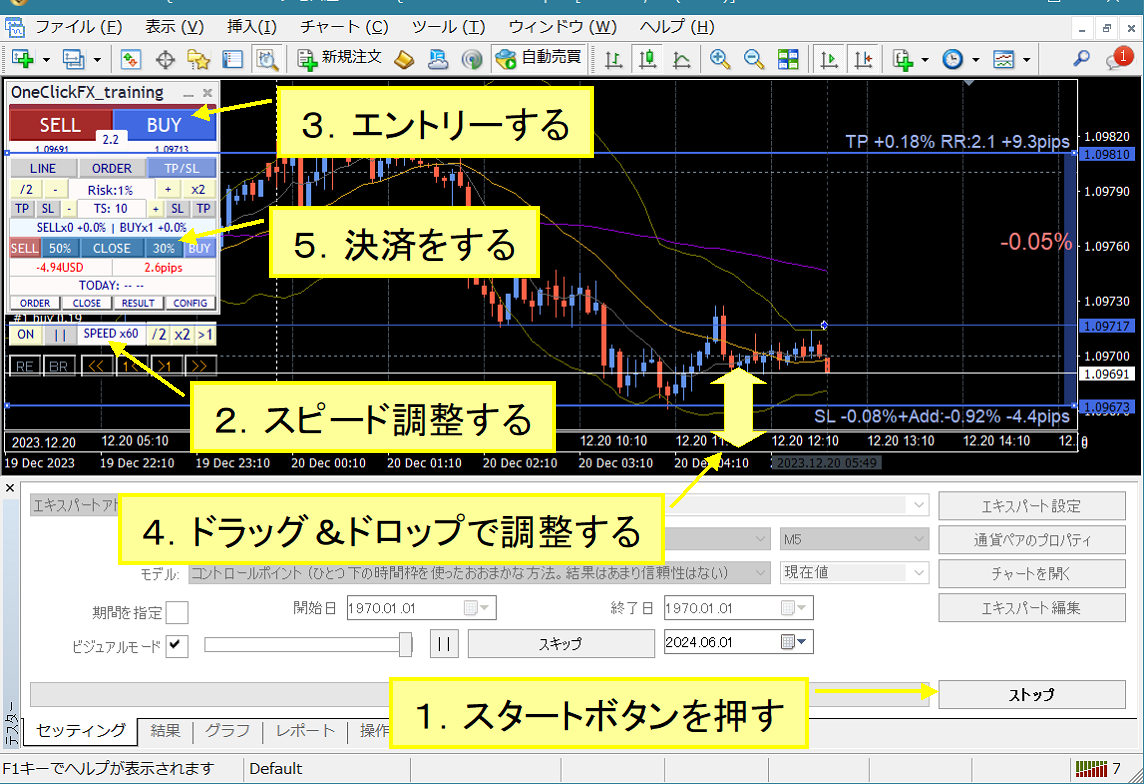
One-Click FX Training MAXis an extraordinarily feature-rich tool; continuing reading this page may seem daunting. However,if you start with the default settings, you can perform standard MT4-like orders with simple operations.
Starting with the Start button, enter with buy/sell, operate TP/SL lines, and close with the close button—these are basic operations, not special.Even FX beginners or first-time traders can quickly experience easy operation and improve trading skills.
Sub-panels with fine-grained settings!
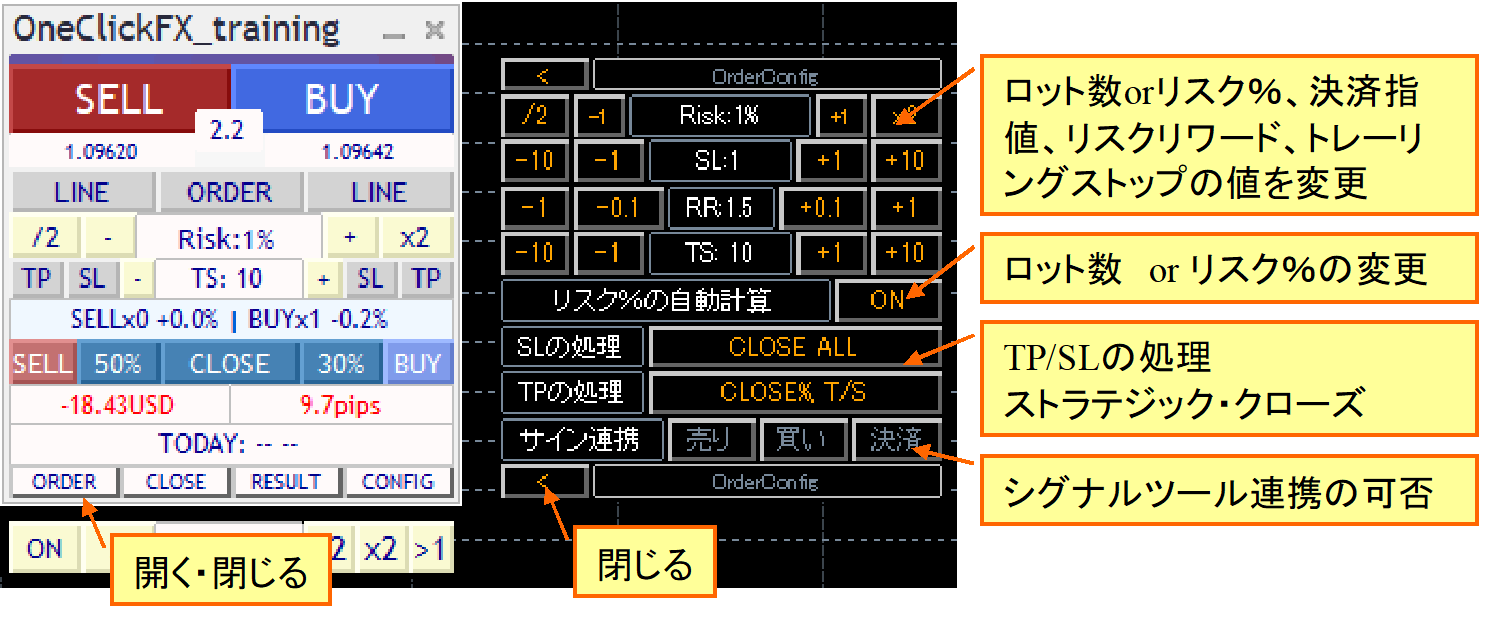
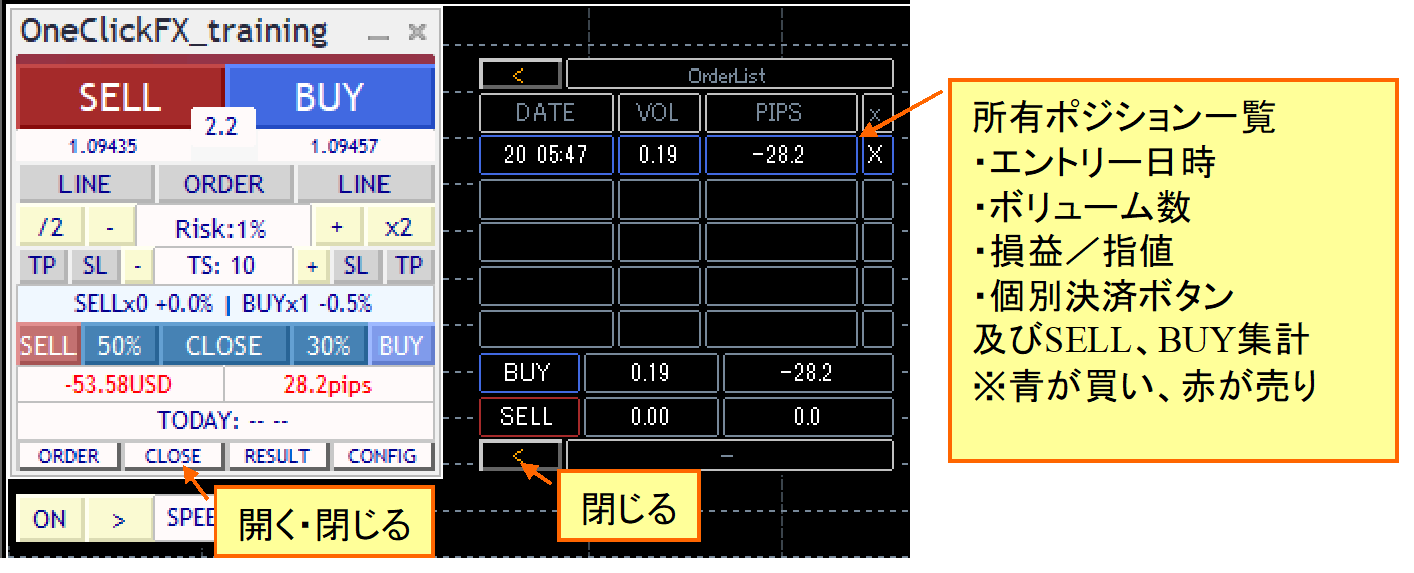
From order status, one-click settlement of individual positions. Individual PIPS numbers are shown on the chart for positions. You can also cancel limit orders.
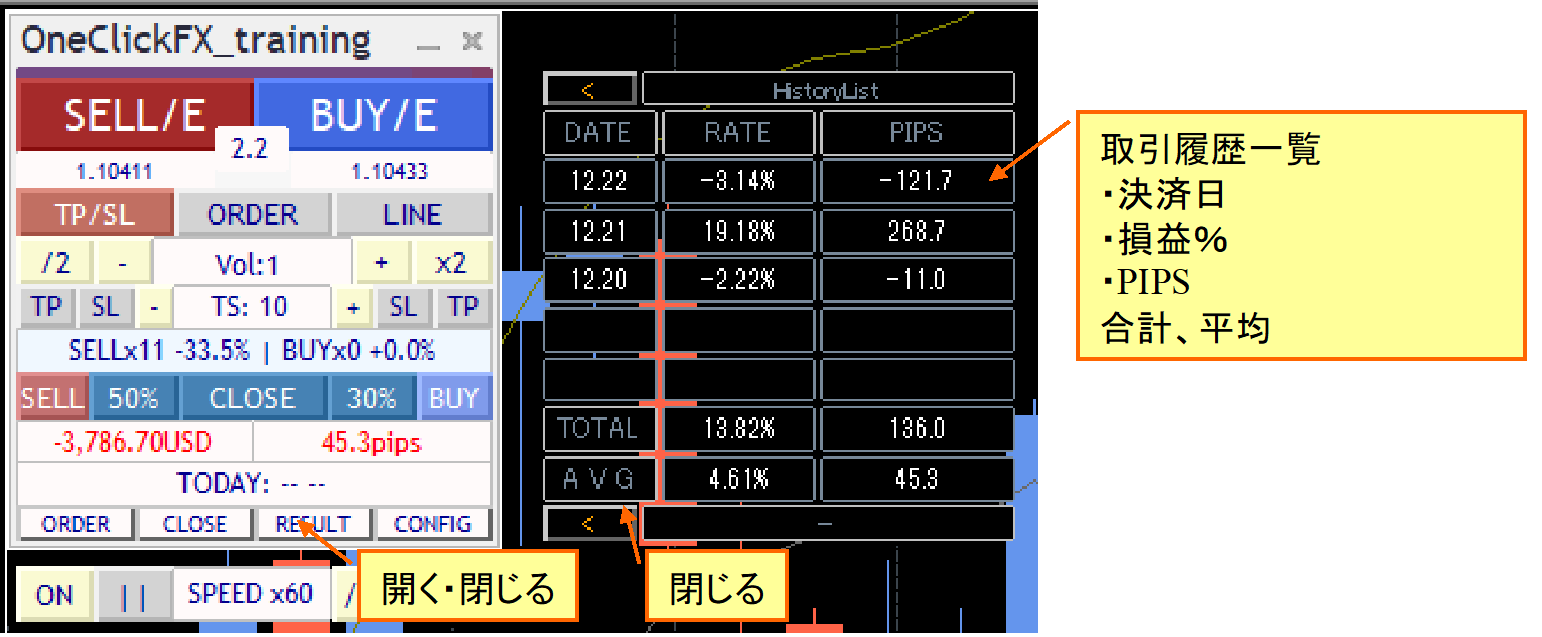
Daily aggregates shown after settlement in the settlement history. Daily profit/loss and past five days total and average are displayed. The chart shows trading history and individual PIPS.
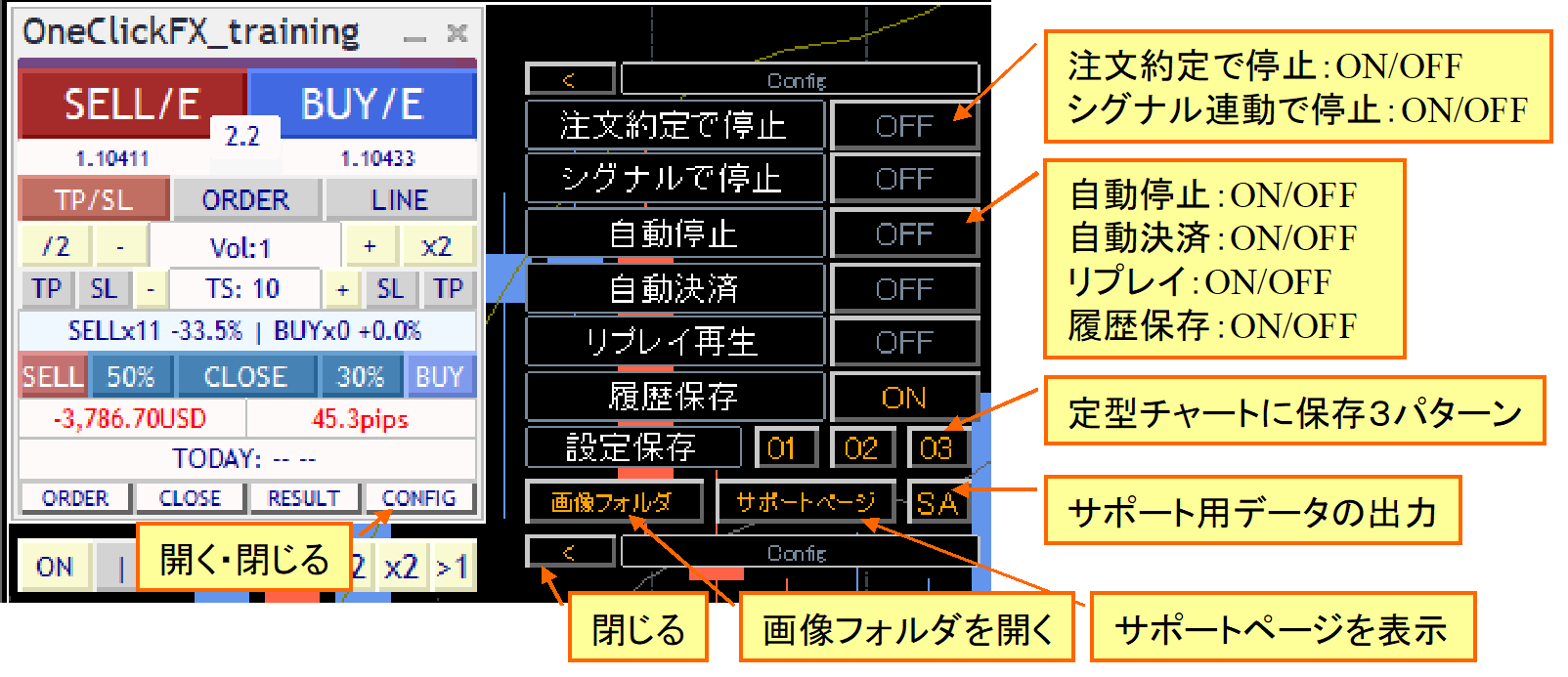
Auto-settlement and replay features are simply displayed in sub-panels
Line Trade, Limit Orders
■Automatic calculation of order lots
Shift from traditional lot-based orders to risk percentage-based lot sizing that preserves margin up to a specified risk percentage of the account.
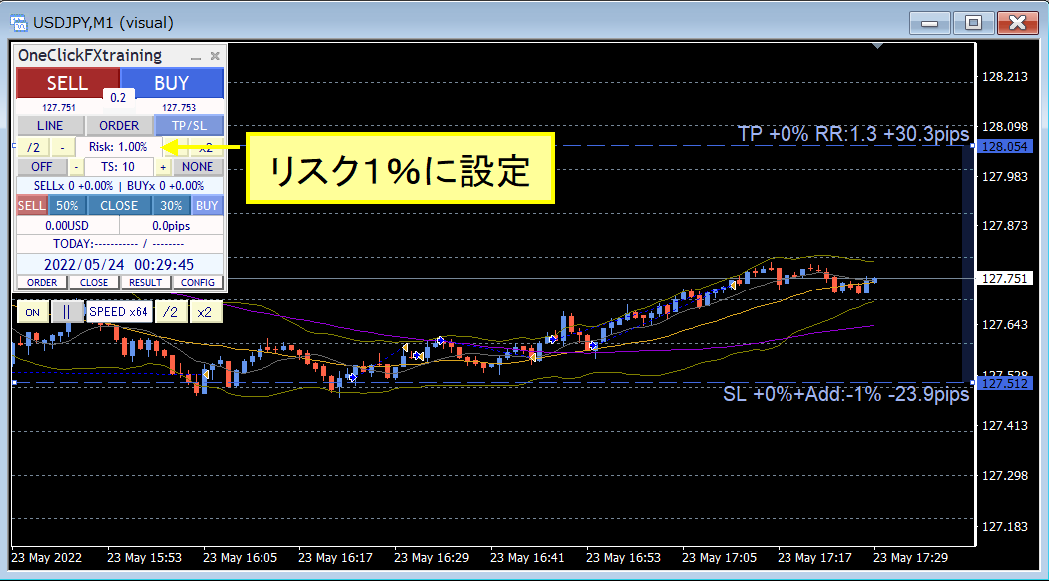
Always auto-calculated, allowing you to add entries by increasing lots as the position becomes positive without increasing risk percentage.
Conversely, set initial risk to 0.5% and increase risk to 1% when in drawdown, adjust SL, and perform averaging to control risk, enabling flexible trading.
■Limit orders
Place orders when the price reaches a specified level.
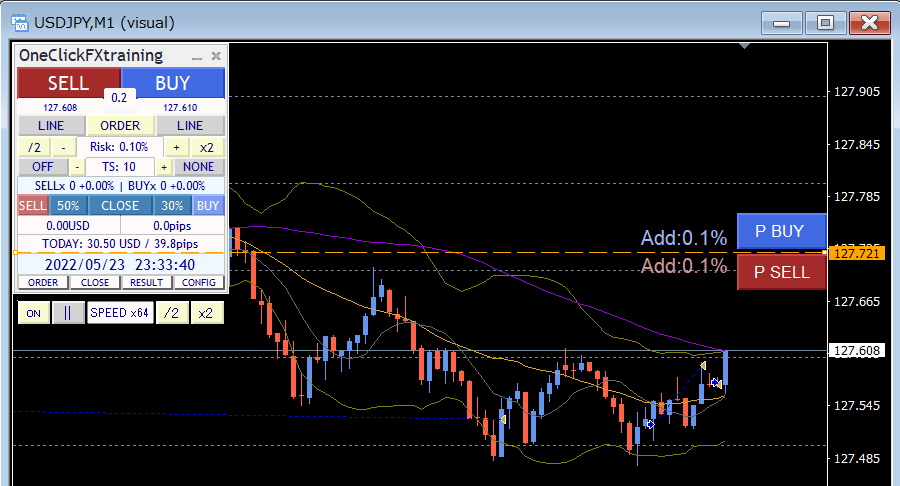
Press the ORDER button in the control box to display limit lines. There are P BUY and P SELL buttons to place limit orders for BUY/SELL respectively. The system auto-detects Limit/Stop; pressing P BUY or P SELL places a limit (unsettled) order.
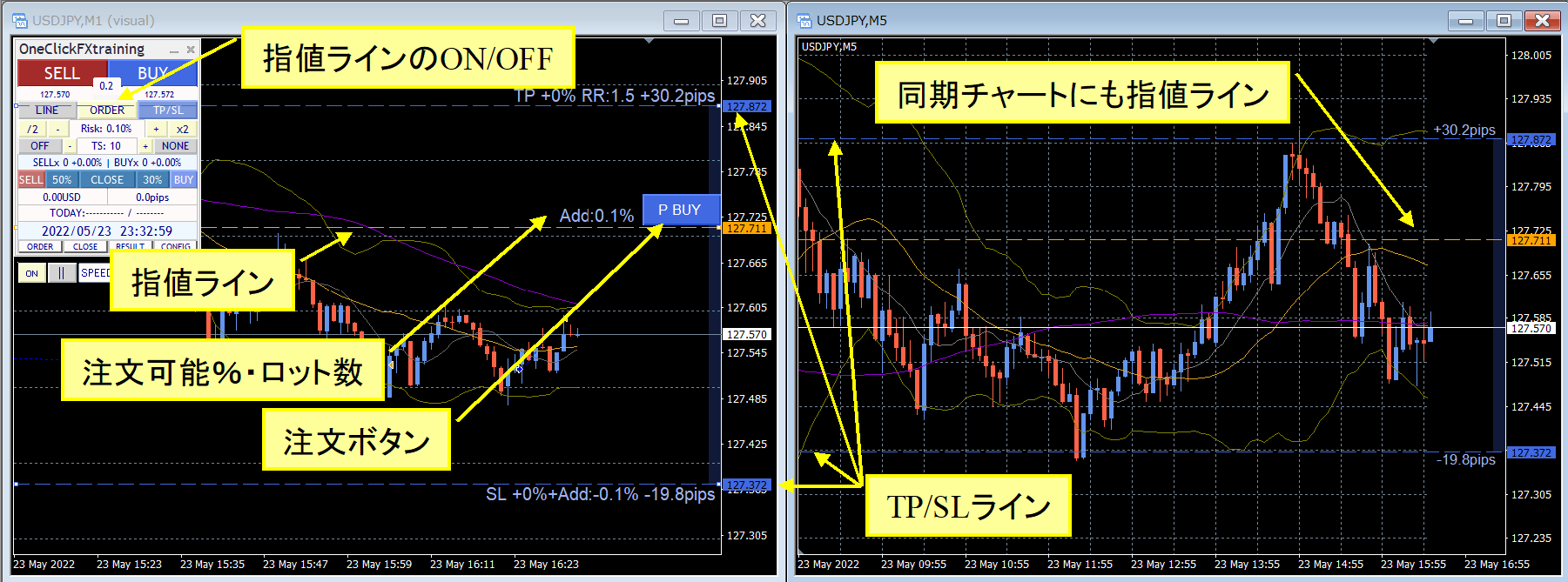
You can place orders based on risk percentage from the SL line, or by lot size. If you order without displaying TP/SL lines, initial values are applied.
■TP/SL lines are easy to view and flexibly movable.
To clarify held positions, the framework shows Break-even, TP, SL, and trailing stops with lines; it displays risk percentage corresponding to the margin change, risk/reward or additional lots, and PIPS values.
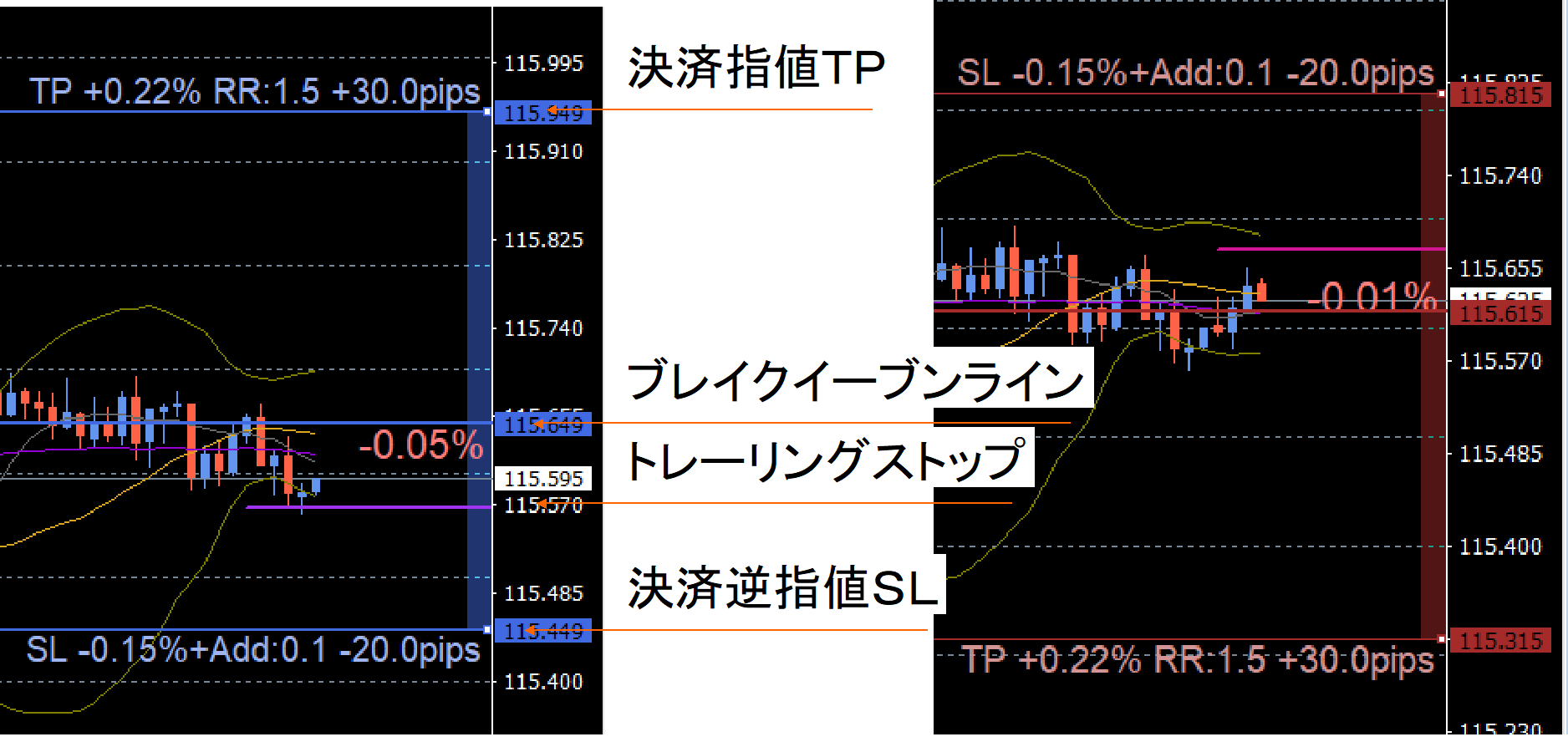
TP/SL settings can be shown or hidden as needed. It is possible to control not only via software but also by server-side orders and TP/SL settings.
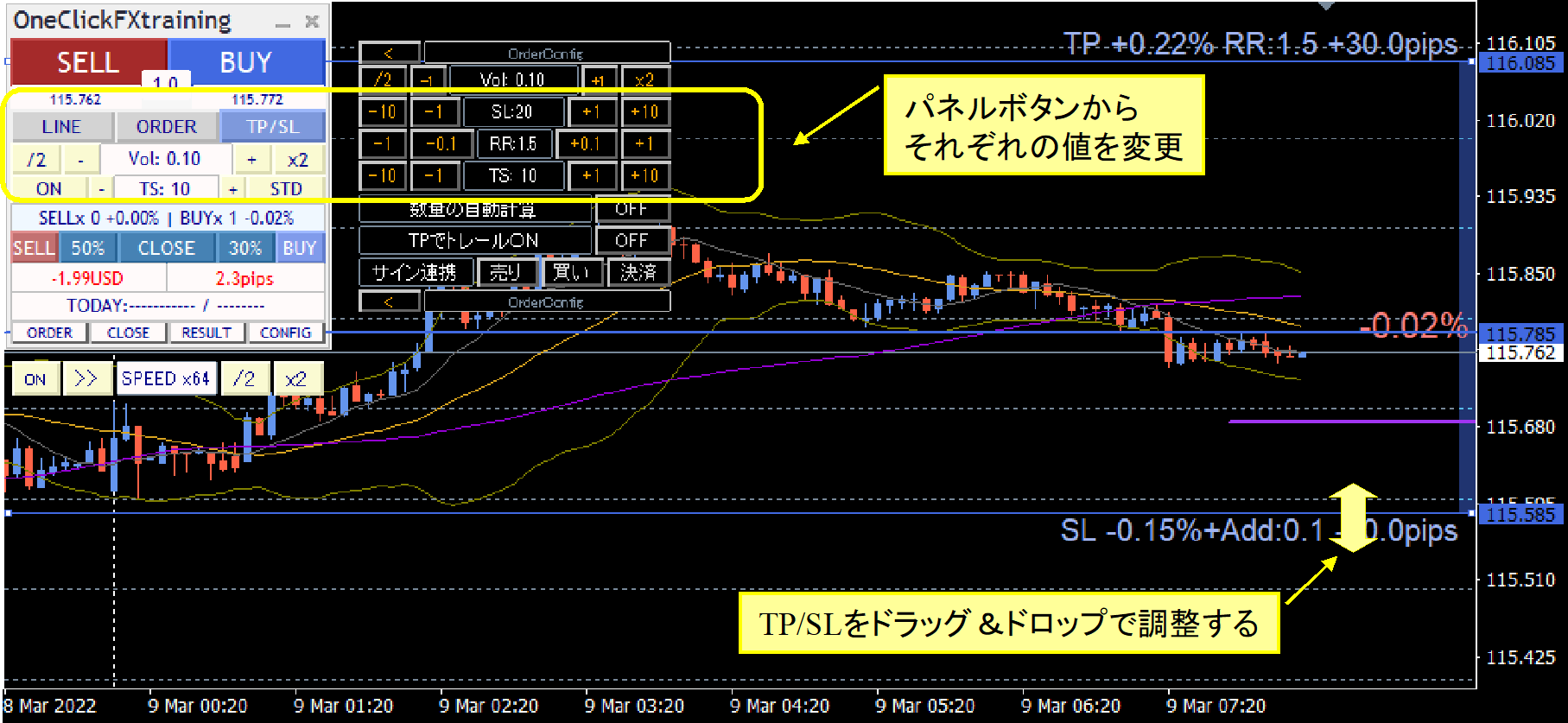
TP/SL and trailing stops can be adjusted while running. Tool-controlled TP/SL lines can be changed bydrag & drop.
■Status of each position
Open the sub-panel OrderList from the CLOSE button to see a detailed list of individual positions and current status on the chart.
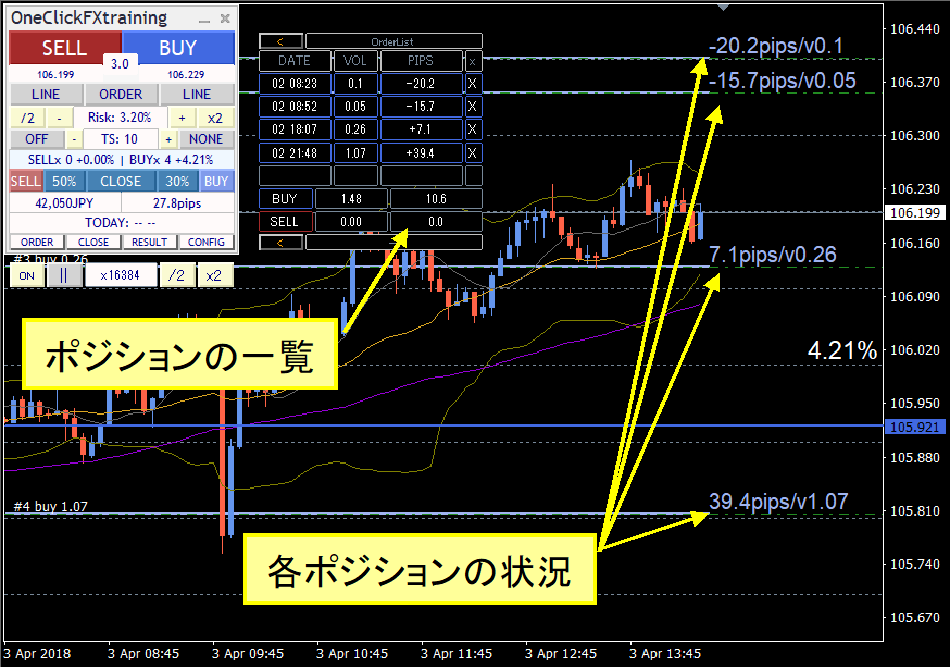
Display updates linked to sub-panel show/hide.
Each position’s lot size and current PIPS are displayed.
Flexible Trailing Stop
TS blocks on the operation panel allow ON/OFF for each trailing stop. There are sections to set TP and SL for SELL, and four trailing stops controlled separately for SELL and BUY (TP/SL/TS values, etc.).
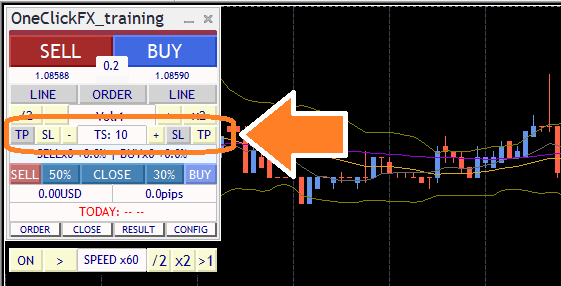
Purple line for trailing stop is dashed when OFF and visible when ON in practice.
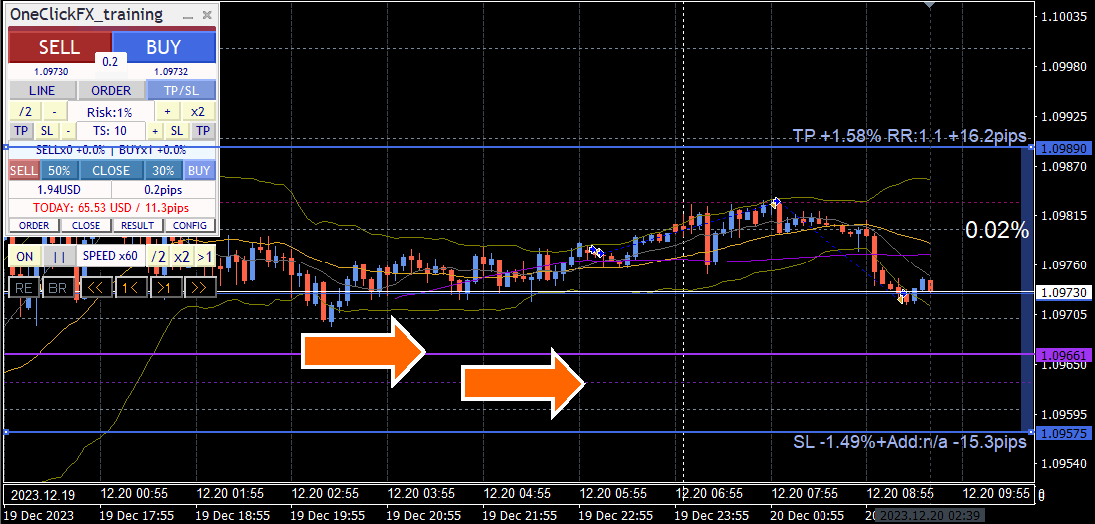
Trailing stops offer multiple modes.
From common fixed trailing stops to Shrink that follows tick-by-tick, tick-average, moving average, Bollinger bands, SAR, Chandelier Exit, and many others; you can choose the optimal pattern.
This video compares common fixed trailing stop with shrink L. Both follow new highs, but Shrink moves the settlement line closer to the current price when highs aren’t updated, aiming closer to profit peak.
Fixed trailing stops lock in losses from the peak until the chosen value, whereas Shrink moves the settlement line toward profit peak, enabling closer capture of profits.
■Chandelier Exit
Chandelier Exit uses ATR to automatically adapt to volatility changes. Wider when trends are strong, narrower in range or during little variation, enabling stop-loss management that matches market reality.
Strategic Close
Standard settlements occur when price reaches TP and SL lines, but Strategic Close sets multiple actions at that timing to improve future potential.
You can automatically turn on trailing stops when TP is reached with profit. Quitting at peak profit may miss extra gains, but by triggering trailing stops you mayfurther extend profits.
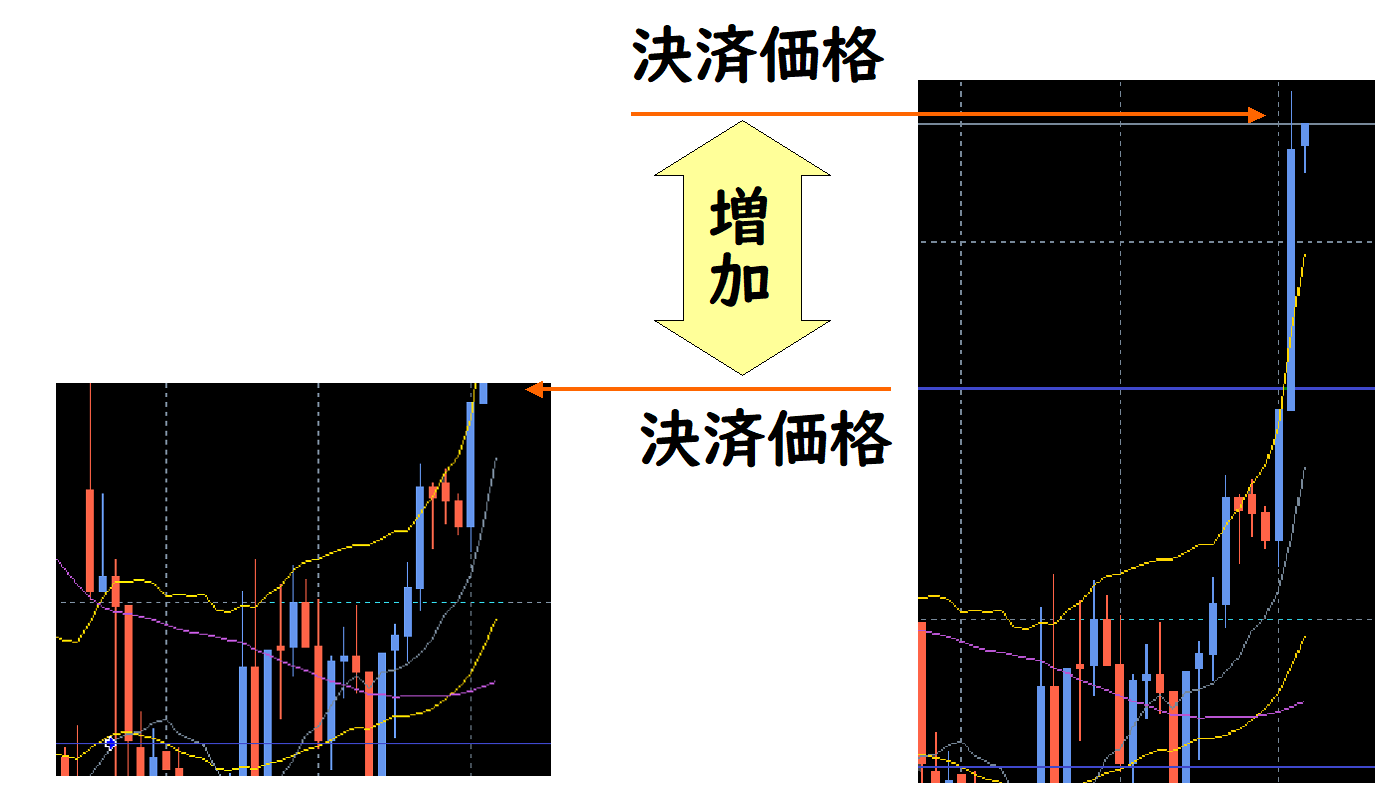
All-close, partial close, trailing stops, TP/SL line resets, and additional buys can be combined to aim for your own strategic settlements.
In this image, at TP, 30% is settled to secure profit, and by resetting TP/SL lines, the SL line moves above breakeven, preventing remaining positions from incurring losses..
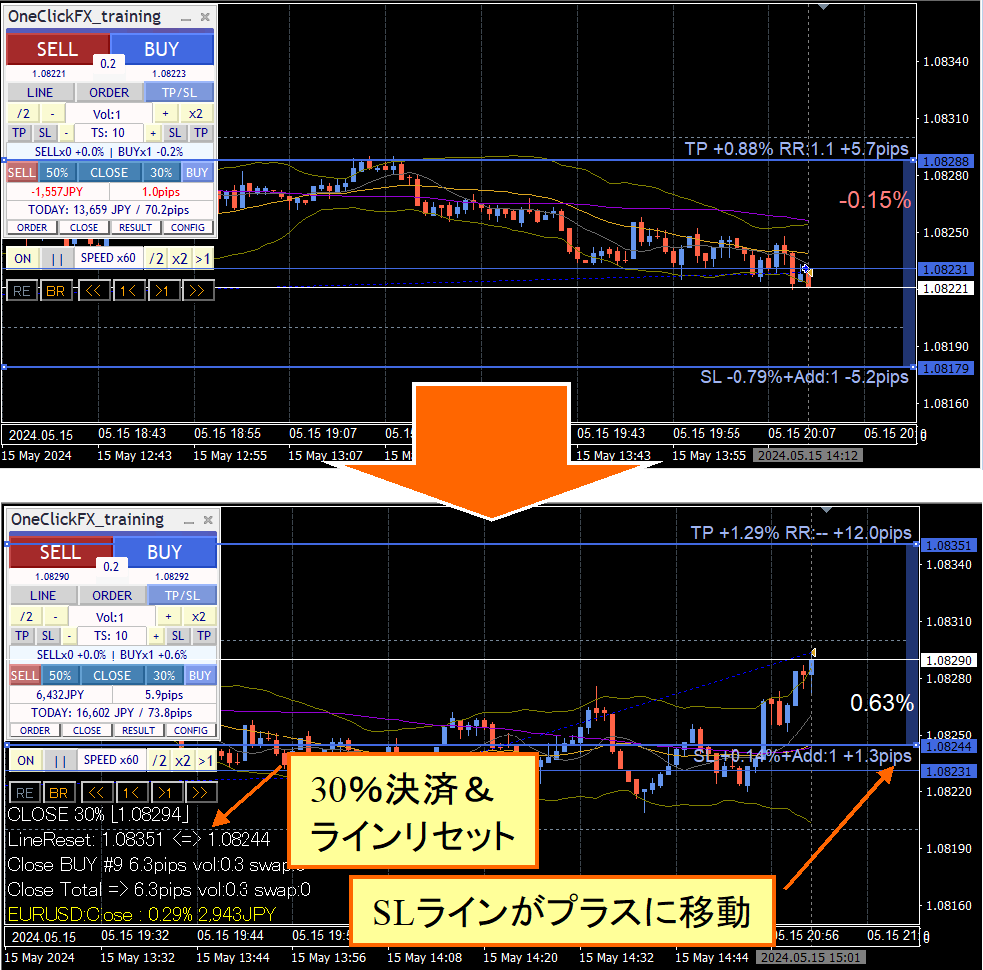
This video shows TP line 30% settlement and line reset, and additional orders on SL line. Left is the main chart (1 minute), right is 5-minute chart. Upon reaching TP line, partial settlements occur and TP/SL lines reset. The 5-minute left chart may show TP/SL changes more clearly.
In principle, as prices rise you partial-settle and as they fall you add orders, soas long as the trend continues, profits can be infinite. Of course such favorable market is rare, but for a rising index it may not be a dream. Try verifying.
Using this, you can automatically add entries, perform nanpin and buy-the-dips, not just settle orders, and specify actions at TP/SL to realize strategic trading previously unavailable.
The impact of this feature should be clear to experienced users. One-Click FX is the pioneer, but it is natural to be imitated.
Total trades & win rate display
You can choose today’s results by profit/loss, risk%, or PIPS.

Open the RESULT sub-panel to see daily totals, past five days totals and averages; the chart shows trade history lines and results. Clicking the sub-panel date (or TOTAL) shows more detailed totals at bottom-left.
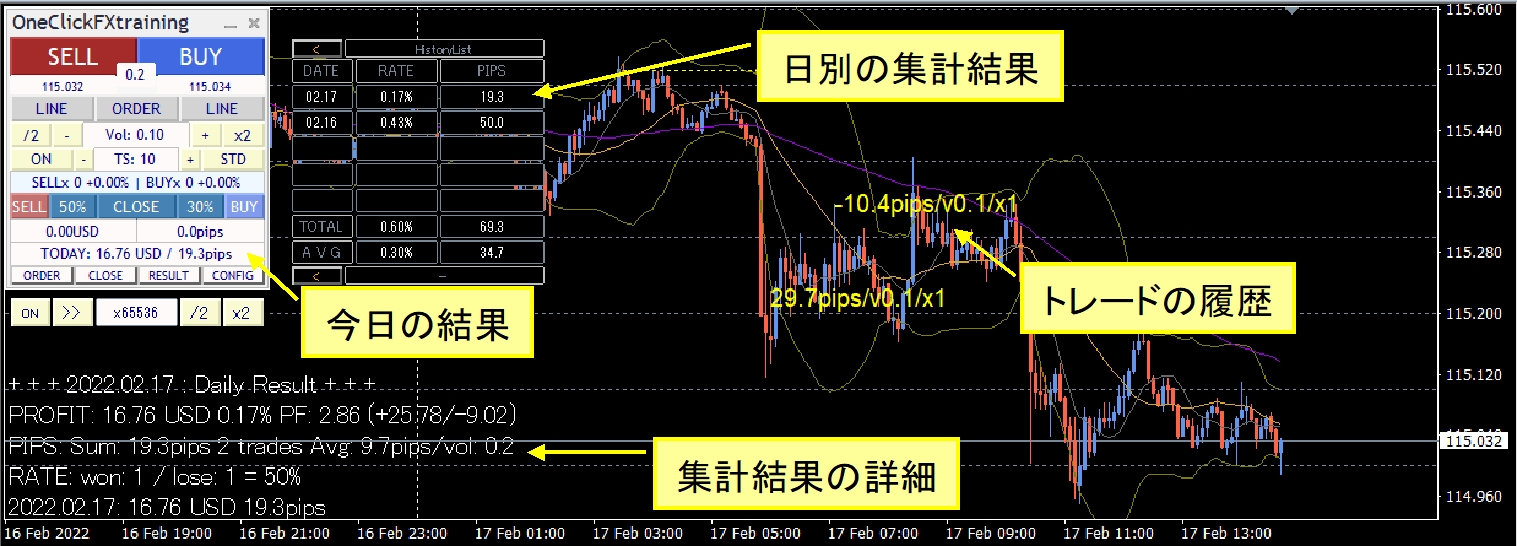
Plus is shown in bright yellow, minus in dark yellow; size of text reflects profit/loss magnitude.
From November 2024, not only daily totals but various aggregation periods are possible, with richer details of trading results.
In the history window, in addition to total pips, display volume averages and average pips per trade are added, so evaluation can be done on amount basis as well as rate base.
Current P/L status is graphed using MT4 standard features.
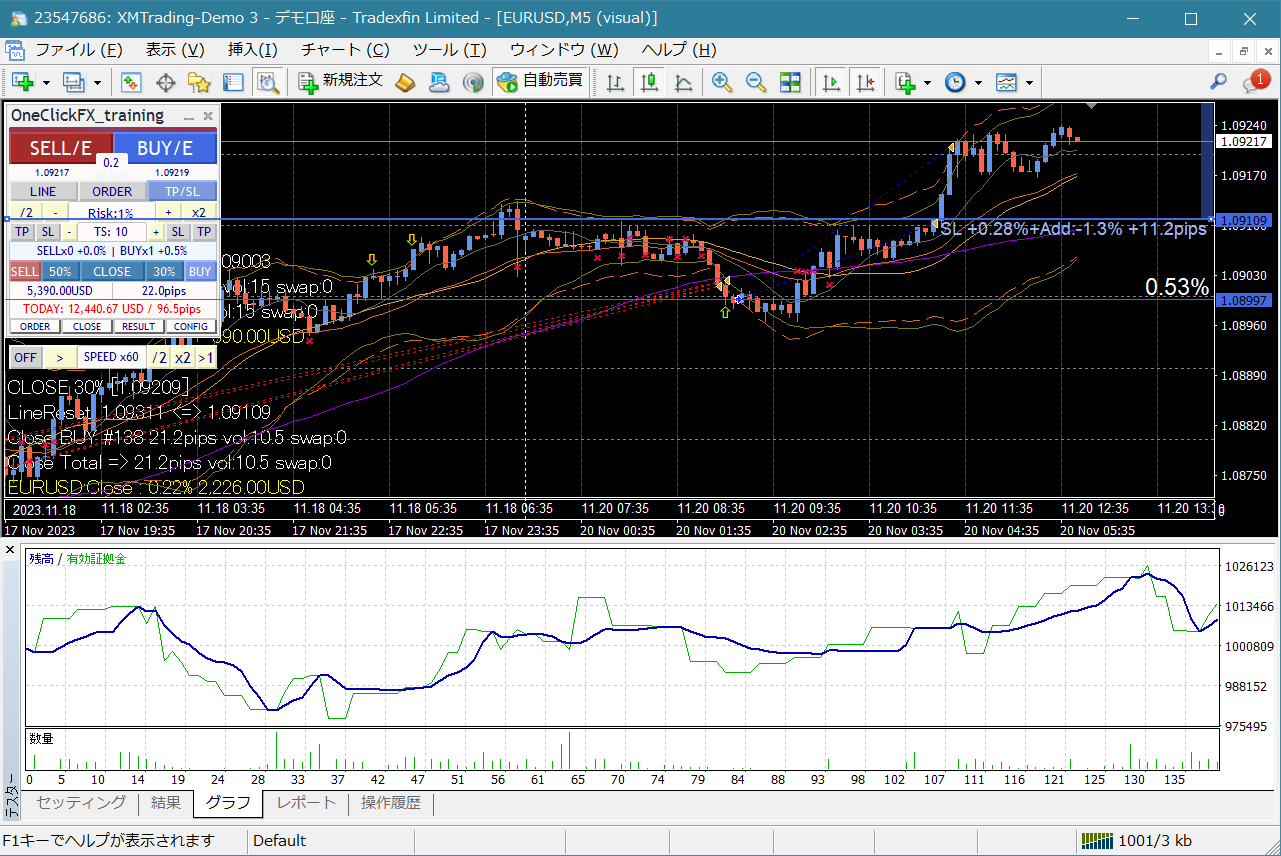
Chart Synchronization
There is also the ability to synchronize charts of different time frames and currencies. Active synchronized charts can behave like normal charts as well.
In the image, the left is the main USD/JPY 1-hour chart, and the right is the 30-minute synchronized chart.
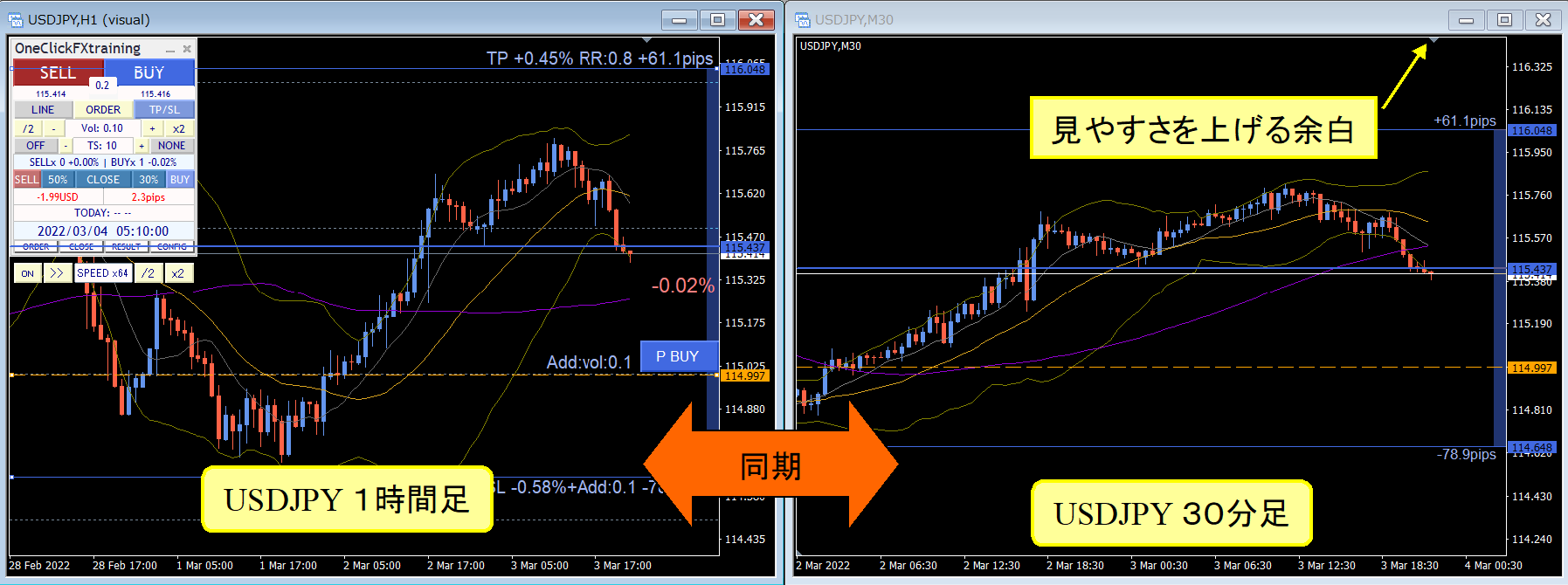
While syncing, the charts detect magnification changes in the main chart, and sub-charts synchronize to the same scale. In simple synchronization, you can freely change the time frame and currency pair as if on a standard online chart. Main and sub charts may have different roles, so you can freely assign different indicators to each.
This image shows USDJPY 1-min, 5-min, 1-hour on the top row, EURUSD 1-hour, EURJPY 1-hour, GBPJPY 1-hour, GOLD 1-hour on the bottom row.
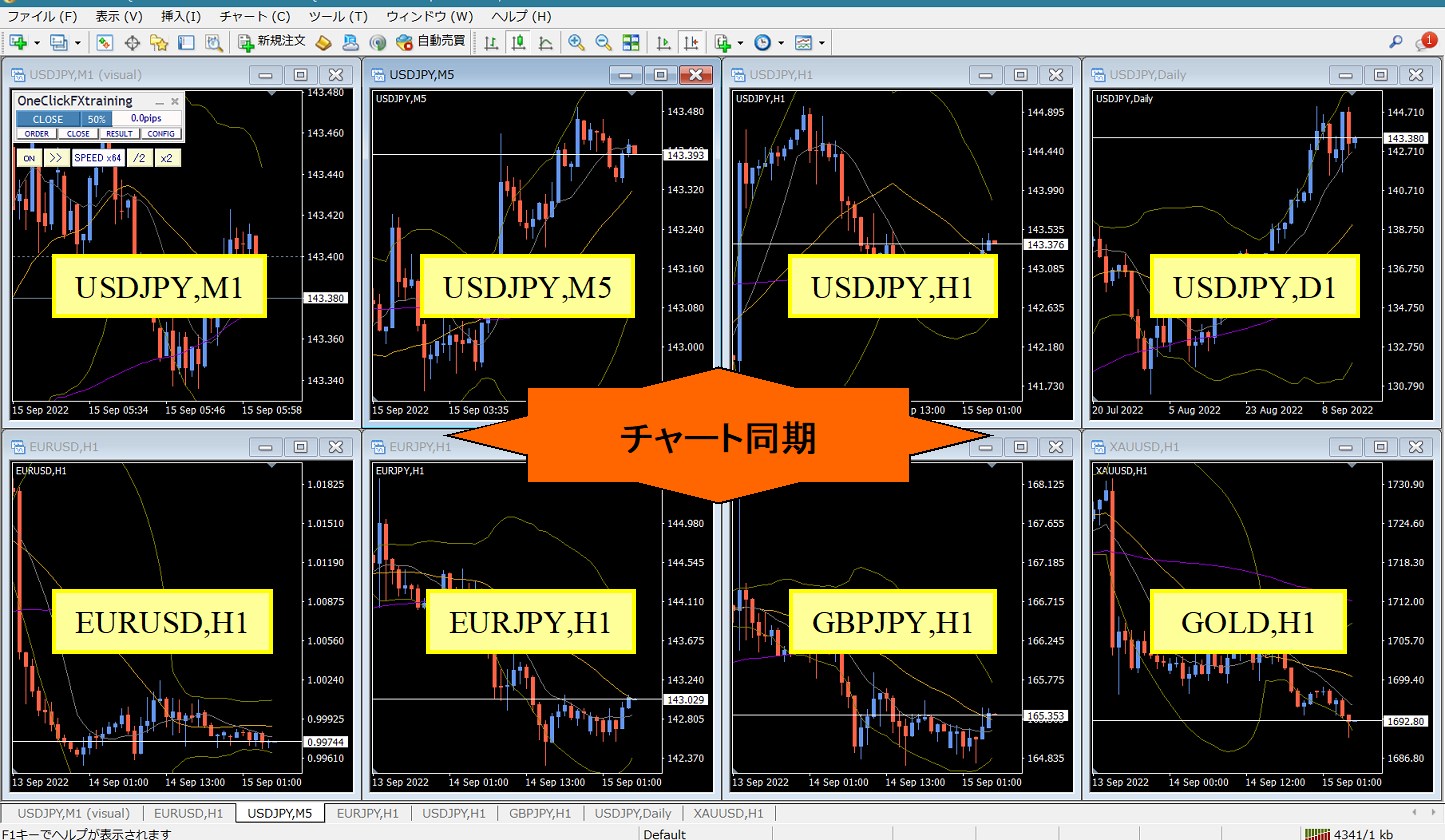
Synchronization applies not only to the same currency pair but also to other pairs; the synchronization timing for the same pair is 1 second, for other pairs 1 minute.
You may have seen traders with multiple monitors; it is common. Even without such equipment,chart synchronization of multiple currency pairs without limits is essential.
Speed control and time leap
The speed control at the bottom of the control box can be adjusted with values entered in the “Speed Control Speed List” parameter.
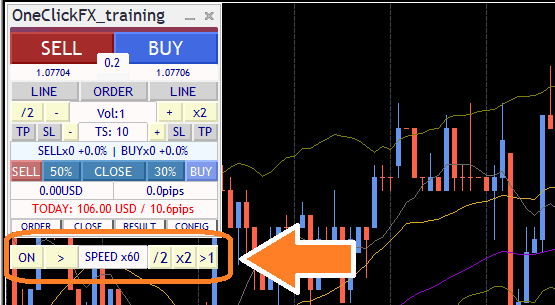
The final tick time can be shown or hidden by a parameter.
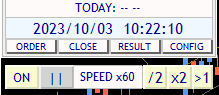
Speed control ranges from 1x (1 second = 1 second) to 5x (1 second = 5 seconds), 60x (1 second = 1 minute), 1440x (1 second = 1 day); you can set any multiplier. Maximum is 604800x (1 second = 1 week). However it cannot exceed the Strategy Tester’s maximum speed. If speed control is OFF, the speed is that set by the Strategy Tester (maximum playback speed).
Clicking the “SPEED” area advances one tick at a time, and the rightmost “>1” button moves to the next candle and stops on the first tick after switching.
For scalping, you can replay in near-real conditions to enter and close.
Conversely, pause to consider entry points, adjust limit orders and TP/SL, andfast-forward until filled to enable automatic stop, allowing settlements or limit orders to be filled ahead of time.
Using these features can significantly shorten practice and testing time.
Also, you can pause time while charts of the same currency pair across different time frames and other pairs are synchronized, allowing analysis in a frozen time state,enabling time-stopped analysis. Even paused time, you can swap indicators, change time frames, or add other currency pairs for thorough current-state analysis.
Is this entry correct? Is this settlement correct? Is this stop-loss line appropriate?Pause time and think carefully
Past Verification Viewer
When you pause the chart with speed control, control buttons appear under the speed controller. These are the controls for the Past Verification Viewer.
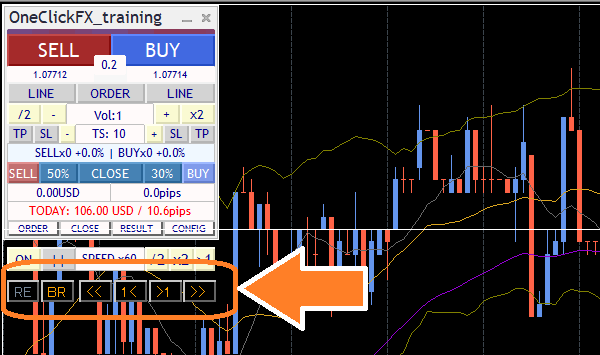
Synchronization lines are faint on the chart, and synchronized charts align their times as well. Charts can be scrolled left/right; when you scroll the main chart with the mouse or keyboard, the synchronized charts align their lines accordingly.
Press “1<” or “>1” to move one candle at a time. “<<” and “>>” move about 10 candles. The number of moves depends on the zoom level and environment.
Note: The simulator is paused, so you cannot move beyond the latest time. Also you cannot alter past orders or settlement data. If you want changes, use the next Restart feature.
In the paused time, you can review past trades, reflect, and even step forward one candle at a time to explore the reasons or change indicators.You can advance candle by candle to investigate unexpected results or to explore alternate indicators. The Past Verification Viewer is valuable for improving and learning trading.
Restart, Time Leap
The replay feature has been upgraded into Restart and Time Leap for easier use.
Pause the chart, press the leftmost RE button in the Past Verification Viewer to show a panel. There are three save locations to store the current state, and you can save to any of them.
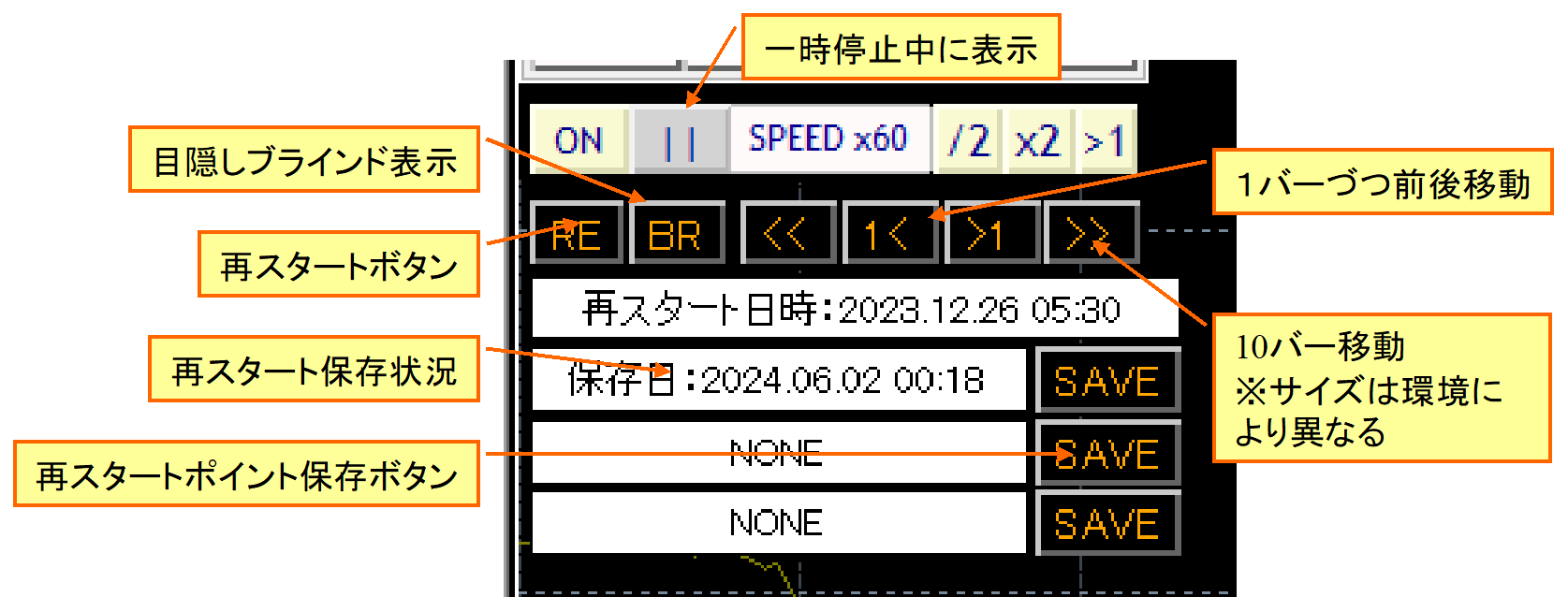
After stopping, pressing Start shows a restart point selection screen.
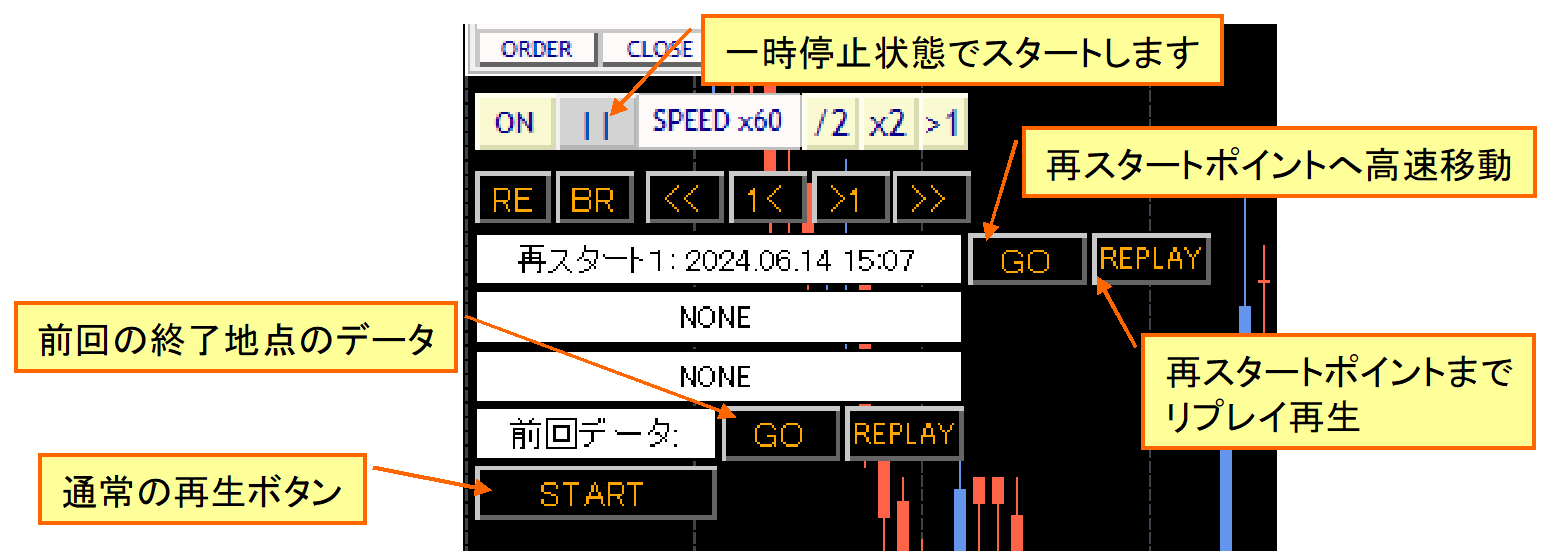
Press the GO button for a saved number to move to that point on fast-forward. The REPLAY button replays the same order in normal play. The previous data is the data at the time of the previous stop.
Not only at the exact pause point, but when you scroll the chart backward in time and restore that point as a restart point, you can save it.
In this video, restart point is saved at the moment just before settlement after pausing. You restart there, redo that portion, then finish, and continue from the previous data next.
Naturally, there is no fast-forwarding of the video.
Replay
Athletes review their performances after a game to identify issues. Likewise, you can save your trade history and review it to identify issues. Note: Replay is not guaranteed to be a 100% exact reproduction.
You can turn off replay playback during replay. You can also turn it back on mid-way. You can manually settle trades entered during replay. You can participate in replay as well.
Revisit past trades, think about what was right or wrong, and consider what could have been improved.
Automatic Saving of Trading Images
Screenshots are automatically saved at order placement and settlement.
You can save individual chart images or save a screen copy, including multiple synchronized charts displayed at once.
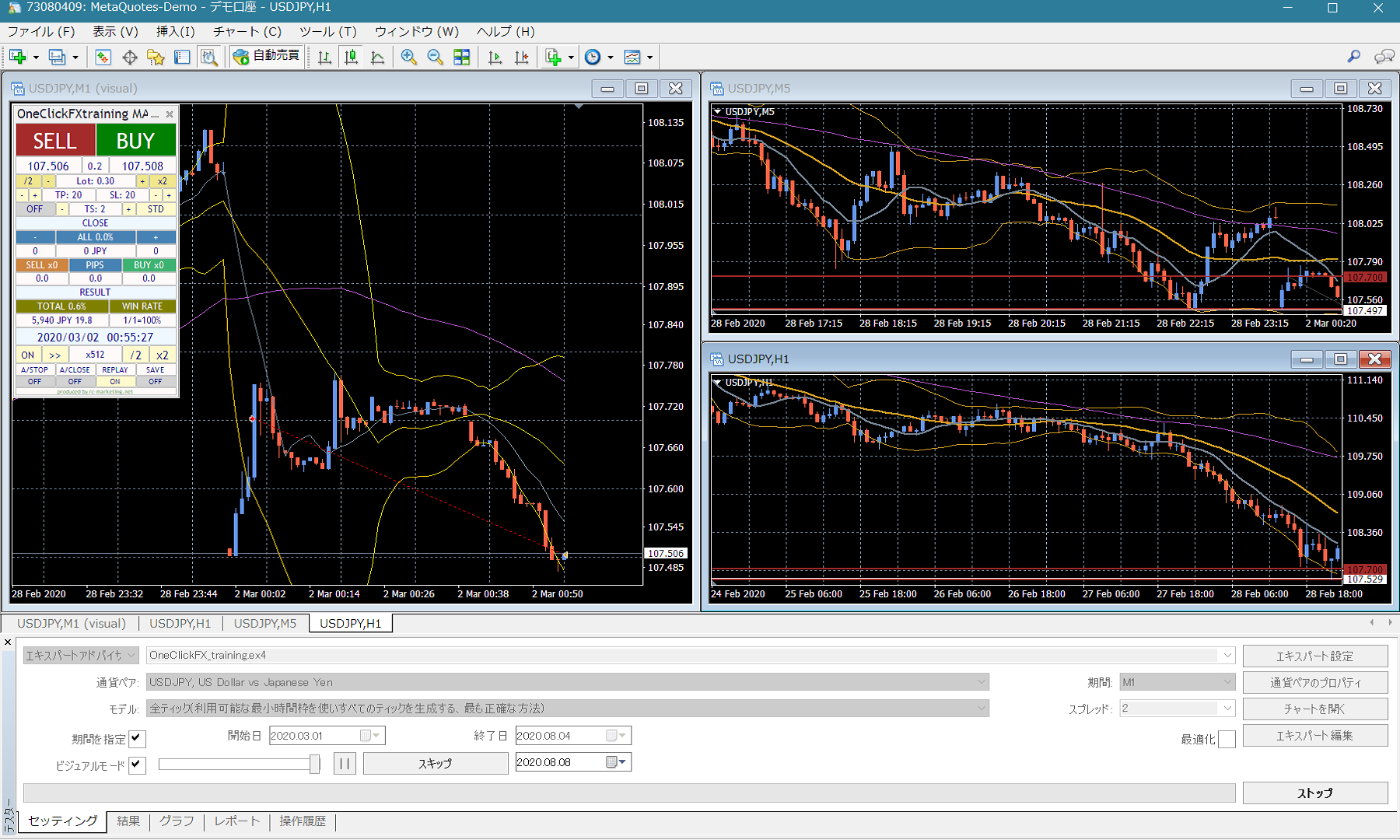
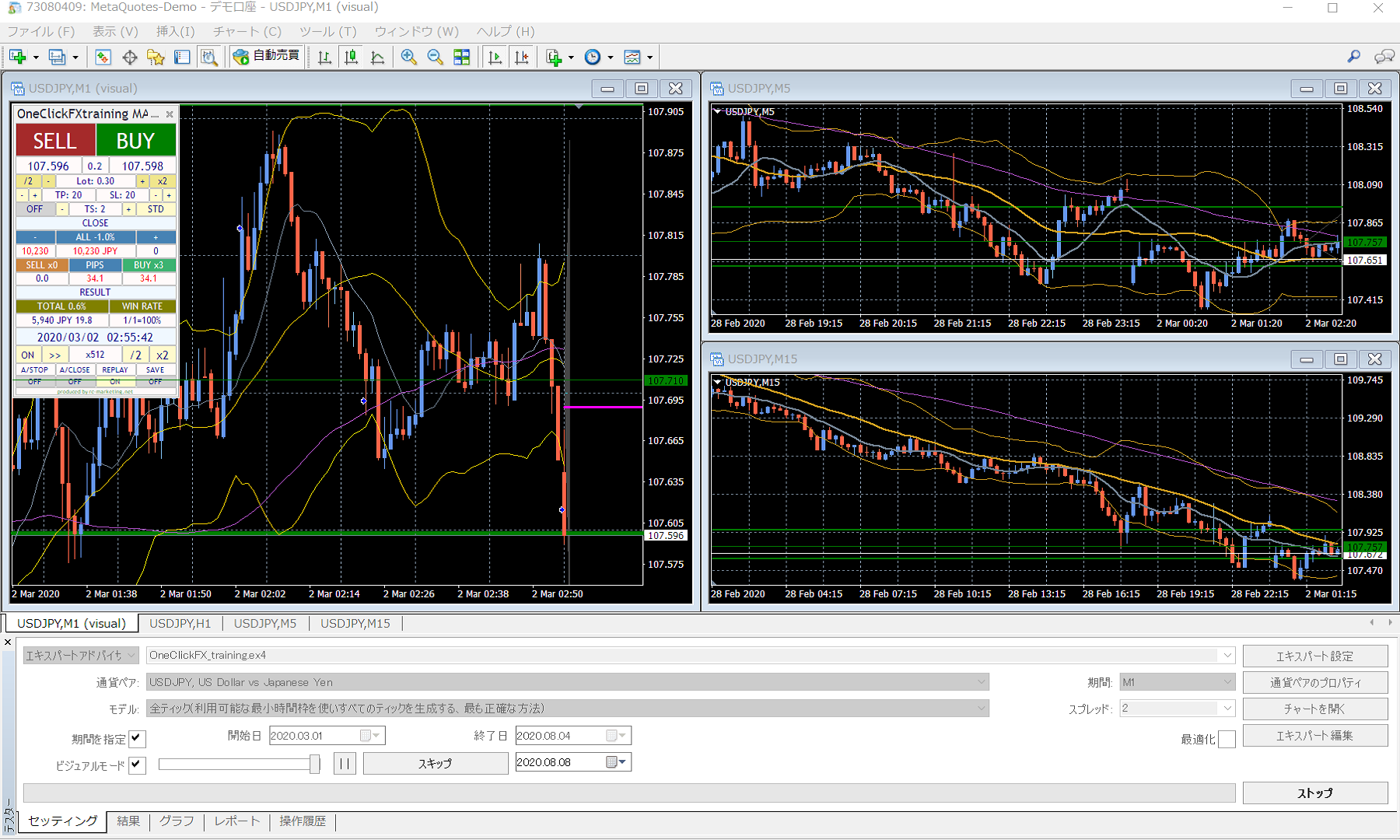
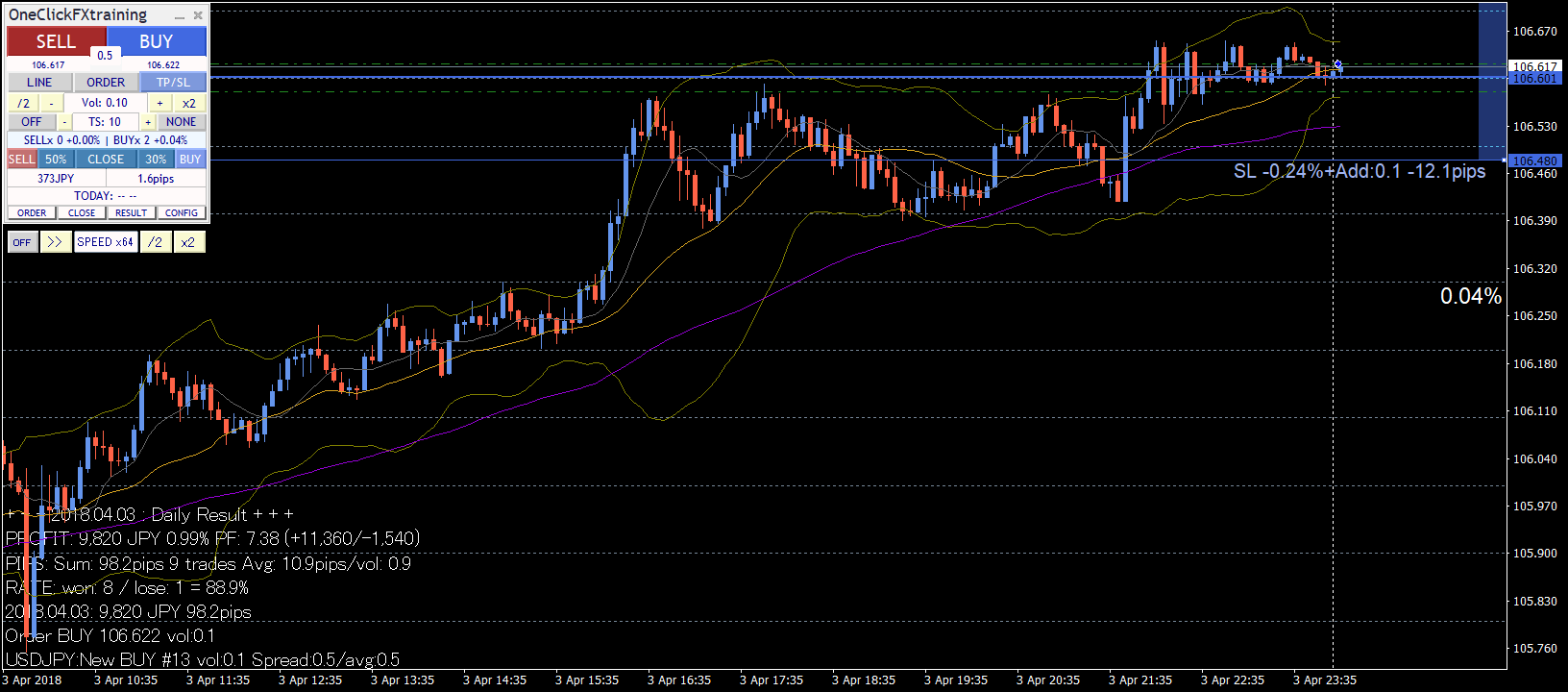
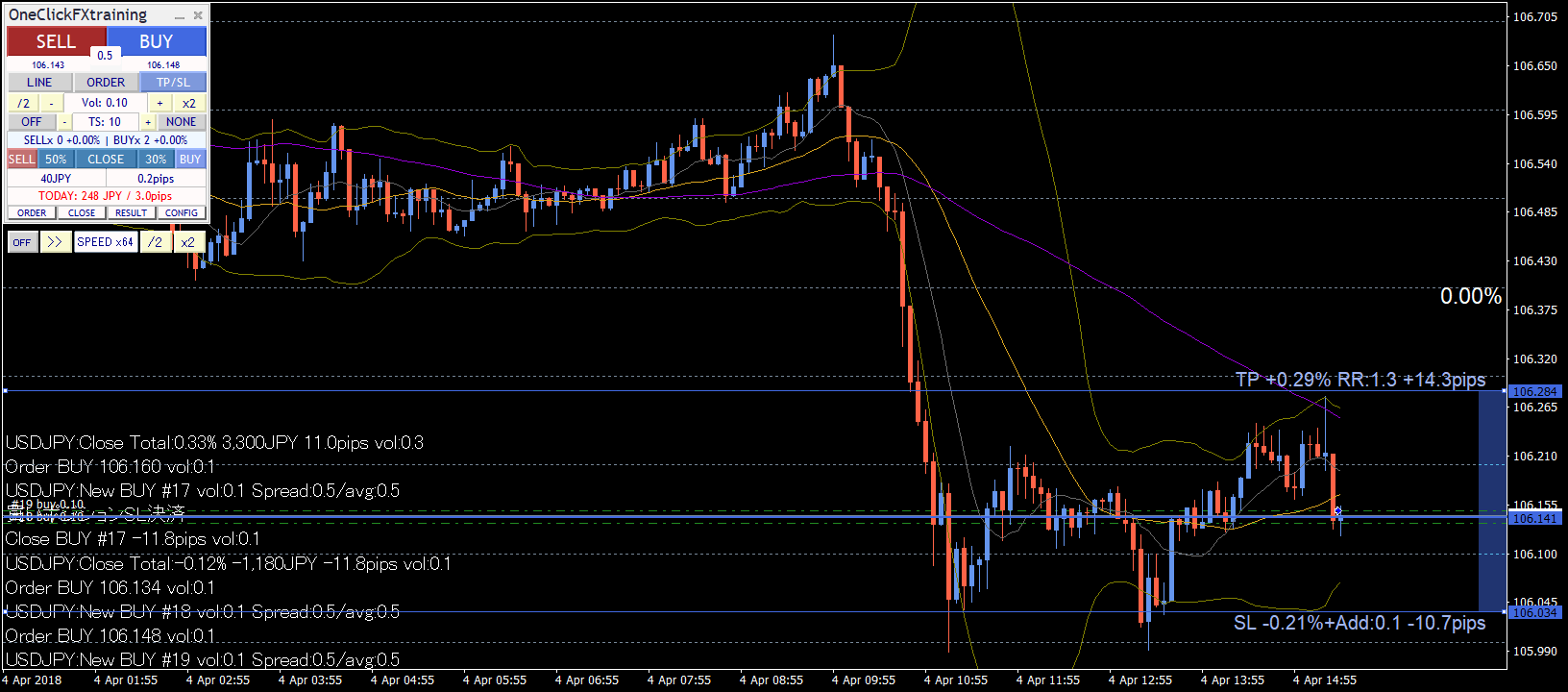
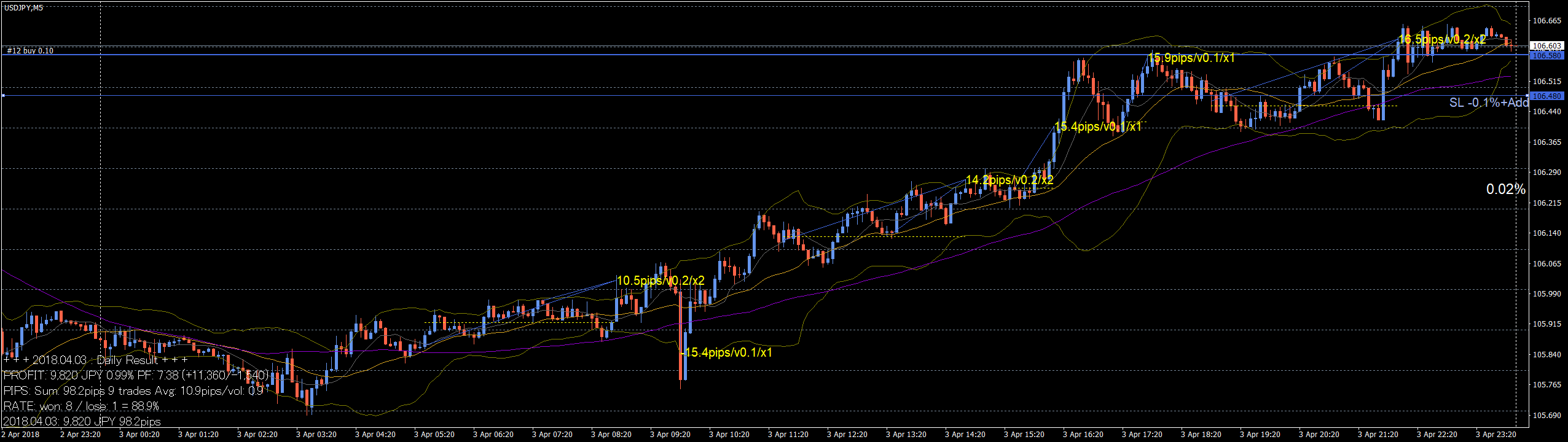
■Daily image saving
Every time the date changes, the daily trade history and aggregation results are automatically saved.
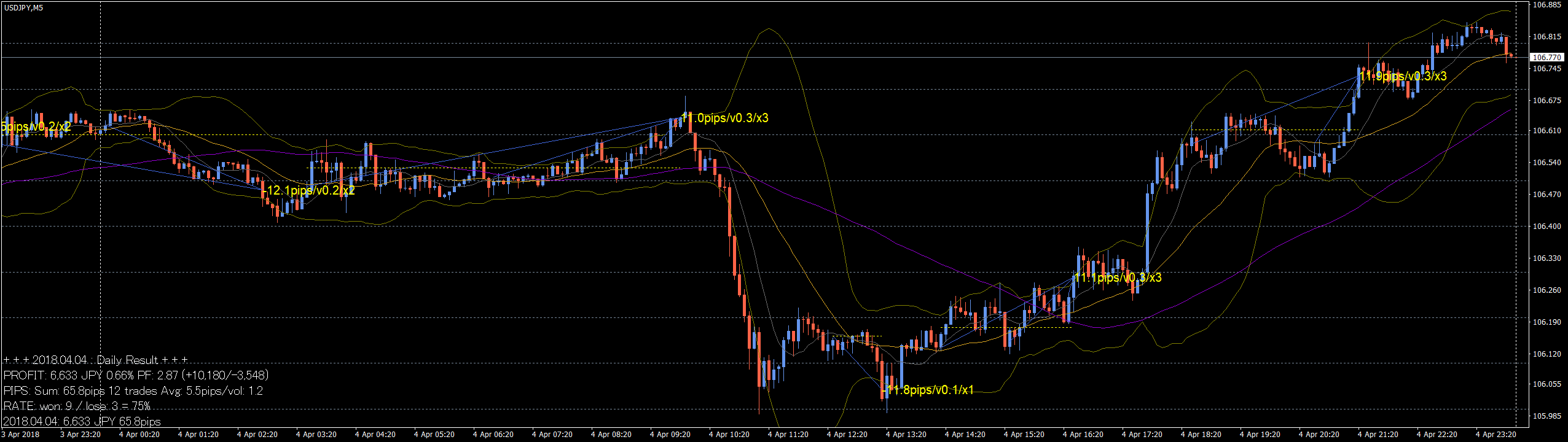
At the end, a wide image from start to finish is automatically saved.

Case of several days of trading on an hourly chart

※ All trade images may not save correctly for very long time periods due to size limitations.
Signal Tool Linkage
Linked to changes in your signal tools or indicators, it triggers entry or pause.
For example, Golden Cross of moving average, MACD positives/negatives, or SAR reversals can trigger signals.
One-Click Auto Arrow Trade [AutoArwTrade] signals can be linked on the same chart with a simple setup.
What is One-Click Auto Arrow Trade [AutoArwTrade] is a feature that aligns arrow names at signal occurrences to allow easy linkage with the One-Click FX series. Supported signal tools are provided for free on the support page and will be added over time. Requests are welcome for creation.
Moreover, complex conditions for signal linkage are possible!
For example, after a moving average Golden Cross, if a SAR reversal occurs, signal linkage triggers! If the current price is below the moving average and your signal tool shows an upside arrow... the combinations are endless.
These features enable you to drive signal linkage like an EA, making verification easier. You can also pause and practice discretionary trading using those signals.
Both object-type and index-type signals are supported, but not all signal tools are guaranteed to integrate. For instance, indicators that fetch information from different timeframes or currency pairs may not work properly with Strategy Tester due to MT4 limitations. There may also be signal tools that are not compatible due to countermeasures (technically, integration can be refused).
If you have a signal tool you’d like to check compatibility with, please contact us.
Entry Assist
Entry Assist detects price action fluctuations and predicts price movement several seconds ahead. It uses this to automatically pause actual orders at the optimal timing after you press the entry button.
The status of Entry Assist can be seen on the color bar at the top of the control panel.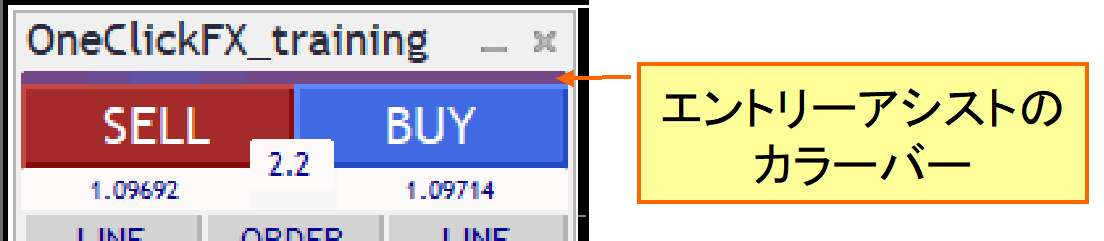
With a Weak/Medium/Firm strength setting, pressing the entry button makes the button appear lighter and Entry Assist waits for timing. Pressing again forces entry, and pressing the lower cancel button stops the entry.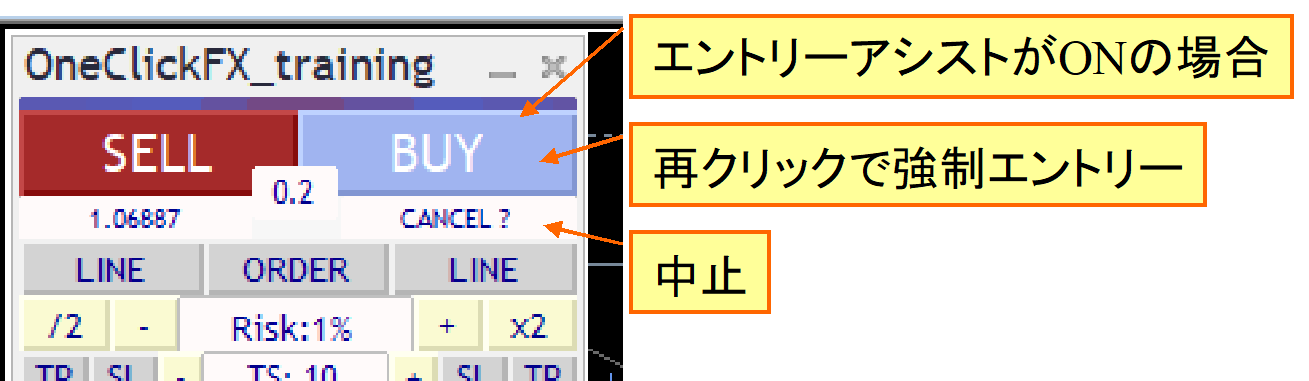
This function predicts price movements a few seconds ahead; in a down-trending market, it can help suppress buying orders.
If you set strength to “Firm,” it may not enter until a clear upmove occurs, possibly delaying entries. Adjust according to market conditions. Also, in testers or brokers with fixed spreads, this function may not perform at maximum.
AI Judgment
One-Click FX Training MAXintroduces theAI Judgment featurethat exports trade history and chart data to AI-analyzable formats, enabling objective reflection on results and using AI to identify improvement points. This enables traders to gain new perspectives and further enhance skills.
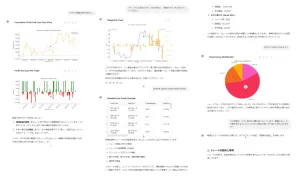
AI Judgment goes beyond simple history review to provideobjective and multi-faceted AI analysis, including risk assessment, entry timing accuracy scoring, and strategy consistency scoring, supporting professional-level data analysis. This helps quantify performance and plan future actions. In risk-management-focused investing, it provides evidence-based decision support.
NotesAI analysis requiresFree AI (perplexity.ai, wrtn.jp, ChatGPT) or ChatGPT Plus ($20/month), and AI Judgment analyzes results for reference only and does not provide investment advice. Data and analyses are for reference; cannot guarantee all results or future performance. Final investment decisions are the investor’s responsibility.
Display of Economic Indicators
The included Economic Data indicators are shown unobtrusively and “Local Time” is included, so chart displays show economic data announcements in Japan time.
These indicators are shown on synchronized charts as well, allowing multi-angle impact visualization.
This video shows major US indicators at EURUSD 1-minute, and synchronized charts compare EURUSD 5-minute, USDJPY, EURJPY.
Pause and advance one candle at a time in the past verification viewer mode. You can save to restart as needed to replay.
Since you can verify across multiple currencies, even US economic indicators show influence on EURJPY, etc.
Standard Report Features
Finally, the Strategy Tester features.
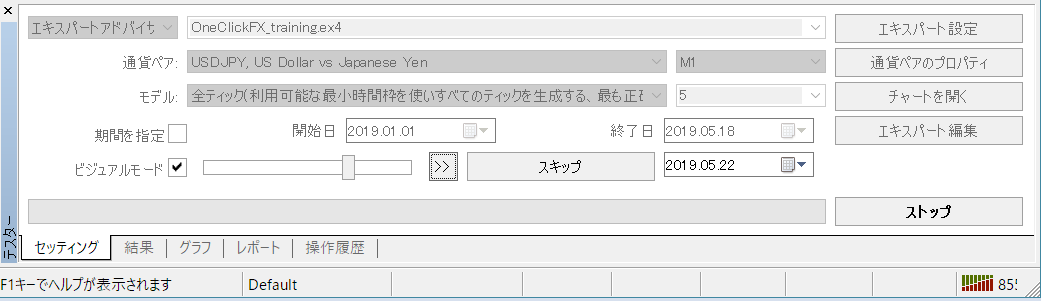
Since this is MT4 standard functionality, there is no need for extensive explanation; you can set currency pairs, tick accuracy, time frames, spreads, and target periods.
Standard features do not allow fine-tuning, but you can speed up, slow down, skip to a specific date/time, pause, but not rewind. If Speed Control is ON, set the speed to the maximum (rightmost 32).
Also available are result reports.
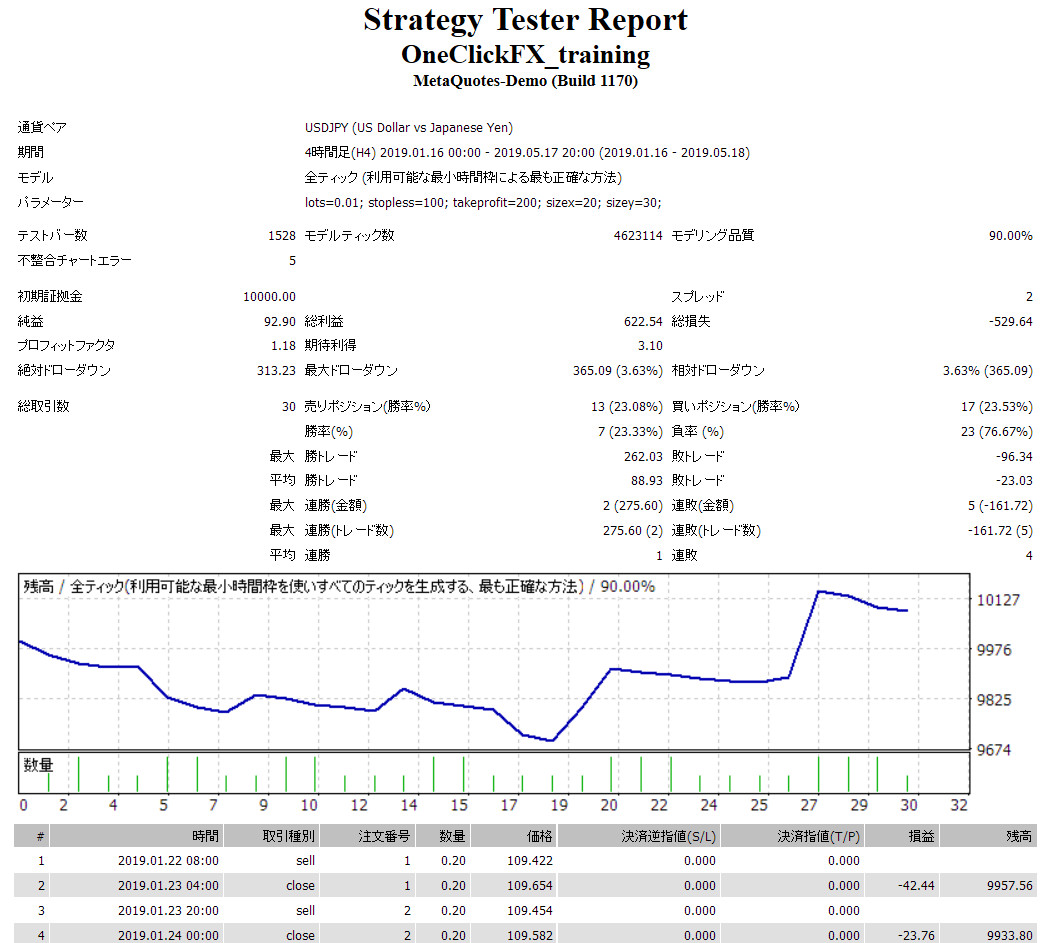 ※ The images are of USD/JPY results.
Starting with a continuous loss and a despairing middle, two major wins later turned the result positive.
As practice trades, it’s fine to smile, but in real trading you’d be disappointed. Practicing does not cost money, so you can challenge yourself with confidence.
Trading skills grow with time spent looking at charts. While you can practice on a demo, you can only view charts at 1x speed. Change the playback speed to 2x, 4x, 16x, 128x, 1024x to gain more experience and skills efficiently.
Also, replaying your own trades can help identify weaknesses and challenges.
Other Features
■ Forced settlement from keyboard
Pressing SHIFT+CTRL+ALT with two or more keys performs forced settlement. Useful for scalping; however, playback speed decreases.
■ Auto-splitting
Large lot orders may cause slippage; user requests to split orders above 1 lot to reduce slippage have been added. Differences may occur by broker, so effects vary. Function works, but splitting into too many small lots slows orders. Partial settlements cannot be split, so please be aware.
■ Server orders
TP/SL lines are placed automatically on the server when an order is placed. If a change is made to the line, the change order is placed. However, if Strategic Close is configured, server orders take precedence, so those features may not be available.
Server orders have an initial-only option; on the first order, TP/SL lines are sent to the server, but after that TP/SL changes do not trigger server orders. This allows per-position server orders.
■ Maximum number of positions
When the maximum number of positions is reached, additional orders are rejected. If linked to signals, positions can grow unbounded, so set limits. The same applies to optional martingale settings in strategic closes.
Number of held positions is limited by broker; with auto-splitting you can place orders until the limit is reached, but you cannot place orders beyond it.
■ Notification features
Notifications to LINE or Discord are available. For practice perhaps unnecessary, but you can monitor live signals for real trading.
■ Support & Assistance
One-click to collect information for timely support when problems occur.
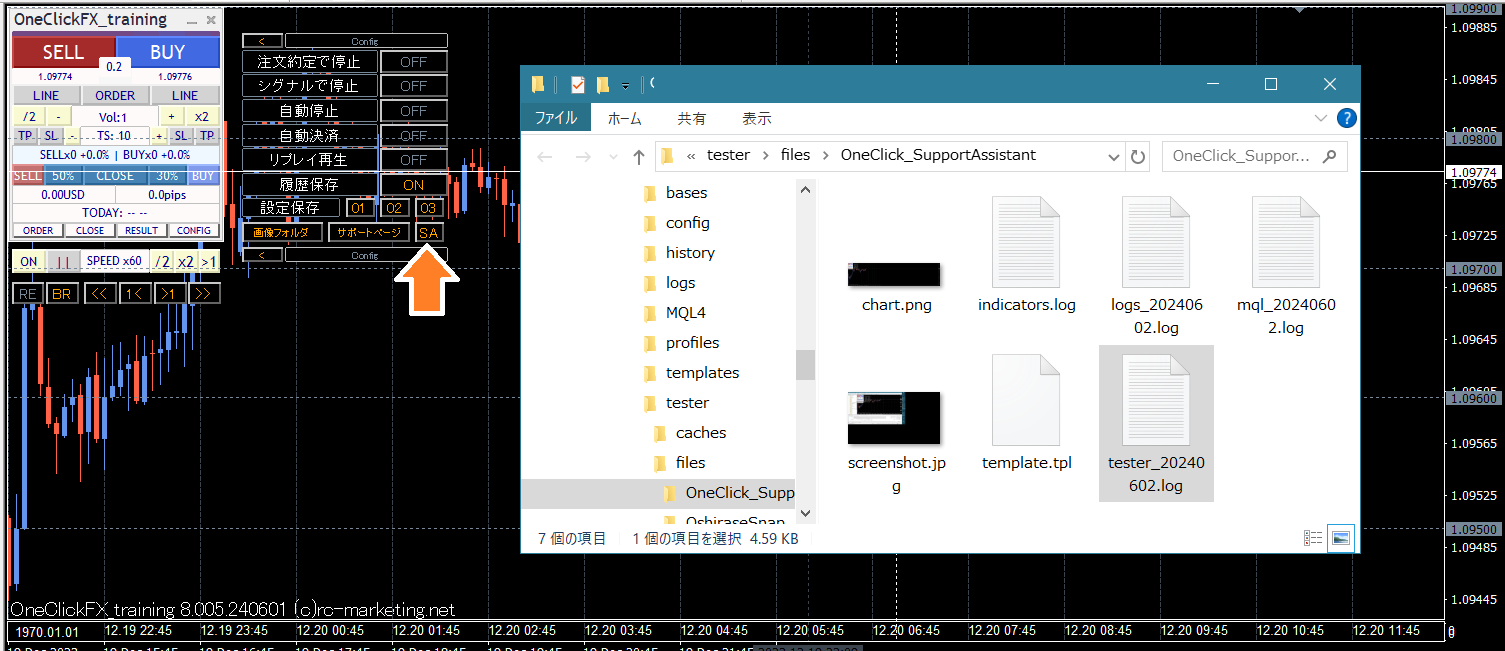
When trouble occurs or something unusual happens, sending the data output by this feature can help resolve issues quickly.
Pressing the button collects information and opens a folder; please email the output files.
※ The same functionality is also provided by scripts.
Tools, configuration files included
■Volatility at a Glance! Pips-unit Grid
Display moved to PIPS; added an indicator that makes the grid PIPS-based for immediate volatility awareness. This is included in the main chart preset charts.
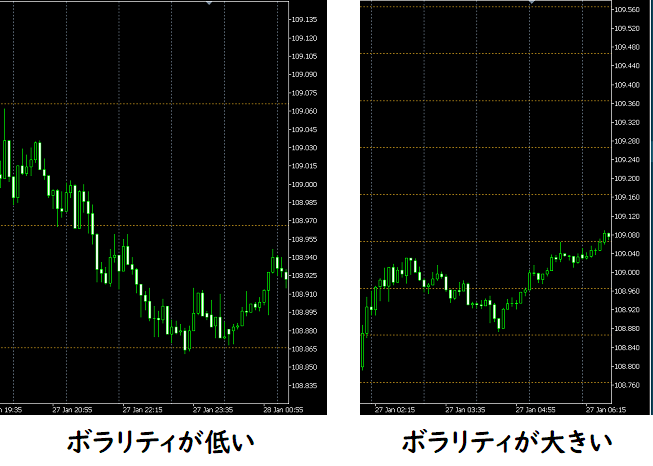
By making horizontal grid lines PIPS units, volatility appears high when the width is narrow and low when wide.
■Always check economic indicators!
Displays economic indicator announcements on the chart.
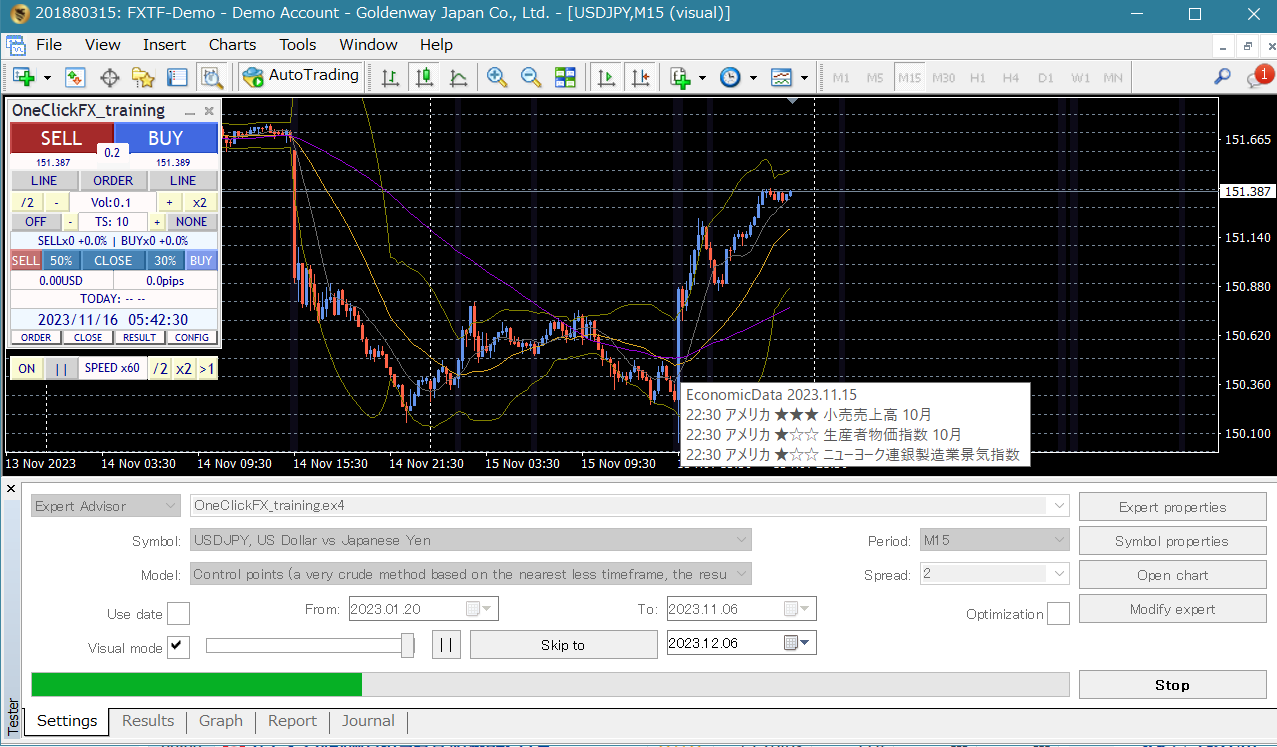
Data are sourced from "Min-Kab" (Minkabu).
Double-click the economic indicator line on the chart to view details on Minkabu’s page.
Economic indicators appear on the right edge of the chart, so upcoming announcements can be anticipated.
■Local Time
Displays Japan time at the bottom of the chart.
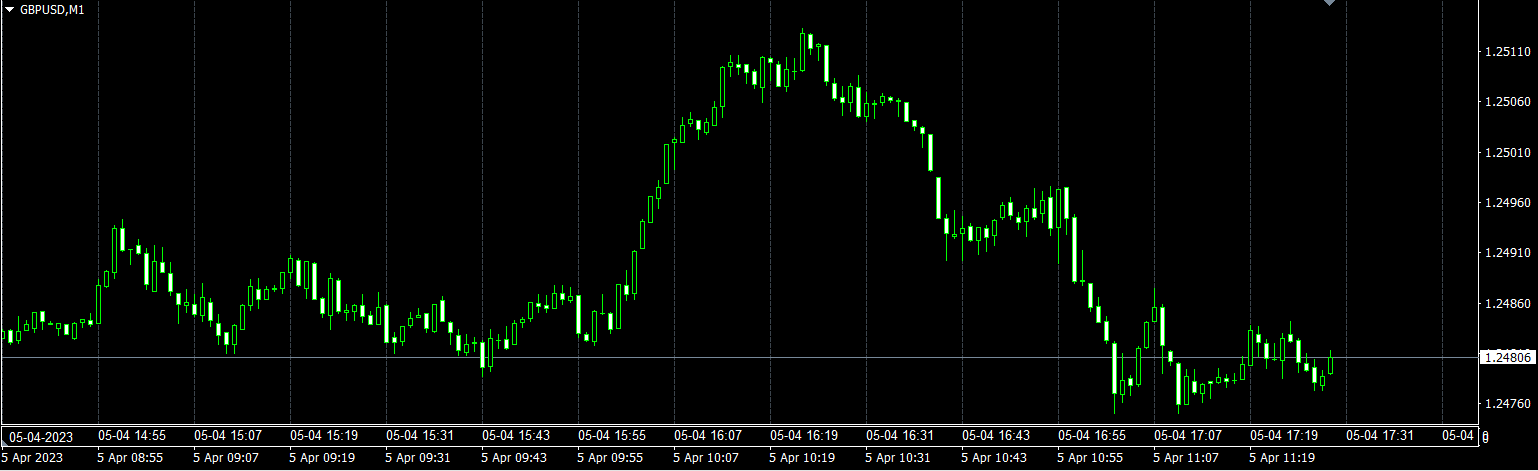
A lightweight tool, it minimally impacts performance and supports past daylight saving time. It’s simple but convenient for comparing economic indicator times in Japan.
■Keyboard operation tools
Tools to operate playback, stop, fast-forward, move one tick forward, or advance one candle forward from the keyboard.
■Sample preset charts for signal tool linkage
Sample preset charts or configuration files that respond to signal tools or chart changes for linked training on trading charts.
Apply the configuration file and enable linkage to connect signals.
▽ Samples of linked signal tools
1. Bollinger Bands overrun
2. Moving average crosses
3. Parabolic SAR reversal
4. MACD, moving average, Bollinger Band composite
The bonus is a typical entry point, but you can also link your own signal tools (regardless of source) to trigger entries. If you’re unsure how to configure, contact us for support.
■Past data application tool
Converts past data downloaded from the support page so it can be used with MT4 timeframes.
Free download from Support Blog
■Past data
Past data prepared on the support page can be provided for currency pairs and timeframes you specify. Essentially data available on MT4/MT5.
■Object synchronization tool
Synchronizes trend lines and Fibonacci lines between the tester’s main chart and sub-chart. Drawing a line on one chart maps the same line to the other chart.
From the Author
Practice and verification tools should recreate realistic price movements across multiple charts, giving the sensation of real trading if possible.
But realism can be inconvenient. Practicing with a demo account is inefficient; this simulator offers a near-real environment where you can freely test and refine.
The simplest yet impossible real-world function is to stop time. In paused time, you can display other timeframes and currency pairs, rewind and fast-forward to replay market changes with synchronized charts.
If you make an irreversible mistake, you can time-leap back and redo the same moment as many times as you like.
This isn’t fiction—it's what a simulator can do, and a valuable feature for practice and verification tools.
Outstanding traders deserve excellent environments; with this, trading skills may skyrocket.
Please try your own potential.
■Addendum 1
One-Click FX Training MAXis extraordinarily feature-rich, so beginners may find it complex. However, it defaults to standard FX functionality with straightforward operations; even server orders and full settlements via TP/SL lines are supported without issue.
Starting with low-feature tools is an option, but as skills grow you’ll want to try more possibilities. If tool capability limits your exploration, it’s a waste not to upgrade.
“Practice for real trading must be meaningful.” This feedback came from users previously.One-Click FX Trainingoffers a production-trade-ready “One-Click FX MAX lineup, enabling training results to be replicated in real trades with the same operations.
Beyond FX, using appropriate tools generally yields better results; practice and verification tools are essential for skill-building and strategy development, and we will continue to respond to market changes and customer requests.
■Addendum 2
This addendum is from the developer’s perspective. If you’re curious, please read.
One-Click FX Series continues AI-link testing, but as of now offers limited novelty beyond that. Time will tell.
One-Click FX Training MAX includes Strategic Close, Flexible Trailing Stop, Entry Assist, and more, enabling traders not only to set limits but to go beyond with advanced assistive features.
We believe third-generation trading is just beginning; in a few years, AI-assisted trading may be standard in MT4/MT5. But this does not guarantee it's profitable for everyone. AI has its own personality, so choosing what AI to train and work with will be a new development frontier.
These advanced topics are endless, but whether you use them now is your choice. The existence of features demonstrates technical sophistication.One-Click FX Training MAXis proud of its top-tier performance, yet we believe there is still room to support traders further.
One-Click FX Seriesaims to improve workflow, save time, develop skills, and make trading more enjoyable.
Let’s continue evolving together.