

Chart settings and customization methods for Bitflyer Lightning (bitFlyer Lightning)
This time, we will introduce the customization of the chart in bitFlyer Lightning (referred to below as bitFlyer Lightning).
Because bitFlyer Lightning is created by professional traders for traders, it is very easy to use and comes with a wealth of customization features.
Please see below for the specific features of bitFlyer Lightning.
>>>What is bitFlyer Lightning (bitFlyer Lightning)? Chart, FX fees, and how to mute sounds
13 Types of Chart Customization in bitFlyer Lightning
First, when you open the bitFlyer Lightning screen, tap the button at the top left to open Settings.
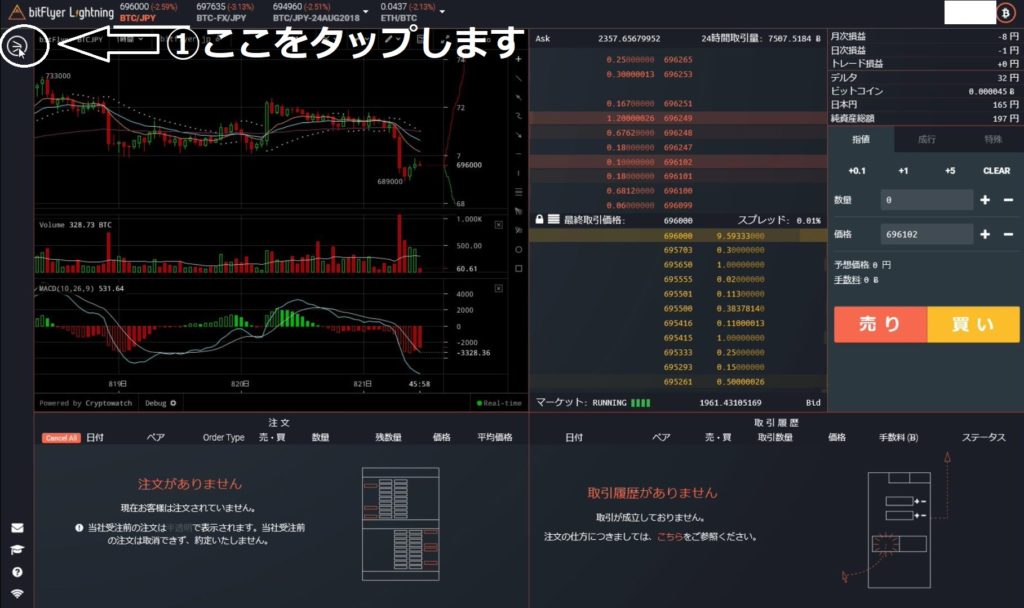

Now, we will紹介 all the customization methods that can be done with bitFlyer Lightning one by one.
Customization 1: Show Confirmation Screen

What is "Show Confirmation Screen"?
This setting decides whether to display a confirmation screen when placing an order or canceling an order.
By displaying the confirmation screen, you can prevent mis-orders.
After registering, all items are checked by default, but for bitFlyer Lightning beginners, it is recommended to have the confirmation screen displayed until you get used to it.
What does "Always confirm when the order price deviates by 5% from the final trading price" mean?
When you enter quantity and price and press the "Buy" or "Sell" button, the screen will appear if the current price deviates by 5% or more.
What does "Always confirm when repeating an order with the same price and quantity more than once" mean?
It will be displayed when you press the "Sell" and "Buy" buttons in succession with the same quantity and price.
※ It will not be displayed if the quantities or prices are different.
In short,it helps prevent mis-clicks or wrong judgmentsby doing so.
If you can prevent mis-clicks and wrong judgments, even beginners can trade with peace of mind on bitFlyer Lightning.
Customization 2: Order Quantity Buttons

The order quantity buttons are a feature that can be set to appear in the area shown in the photo below.
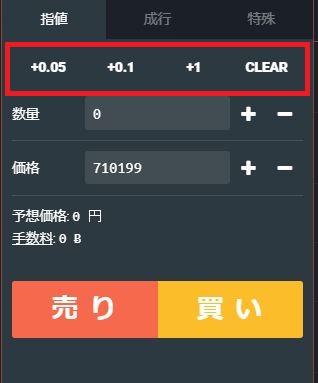
In principle, you can set up to four.
In short, having these buttons saves time.
The quantities that can be set are the following 10 types, up to four selections.
+0.01・+0.05・+0.1・+0.5・+1
+5・+10・+50・+100・CLEAR
※ CLEAR can be used to set the input quantity to zero. The price does not change.
+100, as of February 23, 2018, the price of 1 Bitcoin is around 700,000 yen, so if calculated, you would be buying or selling Bitcoin worth 70 million yen.
You probably don't see this often, but when you do, you're lucky.
Customization 3: Arrangement of "Buy" and "Sell" Buttons

The arrangement of the "Buy" and "Sell" buttons can be set left and right as shown in the photo below.


You can customize it so that you can press the buttons comfortably.
Customization 4: Leverage Settings

Leverage settings allow you to set the multiplier for leveraged trading.
To trade with leverage of 3x or more....Continue here below
>>>See on the official Cryptocurrency Trivia site