

Old v7: One-Click FX MAX Support Page
※This is the old version of the support page.For the latest version, click here
Thank you for purchasing this product.
The latest version is 7.67.
Upgrade for purchasers is free ⇒Download
・The added indicator that displays economic indicators can be viewed herehere
If you are new to the product, click here >>MT4 version、MT5 version
▼ Notes ▼
※ Supported OS are MT4 on Windows 10, 11, 2019, 2022, and entering an email address in settings is mandatory.
This tool is a trade-assistance tool, and it may auto-place orders depending on the settings. Before using in a live environment, be sure to thoroughly test with a demo account (or small trades) and verify operation. Also, because the program may auto-order immediately after startup according to the settings, please turn off the Auto-Trade button in MT4 and the Algorithmic Trading button in MT5, monitor the situation, and then turn them on as a precaution.
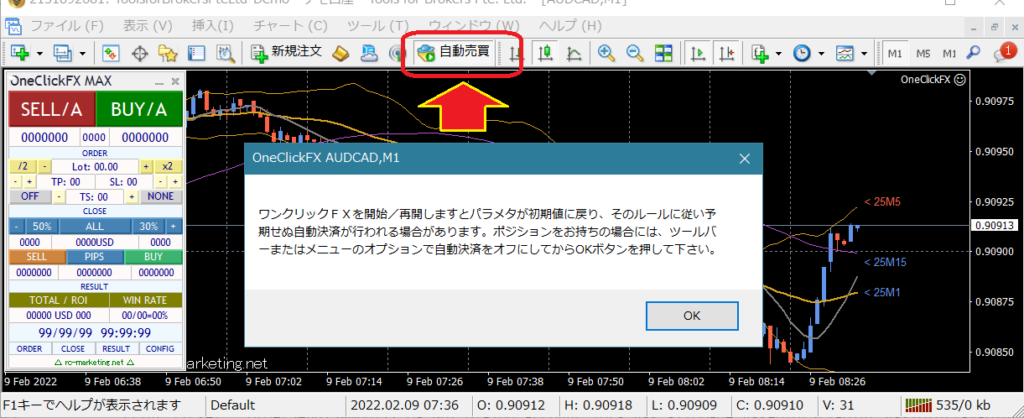
Product Contents
One-Click FX MAX is a discretionary trading assistant tool that displays entry and settlement information clearly on the chart with a single click.One-Click FX TrainingYou can perform real trades with nearly the same operation as MAX.
■Upgrade Information
MT5 account support for Netting
High-speed settlement support for MT5
Added thickness parameter for TP/SL lines,
▼ November 17, 2023 v7.61
Added color to close message,
Clicking the history date shows results
One-Click Auto Arrow Trade【AutoArwTrade】Supported
One-Click TSInterworking added
Added sell/buy settlement to signal interworking
History display shows P/L and large/small
Faster signal interworking
Added credit to P/L calculation
Server orders add first-time only
Change minimum RR to 0.1
TP/SL line display on entry adds execution time
Added initial position for control box
▽ April 20, 2023 v7.30
Added minimize suppression flag for control box
WebRequest-based license authentication
Added automatic averaging (numpin) button
Adjusted font size of control box
Support for multi-condition signal linkage
MT5 support for limit orders
Added button to save standard charts
Memory shortage handling for sub-panels
Slack notifications added
Bug fixes
▽ November 15, 2022 V7
Added aggregation start date
Added limit order for limit entries
Added automatic calculation of risk %
Added profit/loss % (risk %) of margin
Display of daily P/L %, and trade history
Display of position information
Added risk-reward
Changed display of position triangles
Auto-saving of daily aggregate images
Right-edge shift support for synchronized charts
Auto-saving of all trade images
Added recalculation for risk %
▽ May 10, 2022
Added Focus mode
Resize with minimize button
On requisition, only one retry on close
Other bug fixes and initial value changes for some parameters
MT5 version released
▽ April 5, 2022
Reset TP/SL/TS after all settlements
▽ January 28, 2022
Added invalid values for control TP/SL
Rejected entries when negative
Added LINE, Discard notifications
Changed triangle color to a mid-tone between BUY/SELL
Added message display area for errors, executions, etc.
Supported accounts with some fees
Added image folder button
Preserved window position when changing timeframes
S key for snapshot
Enhanced signal tool integration
Changed default values for signal linkage
Changed TP/SL by mouse drag & drop
Added forced stop-out line
Settlement of individual positions
Partial settlements (50%, 30%, etc.)
Added white space on right edge of synchronized chart
Improved usability via sub-panels
Added compact mode for control box
※This page may contain images from before upgrading. Some features described here may use older versions or training versions for demonstration, but all features are identical in the live version, so please understand.
Installation Method
※ Please pre-install your preferred MT4/MT5 (distributor does not matter) and check the permission to use DLLs.DLL Usage PermissionPlease check.
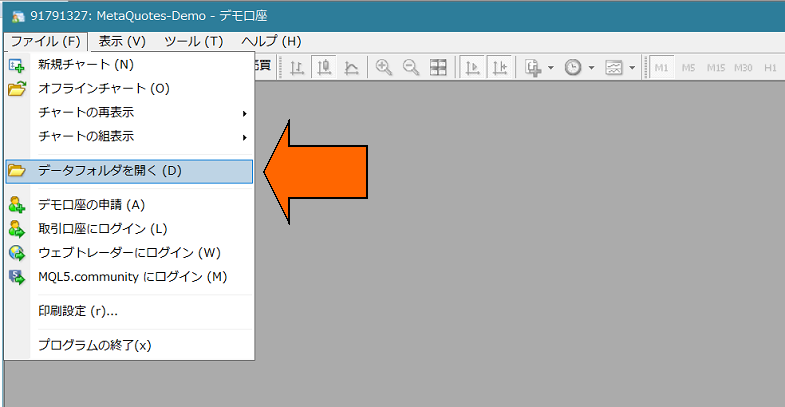
1) In MT4/MT5, choose “Open Data Folder” from the File menu.
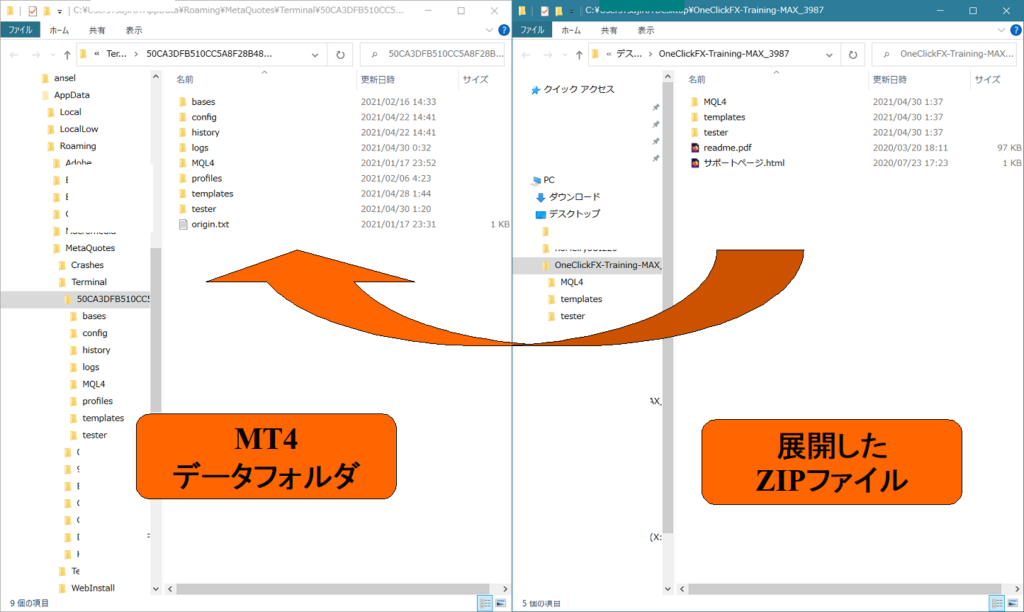
2) For MT4, overwrite all in MQL4/templates; for MT5, overwrite all in the MQL5 folder to the data folder.
3) Restart MT4/MT5.
■Preparation for Authentication
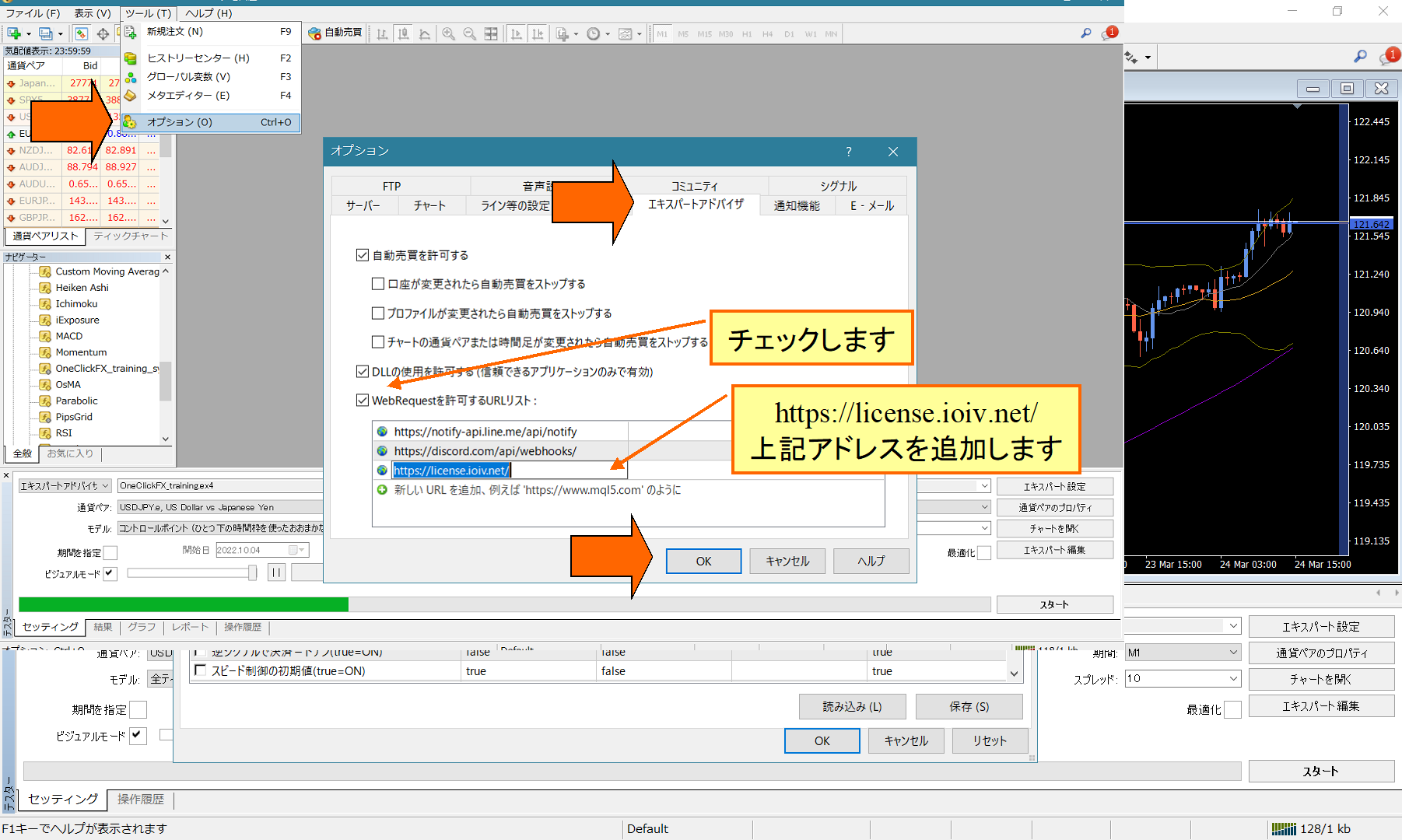
Add to WebRequest. If authentication problems occur due to security tools, please be sure to configure this.
From the menu, Tools → Options, open the Expert Advisors dialog.
Check the URL list to allow WebRequest and add the new URL “https://license.ioiv.net/”, then click OK.
■Launching One-Click FX MAX
4) Open the chart you want.
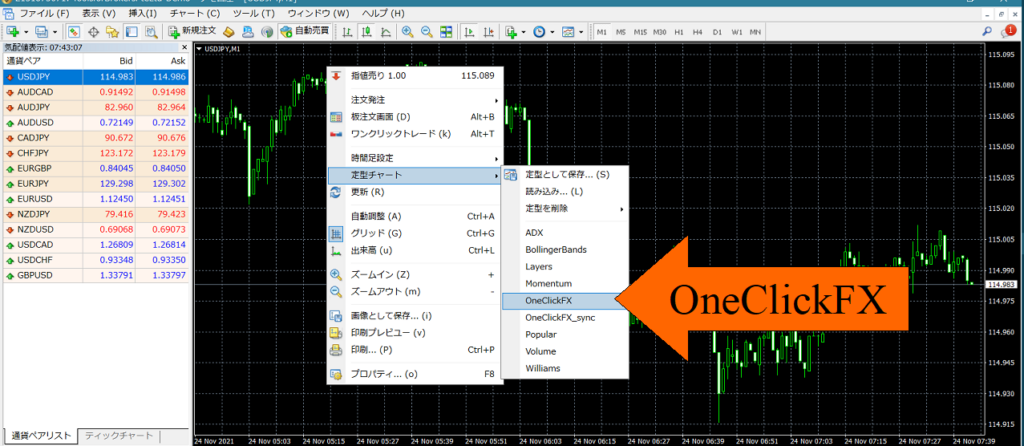
5) Right-click → Template Chart → select “OneClickFX”.
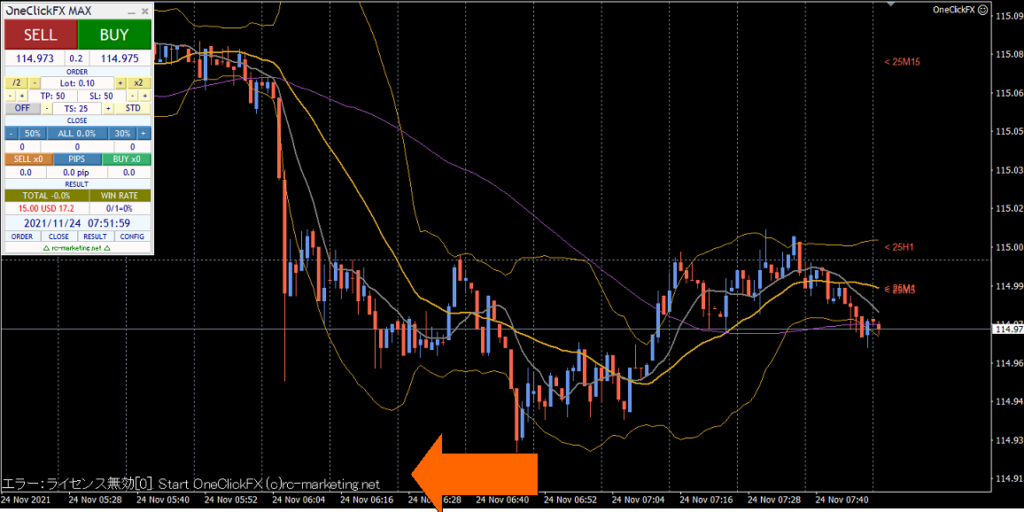
6) On first launch, a license invalid message will appear and the button may not respond.
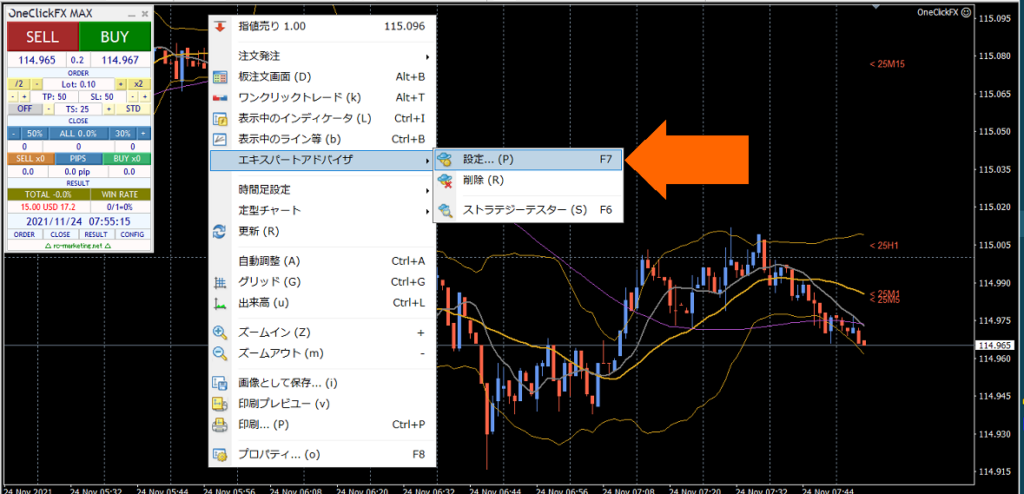
7) Right-click → Expert Advisors → Settings.
8) 【Important】Enter the “GoGoJyan member ID” in Parameters and click OK (other parameter information will be described later)
If a considerable time has passed since purchase or you changed your email, please inform us via the form at the bottom of the page. Unregistered email addresses cannot be used.

■If you want to practice trading easily
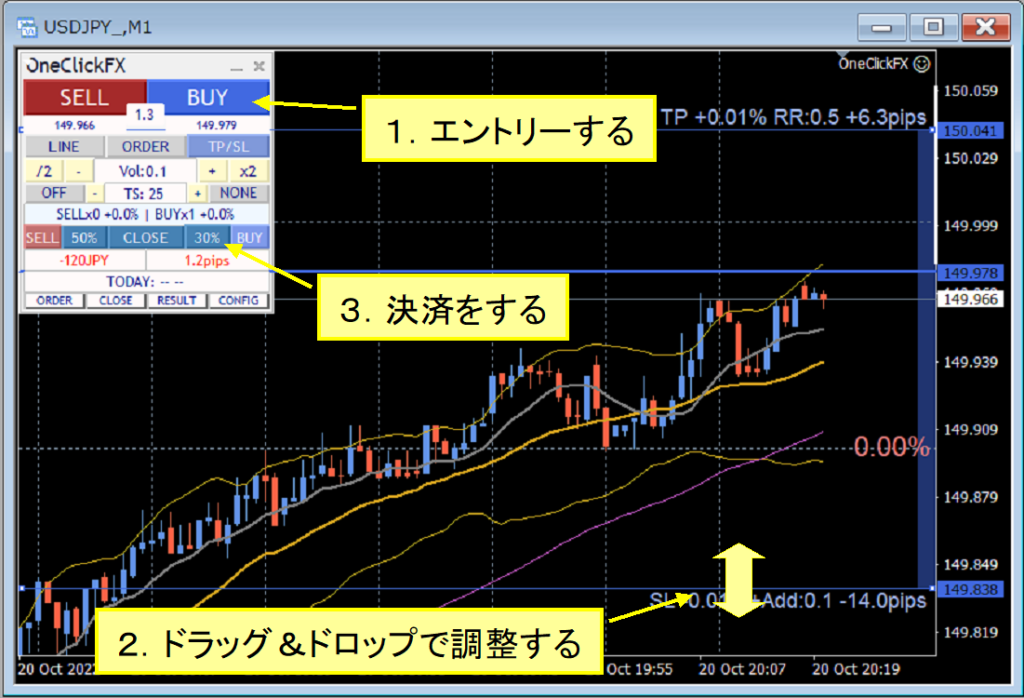
Operation & Settings
■How to use One-Click FX MAX
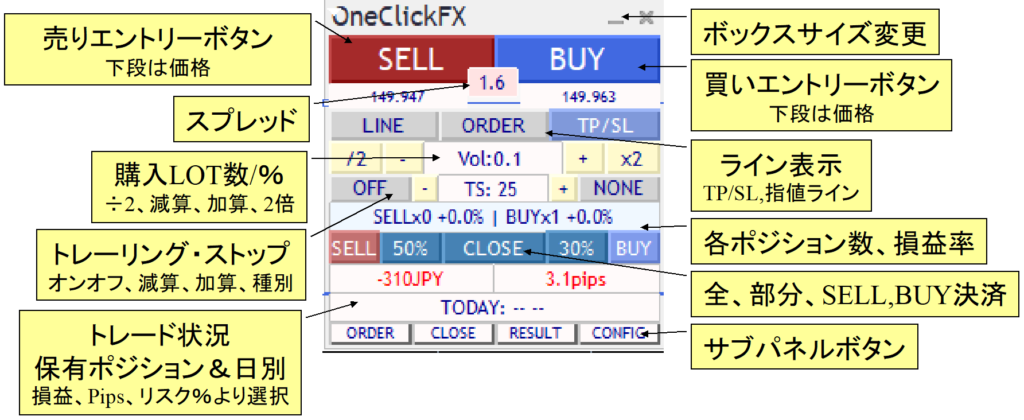
Main Panel (Normal Mode)
Main Panel (Focus Mode)
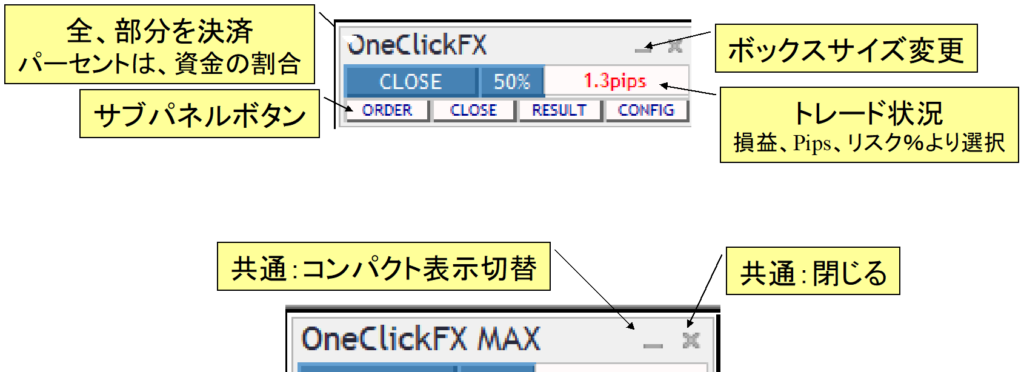
The minimize button in the title bar can switch between modes.
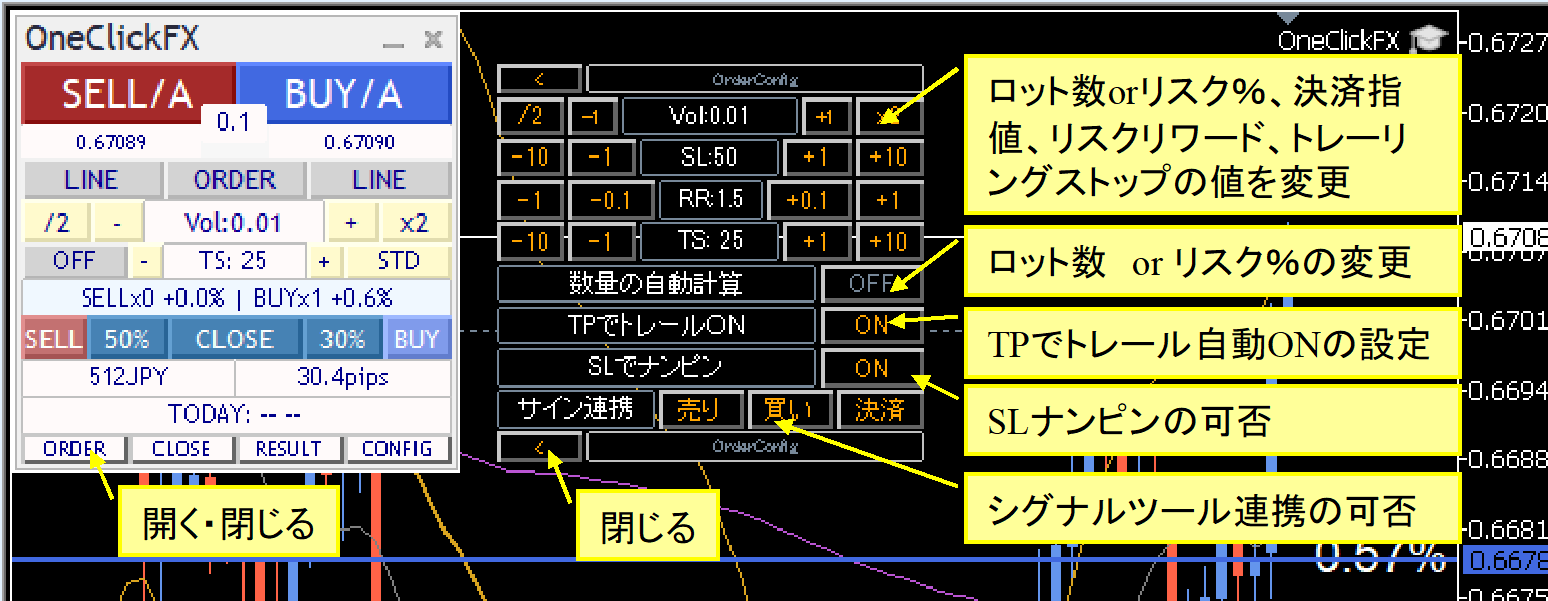
Sub-panel for orders
Sub-panel for closes

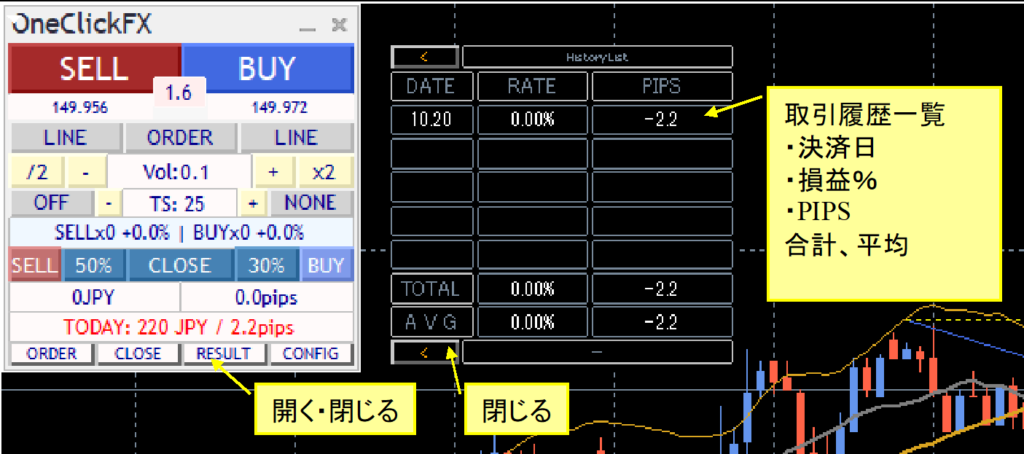
Sub-panel for history
Other sub-panels
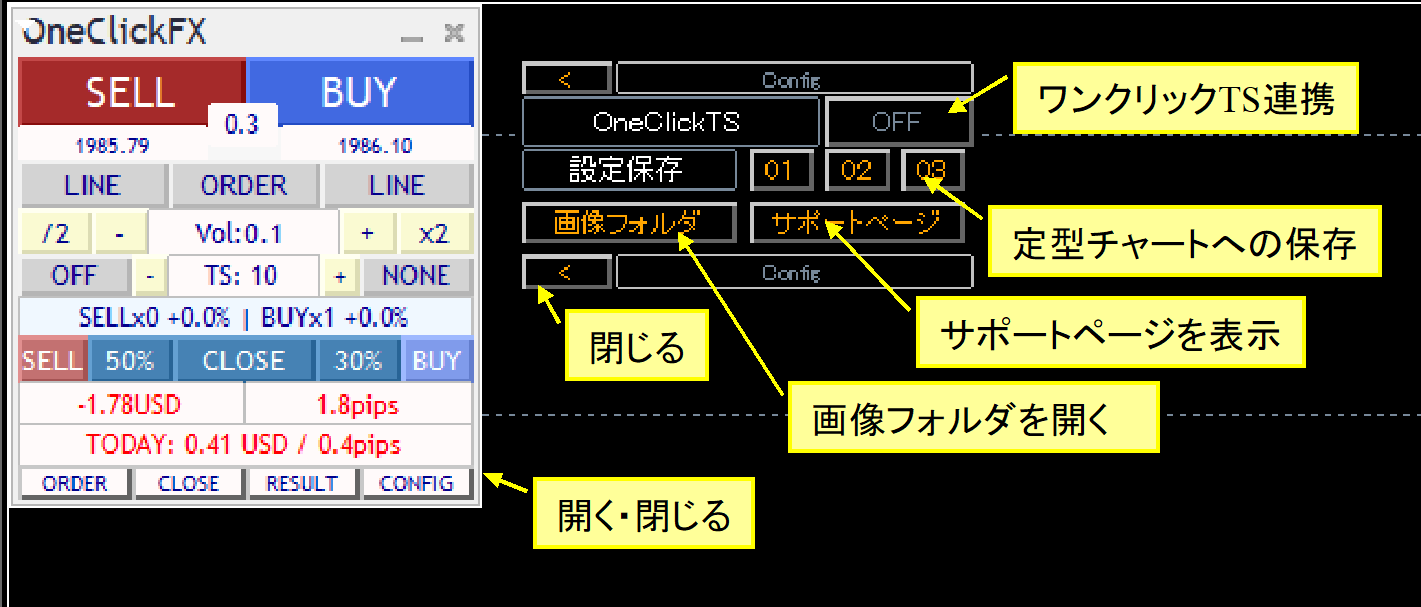
■One-Click FX Parameter Settings
| Item | Content |
|---|---|
| GoGoJyan nickname or member ID | Enter your email address |
| Magic Number | You can set a magic number. Initial value 0 applies to all trades. |
| Focus Indicator 1, 2, 3 | You can select three indicators: profit/loss, difference, and risk % for each. Indicator 1: left of the control box, Indicator 2: right of the control box, Focus mode, Indicator 3: center of the right edge of the chart (hidden when NONE) |
| Initial Lot Size / Risk %, Change Value | Set initial values for lot size or risk %, and the increment/decrement value. |
| Server orders | Choose whether to place TP/SL on the server (both or SL only). The first TP/SL is set only at first order; changing TP/SL lines afterward does not modify the order content. |
| Stop-loss line = SL (minimum 1) | Specify the initial price difference from the break-even line to the stop line. |
| Risk-Reward | Specify how many times the difference between the break-even line and SL is used to set the initial TP. If SL is 100 and risk-reward is 1.5, the initial TP is 150 from the break-even line. It cannot be disabled; if not used, enter a large number like 100. |
| Trailing Stop | Trailing Stop is automatic incremental settlement controlled by the tool. |
| Partial Settlement Rates 1, 2 | Specify the percentages for partial settlements next to the ALL Close button. Initial values are 50% and 30%. |
| Maximum number of positions | Controls the maximum number of positions that can be opened. Some brokers may impose limits beforehand. Zero means unlimited. |
| PIPS=>Points conversion factor | Specify the number used to convert PIPS to points. Usually setting zero automatically is fine. Since CFD numbers vary by broker, adjust the multiplier accordingly. |
| Acceptable slippage per page | Specify the acceptable slippage in points. |
| Use ASK line | Display triangles aligned with the ASK line. If false, adjust for spread and display with a normal line. Note: large spread fluctuations may introduce errors. |
| TP/SL line ON when order/execution occurs Turn TP/SL line on upon placing an order | When you press the order button, the TP/SL lines are set to their initial values. |
| Initial value for automatic lot calculation | If you auto-calculate lots from risk %, set true |
| Initial value for trailing-stop type | Set the initial type for trailing stop (STD, SHRINK, MA, BB, SAR). |
| TP trailing on initial value | When the price reaches TP on the line, the trailing stop turns on rather than settling immediately. You must pre-select trailing-stop type and value. |
| Initial values for buy/sell signal permissions Initial values for sell signal permissions Initial values for settlement signal permissions | Set initial ON (true) / OFF (false) for signal linkage when in signal interworking. |
| Close in reverse signal | While linkage is active, if a reverse-direction signal occurs while you hold a position, decide whether to settle the position. True settles and reverses; false results in hedging. |
| NinPin on SL | NinPin when price touches SL. The stop line will move by the SL value. Note: if server orders are TP/SL or SL, NinPin is not performed as server orders take precedence. |
| Past months for aggregation | Enter how many past months to aggregate. Zero means 12 months. Up to 360 months (30 years); longer may take longer to aggregate. |
| ▽ Display settings | |
| GMT difference of connected server Whether DST is in effect | If shown as MT4, use as is. To set to Japanese time, change to 2 hours and enable DST (depends on server, please confirm). |
| Show final time | Display final tick time in the control box. If server time adjustment is applied, the adjusted time is shown. |
| Images saved at trade Image size (width x height) | During execution and daily aggregation, set whether to capture images. Choose not to capture, full screen, or target chart. Images are always saved; too many images may slow down your PC. Please delete unnecessary images. |
| ▽ External entry | |
| OneClick TSInterworking | NONE=none, Direct=issue directly from One-Click BO, via Alert=alert notification linkage,※ NONE means pressing the sub-panel will not turn ON. |
| ▽ Signal Tool Interworking (Objects) | |
| Object name for Buy signal Object name for Sell signal | Enter the object names shown by the signal tool. If partially matched, it is considered a target signal. Default: ArwUP, ArwDN are theOne-Click Auto Arrow Trade【AutoArwTrade】and includedSignal Arrow ToolYou can specify multiple strings separated by commas. All conditions are ANDed. |
| Signal time target | Enter whether the signal targets the latest bar (0) or past bars (1–). If repainting occurs on the latest bar, enter the confirmed value for the previous bar (1). |
| All settlements signal object names Buy settlement signal object names Sell settlement signal object names | Enter the object names shown by the signal tool. Partial matches count as target signals. Default: ArwCL, ArwCUP, ArwCDN areOne-Click Auto Arrow Trade【AutoArwTrade】and includedSignal Arrow Toolarrow names should match and be used accordingly. |
| Settlement signal time target | Enter whether the signal targets the latest bar (0) or past bars (1–). If repainting occurs on the latest bar, enter the confirmed value for the previous bar (1). |
| ▽ Signal Tool Interworking (Index) | |
| Enter the indicator name (filename) of the target signal tool. | |
| Buy signal index Sell signal index | Enter the index numbers used by the indicators. |
| Signal time target | Enter whether the signal targets the latest bar (0) or past bars (1–). If repainting occurs on the latest bar, enter the confirmed value for the previous bar (1). |
| Indicator parameters 1–8 | Enter indicator parameters in the correct types (integer, decimal, string) in order. After END, default values are used. If a numeric value is typed for a string parameter, prefix with a single quote. |
| ▽ Notification features | |
| Notification Settings【Common】 | |
| ▽ Control Box | |
| Since this depends on screen size, reduce both values if they do not fit. | |
| Initial vertical and horizontal position | Specify the position of the control box. |
| Control Box font size multiplier | Fine-tune the control box font size. Depending on screen size and Windows font scaling, MT4 font size may be too large or too small, so adjust with this value. 1 means 1x. |
| Chart text size | Specify the font size for text shown on the chart. |
| Line thickness | Specify the thickness of TP/SL and other lines displayed on the chart. Dotted lines when not confirmed are fixed at thickness 1. |
| Smooth drawing | Value is always displayed when TP/SL lines move. It increases load, so for computers with limited performance, false is recommended. |
| Delay startup | Specify the number of seconds before the control box is displayed. When starting multiple charts simultaneously, this reduces load and prevents startup failure. |
| Display startup caution message | Specify whether to show the startup caution message. If false, trading begins immediately after startup. |
| Prevent minimization of the control box | Keeps the control box from being minimized even if it does not fit in the chart. Tends to increase load. |
| Message text size Display duration (seconds) | Specify the size and display duration of the message shown at the bottom left of the chart. |
| Color for BUY Color for SELL Color for trailing stop | Specify colors for the buttons, TP, SL, and trailing lines. Position lines and limit lines use similar colors as a baseline for display. |
| Color specification for the control box | freely customize the colors of the control box’s various buttons, labels, and text. |
■Automatic calculation by Risk %
Trade quantities are automatically calculated from the margin and the risk % (risk %).
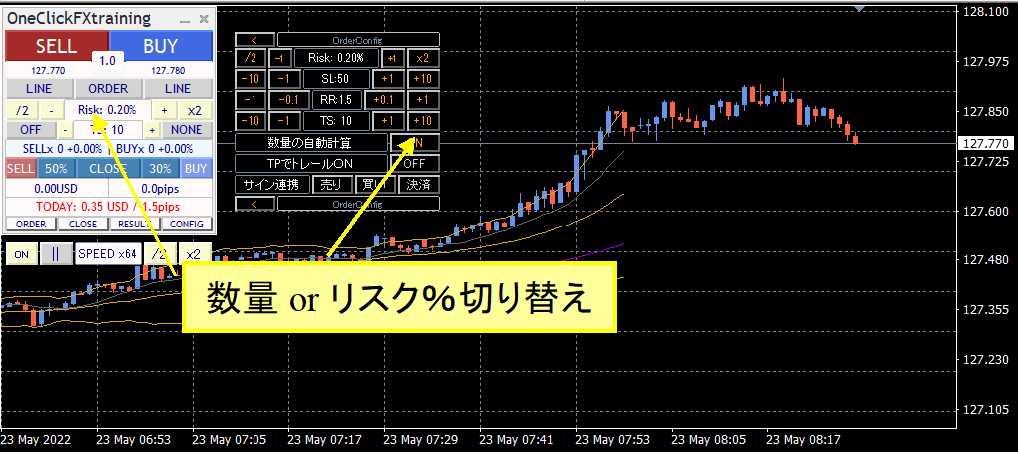
You can switch the quantity field in the control box or the “Quantity auto-calc” in the sub-panel.
If you enter a market order without TP/SL lines displayed, the order quantity is calculated from the initial SL value and the risk %. If TP/SL lines are displayed, quantities are calculated from the order price and the SL line price.
For limit orders, if TP/SL lines are not displayed, quantity is calculated using the order price and initial SL; if TP/SL lines are displayed, quantity is calculated using the order price and SL line price.
Note: turning TP/SL lines on/off returns to the initial values, and automatically calculated order quantities may not match the SL line.
■TP/SL Line
Pressing the LINE button on the control box displays the TP/SL line.
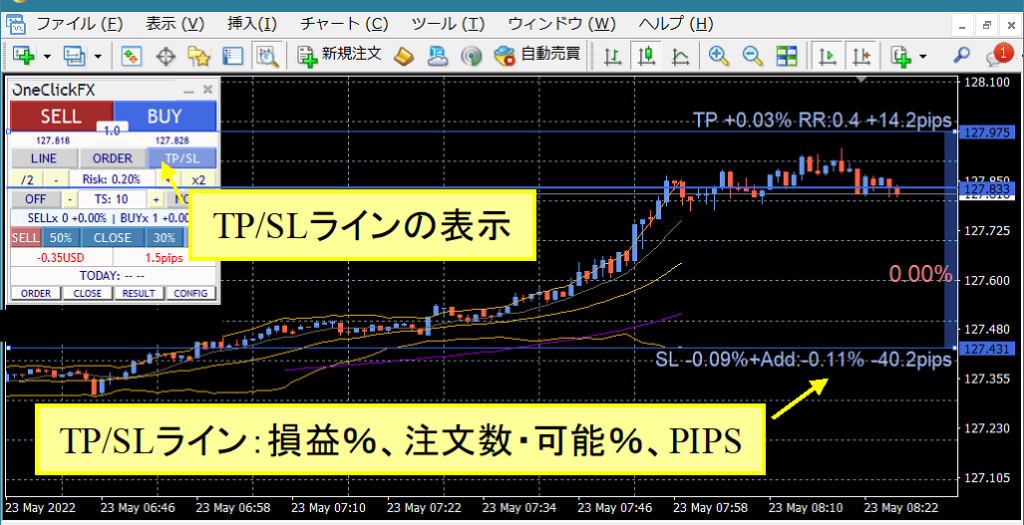
If you hold a position, the revenue and loss % at settlement, the maximum tradable percentage from the order quantity or risk %, and the price difference from the break-even line are shown. If you have no position, the current price shows the possible order % and price difference.
When you turn the LINE button on, the lines are drawn at their initial TP/SL values. Turning the LINE button off and on returns to the initial values.
Also, if TP/SL lines are off, settlements do not occur.
■Limit Order
The control box ORDER button displays the limit order line.
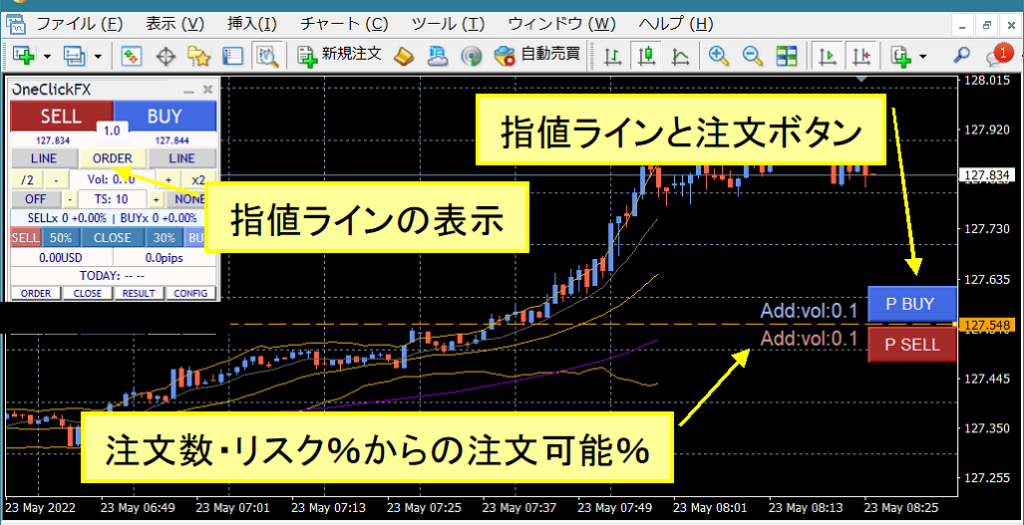
The order button appears for SELL and BUY when their TP/SL lines are displayed. If BUY TP/SL lines are not shown, the P BUY button will not appear. The order quantity or possible order % from risk % appears beside the button. If n/a, additional orders are not possible.
■Trailing Stop
A feature that supports settlement at multiple timings.
Press the method button to change it, and after the method decision, turn ON/OFF to operate. If OFF, a faint line is shown; switching to ON makes it active.
※ Depending on settings, settlements may occur the moment you turn ON, or you may settle immediately when you enter. Example: if the MA line is above the current price and you Buy, it may settle immediately because the condition is met. Please exercise caution.
・Standard (STD)
Settlements occur when the price falls below a specified amount from the recent high/low after the order. Default is 100 points.
・Shrink (SHRINK)
Similar to Standard, but if the highest/lowest after the order is not updated and moves to the next candle, the settlement line moves closer by 5% each time. When new highs/lows occur, the settlement line moves back to secure profits when price activity slows. Default starts at 100 points, and when new highs do not occur, it progressively tightens by 5% per bar.
・Moving Average (MA)
Settles when it touches the moving average line of the specified period. Settlements occur when the trend changes. The T/S value becomes the period of the moving average. Default MA is 100.
・Bolinger Bands (BB)
Settles when touching either band of the Bollinger Bands for the specified period. For a buy, touch the lower band; for a sell, touch the upper band. Like MA, T/S uses the period; default BB is 100. Deviation 2, cannot be changed by close.
・Stop & Reversal Point (SAR)
Settles when contacting the specified step Parabolic SAR. SAR devised by J.W. Wilder is an index indicating market reversal. T/S value is 0.001 for 0.1, 0.01 for 1.0, etc. Use Parabolic SAR with standard indicators to confirm values.
■Automatic Image Saving
If you set image saving during trading to true, screen captures are automatically taken on entry and settlement. Pressing the image folder buttons in other sub-panels will open the destination folder.
Destination is Data Folder, MT4 => MQL4/Files/OshiraseSnap.
※ Please also copy the OshiraseSnap folder included in the product files.
Saved image files are stored indefinitely, so delete unnecessary images.
Sub-chart Synchronization Settings
1) Open the chart for any currency pair
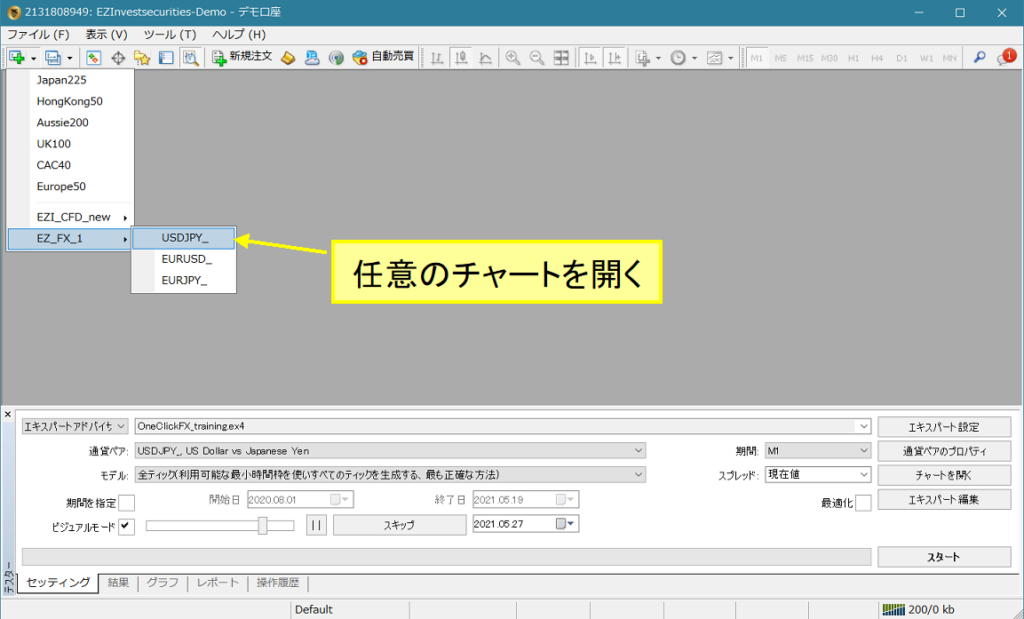
2) Right-click → Template Chart → select OneClickFX_sync

Interworking with Signal Tools
Use the includedSignal Arrow Tool(Free version) to interwork with arrows from other signal tools to enter trades or enter on chart changes such as golden crosses.
■Simple Interworks
Interworking with signal tools can be set using the parameters described for One-Click FX above, or by using the includedSignal Arrow Toolto interwork.
■Interworking with One-Click Auto Arrow Trade【AutoArwTrade】
1. Insert a compatible signal tool into the chart.
2. Turn ON the buy/sell linkage buttons for signals.
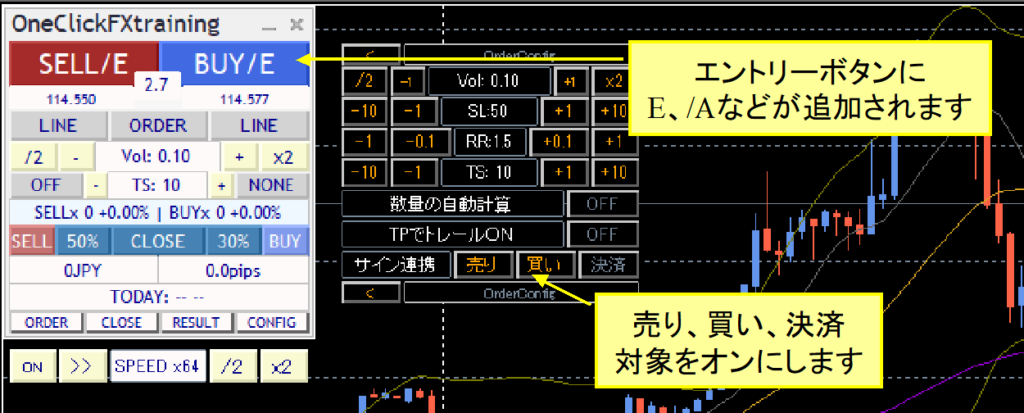
■Interworking with Signal Arrow Tool
Preset types are the same as shown here.
Signal Arrow Tool Support Page
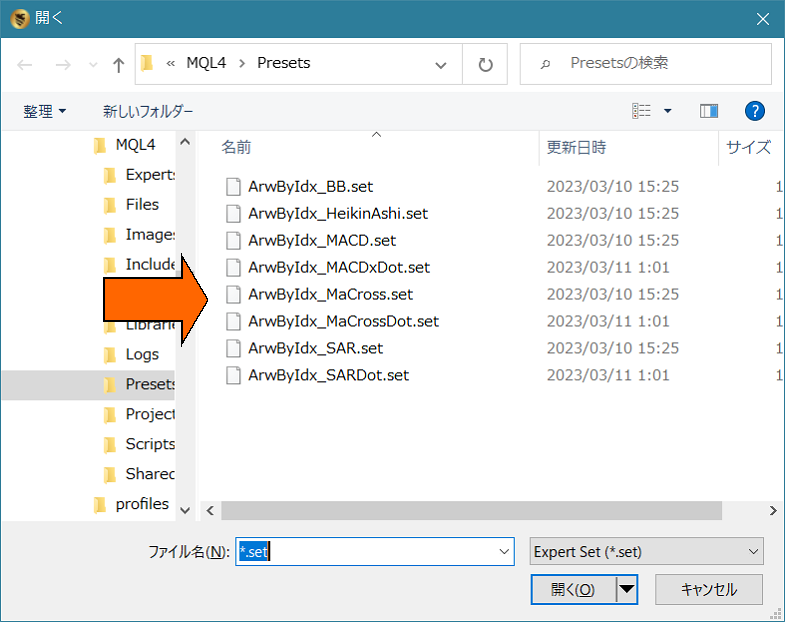
Add ArwByIdx_rcm to the chart running One-Click FX and configure parameters.
From the Presets folder in the Parameter screen, various samples are available; please start with these.
■Interworking with Complex Conditions
The following template charts are included with the product.
OneClickFX_SP… complex conditions using multiple signals
This predefined chart includes three signals: moving average cross, MACD cross, and Bollinger Band boundary crossing.
Please also adjust the parameters for One-Click FX signal interworking as shown below.
Sell signal object names: MACDxDotArwUP, MAxDotArwUP, BandsArwUP,
Buy signal object names: MACDxDotArwDN, MAxDotArwDN, BandsArwDN,
Press the load button at the bottom-right of the parameter screen to apply the preset “OneClickFX_SP.set” which will configure these settings.
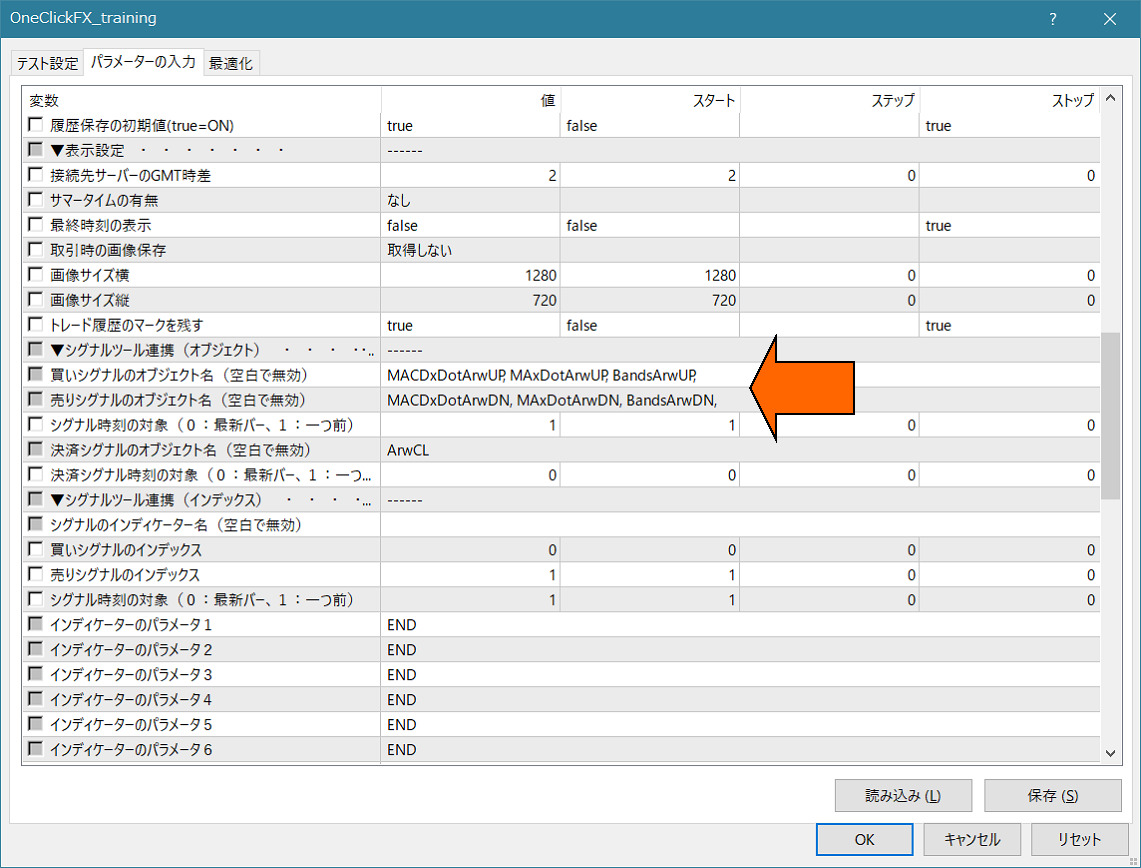
Apply the above settings and run as with simple interworking.
Dots or arrows appear at the upper limits; when all three conditions match, signal interworking is activated.
Change the parameters of “ArwByIdx” to freely modify the signal generation patterns by registering them to the predefined charts.
Feel free to experiment with combinations.
If you don’t know how to set it up, please feel free to ask. Your existing signal tools can be integrated with little risk.
If you provide the signal tool name and parameter information, we can guide you on the configuration.
【Important】Notes
Interworking signal tools or indicators are products from other authors, so you need to download them yourself.
Interworking templates for ArwByIdx & Signal Tools
If you don’t know how to set up, please feel free to ask. Your existing signal tools can be integrated with little risk.
If you provide the signal tool name and parameter information, we can guide you on the configuration.
External Entry Interworking Tool【OneClickTS】
OneClickFX MAX can interwork directly with the external entry interworking toolOneClickTS.※ This feature is an add-on and cannot handle complex procedures; please understand and use accordingly.
■Launching & Preparation of One-Click TS
Change the parameter “OneClickTS linkage” to “Direct” or “via Alert”.
※ Default is NONE (no linkage).
From the CONFIG button, open the sub-panel and you will see ON/OFF for OneClickTS. Pressing it turns yellow and OneClickTS starts.
※ You can turn ON by setting OneClickTS linkage to Direct or via Alert. NONE does not respond when pressed.
OneClickTSDetails of the linkage are here.
Support Page for External Entry Interworking Window【OneClickTS】
Included Indicators
・Pips-grid display can be adjusted
PipsGrid
・Signal Arrow Tool“ArwByIdx_rcm” (low-cost version)
Signal Arrow Tool Support Page
Other Information
For Frequently Asked Questions, please refer to the sister product’s support page or the product V6 version.
One-Click FX Training MAX Support Page
■Notes
This is a diverse market, and we cannot guarantee interworking with all signal tools. Especially for password-protected products or measures against signal tools, interworking may not be possible. Separate paid arrangements for custom interworking may be available; please consult us. Also, this product is a practice tool; results on this tool may not reflect real trading results. This tool is an assist tool; results may not reflect actual trading outcomes. To prevent misuse, online authentication is performed via encrypted SSL communication, etc.
If you’re in trouble
If it is not functioning properly, acting oddly, or stopping suddenly, please first check this location.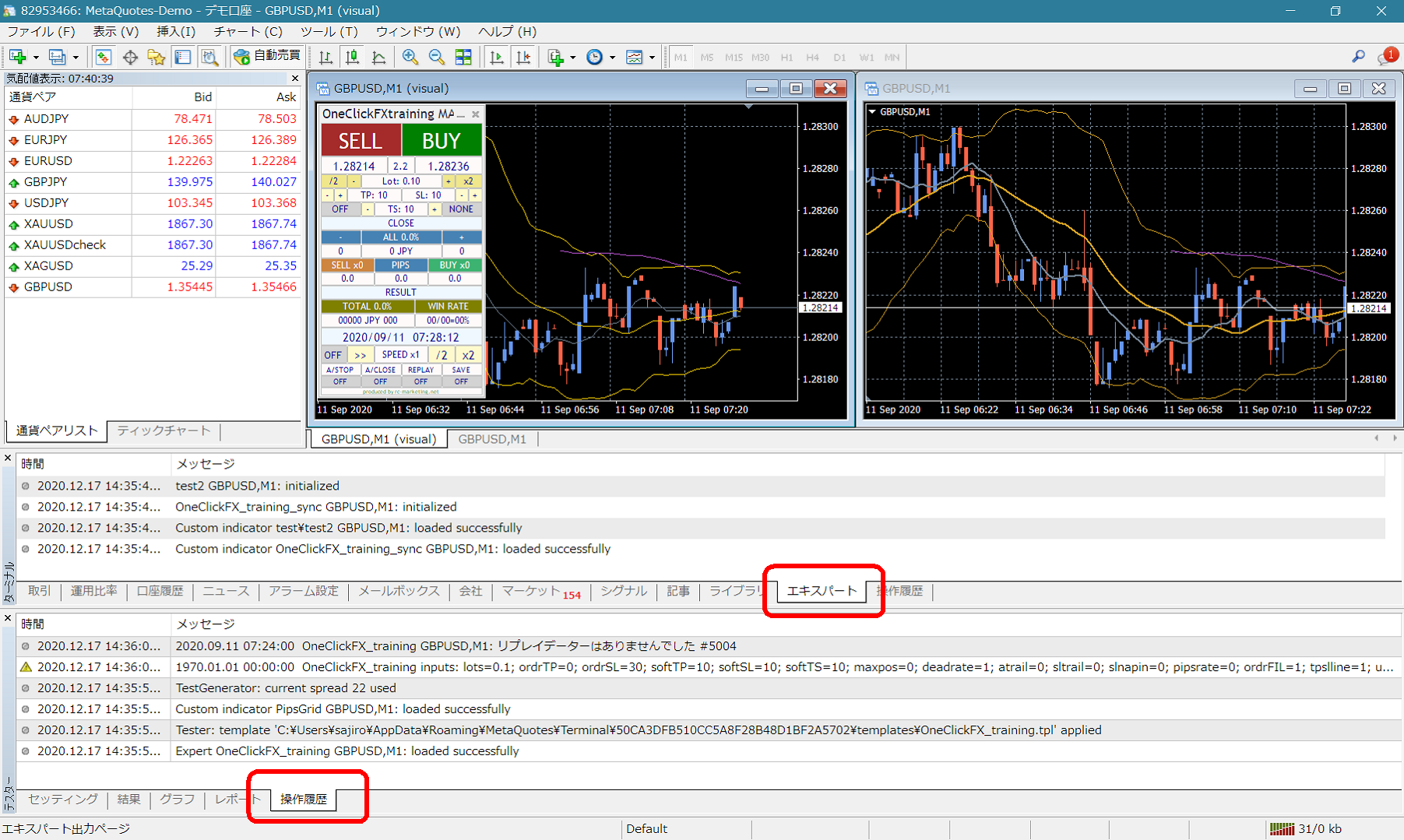 If you see error messages in the terminal Expert or tester operation history, please inform us so we can respond more smoothly. Thank you for your cooperation.
■Cautions
When using this tool, please understand its performance and operate at your own risk.