
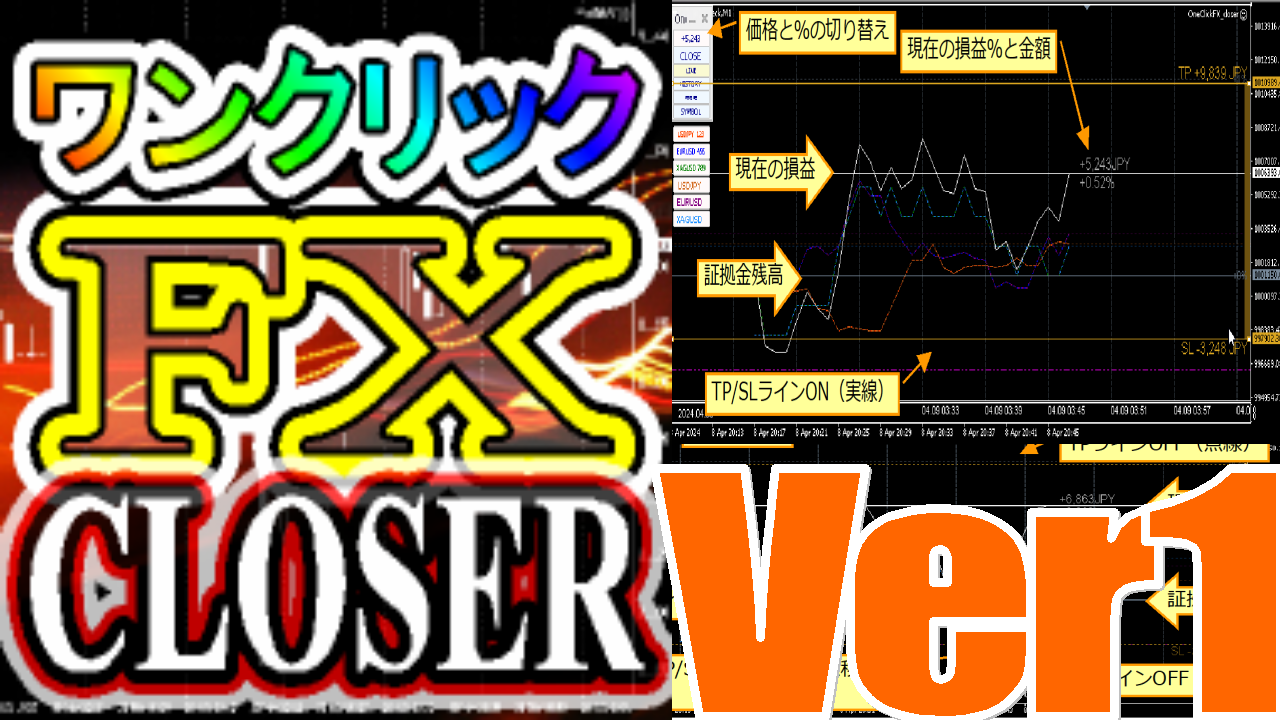
One-Click FX Closer Support Page
This page is the support page for purchasers of One-Click FX Closer.
This is publicly available to all, including those considering purchase. Please check the details of the product features and how to use them. If you have any questions, feel free to contact us.
The latest version is 1.13.250330. Please download from your My Page
If you have not purchased the product yet, you can purchase from here.
=>One-Click FX Closer sales page
Added reset pattern
▼April 11, 2024 v1.10
New release
※This page may contain images from before the upgrade and during development.
■Product Overview
FX Trading Defense Line【One-Click FX Closer】is an innovative account management & settlement assist tool that aggregates profits and losses across all currency pairs to maximize profits and minimize losses.
It sums profits and losses across multiple currency pairs in real time and displays the overall P/L change of the account in an intuitive chart. It also shows P/L changes by currency pair and by magic number, so you can instantly see current position P/L changes.
These positions can be managed in a mixed environment of, not only the One-Click FX series but also manual trading by other EAs, signal-based trades, and free discretionary trading, all in one place.
Additionally, via the TP/SL lines activated by the【Strategic Close-Strategic Close-】, you can implement flexible profit protection strategies such as 50% take profit with trailing stop on remaining positions, and movement of the TP/SL lines.
One-Click FX Closer is a powerful partner to protect your precious funds.
■How to Install
※Please install your preferred MT4/MT5 in advance (the source of distribution does not matter)
※Check the_Download usage permissionbeforehand.
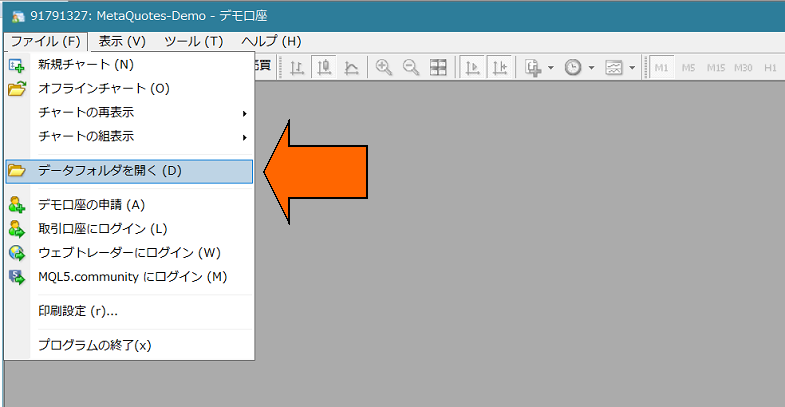
1) In MT4/MT5, choose “Open Data Folder.”
2) For MT4 versions of this product, overwrite everything in the data folder from the MQL4 and templates folders; for MT5, overwrite everything in MQL5. (Images are for illustration. Folders may differ by product)
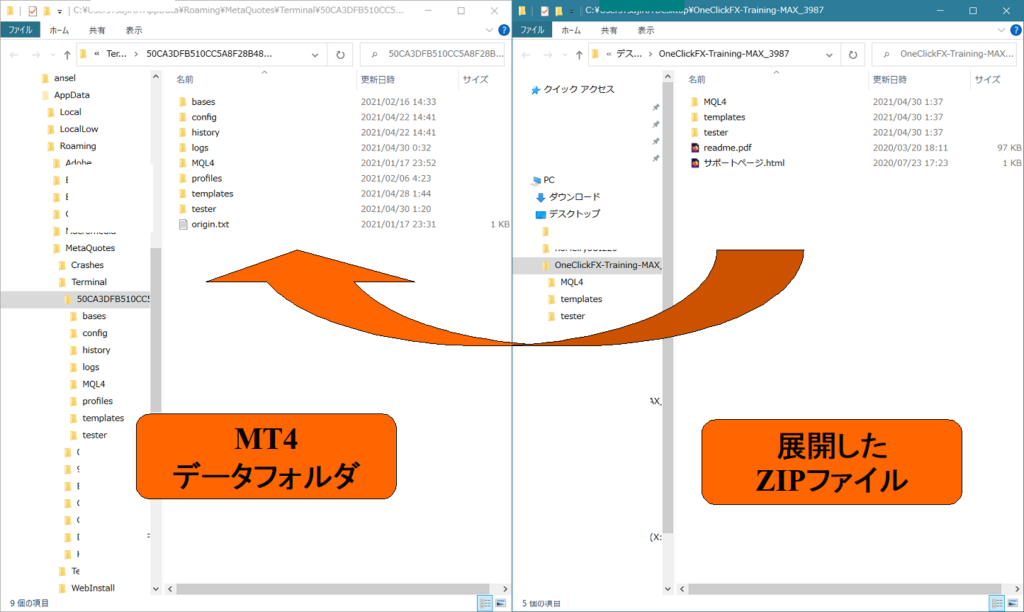
3) Restart MT4/MT5.
Preparing for Authentication
※If online authentication errors occur, please set as follows.
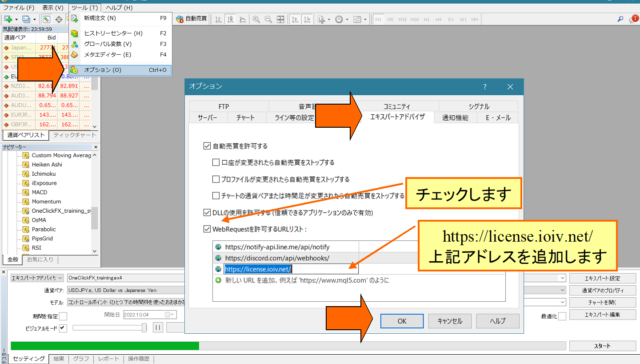
In Tools → Options, open the Expert Advisors tab and allow WebRequest for the URL list, adding the new URL “https://license.ioiv.net/”, then click OK.
Starting Tips
This tool is designed to assist trading, so it may place orders automatically according to settings. Before using in a live environment, be sure to test sufficiently on a demo account (or with small trades). Depending on settings, unintended orders may occur, so please turn off the AutoTrading button in MT4 or the Algorithmic Trading button in MT5, monitor the situation, and then turn it on when appropriate.
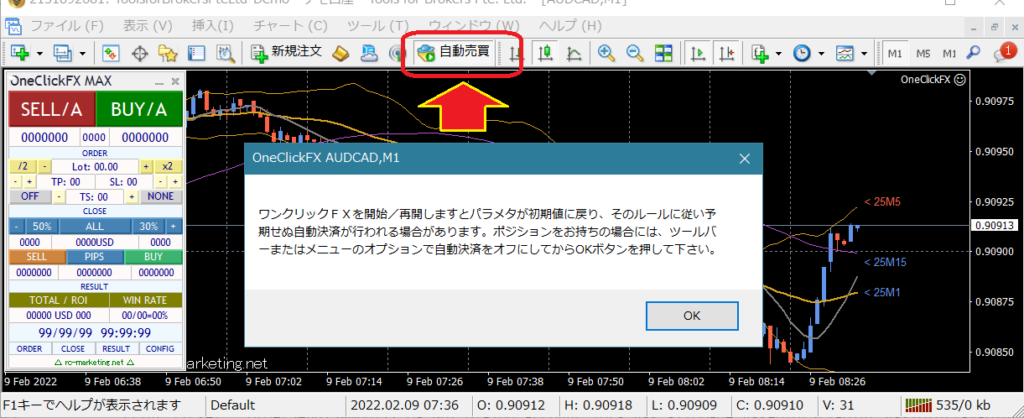
Launching One-Click FX Closer
4) Open any chart. Choose a currency pair that has no open position.
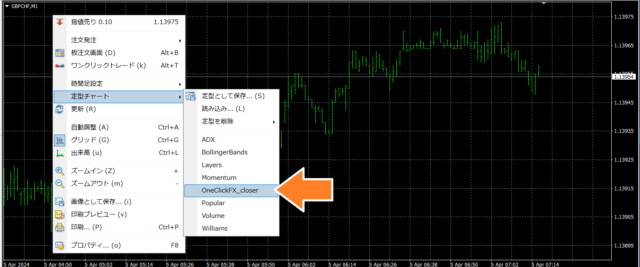
5) Right-click → Templates → select “OneClickFX_closer.”
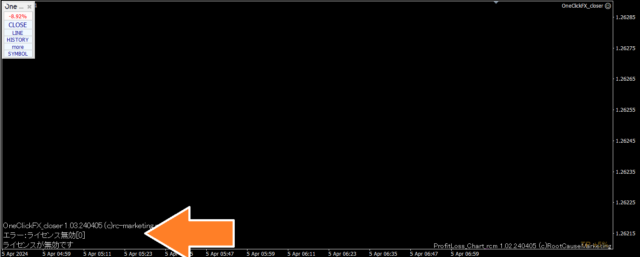
6) On first launch, a license invalid message will appear and the button will not respond.
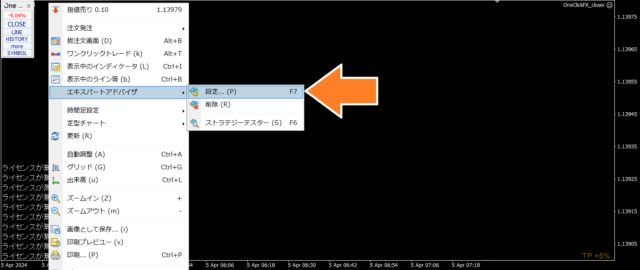
7) Right-click → Expert Advisors → Settings.
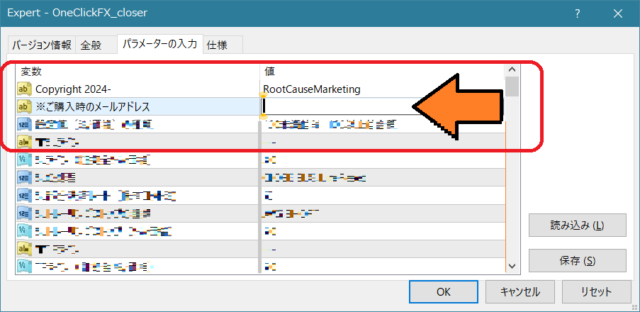
8) 【Important】Enter the GoGoJian member ID in the Parameter and click OK. If you purchased from note, enter your noteID; if purchased from GoGoJian, enter your ID. The online authentication is performed via encrypted communication. If you encounter errors despite legitimate purchase, please let us know.
■Operation & Settings
Adjusting Price Scale
Double-click the price scale to automatically adjust based on TP/SL lines and margin. If the display looks odd, first double-click the scale.
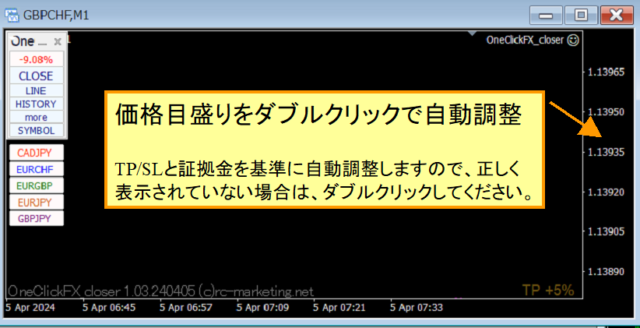
Double-click to set chart scale with TP/SL lines as the upper/lower bounds. Double-click again to auto-adjust to a scale that includes TP/SL lines and margin balance.
Basic Operation
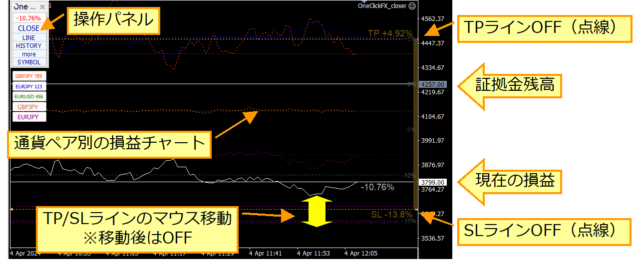
TP/SL Line OFF
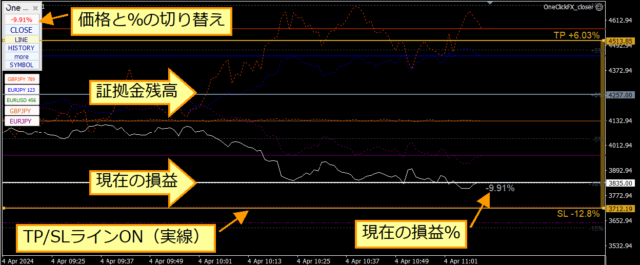
TP/SL Line ON
How to Use the Control Box
Main Panel (Normal Mode & Focus Mode)
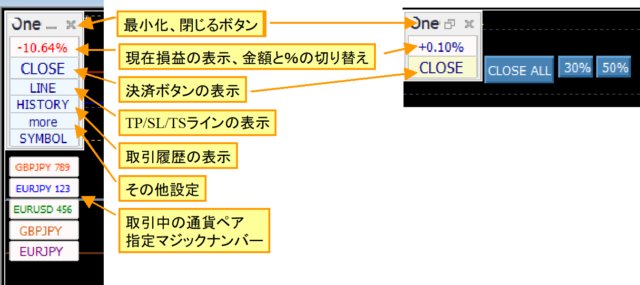
You can switch with the minimize button.
Settlement and Line Subpanel
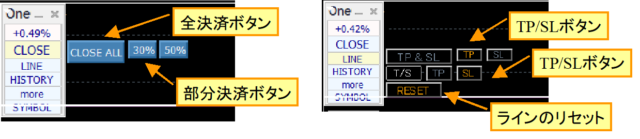
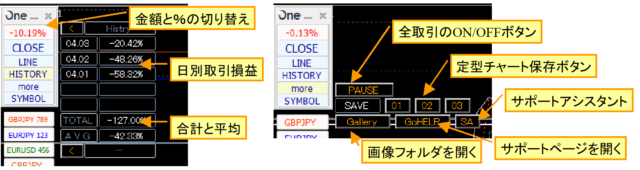
Trade History and Other Functions Subpanel
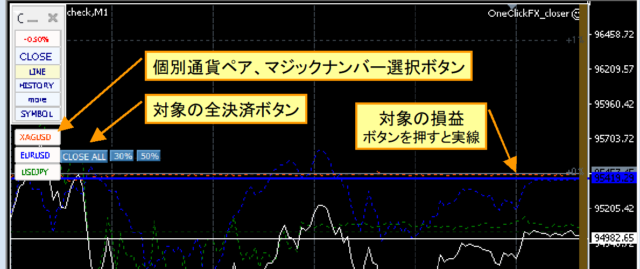
Individual Currency Pairs, Magic Numbers
Trade History
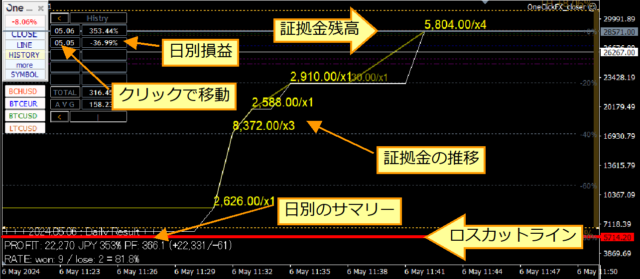
Parameter Settings
| Item | Description |
|---|---|
| GoGoJian Member ID | Please enter your email address |
| Setting Value Type (%, Price)※ | Choose the TP/SL/TS line setting rule. All, Percent: input values are treated as percent All, Amount: input values are treated as amount Less than 1000 is %; 1000 or more is amount: 999 is treated as %, 1000 as amount Less than 100 is %; 100 or more is amount: 99 is %, 100 is amount Less than 10 is %; 10 or more is amount: 9 is %, 10 is amount |
| ▼SL Line | |
| SL Line (Margin % / Price) | Specify the initial value of the SL line. Follows the setting type described above. |
| SL Handling | When SL line is reached, select the content of theStrategic Close. |
| Partial Close Rate (Holdings %) | Specify the partial close ratio in %. |
| SL Trailing Stop Type | Trailing Stop Typeto select. |
| SL Trailing Stop (% / Price) | Set values up to the target point. Follow the setting type above. |
| ▼TP Line | |
| TP Line (Margin % / Price) | Specify the initial value of the TP line. Follows the setting type described above. |
| TP Handling | When TP line is reached, select the content of theStrategic Close. |
| TP Partial Close Rate (Holdings %) | Specify the partial close ratio in %. |
| TP Trailing Stop Type | Trailing Stop Typeto select. |
| TP Trailing Stop (% / Price) | Set values up to the target point. Follows the setting type above. |
| ▼Other Order Settings | |
| On New Orders, Turn TP/SL Lines On | When a new order is detected, TP/SL lines areturned ON at their current position. If true, TP/SL lines will remain at their current positions, so if the current P/L is above the TP line or below the SL line, it will be settled immediately. |
| Reset TP/SL Lines on New Orders | When a new order is detected, TP/SL lines can be reset (reconfigured). No Reset (Manual): TP/SL lines will not auto-change. Use this if you want to adjust lines yourself. Use the Reset button or move with the mouse. Reset Each Time (Based on Current P/L): Each new order will cause TP/SL lines to be re-set based on current P/L or margin. TP/SL lines will widen with each new order, but immediate termination is less likely. Reset Only on First Order: TP/SL are reset only when a new order is placed from zero positions. Additional orders won’t change TP/SL line positions. |
| Acceptable Slippage (Points) | Specify slippage during settlement in points. Shared setting across all currency pairs. |
| Top/Bottom Margin | Specify the chart's top and bottom margins. |
| Chart Update Interval | Specify the chart update interval. |
| Past Months for Summary (0 = 1 month, up to 360 months) | Specify the period for historical P/L display. Deposits/withdrawals may shift the base value. |
| ▼Fixed Currency Pairs | |
| Currency Pair Name Currency Pair Magic Currency Pair Color |
Specify currency pairs and magic numbers to display fixed on the chart. Currency pair name is required; magic number alone will not suffice. Up to 1–8 can be specified. |
| ▼Save Images | |
| Save Images During Trades | Choose whether to save images during trades and the type of image. |
| Image Size (Width x Height) | Specify the width and height of saved images. |
| ▼Notification Content | |
| Notification Settings【Common】 | |
| ▼Control Box and Others | |
| Control Box Width x Height | Dimensions vary by screen size; if things don’t fit or are too large, adjust the values accordingly. |
| Initial Top/Left Position | Specify the Control Box position. |
| Control Box Font Size Multiplier | Fine-tune the font size of the Control Box. Depending on display size and Windows scaling, MT4/5 font size may be too large or small, so use this to adjust. A value of 1 means normal size. |
| Chart Text Size | Specify the text size displayed on the chart. |
| Line Thickness | Specify the thickness of TP/SL and other lines shown on the chart. When not active, dotted lines have a fixed thickness of 1. |
| Smooth Rendering | Always display values when TP/SL lines move. This increases load, so not recommended unless you have a performance-robust PC. |
| Show Warning Message on Startup | Specify whether to show startup warnings. If false, trades may begin immediately after startup. |
| Text Size of Messages Display Duration (Seconds) |
Specify the size and display duration of messages shown at the bottom-left of the chart. |
| Colors of Various Buttons/Lines and Control Box | Specify colors for buttons, TP, SL, trailing stop lines. The position line and limit order line use similar colors by default. You can freely set colors for control box buttons, labels, and text. |
■Details of Functions
Strategic Close-Strategic Close-
When TP/SL lines touch, Strategic Close can trigger multiple actions.
| CLOSE ALL | All positions closed |
|---|---|
| TrailingStop | Trailing Stop ON |
| LineReset | TP/SL Line Reset |
| CLOSE Specified%, TrailingStop | Partial close by specified % + Trailing Stop ON |
| CLOSE Specified%, LineReset | Partial close by specified % + TP/SL Line Reset |
| CLOSE Specified%, LineReset, TrailingStop | Partial close by specified % + TP/SL Line Reset + Trailing Stop ON |
When the TP/SL Line Reset is activated, the TP/SL lines are reconfigured based on the current price.
If SL parameters are 2% and a Strategic Close triggers with an SL line at 1% loss, the current loss becomes the baseline, and the SL line increases by the configured 2% to a 3% loss, moving the SL line accordingly.
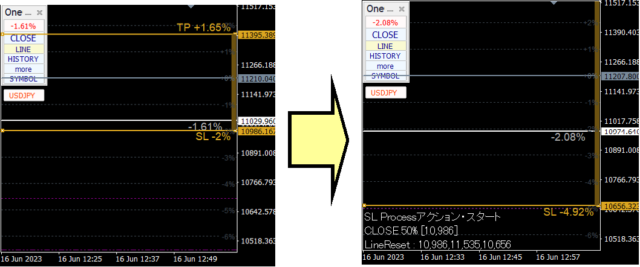
※If you choose only Reset without Partial Close, the SL line will continue to move downward, so please be careful.
Flexible Trailing Stop -FlexiTrail Stop-
You can turn ON/OFF the LINE button on the Control Box via the subpanel's T/S right-side TP/SL button. Alternatively, you can turn trailing stop ON via the Strategic Close settings for TP/SL lines.
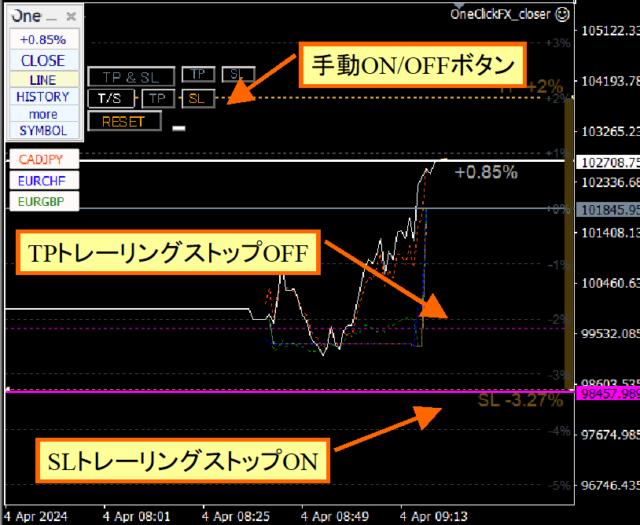
・Fixed: FIX
When ON, the high price from that point becomes the reference and if the price falls below the specified value, it triggers settlement. This is the same behavior as a typical trailing stop.
・Shrink: SHRINK1%,2%,3%
The basic behavior is the same as FIX, but on price updates or every tick, it compares the high; if the high is not updated, the gap closes by 1–3% increments. When a new high is reached, it returns to the specified value.
・Average: AVG SHORT, MIDDIUM, LONG
Based on the value at activation and the parameter value, it adds the current value on price updates or every tick to compute an average. Shorter periods (SHORT, MIDDIUM, LONG) track price changes more quickly; longer periods track more slowly.
For SHRINK, if there is no high price update for about 100 iterations and the price remains flat, it will settle. For 3%, if there is no high price update for about 30 iterations, it will settle. When a new high is updated, those values reset and return to the initial value.
If prices suddenly fall after a high, trailing may lag, but there is leeway before settlement, so a rebound can be expected.
Compared with FIX and SHRINK, AVG continually follows price movements and tends to settle quickly as long as high price updates continue. It responds quickly to large price swings and settles steadily.
You can choose as you like, but AVG SHORT tends to settle the fastest, SHRINK1% the slowest, and FIX the slowest among these options.
Automatic Image Saving
If you set image saving during trades to something other than NONE, screenshots are automatically captured on trade executions. Press the image folder button in the subpanel to open the save destination folder.
The save destination is in the data folder: MT4=> MQL4/Files/OshiraseSnap, MT5=> MQL5/Files/OshiraseSnap.
※Please also copy the OshiraseSnap folder included in the product files.
Saved image files are stored indefinitely, so please delete any unnecessary ones.
Support Assistant
This convenient function automatically gathers information when you need help, by pressing a button during trouble.
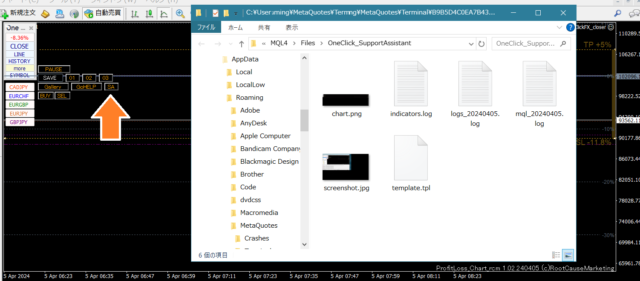
Pressing the button collects information and opens a folder; please attach the output files when sending an email.
If you contact us through the form at the bottom of the page, please reply with the auto-acknowledgement email and attach the files you generated.
■Packages & Bonuses
This tool primarily uses OneClickFX_closer as the main program, but the chart graphs are displayed by ProfitLoss_Chart_rcm.ex4; these two programs form the system.
Both are included in the standard chart, but if you modify the content, please ensure both are included.
Also, if currency-pair-specific charts do not appear, ProfitLoss_Chart may be missing; please check the contents.
Notes
This product is a support tool, and its results may not reflect actual results. To prevent illegal use, online authentication is performed via encrypted SSL communication. If improper use is detected, we may disclose the source of the connection and take legal action, including pre-warning notices, as necessary to protect customer rights and provide a fair service. We appreciate your understanding and cooperation.
■If You Need Help
If things are not functioning correctly, behaving oddly, or stopping unexpectedly, please first refer to this area.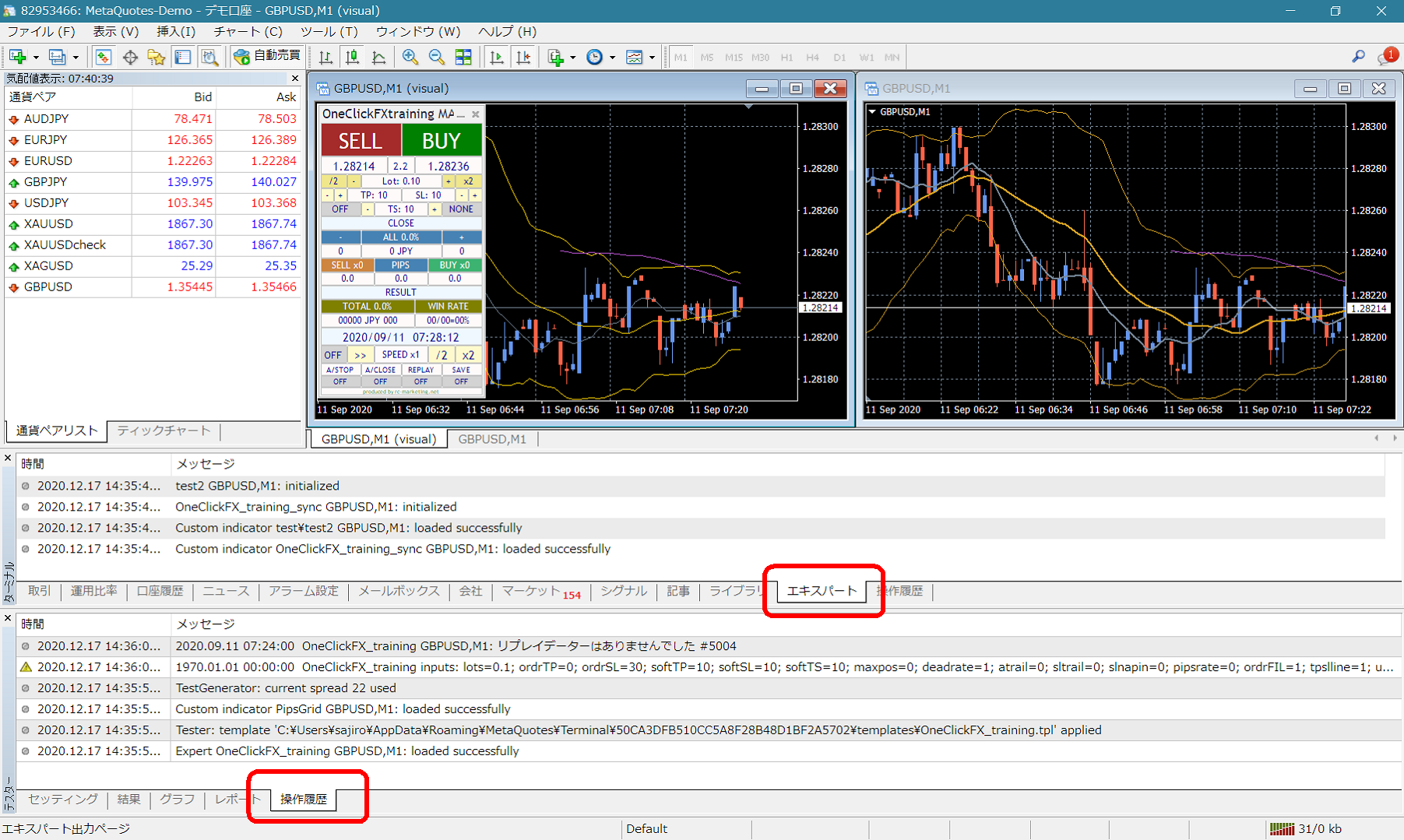 If you see error messages in the terminal Expert or Tester history, please inform us so we can respond more smoothly. Thank you for your cooperation.
Support Assistant
Some products include a handy feature that gathers information with one click for trouble situations. Press the “SA” button to collect information and open the folder, or double-click the Script’s “OneClickSA” to similarly open the folder.
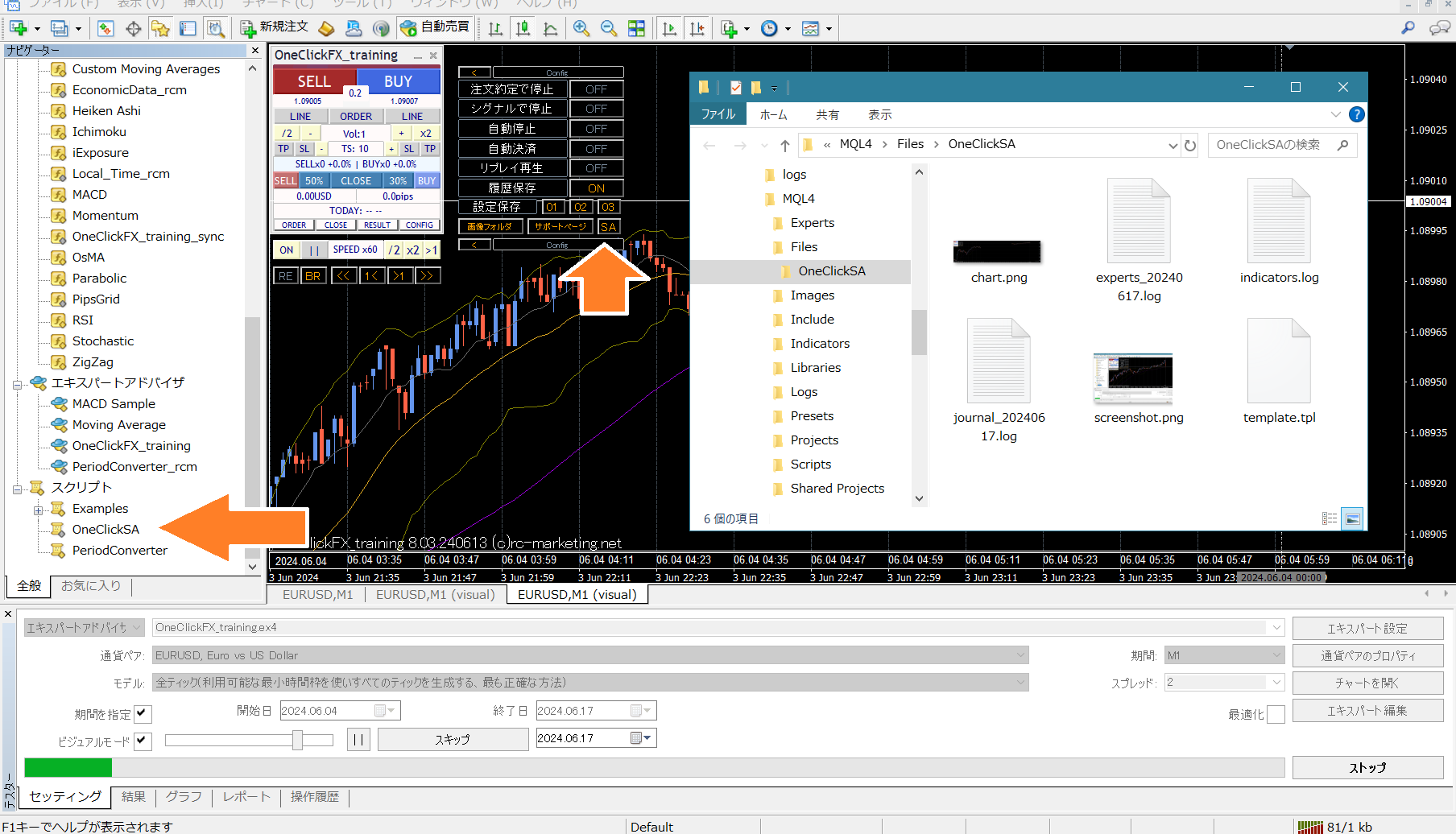 Please attach and send the generated files.