

TNA_EA Lab Mastering Backtesting
In another articlethe value of conducting backtests
was explained.
Here, for beginners,
I will explain how you can actually perform a backtest.
I plan to provide an explanation.
What is a backtest
Based on historical price movements data,
you can perform an EA operation check
and backtest it.
Examples
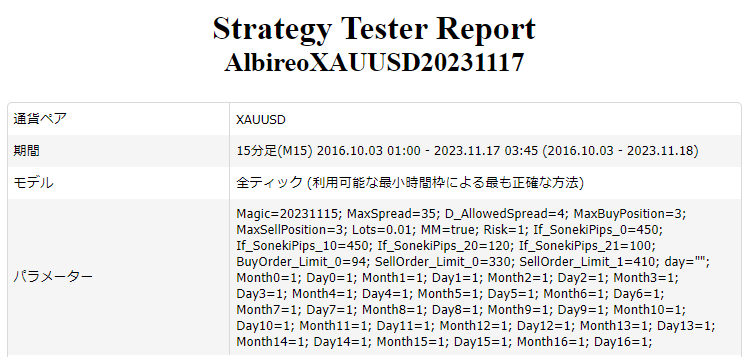

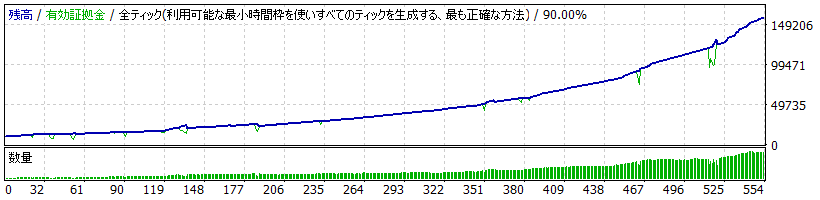
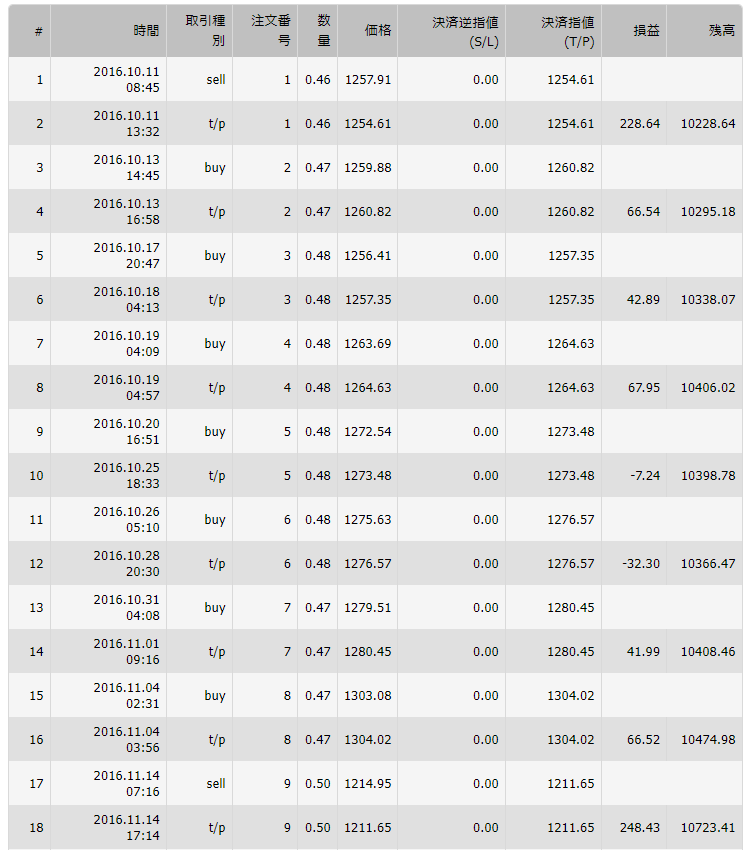
What can be learned from MT4's backtest feature
From the period you set as the test duration,
・Profit and loss
・Drawdown (floating loss)
・Number of entries and wins/losses
(by long and short separately)
・Profit factor (PF)
and other representative metrics to understand the EA's performance.
However, historical data does not include
spread widening or slippage data.
For example, during an employment statistics release,
the backtest may show entries and exits as per the EA's instructions,
but in reality,
spread widening and
slippage may prevent executions exactly as instructed.
Therefore,
the numbers obtained from backtest EA performance
should be treated as参考(reference) only.
More importantly, what I value is that
you can check when the EA enters and
when it closes positions.
This is possible because
you can see how the EA operates at various conditions.
This is because
I develop EAs myself,
but
even users who are not told every detail of the logic by the developers
can still analyze and interpret to some extent,
so I think there is value in performing this.
Therefore, here I will explain the method for using MT4's free feature, the backtest.
(Note)
To handle variable spreads
you can use paidTDS data
to resolve this.
If you want to know more,
please Google it.
I will skip further details here.
Backtest preparation
Download historical data
First, you need the data of past price movements
historical data
for testing.
You can obtain it from your broker
and download it for free
from there.
Since I will use the latest data,
I will download it recently.
MT4 preparation
① MT4 settings
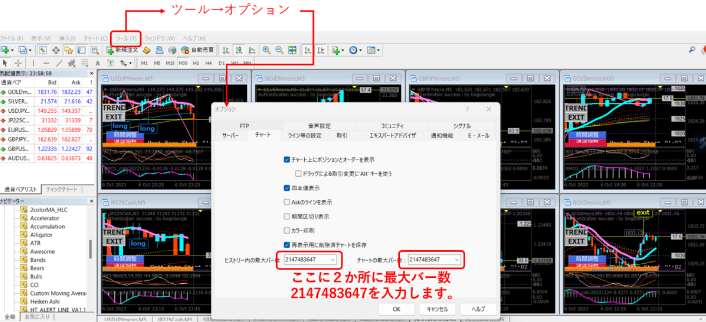
In Tools / Options, a box opens as shown below.
Set the maximum bars to
2147483647
so that it is entered.
② Backtesting requires
a lot of memory and capacity.
Therefore, delete unnecessary files
to slim down.
In particular, historical data currently saved in MT4
for the currencies or CFDs you will backtest
should all be deleted.
How to delete historical data
From MT4 menu
Open File (F) / Data Folder (D)
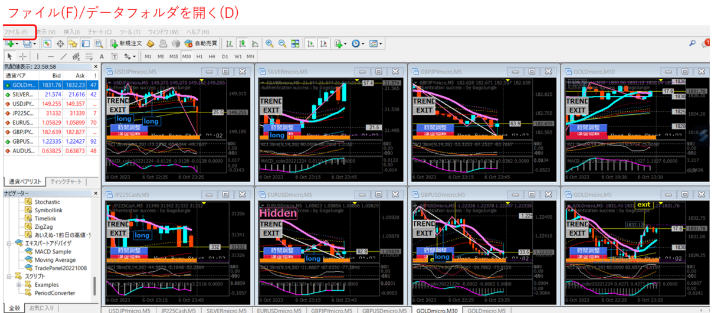
The data folder will open.
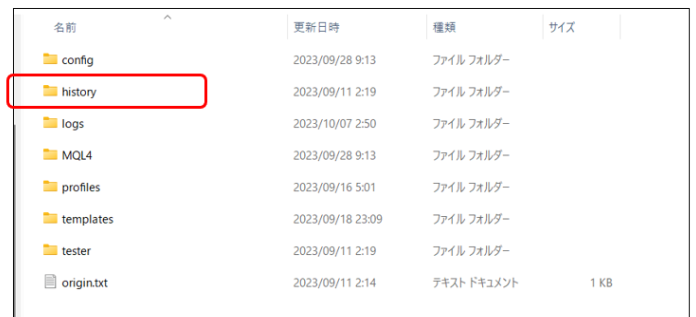
Double-click history to open
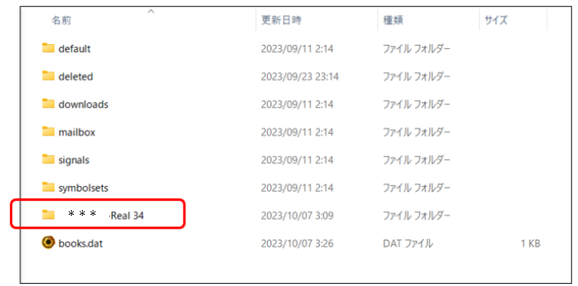
The folder containing historical data
Double-click to open
(Note)
Depending on the broker, the folder name containing historical data differs.
Please find the folder that resembles this.
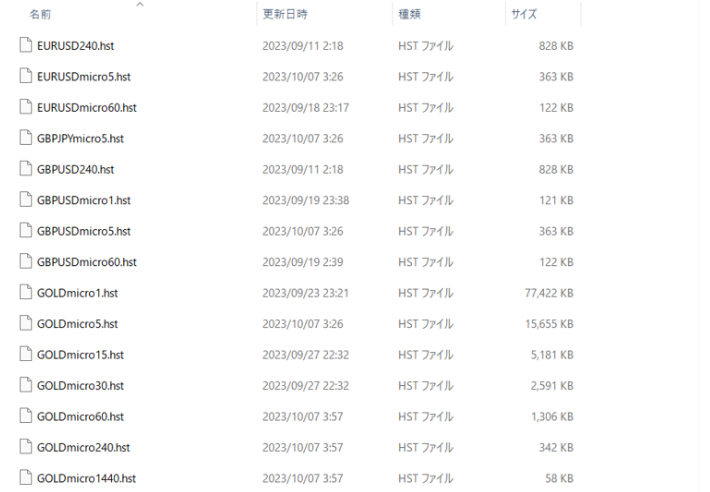
Files with extension .hst contained in this folder are historical data.
Files in this folder can be deleted
as they are.
After deletion, they move to the recycle bin,
but if they stay in the recycle bin,
it won't count as slimming down,
so please empty the recycle bin.
Then close MT4.
③ After restarting MT4,
first call the most recent historical data.
To do this, open the currency pair
or CFD chart you want to backtest, and set it to 1 minute.
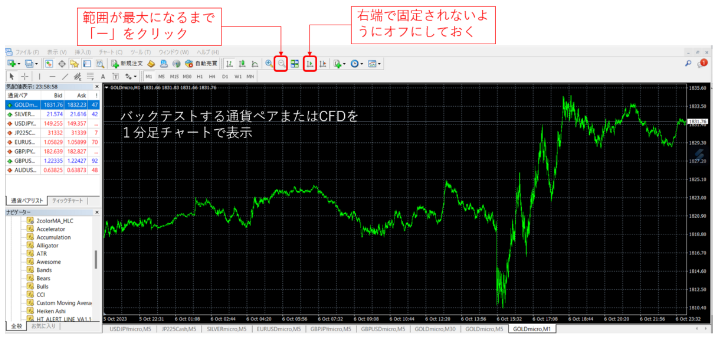
Continue clicking "-" until the visible range is maximized,
and disable the option on the far right so it doesn't lock.
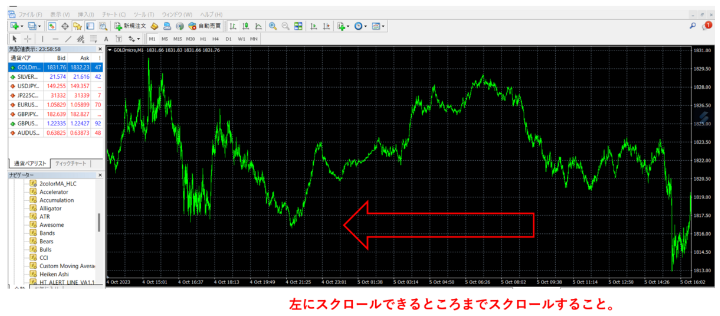
Scroll the chart to the left until you can.
On a PC keyboard, hold the left arrow key and drag with the mouse
to push the chart to the right,
so that scrolling left is faster.
This will save the most recent 1-minute data in MT4,
and you can then merge it with the downloaded historical data.
④ Merge 1-minute data

Select the 1-minute data to be backtested
and click Import.
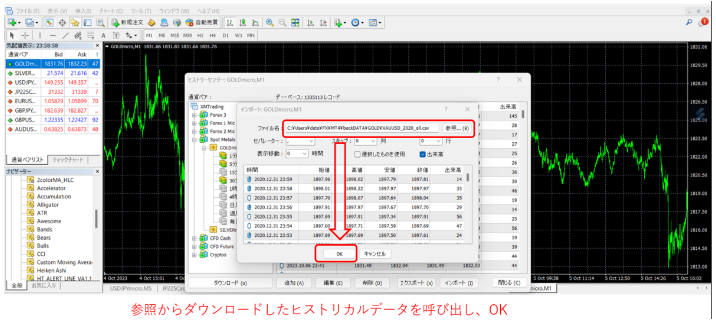
From the downloaded
historical data file,
browse and select it
and click OK to import.
The downloaded 1-minute data is imported and
merged with the latest 1-minute data.
Now close MT4 again
and restart.
⑤ Create higher-timeframe data from 1-minute data.
Files / Offline Chart
In the opened box,
select the symbol for the backtest
pair or CFD and choose 1-minute data.
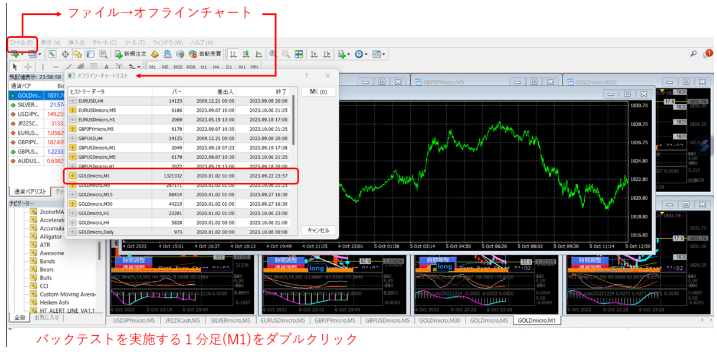
An offline 1-minute chart opens.
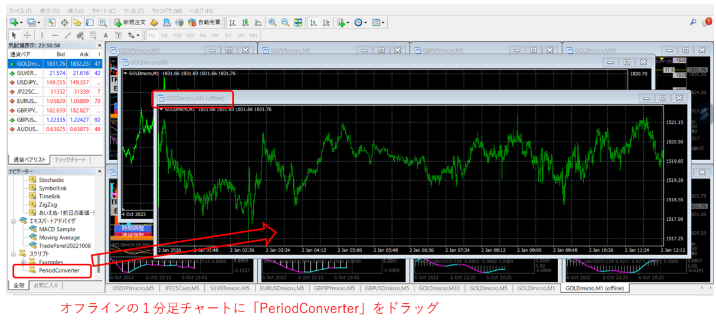
In the Navigator window, drag PeriodConverter.
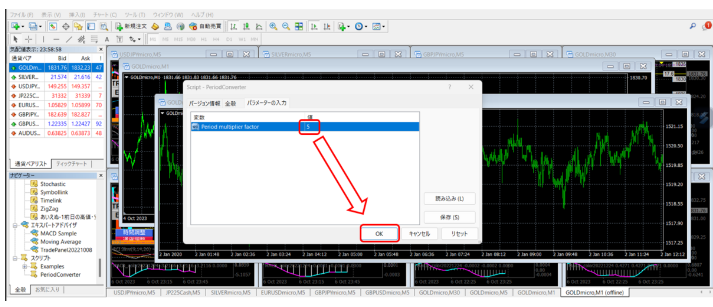
In the opened box,
enter 5 and click OK to create
5-minute data from 1-minute data.
Similarly, enter 15 and OK to create
15-minute data.
Proceeding like this,
30, 60, 240, 1440, 10080 can be created,
creating 30-minute, 1-hour, 4-hour, daily,
weekly data.
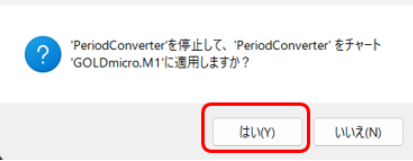
When dragging PeriodConverter repeatedly,
the following pops up, but all are Yes (Y).
Use PeriodConverter to verify that each timeframe
has been created.
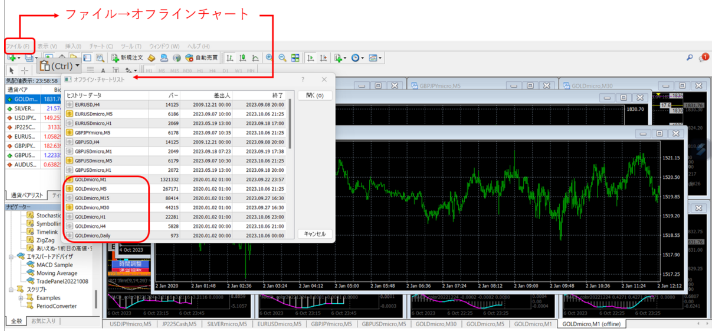
From File / Offline Chart
open the box and
M1
M5
M15
H1
H4
Daily
Week
can be confirmed.
At this point, close MT4 and you are ready.
Backtest
Click the magnifying glass icon to open the Tester window
In the Test tab, set the conditions for backtesting
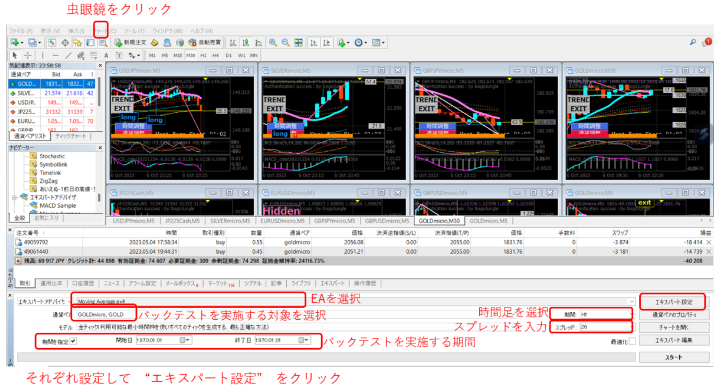
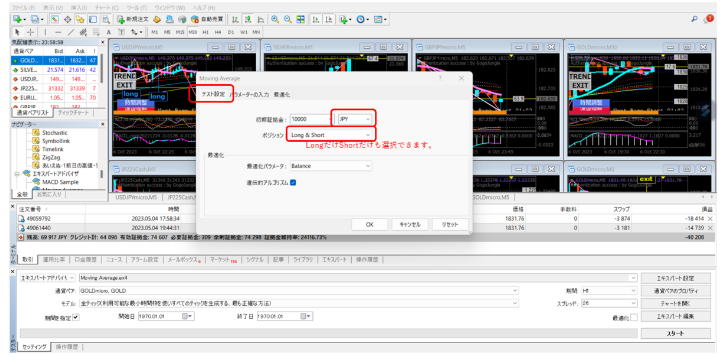
Set initial capital
Long only, Short only
Both long and short
In the Parameters Input tab,
set the parameters configured by the EA.
Parameters vary by EA,
so follow each EA's instructions.
Parameters Input tab
For a single run
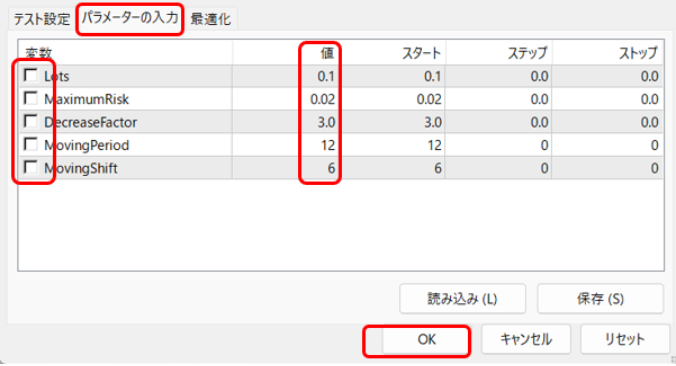
Do not check anything.
Enter values and OK
If you want to run multiple tests with varying parameters (optimization)
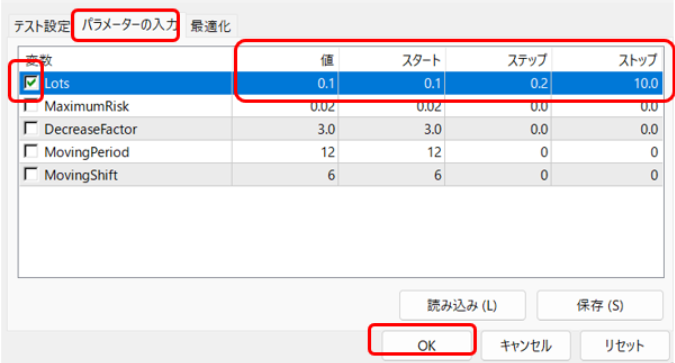
Check only the parameters you want to vary.
For the checked parameters, enter the initial value, step size, and end value,
and click OK
⑥ Run the backtest
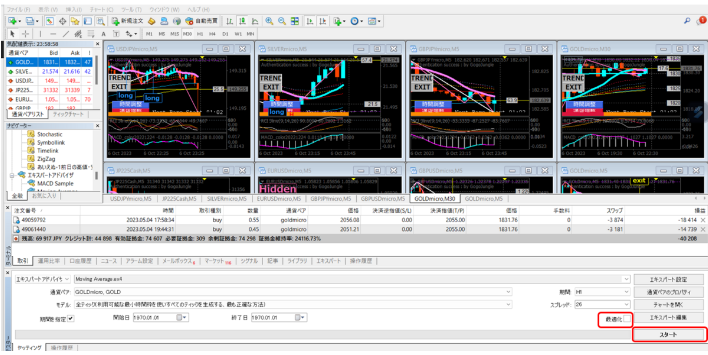
Single run
Do not check optimization, and click Start
Optimization (multiple parameter tests)
Check optimization, and click Start
This starts the backtest.
Backtesting while slimming down
If you repeat backtests, you may end up with extremely large files,
which can cause MT4 to malfunction.
Occasionally clean up these files.
The files to clean up are here.
File (F) / Data Folder (D)
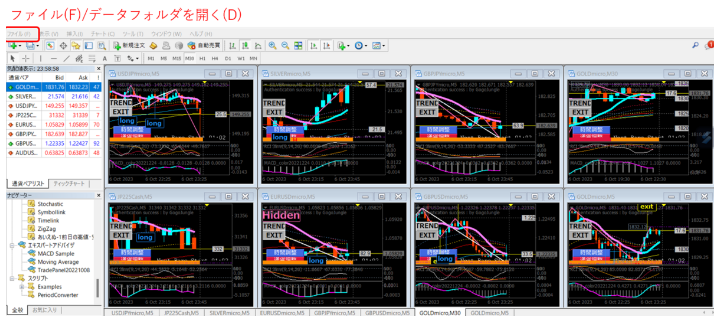
The data folder opens.
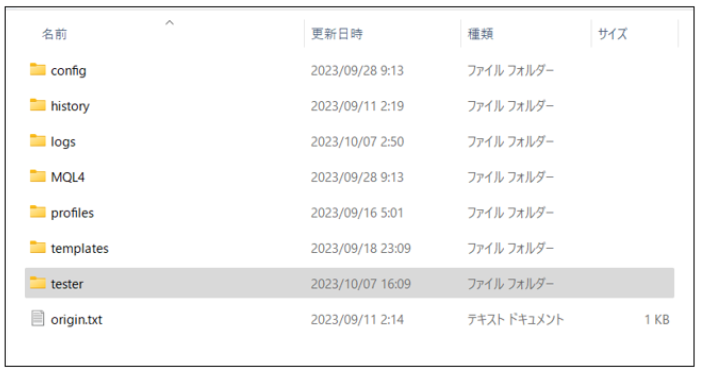
Open the “Tester” folder
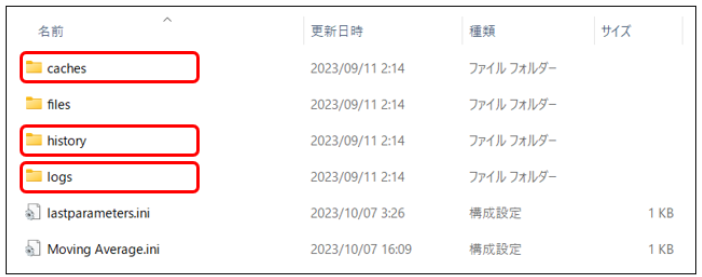
caches
history
logs
Files accumulated in these folders should be regularly deleted.
Sometimes there are extremely large data files
that can surprise you.
Recommended VPS specifications
Backtesting
The longer the test period,
the more complex the EA logic,
the more time backtesting calculations take.
If you test seven years, in my setup,
a single calculation takes about 18 hours.
If MT4 is installed on a VPS and runs backtests,
even during calculation you can
power off your own PC,
which is very convenient.
It is paid, but
it is worth considering.
Also, if you use VPS,
even if you download, import, and merge
the backtest data you prepared,
you can simply keep MT4 open on the VPS
and have the latest historical data accumulate and update automatically.
The next time you run a backtest days or months later,
delete all historical data, then download again,
to avoid redoing from scratch.
Therefore, having a VPS is convenient.
Thank you for considering this.