
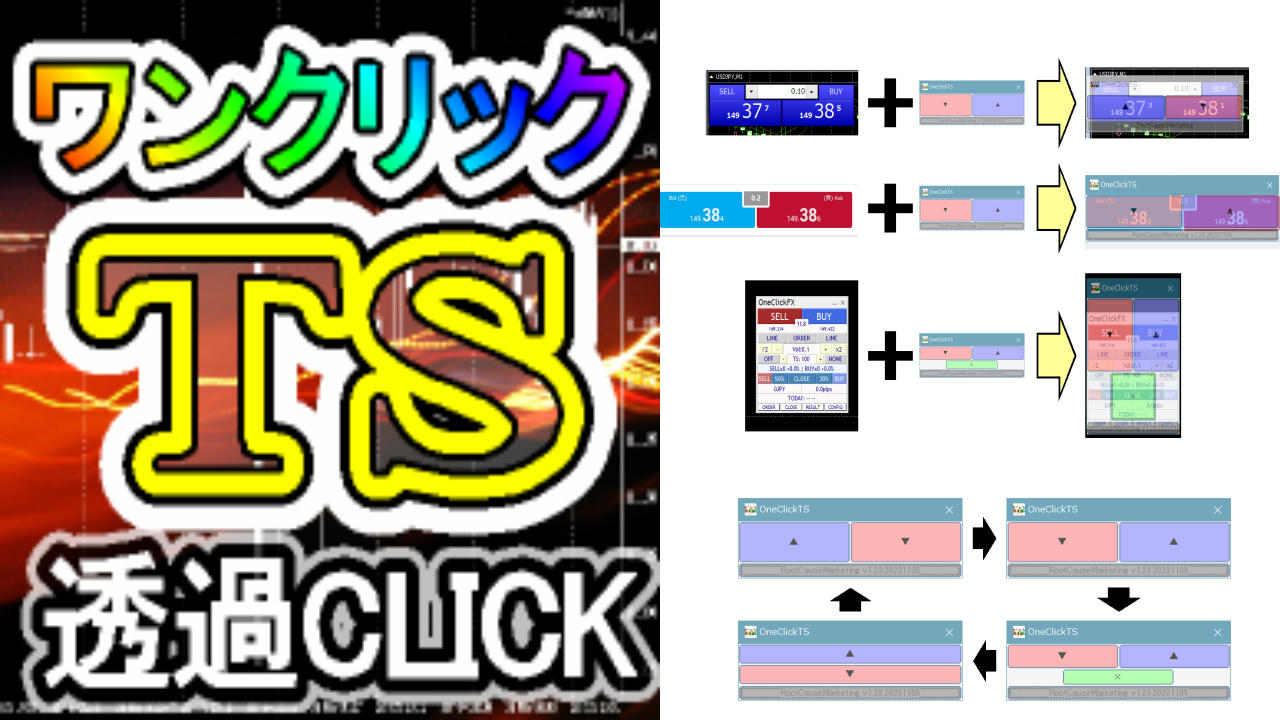
External Entry Linkage Window [OneClickTS] Support Page
Thank you for using our product.
If you do not have the product, please click here
https://www.gogojungle.co.jp/tools/ebooks/47621
■ Product contents
When this tool's button is pressed, the behind button appears translucent and visible and is pressed.
Place OneClickTS on external apps or web page buttons, and when arrows of a signal tool compatible with OneClickTS occur,OneClickBO andOneClickFX (planned) entries are generated, in sync, click the button accordingly.
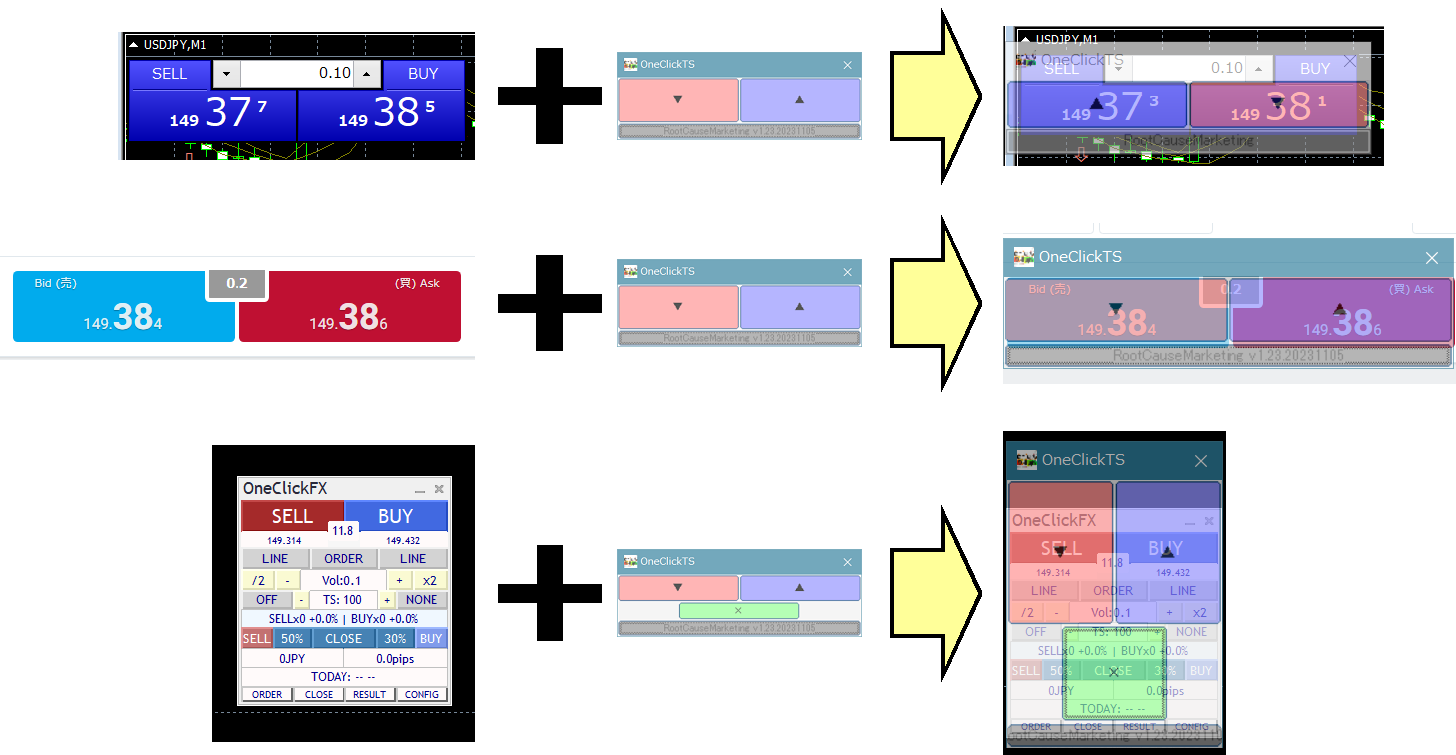
Even for trades on WEB entries that MT4/MT5 do not support, or trades using custom tools, you can link and press the button.
There are four button shapes, and pressing the gray button at the bottom changes the layout. You can freely resize the window both vertically and horizontally.
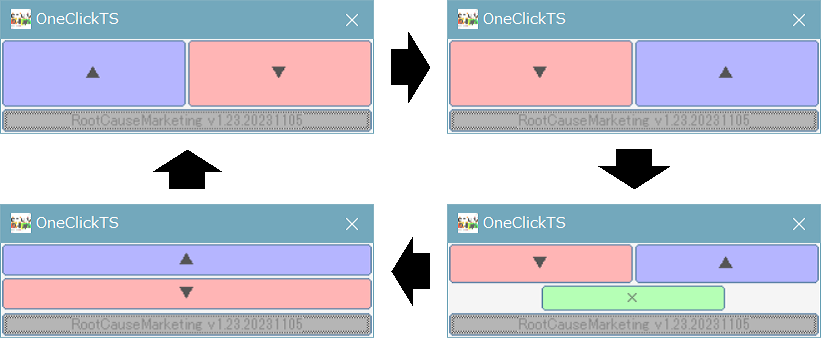
Depending on the shape and size of the buttons behind, you can adjust the size and arrangement to enter or exit from MT4/MT5.
OneClickBO,OneClickFX (planned) are built into the product, so you can configure by linking with OneClickTS parameters. For signal tools that support alert notifications from other OneClickTS, if you set the alert notification to true, it will automatically trigger the linked clicks.
The click location includes a slight random offset and the mouse moves to an appropriate area after the click.
Common websites that initiate entries typically stop working with simple countermeasures like driver updates or site internal changes, but this tool’s mechanism renders such countermeasures ineffective, and does not require troublesome driver settings, making it easy to use.
■ Demo video
A sample video of pressing the experimental button on this site from MT4.
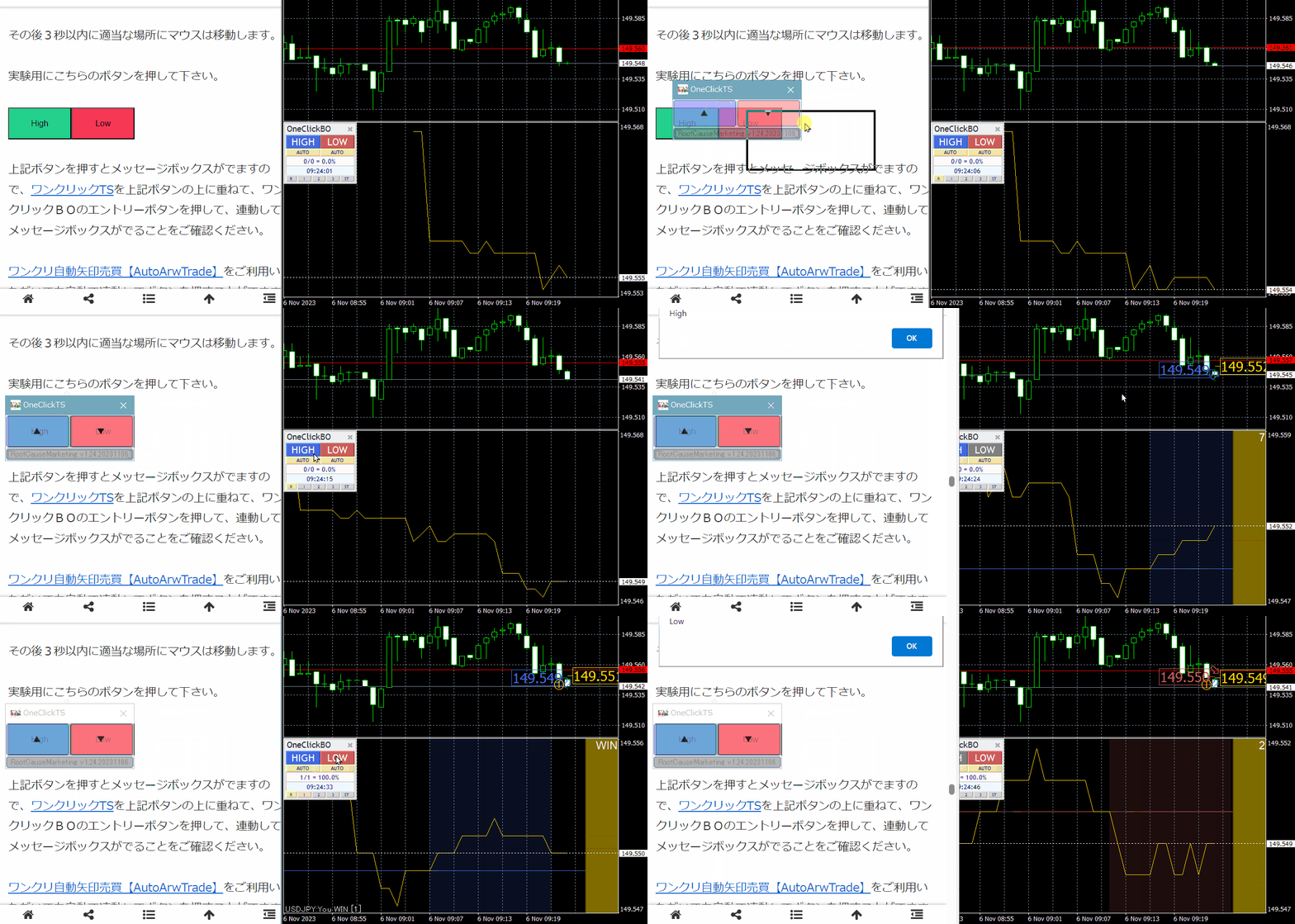
Please press this button for experimentation.
When you press the above button, a message box will appear, so overlay OneClickTS on the above button,OneClickBO, press the entry button to confirm that a linked message box appears.
■ How to install
1) Download the file.
2) Extract the ZIP file.
3) Run OneClickTS.exe. Note: Windows protection messages may appear, but this is not a problem.
4) Move and resize OneClickTS over the desired button.
5) The layout can be changed by pressing the gray button at the bottom of the window.
6) Set alerts in MT4/MT5 signal tools, etc.
OneClick Auto Arrow Trading【AutoArwTrade】If the signal tool supports alert notifications, simply setting the alert notification to true will automatically trigger linked clicks.
If you have changed the additional strings for the up/down arrows of the signal tool, please revert to the initial settings.
The click area is near the center of the button around the “▲, ▼, ×” marks, but because the position is slightly offset, please leave some room for the behind button size.
Alternatively, after clicking, the mouse moves to an appropriate location within three seconds.
If alerts appear consecutively, detection may not be possible.
The current window position, layout, size, and other settings are output to the OneClickTS.ini file, so when launching from that location, the previous state is preserved on startup.
■ Simple programming
OneClickTS integration detects ArwUP/ArwDN/ArwCL shown in alerts and performs linked clicks.
Developers and those who want to create their own signal tools can easily incorporate the linked click mechanism.
Add the following alert-notification program to your developed signal tool and include in the output the strings for upward (▲ button) as “ArwUP”, downward (▼ button) as “ArwDN”, and settlement (× button) as “ArwCL” to automatically trigger OneClickTS linkage clicks.
Just insert code like the following into MQL4/5 programs.
if(/* settlement condition */){
    Alert("ArwCL"); // settlement signal
}else if(/* up condition */){
    Alert("ArwUP"); // up signal
}else if(/* down condition */){
    Alert("ArwDN"); // down signal
}
We know many want to create their own signal tools with original logic, but programming in MQL4/5 is not difficult.
With AI like Chat-GPT, creating them has become even easier in many cases.
■ If you have trouble
If it isn’t functioning properly, behaving oddly, or stopping suddenly, please first check here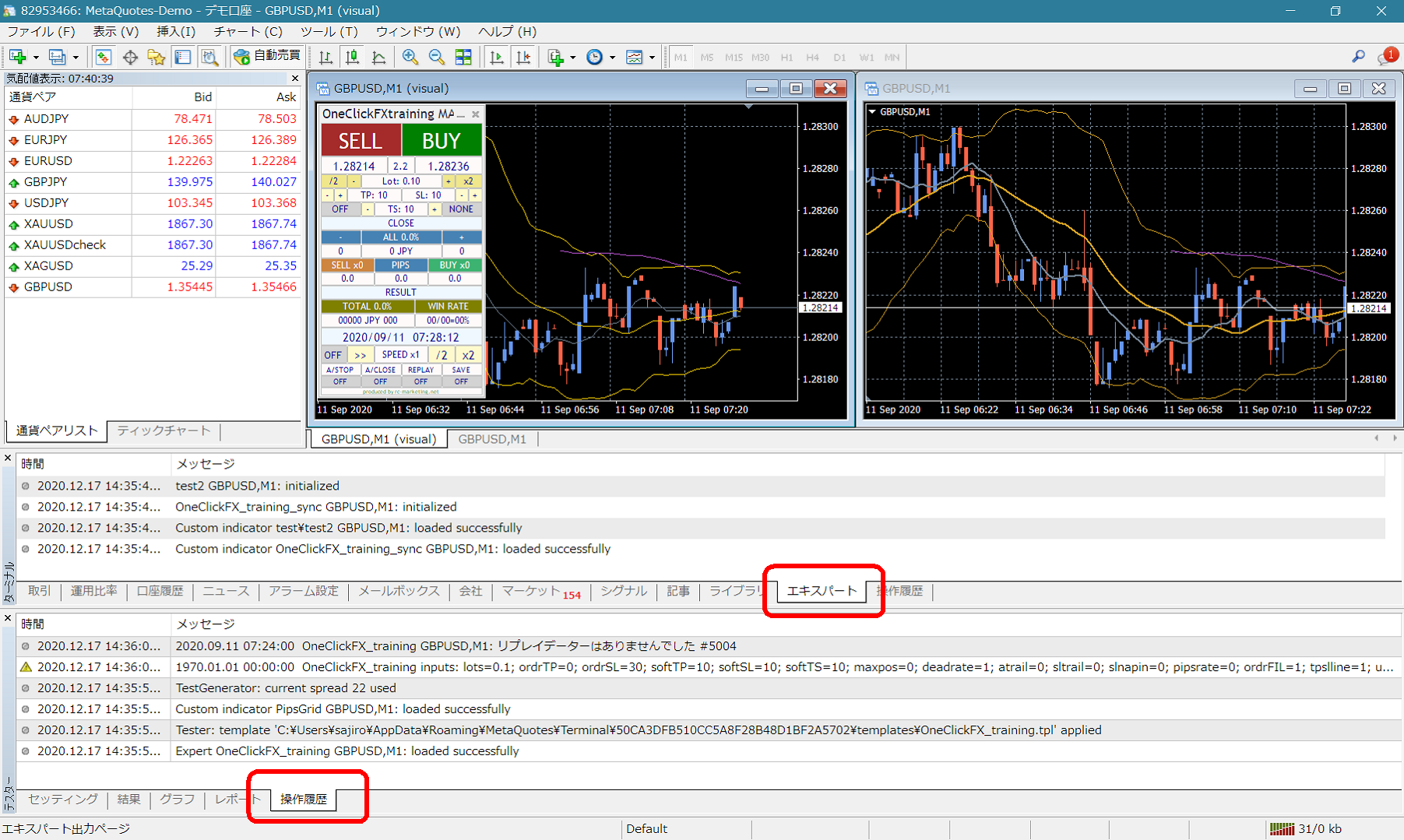 If there are errors or messages in the terminal's Expert or Tester history, please let us know so we can respond more smoothly. Your cooperation is appreciated.
Notes
When using this tool, please understand its performance and use at your own risk.