

"Verification-PRO" Add any currency pair
This article explains how to import arbitrary historical data into the FX past verification tool "Ken-sho-PRO".
https://www.gogojungle.co.jp/tools/indicators/46135
1. Obtain the data
To add a new currency pair, you need “the historical data for that currency pair.”
There are various methods to obtain historical data.
※Due to financial instruments regulations, external links are not allowed, so please search for something like “**** historical data” yourself and prepare the historical data.
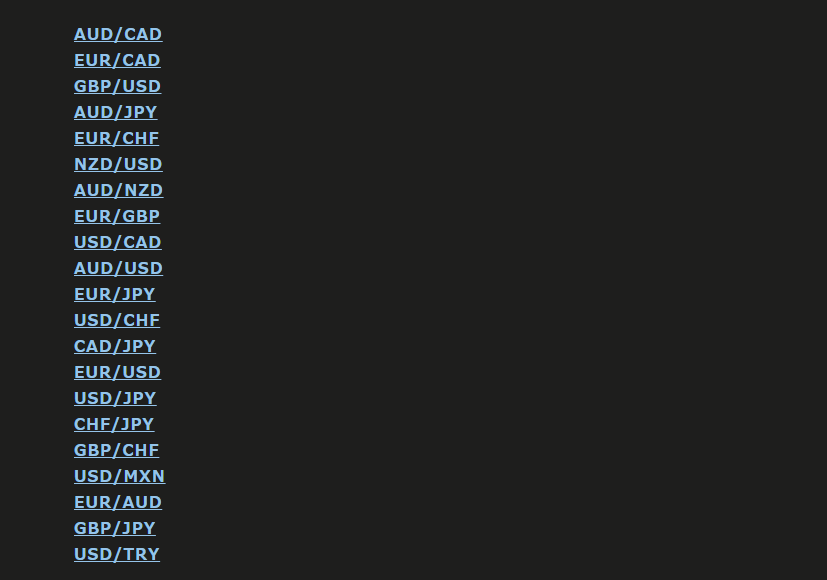
There are many currency pairs, so click the desired pair and download.
For this example, EURUSD was selected.
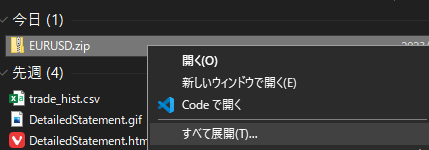
Right-click the downloaded ZIP file and choose “Extract All” to extract it.
In the extracted folder, there is an hst file.
2. Delete existing historical data
Import the downloaded hst file into MT4.
From MT4’s top menu, go to [File -> Open Data Folder -> history -> (your broker's folder)] to open the historical folder.
⚠ If MT4 is currently open, please close it now⚠
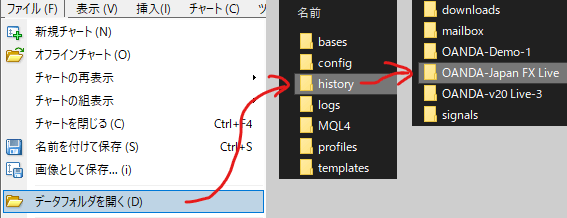
MT4 automatically saves historical data from charts.
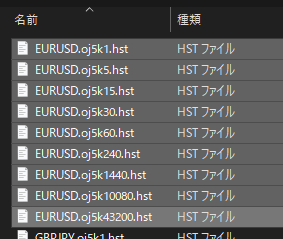
To avoid mixing with the data you will import, if the historical folder already contains data for the target currency pair, delete all of it.
(In this example, EURUSD)
3. Import data into MT4.
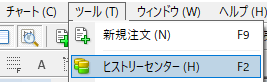
Open MT4 and from the top menu, [Tools] -> [History Center].
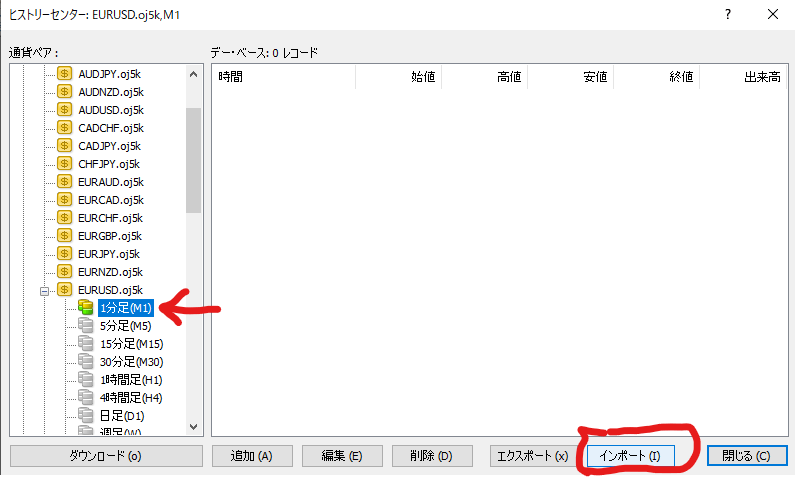
Select the 1-minute data for the currency pair to be added (EURUSD in this example) and click Import.
Click [Browse] and select the historical data you just extracted, then click [OK].

This completes the import into MT4.
To load the historical data, restart MT4.
4. Create other timeframes.
What you imported earlier is only 1-minute data.
We will create other timeframes based on this 1-minute data.
Verification-PRO includes a script called “kensho_converter” that automates this process.
4.1 Import the script into MT4.
Inside the product folder you purchased, there is a [Scripts] folder, and inside it you should find the file “kensho_converter.”
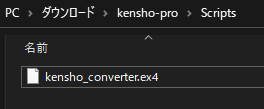
From MT4 top menu, open [File -> Open Data Folder -> MQL4 -> Scripts].
Copy the above “kensho_converter” into this Scripts folder.
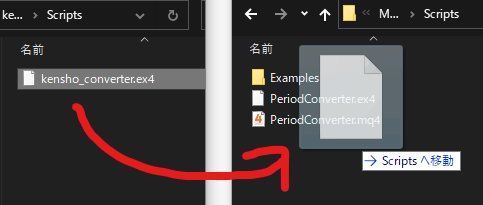
Restart MT4 to load it.
Now you have imported “kensho_converter” into MT4.
4.2 Use kensho_converter to create other timeframes.
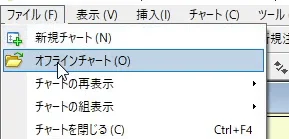
From the top menu, select [File -> OfflineCharts].
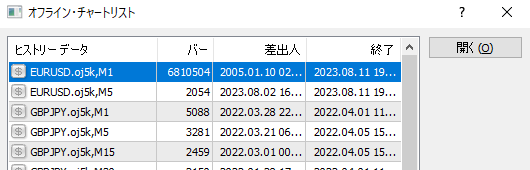
The Offline chart list will open; select the 1-minute data for the added currency pair and click [Open].
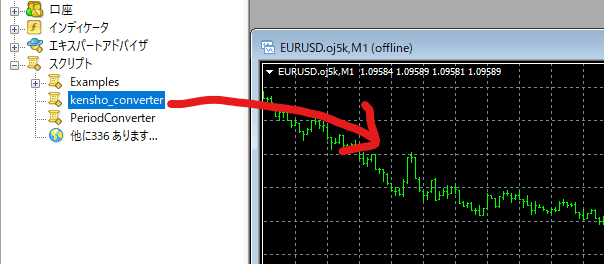
Place the “kensho_converter” on the opened offline chart.
If the top-left shows “timeframe=◯ converting: ◯◯”, it is running, so please wait.
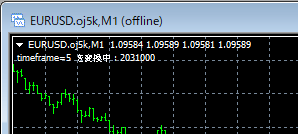
When conversion is complete, the top-left display will disappear.
Close the offline chart and restart MT4.
In the broker’s historical folder, you can confirm that the data for the converted timeframes has been created. (You don’t have to check this.)
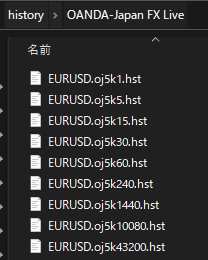
With that, adding the desired currency pair is complete.
You can operate it with Verification-PRO.

⚠ Depending on the broker, loading new historical data may take time.
⚠ Please leave the system with “KENSHO_HUB” installed for about 10 minutes.