

"Verification-PRO" Feature Manual
This article is a functional guide for the FX historical verification tool "Verification-PRO".
https://www.gogojungle.co.jp/tools/indicators/46135
“KENSHO_HUB”
KENSHO_HUB serves as the overall communication component. It handles the generation and management of the verification charts.

The date and time when verification begins. Historical data must be imported for verification.
・Higher timeframes 1–3
Please set the higher timeframes you want to display during verification. You may also choose “Do not use.”
If all are set, a total of four charts will open: the entry chart plus three higher timeframes.
・Use a template
When generating the verification chart, you can apply a template.
It is recommended to use a template that includes “the settings you usually use + the KENSHO_CHART installed.”
This saves the step of installing the KENSHO_CHART on the verification chart.
・Template name
Please set the name of the template to apply.
・Key to generate verification charts
Please set the key to generate the verification chart.
Defaults to “C”.
・Number of bars loaded at initialization
This setting determines how far back in history to generate during chart creation for verification.
If you load too many, processing may become heavy.
・Color for buys and sells
Color settings for virtual trading on the verification chart.
・File name to save trade history
The file name used when saving verification results as CSV.
If you name it after the strategy you want to verify, such as “SMA crossover,” it will be easier to understand later.
・Initial capital
Initial margin for virtual trading.
・Virtual spread
Set the spread for virtual trading.
・Display win/lose line
A feature that visually shows wins and losses in virtual trading with vertical lines.
You can visually review where you are winning or losing.
KENSHO_CHART
KENSHO_CHART handles the operation of the verification chart.
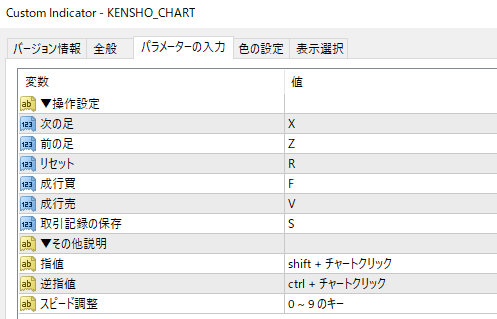
You can set keys to move the verification chart forward or backward by bars.
・Reset ⚠
Set keys to initialize time, virtual trading results, and everything.
・Market order buy, market order sell
Set keys to execute virtual trades (buy/sell). The same trades can be made from the virtual trading panel as well.
・Save trading records
Set the key to output virtual trading results as CSV. By default, pressing “S” opens an alert and a folder.
Other explanations
・Limit orders, stop orders
Currently, due to system limitations, limit orders are fixed to “SHIFT+Click” and stop orders to “CTRL+Click.”
・Speed adjustment
Speed can be adjusted with numbers 0–9.
“1” moves one bar at a time by default.
“2” moves two bars at a time.
...
“0” moves ten bars at a time.
・Settlement orders
Press the “✕” button beside the order line to settle the order.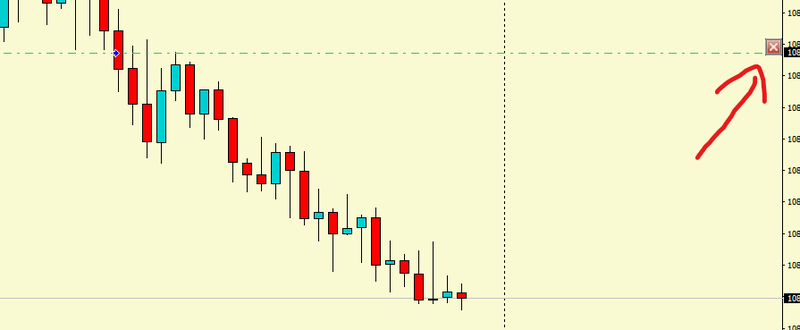
・Stop loss / Take profit
As with MT4’s standard order functionality, you can place stop loss and take profit orders by dragging and dropping.