
Purchasing products and file operations after download
Thank you for your continued support.
This is RAT, the ForexTester Indicator Developer.
This is a guide for those who purchased and downloaded the product but do not know how to extract the files or how to open the manual.
This is an operation guide for that purpose.
Note 1: The reference images are for Windows 11, but Windows 10 is the same.
Note 2: The file names differ for each product.
1. Unzipping the product file
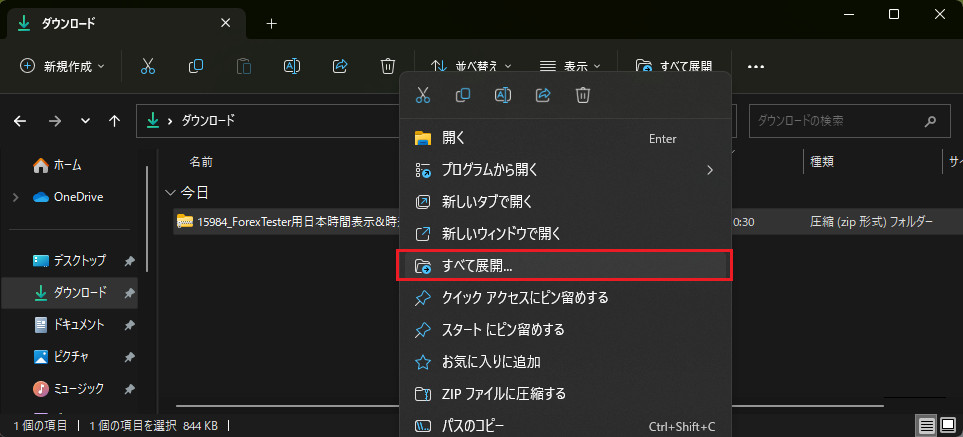
Open File Explorer and navigate to the location where you downloaded the file.
On the product file“Right-click”→“Extract All”and click it.
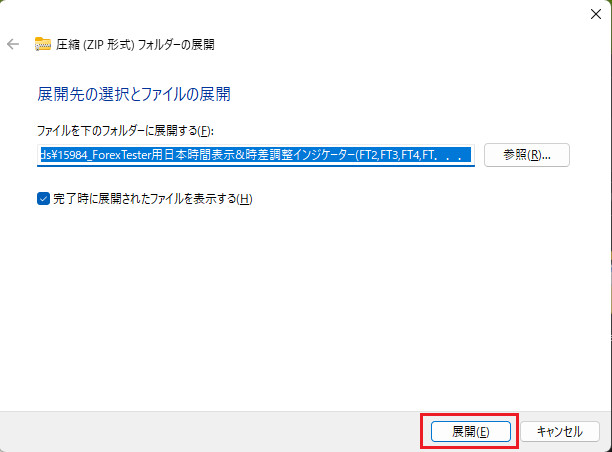
The following screen will appear, so just“Extract”and press it.
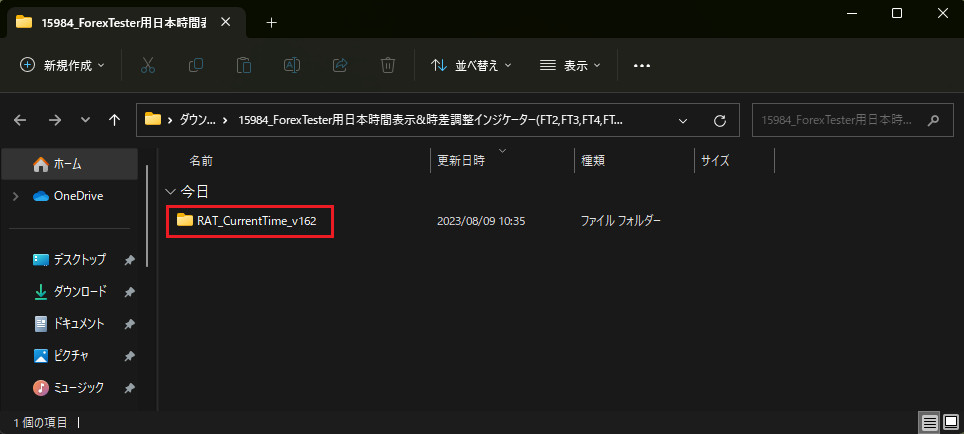
Explorer will open and the extracted files (folders) will be shown.
Double-click the folder to open it.
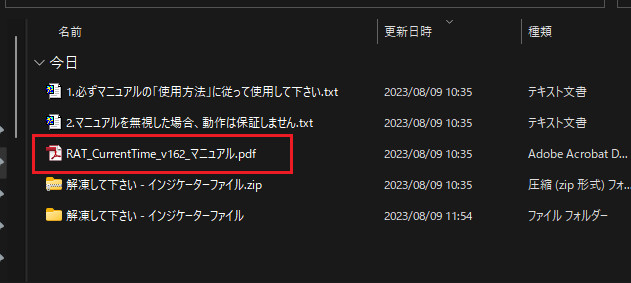
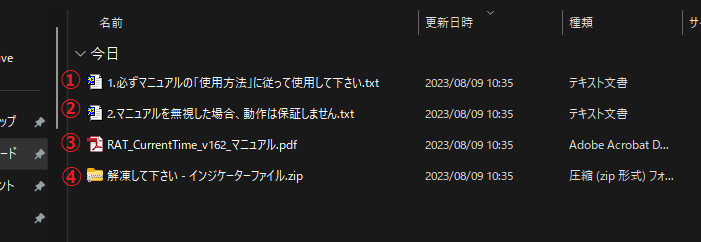
When you open the folder, several files will be present.
We will explain each file.
Note: The suffixes at the end of file names such as “.zip .pdf .txt” indicate the file type.
By default, extensions are not shown.
Please search online for how to show extensions, e.g., “Windows 11 show extensions.”
Even if you do not display them, installation is possible.
①… The file name is a note and contains no contents.
“Please be sure to use it according to the Methods section of the manual.”
②… The file name is a note and contains no contents.
“If you ignore the manual, operation cannot be guaranteed.”
③…PDF-format manualwill be provided.
How to open it will be explained later in “3. How to open the manual.”
④…Indicator file compressed in ZIP formatwill be provided.
It cannot be installed as is.
The next section explains how to unzip it.
2. Unzipping the indicator file
Follow the same steps to extract (unzip) the indicator file.
The intermediate screens are omitted.
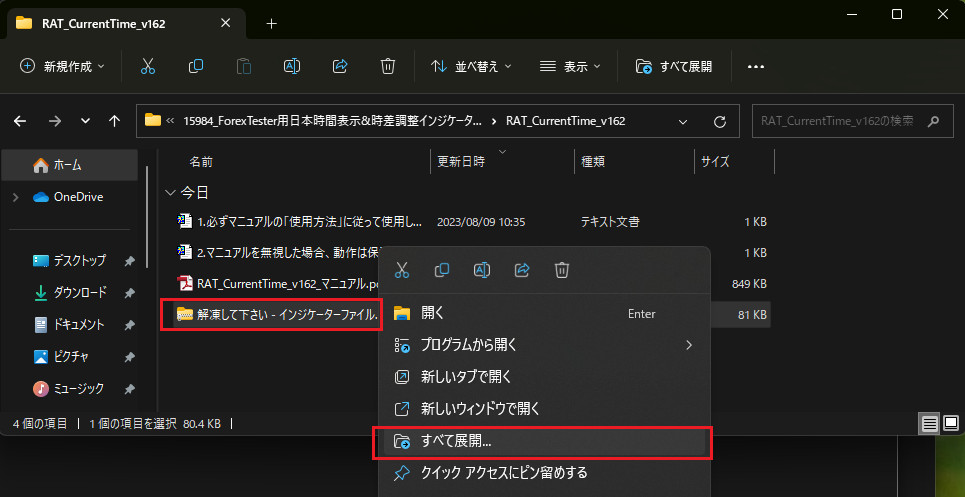
Double-click the extracted folder to open it.
Make sure there is an indicator file whose suffix ends with“.dll”.
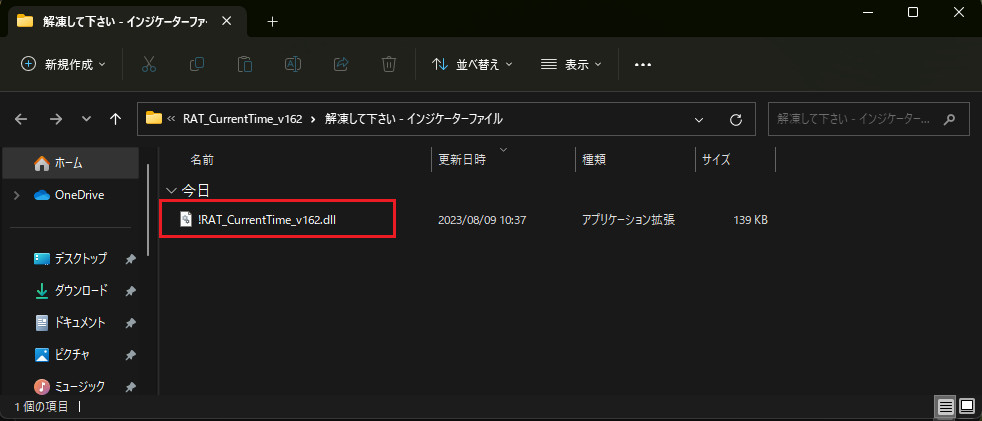
“It has become possible to install.
From here on, please be sure to follow the manual’s “Installation Method” and “Usage” sections.
The method to open the manual is explained in the next section.
If an error occurs during installation, please leave only one chart open and close all others before installing. (This is an issue with ForexTester.)
The indicator files are located here, so please remember the path.
The indicator name differs for each product.
<ダウンロードした場所>
>[Folder]15984_ForexTester用日本時間表示&時差調整インジケーター(FT2,FT3,FT4,FT...
>[Folder]RAT_CurrentTime_v162
> [Folder] Please unzip - Indicator files
> [Indicator files] !RAT_CurrentTime_v162.dll
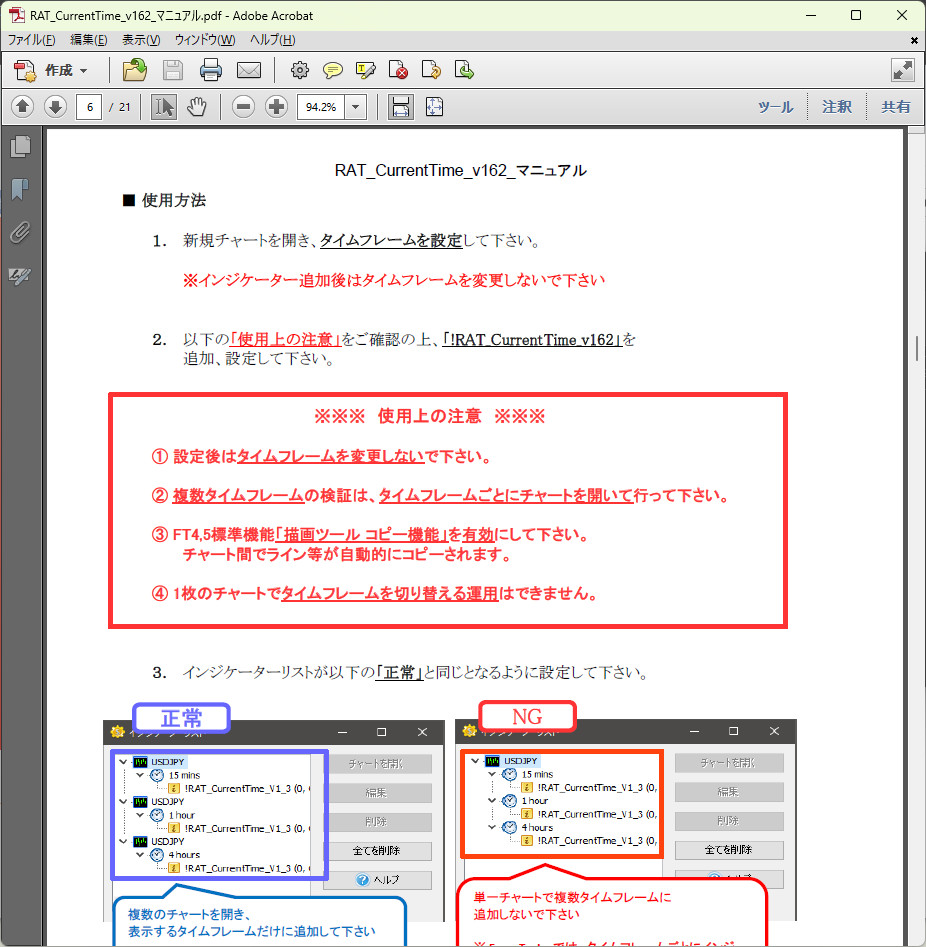
3. How to open the manual
Note: Do not use it by ignoring the manual.
If you do not follow the “Usage” instructions, it will not operate correctly.
Double-click the following files to open them.
(The file names vary for each product)