
【intro03】Initial setup to start basic knowledge and analysis before and after MT4 introduction
Getting Ready to Use MT4 Is Not a Problem If You Have Basic PC Skills!
The usual way to install MT4 is to download the installer from the FX company that provides MT4 on their homepage and install it on your PC. The order may vary by FX company, but once the four steps introduced here are completed, you can actually start using it. There are no particularly difficult steps, and with knowledge about your PC or software you should be able to install it without issues.
After successfully installing MT4, during your first login perform basic settings such as “Close all open charts and windows,” “Switch to candlesticks,” and “Set the basic color scheme.” Doing these three preparations in advance will improve usability.
From MT4 installation to startup, 4 steps
1. Download the MT4 installer
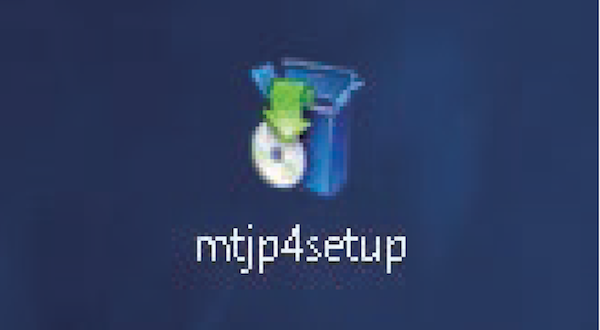
First, download the installer required to install MT4 from the FX company's homepage.
2. Install MT4 on your PC
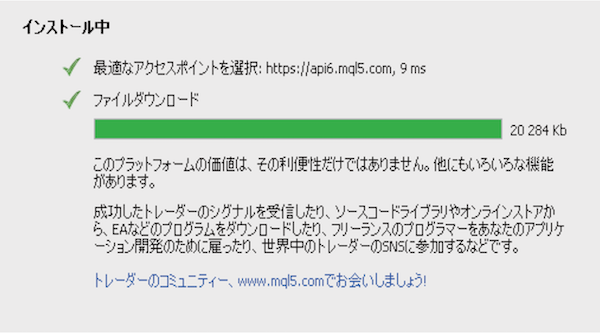
Double-click the downloaded installer and proceed with the installation. The installation method is the same as for一般 software.
3. Obtain a live account or a demo account

The ID and password required to log in to your trading account are usually sent by mail for a live account and by email for a demo account (both have exceptions).
4. Log in to the MT4 account to retrieve prices
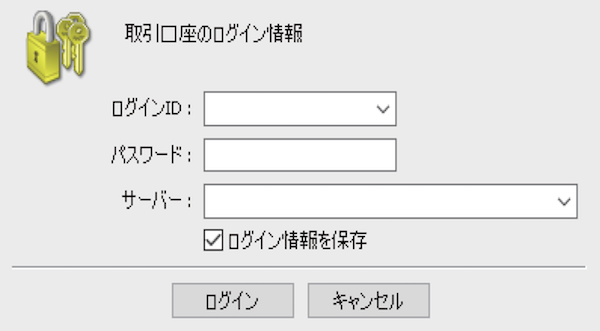
Enter your ID and password on the login screen. MT4 will start only after a successful login to a valid MT4 account.
Common MT4 troubles and how to solve them
● Cannot log in
If the login ID or password for your account is incorrect, you won’t be able to log in, and MT4 won’t start. In that case, enter the correct ID and password and try again.
● MT4 stops or doesn’t respond
If MT4 has frozen, try rechecking your internet connection or wait for a while. Most of the time it reconnects automatically and resolves the issue. Note: on weekends, price data is not retrieved.
● Expired (for demo accounts)
Demo accounts may have an expiration date (the period varies by FX company). If it expires, reapply for a demo account and MT4 will start moving again.
Main domestic FX companies where MT4 chart analysis is available

FX攻略.com official site introduces major Japanese FX companies that offer MT4. If you haven’t installed MT4 yet, install it with your preferred FX company. For installation methods, please refer to each FX company's site.
・Top 9 domestic FX companies where MT4 chart analysis is possible
(Navigate to FX攻略.com official site)
Notes for the next Q&A feature
In this feature series, including the upcoming Q&A format, the explanations are based on the following basic settings.
Basic Setting 1|Close all windows
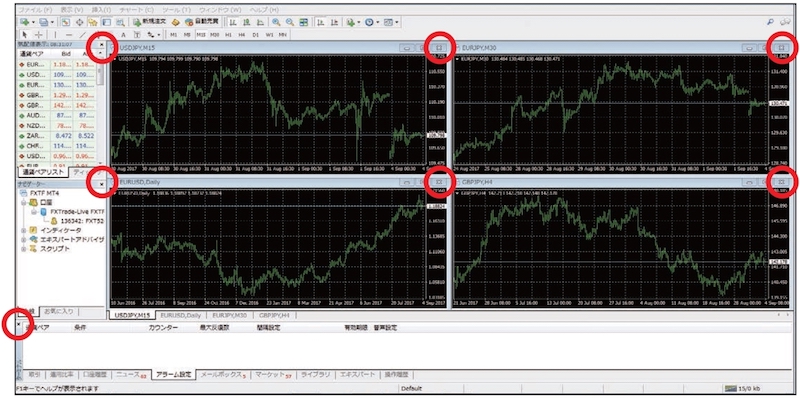
When you first start MT4, four types of charts and various windows are open. Click all the X buttons to close everything, then create a fresh environment.
Basic Setting 2|Change to candlesticks
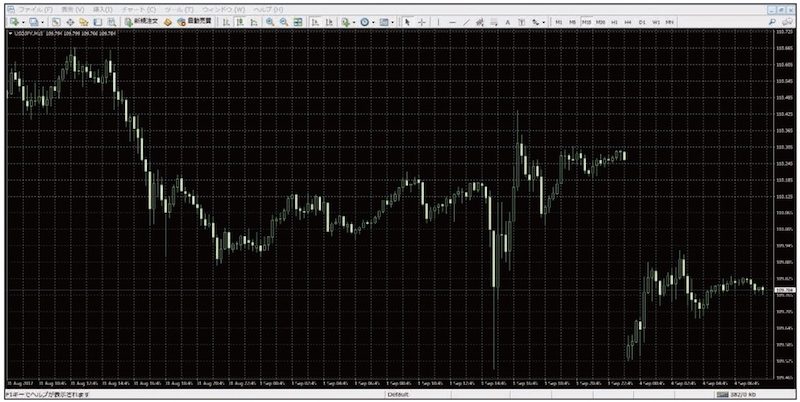
When opening a new chart, it initially shows a bar chart, so switch it to candlesticks.
Basic Setting 3|Set to “Black on White”
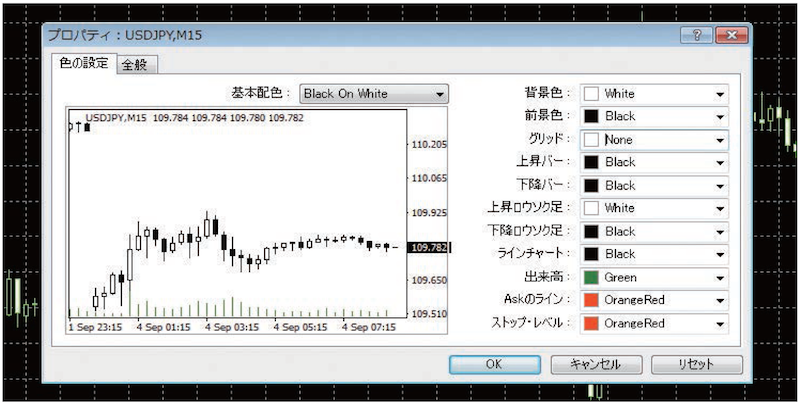
Black background charts are hard to read, so change the default color scheme to “Black on White.” The charts become much easier to read than the default.
Solve 43 MetaTrader questions with this list!
<Introduction>
- 01. Table of contents
- 02. Not just chart analysis—what MT4 can do
- 03. Basic knowledge before/after MT4 installation and initial settings to start analysis
<Q&A>
- Q1. How do I open a chart?
- Q2. The chart isn’t candlestick
- Q3. How to switch the time frame?
- Q4. How to go back in the chart history?
- Q5. The chart moves by itself
- Q6. Can I view multiple charts?
- Q7. Sometimes there is a sound. Can I stop it?
- Q8. How to change chart colors?
- Q9. What is the basic color scheme?
- Q10. Which items’ colors can be changed?
- Q11. I want to display multiple charts side by side
- Q12. How many charts can I arrange?
- Q13. How to enlarge one of the arranged charts?
- Q14. How to insert technical indicators into a chart?
- Q15. How to insert moving averages?
- Q16. How many moving average lines can be displayed?
- Q17. How to delete a technical setup?
- Q18. How to insert Bollinger Bands?
- Q19. How to insert RSI?
- Q20. How to enlarge a sub-window?
- Q21. How to delete a sub-window?
- Q22. How to insert Stochastics?
- Q23. How to display multiple oscillators?
- Q24. Is it hard to read when there are too many sub-windows?
- Q25. How to save your own chart analysis setup?
- Q26. Can you also save chart combinations?
- Q27. How to draw lines on a chart?
- Q28. How to move drawn lines?
- Q29. How to delete a line?
- Q30. Can you draw short diagonal lines?
- Q31. Can you draw a horizontal line at a round price?
- Q32. How to draw Fibonacci retracement?
- Q33. How to draw shapes?
- Q34. How to draw arrows?
- Q35. Tell me about automated trading
- Q36. How can I create an EA?
- Q37. Is MetaEditor the English version?
- Q38. What should I do to run an EA?
- Q39. Do I need programming skills to use EA?
- Q40. How to use a custom indicator?
- Q41. What is a custom indicator?
- Q42. Where are custom indicators?
- Q43. How does MT5 differ from MT4?
Swing by the FX攻略.com official site too!!
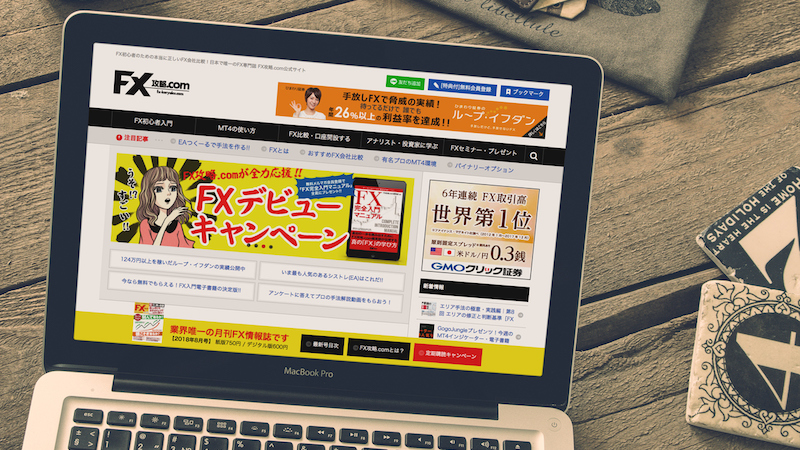
FX攻略.com is a monthly FX specialized magazine founded in 2008, and is the only domestic monthly FX information magazine (monthly issue on the 21st / [print] 750 yen [digital] 600 yen). It conveys the latest information while condensing the fundamentals of investing and the essence of FX that never change over time! If you haven’t read it yet, please pick it up at bookstores nationwide! (Also available online)
■ FX攻略.com Official Site
http://fx-koryaku.com/
■ FX攻略.com Official Twitter
https://twitter.com/fx_koryaku_com
■ FX攻略.com Official Facebook
https://www.facebook.com/fxkoryaku/
FX攻略.com's MT4 Feature

This MT4 feature from FX攻略.com official site is for people who are interested in MT4 but feel it’s difficult and hesitate to dive in.
FX攻略.com editorial team presents【MT4 Start Manual】to all applicants as a gift!!!!
For details on obtaining the manual, please check “MT4 Comprehensive Feature | A Beginner's Guide to MetaTrader 4 (Meta Trader4)”.