One-Click BO Training Support Page
Thank you for purchasing this product.
The latest version is 2.28.
Upgrade for purchasers is free ⇒Download
If you are considering purchasing, you can buy from the site below
https://www.gogojungle.co.jp/tools/indicators/29315
About license authentication errors【Important】
If you encounter errors during license verification, please enter the parameterGogoJungle member IDTraditionally authentication could be performed with a nickname or email address, but in principle authentication is now done with a Gogojungle ID.
■ Product contents
One-Click BO Training is a binary options test and practice tool that uses a simple and readable BO-dedicated chart via a sub-window.An entry-support tool is also included.
Even on weekends when the market is closed, you can practice and test binary options anytime, supporting 30-second, 1-minute, 3-minute, and 5-minute intervals, and by using auto-stop and speed adjustment you can greatly shorten your workflow.
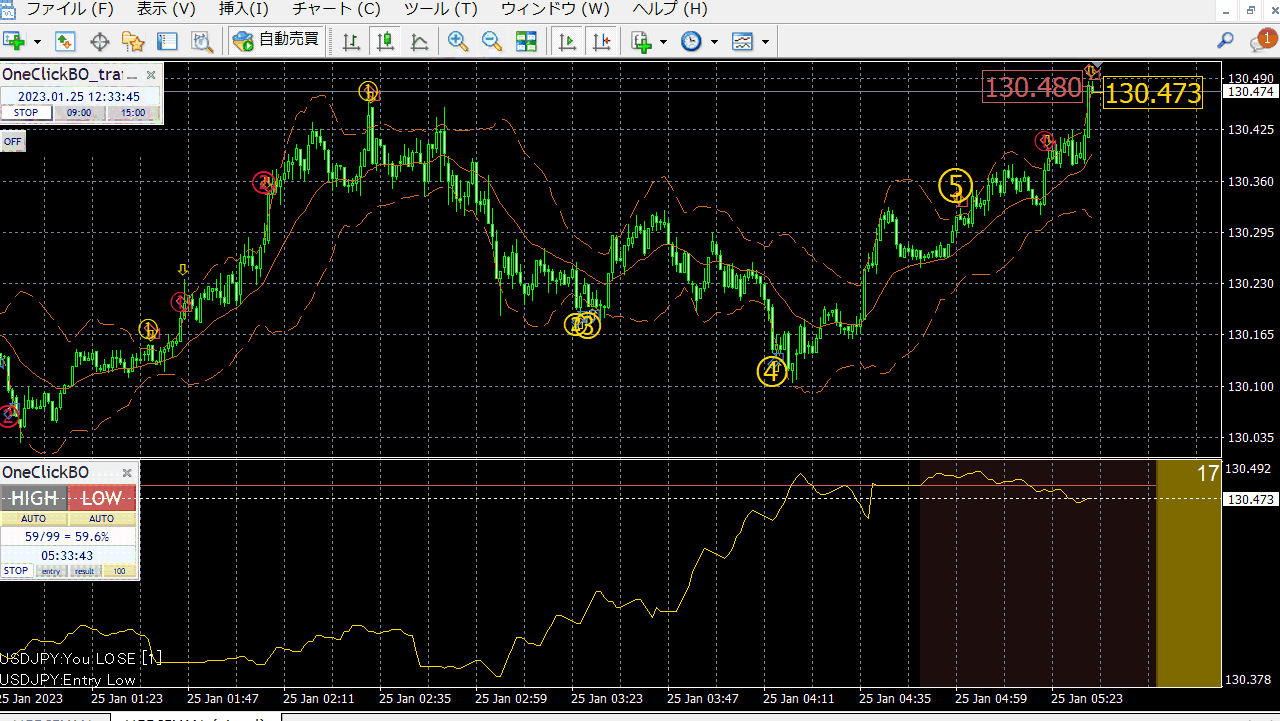
Flexible cooperation with the signal tool is possible, and you can automate entry, confirmation, or stop after a specified number of times, making validation dramatically more efficient.
The number of consecutive wins is displayed, and saving a horizontal image of 100 results makes it easy to see high-probability markets.
・Upgrade information
▼ 2023-11-07 v2.28
Change of win/loss marks
Display of consecutive wins
Addition of entry price
Addition of notification function
Addition of OneClickTS integration,
Saving of horizontal images up to a specified count
Selection of saved images
Addition of time filter
Addition of Martingale,
Addition of move to next candle button
▼ 2023-07-21 v2.06
Adjustment of start seconds
Price line adjusted to ASK/BID midpoint on certain sites
※ During tester price line is BID
▼ 2023-07-10 v2.05
Parameterization of chart period (from 500)
▼ 2023-07-06 v2.04
Sub-window mode
※This page also contains pre-upgrade imagesChange of win/loss marks
Display of consecutive wins
Addition of entry price
Addition of notification function
Addition of OneClickTS integration,
Saving of horizontal images up to a specified count
Selection of saved images
Addition of time filter
Addition of Martingale,
Addition of move to next candle button
▼ 2023-07-21 v2.06
Adjustment of start seconds
Price line adjusted to ASK/BID midpoint on certain sites
※ During tester price line is BID
▼ 2023-07-10 v2.05
Parameterization of chart period (from 500)
▼ 2023-07-06 v2.04
Sub-window mode
■ How to install
Please install your preferred MT4 beforehand (distribution source does not matter) andcheck the use of DLL permission.1) In MT4, select “Open Data Folder.”
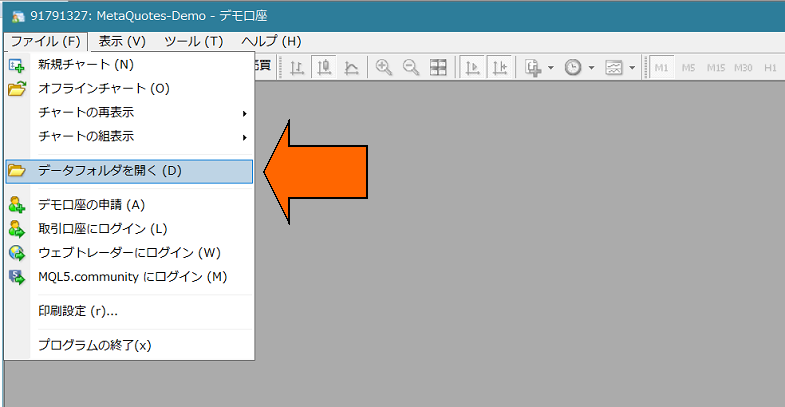 2) Overwrite the entire MQL4, templates folders of this product into the data folder.
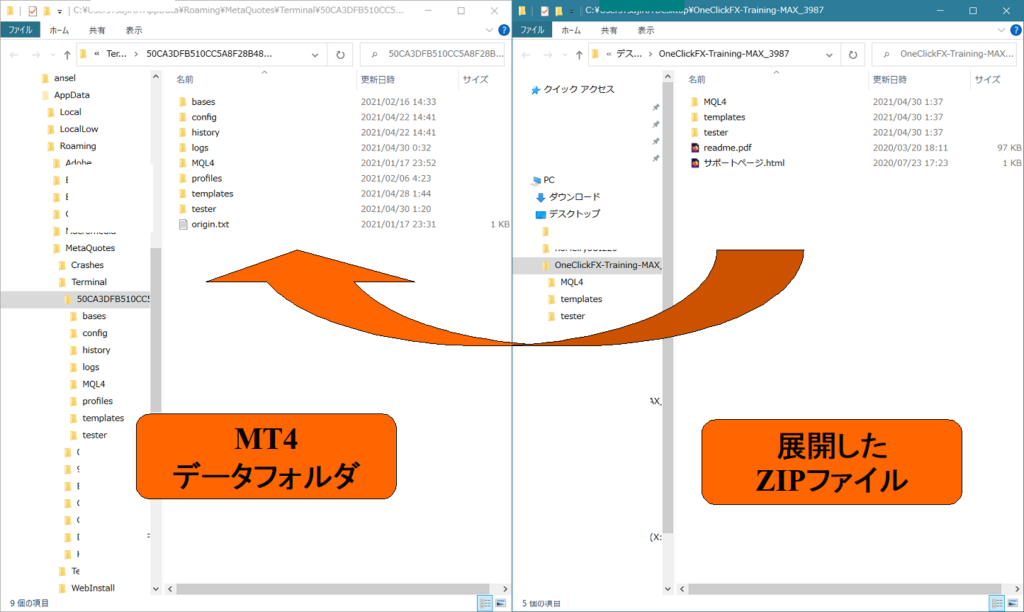 3) Restart MT4 and open any chart.
・Perform license authentication
4) Right-click → from templates show “OneClickBO” to display One-Click BO.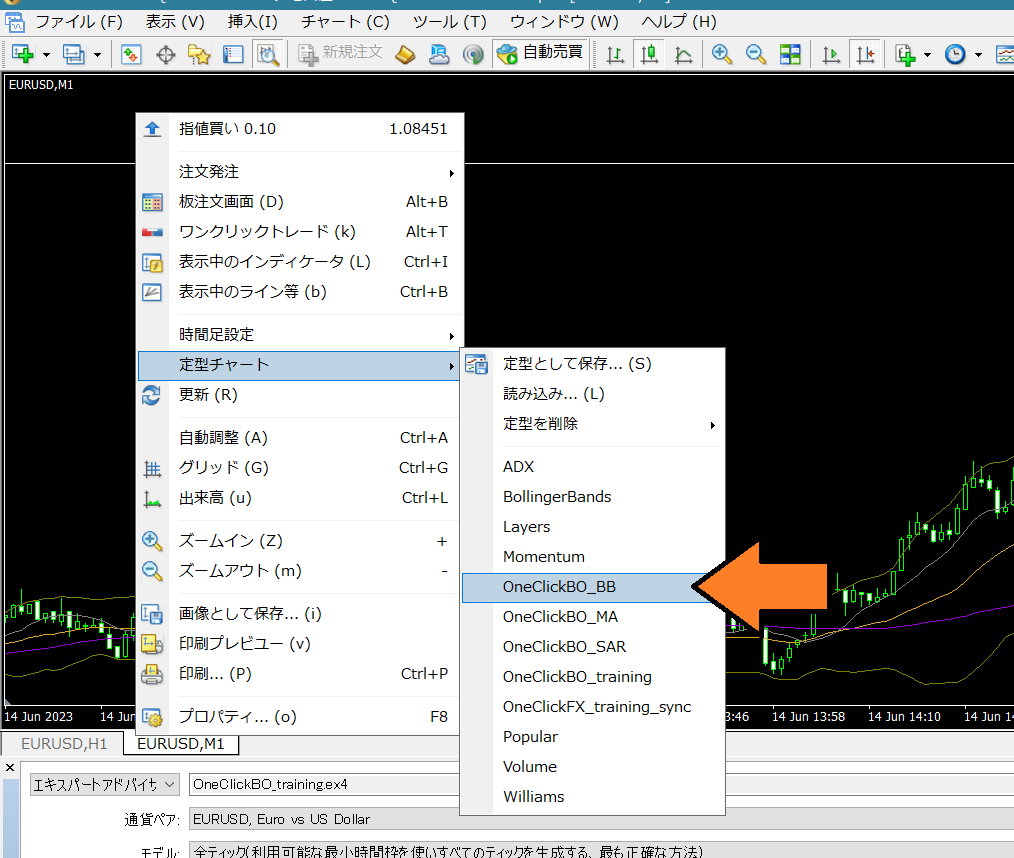 5) If the bottom-left of the chart shows “License Invalid,” right-click → Show Indicators → Open OneClickBO,enter the parameter “GogoJungle member ID”and press OK. (If the license is valid, this is not required)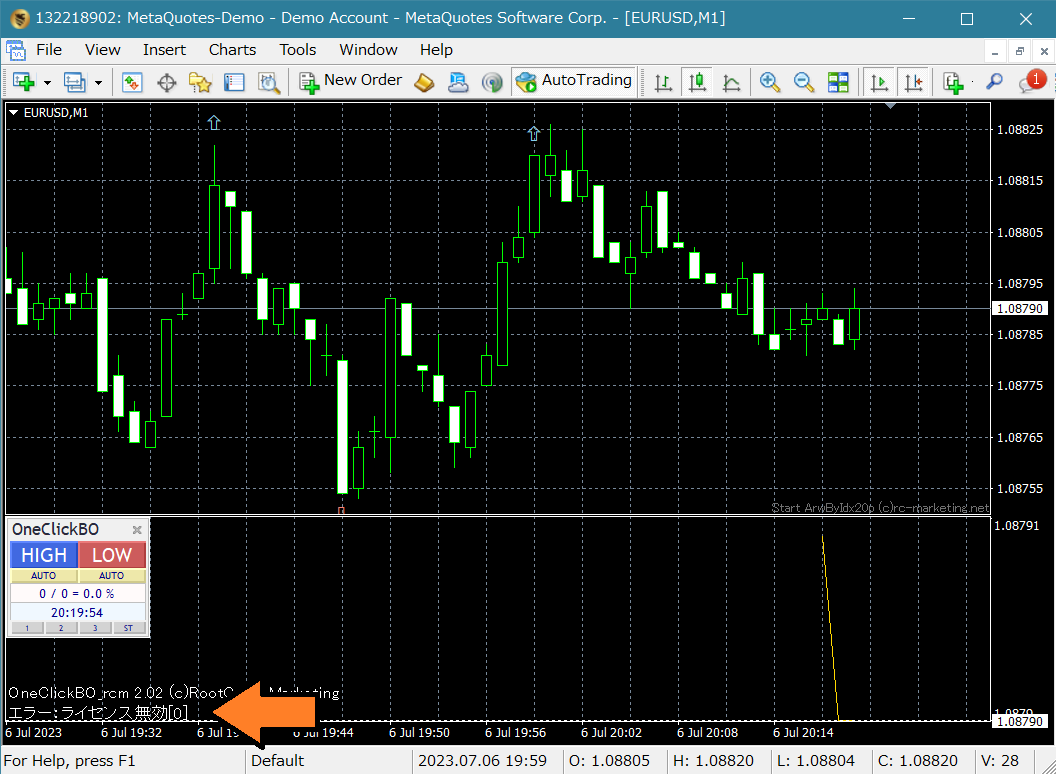
 If the bottom-left of the chart shows “License Valid,” you are finished.
・If running on an online chart
6) Open any normal chart.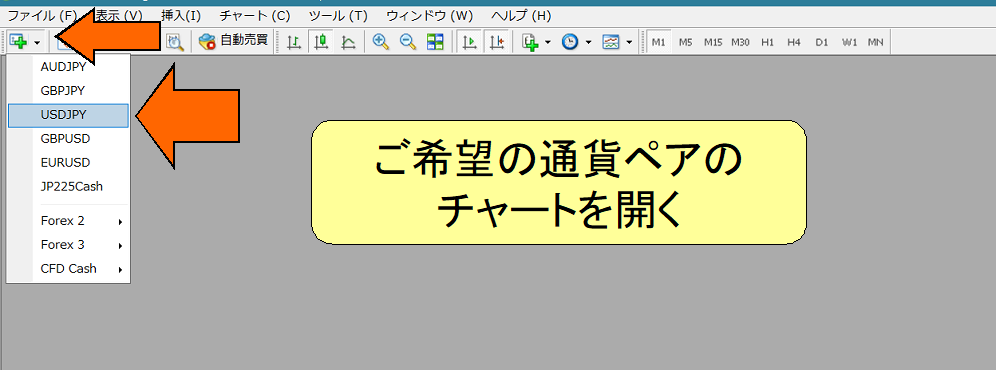
7) Right-click → from templates choose “OneClickBO_xxx”.
8) Press the HIGH/LOW button to enter, and with the included AutoArwTrade-compatible signal tools like ArwByIdx, the signal linkage will be performed.
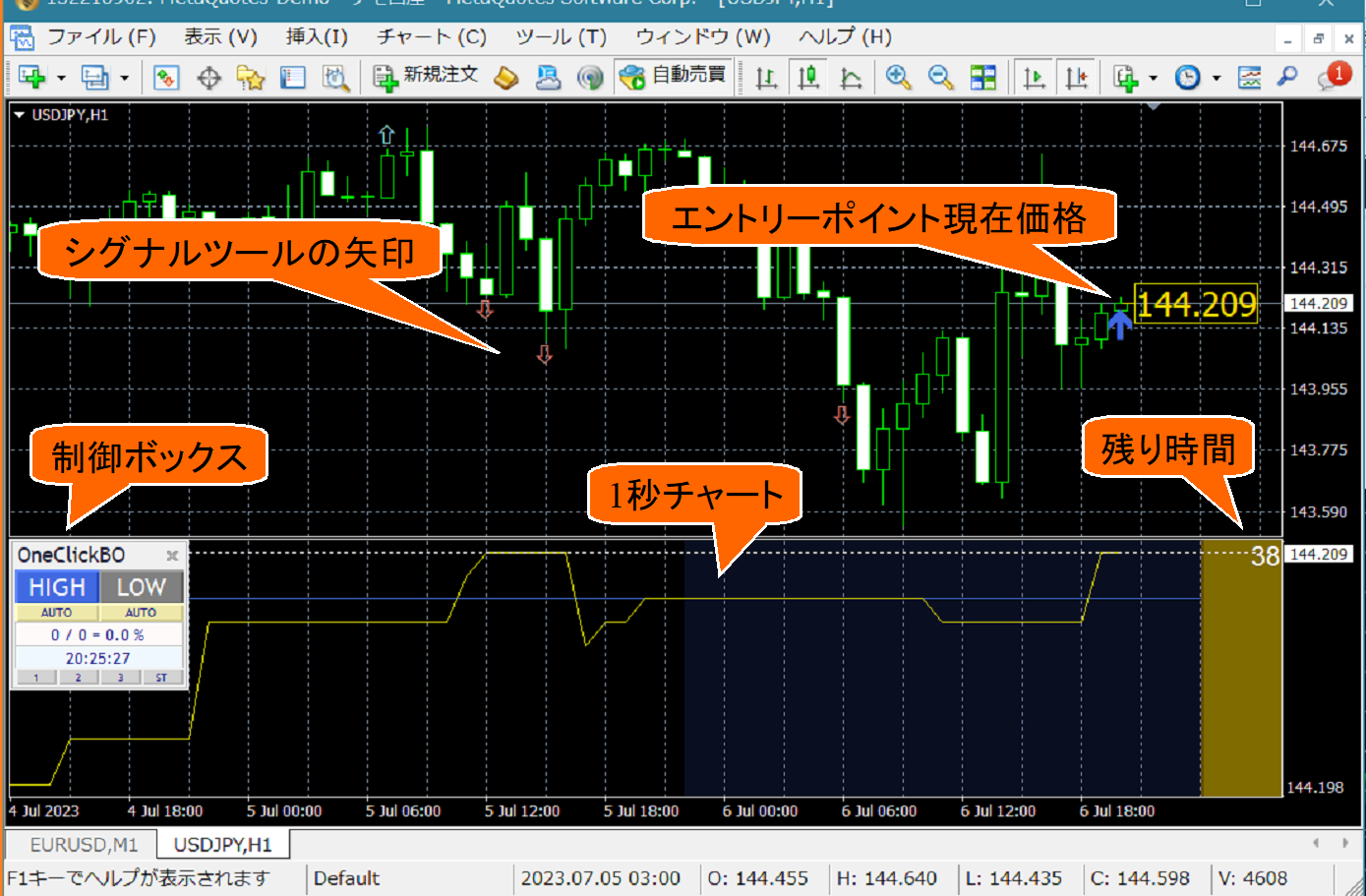
・Practice and validate on past charts
9) Save the online chart settings for Strategy Tester, then press the “ST” button on the control box bottom-right.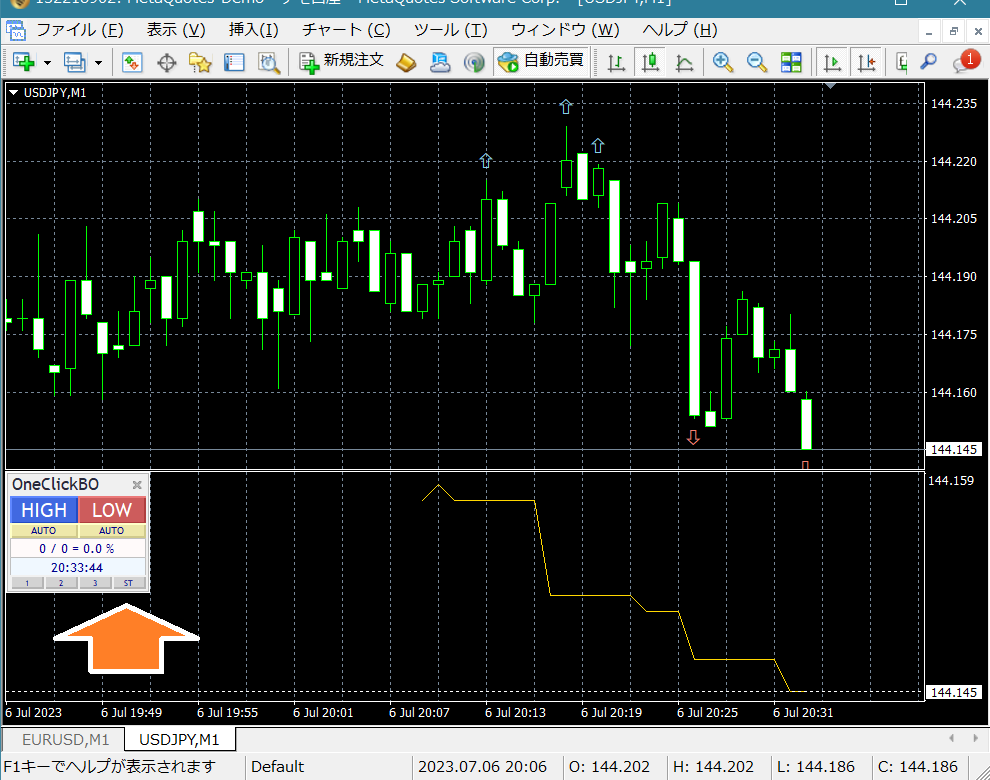
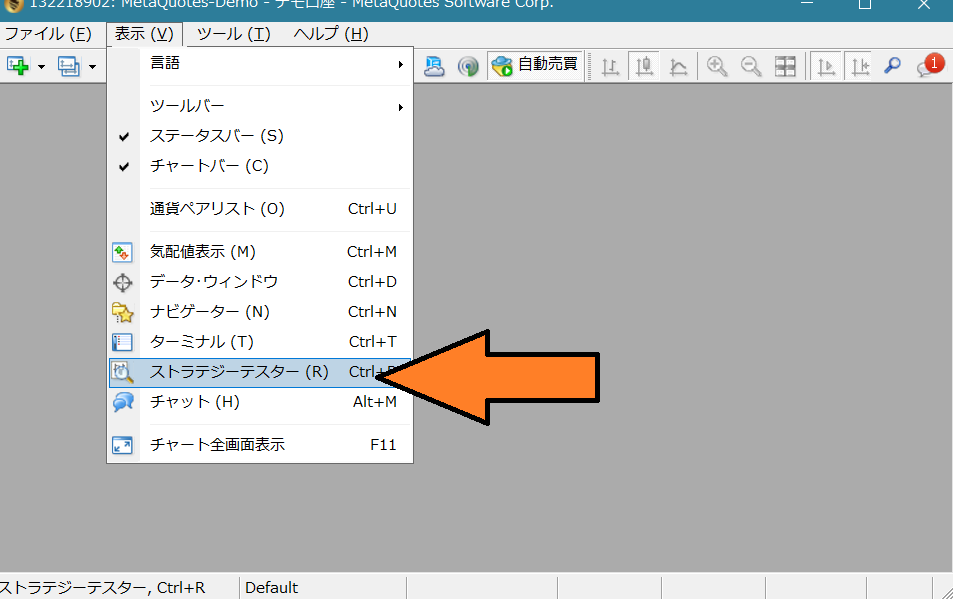
10) Open the Strategy Tester window.
11) In Strategy Tester, choose Expert “OneClickBO_training,” any currency pair, model: all ticks. Visual mode checked, optimization unchecked, speed set to 32. If needed, adjust parameters via the Expert Settings button.
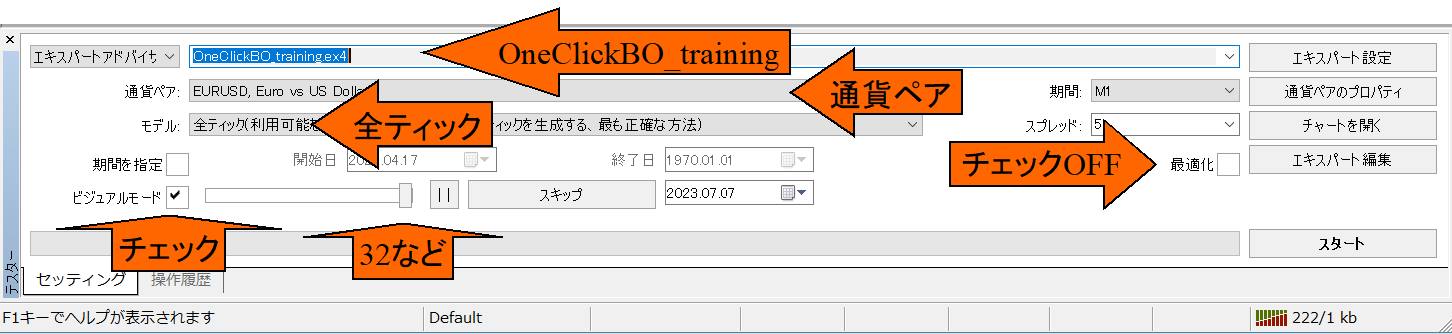 ※ Maximum realism uses all ticks, but speed will be slow. Using control points reduces data points but speeds up.
12) In Tester window, from the Expert Settings button, enter the parameter “GogoJungle nickname or member ID” and press OK.
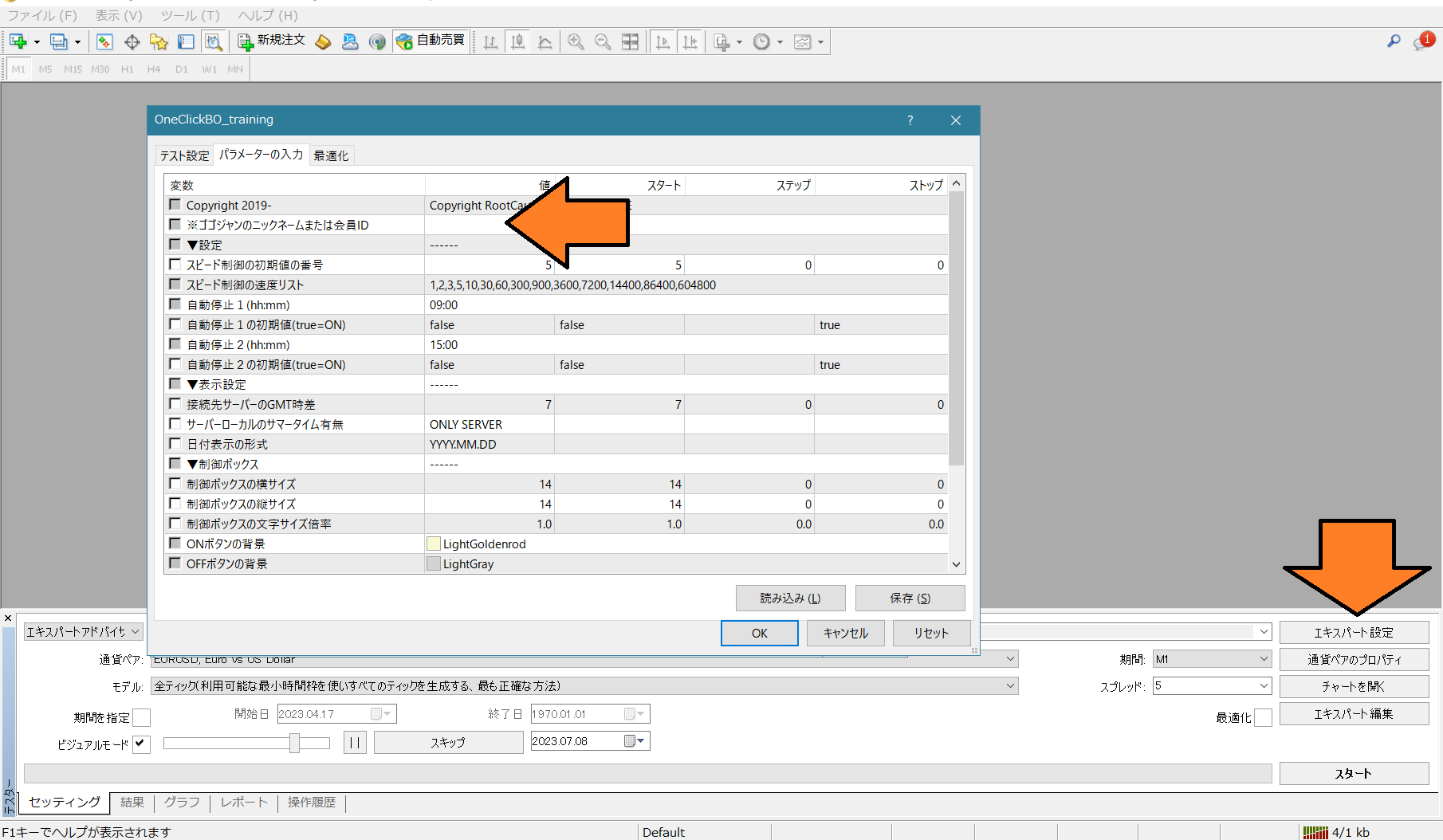
13) Press the Start button in the tester window
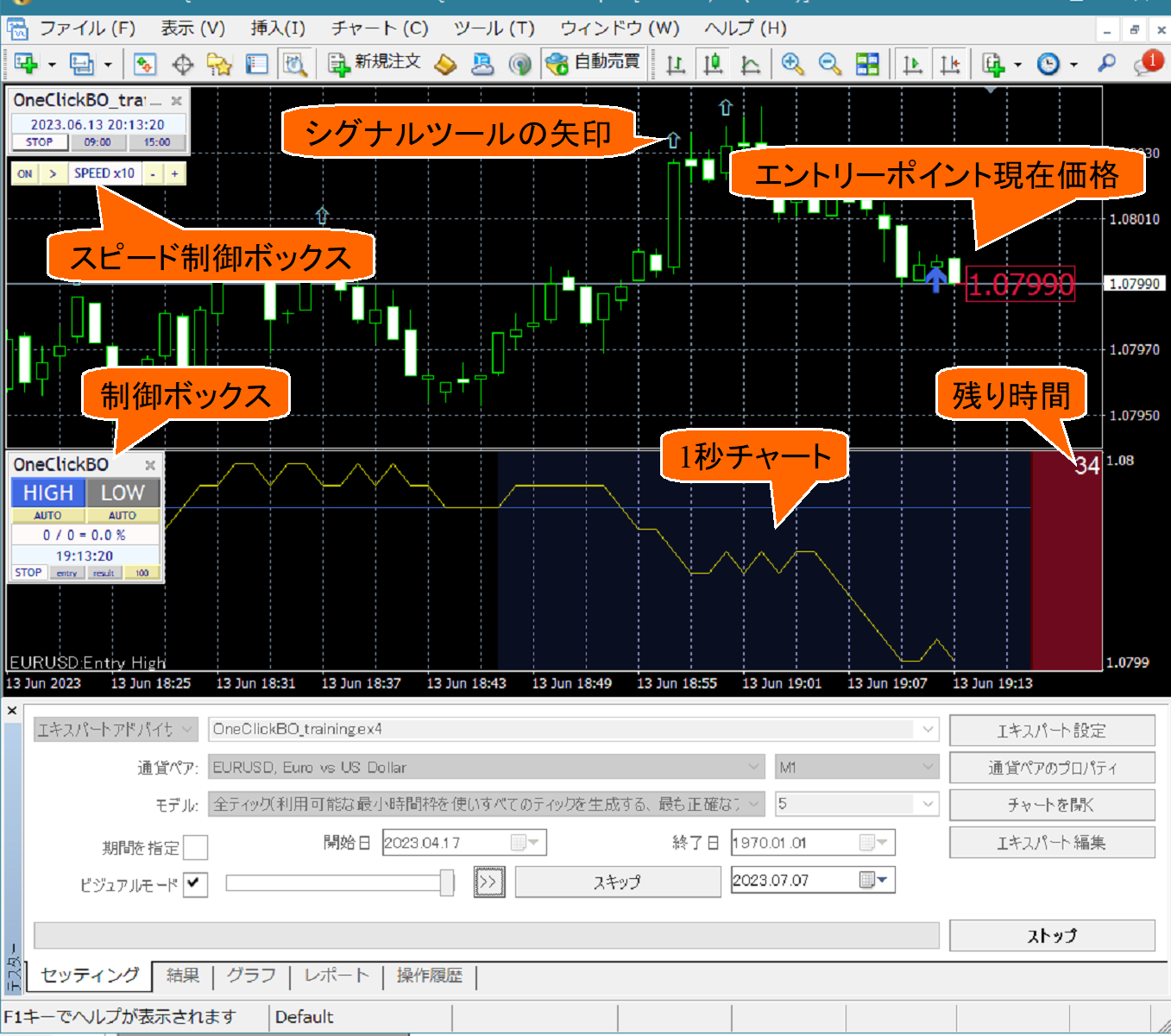
・Display synchronized charts for past tests
Simple and easy synchronization
14) To display synchronized charts, first open a normal online chart.
15) Right-click → from templates select “OneClickFX_training_sync”.
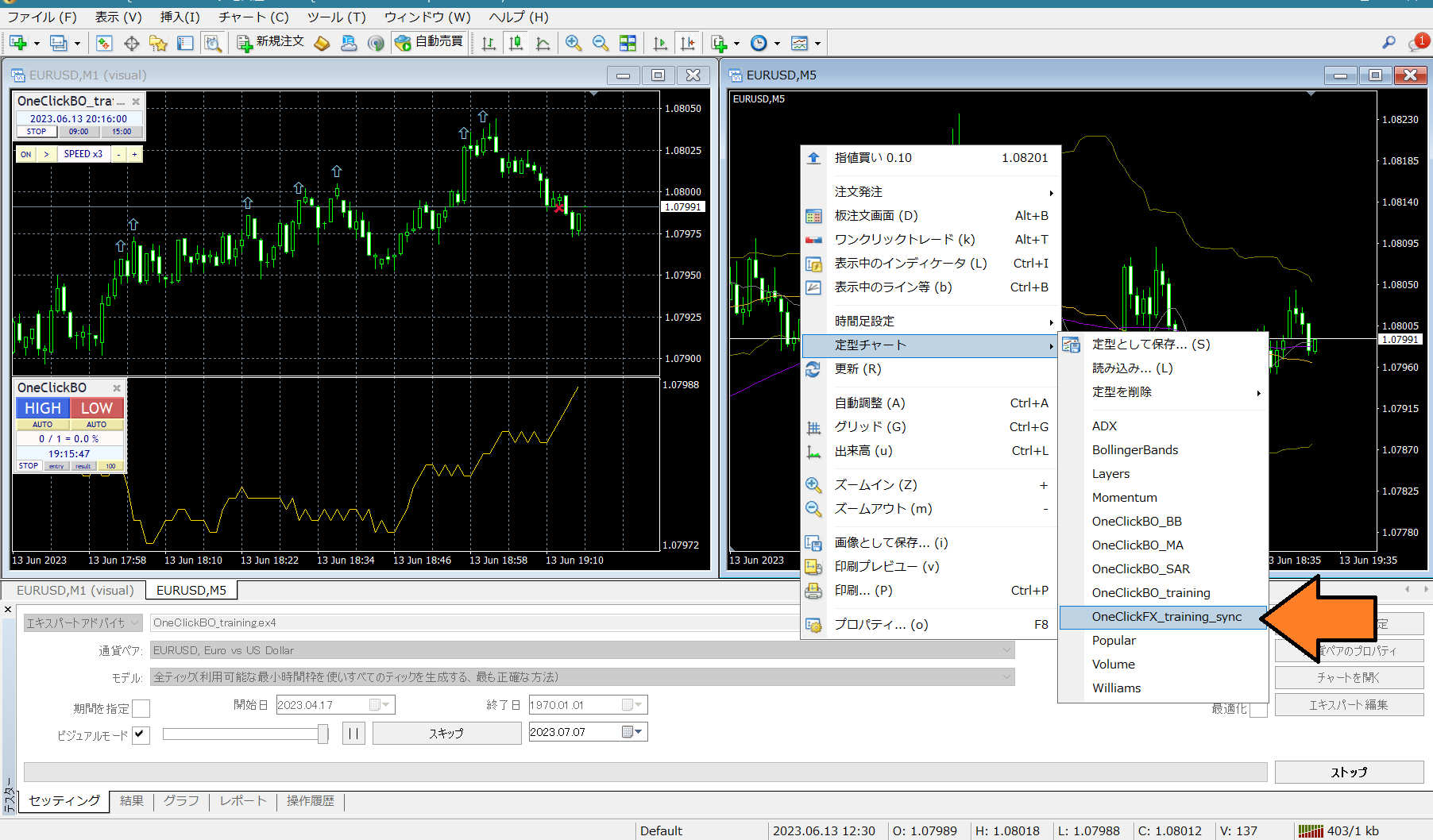 ※ This is not a typo; it uses an identical template chart to be compatible with OneClickFX series
Online-like advanced active synchronization
16) In the menu, File → Offline Chart, open an offline chart starting with the character “_” (underscore) (image from “_USDJPY” 1-minute to daily).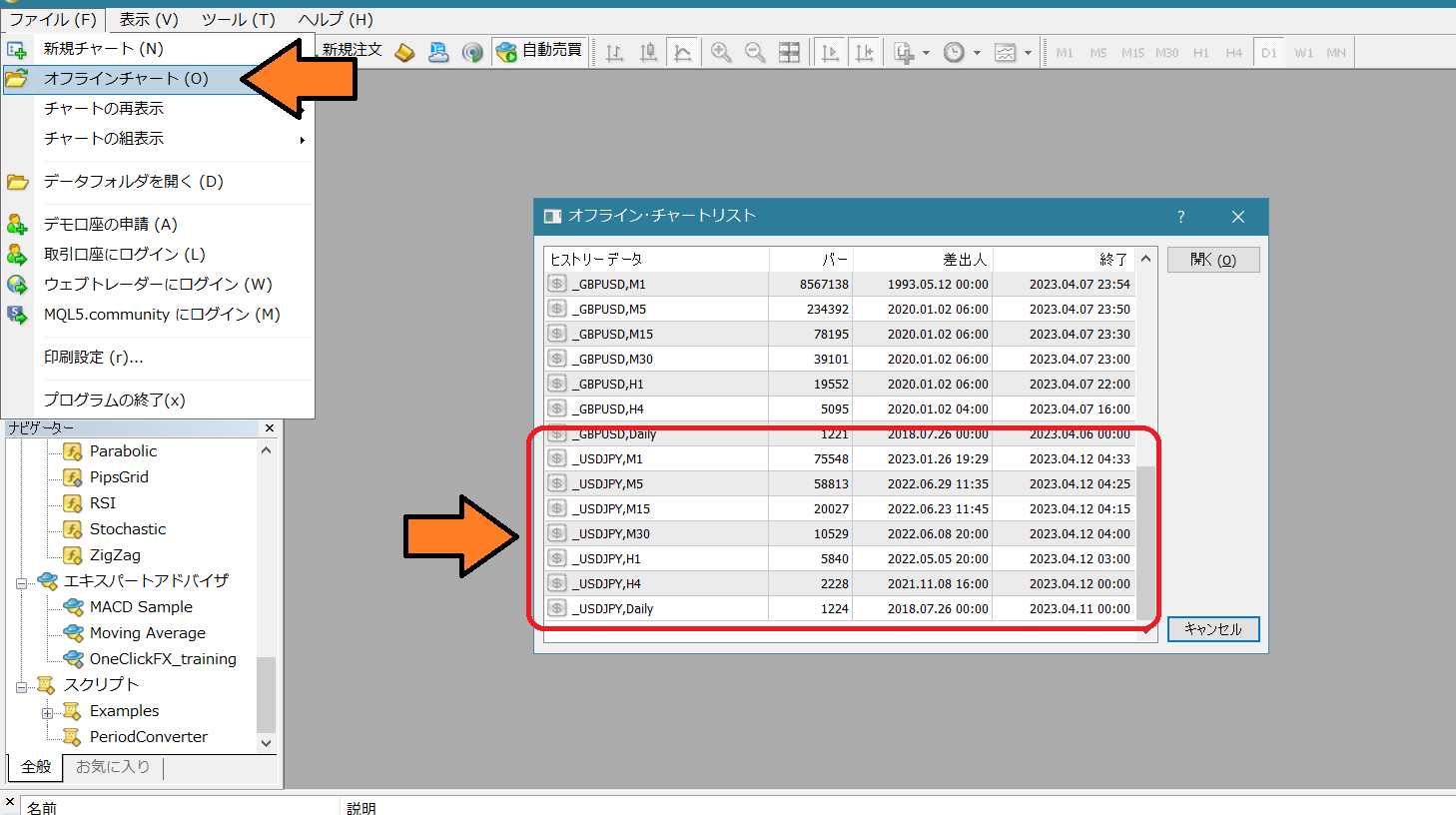 17) Right-click → from templates → select OneClickFX_training_sync
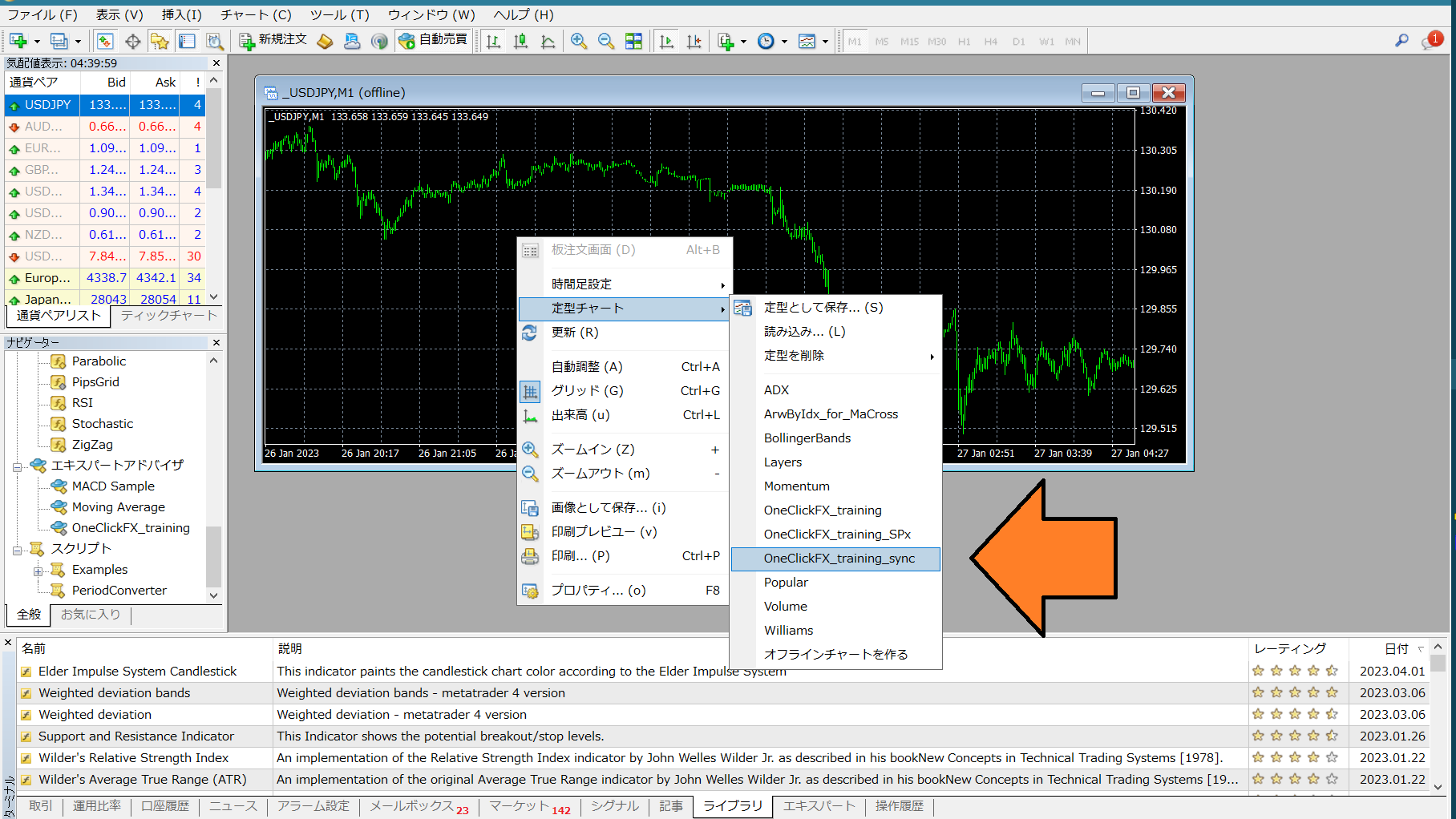 3) As with simple synchronization, adjust parameters as needed and press OK. Charts will synchronize.
■ Operations & Settings
・How to use OneClickBO
The control box for OneClickBO displays differently on online charts and Strategy Tester.▼ If using on an online chart
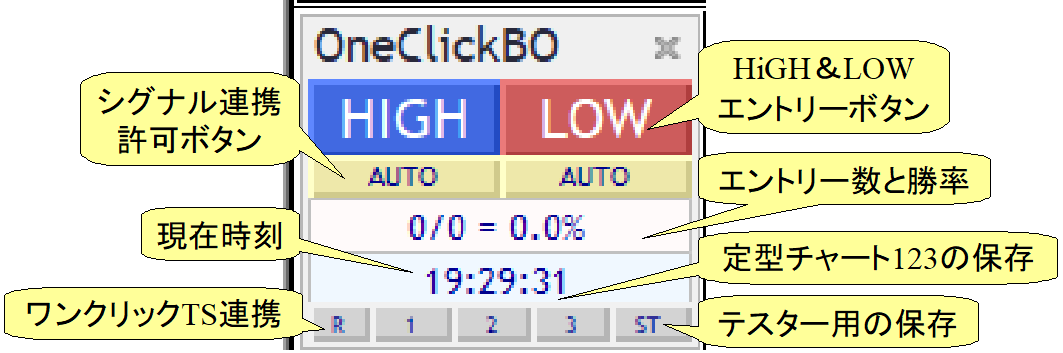
The bottom buttons of the control box serve as the save chart button for templates.
▼ If using in Strategy Tester
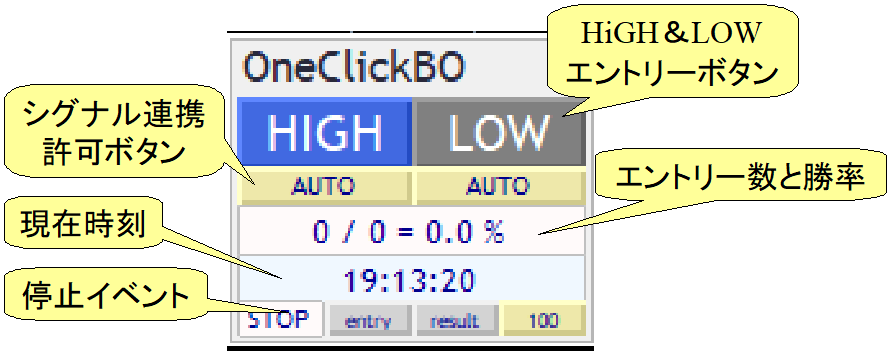
The bottom buttons are the Stop On/Off selection buttons.
・OneClickBO parameter settings
Email address at purchase: Please enter your email address▼ Entry settings
Seconds to decision:
=> Enter the desired seconds. Examples: 30s, 60s, 300s
Martingale times:
=> Specify the number of Martingale steps. 0 = none
One-Click TS linkage:
=> NONE=none, Direct=direct instruction from One-Click BO, via Alert=alert notification linkage
▼ Signal tool linkage
Object name for buy/sell/stop signals:
=> Set the object names to link with the included linkage tools (ArwByIdx) as additional strings. 1-3 are AND conditions; comma-separated equals OR conditions.
Shift to target bar:
=> If entering as soon as the arrow appears, enter 0; if linking to the previously confirmed bar, enter 1
▼ Time range
Use time filter:
=> true=use, false=do not use
Auto time adjustment, GMT difference of connected server, daylight saving on server local:
=> Parameter to adjust to Japan time. Auto-adjustment is disabled in the tester.
Start time, end time:
=> Specify times with time difference considered in the format “00:00”.
▼ Image saving
Images to save:
=> CHART: chart image, SCREEN: full screen, NONE: do not capture. Choose one.
Image size width x height:
=> Specify the size of the captured image.
Capture images at entry, decision, and auto-stop times:
=> Capture images at each timing. More captures may slow speed.
※ In testers, image saving reduces maximum speed. For individual tests, save images, but for calculating win rate without images is faster.
▼ Tester settings
Initial value for stop orders, initial value for result stop:
=> True enables auto-stop. This is only an initial setting, you can switch during operation.
Auto-stop count, initial value for auto-stop:
=> Set how many entries trigger auto-stop and the initial stop value.
▼ Other display settings
You can freely set the size and color of the control box, and the arrow numbers
Control box font size multiplier:
=> Depending on screen size, text inside the control box may be large or small; adjust with this multiplier if difficult to read.
Smooth drawing:
=> Increases drawing iterations for smoother chart display. If performance is heavy, set to false.
Chart update interval:
=> Generally the default is fine, but if slow, increase the number.
Maximum bars:
=> Specify the maximum number of 1-second charts to display.
Past bars:
=> Specify the number of past bars to display with arrows on the chart.
▼ Notification settings
・How to use OneClickBO_training
OneClickBO_training is a module for speed control of OneClickBO that runs only in Strategy Tester.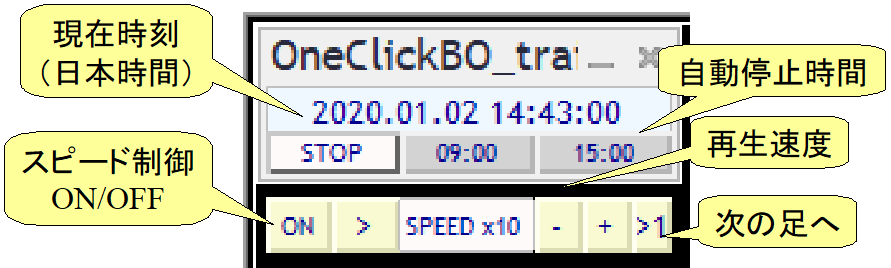
・OneClickBO_training parameter settings
Email address at purchase: Please enter your email address▼ Settings
Initial value of speed control:
=> Specify which number in the speed list will be the initial value.
Speed control speed list:
=> List the playback speeds separated by commas.
Auto-stop 1, 2, auto-stop initial values:
=> Specify the times to auto-stop during chart operation. Time considering the server time difference.
▼ Display settings
GMT difference of connected server, daylight saving on server local, date-time display format:
=> To change to Japan time, many options are 2, ONLY SERVER. Change according to the connected server.
▼ Control box
You can freely set the size and color of the control box
■ External entry linkage tool【OneClickTS】
OneClickBO can link directly with the external entry linkage tool OneClickTS.・Launch and preparation of OneClickTS
Change parameter “OneClickTS linkage” to “Direct” or “via Alert.”
※ Default is NONE (do not link).
When you run OneClickBO on an online chart, a red “R” button appears at the bottom-left; press it to turn yellow and start OneClickTS.
If you want to temporarily stop linkage, press the “R” button again to revert to gray.
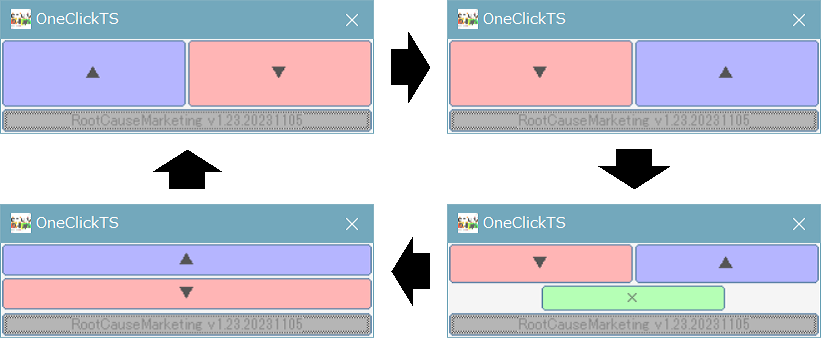
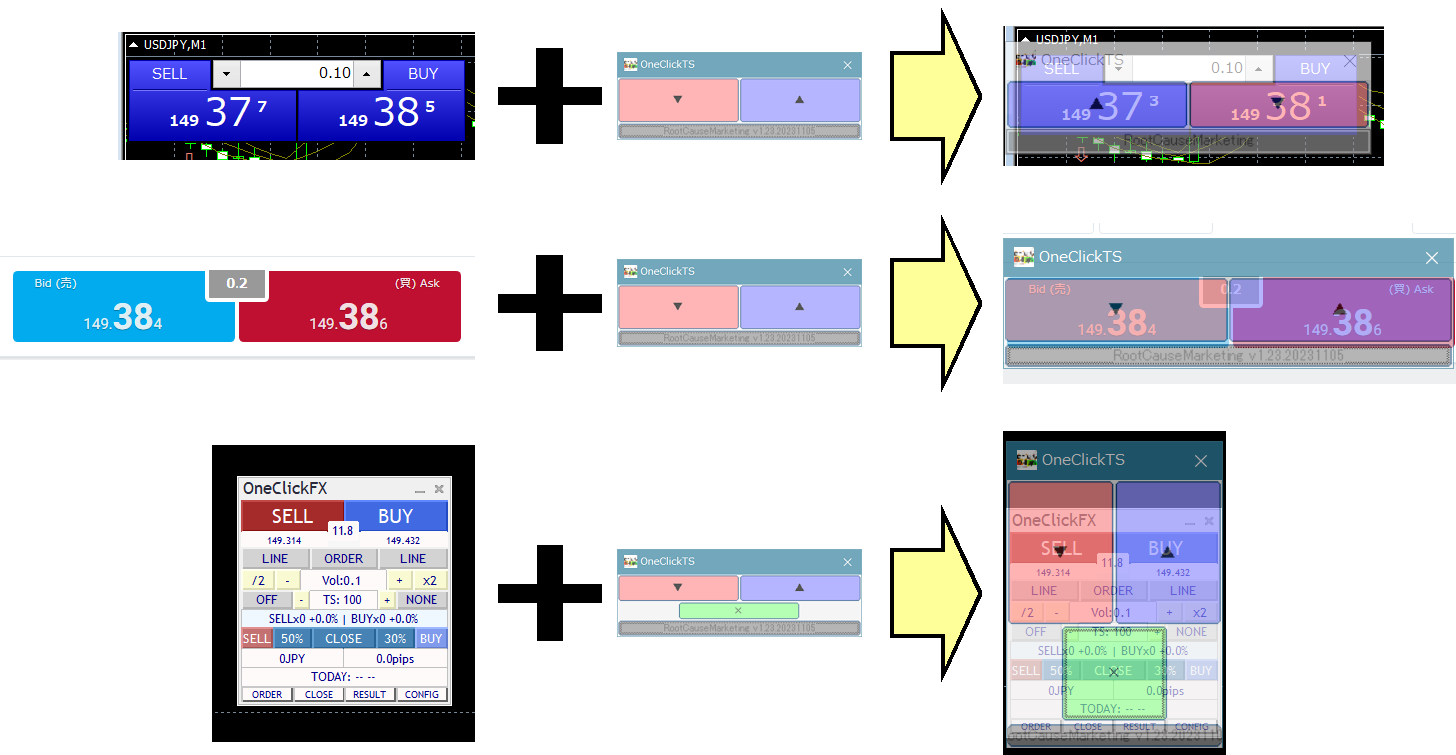
When OneClickTS appears, adjust and move to fit the target button as shown below.
※▼▲ area is the button press area.
If the button shape differs, press the gray button at the bottom to change the shape.
・External entry
When you press the High/Low entry button of OneClickBO, the mouse will move automatically; please do not move the mouse.
After the mouse moves over the button, press the button at the back of OneClickTS.
Then the mouse will move to an appropriate place within 3 seconds.
・Working sample video
A sample video showing pressing the experiment sample buttons on this site from MT4.
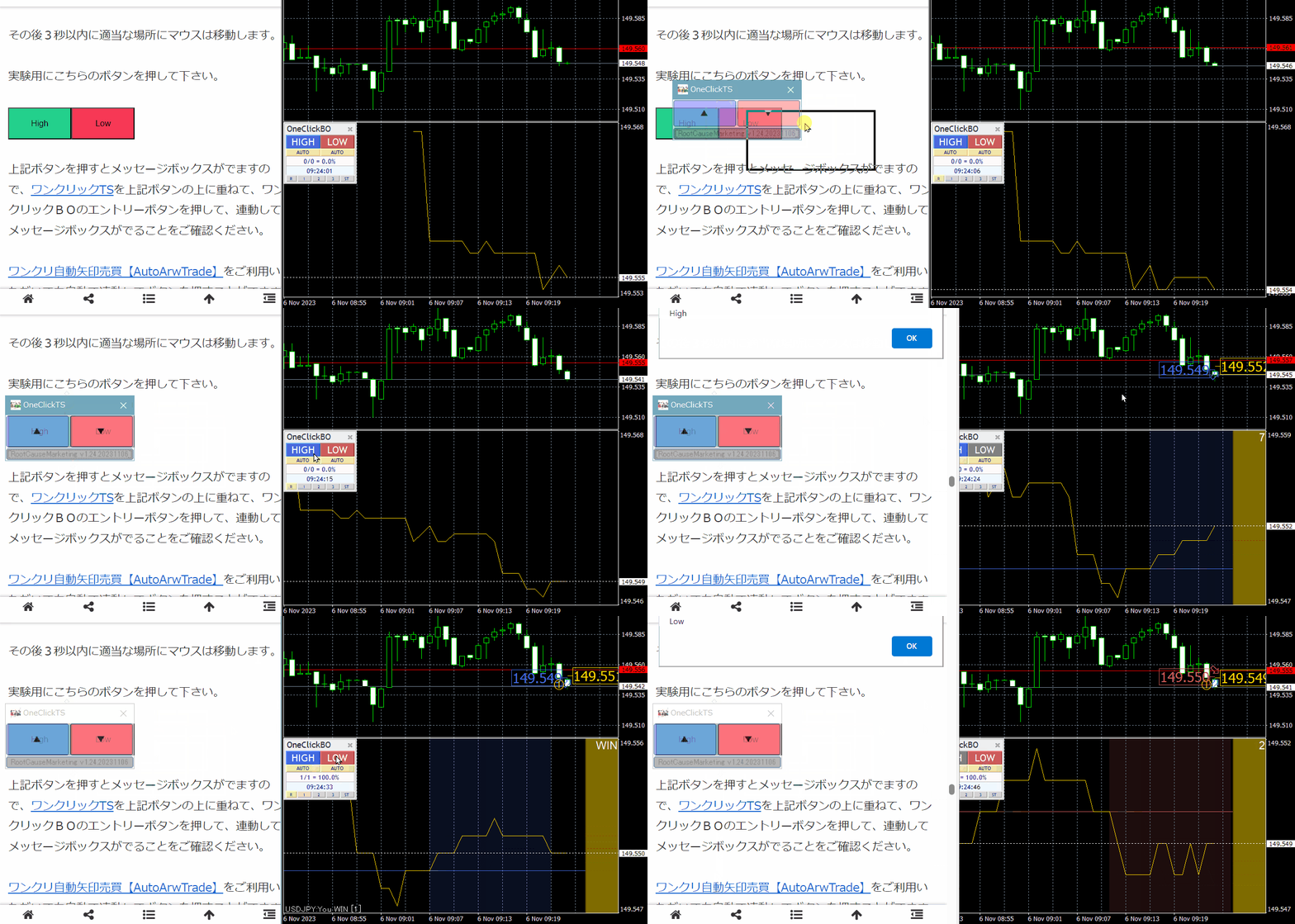
The test buttons are on the OneClickTS support page.
https://www.gogojungle.co.jp/finance/navi/articles/62095
This is created generally, so it should work with most buttons displayed on Windows, but there may be cases where certain special buttons do not work. If you notify us, we will consider対応, but it may be technically impossible in some cases. Also, please use this tool at your own risk. Please understand the tool's character before use.
■ Linkage with signal tools
You can link with common object-type and index-type signal tools or signal tools that support one-click arrows, enabling automatic entry and automatic settlement.・One-click automatic arrow trading【AutoArwTrade】
Just put it on the chart and switch ON to enter automatically with ease.Using the included signal arrow tool (free version, paid version with 8 parameters), you can enter in sync with signal arrows, or enter on chart changes such as golden cross.
Three example templates are included for you to try
Right-click → from templates select “OneClickBO_xxx”.
※ xxx means BB: Bollinger bands breakout, MA: Moving average cross, SAR: SAR reversal
Press the linkage button under the HIGH/LOW buttons and set to AUTO, then wait for arrows to appear.
The speed control leftmost button OFF or increasing speed with the plus sign will be too fast to follow visually, so use auto-stop to enhance validation efficiency.
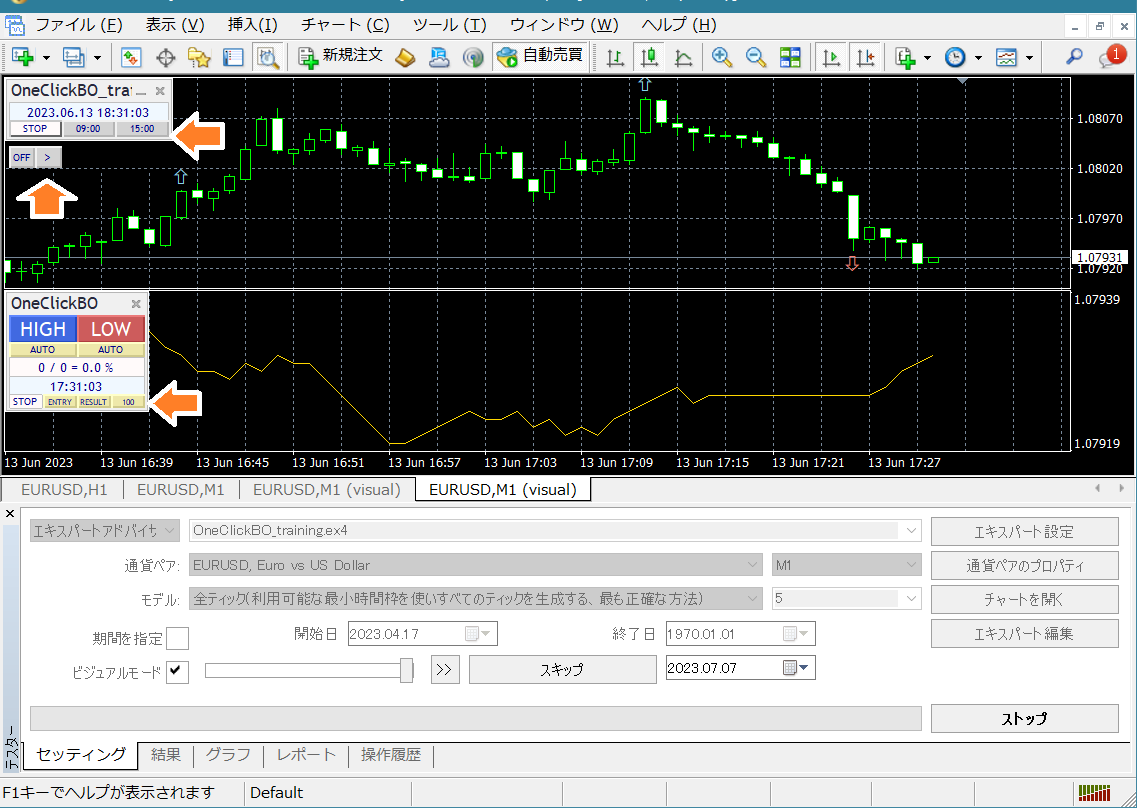
In this video, stopping at signal generation, stopping at results, and auto-stop at 100 entries are demonstrated.
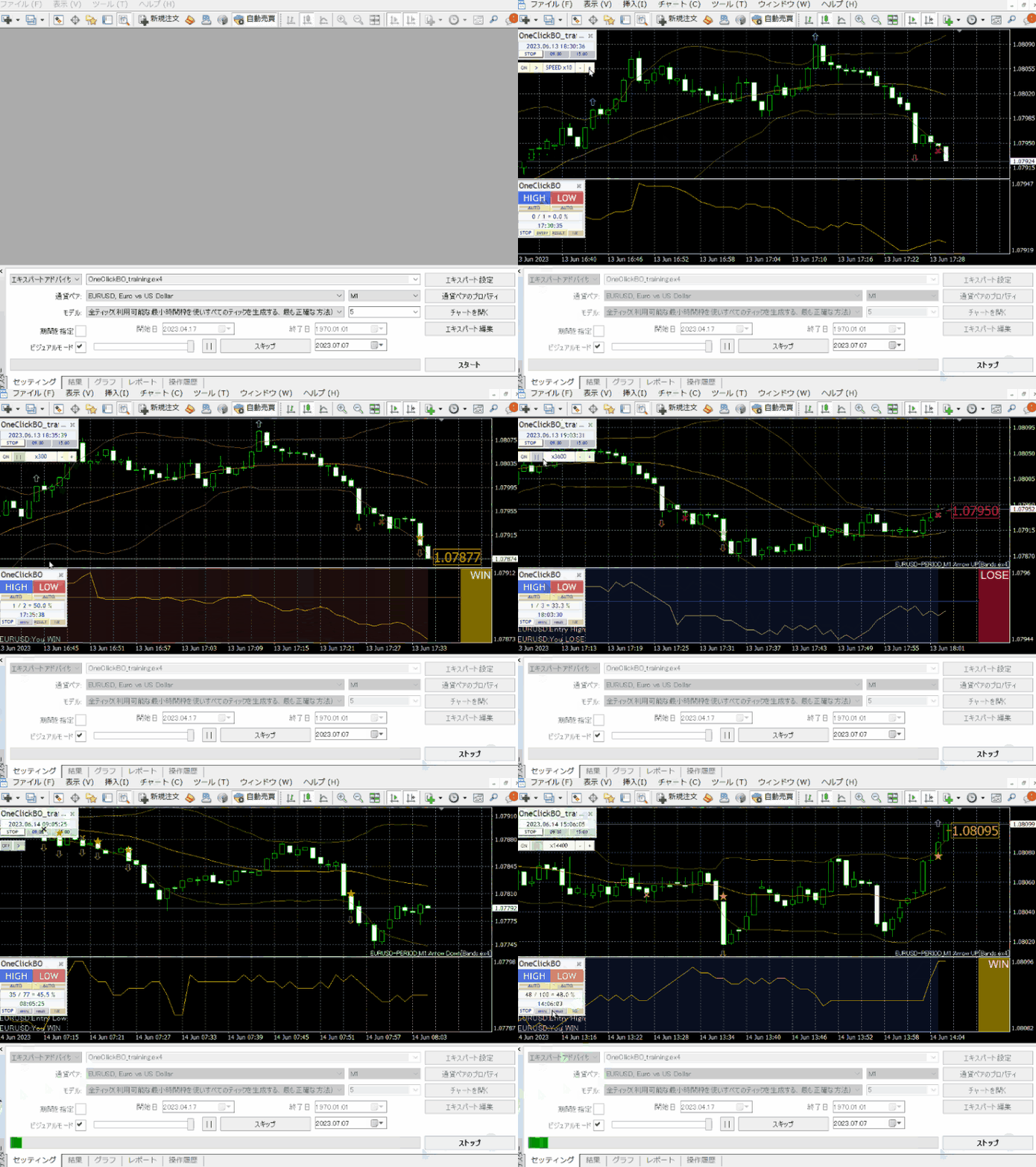
If you change the parameters of ArwByIdx and register them in the template chart, you can freely modify the template chart even while the tester is running.
Feel free to experiment with different combinations.
For details about ArwByIdx_rcm, see the Signal Arrows tool page.
・Composite linkage with signal tools
Signal linkage can be combined with multiple signal tools or indicators under complex conditions.Linkage parameters with signal tools support three AND conditions and OR conditions added as comma-separated.
In this image, three conditions are included with AND and OR.
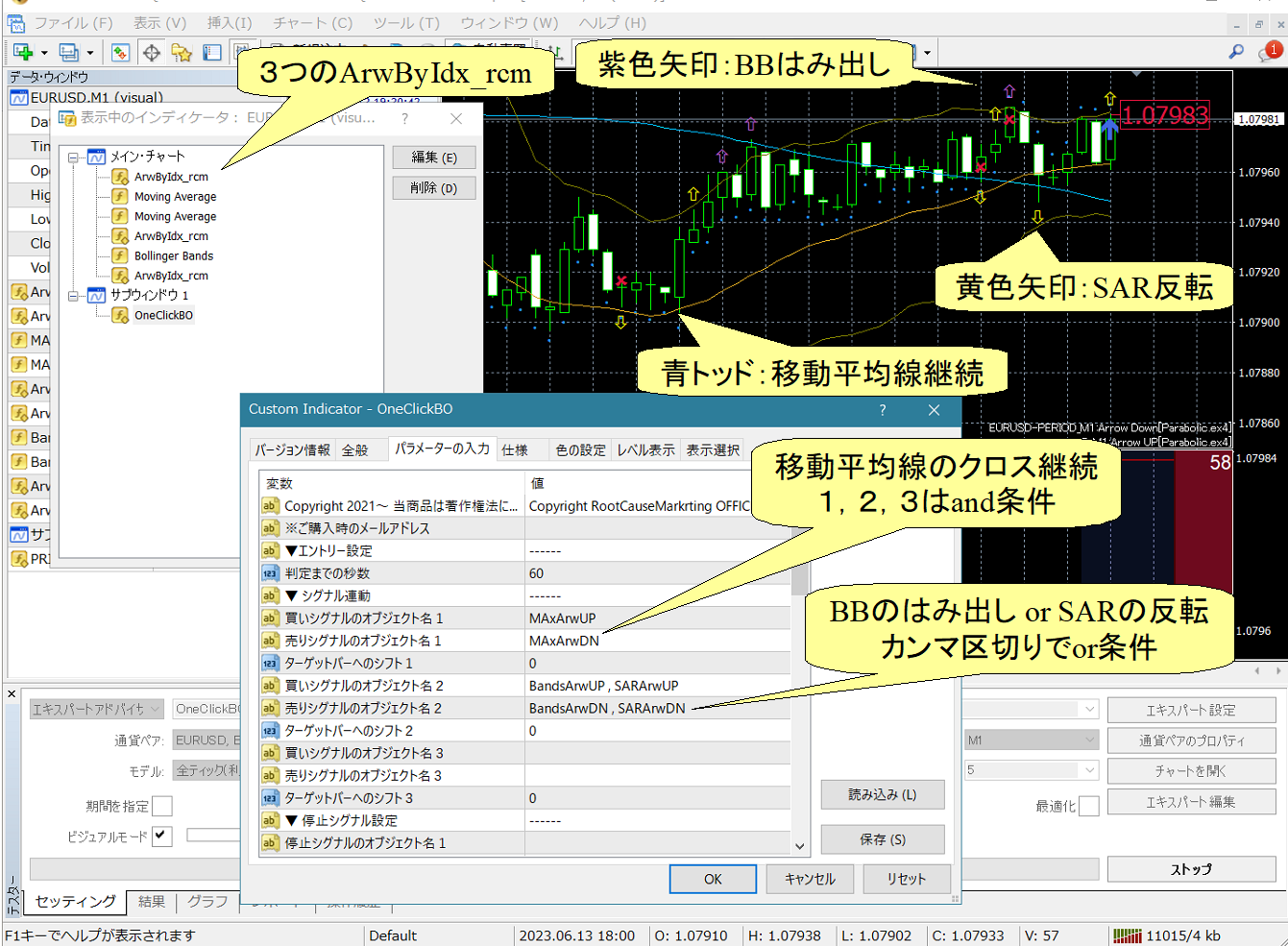
In the chart, three ArwByIdx are loaded, each configured for continuous moving average relationship (cross position maintained), Bollinger band breakout, and SAR reversal.
Continuous MA is the first condition; the second condition triggers auto-entry when either Bollinger breakout or SAR reversal occurs.
Eight ArwByIdx configuration entries are included, so please try these combinations.
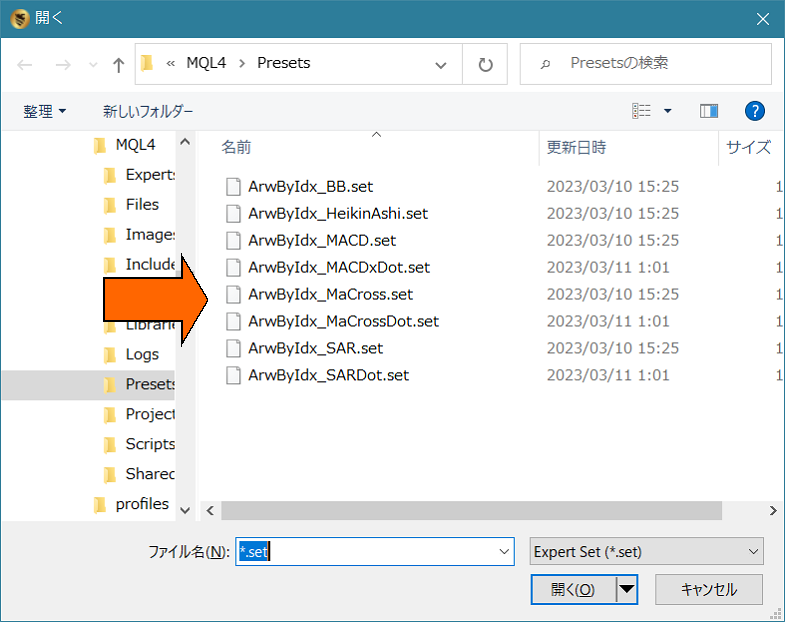
ArwByIdx_BB.set
ArwByIdx_HeikinAshi.set
ArwByIdx_MACD.set
ArwByIdx_MACDxDot.set
ArwByIdx_MaCross.set
ArwByIdx_MaCrossDot.set
ArwByIdx_SAR.set
ArwByIdx_SARDot.set
From ArwByIdx settings screen, click Load button
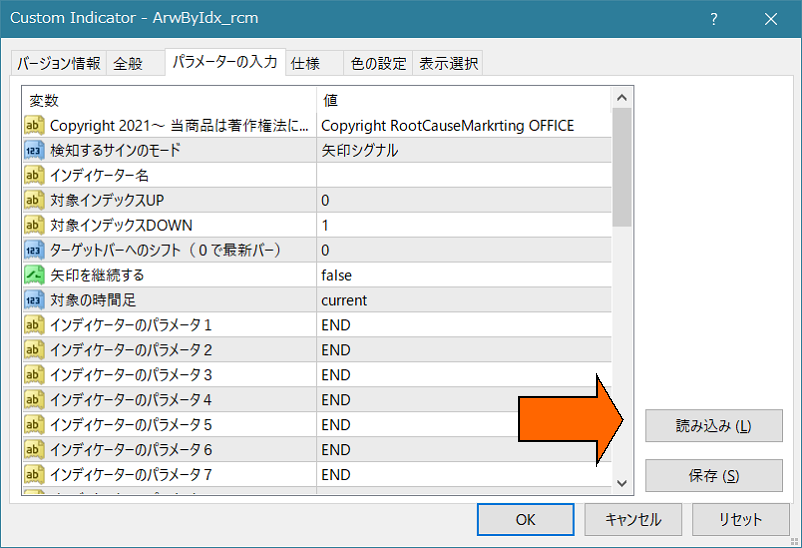
A settings file will be displayed; please select it.