
Ultra-lightweight grid & Japan Time [Local_Time] Support Page
Thank you for using this product.
Version Upgrade Information
Inherit parameters when moving to the bottom of MT5
Added date/time display format
Supports changing the date display format as well
Product Contents
Displays Japan time at the bottom of the chart. Ultra-light and moves smoothly.
Even if another sub-chart appears below, it can move to the bottom.
You can erase existing date displays and leave only local dates.
Supports many date/time formats, so you can use it in your preferred display format.
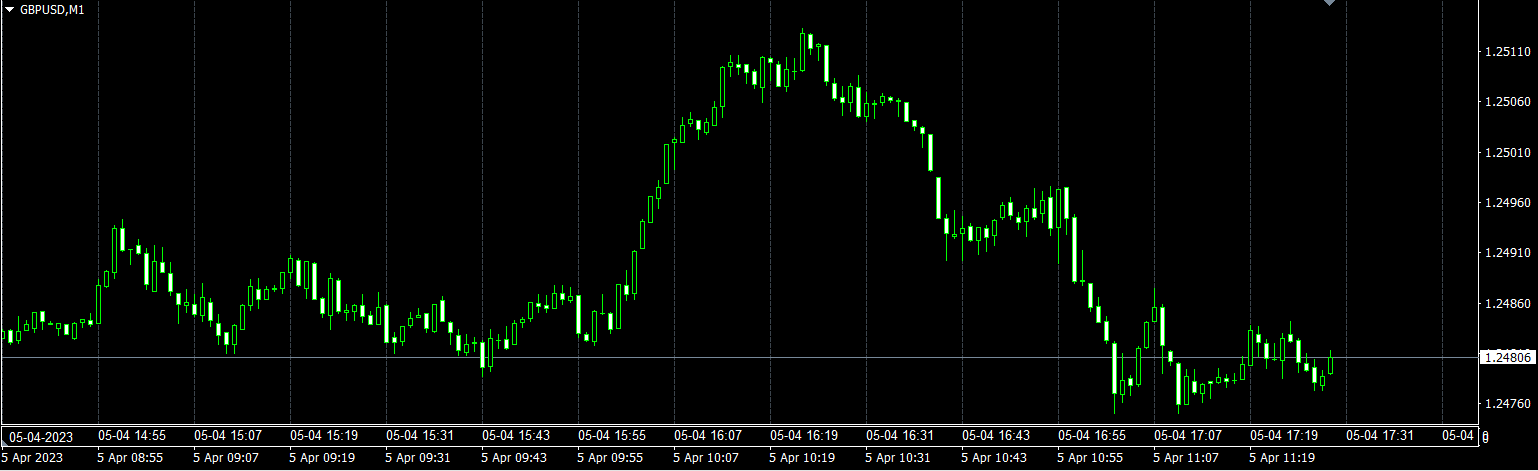
Hide standard time scale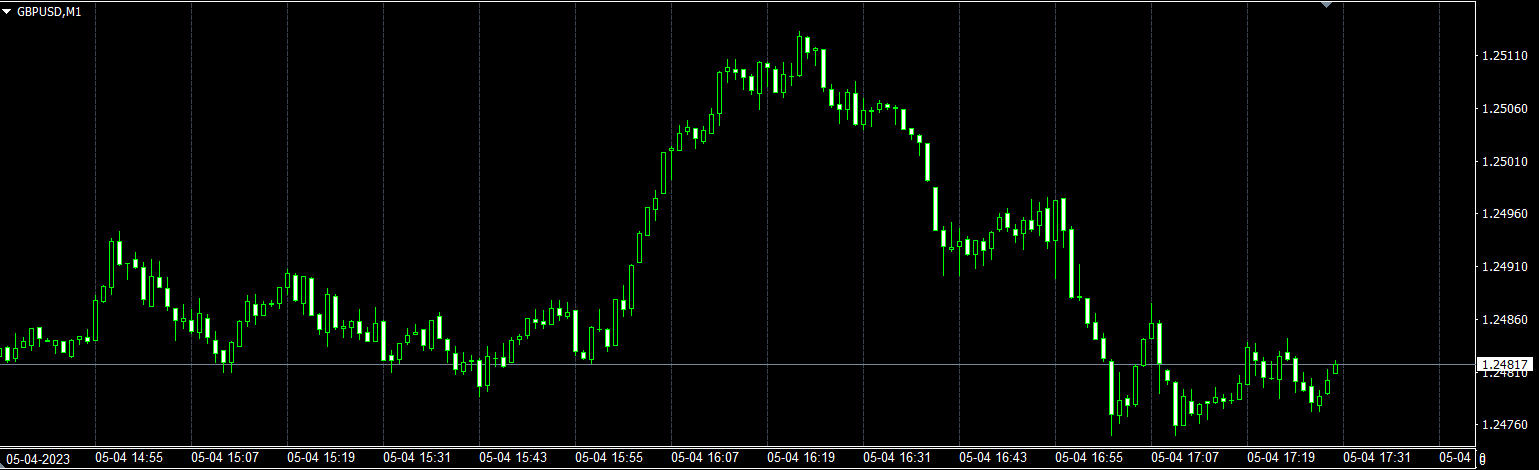
Supports various date-time formats, including time-only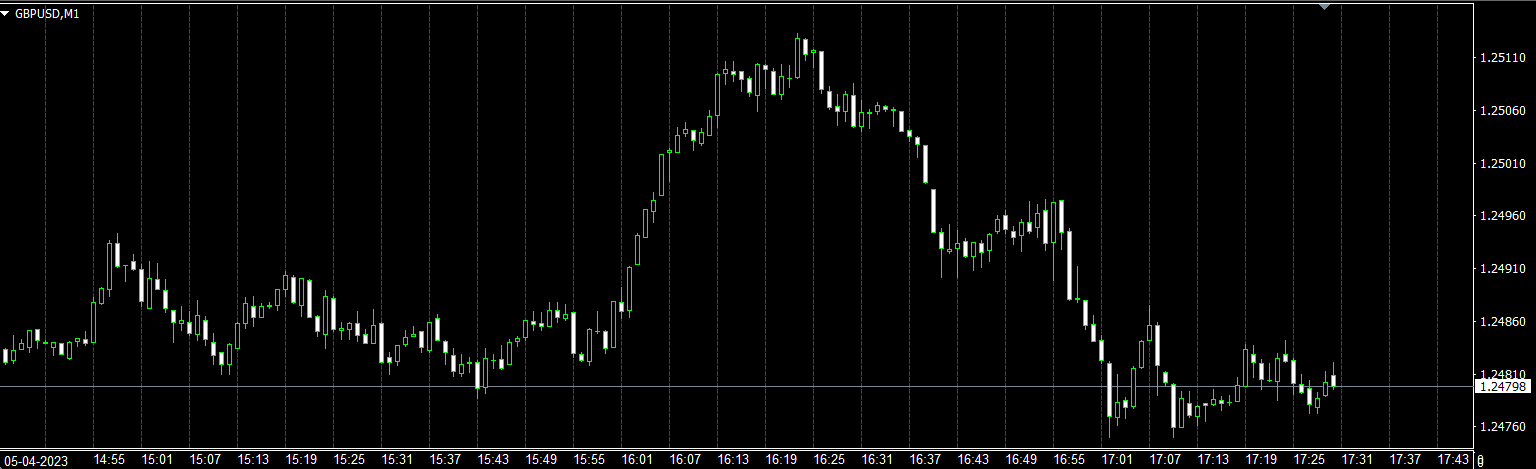
Installation Method
1) In MT4/MT5, select “Open Data Folder.”
2) Copy all contents inside this product's MQL4/MQL5 folder into the MQL4/MQL5 folder.
3) Restart MT4/MT5 and open any chart.
4) Add the indicator Local_Time_rcm to the chart.
5) The settings screen will appear; press OK to display it.
Settings Page
| Item Name | Content |
|---|---|
| Bottom-left date display format | Please select the date format at the bottom left of the chart. |
| Display time format | Please select your preferred format |
| Hide standard date-time scale | Hide when true. |
| Automatic time difference adjustment | Automatically adjusts when true. If used in a strategy tester, automatic adjustment is not possible and will be ignored. |
| GMT difference with the connected server | Enter the difference between the server and local time. In Japan, most commonly 7. |
| Server-local daylight saving time | Configure the server-local time difference. This is not GMT difference. Generally, servers have daylight saving time (ONLY SERVER). |
| Base font size | 0 automatically adjusts; if you want to change the size, please adjust. |
| Vertical grid display | Display when true. |
| Compact vertical grid | If the date format is a short string, the grid will be compacted. |
How to Use
Since it only displays Japan time, there is nothing special to use, but there are some notes.
If another sub-window appears under Local_Time_rcm, a red indicator will appear and you can click it to move to the bottom.
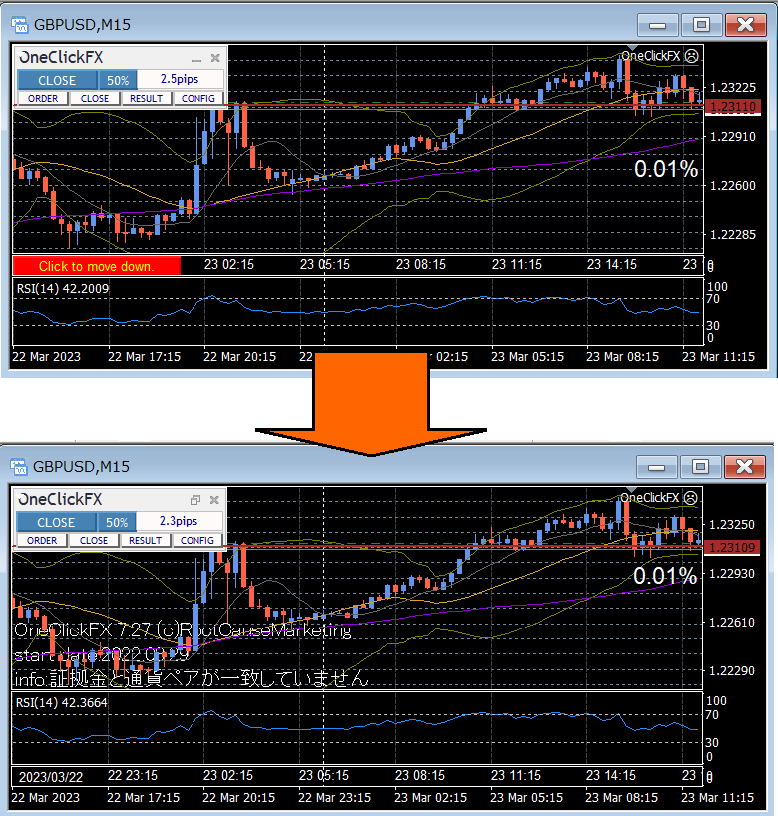
In MT4, moving to the bottom involves resetting and reloading the chart. Other EAs or indicators running may be reset, so please be careful.
Notes
When using this tool, please understand its performance and use it at your own risk.