
How to set MT4 historical data without failing
This article introduces how to generate standard timeframe chart data from MT4 historical data import.
Following the steps as described should eliminate issues such as data not reflecting properly.
We are using the script "period_converter_ALL_kai [Free]" for data conversion.
https://www.gogojungle.co.jp/tools/indicators/42767
The basic workflow is as follows.
1. Download or import your own historical data.
2. Close all chart windows and restart MT4.
3. From Menu → File → Offline Charts, open the specified M1 chart
Note! The chart must start with a gray mark.
4. Run "period_conberter_ALL_kai" from the Script folder.
5. Specify the start date and press OK.
6. Wait for the completion message. "Converting to period(1), bars to end: 0"
7. Restart MT4 and check the chart data.
Detailed steps are here.
First, maximize the number of bars on the chart.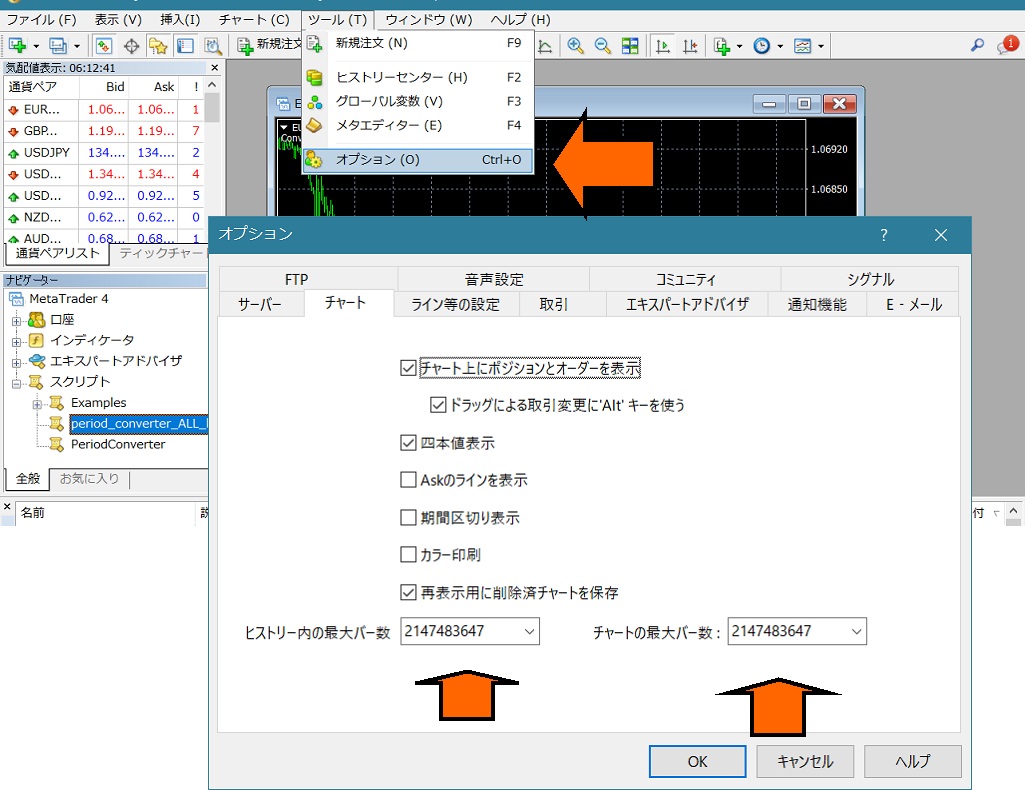
Load your historical data.
Historical data can be found by searching for “MT4 past data.” Depending on the broker, sometimes you can download past data simply by pressing the download button.
Also, if you purchased the product, please contact us and we may be able to provide it for you.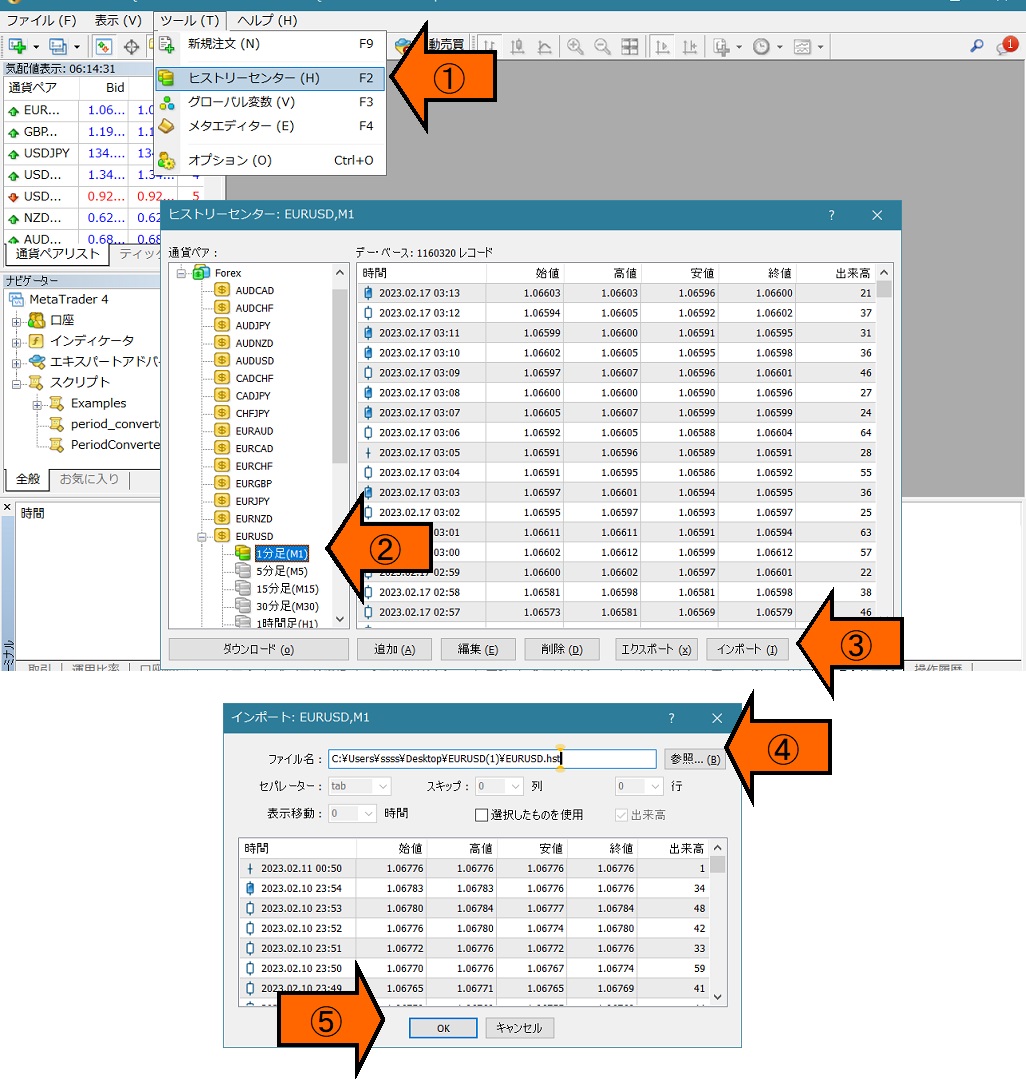
Close all chart windows and restart MT4.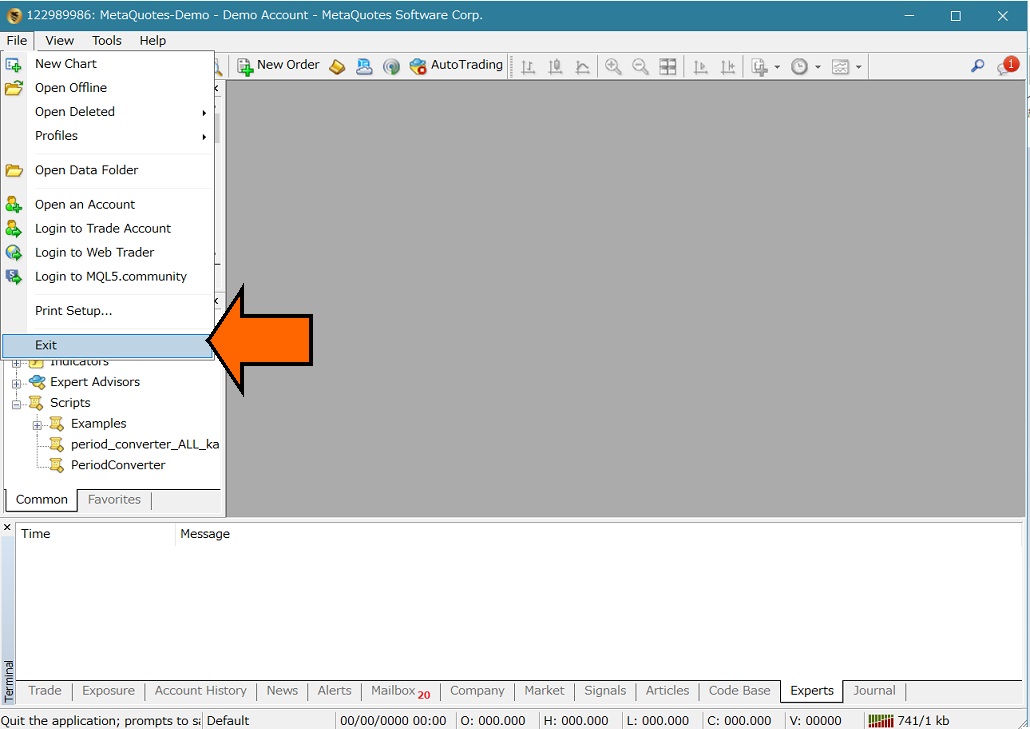
Open the target offline chart.
Important! Make sure the mark is gray. If it is yellow, writing will not be performed correctly. Also, be sure to select the M1 chart.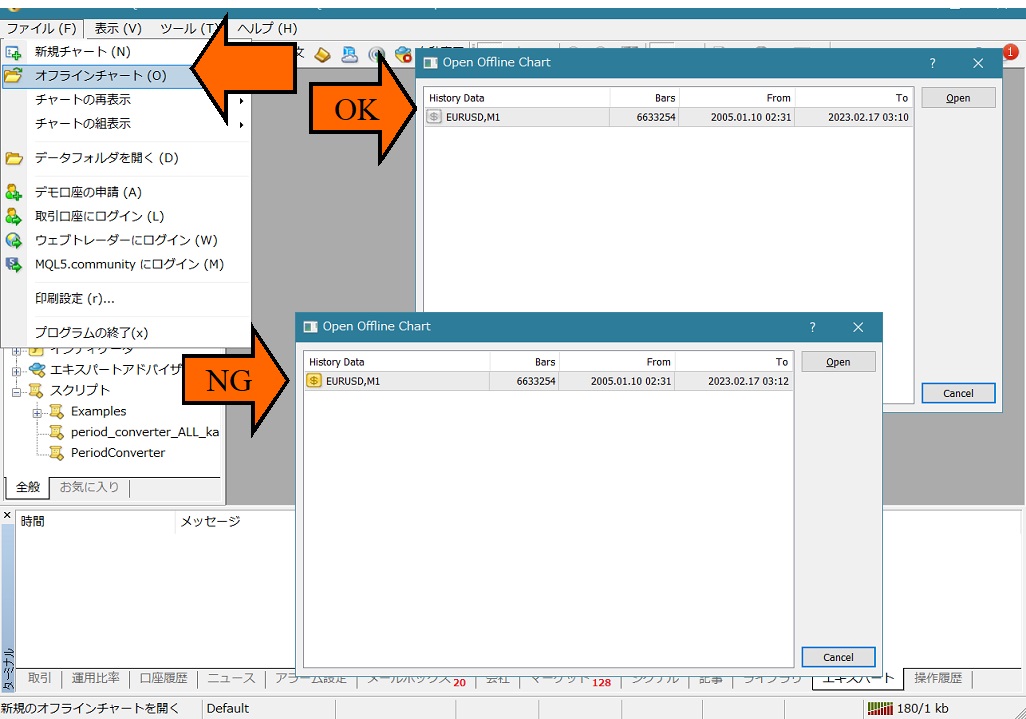
In the opened offline chart, run period_converter_ALL_kai.
You can specify a start date.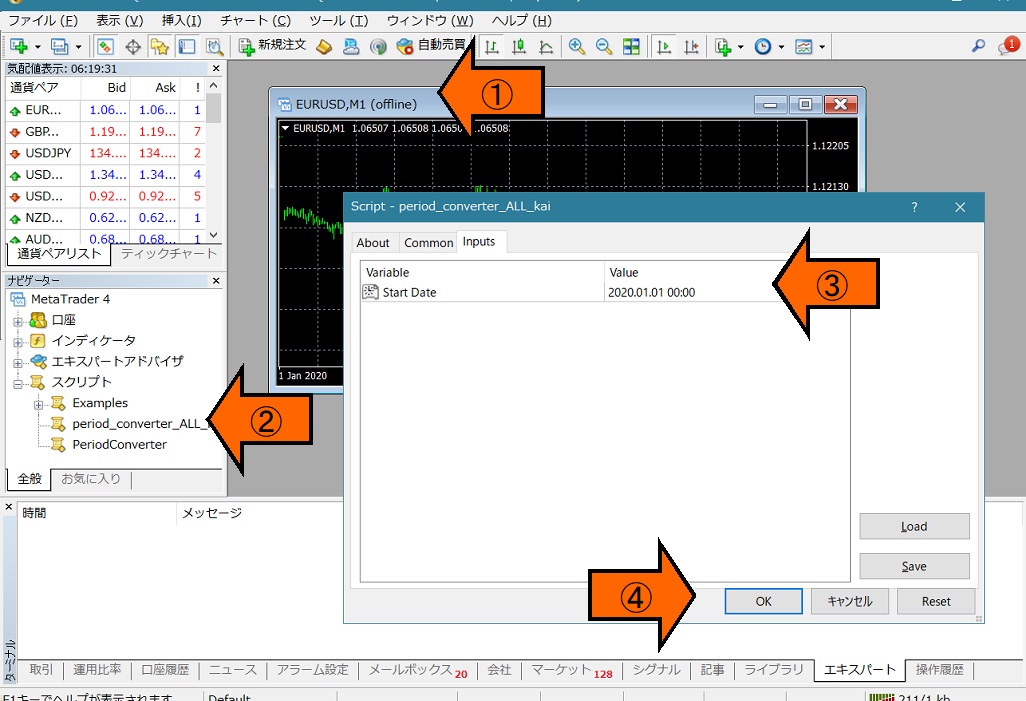
Check the results.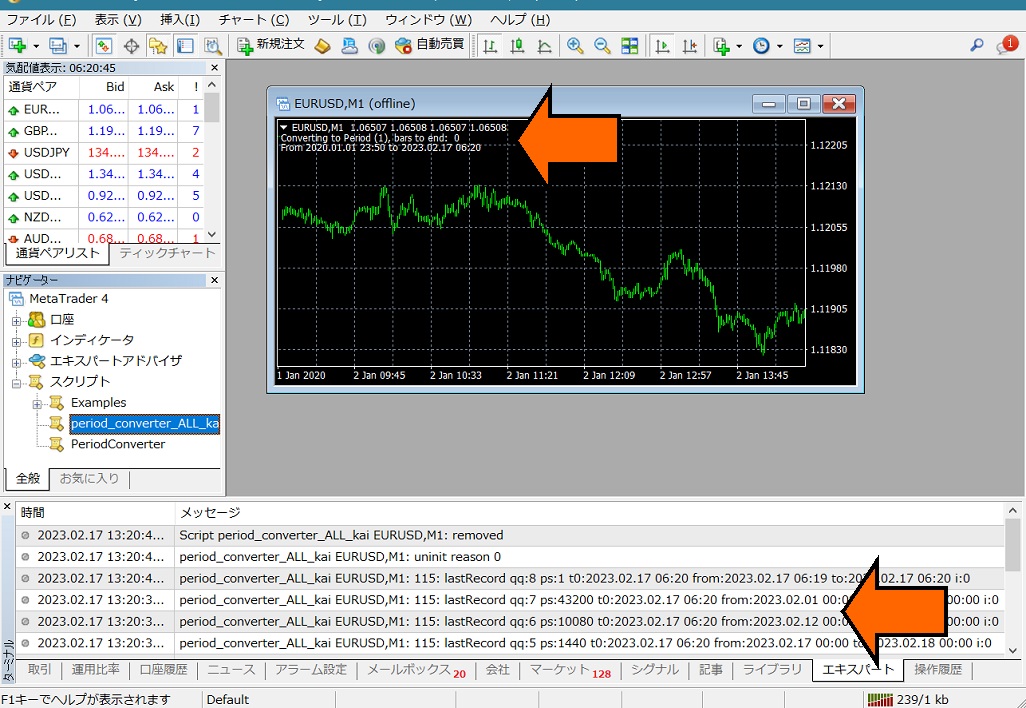
Verify that other timeframes have been generated and that the dates fall within the specified period.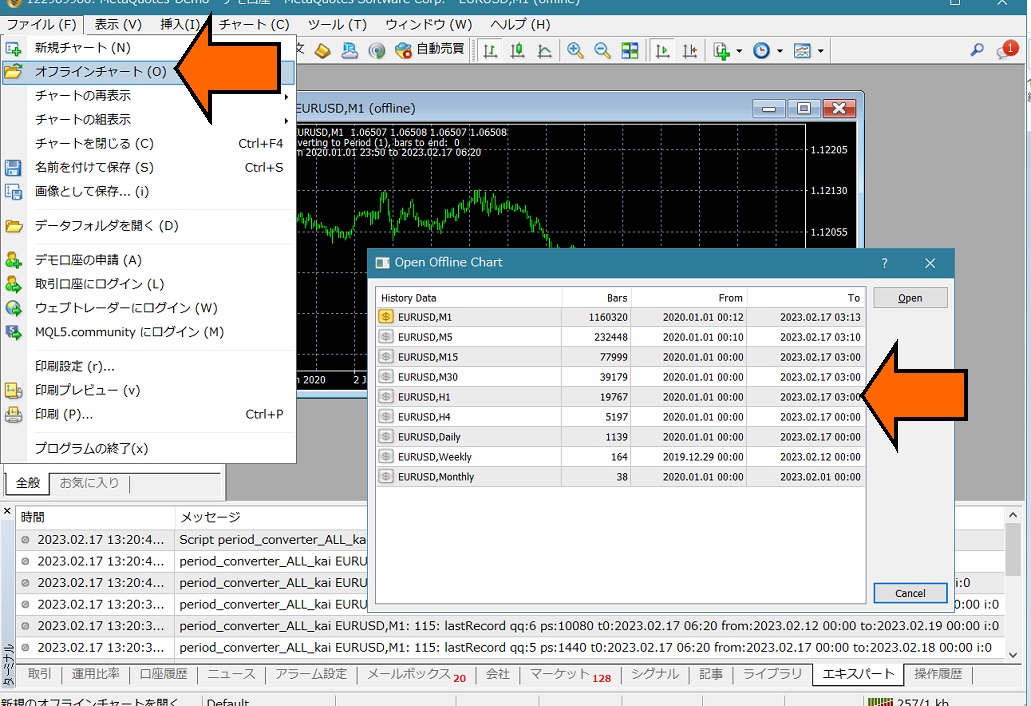
Restart MT4 and then check the charts for each timeframe.