

How to Import Historical Data in MT4 (Tickstory Lite Edition)
This article is for those who are not familiar with MT4.
We will introduce the steps to import historical data obtained with Tickstory Lite into MT4.
Note: Using Tickstory Lite makes it easy to obtain high-quality historical data from dukascopy. It is suitable for long-term backtesting of expert advisors (EAs).
For the MT5 version of this article, click here →How to import historical data in MT5 (Tickstory Lite version)
The tasks can be roughly summarized as the following four steps.
- Obtain historical data with Tickstory Lite
- Output the obtained historical data in a CSV format that MT4 can import
- Import the CSV file into the History Center
- Run the “Period Converter All Timeframes” script to create data for all timeframes
1. Obtain historical data with Tickstory Lite
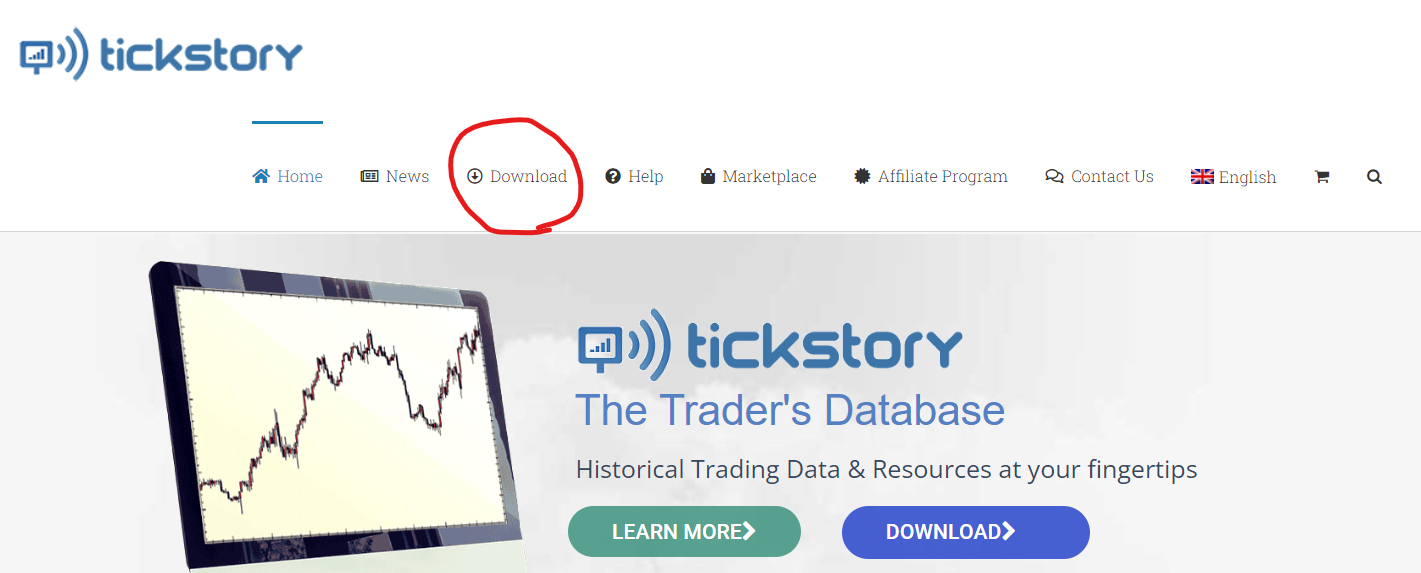
Access Tickstory’s official website (https://tickstory.com/) and download & install Tickstory Lite (Free).

After installation, start Tickstory Lite. Right-click the currency pair you want to download historical data for (here USDJPY) and select “Download”.

Specify the download period and click OK.

The download task will start; wait for it to complete.
*If the download period is long, it will take some time.In my environment, downloading all periods took several hours.

2.Output the obtained historical data in a CSV format that MT4 can import
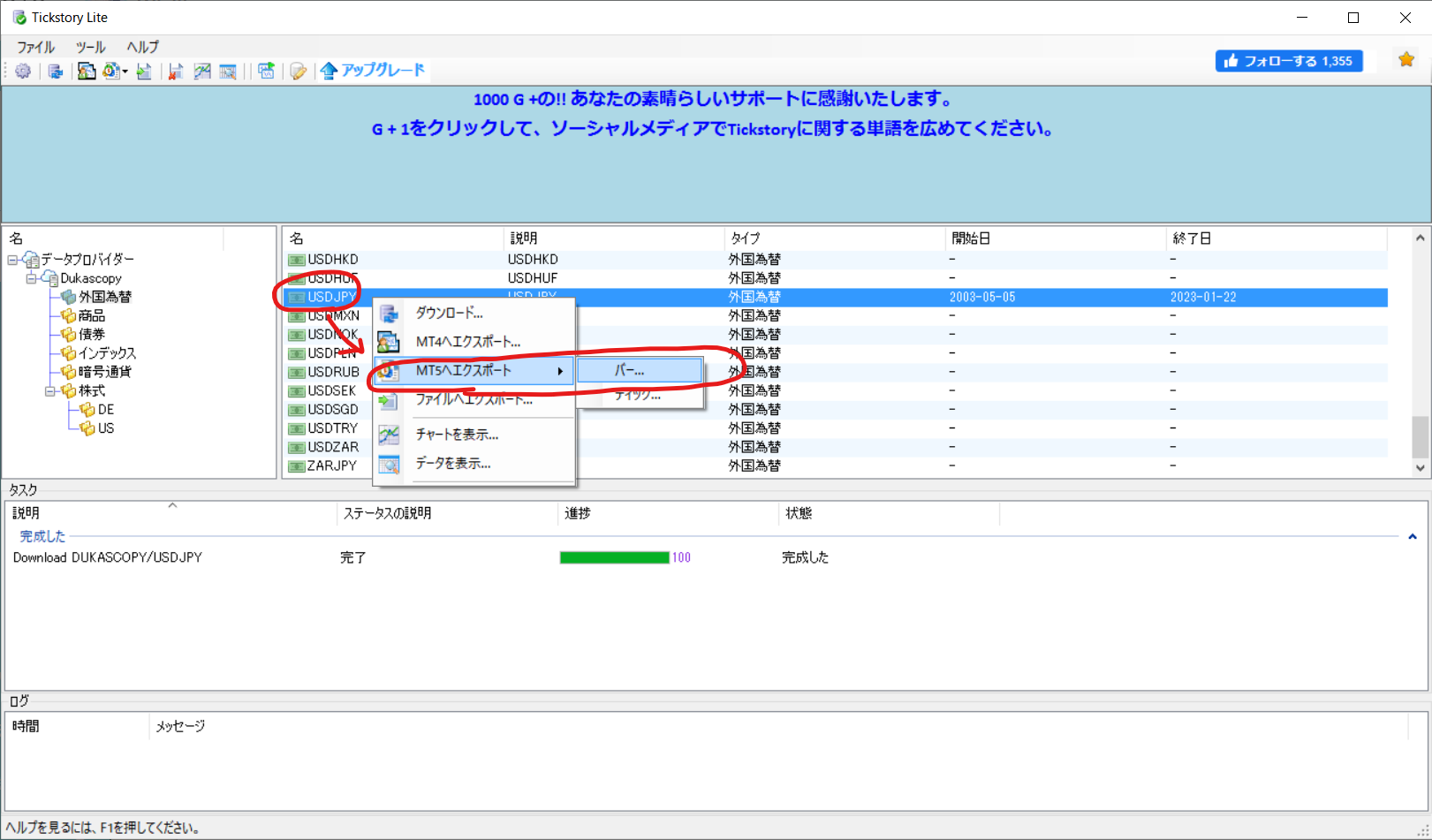
Right-click USDJPY and select,Export to MT5 → “Bars…”
Notewe deliberately choose “Export to MT5”.This is because Tickstory Lite (Free) restricts MT4 exports to up to one year of data.
Set the output options.
- Start date, end date: specify the data output range
- Time frame: 1 minute
- Time zone adjustment:Align with the broker’s MT4 server time (for brokers using the common “US Winter Time GMT+2, US Summer Time GMT+3”, select “(EST +07:00) New York trading hours”)
- Data output: choose “Custom” and specify data format as “{BarBeginTime:yyyy.MM.dd},{BarBeginTime:HH:mm:ss},{Open},{High},{Low},{Close},{Volume}”
- Output file name: specify the destination file path for the CSV

Export task will start; wait for it to finish.
*If the period is long, it will take some time. About one hour for 10 years.

3. Import the CSV file into the History Center
First, delete any existing historical data.
From the [File] menu, open the Data Folder, then exit MT4 once.

Open the data folder’s “history (MT4 broker name)” folder and delete all files named “○○.hst”.

Open the data folder’s “tester\history” folder and delete all files named “○○.fxt”.

Launch MT4, and open [Tools] - [History Center].

In the tree on the left, select the target currency pair’s “1-minute (M1)” and choose “Import”.

From “Browse”, specify the CSV file output by Tickstory Lite. Reading will begin; when finished, click OK.

The 1-minute data has been imported. After clicking “Close”,exit MT4.

4. Run the “Period Converter All Timeframes” script to create data for all timeframes
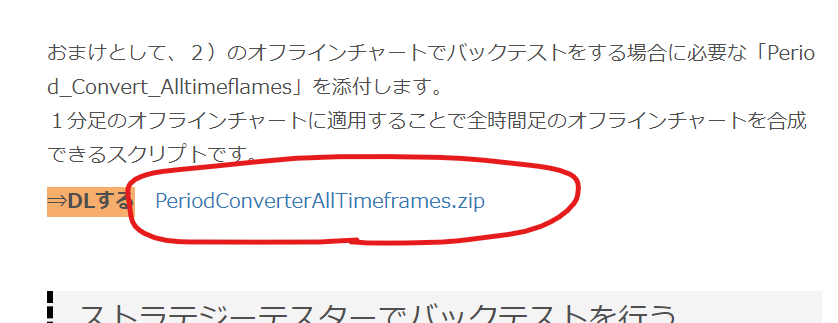
From the next link, obtain the Period Converter All Timeframes script (PeriodConverterAllTimeframes.ex4).
Link (near the middle of the page) →Getting started with EA backtesting! Backtest popular EAs with the “Backtest Free EA (one real operation) Campaign” [11/13–11/25]
Start MT4, open the data folder.
Place the downloaded script file PeriodConverterAllTimeframes.ex4 into the data folder’s “MQL4\Scripts” folder.

Right-click in the Navigator and select “Refresh”. You will see “PeriodConverterAllTimeframes” under scripts.


Open [File] - [Offline Chart], and open the 1-minute chart for the target currency pair.


When the chart opens, drag and drop the PeriodConverterAllTimeframes script onto the chart.

A dialog will appear. In the inputs tab, set “ConverterD1”, “ConverterW1”, and “ConverterMN” to true and click OK. The process to generate other timeframe candles from M1 will start.

When the process finishes, the following alert will appear.

The procedure is complete.
Let's backtest to our heart’s content in MT4!!
《Advertisement》
I offer indicators and EAs on GogoJungle. I would be glad if you take a look.
- The time label at the cursor position is handy!Session coloring & clock
- Your own signal tools can become EAs!Arrow-based Trading EA
- A signal tool derived from the weekly movement cycle calculated from the past 10 years of data!Oshisho no Shingan (Master’s Insight)
- Zundamon notifies every hour at 0 minutes and the start and end of the world’s three major stock exchanges!Zundamon Time Signal