
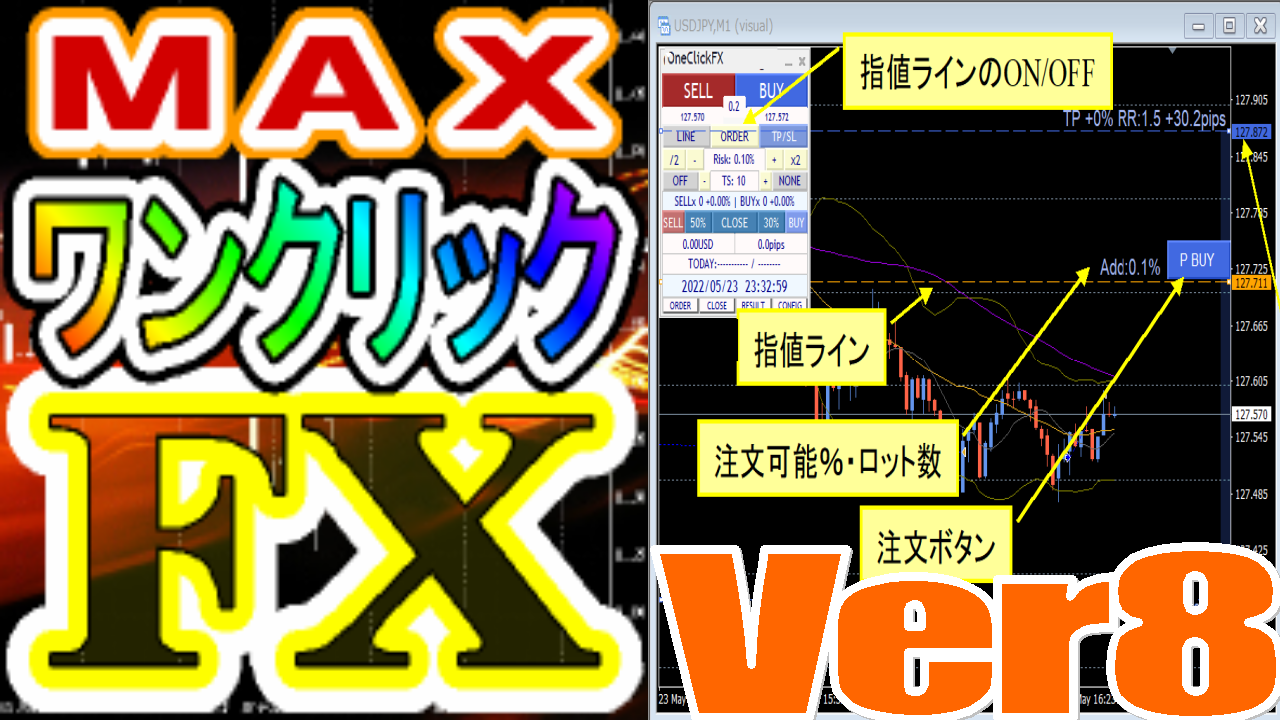
One-Click FX MAX Support Page
The latest version is 8.28.250825.
Upgrades for purchasers are free ⇒Download
If you are considering purchasing, click here >>MT4 version,MT5 version
▼ Notices ▼
Note: Supported OS are Windows 10, 11, MT4 for 2019, 2022; entering the member ID is required in settings.
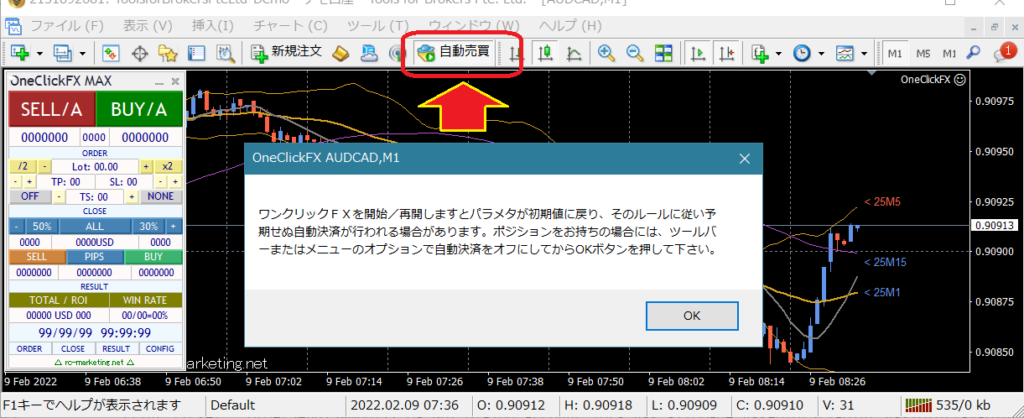
This tool is a trading assistance tool, and may place orders automatically according to the settings. Before using on a live environment, be sure to confirm operation thoroughly with a demo account (or small trades). Immediately after startup, orders may be placed automatically according to settings, so disable the auto-trading button in MT4 and the algorithmic trading button in MT5, monitor the situation, and only then enable it.
Support for divided limit orders
Added Training版 compatible template button (ST)
Other bug fixes
▼ August 22, 2025 v8.27.250624
Chandelier Exit added,
Display of commissions
Update for LINE API changes
Reset + TS addition,
Add date/week/month, 10/100, PROFIT, PIPS/vol, PIPS/trade to trade history,
Screenshot key change SHIFT+S
▼ September 9, 2024 v8.16
Added Minimize Start,
BE line swap,
Removed limit orders on settlement
Added line thickness parameter,
Added automatic split orders
Fixed margin and currency pair mismatch messages
Added Support Assistant,
Added color bar for entry timing
Spread added to SL calculation
Strategic Close added,
Flexible Trailing Stop added,
Processing for TP/SL TS, separated buttons,
Double-click to clear messages added,
Keyboard-based settlement added,
Package of bonus indicators
▼ November 23, 2023 v7.67
MT5-netting account support
MT5 rapid settlement support
TP/SL line thickness parameter added,
▼ November 17, 2023 v7.61
Add color to close message,
Clicking date in history shows results
One-click Auto Arrow Trade [AutoArwTrade]Support
One-Click TSIntegration
Add selling/buying in signal integration
History display shows profit/loss and size
Speed up signal integration
Add credits to profit/loss calculations
Server orders add first time only
Set minimum RR to 0.1
TP/SL line shown at order time as well
Add initial position of control box
▽ April 20, 2023 V7.30
Add flag to prevent minimization on startup
License authentication via WebRequest
Add auto-Nanpin button
Adjust control box font size
Support multiple conditions for signal linking
MT5 support for limit orders etc.
Add standard chart save button
Handle memory shortage in sub-panels
Add Slack notifications
Bug fixes
▽ November 15, 2022 V7
・Add start date for summaries
・Add limit-entry orders
・Auto-calc of risk %
・Margin profit % (risk %) added
・Display daily P/L percentage, and trade history
・Display position information
・Add risk-reward
・Change display of position triangles
・Auto-save daily summary images
・Right-edge alignment for synchronized charts
・Auto-save all trade images
・Add corrected calculation for risk % ▽ May 10, 2022
・Add Focus mode
・Resize via minimize button
・When recutting, only 1 retry on close
・Other bug fixes and changes to some default parameters
・MT5 version release
▽ April 5, 2022
・TP/SL/TS reset after all settlements
▽ January 28, 2022
・Add null value for tool control TP/SL
・Reject entries on losses
・Add LINE, Discard notifications
・Change triangle colors to intermediate between BUY/SELL
・Add message area for errors and executions
・Support for some fee-bearing accounts
・Add image folder button
・Keep Window position on timeframe changes
・S key for snapshot
・Enhance signal tool integration
・Change default values for signal linking
・TP/SL can be changed by dragging the mouse
・Add forced loss-cut line
・Individual position settlements
・Partial settlements (50%, 30%, etc.)
・Add padding to right edge of synchronized charts
・Improve usability via sub-panels
・Add compact mode for control box
※This page may also include images from before the upgrade. The feature descriptions on this page may reference past versions or the Training版, but the same features exist in the Live trading version, so please understand.
■Product contents
One-Click FX MAX is a discretionary trading assistant tool that displays entries, settlements, and charts clearly with a single click.One-Click FX Training MAXcan be traded in real market with nearly the same 操作. It allows a smooth transition from practice to live trading.
■Initial setup
Please refer to the setup page to enable DLLs, configure authentication, and install One-Click FX.
Basic setup for One-Click FX seriesAfter setup, please restart MT4.
Launch One-Click FX MAX
4) Open your desired chart.
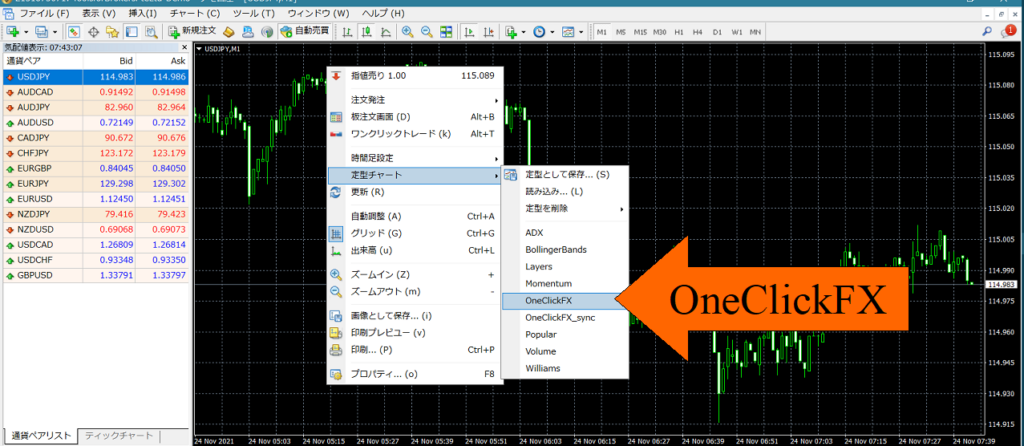
5) Right-click → Templates → select "OneClickFX".
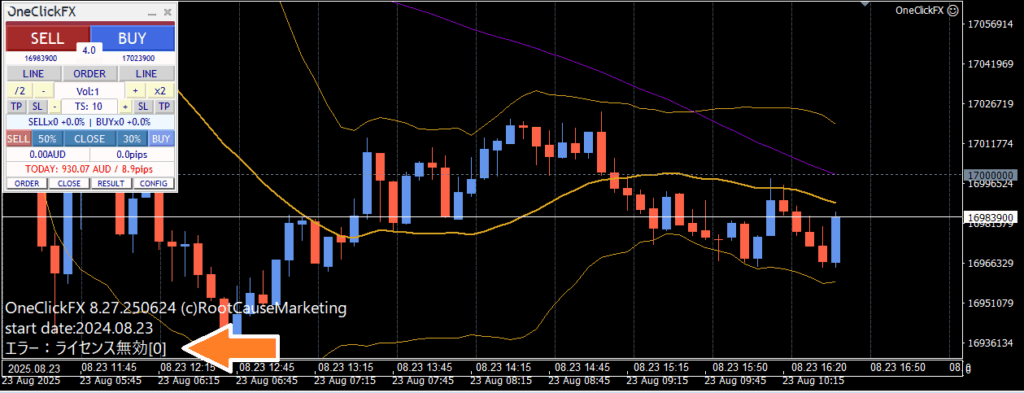
6) On first run, license is invalid and the button may not respond.
7) Right-click → Expert Advisors → Settings.
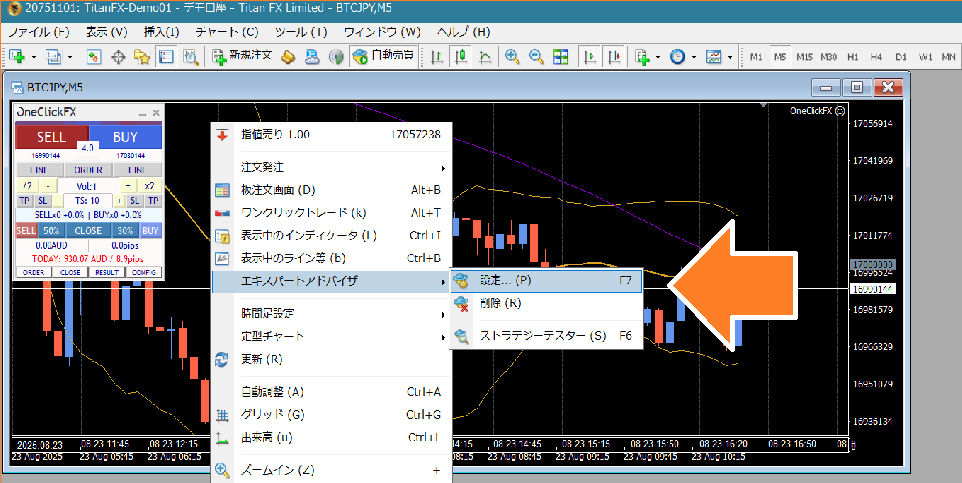
8) 【Important】Open the parameter input screen and enter the GoGoJyan member ID, then click OK. (Other parameter information is explained later). Authenticating with another address may be considered improper use.If you authenticated with the One-Click FX Downloader, you do not need to enter your email address.

If you want to trade easily first
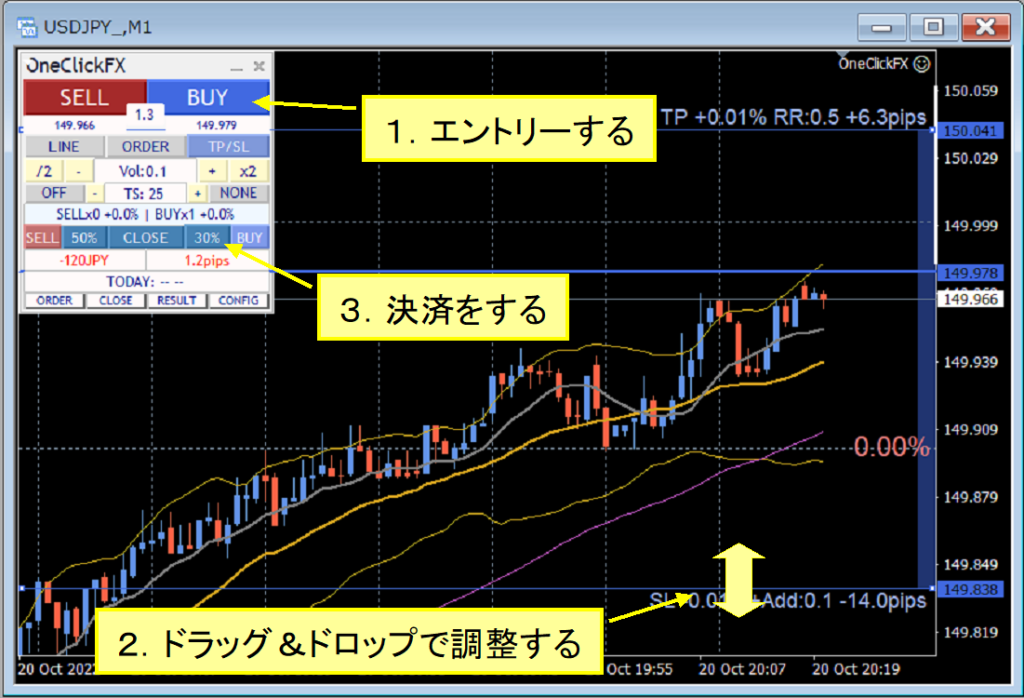
■Operations & Settings
How to use One-Click FX MAX
Main panel (Normal mode)
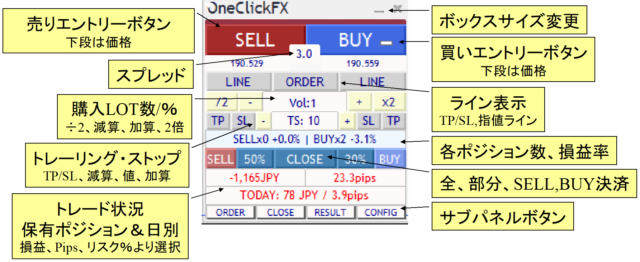
Main panel (Focus mode)
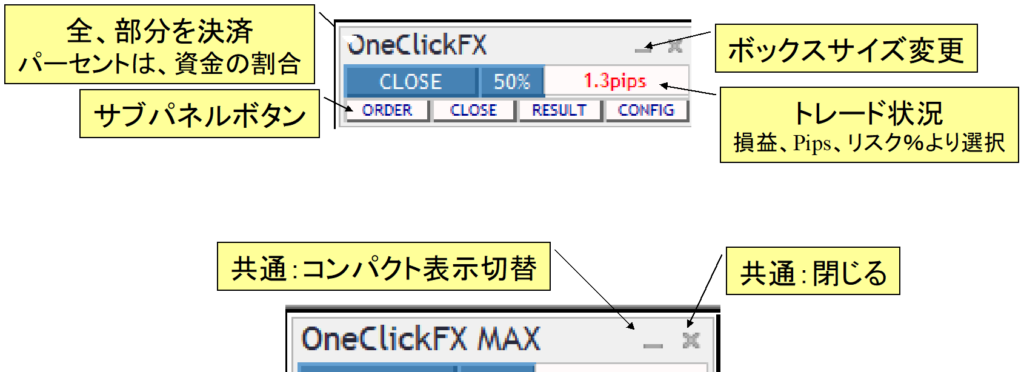
You can switch modes also with the minimize button in the title area.
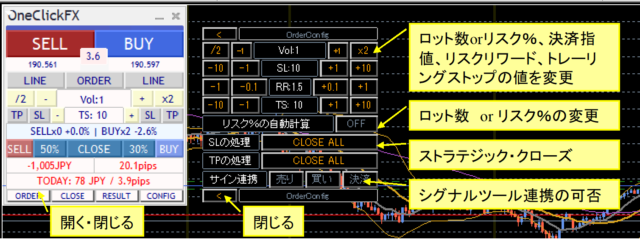
Sub-panel for orders
Sub-panel for closes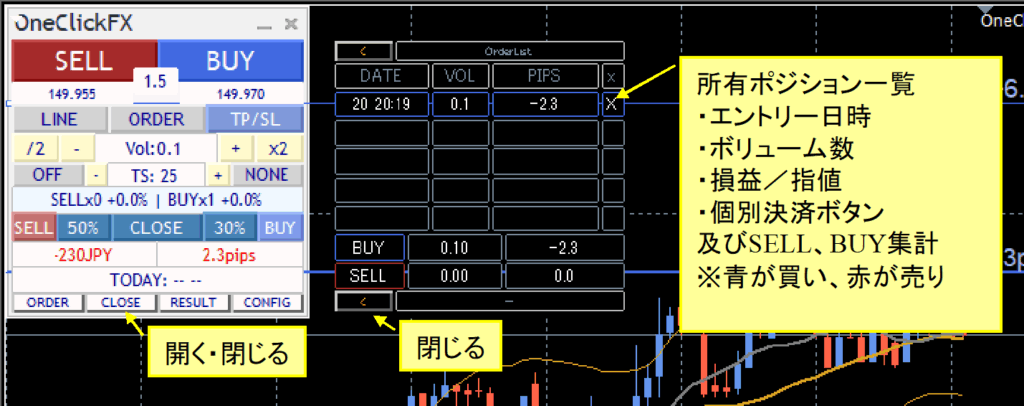
Sub-panel for history
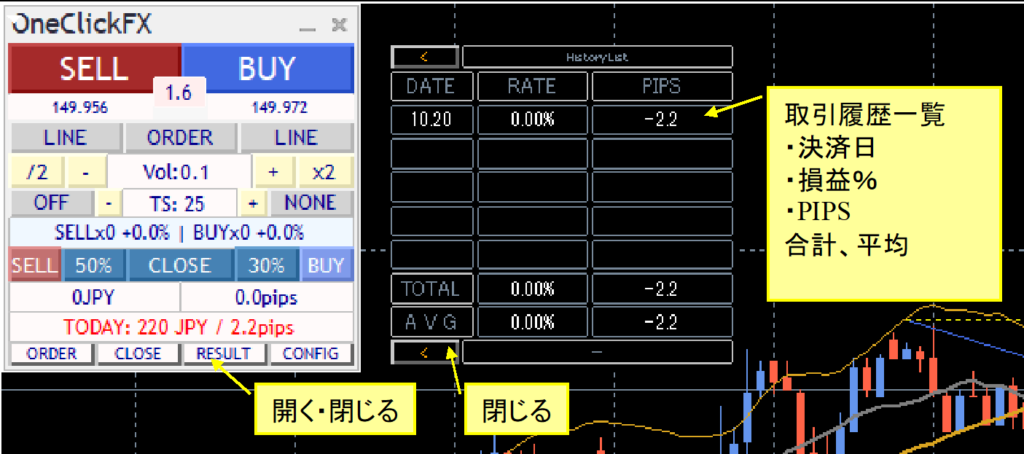
Other sub-panels
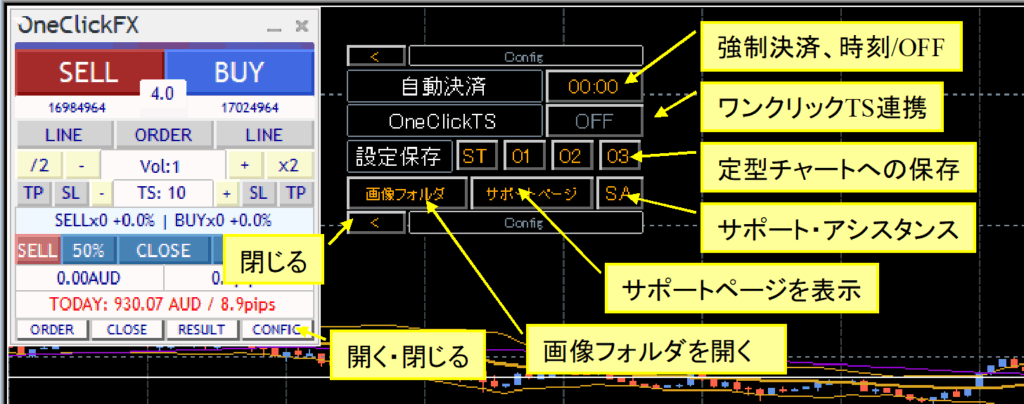
OneClickFX parameter settings
| Parameter | Details |
|---|---|
| GoGoJyan member ID | Enter the email registered with ASP. If you change the ASP registered address, enter the updated address. |
| Magic number | You can set a magic number arbitrarily. Initial 0 applies to all trades. |
| Focus indicators 1, 2, 3 | You can select three indicators for profit/loss, difference, and risk % respectively. Indicator 1: left of the control box, Indicator 2: right of the control box, Focus mode, Indicator 3: far right of the chart center (NONE to hide) |
| Initial values for automatic lot calculation | If you want to calculate lot size automatically from risk %, set true |
| Initial lot / Risk% | Set the initial lot or risk% |
| Increment/decrement for Lot/Risk% | Set the step for increasing/decreasing lot or risk% |
| Server orders | Choose whether to place TP/SL on the server side (both or SL only). The first TP/SL is set only once; afterwards changes to TP/SL lines do not modify the order contents. |
| Stop loss line = SL (minimum 1) | Specify the initial price gap from the break-even line to the stop-loss line. |
| Risk reward | Specify how many times the difference between break-even line and SL is used to set the initial TP. If SL is 100 and risk reward is 1.5, initial TP is 150 from the break-even line. This cannot be disabled, so if you won't use it, input a large number like 100. |
| Trailing stop | Trailing stopis an automatic trailing close controlled by the tool. Specified in pips. |
| ▼ SL settings (stop loss) | |
| SL handling | If the stop loss is reached,Strategic Closeprocessing is specified. |
| SL partial close rate (holding lots %) | Specify the partial close percentage in %. |
| SL trailing stop type | Trailing stopChoose the type. |
| ▼ TP settings (take profit orders) | |
| TP processing | If the take-profit price is reached,Strategic Closeprocessing occurs. |
| TP partial close rate (holding lots %) | Partial close percentage in %. |
| TP trailing stop type | Trailing stoptype selection. |
| ▼ Individual settings | |
| Turn on TP/SL lines when order filled | When pressing the order button, TP/SL lines are set to initial values. If you later turn TP/SL lines off after ordering, they will turn on again upon execution. |
| Strength of Entry Assist | Entry AssistConfigure the setting. Default is disabled. |
| Forced settlement from keyboard input | Entering a specified key performs all settlements. Default is disabled. You can configure any combination of SHIFT/CTRL/ALT keys to settle. Keyboard layouts vary, so please try the supported keys in advance. |
| Maximum number of positions | Limit the maximum number of entry positions. Some brokers also impose limits. Zero means unlimited. |
| Maximum position size (zero = unlimited) | Automatically split order size when entering. |
| Use ASK line | Can emulate the ASK line with the BID line. If false, adjust for spread and display with a normal line. Note: large spread fluctuations may cause errors. |
| Acceptable slippage | Specify the acceptable slippage in points |
| PIPS=>points conversion factor | Specify the value when converting PIPS to points. For FX, zero auto-setting is fine. For CFDs, numbers vary by broker, so adjust accordingly. |
| Forced settlement time Initial forced settlement value |
Change as needed. If positions exist, settlements occur at the specified time and pause. If initial value is true, it is ON. |
| ▽ Display settings | |
| GMT offset of connected server Daylight saving time |
If MT4 shows as-is, use that. To set Japan time, adjust to GMT+2 with DST, depending on the connected server; please verify. |
| Show final time | Display the final tick time on the control box. If the server time offset is adjusted, the adjusted time is shown. |
| Image saving during trades Image size (width x height) |
When a deal executes or on daily summaries, determine image capture status. Choose none, full screen, or target chart. Images are always saved; too many may slow your PC. Delete unnecessary images. |
| Display trade history marks | Show standard entry and settlement triangle marks and lines. |
| ▽ External entries | |
| One-Click TSLink | NONE=none, Direct=direct instruction from One-Click FX, via Alert=alert notification linkage,※NONE means sub-panels cannot be turned ON by pressing. |
| ▽ Signal tool linkage (object) | |
| Buy signal object name Sell signal object name |
Enter the object names shown by the Signal Tool. If a partial match, it is considered a target signal. Default: ArwUP, ArwDN areOne-Click Auto Arrow Trade or the includedArrow-ification Tooldefault arrow names.You can specify multiple strings separated by commas. All conditions are ANDed. |
| Signal timing target | Enter whether the signal targets the latest bar (0) or past bars (1~). If repainting occurs on the latest bar, enter the confirmed previous bar (1). |
| All close signal object names Buy close signal object name Sell close signal object name |
Enter the object names shown by the Signal Tool. If a partial match, it's considered a target signal. Default: ArwCL, ArwCUP, ArwCDN areOne-Click Auto Arrow Trade or the includedArrow-ification Toolnames for the arrows. |
| Close signal timing target | Enter whether the target is the latest bar (0) or past bars (1~). If repaint occurs on the latest bar, enter the confirmed previous bar (1). |
| ▽ Signal tool linkage (index) | |
| Signal indicator name | Enter the indicator name (file name) of the target signal tool. |
| Buy signal index Sell signal index |
|
| Signal timing target | Enter whether the signal targets the latest bar (0) or past bars (1~). If repaint occurs on the latest bar, enter the confirmed previous bar (1). |
| Enter the indicator parameters in proper types (integer, float, string) in order. After END, default values are used. If a string parameter includes digits, prefix with a single quote. | |
| ▽ Notification features | |
| Notification settings [Common] | |
| ▽ Control box | |
| Compact start | true: start minimized. false: start at normal size. |
| Control box width/height | Will vary with screen size. If not fitting, reduce these values. |
| Initial vertical/horizontal position | Specify the control box position. |
| Control box font size multiplier | Fine-tune the control box font size. Depending on display size and Windows font scaling, MT4 font size may be too large or small; adjust here. 1 means 1x. |
| Chart text size | Text size displayed on the chart. |
| Line thickness | Thickness of TP/SL lines on the chart. Dashed lines for undecided state default to thickness 1. |
| Smooth drawing | Always display values when TP/SL lines move. In heavy load, set false. Recommended for less powerful PCs. |
| Delay startup | Seconds to delay the control box display. Reduces load when starting multiple charts simultaneously. |
| Show startup caution message | Display a startup caution message. If false, trading begins immediately after startup. |
| Prevent control box minimization | Keep the control box from minimizing even if it doesn't fit on the chart. May increase load. |
| Message text size Display duration (seconds) |
Set the size and display time of the message shown at the bottom left of the chart. |
| Image save key | ASCII code input. SHIFT plus the specified code will capture the screen. |
| Buy color Sell color Trailing stop color |
Specify the colors for button, TP, SL, and trail lines. Position lines and limit lines use the same base color for display. If you want the same color as older versions like V6, set Buy color to Green. |
| Control box color settings | You can freely set the colors for the various control box buttons, labels, and text. |
Automatic calculation by risk %
Order quantity is automatically computed from the margin that holds the P/L% (risk%).
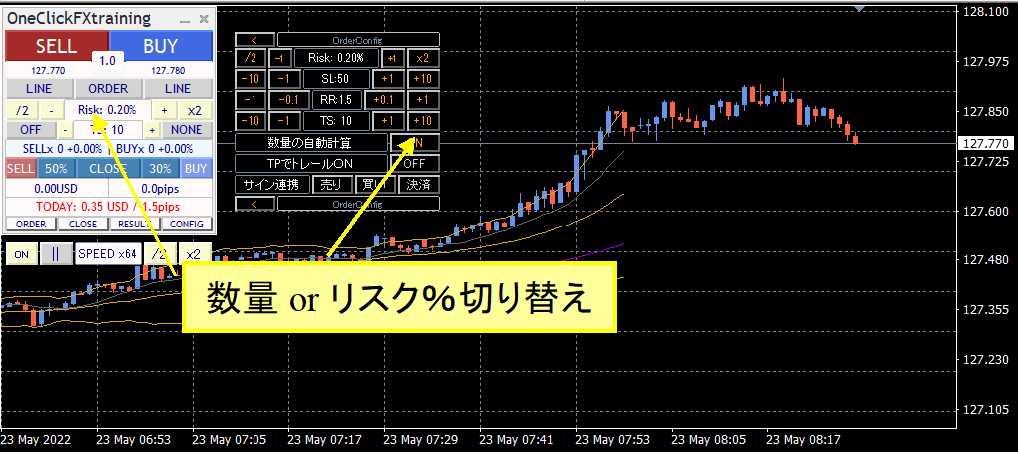
You can toggle between the control box quantity field or the sub-panel \"Auto calculate quantity\".
If TP/SL lines are not displayed when placing a market order, the order quantity is calculated from the initial SL value and the specified risk%. If TP/SL lines are displayed, calculation is based on the order price and the SL line price.
For limit orders, if TP/SL lines are not displayed, quantity is calculated from the order price and initial SL. If TP/SL lines are displayed, quantity is calculated from the order price and SL line price.
Note: turning TP/SL lines on/off resets to initial values and the automatically calculated order quantity may not match the SL line.
TP/SL lines
Display TP/SL lines with the LINE button on the control box.
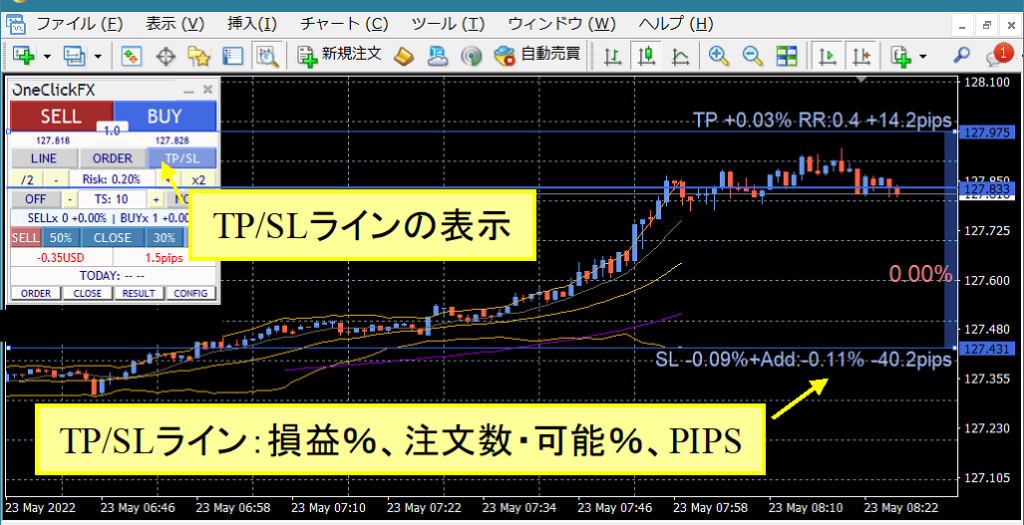
If you hold a position, you will see the P/L percentage at settlement, the possible order percentage from the order quantity or risk%, and the price difference from the break-even line. If you have no position, you will see the possible order percentage from the current price and the price difference.
When LINE is ON, lines are drawn with the initial values for SL and risk/reward. Turning LINE ON/OFF resets to initial values.
Also, if TP/SL lines are OFF, no settlements occur.
Limit orders
The ORDER button on the control box displays the limit order line.
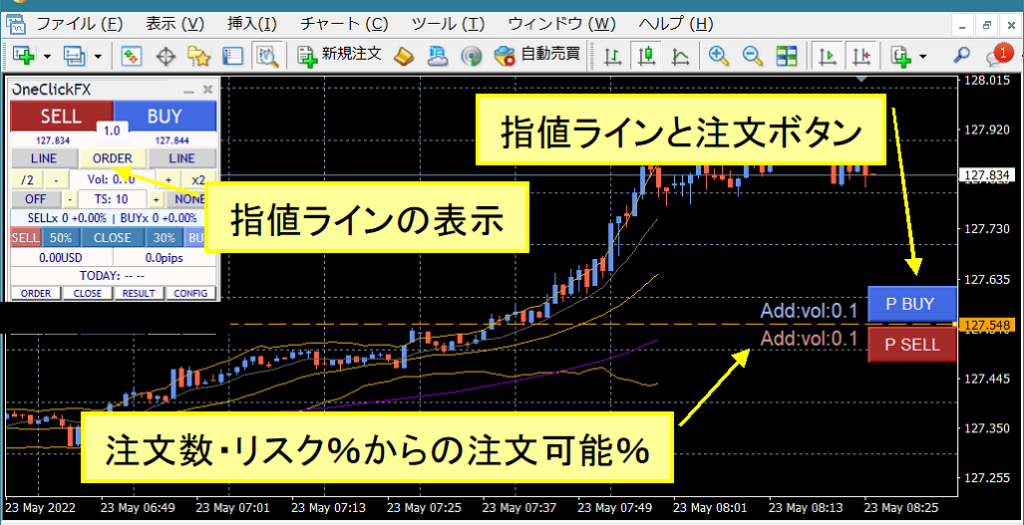
The order button appears when TP/SL lines for SELL and BUY are displayed. If BUY TP/SL lines are not shown, the P BUY button will not appear. Alongside the button, the available order quantity or risk% is shown. If n/a, you cannot add orders.
Strategic Close
| CLOSE ALL | All settlements |
|---|---|
| TrailingStop | Trailing stop ON |
| LineReset | Reset TP/SL lines |
| CLOSE specified%, TrailingStop | Partial close by specified % + trailing stop ON |
| CLOSE specified%, LineReset | Partial close by specified % + TP/SL line reset |
| CLOSE specified%, LineReset, TrailingStop | Partial close by specified % + TP/SL line reset + trailing stop ON |
| Additional orders, LineReset | Reset TP/SL lines, then place additional orders with current parameters. If you are using risk% for orders, additional orders may not occur frequently. This is a form of averaging (n-ki-ppo). Set a max position count to prevent infinite orders. |
| Additional orders, LineReset, TrailingStop | Reset TP/SL lines, place additional orders with current parameters, and turn trailing stop ON |
When TP/SL line reset is activated, parameters based on the current price reconfigure TP/SL lines.
If SL line parameter is 10 pips and Strategic Close is triggered on the SL line, the current price becomes the reference and the SL line moves by 10 pips.
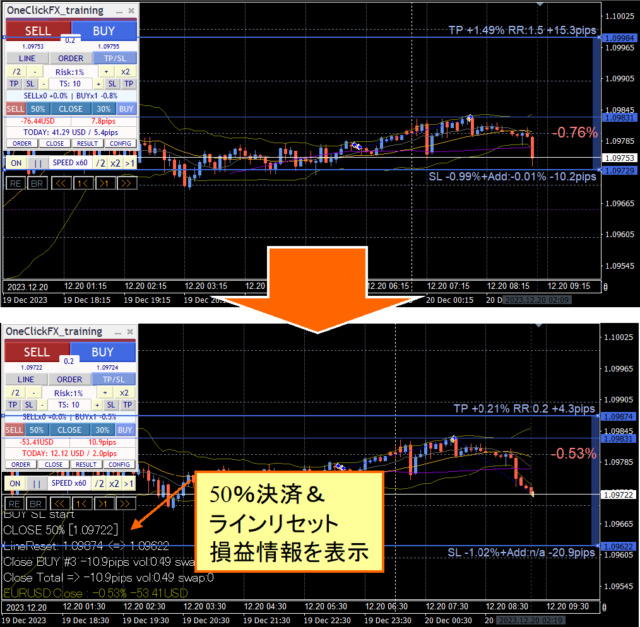
The TP line is similarly reset by the SL risk keyword, but reset by SL lines only up to the break-even line.※ If you choose only line reset without partial settlement, the SL line will keep moving downward, so please be careful.
Flexible Trailing Stop - FlexiTrail Stop -
TS blocks on the operation panel toggle the ON/OFF for each trailing stop. From left, there are areas to set SELL TP, SELL SL, and the TS value, followed by BUY SL and BUY TP; you can control four trailing stops separately.
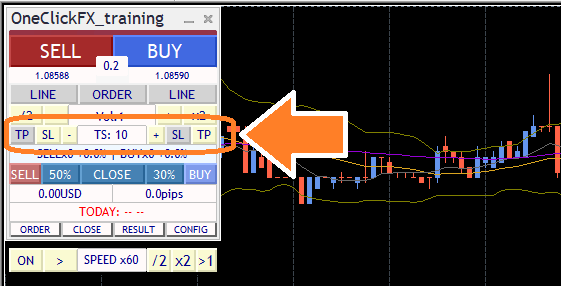
If pressing a button does not respond or returns to its original state, it may be in a state where Strategic Close is setting the trailing stop. It will ON when the price reaches TP or SL, so until then it remains OFF.
The trailing stop line when position is held is shown in purple. If OFF, it is a dotted line; if ON, it appears in real trading. The maximum value detection differs from previous versions and becomes ON when active. Turning ON/OFF recalculates from the current price.
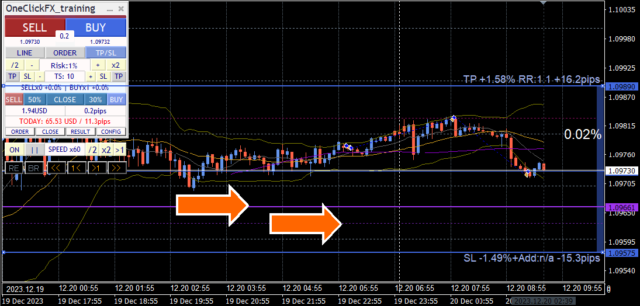
・None: NONE
Do not use trailing stops.
・Fixed: FIX
From the moment it ONs, the line is based on the high price; if the price falls below the specified value, a settlement occurs. This operates like a typical trailing stop.
・Shrink: SHRINK SHORT, MEDIUM, LONG
Fundamentally similar to FIX, but near high prices, if no new high occurs, the range closes in. If a new high occurs, returns to the specified value.
When Shrink SHORT, if no new high is seen in about 100 updates, and the price moves stably, it will settle. MEDIUM and LONG require more updates before settlement. When a high is updated, its value resets to the initial value.
In a sharp drop after a high, trailing may lag but there is time before settlement, allowing potential rebound moves to be profitable.
・Average: AVG SHORT, MEDIUM, LONG
Use the value at ON and the parameter value as a baseline; add current value with each price update to compute an average. Shorter averages follow current price quickly; longer averages lag behind more slowly.
AVG has no reset and, unlike FIX or SHRINK, continuously follows price movement, so settlements tend to occur sooner as long as price continues to move. It responds quickly to large price changes and settles conservatively.
・Moving Average (MA)
Settle when the price touches the moving average line of a given period. The settlement occurs at the moment the trend changes. The T/S value is the moving average period (e.g., MA20).
・Bollinger Bands (BB)
Settle when touching the upper or lower Bollinger band of a given period. For a long position, touch the lower band; for a short position, touch the upper band. As with MA, the T/S value is the period (e.g., BB20). Deviation 2 is fixed and cannot be changed.
・Stop & Reversal (SAR)
Settle when touching the Parabolic SAR at the specified step. The SAR was devised by J. W. Wilder. T/S value is in thousandths. Default 10 means 0.010; 1 means 0.001. Use with the standard Parabolic SAR indicator to confirm.
・Chandelier Exit
Chandelier Exit uses ATR (Average True Range) to widen stops in volatile markets and tighten stops in quiet markets, staying with the trend while avoiding excessive profit-taking or loss-cutting. T/S value is 0.1 of ATR, with ATR period fixed at 14.
This video compares standard fixed trailing stops with Shrink L. Both track rising highs, but Shrink adjusts the stop toward the current price if highs do not rise.
Automatic image saving
If you set image saving to true at trading time, the tool automatically captures screenshots at order and settlement. Clicking the image folder button on other sub-panels opens the destination folder.
Destination is in data folder, MT4 => MQL4/Files/OshiraseSnap.
※Please also copy the OshiraseSnap folder included in the product files.
Saved image files accumulate indefinitely, so please delete unnecessary images.
Entry Assist
Entry Assist assesses fluctuations from ASK, BID, and the mid price to predict price movement seconds ahead. After pressing the entry button, it automatically pauses orders until the optimal timing.
The parameter has three strength levels: weak, medium, strong; choose from disabled to strongest.
Approximately, entries for buying are made as follows:
Weak: when price movement stops (downward move halts)
Medium: when reversal occurs and price starts rising
Strong: when price is clearly rising
You can view Entry Assist judgment status on the color bar at the top of the control panel.
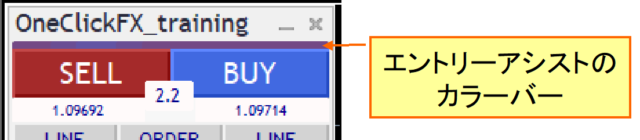
If the color bar is close to BUY color, it indicates a buy decision; if close to SELL color, a sell decision.
In testers with fixed spread, color differences may not appear; brokers may show different decision colors.
With the strength set to weak/medium/strong, pressing the entry button will cause the button to lighten, and Entry Assist will wait for timing. Press again to force-entry; press the cancel button below to abort.
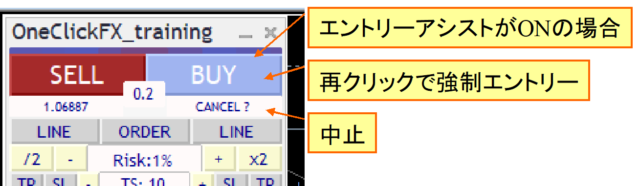
This feature predicts price movement a few seconds ahead and can help suppress buying when prices are dropping sharply.
If you set strength to strong, you may not enter until the price fully rises, potentially causing delays in entry. Adjust according to market conditions. Some testers or brokers with fixed spreads may not allow maximizing the effect.
Economic indicators
Included item “Economic indicators shown prominently【EconomicData_rcm】” displays indicators on the main chart and synchronized charts. Hover colorful lines to view the corresponding economic data for that time. By default, indicators related to the currently displayed currency pair are shown.
Note: If indicator times drift, simple synchronization will adjust automatically in most cases; however, for main and active synchronized charts, manual adjustment of the server time may be necessary. The default aligns with GMT+3 in summer and GMT+2 in winter, presumed to be the most commonly used setting.
Support Assistant
When seeking troubleshooting support, a handy feature collects information with one button.
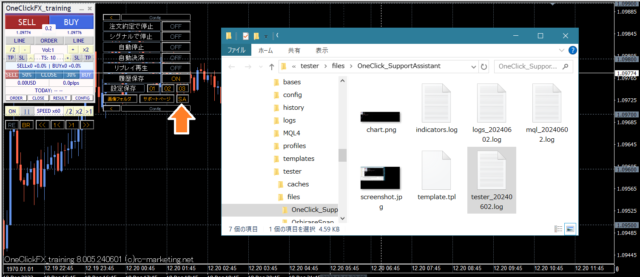
Press the SA button or double-click OneClickSA in the Script folder to collect data and open the folder; please email the output files.
If contacting via the inquiry form at the bottom of the page, please attach the auto-reply email after sending the form.
■Synchronization settings for sub-charts
1) Open the chart of any currency pair
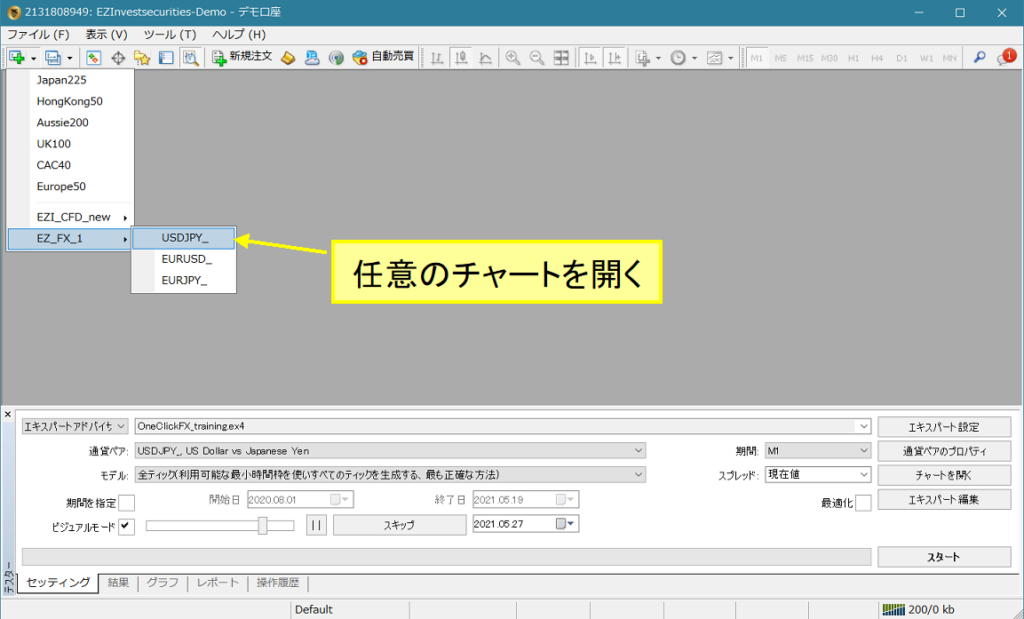
2) Right-click → Templates → select OneClickFX_sync

※ Reference video

■Link with Signal Tools
Included item “Signal Arrow Tool(Free version)
Simple linkage
Signal tool linkage can be configured in the same way as the parameters described above for One-Click FX, or use the includedSignal Arrow Tool(Free version)
Link with One-Click Auto Arrow Trade [AutoArwTrade]
1. Insert a compatible signal tool into the chart.
2. Turn on the buy/sell linkage in signals.
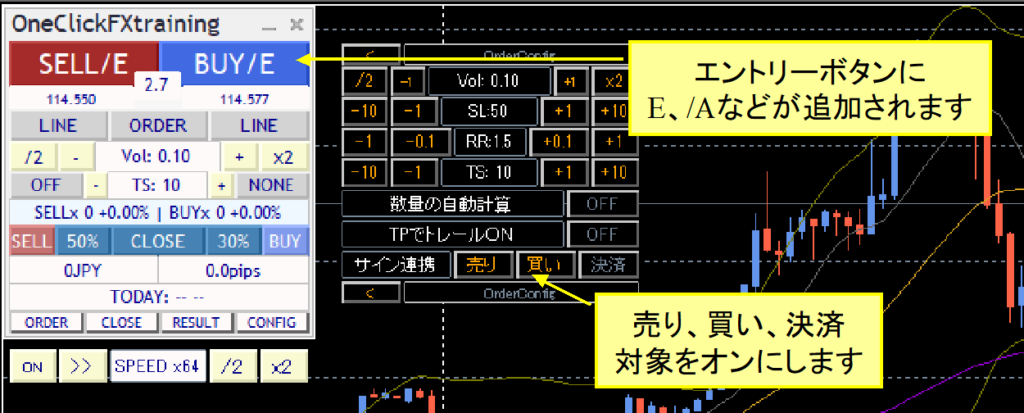
Link with Signal Arrow Tool
Signal Arrow Tool (ArwByIdx_rcm) can link with arrows from other signal tools to enter on chart changes.
A sample of the bonus presets is included; please try it here
The preset types are the same as this.
Signal Arrow Tool support page
On charts where One-Click FX is running, insertArwByIdx_rcm and configure parameters.
From the preset loading button in the parameter screen, you can apply the preset “OneClickFX_SP.set” for the above setup.
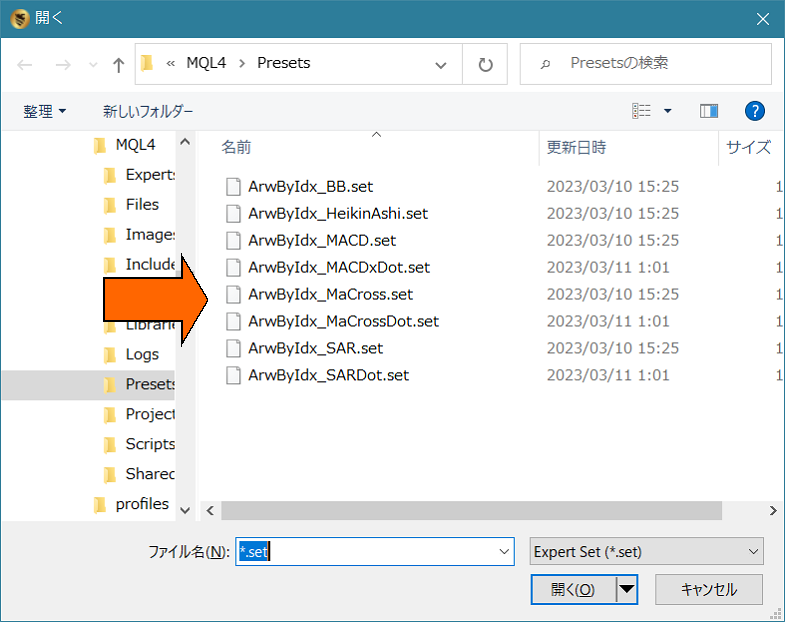
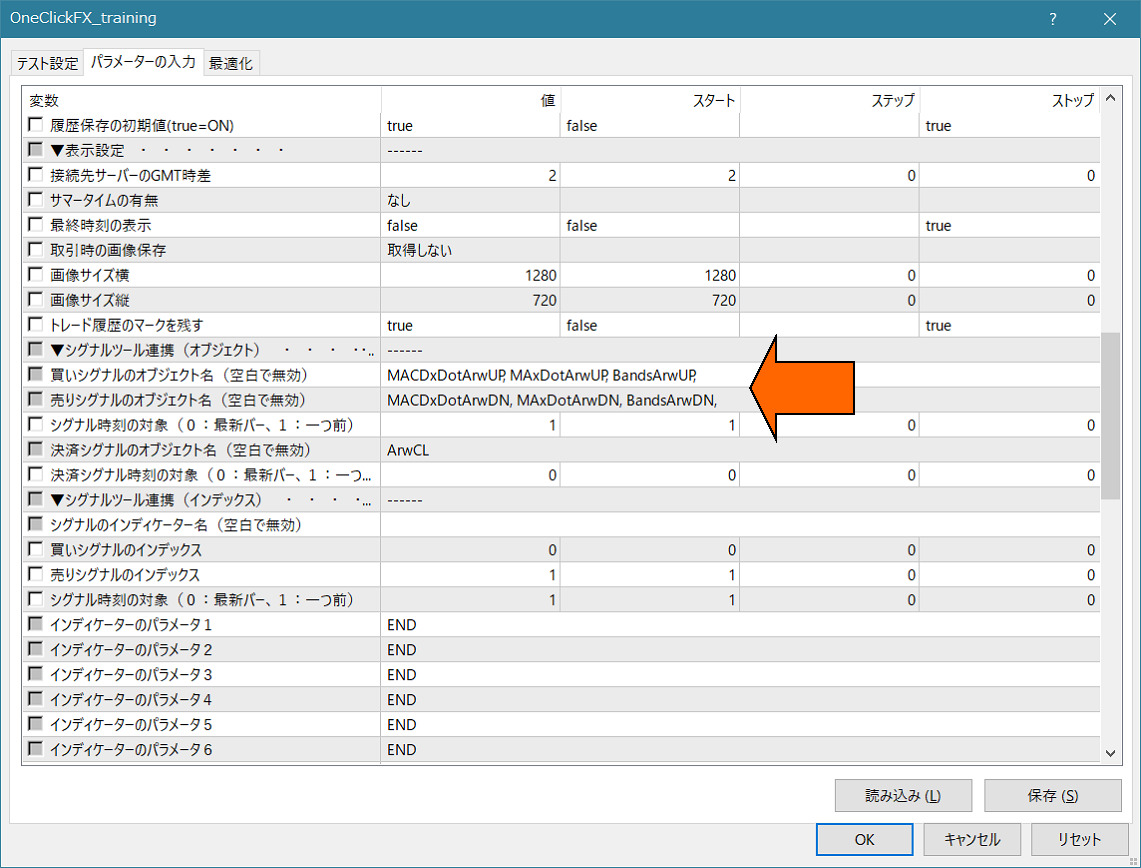
Arrows or marks appear at each upper limit; when all three conditions match, signal linkage activates.
Change the parameters of “ArwByIdx” to freely alter the signal occurrence pattern by registering in the template chart.Feel free to experiment with combinations.
If you’re unsure how to set it up, feel free to ask. Your existing signal tools will almost certainly link successfully.
If you let us know the signal tool name and parameter details, we can advise on the settings.
【Important】Notes
The linkage signal tools and indicators are products from third parties; you need to download them yourself.
ArwByIdx & Signal Tool linkage template
If you’re unsure how to set up, please ask. Your existing signal tools will likely link successfully.
If you provide the signal tool name and parameter information, we can share the appropriate settings.
■External Entry linkage tool【OneClickTS】
OneClickFX MAX can directly link with an external entry linkage toolOneClickTS.※This feature is optional and does not support complex procedures; please understand before use.
Launch & preparation of One-Click TS
Change the parameter’s “One-Click TS linkage to “Direct” or “via Alert”.
※ Initial value is NONE (no linkage).
From the CONFIG button, open the sub-panel and you will see ON/OFF for OneClickTS; turning it on turns the color to yellow and activates OneClickTS.
※ The parameter,
t="965">One-Click TS linkage can be turned ON by setting to Direct or via Alert. NONE means pressing will not respond.
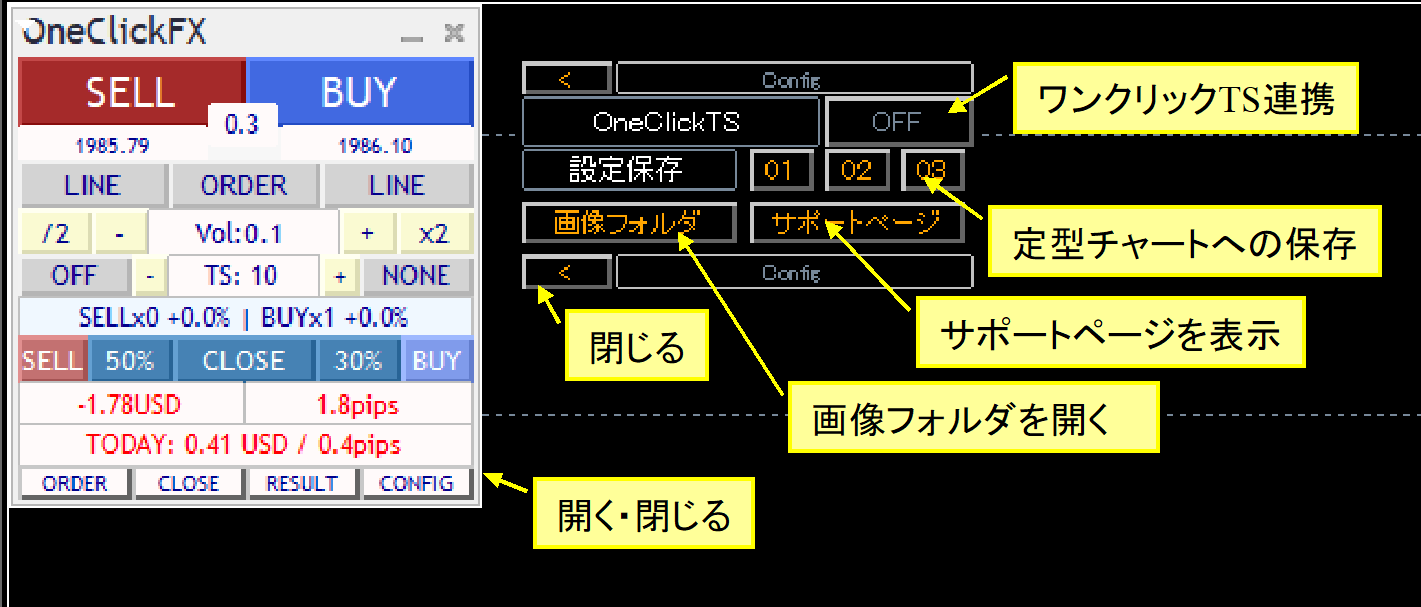
One-Click TSFor details on linkage clicks, please see here.
Support page for external entry linkage window【OneClickTS】
■Included indicators
PipsGrid support page■Troubleshooting & Tips
・Want to use older colors like V6
Set the parameter “Buy color” to Green and use.
・Profit/loss with commissions
If your account has commissions, the profit/loss display includes commissions, while PIPS display excludes them. Note that commission patterns vary; we do not guarantee all scenarios.
・License authentication errors
Reasons may include using an email address not owned by the purchaser, incorrect email entry, Windows not up to date, or other tools blocking authentication. If unsure, contact support.
Caveats
■If you have trouble
If not functioning properly, acting oddly, or stopping unexpectedly, first check here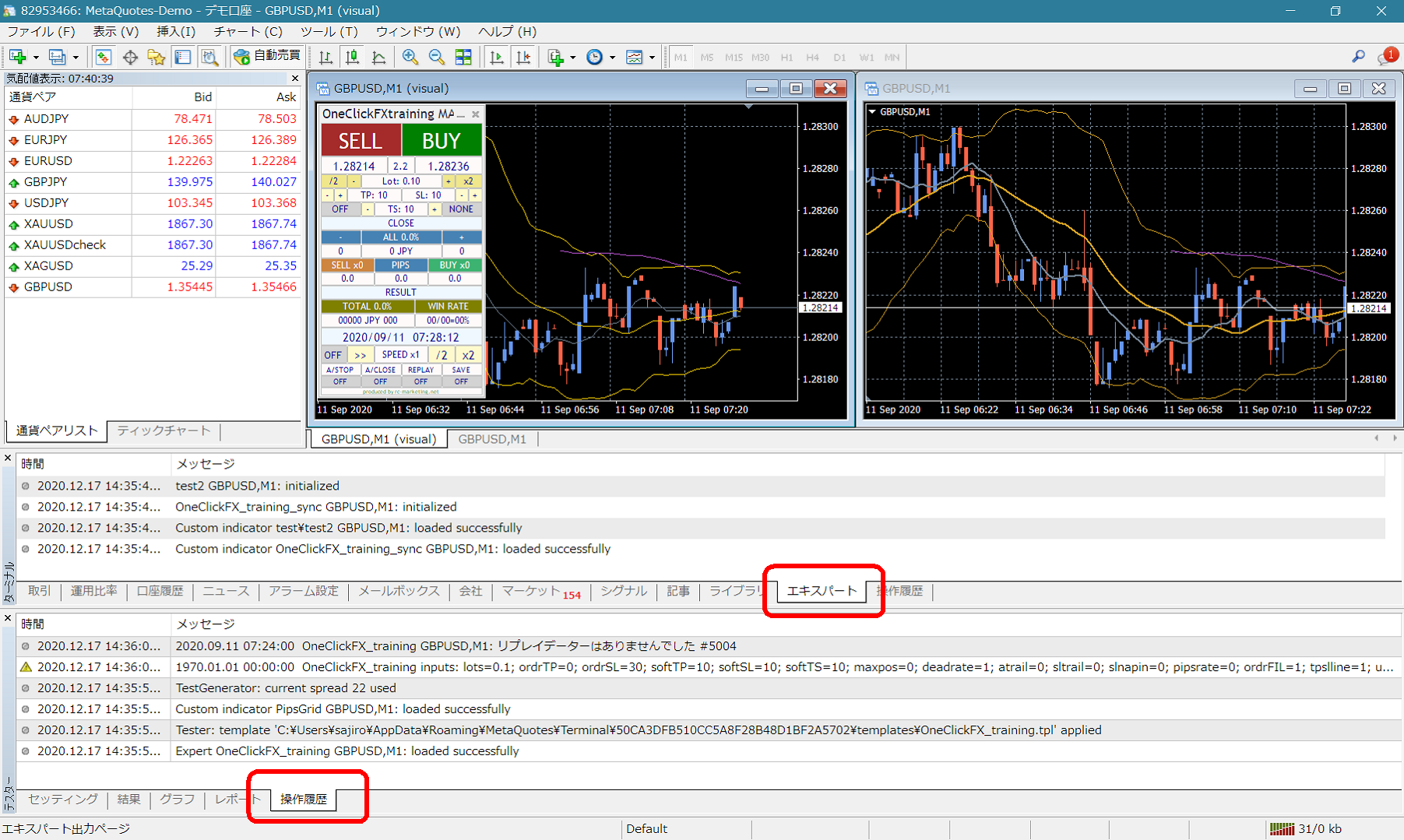 If there are error messages in the terminal's Expert or Tester history, please inform us; it will help resolve issues quickly. Thank you for your cooperation.
Support Assistant
Some products include a convenient feature to collect information for troubleshooting with one click. Press the “SA” button to collect information and open the folder. You can also double-click OneClickSA in the Script folder to do the same.
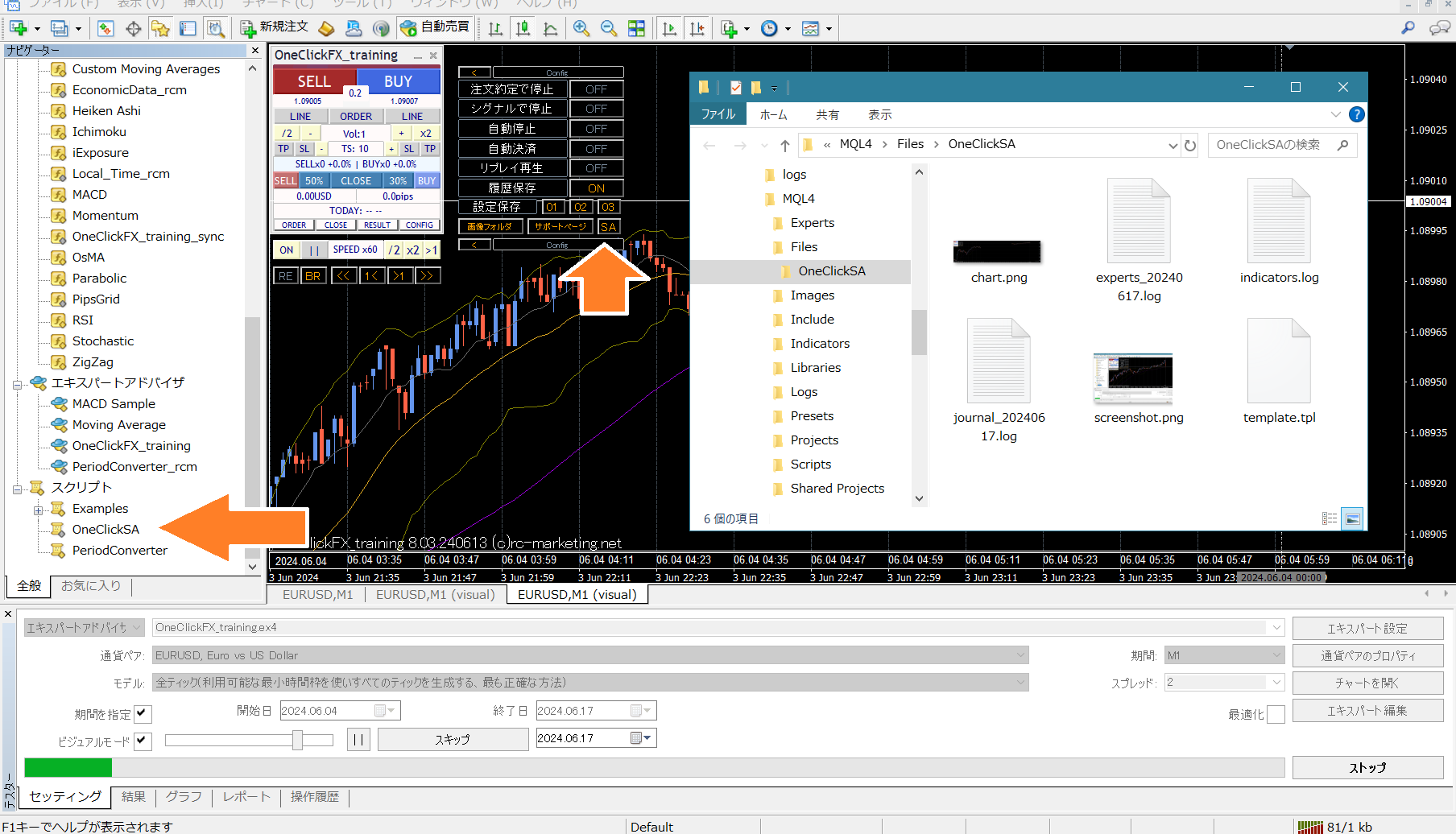 Please attach the generated files when sending.