

Astat 225❸How to use the tool
Here, usage instructions for each tool are explained.
■Common cautions for all tools
- Each tool is a standalone Windows executable file and does not require installation.
- The tools and data files are designed to be used in the same folder.
- Error handling is not finely configurable, so please use the steps precisely as described.
1DataDownload
Purpose
Download the four-price data (open, high, low, close) for daily and intraday of Nikkei 225 Mini futures from the site.
Preparation
Access with the browser “Google Chrome” or “Microsoft Edge” to run it.
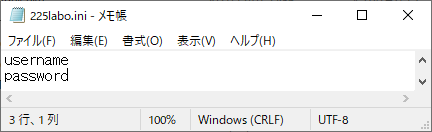
Pre-register as a member at “225Labo” (free) and set your username and password in the initial configuration file “225labo.ini.”
Steps
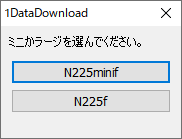
When you run this file, buttons for “N225minif” (Nikkei 225 Mini) and “N225f” (Nikkei 225 Futures) will appear; select the button for the one you want.
Next, a screen for entering the year will be displayed; enter the four-digit year you want to download. The default is the current year.
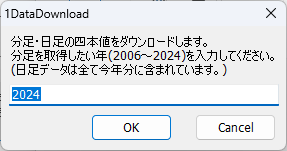
Click “OK” to automatically open the browser, go to 225Labo.com, log in, and download the data files.
Result
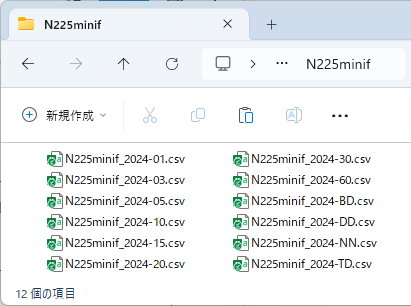
The downloaded files are stored in the “N225minif_0000” folder.
Browser-based operations by the tool may fail frequently depending on the environment. If that happens, please download manually.
Manually download the four-price data
All except the daily data are single-year. If you want to verify across a full year, after downloading, please concatenate the files. Also, you need to rename them before concatenation.
Example: 15min.csv → 2021-15m.csv
2ConvertTime
Purpose
Convert Nikkei 225 trading days (days starting at 16:30 on the previous business day) to actual dates (Actual Day).
Preparation
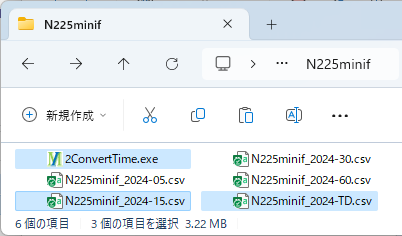
Place this file and the four-price data files in the same folder.
Steps
When you run this file, it automatically scans the folder for four-price files, displays a file list with checkboxes, and you can select the desired files (multiple selections allowed).
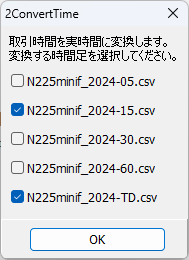
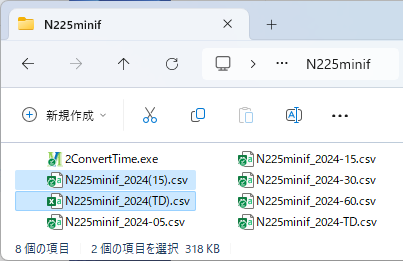
Click “OK” to convert the trading dates of the selected source files to actual dates. The resulting file names will have the suffix “_t”.
Result
The times in the created files are converted as shown here.
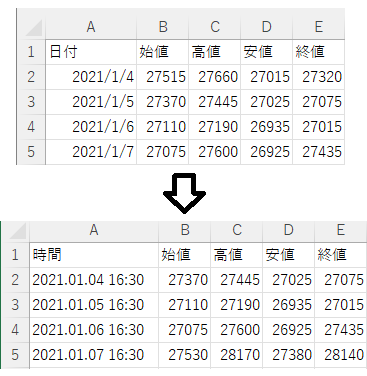
Data before market open will be deleted in the converted output. If multiple files exist, concatenate them first before converting. Otherwise, data in the middle may be missing.
Another method to convert trading times is to use Excel.
Trading time conversion with Excel
3AddIndex
Purpose
Generate technical indicators, four-price data, and intraday price-related values used by AutoTrade225, and append them to files.
Preparation
Place this file and the time-converted four-price data files in the same folder.
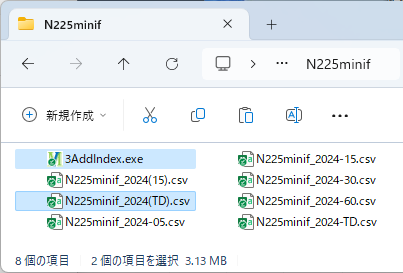
Steps
When you run this file, it automatically searches for time-converted four-price files in the folder and displays a file list with radio buttons; select the desired file. Multiple selections are not allowed.
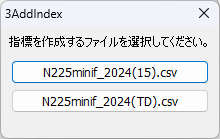
Next, a list of technical indicators, etc., with checkboxes will be displayed; select the desired indicators. Multiple selections are allowed.
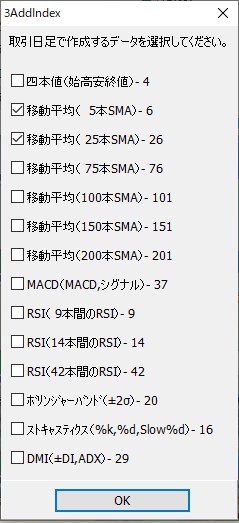
Click “OK” to generate the selected technical indicators, etc., and add them to the file. The resulting file names will have the suffix “_d”.
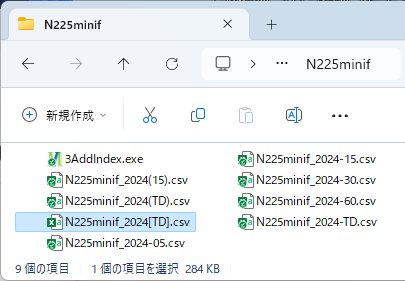
Result
The created files look like this.
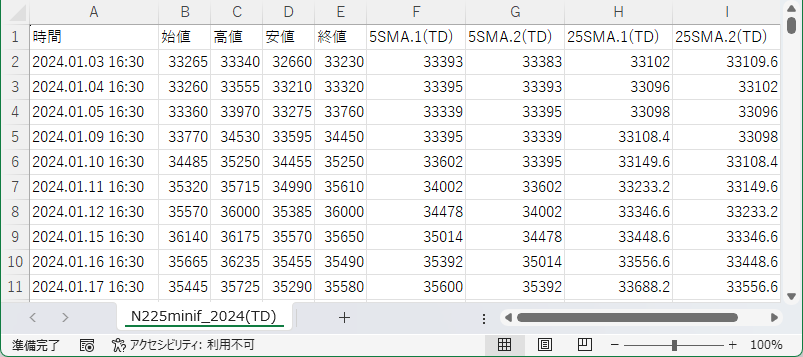
In the indicator selection screen, the numbers displayed to the right of the index name indicate how many data points are required for calculation. The generated files will have the first that many data points removed from the head.
For example, MACD with 37 means 37 past data points are required; if you want to use data from the start of the year, you must add more than 37 past data points before running this file.
4MergeFiles
Purpose
Merge two files with different time spans into a single data file.
Preparation
Place this file and the data file you want to merge in the same folder.
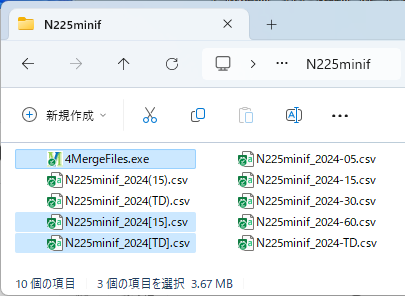
Steps
When you run this file, it automatically searches for additional-indicator files in the folder and displays a file list with checkboxes; select exactly two files. You cannot select three or more at a time.
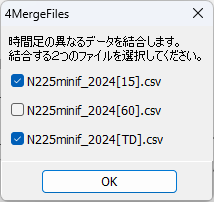
Click “OK” to merge the two files. The created file name is the sum of the two file names, and the suffix remains “_d”.
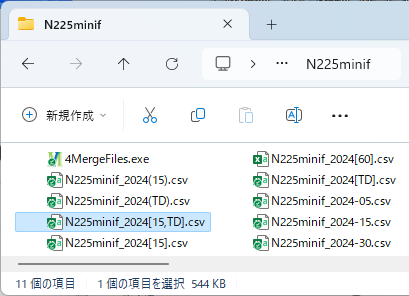
Result
The created file will look like this.
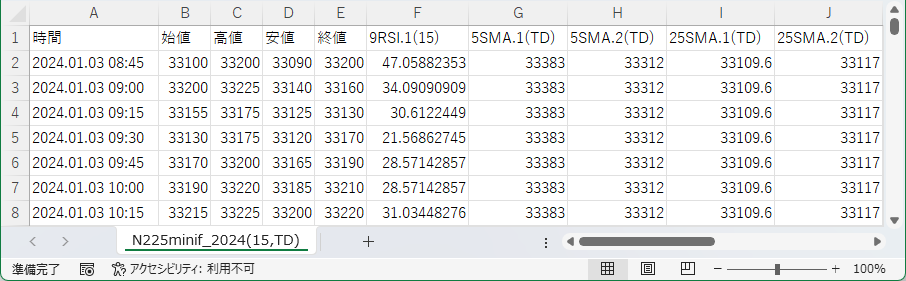
Data from the shorter-time file will be merged with the longer-time file. If there are three or more files, merge them two at a time in order. If there are any leftover standalone data that are not merged with any file, those parts will be deleted.
5ASTAT
Purpose
Analyze the indicator-enhanced data file according to the rules set in the strategy book and verify profit and loss, etc.
Preparation
Place this file, the strategy book, and the indicator-enhanced data file in the same folder.
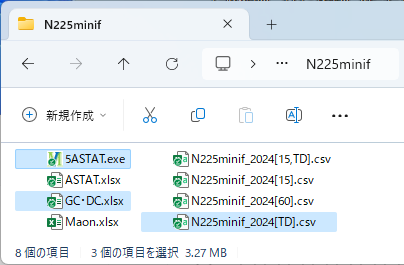
Steps
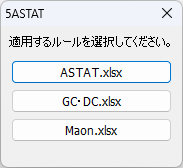
When you run this file, it automatically searches for the strategy book and indicator-enhanced data files in the folder and displays up to three selection screens.
In the first screen, select the desired strategy book. If there is only one strategy book, the selection screen will not be shown and you proceed to the next step.
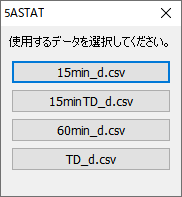
In the next screen, select the desired indicator data file. If there is only one data file, the selection screen will not be shown and you proceed to the next step.
In the final screen, select the buy/sell category. If no selection is made within 10 seconds, it proceeds with the default “Buy”.
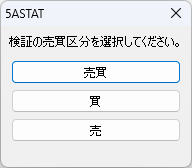
Click “OK” to start the analysis verification. The created verification result file name will be the strategy book name plus the buy/sell category.
Result
The verification result file displays various analysis data.
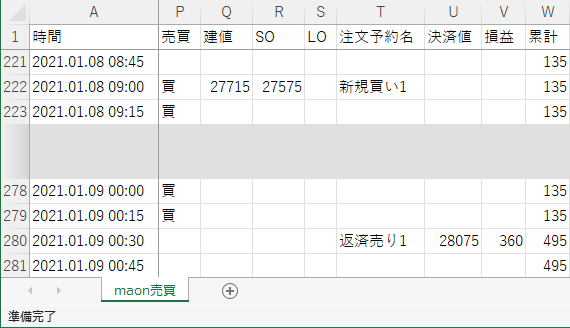
- Trading status
You can review entry price, stop loss, take profit, order reservation name, settlement price, profit and loss, and cumulative totals in chronological order.
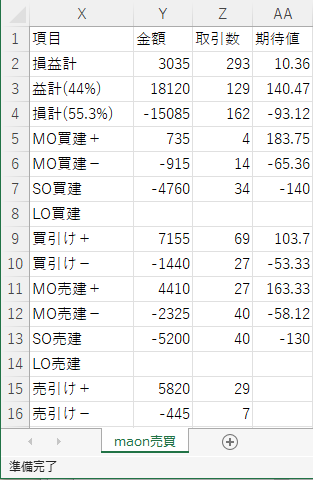
- Profit and loss summary
Profit/loss amounts, number of trades, and expectancy per order reservation item are aggregated.
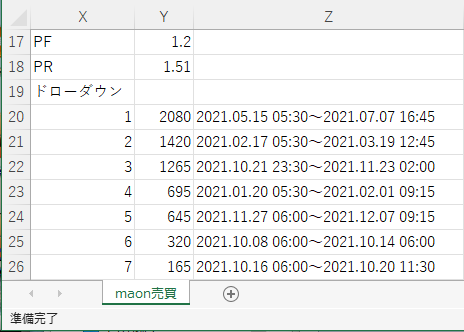
- PF, PR, DD
Displays Profit Factor (PF), Payoff Ratio (PR), and aggregates drawdown (DD).
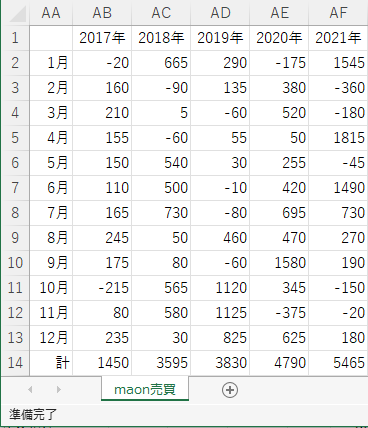
- Profit and loss by year and month
Aggregates profit and loss by year and month.
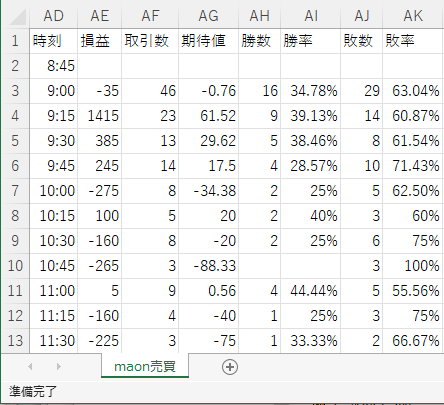
- Profit and loss by time
Aggregates profit and loss, number of trades, expectancy, and wins/losses by entry time.
Trades are calculated to execute at the price that meets the strategy book’s conditions. However, actual execution can suffer slippage or may not fill at all. Please understand that such discrepancies may occur in real trading.
【Navigation Menu】
Overview
Three stages of strategy verification
How to use the tools
Basic logic usage example
Appendix I MT4 usage manual
Appendix II Methods for four-price data download and trading time conversion