
■ Frequently Asked Questions
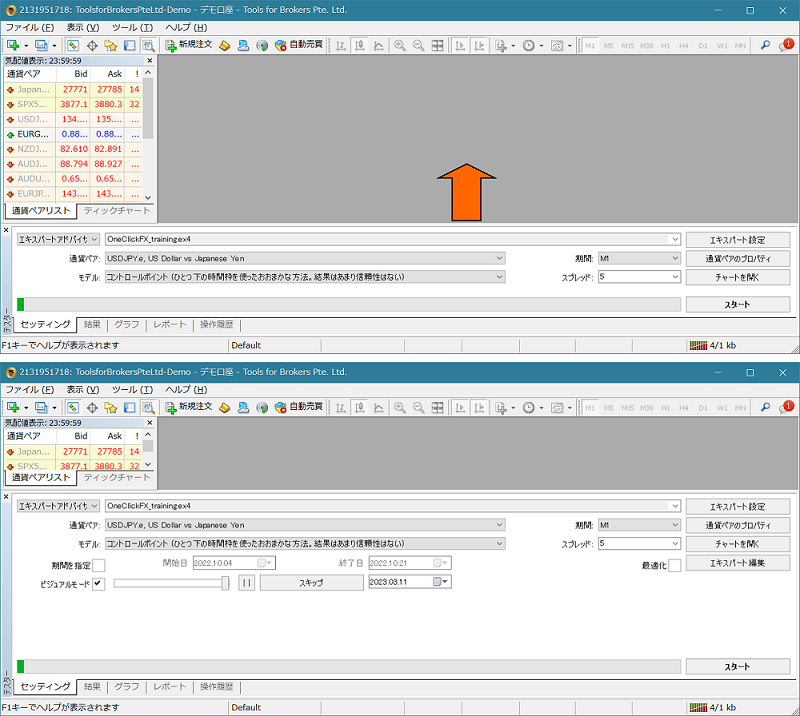
▼ If Visual Mode Check is Not Displaying
If the tester window does not show Visual Mode, widen the window height and it will appear.
▼ Immediately after Start or Immediately after Order Forced Stop
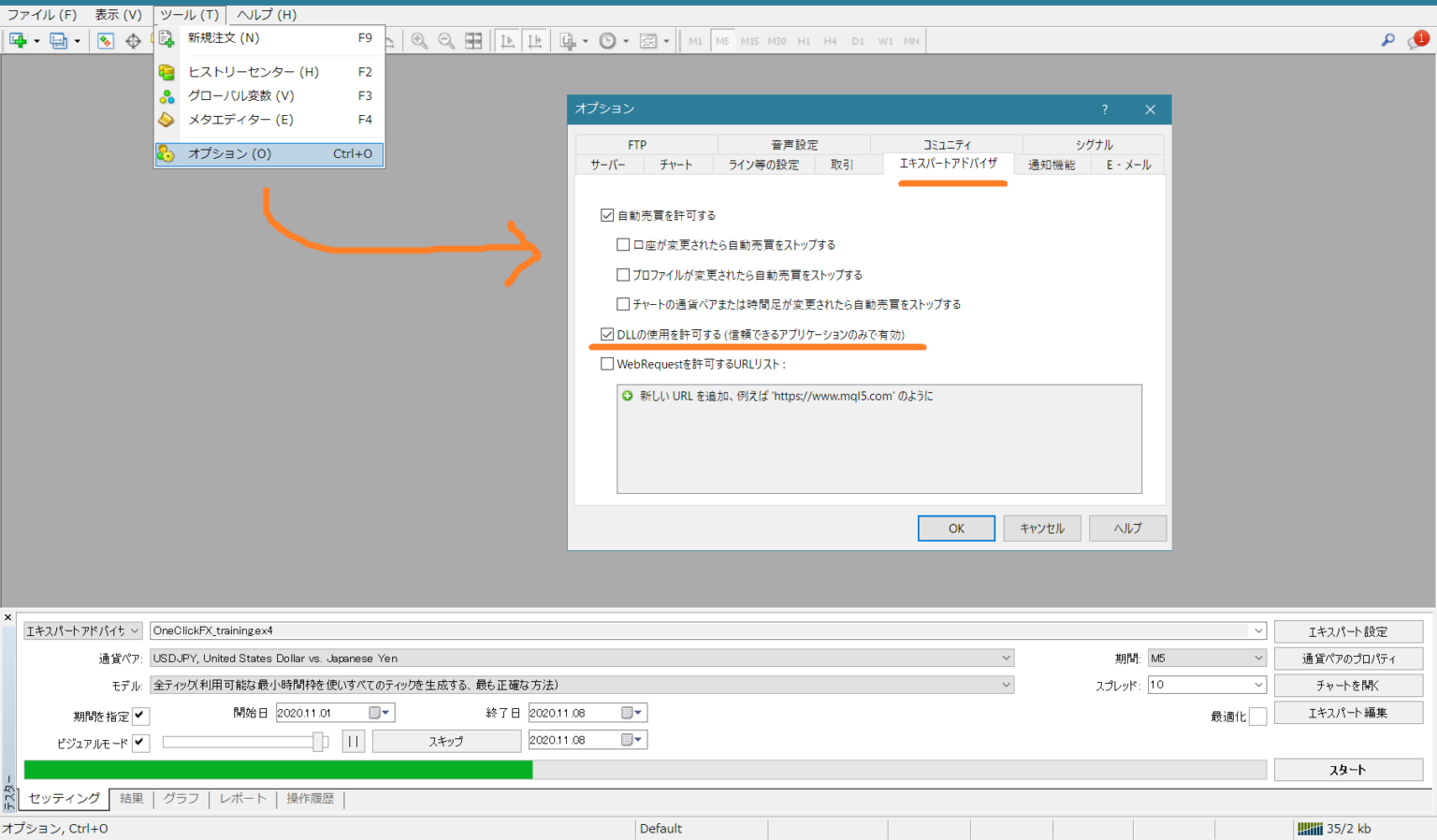
There may be DLL errors. If an error appears in the tester's operation history tab, resolve it with this method.
After allowing the DLL, you may need to restart MT4.
In other cases, errors can occur when currency conversion fails due to garbage such as the wrong “JPY” symbol in the base currency, full-width characters, lowercase letters, or spaces.
▼ Start button pressed but Control Box not displayed
If MT4 is loading past data and generating chart data, a “generating” message and operation history will appear near the bottom of Visual Mode.
If it continues, non-standard security tools other than Windows 10's built-in security tool may be blocking the license authentication.
For security tools, please disable them once to run, and if the cause is a security tool, we will inform you of countermeasures, so please contact us.
▼ Want to use older colors like V6
Please change the parameter “Buy color” to Green and use.
▼ Display speeds such as show one bar at a time, slow display, fast display
You can adjust the number of bars for the target by changing the tester model.

When operating on a 1-minute chart, more ticks are better, so select All Ticks.
On 1-hour or daily charts, even if you speed up, progress is slow, so reduce the number of ticks and select a control point.
If using daily bars to reflect day-to-day price movements, select only the open price, turn OFF the speed control, and adjust speed with the slider on the right of Visual Mode. About 2 seconds per day is a flexible adjustment.
▼ Fast-forward is slow
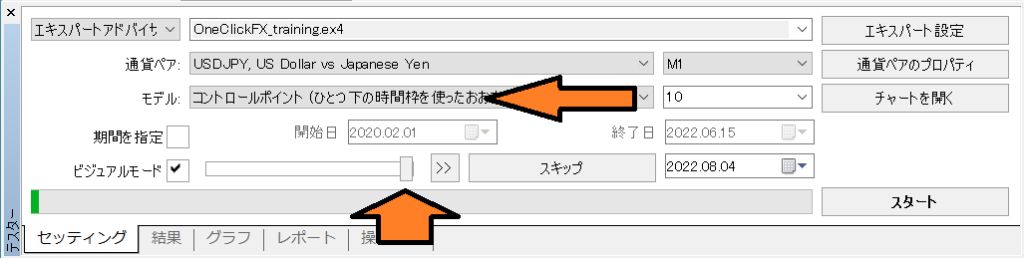
In the tester window, move the speed slider to the right from “All Ticks” to “Control Points.”
▼ Adding indicators
This is how to add or modify indicators on the chart. From version 6 onward, you can freely modify templated charts, so you can add indicators or use predefined charts for signals as is. This video shows how to edit the main chart’s templated chart. If you change the main chart display, save with the file name “OneClickFX_training.tpl” and the synchronized sub-chart as “OneClickFX_training_sync.tpl.”
▼ Steps to customize the synchronized sub-chart
Do not use a templated chart; insert the synchronization indicator “OneClickFX_training_sync” directly into your own created templated chart.
▼ Click the Buy/Sell button but no reaction
Possible causes include too-few order lots or SL not at a normal value.
Some errors can be identified by other error codes, so please refer to this troubleshooting page.
▼ About P/L on accounts with fees
On accounts where fees are charged, profit/loss display includes fees, while PIPS display excludes fees.
Note that fee structures vary, so nothing here is guaranteed.
▼ License authentication error
Possible causes include using a GoGoJou member ID not the one used at purchase, member ID not entered correctly, WebRequest not allowed, Windows 10 not up to date, or security tools other than Windows 10’s built-in tool blocking it.
If security tools are the cause, please disable them and run again; if so, we will inform you of countermeasures, so please contact us.
▼ Start shows “Money and currency pair do not match”
If the selected currency pair and margin do not match, risk percentage may not be calculated correctly. For example, when the base currency is JPY and you use EURUSD, the calculation of profit and loss requires converting USD to JPY; if this conversion information is missing, an error may occur or the risk % may not align. Also, when using CFDs with base currency USD and Nikkei 225, this conversion is similarly necessary. In general, it’s better to match the base currency with the chart’s margin. Note that our tool re-calculates to fill the gap, but the initial order may not match.
▼ Stop-Loss (SL) risk percentage changes
Possible causes include changes in profit and loss due to swaps. When the date changes, swaps are added (or subtracted), so risk percentage may change. If the base currency pair does not match, re-calculation may occur and values may change.
▼ Want to enter up to the last possible risk percentage
Even if risk % is 1%, it can be 0.95% or similar, but entry units are limited by lot size, so you may not enter at the very edge. If the minimum trading unit is borderline, a difference of about 0.1% may occur; in fast price movements, an additional 0.01% can be added as the latest price approaches SL. You can also add entries up to the limit.
▼ Synchronization chart shows indicators in the sub-window
In the synchronized sub-chart, placing multiple indicators in the sub-window can cause the masking at the right edge to fail, revealing indicators. This is a MT4 bug and cannot be avoided by the tool. If you place multiple indicators in the sub-window, set the “right-edge shift bars” parameter of OneClickFX_training_sync to zero to eliminate gaps. It may be fixed when MT4 is updated, but until then please use this workaround.
Also, if you use active synchronization, this issue does not occur.
▼ Want to fast-forward to automatic stop but it’s slow
Your embedded indicators or the indicators you use may be heavy, causing unnecessary load during fast-forward to automatic stop. In that case, replace with another templated chart for fast-forward, then return to the original templated chart after stopping. MT4’s standard ADX tends to scroll quickly.
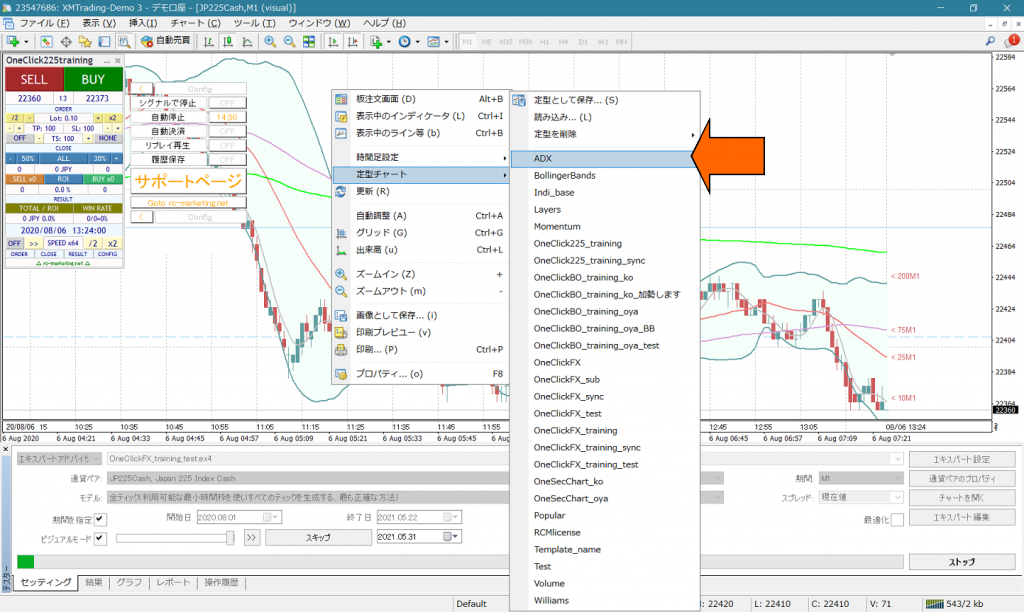
※ After stopping (paused), changing the templated chart may cause the control box to disappear, but clicking the chart will bring it back.
▼ How to obtain Nikkei 225 historical data
First, load as much historical data as possible.
MT4 historical data download
If not much data can be downloaded or more data is needed, download using the following methods.
Import Nikkei 225 historical data into MT4
Honestly, the steps can be tedious, so please contact us via the inquiry form at the bottom of the page and we will provide historical data.
▼ Make tester margin in Japanese Yen
In Expert buttons, open the test settings and directly enter “JPY” in the right side of the initial margin dropdown. As is, funds will be reduced, so add two zeros.
Depending on the broker, if the currency pair is not in JPY, you may be stopped immediately after placing an order. In that case, please use a margin that matches the pair you are trading.
Also, typos, spaces, or unnecessary characters can cause the same stop.
■ When in trouble
If it’s not functioning properly, acting strangely, or stopping immediately, please first check here.
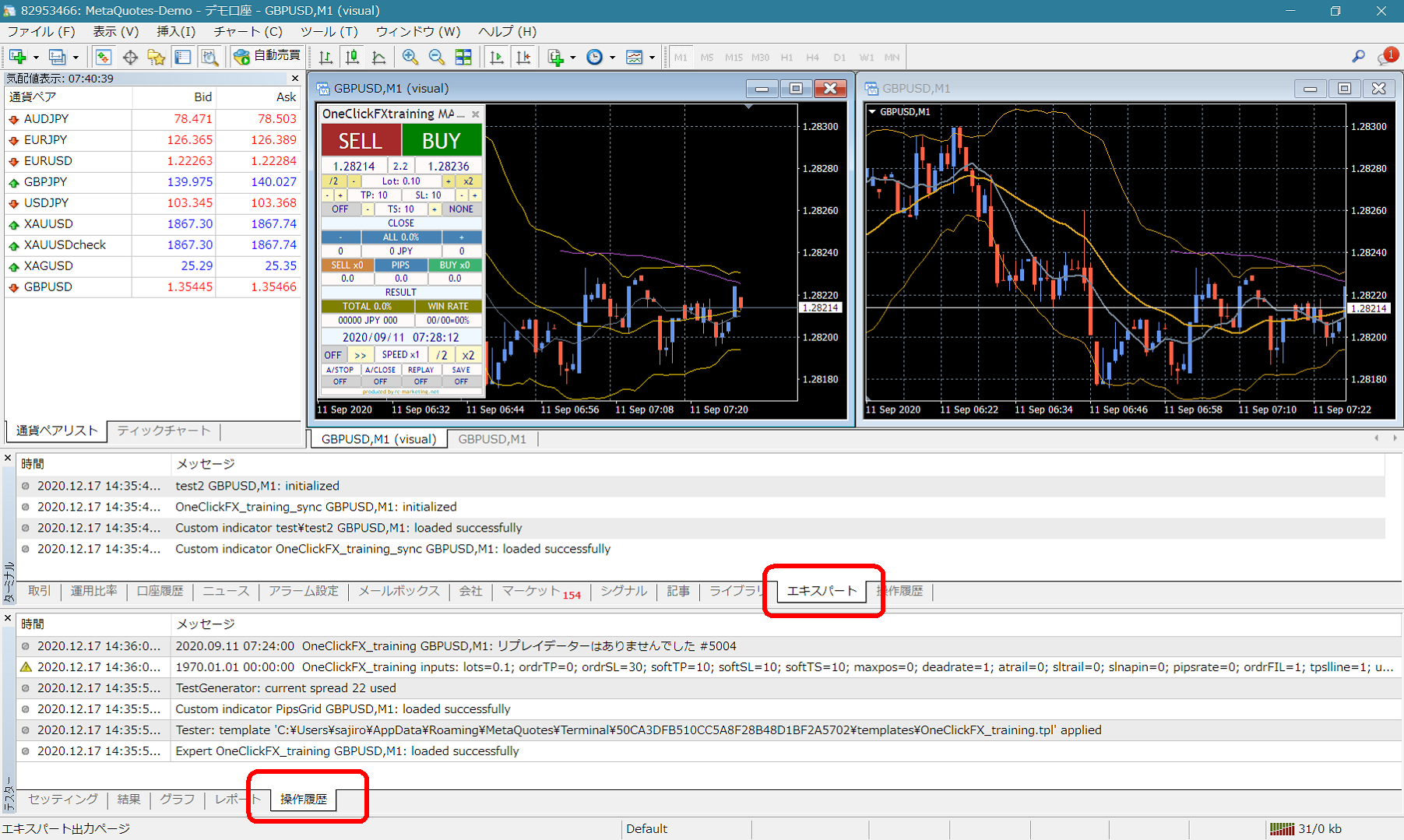
If there are error messages in the terminal’s Expert or Tester operation history, please inform us of them for faster support.
Thank you for your cooperation.
■Support & Assistant
Some products include a convenient one-click button to gather information for troubleshooting. Press the “SA” button to collect data, and a folder will open. Also, you can double-click the Script “OneClickSA” to open the folder in the same way.
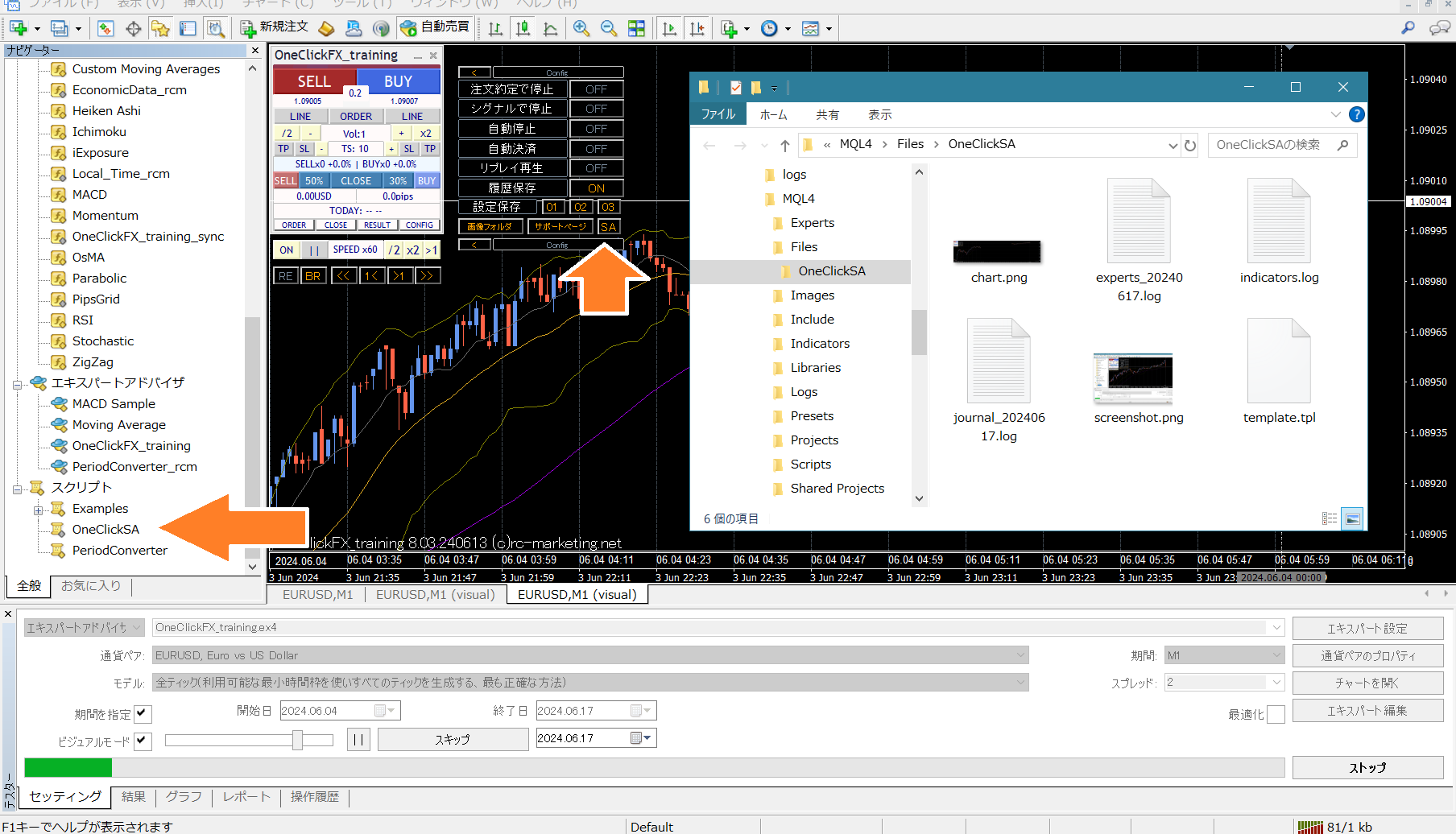
Please attach the output files from the messages and send them to us.