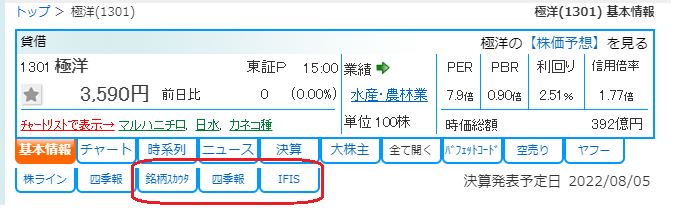
El forestock extentsion? or: エレフォロ株探拡張 機能説明 オリジナルタブ追加機能 Explanation: The text inside is Japanese. Translate to English while preserving HTML format: Ereforo Stock Scout Extension - Feature Description - Original Tab Addition Feature
When you install the Elefolo Stock Scout Extension for Chrome, a tab linking to the following sites is added to individual stock pages.
- Yahoo Finance
- Buffett Code
- Short Selling Net
- Company Homepage
- Short Selling Net
By default, only the four sites above are included, but you can also add sites you like.
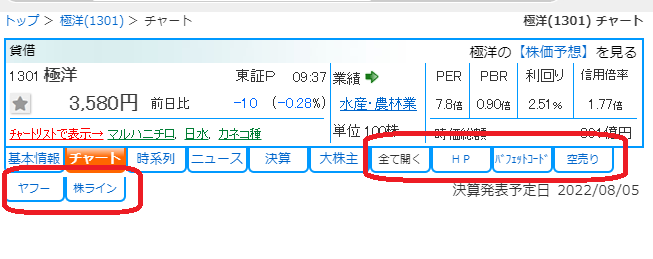
Introduction of the added sites
Yahoo
This is Yahoo Finance's page for individual stocks.
Buffett Code
A free tool for one-stop, efficient company analysis
It visually summarizes data useful for company analysis, such as the company's performance and segment profits, so you can understand everything at a glance.
Short Selling
This links to shortselling.net. This site shows institutional investors' short selling increases/decreases over time.
Stock Line
Displays a list of the latest tweets by individual investors about that stock.
When investors are curious about how the stock responded to earnings or material news, this can be helpful.
HP
Link to the company's homepage.
To display the homepage, you must first go through Elefolo's site (http://elefolo.com) and allow pop-ups from Elefolo's site.
If pressing “HP” does not display the company's homepage, it is likely that this pop-up is not allowed.
Here is how to allow pop-ups for Elefolo's site:
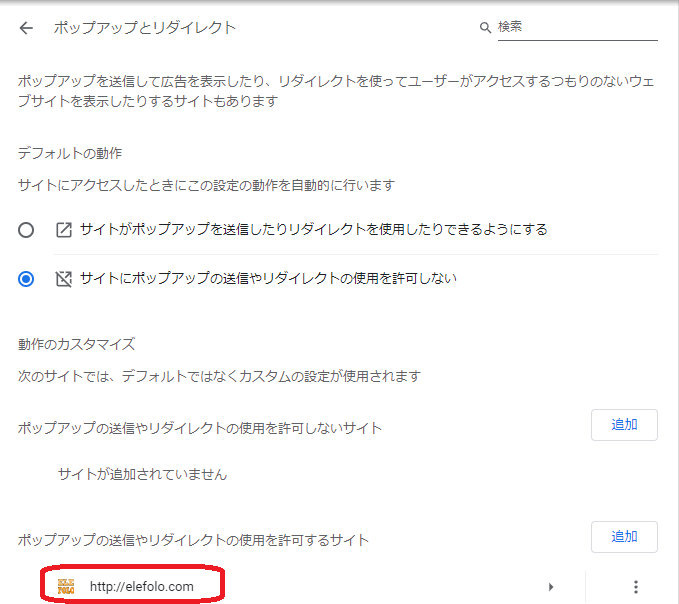
1. Open Chrome browser's Popups and Redirects settings
chrome://settings/content/popups
(This is the URL shown when selecting Settings → Privacy and security → Site settings → Pop-ups and redirects in Chrome.)
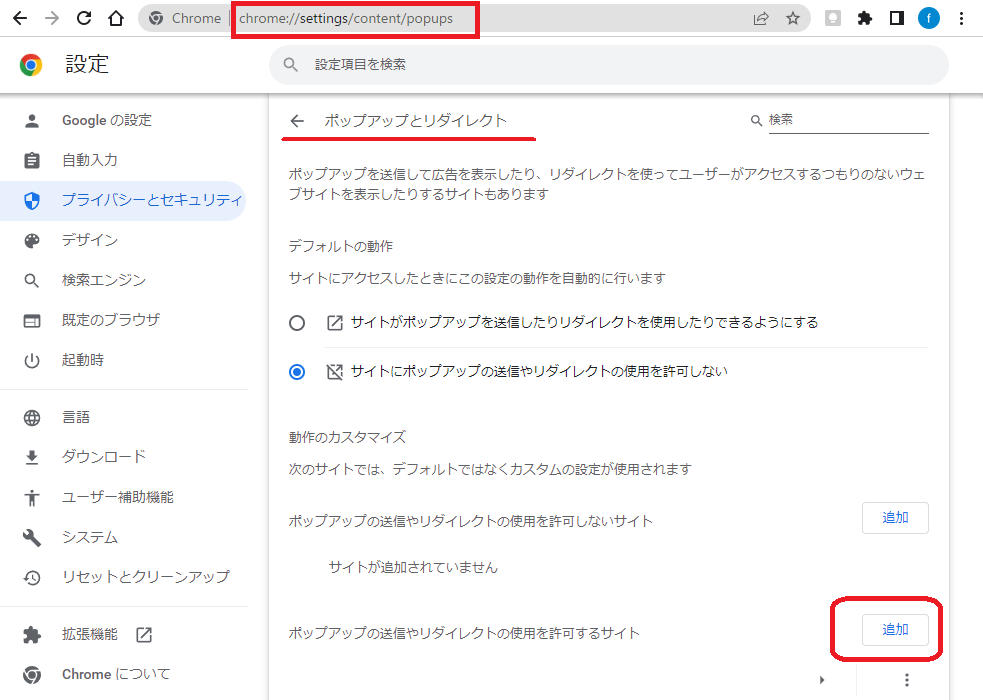
2. In “Allow pop-ups and redirects from this site,” click “Add.”3. In Add a site, enter “http://elefolo.com” and click Add.
This http://elefolo.com is the site operated by Elefolo.
4. If “http://elefolo.com” appears under “Sites allowed to send pop-ups and use redirects,” the setting is complete.
freely add original tabs
Original tabs can be added freely.
Here is an example of adding a tab to display the Seikihō Online individual stock page.
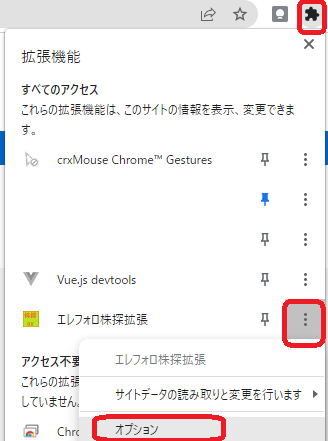
1. Click the puzzle piece icon in the upper-right corner of the browser, choose Elefolo Stock Scout Extension → Options, and display the settings screen.
 |
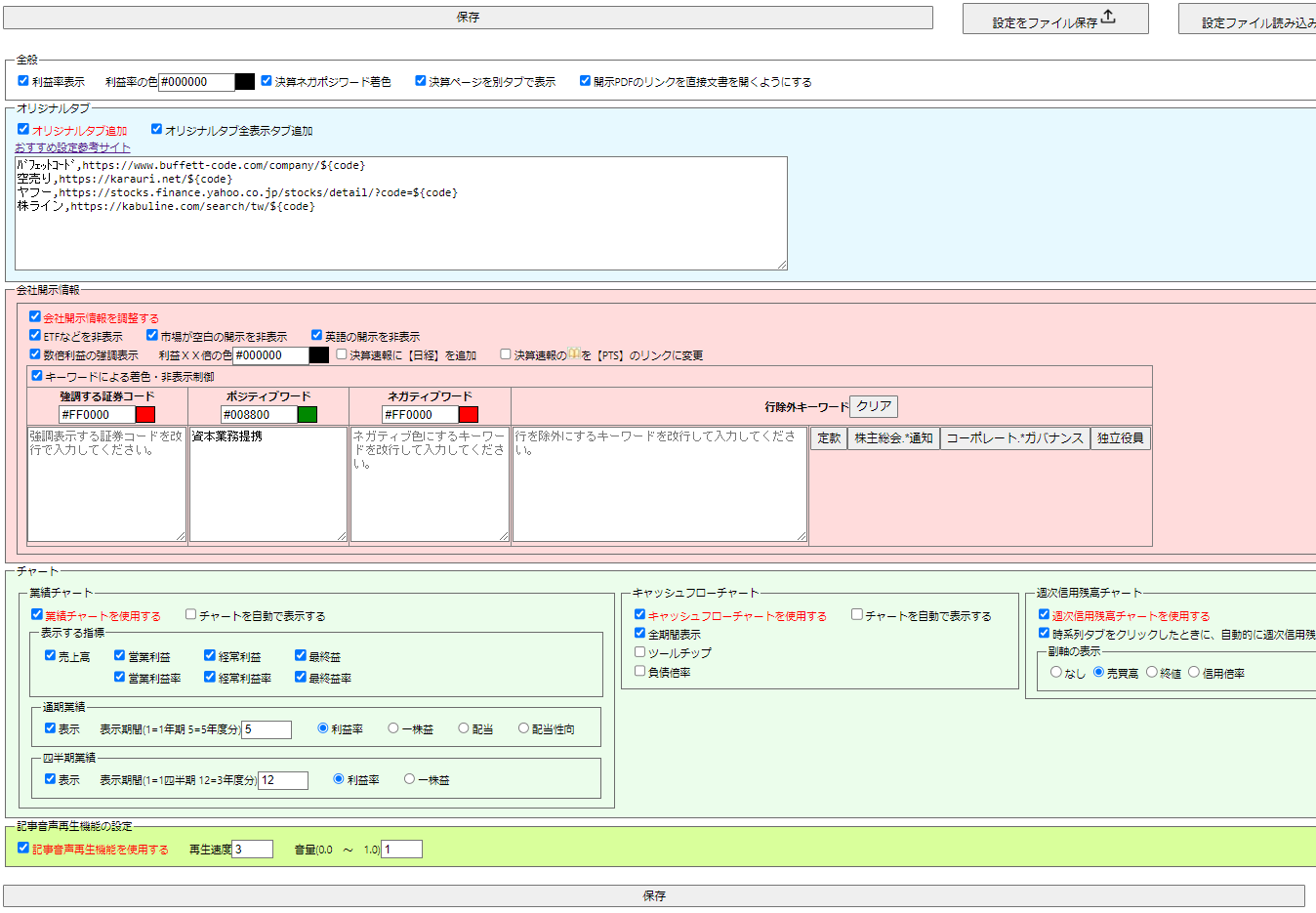
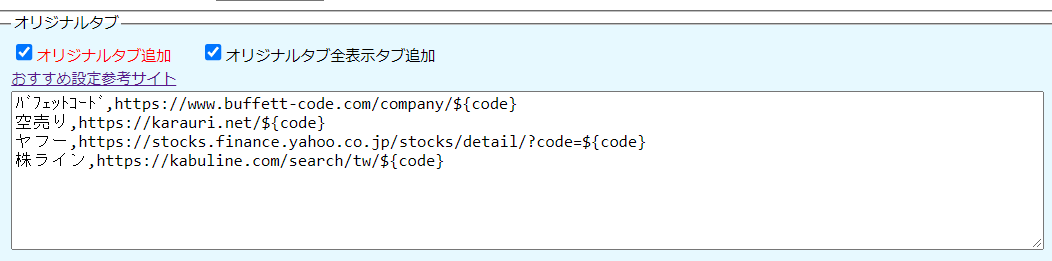
Enter in the following format
{Text displayed on the tab},{URL}{URL} is where you want to replace with the stock code of the displayed page; use${code}to indicate the place for the code.
For example, the Seikihō Online page for stock code 1301 (Kokuyō) is
https://shikiho.toyokeizai.net/stocks/1301
.
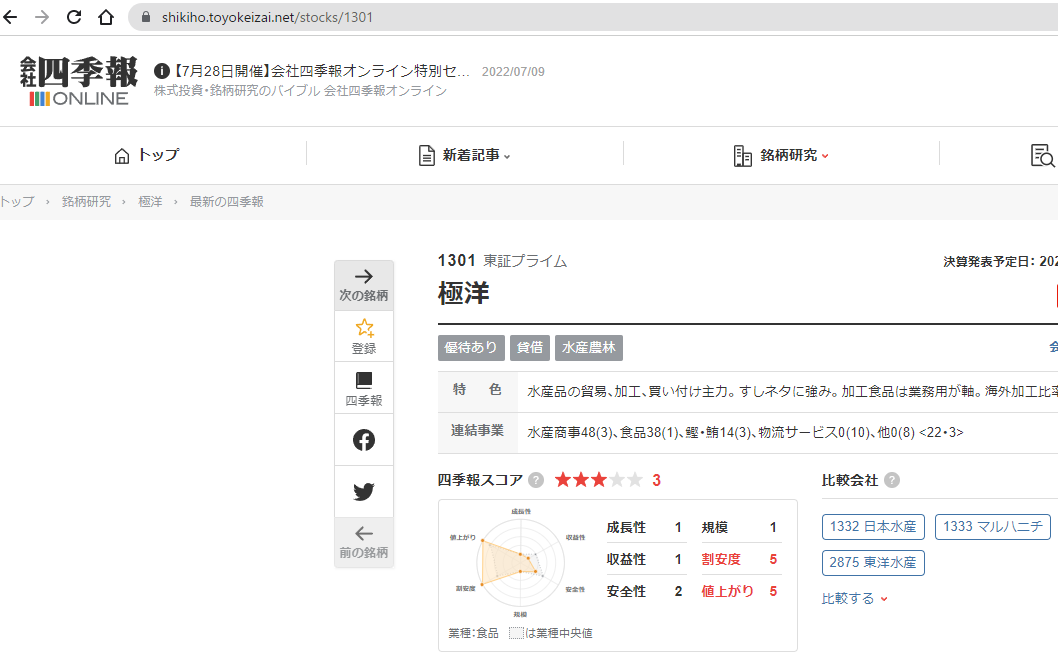
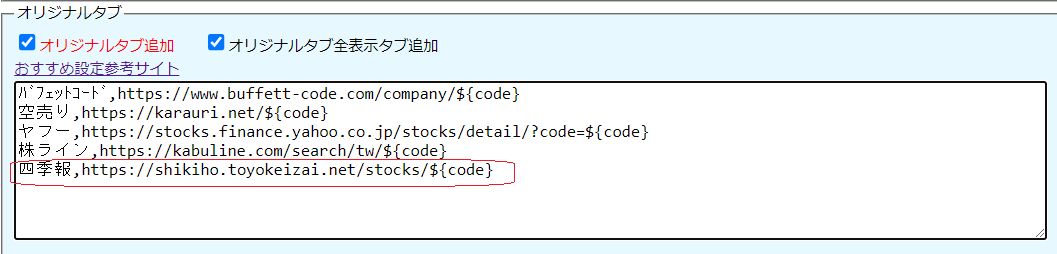
If you want to add a tab that navigates to such a site, enter in the original tab settings of Elefolo Stock Scout Extension
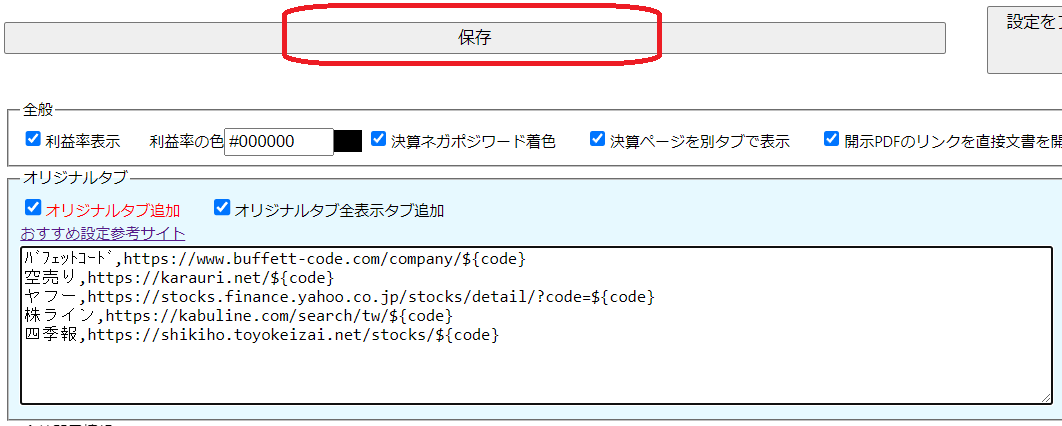
Seikihō,https://shikiho.toyokeizai.net/stocks/${code}and save.
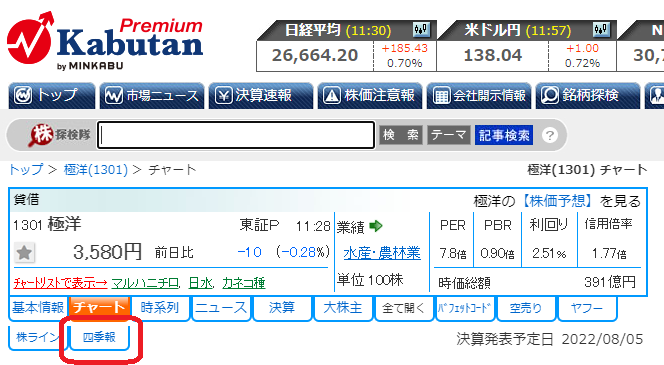
After saving and displaying a stock’s page on Stock Scout, you should see a “Seikihō” tab.
Clicking this will display Seikihō Online's page for the current stock’s code.
Recommended Settings: Reference Site Feature
We provide a feature that makes it easy to add links to useful investment information sites.
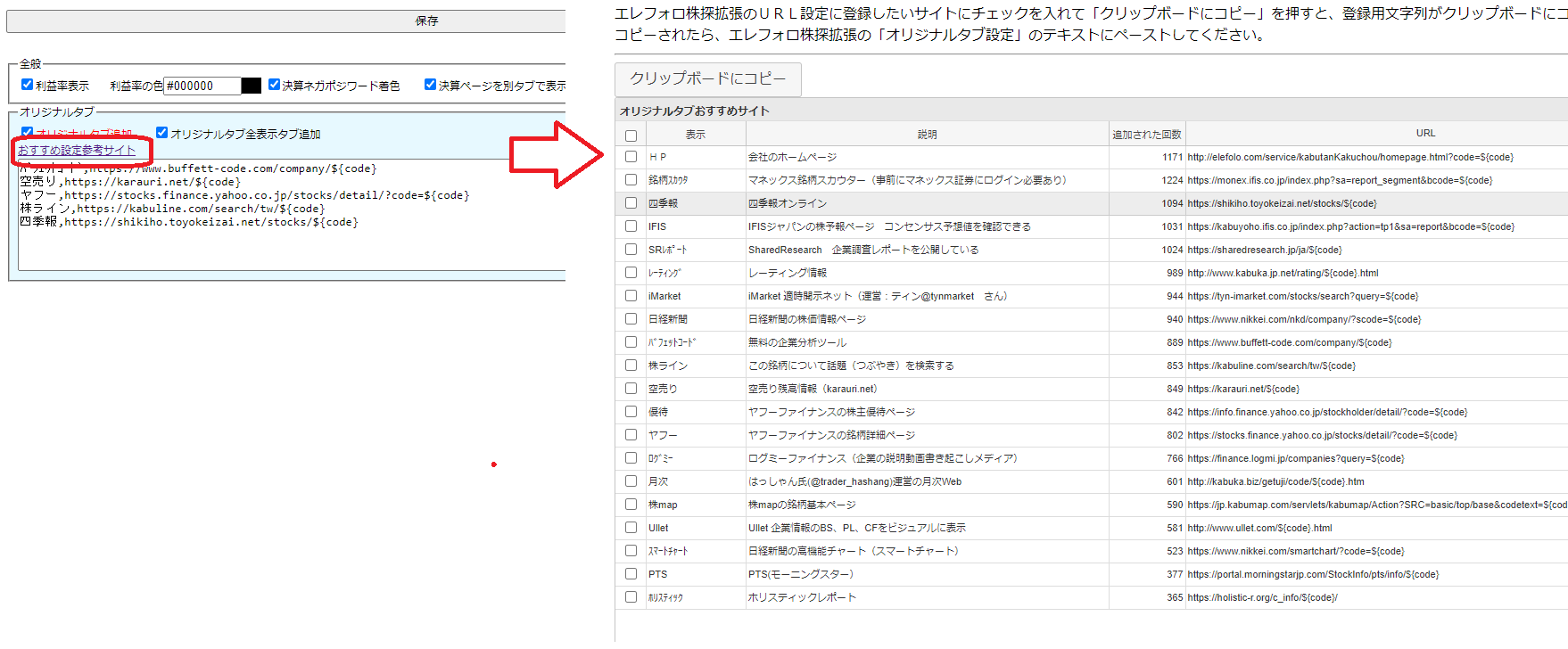
If you click the “Recommended settings reference sites” link above the Original Tab text box, you will see the screen shown below.
How to use
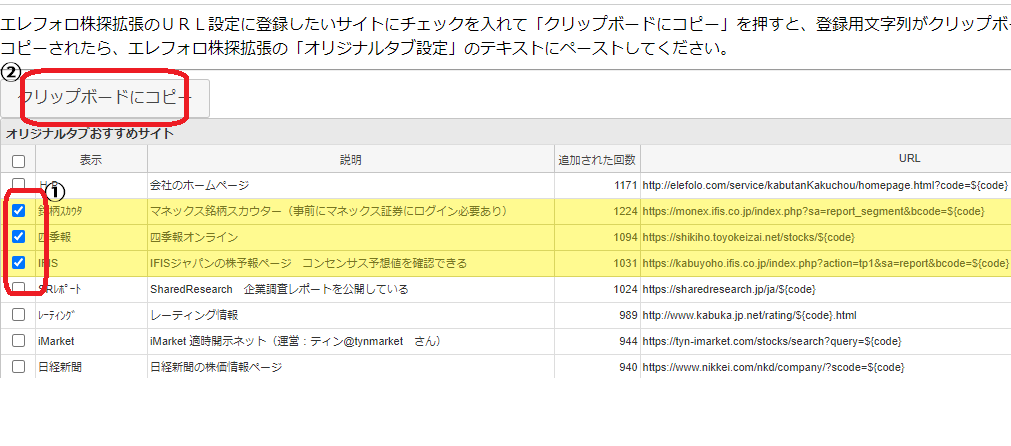
1. From the list, check the sites you want to add to the Original Tab.
2. Press the “Copy to clipboard” button to copy the text for Elefolo Stock Scout Extension's Original Tab text box to the clipboard.
3. Return to the Elefolo Stock Scout Extension settings screen and place the cursor at the end of the Original Tab text box.
4. Paste the clipboard contents (right-click menu → Paste or CTRL + V).
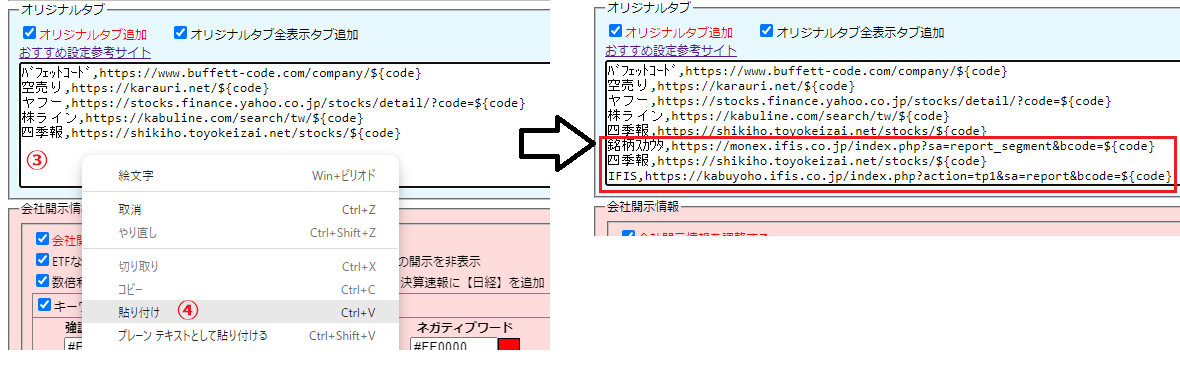
If you do this and save, the tab will be added when you display Stock Scout’s individual stock page.
This makes it easier than typing an Original Tab manually.