
Signal Arrow Tool Support Page
Thank you very much for purchasing this product.
The latest version is version 2.13.
Upgrading for purchasers is free =>Download
If you do not own the product, click here
https://www.gogojungle.co.jp/tools/indicators/29168
For the paid version with notification features, click here
https://www.gogojungle.co.jp/tools/indicators/41613
Product contents
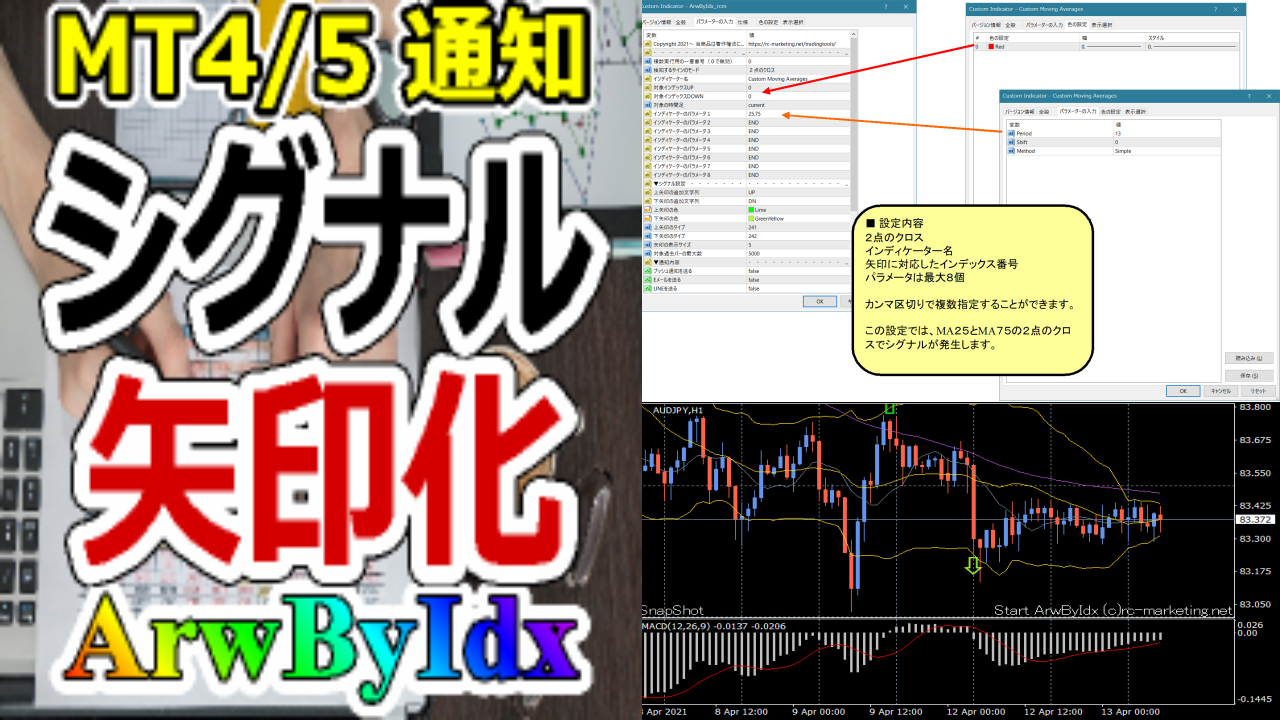
For example, when a Golden Cross and Death Cross occur between MA25 and MA75, an arrow would appear. If you have a tool that notifies via LINE, Discord, Slack, mobile, or Apple Watch, wouldn't that be convenient?
In addition, when the BB band is crossed, the bar reverses, or the moving average touches, the signal tool will show signals and notify you on the chart with arrows.
With various settings, signals can be generated freely and notifications can be sent.
This tool supportsOne-Click Auto Arrow Trade【AutoArwTrade】so you can easily perform automated trading with the One-Click FX series.
■Upgrade information
Deletion process for old objects
Added continuation dot marks,
Automation of multiple launches
One-Click Auto Arrow Trade【AutoArwTrade】supported
Added HIGH/LOW
▽ Updated on 2023-03-10 (v2.06)
Added continuation parameters for arrows
Enhanced linking with different timeframes,
Added HIGH, LOW
Automation of multiple launch numbers
Works on lower timeframes (with restrictions)
▽ Updated on 2023-02-26 (v1.61)
Added target bar parameters
Bug fixes such as MT5 latency
▽ Updated on 2022-04-25 (v1.31)
MT5 support
Added presets
▽ Updated on 2022-01-28 (v1.20)
Supports two sets of signal tool arrows
Selection of notification target bar
※ This page may include images from before upgrade. If you do not have the latest version, please contact support.
Pre-settings
Open Options from the MT4/MT5 menu and configure the “Notification feature” tab.
To use the notification feature, obtain/install the iPhone/Android app from the options notification feature, open Chat and Messages from the app’s bottom screen, and set the MetaQuotesID in MT4/MT5. Check to enable push notifications. If a test message displays correctly on your smartphone, it is successful.
If you want LINE notifications,Get the token, if you want Discord notifications,Get WEBHOOK, if you want Slack notifications,How to obtain the tokenPlease obtain the necessary parameters in advance.
How to install
1) From MT4/MT5 files, select “Open Data Folder”.
2) Overwrite copy all files in this product’s MQL4/MQL5 folder into the Data Folder.
3) Restart MT4/MT5, and open any chart.
4) Double-click the indicator “ArwByIdx_rcm”.
5) The settings screen will appear; please refer to the included presets or the sample configurations described below to set parameters.
Settings page
| Item name | Contents |
|---|---|
| Signal detection mode | The following types are available. ・Arrow signal: used when linking with simple arrows, etc. ・Two-point cross: line cross, bar reversal, etc. ・Zero-Close cross: comparison with closing price or zero ・Multiple crosses: index, parameter composite patterns (for expansion) |
| Indicator name | Name of the linked indicator |
| Target index UP/DOWN | Index numbers to link; multiple can be specified comma-separated. ZERO, CLOSE, HIGH, LOW can also be used. |
| Shift to target bar | Select the bar to notify (0 for the latest bar) |
| Continue arrows | Operate in continuous display mode. |
| Target timeframe | If a higher timeframe is specified, arrows will appear on all past bars. From the latest bar onward, arrows appear when they occur. If a lower timeframe is specified, arrows appear at the time they appear, but if arrows do not continue on the lower timeframe, they disappear. |
| Indicator parameters 1–8 ※The cheaper version has 2 | Specify the parameters of the target indicator in order. Multiple values can be specified comma-separated. ※Parameters include numeric and string types; if data does not match, MT4/MT5 may freeze. If you must enter a number where a string belongs, prefix with a single quote like [’]. For true/false, enter false as 0 and true as 1. |
| ▽ Arrow settings | |
| Additional string for up/down arrows | You can add text to the object name. |
| Arrow color | Specify the color of the arrows. |
| Arrow display size | Specify the size |
| Arrow distance (points) | Specify the distance in points from the price where the arrows appear. |
| Arrow type (Normal) (Continuous) | Please select one of the following codes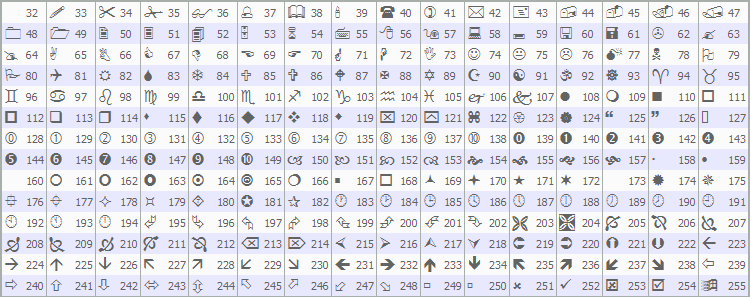 |
| Maximum number of past bars | Specify the number of past bars to display arrows on |
| ▽ Notification details (not in the cheaper version)=>Notification settings【Common】 | |
| ▽ Message area | |
| Text size, display seconds | The message displayed at the bottom right; please adjust as needed. |
Using presets
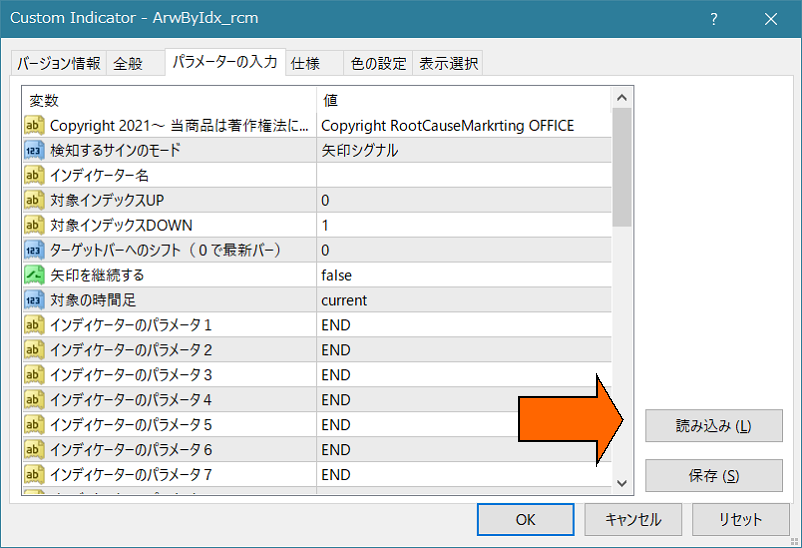
By loading presets in the parameter screen, you can easily set things up.
Please press the load button on the parameter screen.
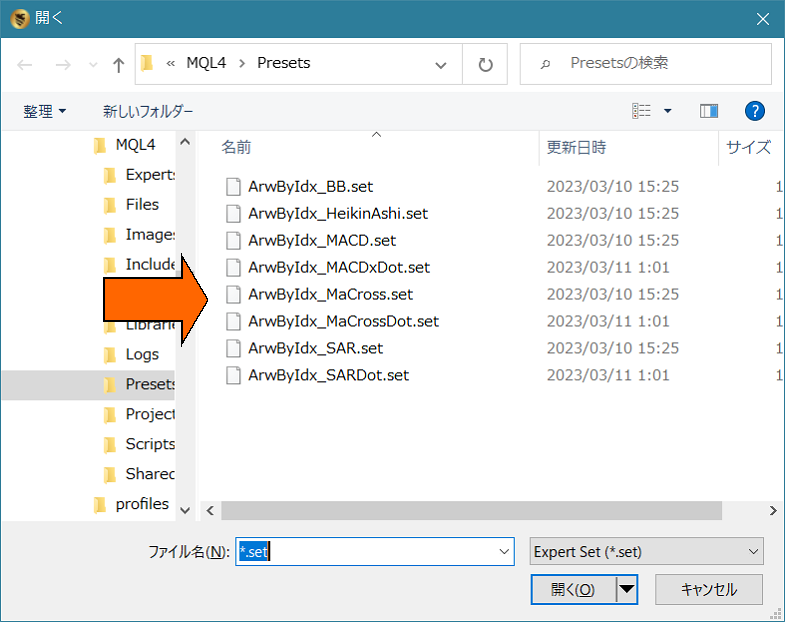
A file selection dialog will appear; choose any of ArwByIdx_xxxx and click Open.
Parameters are now set, so please press OK.
In the included presets, various notification features are turned off; please adjust to your own settings.
Sample configuration
▼Operational sample
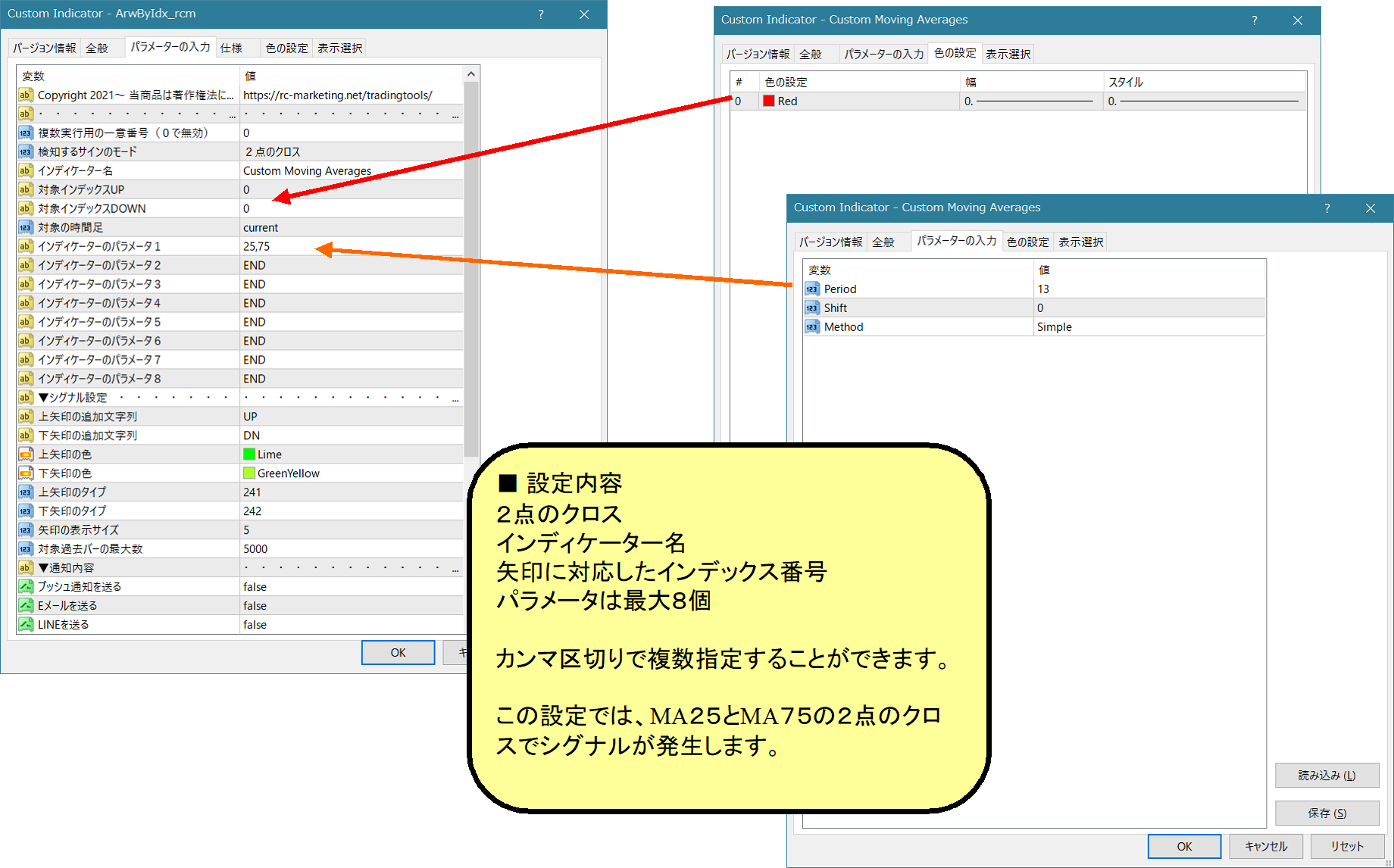
◇ Moving average cross and cross
MA10: gray, MA25: yellow
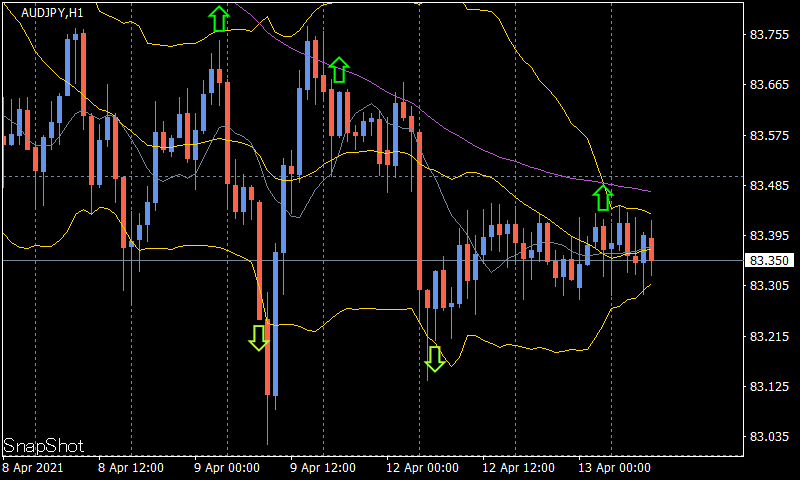
Settings
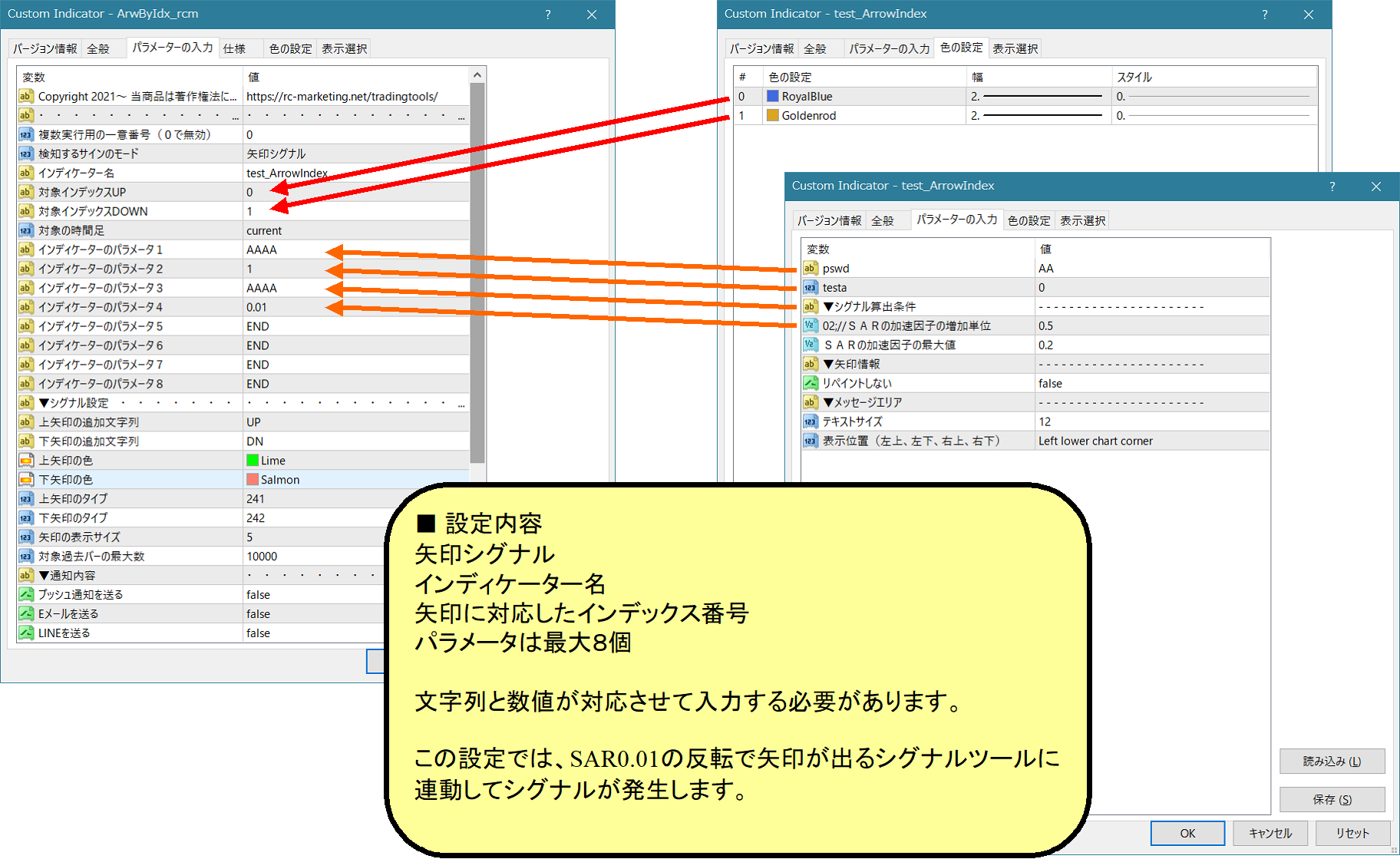
◇ Linked to signal tool
SAR:0.01 (white), original arrows hidden
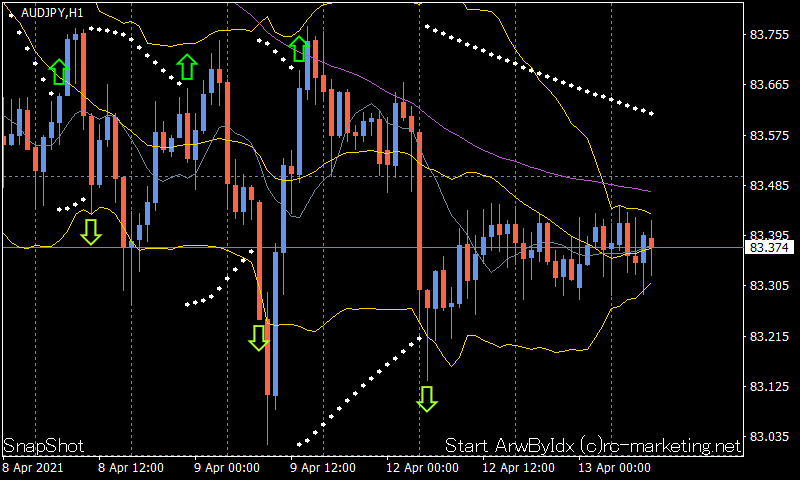
Settings
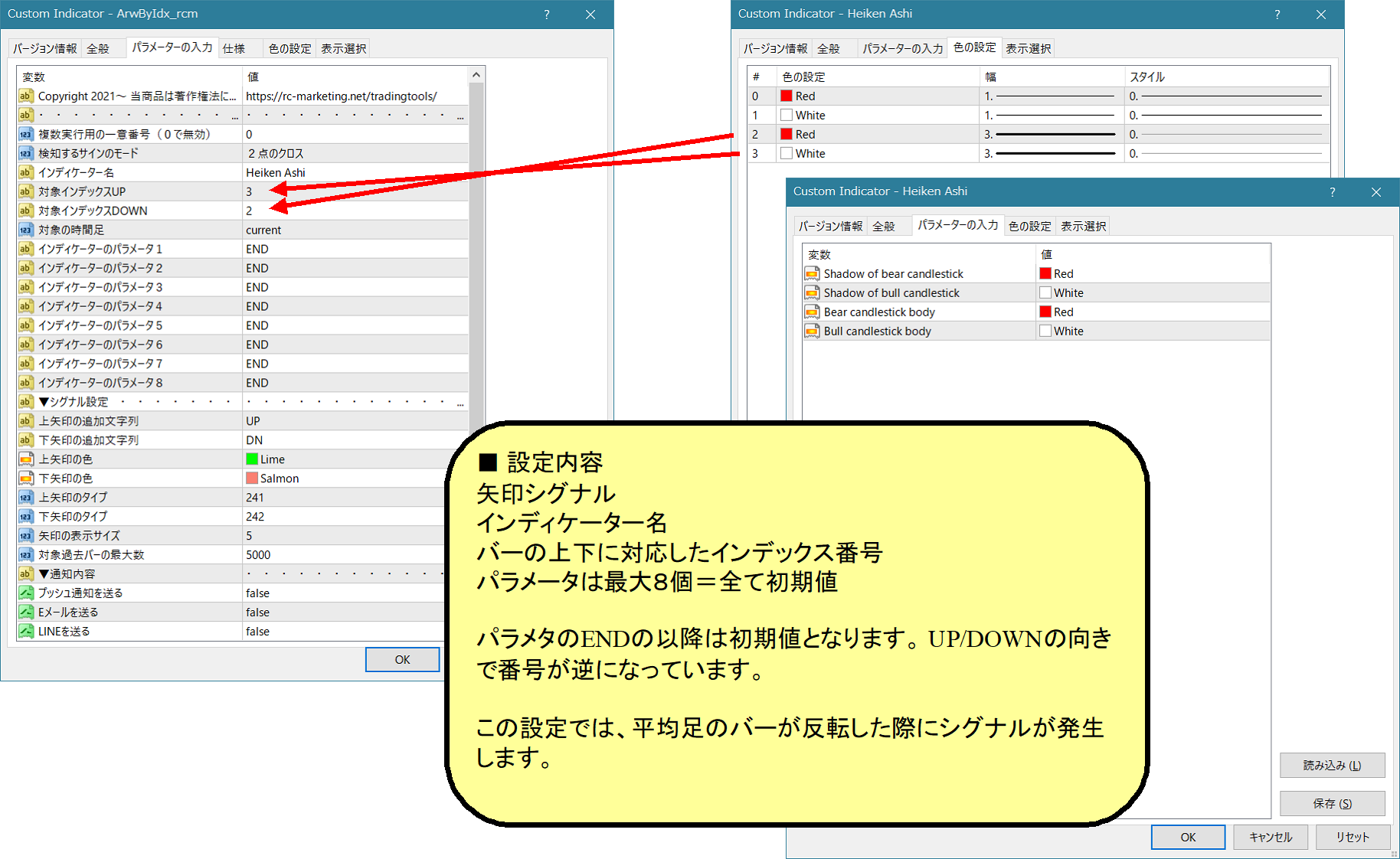
◇ Inversion of Heikin-Ashi
Heikin-Ashi: red, white
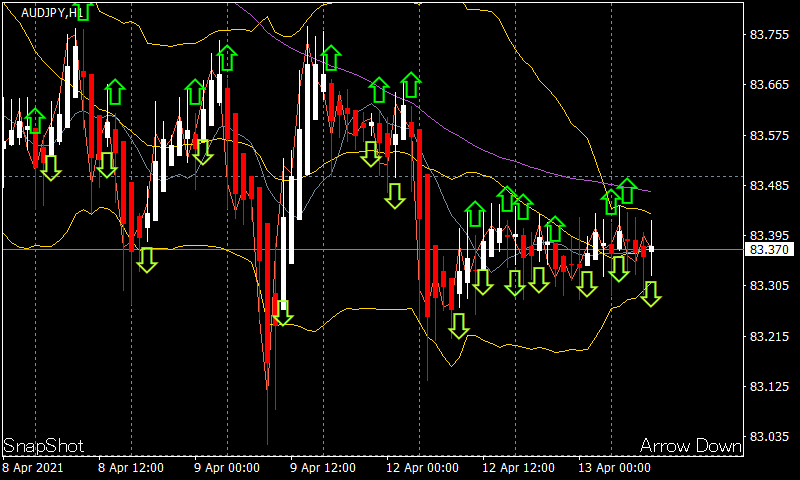
Settings
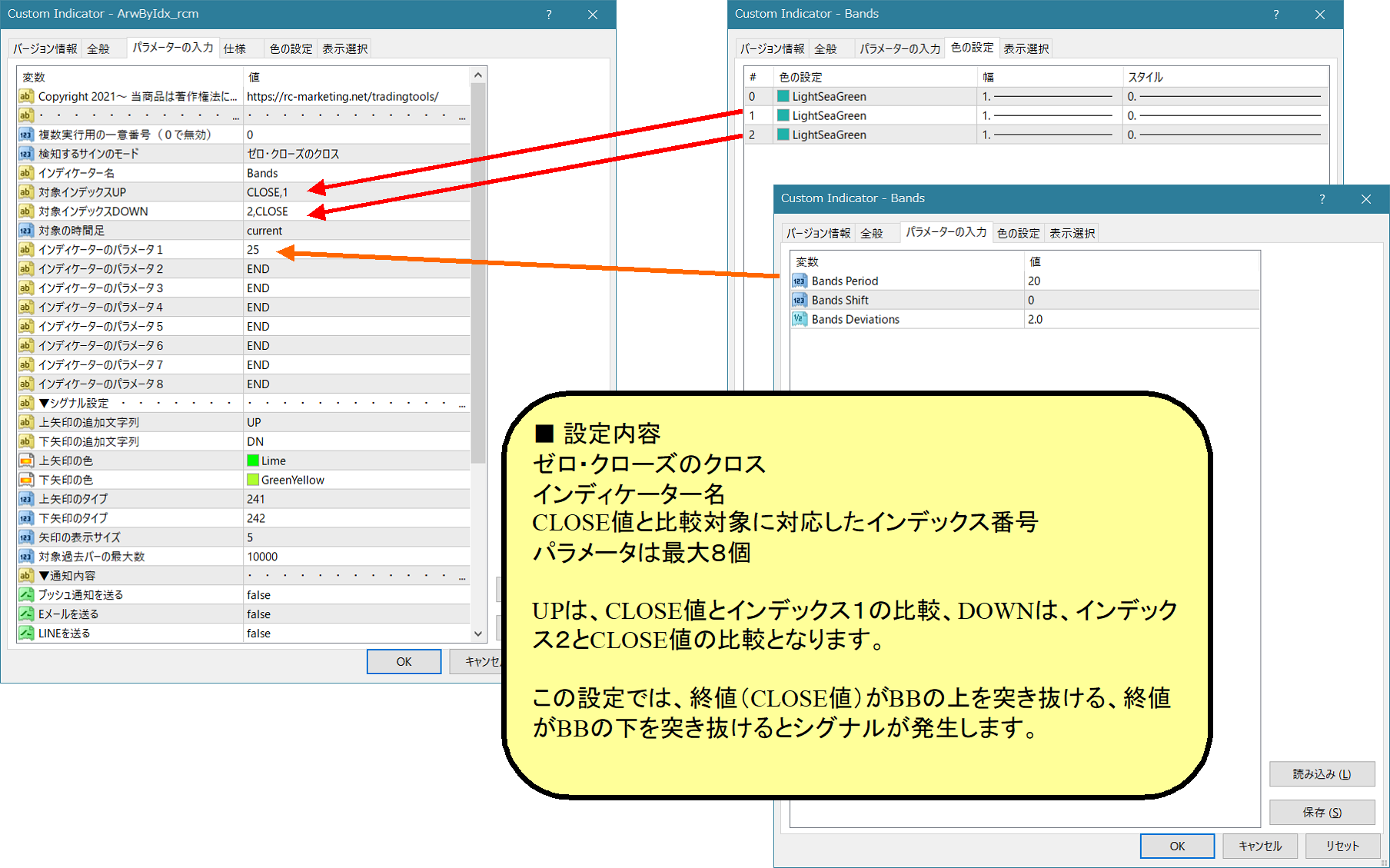
◇ Breakthrough of Bollinger Bands
BB: yellow
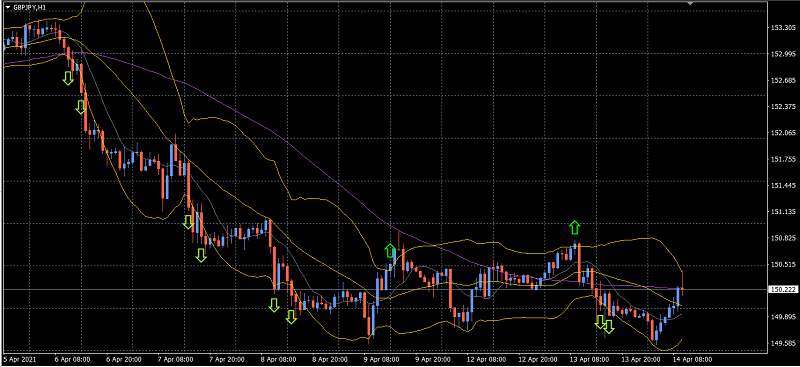
Settings
◇ MACD plus/minus reversal
MACD: white graph
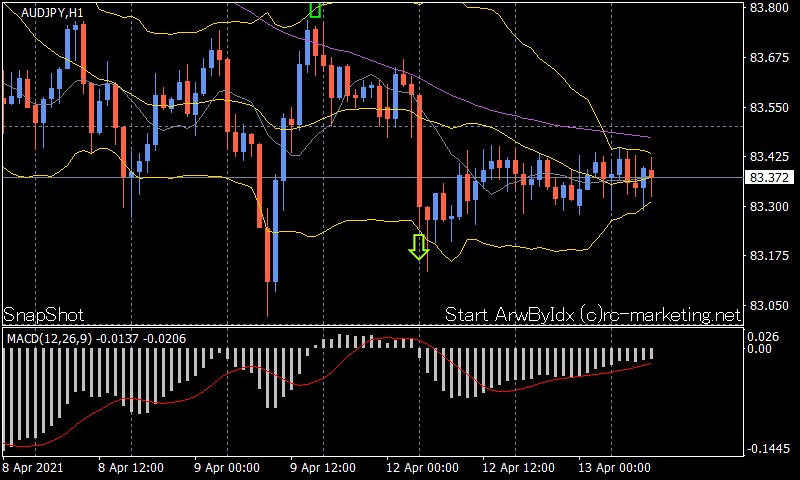
Settings
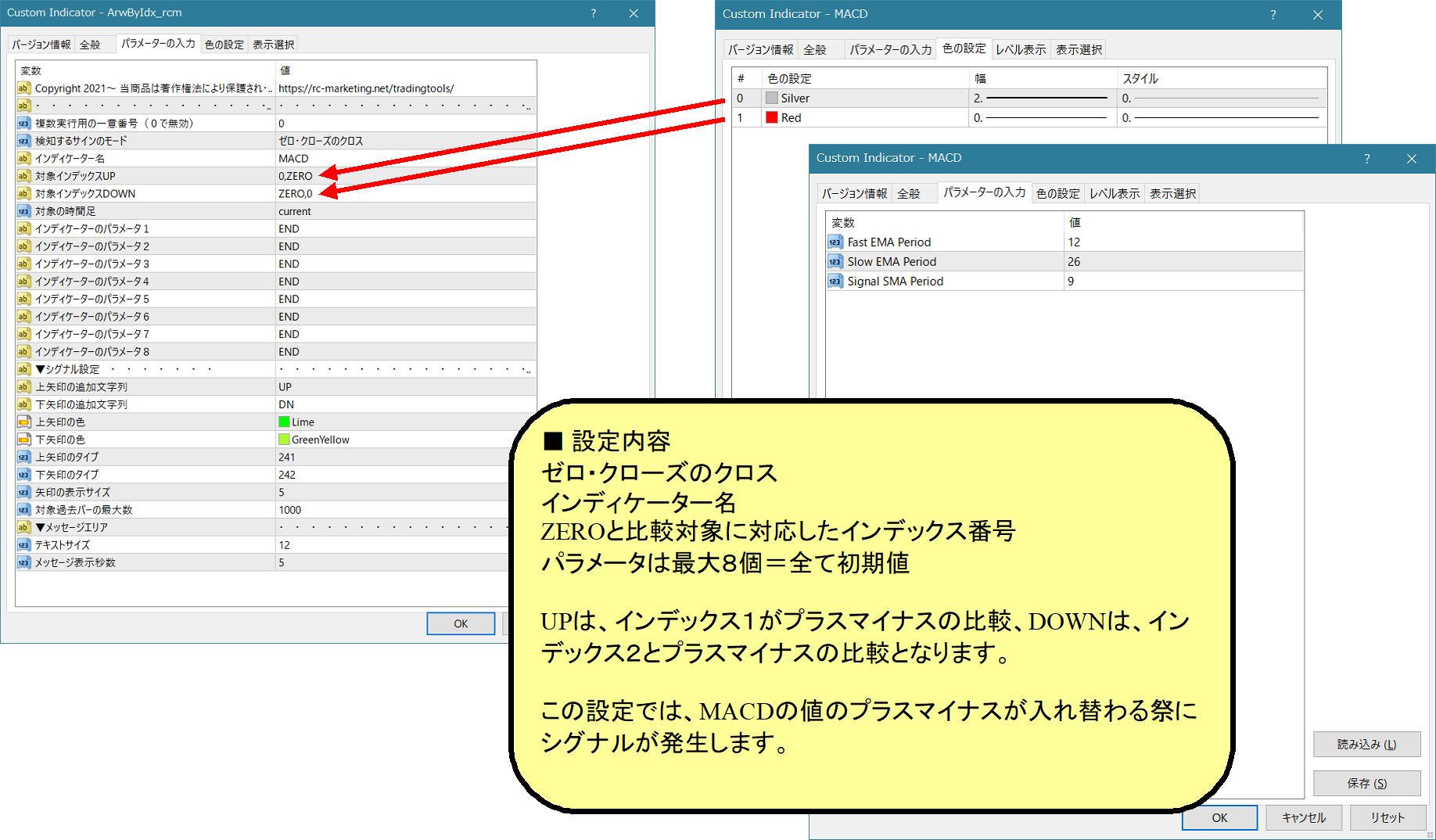
There are endless combinations depending on your ideas.
Signal integration
This signal tool supportsOne-Click Auto Arrow Trade【AutoArwTrade】so you can easily automate trading with the One-Click FX series, and it also supports complex integrations with combined object names and signals arrows tools.
■Link with One-Click Auto Arrow Trade
1. Place the indicator on the same chart.
2. Turn ON the signal integration buy/sell button.
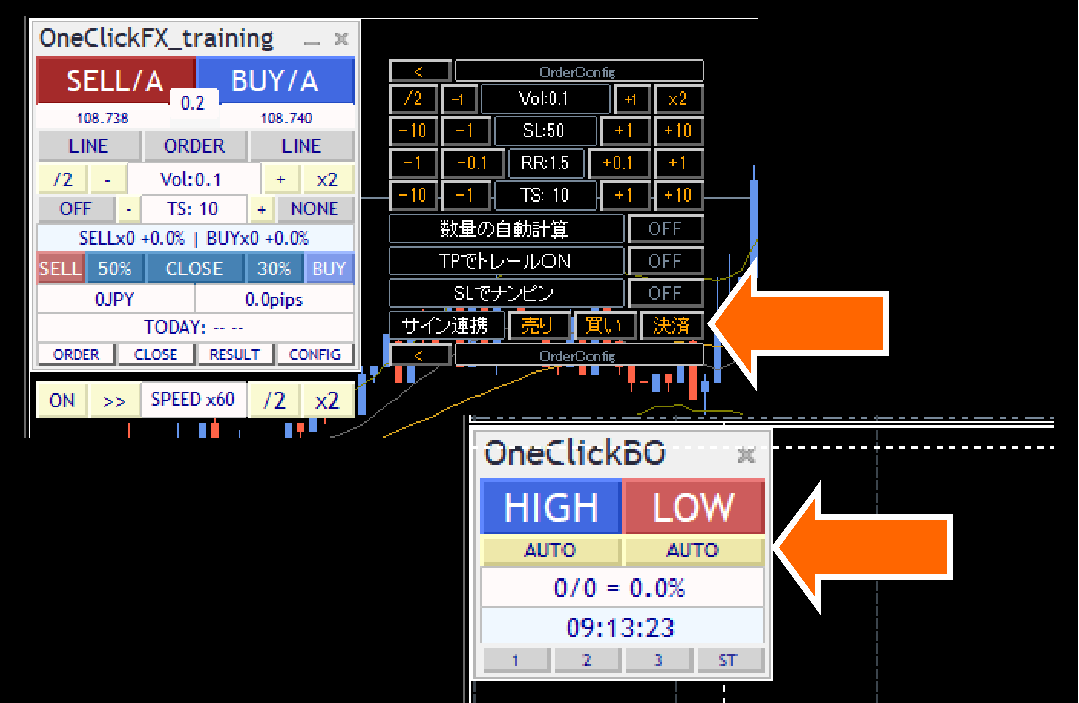
■Link with individual object names
1. Set the arrow additional string in this tool’s parameters to any name you like.
2. Set that name as the object name for the one-click FX series buy/sell settlement signals.
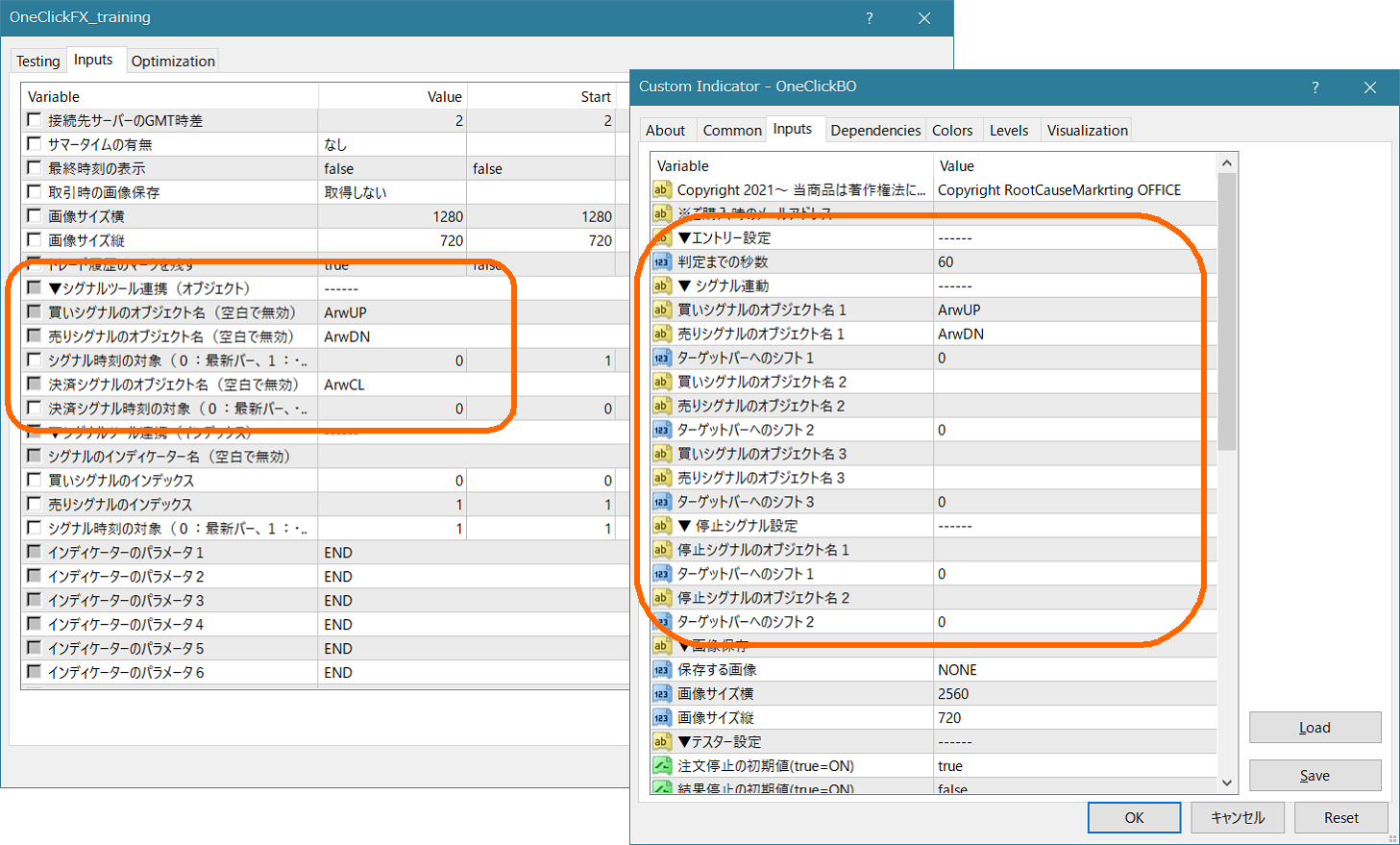
3. Turn ON the buy/sell settlement signal button.
■※Reference: information on integrated signal tools, etc.
ArwByIdx & Signal Tool integration
If you have any requests to integrate with other tools, please contact us.
If you’re in trouble
If things aren’t working properly, behaving strangely, or stopping suddenly, please first check this location.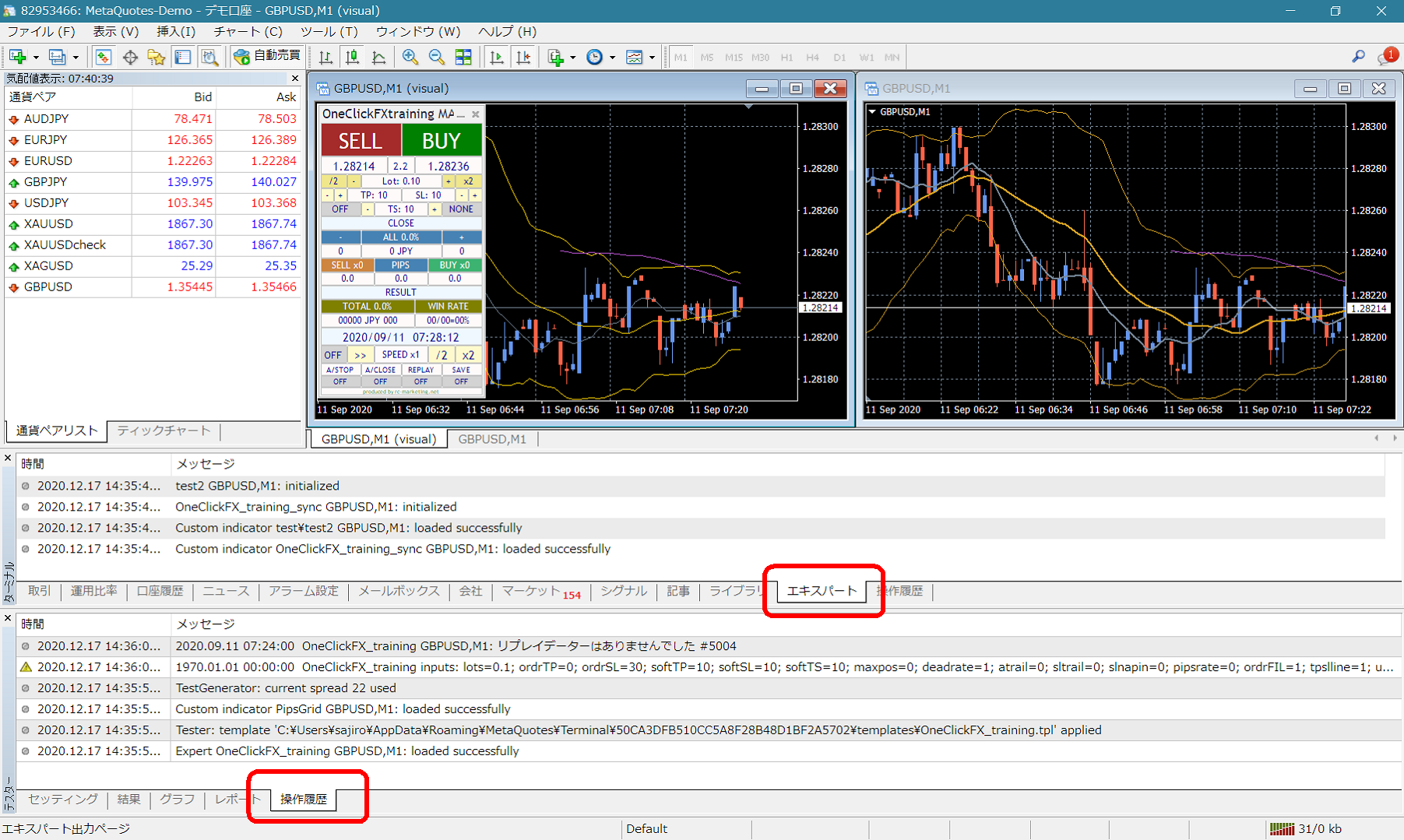 If there are error messages in the terminal’s expert or tester history, please inform us of those messages to speed up support. Thank you for your cooperation.
■Notes
When using this tool, please understand its performance and use it at your own risk.