
Import historical data for Nikkei 225 in MT4
This is how to import Nikkei 225 historical data into MT4.
This service is for those who purchased One-Click 225 Training, please understand.
https://www.gogojungle.co.jp/tools/indicators/21058
1. Please contact us for historical data requests.
If you have a preferred year, please let us know as well. We can provide data from around April 2017, but the more data, the heavier the processing becomes.
2. We will guide you to the CSV file for import within a few days
The setup for historical data is available at the latest method here.
https://www.gogojungle.co.jp/finance/navi/articles/51239*From here on, the previous method is used.
3. Set the number of bars displayed on the chart to the maximum.
3-1. Open the menu and go to Tools => Options.
3-2. Check Save for later to retain deleted charts for redisplay.
3-3. In the History tab, enter a very large number like 99999999999999 for Max bars per chart and Max bars.
3-4. Press OK to round to the maximum value that can be entered.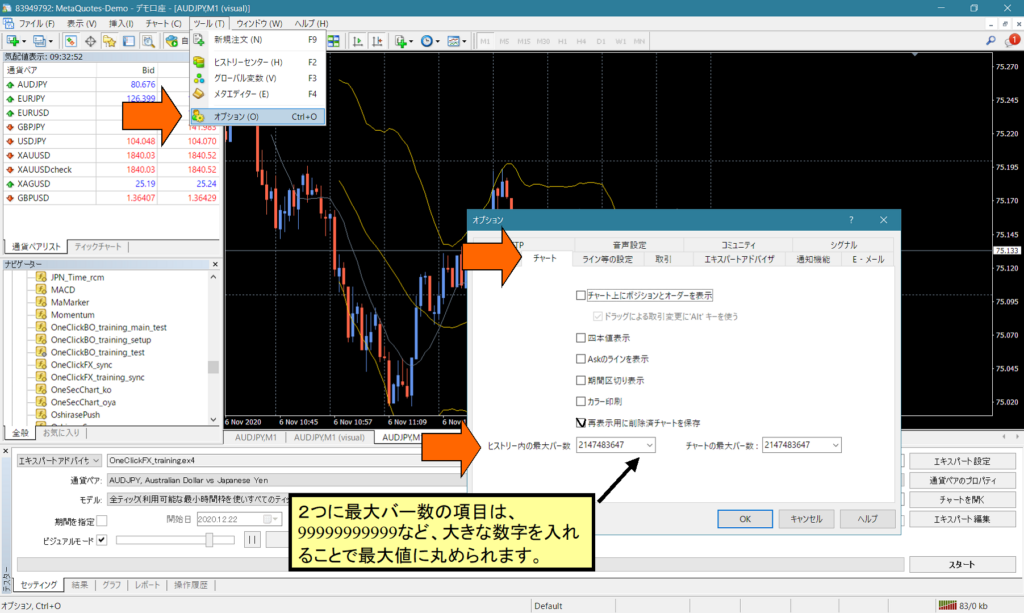
4. Close all charts and open only the 1-minute chart for Nikkei 225.
※ If other charts are open, the existing data and the imported historical data may mix, causing the chart to be abnormal.
5. In MT4, from File => History Center, select the Nikkei 225 currency pair from the list.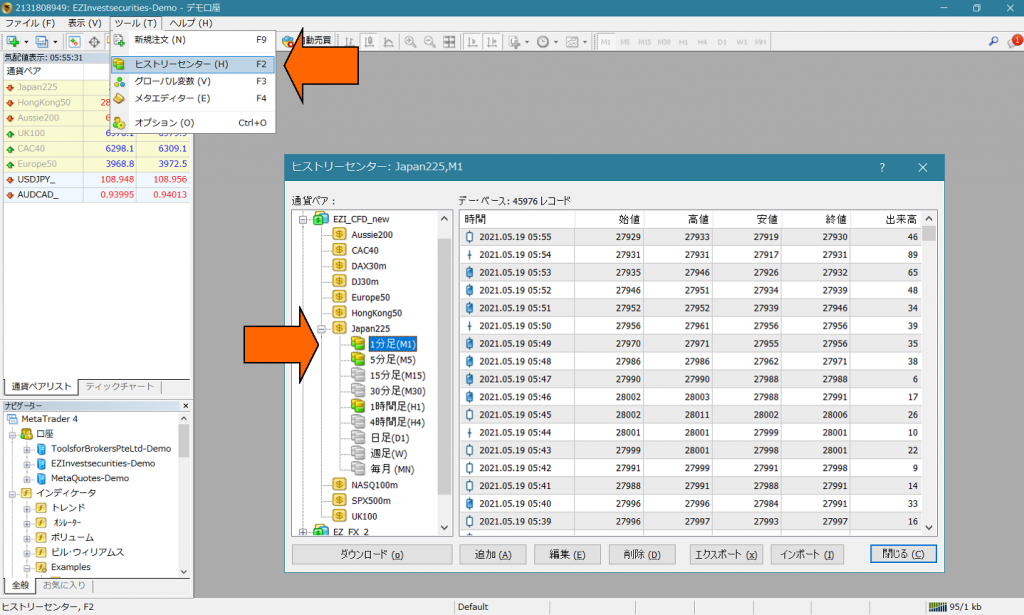
6. Click Import, and from the Browse button in the Import dialog, select the CSV file you were guided to.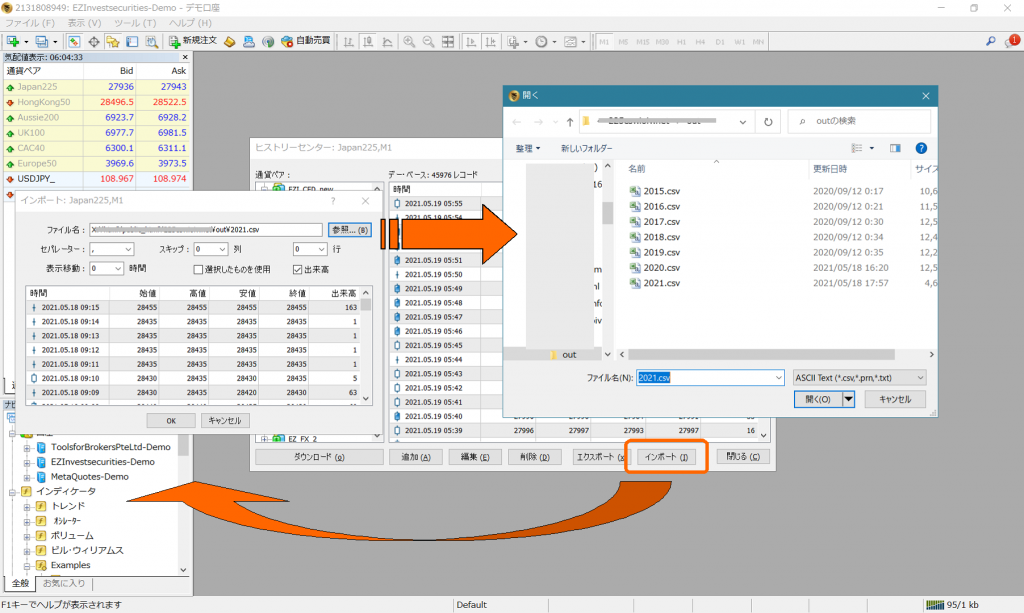
7. Confirm that historical data has increased.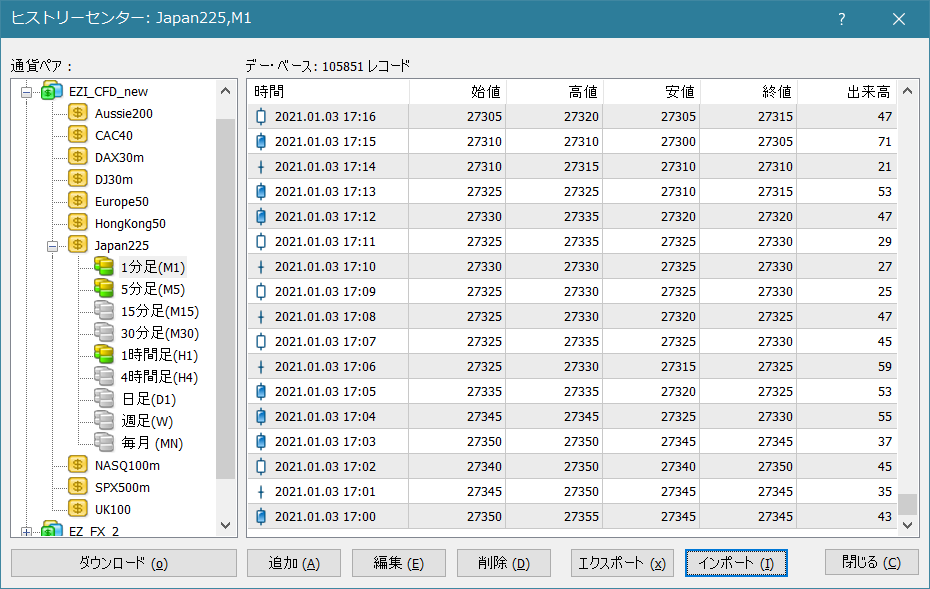
8. First, to overwrite the initially imported data with 1-minute data, run the script. In the open Nikkei 225 1-minute chart, drag & drop the PeriodConverter script onto the chart (or double-click). Set the parameter “Period multiplier factor” to 1. If it creates correctly at 1, you’ll know it finished in about 10 seconds.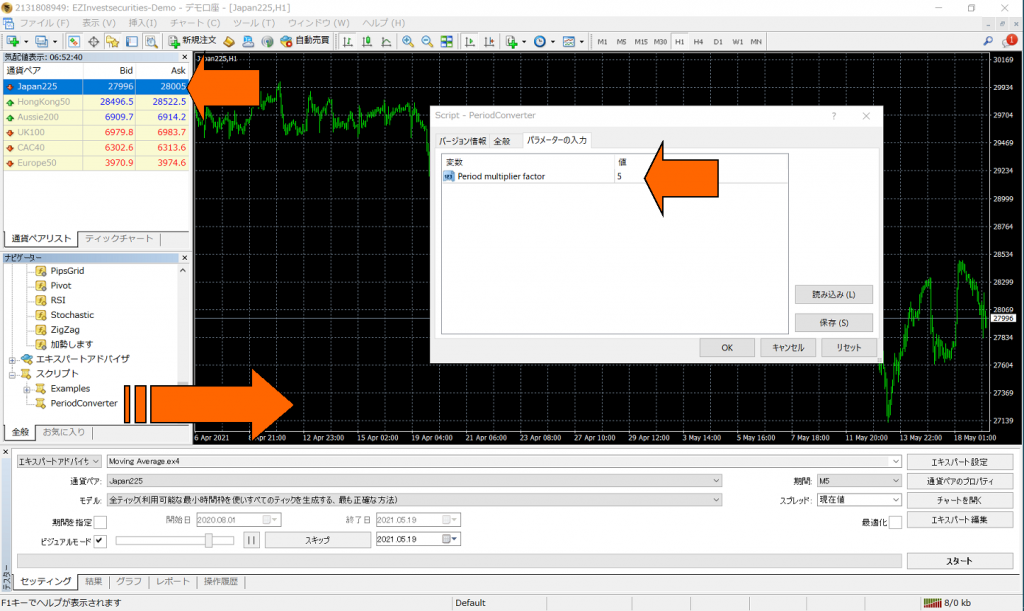
9. Now restart MT4 once to confirm that the 1-minute historical data is reflected.
MT4 saves chart data on exit, so restarting will save the historical data.
※ Scroll the Nikkei 225 chart shown to the far left to check old data. If historical data is not reflected, start again from step 4.
10. In the same manner, reflect the data to other timeframes. In the open Nikkei 225 1-minute chart, drag & drop the PeriodConverter script onto the chart. Enter the desired “minutes” in the parameter “Period multiplier factor.” For 5-minute bars, enter 5; for 1-hour bars, enter 60. It takes about 10 seconds, then drag & drop or double-click PeriodConverter again to repeat for the desired timeframe. If a prompt asks “Do you want to stop PeriodConverter?” press Yes and continue.
※ If repeating is cumbersome, there is also a script to create multiple timeframes at once.
https://www.mql5.com/ru/code/11201
11. Restart MT4 and verify that all charts reflect the historical data.
12. When you start the Strategy Tester, the start date will be the date you imported.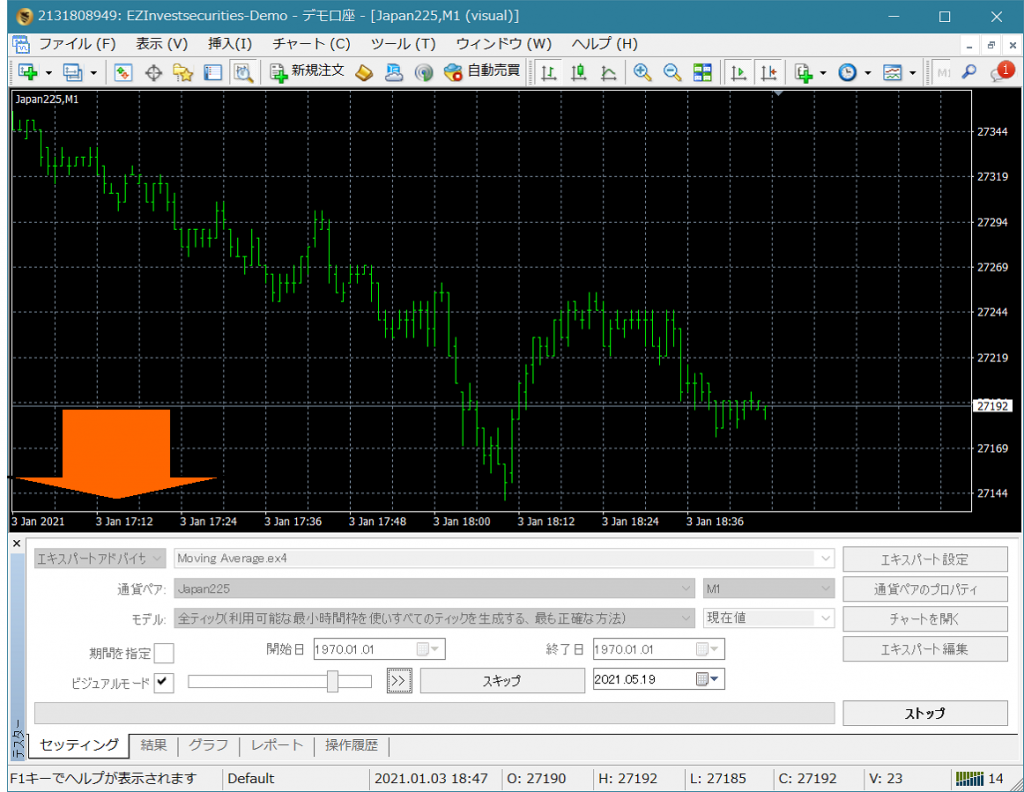
For some reason, it may not work well.
If it doesn’t work well, close all charts, only keep the Nikkei 225 1-minute chart, and proceed with each step ensuring MT4 restarts.
Also, you can try deleting all the history data files with the steps below.
1) Open the data folder
2) Exit MT4
3) Delete all files in the folders below
Data folder: tester/history/~
Data folder: history//~
4) Start MT4
5) Import the historical data again using the above method
If it still doesn’t work, please feel free to contact us.
Also, a separate paid option is remote setup, please consider it.
Thank you very much.