

PipsGrid support page
Thank you for using this product.
If you do not have the product, click here
https://www.gogojungle.co.jp/tools/indicators/22819
It draws lines at arbitrary pip units, so you can see volatility changes at a glance.
Conversely, you can also fix the vertical scale, so you can set the chart height to about 30 pips, for example.
2) Copy this product into the MQL4/MQL5 Indicators folder.
3) Restart MT4/MT5 and open any chart.
4) Double-click the PipsGrid indicator.
5) The settings screen will appear; press OK to display it.
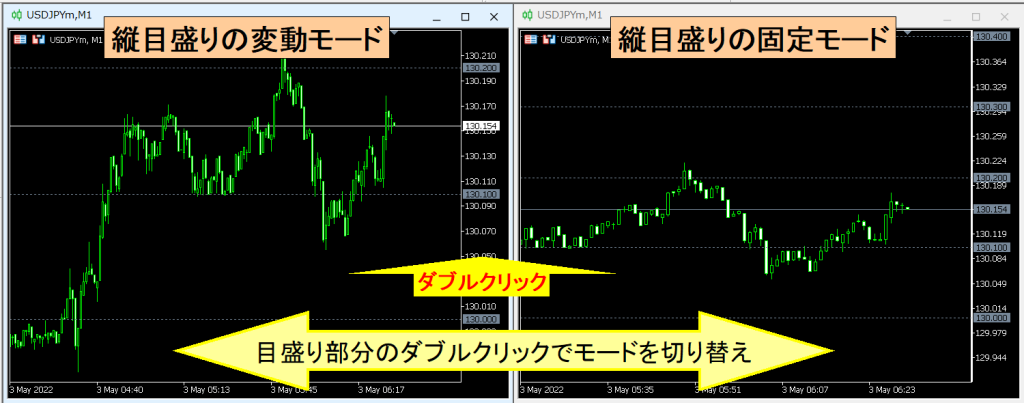
Dynamic mode is the standard MT4/5 mode, drawing horizontal grid lines in pip units from the normal vertical scale. As you scroll, the vertical scale height changes according to market movement, and MT4/5 performs automatic adjustment.
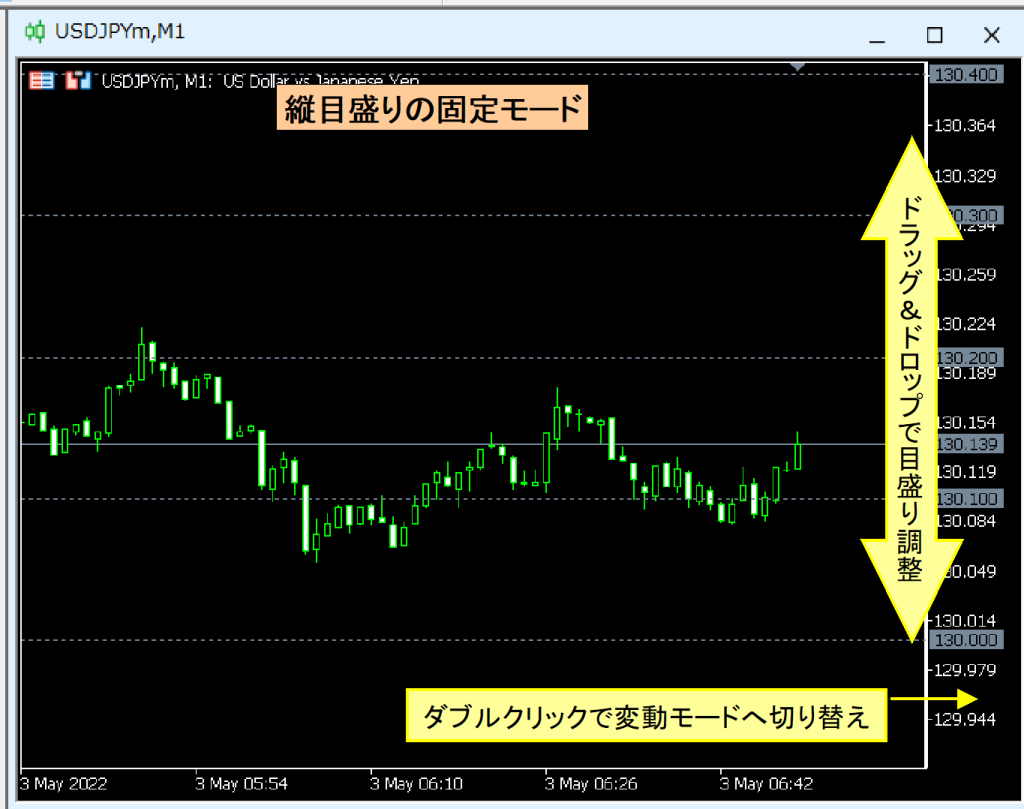
Fixed mode fixes the vertical scale height, displaying the chart at a constant height regardless of market movement. The height remains constant even when scrolling, not affected by volatility changes. You can also adjust the height by dragging the vertical scale.
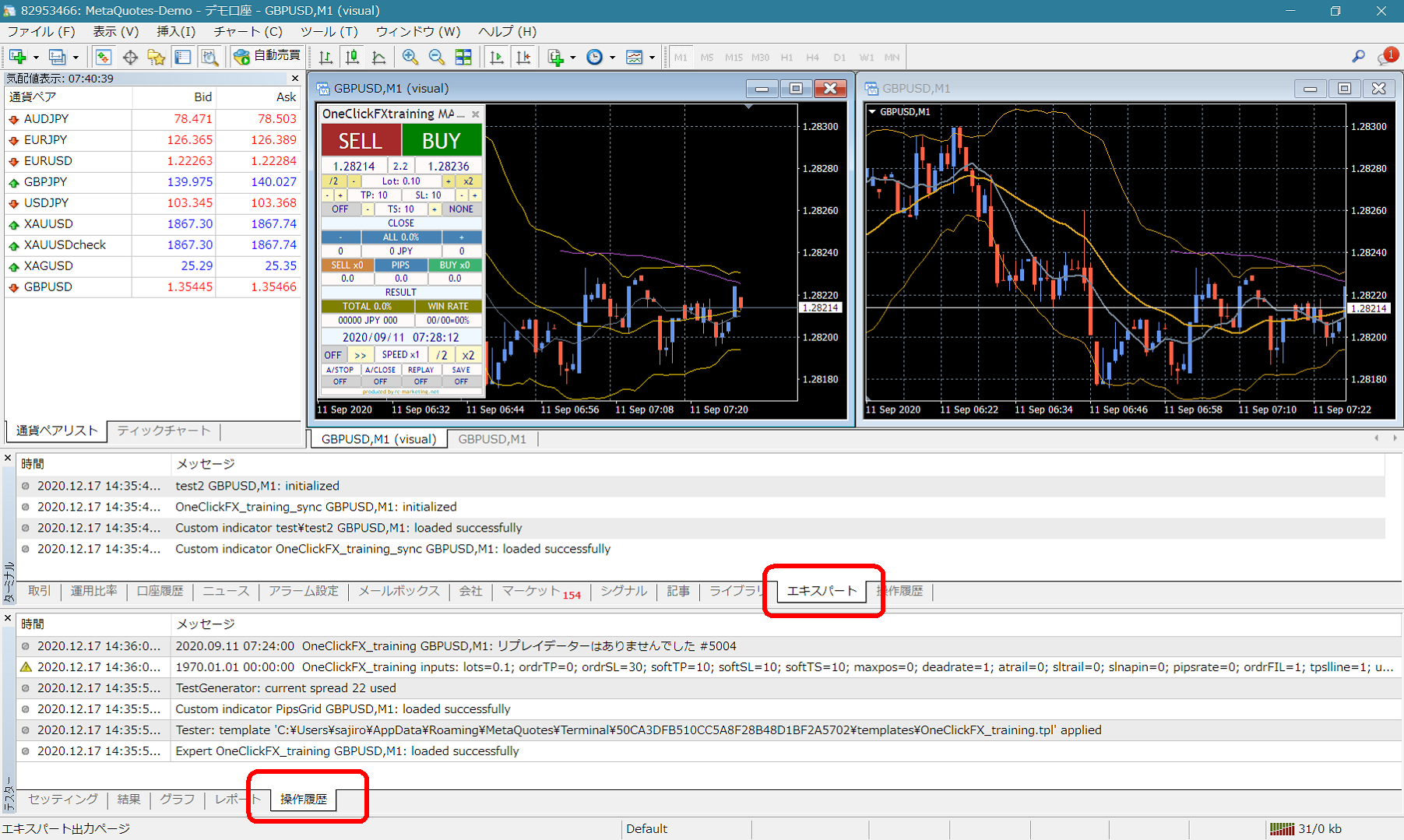 If there are error messages in the Expert or Tester tab of the Terminal history, please let us know so we can respond more smoothly.
Thank you for your cooperation.
If you do not have the product, click here
https://www.gogojungle.co.jp/tools/indicators/22819
■ Product Contents
This is an indicator that displays a grid on MT4/MT5.It draws lines at arbitrary pip units, so you can see volatility changes at a glance.
Conversely, you can also fix the vertical scale, so you can set the chart height to about 30 pips, for example.
■ How to Install
1) In MT4/MT5, choose “Open Data Folder” from the File menu.2) Copy this product into the MQL4/MQL5 Indicators folder.
3) Restart MT4/MT5 and open any chart.
4) Double-click the PipsGrid indicator.
5) The settings screen will appear; press OK to display it.
■ How to Use
▼ Parameter Settings
| Parameter Name | Content |
|---|---|
| Line Color | Color of the horizontal grid |
| Line Style | Horizontal grid line type, dotted Dot, solid line Solid, etc.—thickening to full solid |
| Line Thickness | Thickness of the horizontal grid, thin 1–thick 3 |
| Number of Lines | Specifies the number of horizontal grid lines displayed. If you want finer lines, increase the number. |
| Interval 1M–MN | Set the display interval (in pips) for each time frame. |
| Vertical Grid Line | Whether to display vertical grid lines |
| PIPS=>Points Conversion Coefficient | Enter how many points is 1 PIP. It auto-calculates to zero, but for CFDs and GOLD, where there is no standard rule, enter as needed. |
| Hide Default Grid | Hide MT4/5 default grid. |
| Show Vertical Scale Values | Display grid scale values separate from the standard scale |
| Fixed Vertical Scale Interval | Use fixed scale mode (true) or not (false) |
| Default Number of Vertical Scale Intervals | Specify the number of lines when the scale is fixed. |
| Vertical Scale Top/Bottom Margin (%) | Specify top and bottom margins as a percentage. |
| Double-Click to Toggle Fixed Vertical Scale | If true, double-clicking the vertical scale area on the chart toggles fixed mode. |
■ Mode Switching
You can switch between dynamic mode and fixed mode by double-clicking the scale area.
Dynamic mode is the standard MT4/5 mode, drawing horizontal grid lines in pip units from the normal vertical scale. As you scroll, the vertical scale height changes according to market movement, and MT4/5 performs automatic adjustment.
Fixed mode fixes the vertical scale height, displaying the chart at a constant height regardless of market movement. The height remains constant even when scrolling, not affected by volatility changes. You can also adjust the height by dragging the vertical scale.
■ When You’re Stuck
If it’s not functioning properly, behaving oddly, or stopping suddenly, please first check here.If there are error messages in the Expert or Tester tab of the Terminal history, please let us know so we can respond more smoothly.Thank you for your cooperation.