

MQL Programming for Candle Pines? One-point Explanation ① "How to introduce historical data"
Hello, Candle Mats here.
In this series, we will introduce frequently asked questions about MQL programs!
This time「How to introduce historical data」is about.
We often receive questions like「How should I input historical data?」so we will explain it in this article.
Historical data can be downloaded from MT4 as well, from the MT4 top screen「Tools」⇒「History Center」to open the History Center screen and download past chart data for each currency pair.
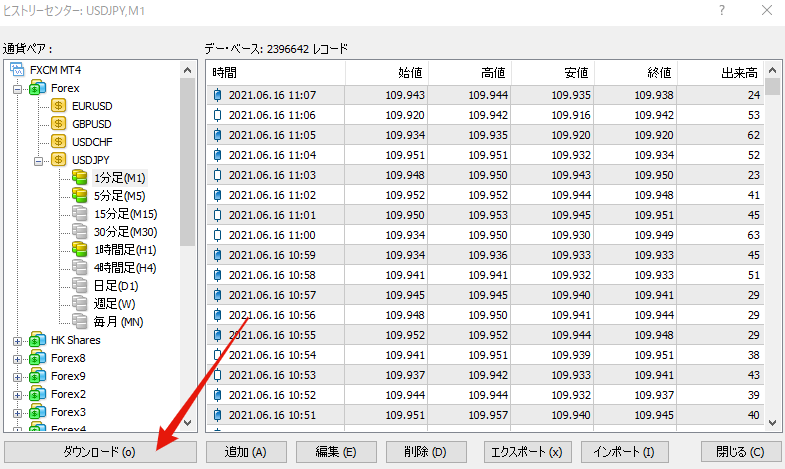
When downloading, beforehand go to MT4.top「Tools」⇒「Options」⇒「Charts」and
「Max bars in history」
「Max bars on chart」
both set to「99999999999999」as the maximum value.
Then, when you press OK, the maximum value will be automatically set to「2147483647」.
However, this method of historical data isnot very reliable, it is said.
There was talk that MT4 from Alpari had higher reliability, but that brokerage currently cannot open accounts from Japan, so those who are going to open an account cannot do so.
Therefore,download historical data from external sourcesand input it into your own MT4, which is the common procedure.
For example
・FXDD
There are brokerages that distribute historical data for free, such as these.
FXTF also exists where you can download historical data if you have an account.
Basically, historical data from FXDD and similar sources should be fine.
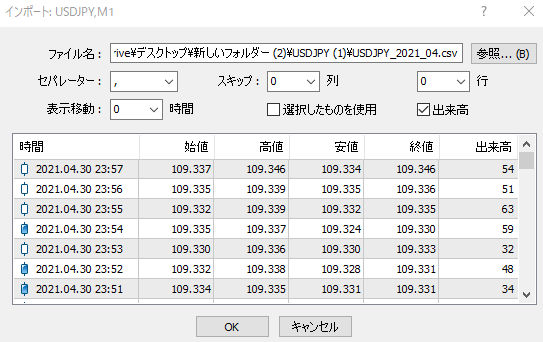
After you have downloaded the historical data, open History Center from MT4, specify the 1-minute bars for the downloaded currency, and「Import」select it.
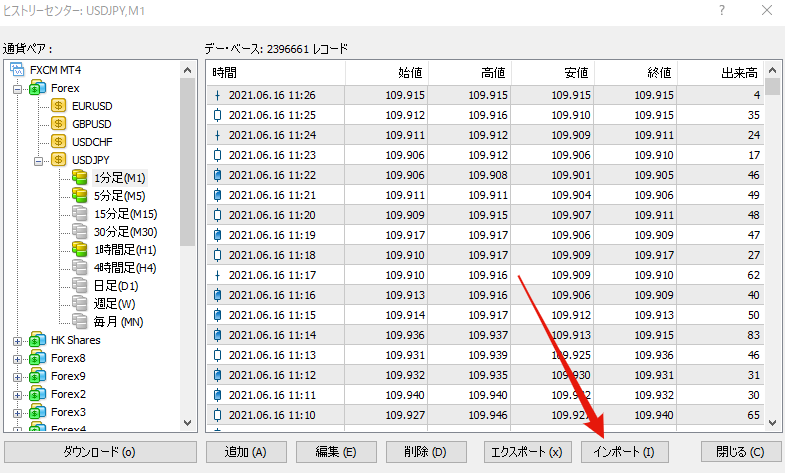
When you press Import, it will switch to the screen below.
「Browse」Choose the downloaded historical data from the button,「OK」and input the data, but there is a caution here.
「Use the selected items」If the checkbox is checked, you must press OK with multiple rows selected for any data to be entered.
Therefore,「Use the selected items」is generallyunchecked.
If you want to import only for 1 year or 2 years, check the period you want and import only that period.
With this, 1-minute historical data has been imported into MT4!
All that can be downloaded here is 1-minute historical databut from this you cangenerate data for other timeframes.
MT4 comes with a built-in script「PeriodConverter」that can be used with the 1-minute data to generate other timeframes.
But there is something more convenient,「PeriodConverterALL」a script.
The tool can be downloadedfrom here.
After downloading, place it in the data folder under “Scripts”.
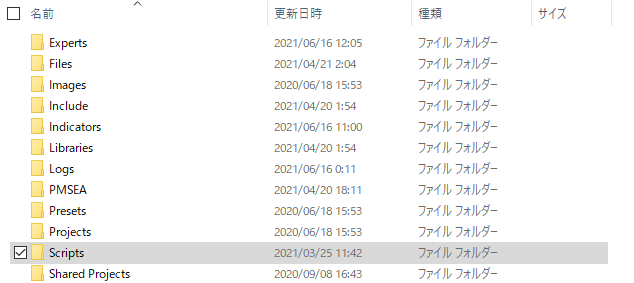
Then from the MT4 screen, go to「File」⇒「Offline Chart」and open the 1-minute chart for the imported currency.
Then, by running the script「PeriodConverterALL」other timeframes will be generated for the same period as the 1-minute data.
With this prepared, the next step is to obtain backtests using the analyzer and backtesting tools.
In my own program,Programming Master Schoolalso distributes backtesting tools, so if you are interested, please join!
Currently, we also offer afree programming courseas shown below, and by registering with LINE via the link, you will receive daily assignments as messages.
With a simple sign tool, you can create content up to a free level, so please take advantage of it (^_^)/
Additionally, as a campaign, I am currently offering my paid-grade EA for free as a gift!
From the link below, register with LINE and follow the steps to submit the entry form to receive the gift!
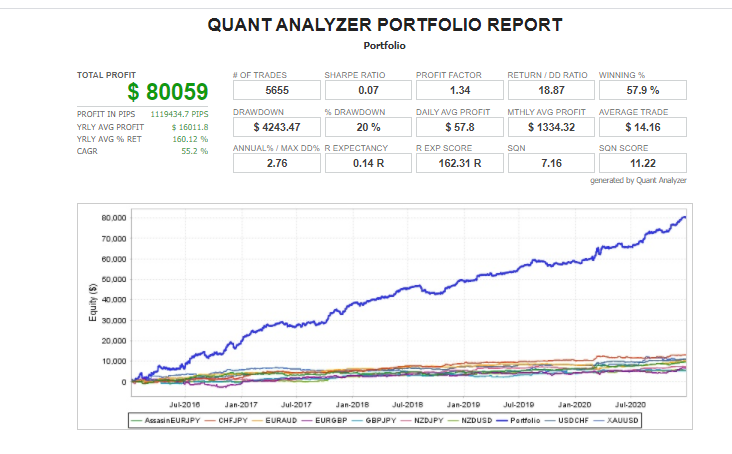
⇓ Here are the backtest results of the gift EA ⇓
Recommended Paid Tools
“Skyhook” a high-win-rate binary options signal tool that achieves over 500% annual return